

LinkedIn Features Explained: 22 Guides
Twenty-two LinkedIn features, each read from LinkedIn's own documentation. Profile, posting, your feed, Pages, Events, Live and Groups, in one index.
LinkedIn's help documentation is spread across separate properties, and the pages behind these 22 guides carry last-updated dates going back as far as five years.
We have been working through them one at a time, reading LinkedIn's own documentation rather than repeating what other sites say about it, and noting where the documentation is silent instead of guessing. This page is the index to that work: 22 guides, grouped by what you are actually trying to do.
It is a map, not a guide. Every sentence below is a pointer to the post that covers the detail.
Automate your LinkedIn for 30 days
Your profile and credibility
The parts of your profile other people contribute to, plus the button most members never get.
LinkedIn Recommendations covers the one-per-position limit, how to request and write one, and who can see them. A signed-out visitor sees only two.
LinkedIn Endorsements explains why endorsements need no approval while recommendations do, the 100-skill cap and its exemption, how to hide one, and what deletes them permanently.
LinkedIn Custom Button covers the seven available labels, the setup steps, and where the button actually appears. It needs Premium Business, Sales Navigator or Recruiter Lite.
LinkedIn Open to Work covers the three visibility choices, the desktop and mobile steps, and the #OpenToWork photo frame. Recruiters only drops the public frame but keeps you in the recruiter spotlight.
How to Update LinkedIn Without Notifying Your Network covers the Share profile updates setting on desktop, the app and mobile browser, and what still reaches your network. Turning it off stops the alerts, but people who view your profile still see the change.
Posting and engagement
What happens after you hit post, and the settings that change who can respond.
LinkedIn Polls covers durations, option limits, the iOS difference, and what voters cannot see. The poll author sees exactly how each person voted, and Page admins see it too.
LinkedIn Reactions gives the meaning of each of the five reactions beyond Like, verbatim from LinkedIn, plus how to add and remove one. Reacting tells your network which one you chose.
LinkedIn Comment Controls covers the three options, the separate steps for Pages, and the platform limits nobody mentions. Your comment setting is saved as the default for every future post.
How to Repost on LinkedIn explains why Repost and Repost with your thoughts are two different features, the desktop and mobile steps, the documented way to delete a repost, and the limits.
How to Tag Someone in a LinkedIn Post covers tagging people and Pages in posts and comments, and what to check when a name will not tag.
Your feed and what reaches you
Controlling what you see, what you keep, and who can reach you.
LinkedIn Follow vs Connect covers what each one gives you, what happens at the cap, and why a declined invite leaves you following. Connections cap at 30,000 and followers are unlimited.
LinkedIn Mute vs Unfollow sets out what each one actually does. Unfollow hides every update and keeps the connection; mute is named on three LinkedIn help pages and explained on none of them.
LinkedIn Saved Posts covers how to save and unsave, where the list really lives on desktop and mobile, what you cannot save, and what LinkedIn never says. The section is called Saved Items, not My Items.
LinkedIn Notifications explains where the settings live and the two layers that control delivery. Turning off a notification type also deletes the ones already in your tab.
How to Remove a Connection on LinkedIn covers the three ways to remove someone and how to withdraw an invitation that has not been accepted. They are not notified, but recommendations and endorsements between you are withdrawn and not restored.
How to Block Someone on LinkedIn covers the steps, what a blocked member can still see, and the 48 hour wait before you can re-block. Blocking removes their endorsements and recommendations, and recommendations never come back.
Automate your LinkedIn for 30 days
Company Pages
Who can do what on a Page, and the two paid or secondary Page products.
LinkedIn Page Admin Roles breaks down all six roles across two groups, what each can do, the seven super admin exclusives, and the prerequisite that blocks most additions.
LinkedIn Showcase Pages covers the real limits, the super admin steps, and when to skip one entirely. A Showcase Page starts at zero followers and cannot post jobs.
LinkedIn Premium Company Page covers the eight features, why only a super admin can buy it, and the admin trap to avoid. LinkedIn does not publish a price for it.
Events, Live and Groups
The three formats with their own rulebooks, access requirements and irreversible settings.
LinkedIn Events covers the setup steps, invitation limits, and how to cancel. Three event fields lock permanently once you post, and registration forms are Pages only.
LinkedIn Live covers the access rules, the setup, and the notification trap. It needs 150 followers, an account at least 30 days old, and a third-party streaming tool.
LinkedIn Groups covers the three group types, what public groups expose, and when a group is worth it. LinkedIn caps you at 15 posts per group per week and 100 memberships.
How to use this index
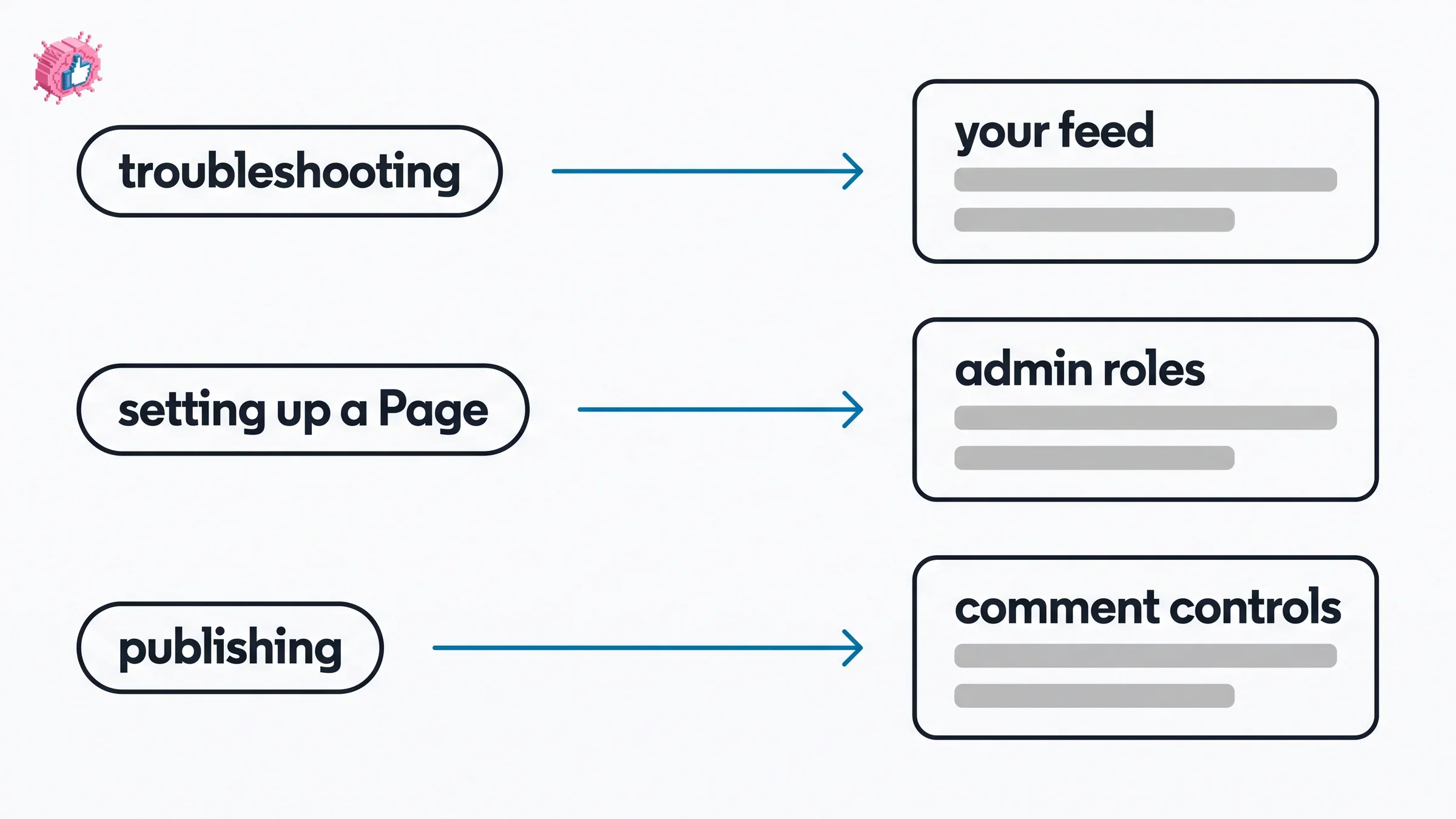
If you are troubleshooting something specific, start with the feed section. It covers the controls over what reaches you and what you can keep, which is where the settings people go looking for usually live.
If you are setting up a Page, read the admin roles guide before anything else. Several Page features are restricted to super admins, and finding that out after you have assigned roles is the expensive order to do it in.
If you are publishing regularly, start with comment controls. It is the one setting in this index that LinkedIn saves as your default for every future post, so getting it wrong once carries forward until you change it.
For turning any of this into a posting habit rather than a settings audit, the LinkedIn content strategy guide and the LinkedIn post generator are the next stops, and pricing covers what a paid plan adds.
FAQ
How many connections can you have on LinkedIn?
Connections cap at 30,000. Followers are unlimited. What changes at the cap, and why a declined invitation leaves you following someone, is covered in LinkedIn follow vs connect.
Can you turn off comments on a LinkedIn post?
Yes, and there are three options rather than a single on-off switch. The setting you pick is saved as your default for every future post, which catches people out. See LinkedIn comment controls.
Can the author of a LinkedIn poll see how you voted?
Yes. The poll author sees exactly how each person voted, and Page admins see it too. Durations, option limits and what voters cannot see are in LinkedIn polls.
What do you need to go live on LinkedIn?
150 followers, an account at least 30 days old, and a third-party streaming tool. The access rules, the setup and the notification trap are in LinkedIn Live.
Where are saved posts on LinkedIn?
Under Saved Items. LinkedIn's help documentation never uses the label My Items. Where the list lives on desktop and mobile, and what you cannot save, is in LinkedIn saved posts.
Does blocking someone on LinkedIn remove their endorsements?
Yes. Blocking removes that member's endorsements and recommendations from your profile, and recommendations never come back. The steps, what they can still see, and the 48 hour re-block wait are in how to block someone on LinkedIn.
How many admin roles does a LinkedIn Page have?
Six, split across two groups. What each one can do, the seven super admin exclusives, and the prerequisite that blocks most additions are in LinkedIn Page admin roles.
What is the difference between endorsements and recommendations?
Endorsements need no approval from you; recommendations do. LinkedIn also allows only one recommendation per position per member. The details are in LinkedIn endorsements and LinkedIn recommendations.
Automate your LinkedIn for 30 days
ViralBrain plans, writes, and schedules your LinkedIn content, using official LinkedIn APIs so your account stays safe.
- Official LinkedIn APIs, no risk of ban
- You approve every post before it goes live
- Cancel anytime
Keep reading
LinkedIn Career Break: How to Add One and Who Sees It
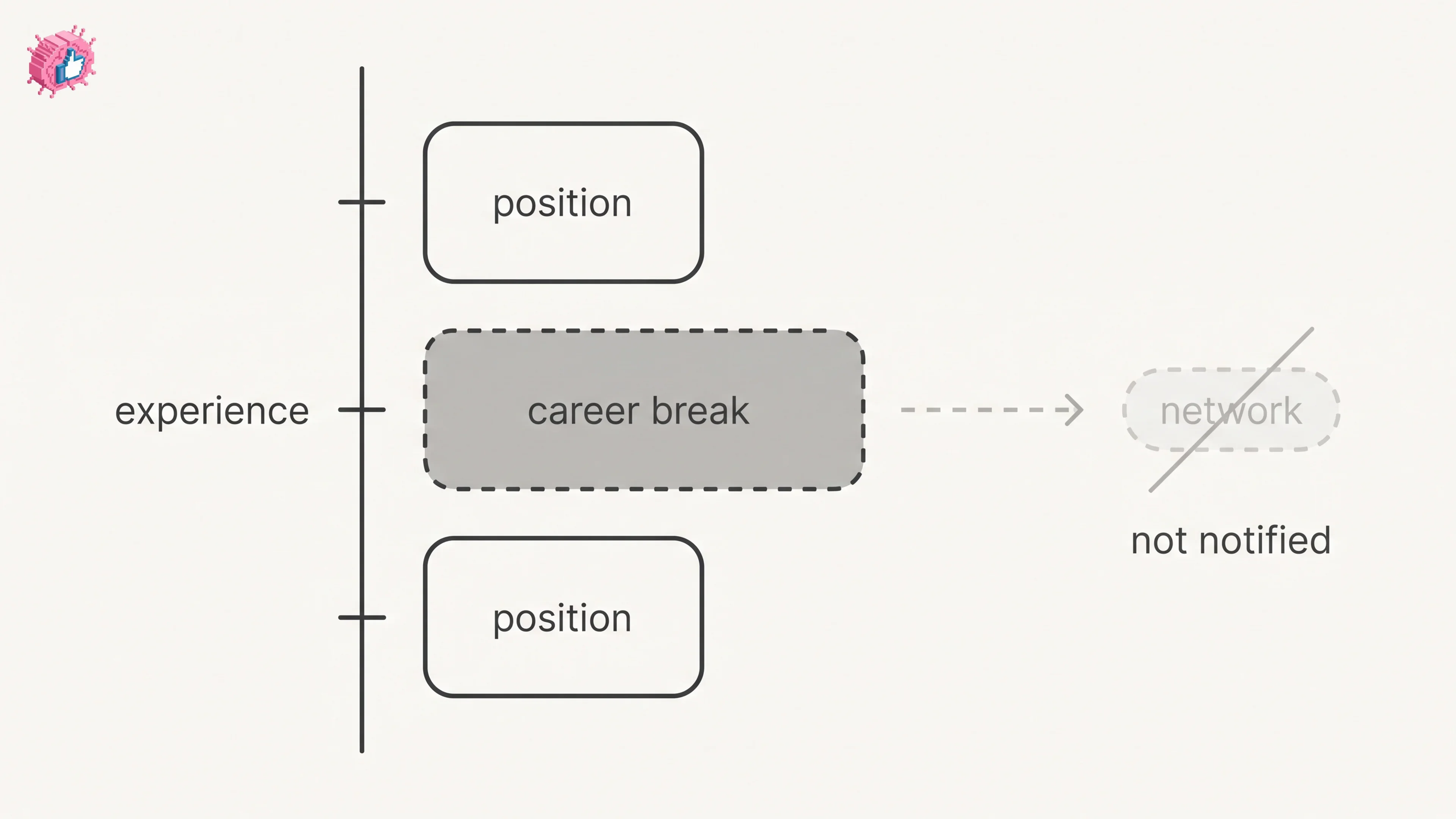
Add a career break on LinkedIn desktop or the app. Your network is not notified, the type is optional, and signed-in members see it. From LinkedIn Help.
How to Add a Certification to LinkedIn Without Posting
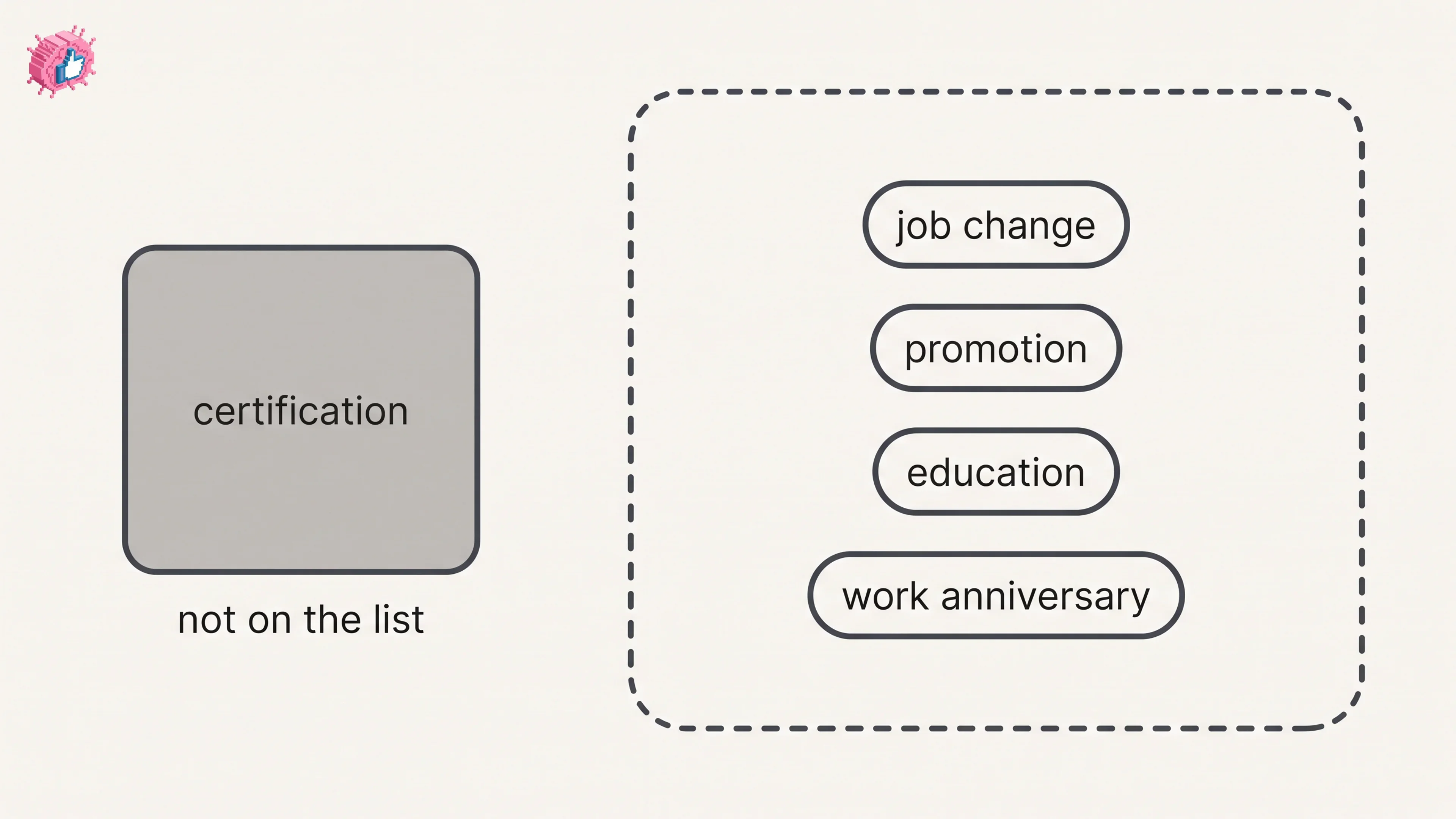
Add a certification on LinkedIn desktop or the app, put credentials after your name, and see what LinkedIn documents about notifying your network.
How to Remove a Connection on LinkedIn: What It Erases
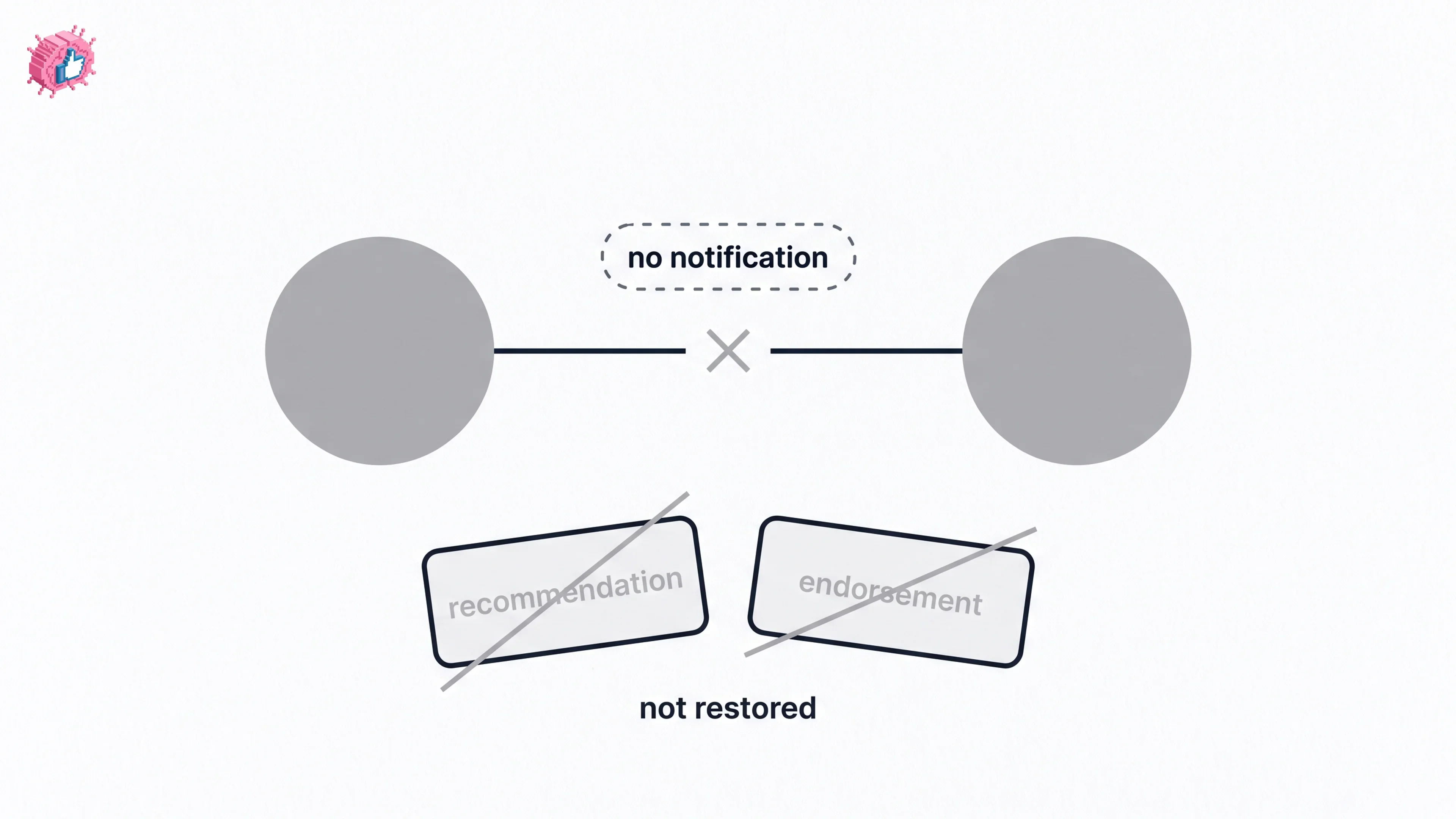
Remove a LinkedIn connection on desktop or the app. They are not notified, but recommendations and endorsements go for good. Steps from LinkedIn Help.