

LinkedIn Comment Controls: Every Option
Your LinkedIn comment setting is saved as the default for every future post. The three options, the Page steps, and the platform limits nobody mentions.
Turning comments off on one LinkedIn post does something most people do not expect. It changes the setting for every post you write afterward.
LinkedIn states it plainly: "when you choose a comment setting, that preference is saved as your default for future posts." Restrict one announcement to connections, forget about it, and every post for the next six months is quietly restricted too.
This guide covers the three options, how to change them before and after posting, the separate and more awkward process for Pages, and the limits LinkedIn applies to comments whether you ask for them or not.
Automate your LinkedIn for 30 days
The three options
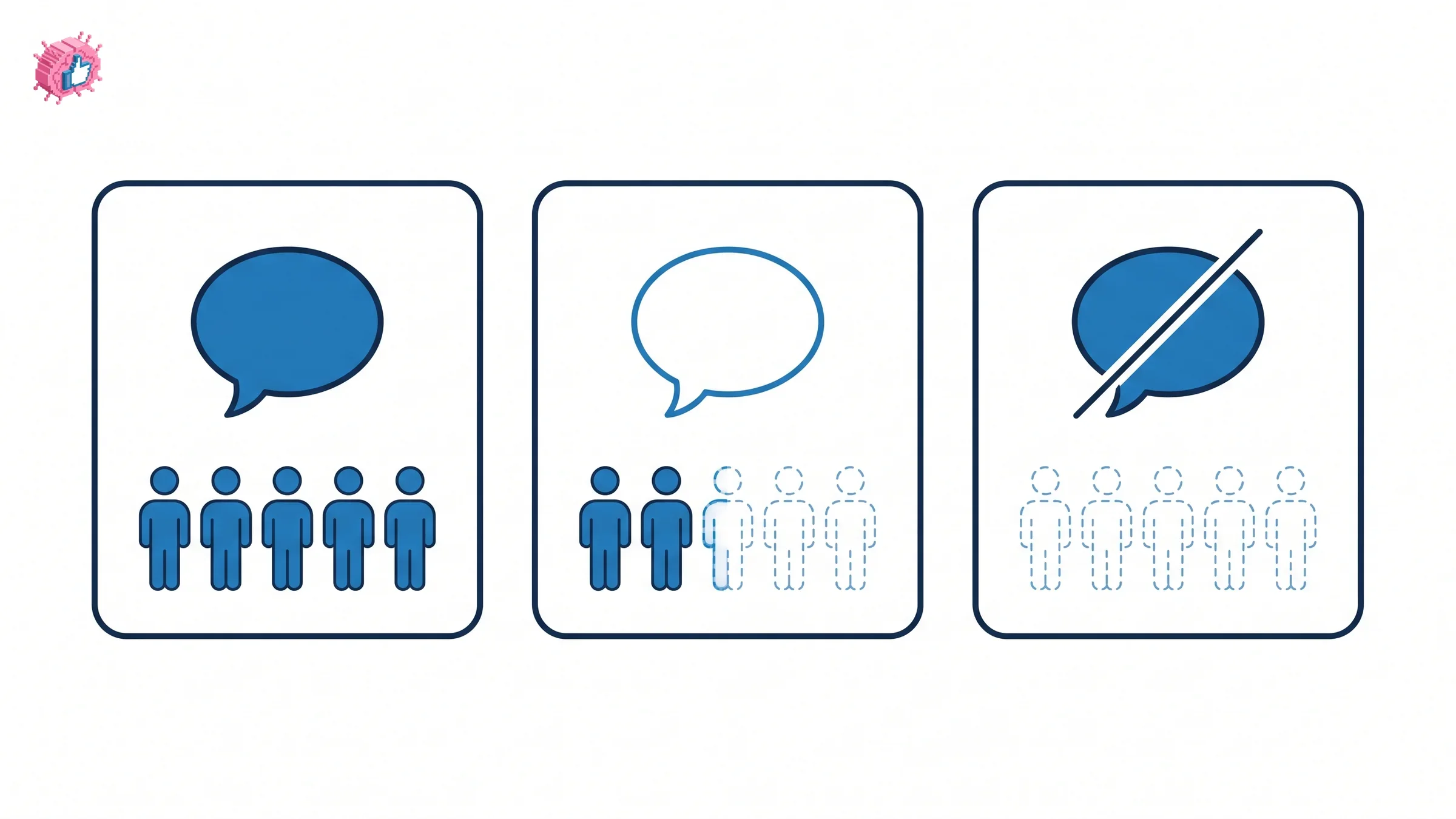
LinkedIn gives you exactly three settings for who can comment:
| Setting | Who can comment |
|---|---|
| Anyone | Everyone |
| Connections only | Your 1st-degree connections |
| No one | Comments off completely |
Two facts about the behavior matter more than the options themselves.
You can change it before or after you share a post. The control exists in both places, so a post that is attracting the wrong replies can be locked down after the fact.
Turning comments off does not delete anything. LinkedIn confirms that "when you turn off comments, existing comments aren't deleted." They stop being added to; what is already there stays visible. If the goal is removing a specific comment, this is the wrong tool.
And then the one at the top of this page: your choice becomes your default. There is no per-post amnesia. Worth checking the setting on your next post if you have ever restricted one.
How to change it on your own post
Before sharing, on desktop:
- Click Start a post
- Click your profile name dropdown
- Click Comment control
- Choose Anyone, Connections only, or No one
- Click Save
After sharing, on desktop:
- Go to the post
- Click the More icon on the upper right
- Click Who can comment on your post?
- Choose your option and click Save
On mobile the shape is the same: tap Post, tap the dropdown next to your profile photo, tap Comment control, choose, and tap Done. For an existing post, tap the More icon on the post and tap Who can comment on this post?.
Pages work differently, and split across two processes
If you are posting as a Page rather than as yourself, the controls live elsewhere and come with platform restrictions that are easy to hit.
Both routes require super or content admin access, which is the permission split covered in LinkedIn Page admin roles.
For a new Page post, LinkedIn notes the feature "is only available on desktop and iOS":
- Go to your Pages super or content admin view
- Click Page posts in the left menu
- Click Start a post
- Click the Page name
- Click Comment control
- Select No One
- Click Save
For an existing Page post, the restriction is tighter still. LinkedIn states this one "is only available on desktop," and the path is genuinely unintuitive:
- Access your Page super or content admin view
- Click View as member to switch to the member view of your Page
- Scroll the Page feed to find the post
- Click the More icon on the post
- Click Who can comment on this post?
- Select No One
- Click Save
That second step is the one people miss. You cannot turn comments off on an existing Page post from the admin view at all. You have to switch to viewing your own Page as an ordinary member first, which looks like the wrong screen and is the right one.
Note the asymmetry: a new Page post can be locked from desktop or iOS, an existing one only from desktop. An Android-only admin cannot do either.
Limits LinkedIn applies without asking
Beyond your own settings, LinkedIn applies its own constraints to commenting.
- Volume limits. "To keep LinkedIn safe and professional, we may limit how many comments a member or a LinkedIn Page can make in a certain time period."
- Automation suppression. "If we detect excessive comment creation or use of an automation tool, we may limit the visibility of those comments." The comments are not removed; they are shown less, which is harder to notice than a block.
- Blocking. Members can block members and Pages from commenting on their posts.
That second point is the practical argument against outsourcing your commenting, and it is the same mechanism that makes engagement pods a poor trade and worth understanding before using any comment generator.
LinkedIn also suggests a lever in the other direction: verifying your Page, and having admins add workplace or identity verification to their accounts, "can help you optimize your Page's content creation and visibility." The verification routes themselves are covered in getting verified on LinkedIn.
Automate your LinkedIn for 30 days
Smaller things worth knowing
- The Author tag. When a member or Page comments on their own post, "an Author tag is displayed next to the name."
- Sorting. Readers can sort comments by Most relevant or Most recent, so the order you see is not the order everyone sees.
- Reactions are separate. Restricting comments does not stop people reacting, and a reaction still broadcasts to the reactor's network, which is covered in LinkedIn reactions.
- Comment alerts are a separate setting. Whether a comment reaches your phone is governed by your notification settings rather than by comment control.
When to restrict, and when not to
Turning comments off is usually the wrong first move. It removes the thing the post was for.
Restrict to connections when a post is personal, when it is attracting replies from people with no context, or when you are announcing something that invites unsolicited pitches.
Turn comments off for genuinely one-way announcements, sensitive news where a public thread would be unkind, or a post already being brigaded.
Leave them open for everything else. Comments are the strongest engagement signal a post can carry, and they are the reason most posts travel at all, as the algorithm rewards conversation over passive views.
If moderation load is the real problem, a quieter fix is to change what you publish and when. Posting when your audience is awake and building an audience that actually knows you does more than a setting, which is the long argument in building a personal brand.
The honest summary
Three options, changeable before or after posting, and one behavior worth remembering: the setting sticks as your default for everything you publish next.
For Pages it is more awkward than it should be. New posts can be controlled from desktop or iOS, existing posts only from desktop, and only after switching to the member view of your own Page.
FAQ
How do I turn off comments on a LinkedIn post?
Before sharing, click Start a post, click your profile name dropdown, click Comment control, and select No one. After sharing, open the post, click the More icon, click Who can comment on your post?, and select No one.
Does turning off comments delete the existing ones?
No. LinkedIn states that "when you turn off comments, existing comments aren't deleted." The setting stops new comments; what is already posted remains visible.
Does my comment setting apply to future posts?
Yes, and this catches people out. "When you choose a comment setting, that preference is saved as your default for future posts," so a restriction you set once carries forward until you change it.
Can I limit LinkedIn comments to connections only?
Yes. Connections only is one of the three settings, and it limits commenting to your 1st-degree connections.
How do I turn off comments on a LinkedIn Page post?
For a new post, use your Pages super or content admin view, click Page posts, start the post, click Comment control, and select No One. For an existing post, switch to View as member, find the post in the Page feed, click the More icon, click Who can comment on this post?, and select No One.
Why can I not turn off comments on my Page post?
Check your device and which admin role you hold. LinkedIn states the new-post control "is only available on desktop and iOS," and the existing-post control "is only available on desktop." Both require super or content admin access.
Can LinkedIn limit my comments even if I have not restricted anything?
Yes. LinkedIn "may limit how many comments a member or a LinkedIn Page can make in a certain time period," and if it detects "excessive comment creation or use of an automation tool," it "may limit the visibility of those comments."
What is the Author tag on a LinkedIn comment?
When a member or a LinkedIn Page comments on their own post, LinkedIn displays an Author tag next to the name so readers can see the comment came from the person who posted.
Automate your LinkedIn for 30 days
ViralBrain plans, writes, and schedules your LinkedIn content, using official LinkedIn APIs so your account stays safe.
- Official LinkedIn APIs, no risk of ban
- You approve every post before it goes live
- Cancel anytime
Keep reading
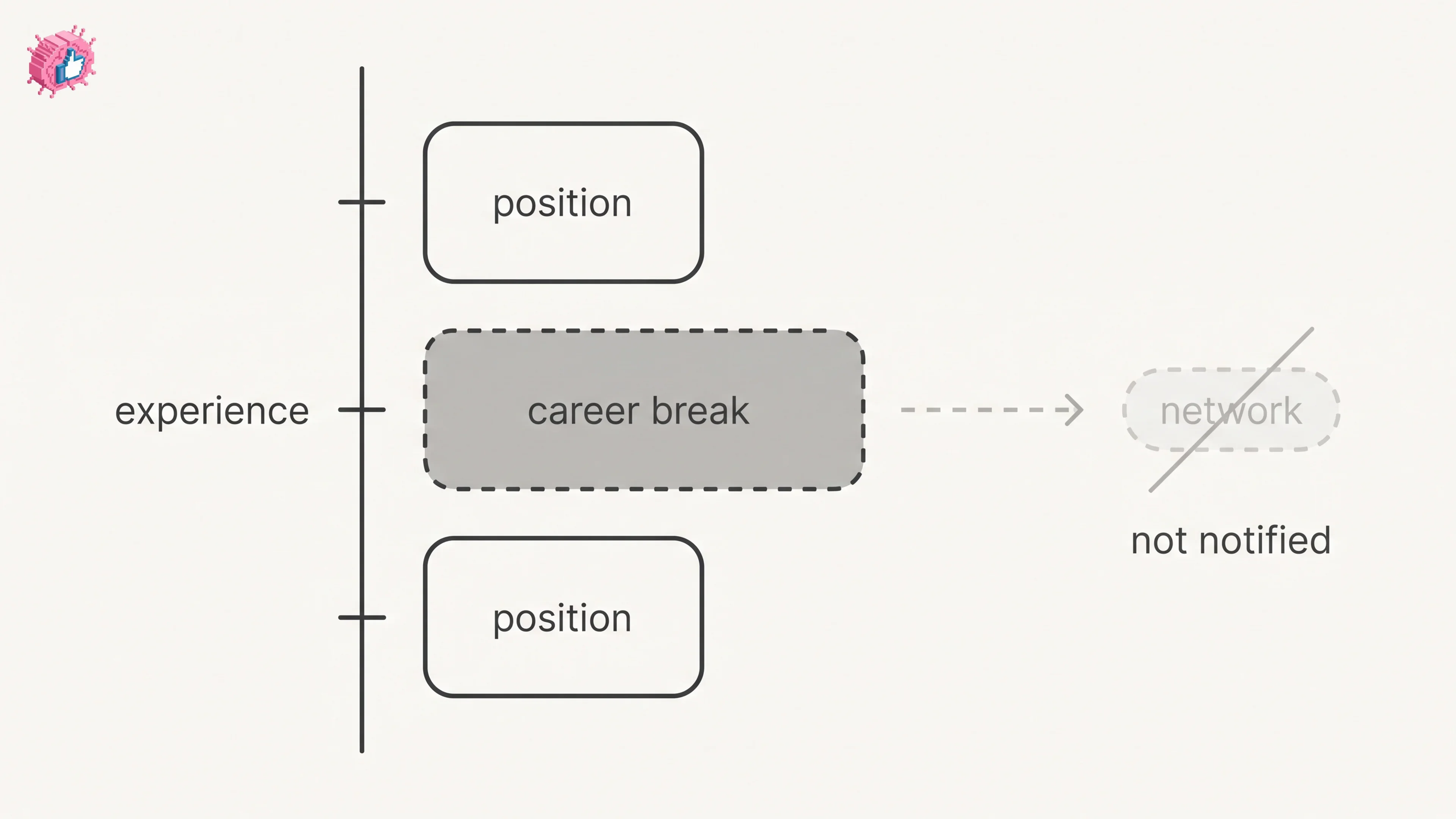
LinkedIn Career Break: How to Add One and Who Sees It
Add a career break on LinkedIn desktop or the app. Your network is not notified, the type is optional, and signed-in members see it. From LinkedIn Help.
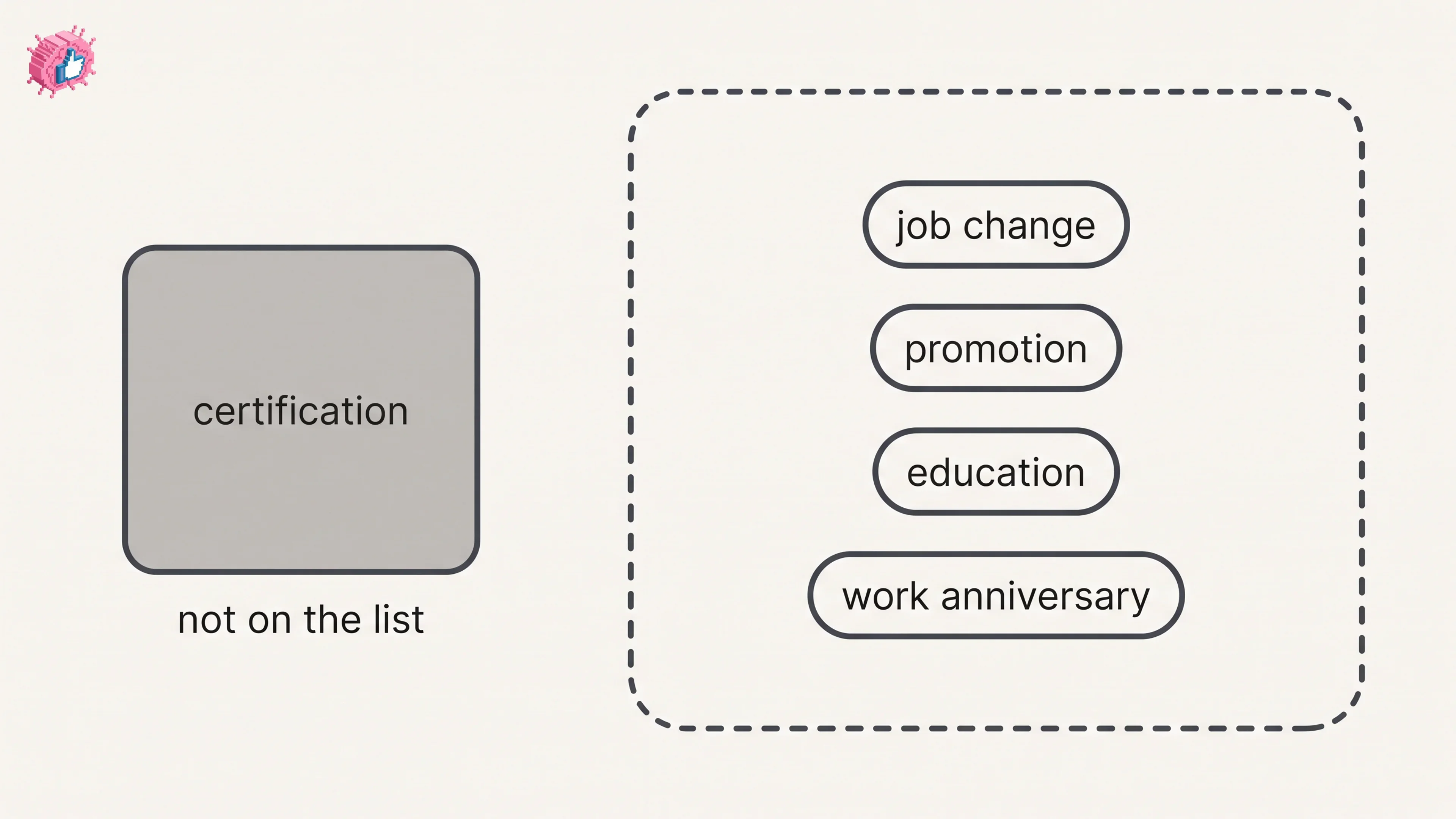
How to Add a Certification to LinkedIn Without Posting
Add a certification on LinkedIn desktop or the app, put credentials after your name, and see what LinkedIn documents about notifying your network.
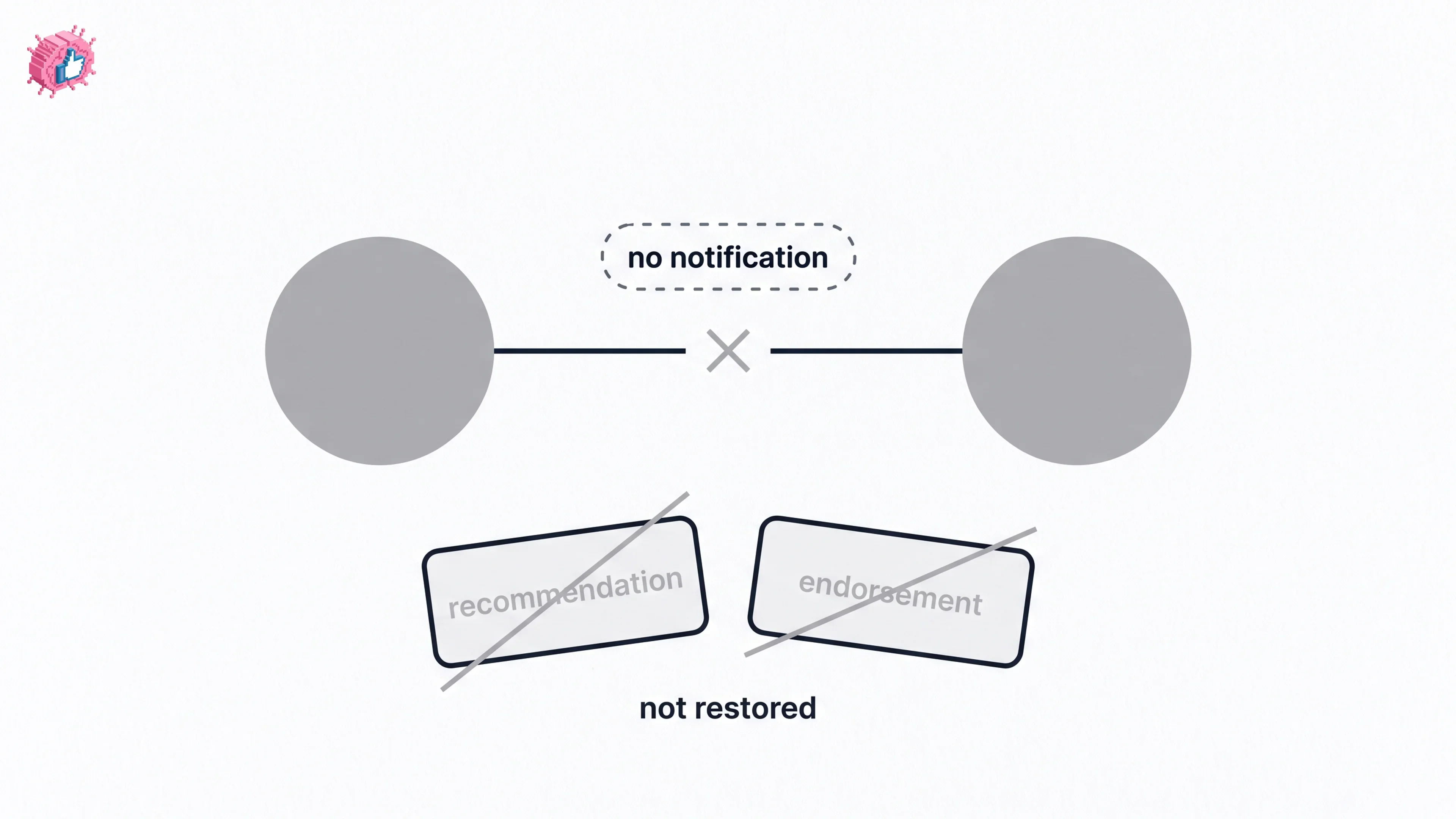
How to Remove a Connection on LinkedIn: What It Erases
Remove a LinkedIn connection on desktop or the app. They are not notified, but recommendations and endorsements go for good. Steps from LinkedIn Help.