

LinkedIn Mute vs Unfollow: What Is Documented
Unfollow hides every update and keeps the connection. Mute is named on three LinkedIn help pages and explained on none. What each one actually does.
Go looking for mute steps on LinkedIn's own help pages and they are not there.
Mute is real. LinkedIn names it on three separate help pages as something you can do to people and companies. What no page I could find does is tell you where the button is, what muting changes, or how to undo it. Unfollow, by contrast, is documented four different ways, with a settings page that keeps a list of everyone you have unfollowed.
That asymmetry is the actual answer to mute versus unfollow, and it is worth understanding before you pick one. This guide covers what each does according to LinkedIn, the steps that exist, the steps that do not, and the two other feed controls people reach for by mistake.
Automate your LinkedIn for 30 days
The short answer
| Unfollow | Mute | Hide a post | |
|---|---|---|---|
| Documented by LinkedIn | In full, with steps | Named only, no steps found | In full, with steps |
| What it affects | All future updates from that person | Their posts, per LinkedIn's wording | One post |
| Connection kept | Yes | Not stated | Not applicable |
| Person notified | No | Not stated | No |
| Reversible | Yes, via a settings list | Not stated | Not stated |
The pattern in that table is the point. For unfollow, LinkedIn answers every question. For mute, it answers one: the feature exists.
What unfollowing actually does
LinkedIn's follow and unfollow page, last updated seven months ago, is unusually direct about the consequences.
It hides everything, not some things. "Unfollowing a person will hide all updates from them on your LinkedIn feed."
You stay connected. This is the one people most often get wrong: "If you're connected to a person and choose to unfollow them, you'll remain connected, but won't see their updates." The connection survives, the feed presence does not.
They are not told. "They won't be notified that you've unfollowed them."
But re-following is not silent. "LinkedIn members will receive a notification if you begin following them again." The action is quiet going out and loud coming back, which is worth knowing before you experiment.
There is also a cap that has nothing to do with connections. LinkedIn states that "members can follow up to 5,000 people who aren't connections". That is a separate ceiling from the connection limit, which is covered along with the underlying relationship model in LinkedIn follow vs connect.
Four ways to unfollow
LinkedIn documents four entry points on desktop. Pick whichever you are already near.
From their profile: click More in the introduction section of the profile, then select Unfollow from the dropdown.
From your feed, without leaving it: click the More icon on the upper right of the post, then click Unfollow [name]. This is the fastest one and the reason most people never visit a settings page.
From the People I Follow page: click the My Network icon, click People I Follow under Manage my network in the left pane, then click Following under the person's name. It changes back to Follow.
From your feed preferences: the feed preferences page describes a slightly different route, through My Network, then Following & followers under Manage my Network, then the Following tab. Clicking Following next to a person or company opens an Unfollow dialog.
On mobile the same actions exist with different gestures. The feed route is identical, and the People I Follow route runs through My Network, then Manage my network, then People I follow, then the More icon next to the person's name.
One useful note from the feed preferences page: "All edits to your feed preferences made on the LinkedIn mobile app will be applicable on the desktop experience as well." You do not have to clean up your feed twice.
The list of everyone you unfollowed
This is the part almost nobody knows exists, and it is the strongest practical argument for choosing unfollow.
LinkedIn keeps a People you unfollowed list in your settings. On desktop: click the Me icon, select Settings & Privacy, then under Account preferences and Site preferences, click People you unfollowed. Click Follow next to a name to reverse it.
On mobile: tap your profile photo, tap Settings, tap Account preferences, then under Site preferences tap People you unfollowed.
So unfollowing is recorded, reviewable and reversible from one screen. No equivalent list for muted people appears on any of the help pages I checked, which means that if you mute someone you have no documented way to see who you have muted or to undo it in bulk.
What LinkedIn actually says about mute
Three pages name the feature. None explains it.
The feed preferences page says: "You can follow, unfollow, or mute people and companies for topics you're interested in from desktop experience and the LinkedIn mobile app." Then it gives instructions for unfollowing only.
The feed best practices page lists it as one control among several: "Unfollow or mute people or companies. You can unfollow or mute people or companies if you no longer want to see their posts." It says these run "through the control menu" and stops there.
The LinkedIn Feed overview widens the scope: "You can follow, unfollow, or mute people, companies, and hashtags." Hashtags appear only here.
So here is what is genuinely documented about feed mute: it applies to people and companies, possibly hashtags, it is reached through the control menu, and its purpose is to stop seeing someone's posts. Everything else you will read about it, including whether the person can tell, whether it expires, and exactly which menu item to click, is not on these pages.
Two of the three pages are three years old. The Feed overview is seven months old and still names mute, so this is not simply a retired feature that nobody cleaned up.
But there is a counter-signal worth weighing. The freshest relevant page, hide content in your feed, updated two months ago, is the one that actually enumerates the author-level options on a post. It lists them as "the available author-specific option, such as Unfollow or Hide posts from [author]". Mute is not among them. A two-month-old page describing exactly the menu where mute is supposed to live does not mention mute at all.
That does not prove anything about the live product, and I have not walked the interface to check. It does mean the honest position is that mute is named in LinkedIn's documentation and absent from LinkedIn's most current description of the menu it would appear in.
Automate your LinkedIn for 30 days
Mute in Messaging is a different feature entirely
Part of the confusion is that LinkedIn has a second, unrelated mute, and this one is documented properly.
Muting a conversation in LinkedIn Messaging stops notifications for new messages, mentions and message reactions. The steps exist in full: click the Messaging icon, open a conversation, click the More icon in the upper-right corner, then click Mute. A Muted icon appears next to the conversation. Unmuting reverses it from the same menu. On mobile, swipe left on the conversation, tap More, then tap Mute.
This is a useful comparison, because it shows what LinkedIn documentation looks like when a mute feature is fully supported. Feed mute gets one sentence on three pages. Conversation mute gets desktop steps, mobile steps, a visual confirmation and an undo path.
Hiding a post is the third option
If your goal is one bad post rather than one person, neither mute nor unfollow is the right tool.
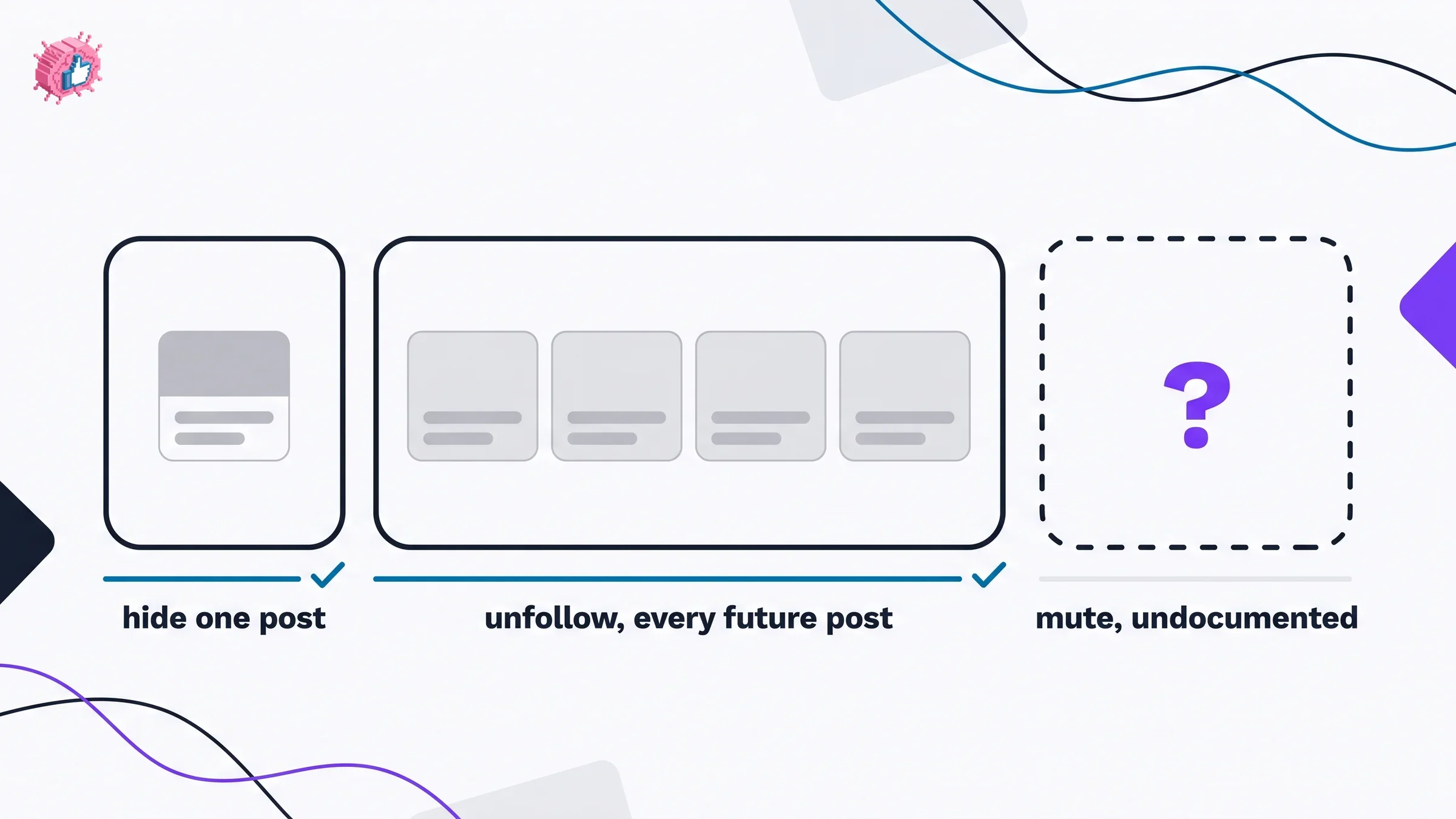
The hide content page sets out a clean decision table. To stop seeing a specific post, use X or Not interested. To see fewer similar posts in future, use Not interested. To reduce content from a specific person, Page or company, use the author-specific option such as Unfollow or Hide posts from [author].
The steps: click the More icon on the upper right of a post, then click Not interested or Hide a posts by [Name]. The odd phrasing there is LinkedIn's own.
Two notes matter. "Members won't be notified when you hide their post." And hiding is not reporting: "Hiding a post doesn't report it to LinkedIn." If something breaches the Professional Community Policies, hiding it does nothing about it.
Which one to use
Unfollow when the person is a keeper but the posting is not. You stay connected, they are not told, everything they post disappears from your feed, and you can reverse it from the People you unfollowed list. It is the only one of the three with a documented undo.
Hide the post when the problem is one post. It is precise, it is silent, and Not interested feeds the recommendation system so you see fewer like it.
Treat mute as undocumented. If you find it in your interface, it may do exactly what you want. But you will be using a control with no published behavior, no stated notification rule and no visible list of who you have applied it to. For a feed you plan to maintain over years, that is a weaker foundation than unfollow.
All three of these govern what reaches you. The controls pointing the other way, over who can reply to what you publish, are a separate set covered in LinkedIn comment controls.
A tidier feed is also a better measurement environment. If you are tracking what your own content does rather than what your network's content does, LinkedIn engagement benchmarks and the viral score checker are free to use without an account, and the ranking side is covered in the LinkedIn algorithm guide.
The honest summary
Mute versus unfollow is not a close comparison, because only one of them is documented. Unfollow hides every update, preserves the connection, notifies nobody on the way out, notifies them if you come back, and keeps a reversible list in your settings. Feed mute is named on three LinkedIn pages and explained on none of them, and the freshest page describing that menu lists Unfollow and Hide posts from [author] without it.
Use unfollow for people, hide for posts, and treat any tutorial that confidently walks you through muting steps as describing something LinkedIn has not put in writing.
If the goal behind the cleanup is spending less time in a noisy feed and more on your own output, the LinkedIn content strategy guide and the LinkedIn post generator are the useful next stops, and pricing covers what a paid plan adds.
FAQ
What is the difference between mute and unfollow on LinkedIn?
Unfollow is fully documented: it hides all updates from that person, keeps your connection intact, and does not notify them. Mute is named on LinkedIn's feed pages as something you can do to people and companies, but no page gives steps, states whether the person is notified, or explains how to undo it.
Does unfollowing someone on LinkedIn remove them as a connection?
No. LinkedIn states that "if you're connected to a person and choose to unfollow them, you'll remain connected, but won't see their updates." The connection stays in place and only the feed visibility changes. Why following and connecting are two different relationships in the first place is covered in follow vs connect.
Will someone know if I unfollow them on LinkedIn?
No. LinkedIn states "they won't be notified that you've unfollowed them." Re-following is different: LinkedIn says members "will receive a notification if you begin following them again."
How do I see everyone I have unfollowed on LinkedIn?
Click the Me icon, select Settings & Privacy, then under Account preferences and Site preferences click People you unfollowed. Click Follow next to any name to reverse it. On mobile the path is your profile photo, Settings, Account preferences, Site preferences, People you unfollowed.
How do I mute someone on LinkedIn?
LinkedIn's help pages name muting but do not publish steps for it. They say you can "unfollow or mute people or companies if you no longer want to see their posts" through the control menu. If you need a documented, reversible option, unfollow is the one LinkedIn explains in full.
Is muting a LinkedIn conversation the same as muting a person?
No, and this causes most of the confusion. Muting a conversation in LinkedIn Messaging is a separate, fully documented feature that stops notifications for new messages, mentions and message reactions. It has nothing to do with what appears in your feed.
How many people can I follow on LinkedIn?
LinkedIn states that "members can follow up to 5,000 people who aren't connections." That ceiling applies to non-connections, and it sits alongside the separate limit on connections themselves.
What happens when I hide a post on LinkedIn?
The post is removed from your feed and your feedback may be used to improve future recommendations. LinkedIn notes that members are not notified when you hide their post, and that hiding a post does not report it.
Should I unfollow or mute someone I work with?
Unfollow is the safer choice, because its behavior is published and reversible. You keep the connection, they are not notified, and you can restore the follow from the People you unfollowed list whenever you want.
Automate your LinkedIn for 30 days
ViralBrain plans, writes, and schedules your LinkedIn content, using official LinkedIn APIs so your account stays safe.
- Official LinkedIn APIs, no risk of ban
- You approve every post before it goes live
- Cancel anytime
Keep reading
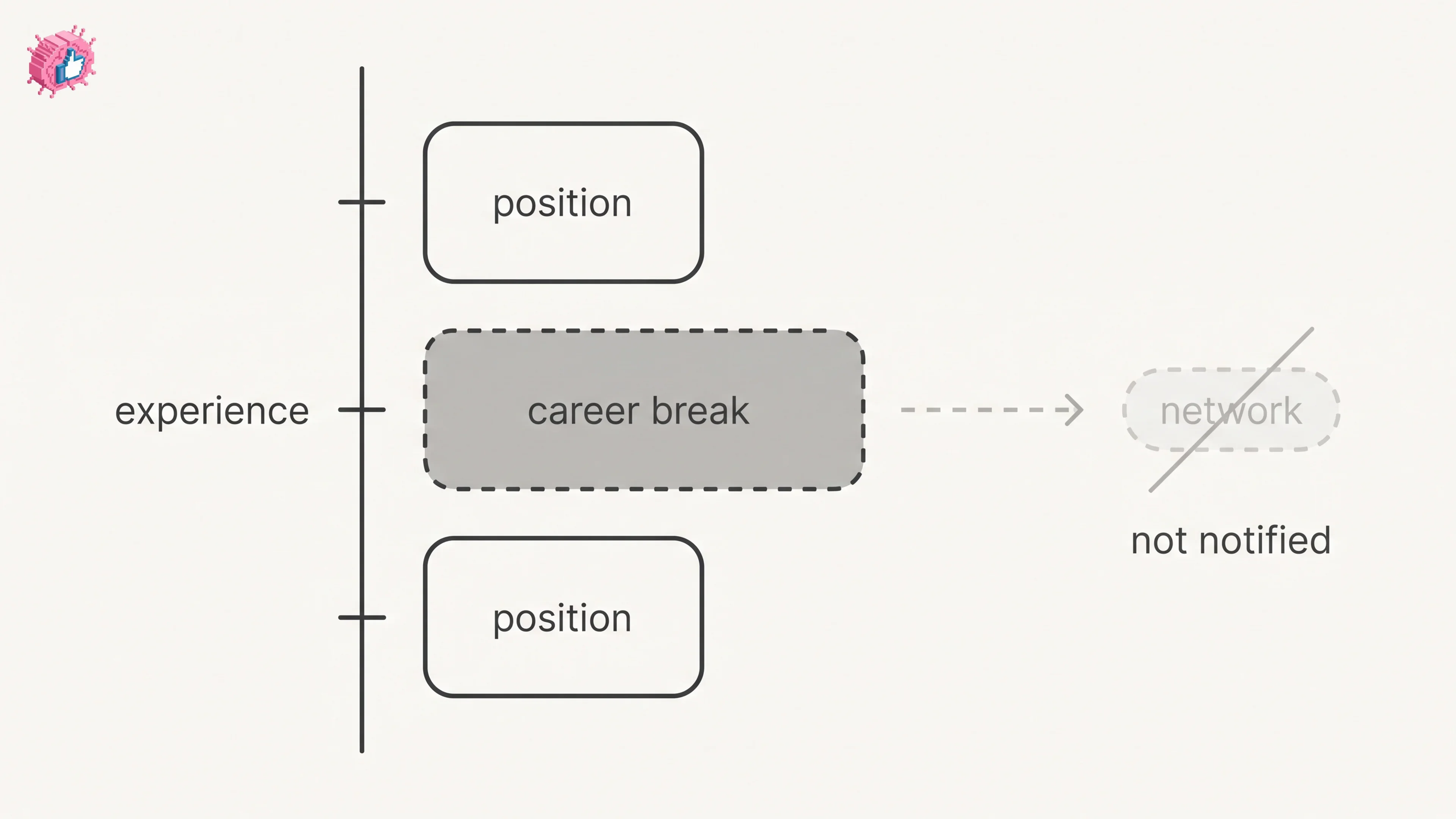
LinkedIn Career Break: How to Add One and Who Sees It
Add a career break on LinkedIn desktop or the app. Your network is not notified, the type is optional, and signed-in members see it. From LinkedIn Help.
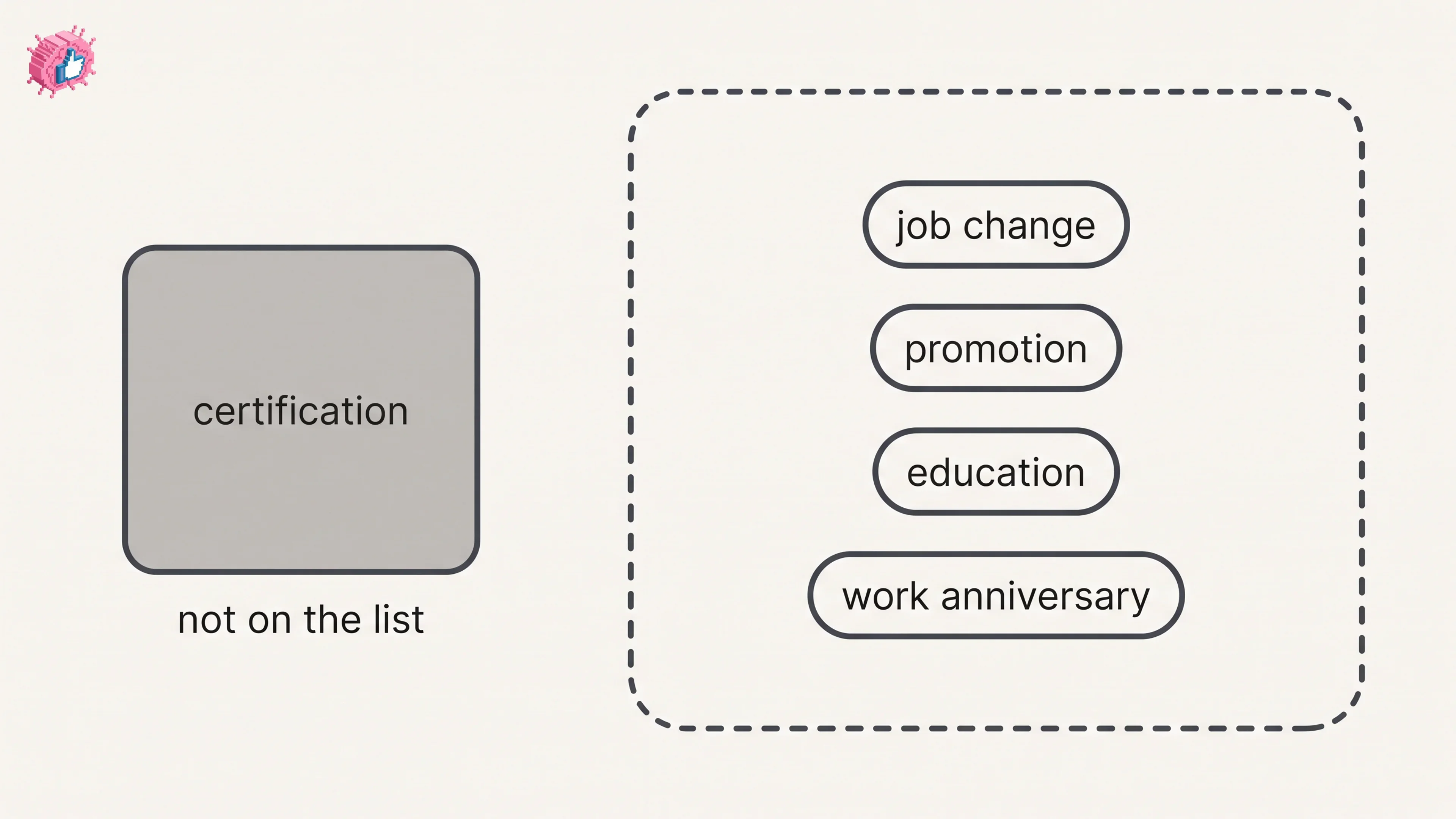
How to Add a Certification to LinkedIn Without Posting
Add a certification on LinkedIn desktop or the app, put credentials after your name, and see what LinkedIn documents about notifying your network.
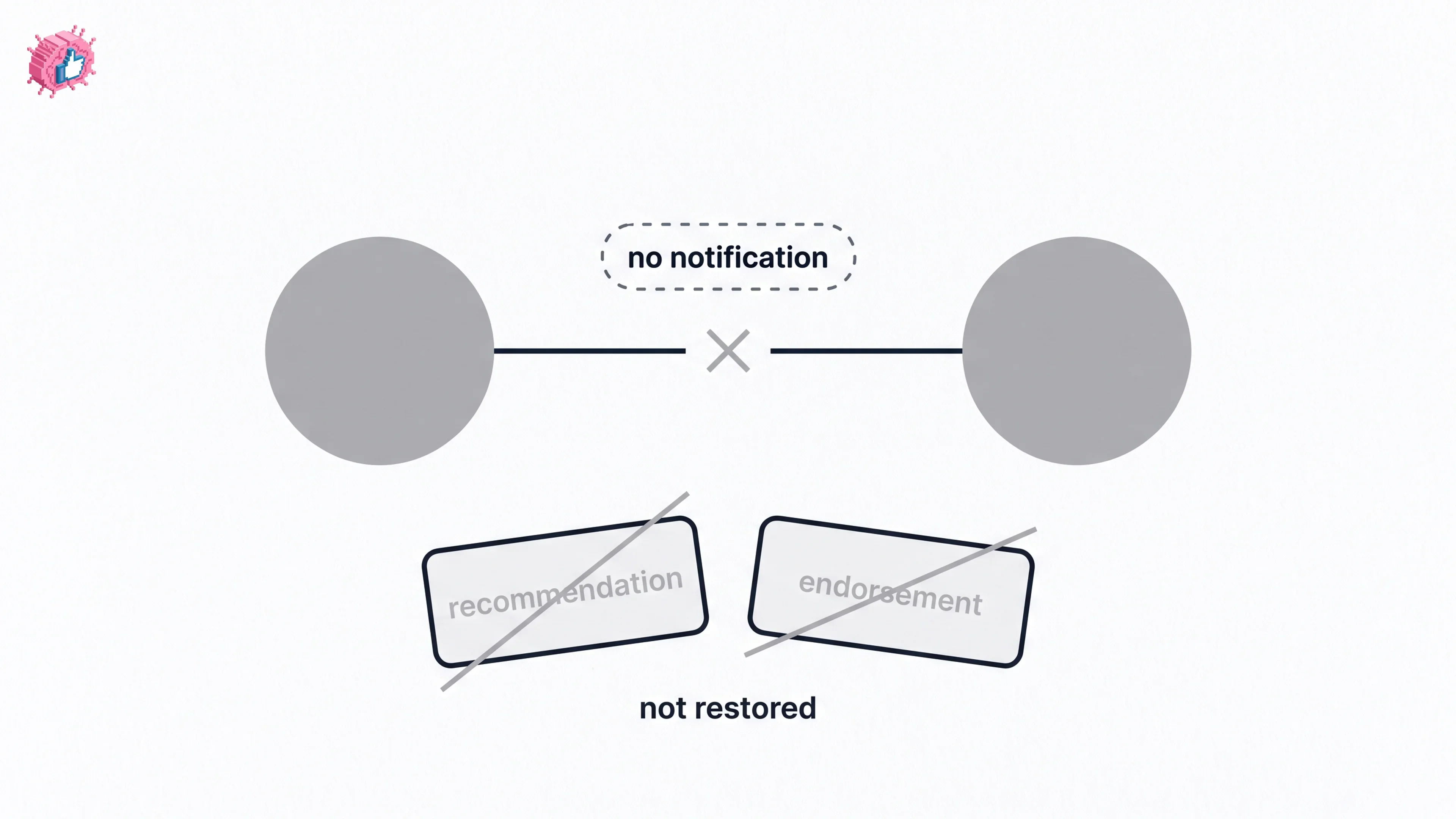
How to Remove a Connection on LinkedIn: What It Erases
Remove a LinkedIn connection on desktop or the app. They are not notified, but recommendations and endorsements go for good. Steps from LinkedIn Help.