

LinkedIn Saved Posts: Where They Actually Are
Saved Items, not My Items. How to save and unsave, where the list really lives on desktop and mobile, what you cannot save, and what LinkedIn never says.
Saving a post on LinkedIn takes two clicks. Finding it again is where people get stuck.
The short version: saving lives behind the More icon on any post, and your saved content lives under Saved Items on desktop or behind your profile picture on mobile. LinkedIn does not publish a URL for it, and it does not use the label "My Items" anywhere in its help documentation.
This guide covers how to save and unsave, where the saved list actually is, what LinkedIn says you cannot save, how saved posts differ from saved jobs and saved courses, and the questions LinkedIn's documentation simply does not answer.
Automate your LinkedIn for 30 days
How to save a post
LinkedIn's page on saving feed content gives the same two steps on both platforms.
On desktop:
- Click the More icon on the upper right of the content you want to save
- Click Save from the dropdown
On mobile:
- Tap the More icon at the upper right of the content
- Tap Save from the dropdown
A banner then appears briefly confirming it. On desktop LinkedIn places that banner on the lower left of the page, on mobile at the top or bottom of the screen, and it carries a View Saved Posts link. That link is the fastest route to your list, and it disappears with the banner.
Worth noting what the feature covers: LinkedIn describes it as saving "posts and articles you view in your feed", from either the desktop website or the mobile app.
Where your saved posts actually live
Here is the part that trips people up. LinkedIn documents a navigation path, not an address.
On desktop:
- Click Saved Items on the left pane of your LinkedIn homepage
- Click Saved posts and articles from the list under Saved items
On mobile:
- Tap your profile picture
- Tap Saved posts
That is the whole documented route. LinkedIn's page never gives a direct URL for the saved list, so any link you have been handed for it came from somewhere other than LinkedIn's help documentation.
About the "My Items" instructions
You may have seen instructions pointing to a section called My Items, sometimes alongside a Resources menu. Those instructions do not match LinkedIn's own page.
I checked the served text of LinkedIn's saved-content article across four of its help properties: the main LinkedIn help center, the Learning help center, the Marketing Solutions help center, and the older numbered version of the same article. The phrase "My Items" appears zero times on all four. The phrase LinkedIn uses is Saved Items, which appears on every one of them.
So the section is real, the name is different, and LinkedIn's documented path has no Resources step. If you are hunting for "My Items" in your left pane and not finding it, that is why.
One caveat in the other direction. LinkedIn's saved-content page was last updated two years ago, so it describes the interface as it stood then. If your left pane looks different, trust your screen over any guide, including this one.
How to unsave
Unsaving happens from inside the saved list rather than from the original post.
On desktop: open your saved posts and articles, click the More icon on the upper right of the item, then click Unsave.
On mobile: open Saved posts, tap the More icon on the upper right of the item, then tap Unsave.
LinkedIn's wording is that "the content is unsaved". Nothing on the page describes a bulk action, an undo, or a trash state, so treat unsaving as immediate and one item at a time.
What you cannot save
LinkedIn flags four exclusions in a note on the same page, and they are all things that show up in your feed looking saveable.
- Jobs recommended for you
- Follow recommendations
- Work anniversary updates
- Profile change updates
The pattern is that algorithmic suggestions and status updates are outside the feature. Saving is for posts and articles, meaning the things a person or Page actually published.
Recommended jobs are the interesting exclusion, because jobs are saveable, just not from the feed and not into this list.
Automate your LinkedIn for 30 days
Saved posts, saved jobs and saved courses are three different places
This is the source of a lot of confusion, and LinkedIn keeps the three genuinely separate.
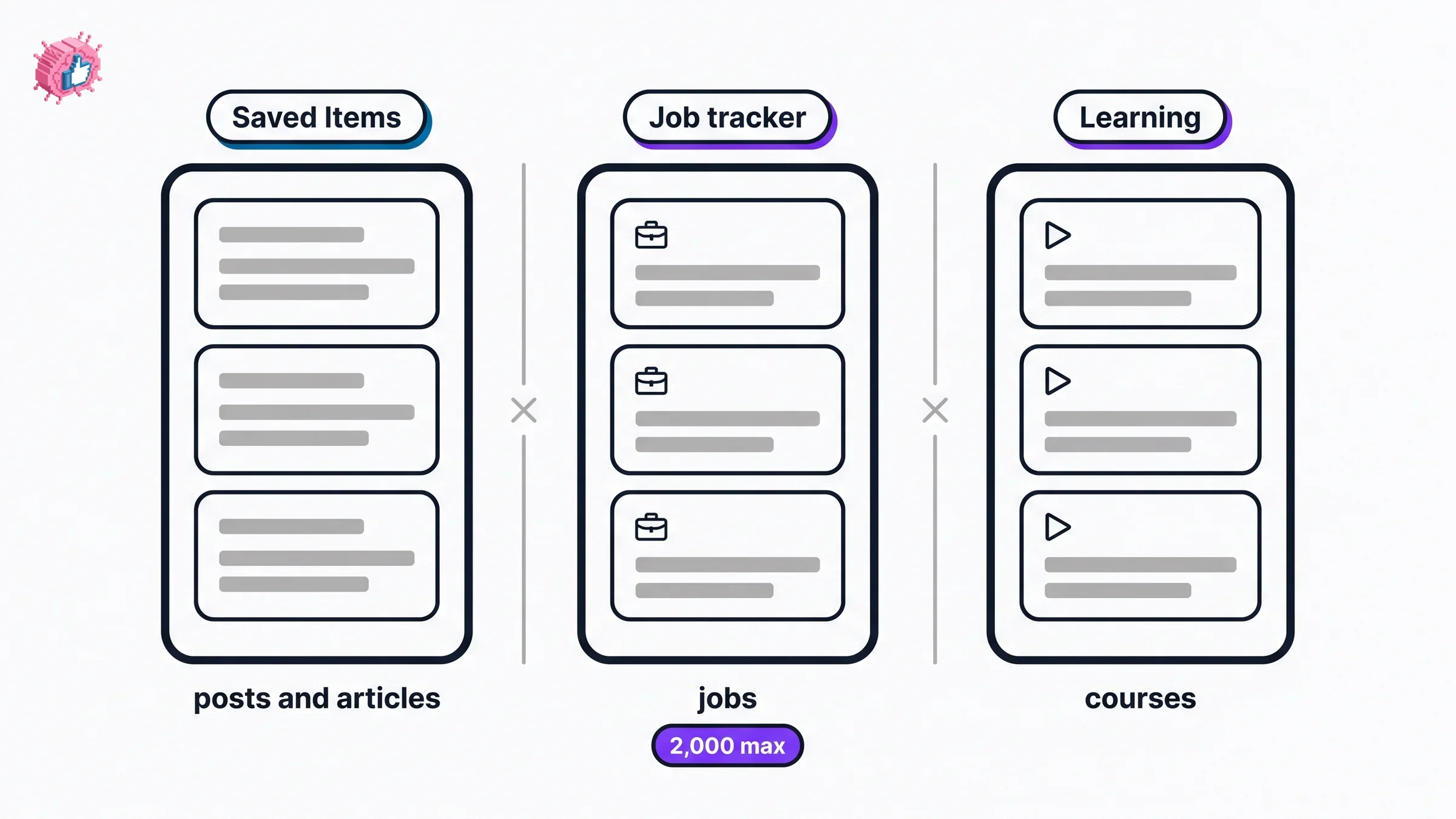
| Where you save from | Where it lives | Documented limit | |
|---|---|---|---|
| Posts and articles | The More icon on feed content | Saved Items, then Saved posts and articles | None stated |
| Jobs | The Save button on a job details page | Jobs, then Job tracker, then the Saved tab | 2,000 |
| Learning courses | The Save icon on a course or video | LinkedIn Learning | No limit, per LinkedIn |
LinkedIn's page on saved jobs is the specific one worth reading if you use that feature, because it publishes real constraints: "the maximum number of jobs that a member can save at any given point is 2000", counting saved and archived jobs but not ones you have applied to, and "currently, there is no way to unsave multiple jobs at once". Saved jobs also get their own workflow that saved posts do not have, with Apply, Change stage, Archive and Unsave actions in a job tracker.
Saved jobs are not reachable from Saved Items at all. LinkedIn routes them through Jobs at the top of your homepage, then Job tracker in the left-hand rail, then the Saved tab, where the More icon next to each job offers Apply, Change stage, Archive and Unsave. Mobile follows the same shape through the Jobs icon. Nothing resembling that workflow exists for saved posts, which get one action.
Saved courses in Learning are a third store again, saved with a Save icon from the Learning homepage or search results.
The practical consequence: saving a job does not put it in your saved posts, and clearing your saved posts does nothing to your saved jobs. If you have ever gone looking for a job you saved and found an empty posts list, this is why.
What LinkedIn does not document
This matters more than usual here, because the gaps are exactly the things people want to know. On the pages covering saved feed content, LinkedIn does not state:
- Whether saving is private. The page never says whether the author is notified or can see who saved a post. It is silent, not reassuring.
- Whether there is a limit. A cap is published for saved jobs (2,000) and none is published for saved posts. Absence of a stated cap is not the same as no cap.
- Whether you can organize saved posts into folders or collections.
- Whether you can search within your saved list.
- What happens when the original is deleted by its author.
- Whether saves expire.
Anything you read confidently asserting answers to those is going beyond LinkedIn's documentation. It may still be correct, and you can verify most of it on your own account in a minute, but it is not published.
Using saved posts as a content system
The feature is a read-later list, not a research tool, so its value depends on what you do with the list.
Save the structure, not just the subject. A post worth saving is usually one that did something well mechanically: an opening line that made you stop, a way of laying out a list, a reveal held to the last line. The topic is rarely the reusable part. If you are studying openings specifically, a LinkedIn hook generator gives you variations to compare against what you saved.
Review on a schedule, because nothing reminds you. There is no notification, no resurfacing and no expiry in the documented behavior. A saved list that is never reopened is just a place posts go to be forgotten. Pair the review with whatever cadence you already use for planning, as in the LinkedIn content strategy guide.
Unsave aggressively. Since there is no documented folder system and no bulk unsave, a list you never prune becomes unusable. Treat it as a queue rather than an archive.
Know when to save and when to repost. Saving is private and passive; reposting puts the post in front of your network and starts a different set of rules. How to repost on LinkedIn covers that side, including the audience settings that only one of the two repost options offers.
If saved posts are your raw material for writing, the practical next steps are turning patterns into drafts with a LinkedIn post generator or starting from viral post templates, and checking the result in a LinkedIn post preview before you publish. For deciding what to write in the first place, what to post on LinkedIn and how to write a LinkedIn post are the fuller treatments, and pricing covers what a paid plan adds.
The honest summary
Saving is two clicks behind the More icon. Retrieving is Saved Items then Saved posts and articles on desktop, or your profile picture then Saved posts on mobile. Not "My Items", which appears nowhere in LinkedIn's documentation, and not a URL, because LinkedIn publishes none.
You cannot save recommended jobs, follow recommendations, work anniversaries or profile change updates. Saved posts, saved jobs and saved courses are three separate lists with three separate homes, and only saved jobs come with a published cap.
Everything else people confidently tell you about saved posts, starting with whether anyone can see what you saved, is not in LinkedIn's help pages. Check it on your own account rather than trusting a write-up, and note that the page describing this feature is two years old.
FAQ
How do I save a post on LinkedIn?
Click or tap the More icon on the upper right of the post, then select Save. A banner appears briefly confirming the save, on the lower left on desktop or at the top or bottom of the screen on mobile, and it includes a View Saved Posts link.
Where are my saved posts on LinkedIn?
On desktop, click Saved Items on the left pane of your homepage, then click Saved posts and articles. On mobile, tap your profile picture, then tap Saved posts. LinkedIn does not publish a direct URL for the saved list.
Is there a "My Items" section on LinkedIn?
Not in LinkedIn's help documentation. The phrase "My Items" appears zero times on LinkedIn's saved-content article across its main, Learning and Marketing Solutions help centers and the older numbered version of the same article. The label LinkedIn documents is Saved Items.
Can people see what I have saved on LinkedIn?
LinkedIn's page on saving feed content does not address this. It does not say whether the author is notified or whether saves are visible to anyone, so the honest answer is that it is undocumented rather than confirmed private.
How do I unsave a post on LinkedIn?
Open your saved posts, click or tap the More icon on the upper right of the item, then select Unsave. LinkedIn states that "the content is unsaved". There is no documented bulk unsave for posts.
What can you not save on LinkedIn?
LinkedIn states you will not be able to save jobs recommended for you, follow recommendations, work anniversary updates, or profile change updates from your feed.
Is there a limit to how many posts you can save on LinkedIn?
LinkedIn does not publish one for saved posts. It does publish one for saved jobs: a maximum of 2,000 at any given point, counting saved and archived jobs but not ones you have applied to.
Are saved jobs and saved posts the same list?
No. Saved posts and articles live under Saved Items. Saved jobs live under Jobs, then Job tracker, then the Saved tab, with their own Apply, Change stage, Archive and Unsave actions. Saved Learning courses are a third separate list.
Automate your LinkedIn for 30 days
ViralBrain plans, writes, and schedules your LinkedIn content, using official LinkedIn APIs so your account stays safe.
- Official LinkedIn APIs, no risk of ban
- You approve every post before it goes live
- Cancel anytime
Keep reading
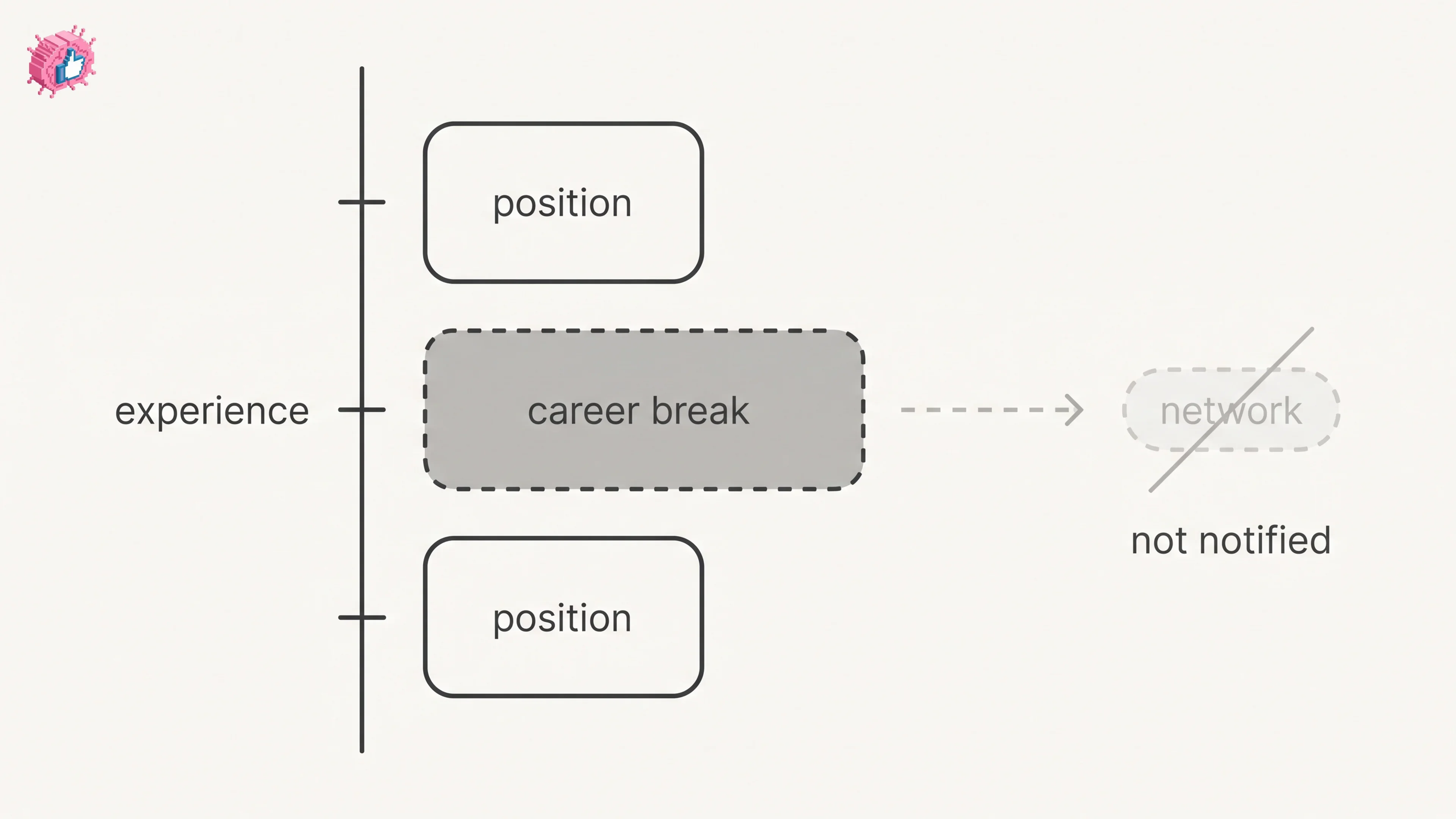
LinkedIn Career Break: How to Add One and Who Sees It
Add a career break on LinkedIn desktop or the app. Your network is not notified, the type is optional, and signed-in members see it. From LinkedIn Help.
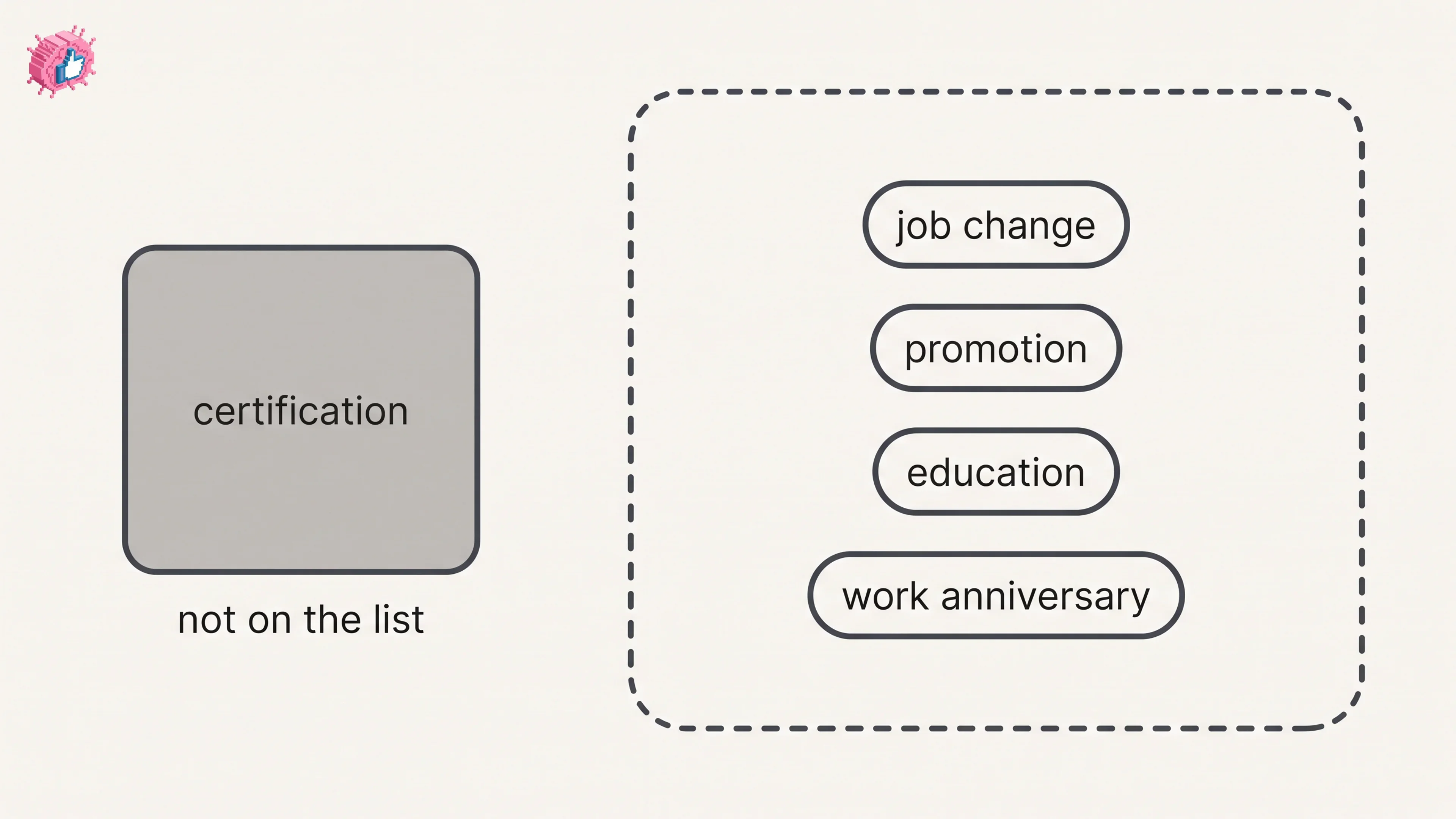
How to Add a Certification to LinkedIn Without Posting
Add a certification on LinkedIn desktop or the app, put credentials after your name, and see what LinkedIn documents about notifying your network.
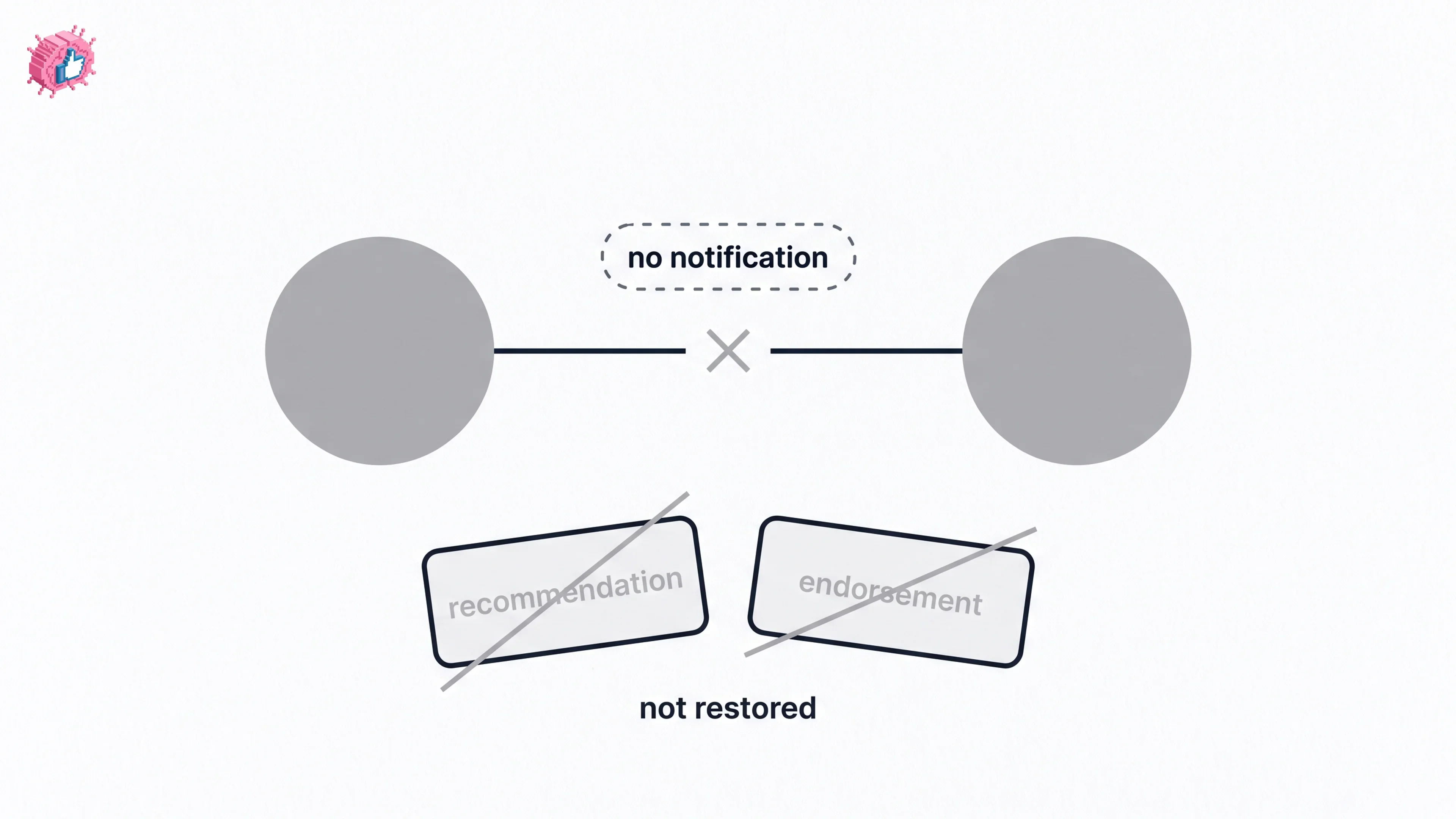
How to Remove a Connection on LinkedIn: What It Erases
Remove a LinkedIn connection on desktop or the app. They are not notified, but recommendations and endorsements go for good. Steps from LinkedIn Help.