

How to Remove a Connection on LinkedIn: What It Erases
Remove a LinkedIn connection on desktop or the app. They are not notified, but recommendations and endorsements go for good. Steps from LinkedIn Help.
Removing a connection on LinkedIn is silent. LinkedIn states it plainly: "When you remove a connection, they won't be notified." No alert, no email, no entry in their feed. The person finds out only if they go looking at your profile and notice you are no longer a 1st-degree connection.
The part nobody warns you about is what disappears along with the connection. LinkedIn also states that "after removing a connection, any recommendations or endorsements between you and that person will be withdrawn. They will not be restored if the connection is reestablished." That is permanent. A recommendation someone wrote for you in 2019 does not come back when you reconnect in 2027.
This guide covers the exact steps on each platform, what removal erases and what it leaves alone, how it differs from unfollowing, muting, and blocking, and how to cancel a connection request you already sent. Everything here comes from LinkedIn's Help pages.
Automate your LinkedIn for 30 days
Does the other person know you removed them
No notification is sent. LinkedIn's wording is unambiguous: "When you remove a connection, they won't be notified."
What does change on their side is visible if they look for it:
- You are no longer a 1st-degree connection
- Their connection count drops by one
- Any recommendation or endorsement that existed between you is gone from both profiles
So the removal is unannounced rather than undetectable. Someone who checks their connection list regularly, or who looks you up, has everything they need to work it out. If keeping the relationship intact while removing the content is what you actually want, that is a different control, covered below.
This is one of a cluster of LinkedIn actions whose consequences are wider than the button suggests. Our index of LinkedIn features works through the rest of them from the documentation.
How to remove a connection on LinkedIn
LinkedIn documents three routes. Two are desktop, one is mobile, and they are not interchangeable.
On desktop, from their profile:
- Navigate to the connection's profile
- Click More in the introduction section
- Select Remove Connection
Once you select Remove Connection, the status changes to Connection Removed.
On desktop, from your Connections page:
- Click the My Network icon at the top of your LinkedIn homepage
- Under your profile name, click the link showing your number of connections, for example 465 connections
- Click the More icon next to the connection you want to remove, then click Remove connection
- Click Remove in the Remove Connection pop-up window
This is the route to use when you are clearing out several people at once, since you never leave the list.
In the mobile app:
- Go to the profile of the member you want to remove
- Tap the More button or the More icon
- Tap Remove connection, then Remove connection again in the pop-up window to confirm
A note on platforms: LinkedIn's Help page publishes one set of mobile steps rather than separate iOS and Android instructions, and it does not document a Connections page route on mobile. The profile route above is what the documentation gives for the app. Any guide claiming the iPhone steps differ from the Android steps here is not reading from that page.
What removing a connection actually erases
The connection is the obvious loss. The endorsements are the expensive one.
| What happens to it | After you remove the connection |
|---|---|
| Notification to the other person | None, per LinkedIn |
| 1st-degree connection status | Removed |
| Their entry in your Contacts section | Removed |
| Recommendations between you | Withdrawn, and not restored if you reconnect |
| Endorsements between you | Withdrawn, and not restored if you reconnect |
| Their ability to send you an invitation | Unchanged, they can connect again |
| Your profile's visibility to them | Not addressed on the removal page |
LinkedIn is specific that removed connections "will no longer be 1st-degree connections and won't appear in your Contacts section."
The recommendation point deserves repeating because it is easy to miss. If a former manager wrote you a recommendation and you remove them, you lose the recommendation on your profile. Reconnecting does not bring it back, and asking them to write it again means asking someone you quietly unconnected from. If a recommendation on your profile is worth keeping, check who wrote it before you clear your list.
Removing versus unfollowing, muting, and blocking
Most people reaching for Remove Connection want one of the quieter options instead. The difference is what you give up.
| Removes the connection | Hides their posts from your feed | They are notified | |
|---|---|---|---|
| Remove connection | Yes | Not documented | No |
| Unfollow | No, you stay connected | Yes | No |
| Block | Yes, blocking removes the connection | Yes | Not in most cases |
The blocking row carries a hedge because LinkedIn does. Its own wording is that a blocked member "won't receive any notification of this action in most cases," and it names one exception: "if you're blocking someone that you currently or previously have shared a LinkedIn Recruiter account with, we reserve the right to notify this member of your block." Removal and unfollowing carry no such caveat in the documentation.
Blocking also takes the endorsements with it. LinkedIn says it will "remove any endorsements and recommendations from that member," which is the same cost as removal, on top of cutting off profile access, messaging, and shared content in both directions.
Unfollow is the one that fits most situations. LinkedIn says it directly: "If you're connected to a person and choose to unfollow them, you'll remain connected, but won't see their updates. They won't be notified that you've unfollowed them."
There is a sting in the tail of that page worth knowing. Unfollowing is silent, but reversing it is not: "LinkedIn members will receive a notification if you begin following them again." So an unfollow you later regret cannot be undone invisibly.
If the goal is to stop seeing someone without losing the contact, read mute vs unfollow before you touch the remove button. If the situation is harassment rather than clutter, blocking is the stronger action and it covers more than the feed. And if you are unclear on who receives your posts in the first place, follow vs connect sorts out the two relationships.
Automate your LinkedIn for 30 days
How to cancel a connection request you already sent
A pending invitation is a different object from a connection, and it has its own control. LinkedIn calls this withdrawing.
You can withdraw an invitation at any point before it is accepted, and as with removal, "the recipient will not be notified when you withdraw the invitation."
On desktop:
- Click the My Network icon at the top of your LinkedIn homepage
- In the Invitations section, click Show all if you have pending invitations, or click Manage next to No pending invitations if you do not
- Click the Sent tab under Manage invitations
- Click Withdraw next to the invitation you want to remove
- Click Withdraw in the confirmation pop-up window
In the mobile app:
- Tap the My Network tab in the navigation bar
- Tap Invitations to see the invitations you have received or sent
- Tap the Sent tab
- Tap Withdraw next to the invitation you want to remove
- Tap Withdraw in the confirmation pop-up window
The three week rule behind withdrawn invitations
Withdrawing is not free, and this is the detail that catches people out.
LinkedIn states: "You won't be able to send a new invitation to the same member for up to three weeks."
So withdrawing an invitation you sent to the wrong person, or sent too early, locks you out of that contact for up to three weeks. If you are cleaning up a long list of unanswered invitations before running a deliberate outreach push, you have just removed your best prospects from reach until the window clears.
Three more constraints sit on the same page:
- You cannot bulk withdraw invitations, so a long list is a long list of individual clicks
- Withdrawing stops the reminder emails LinkedIn sends the recipient
- Withdrawn invitations cannot be restored
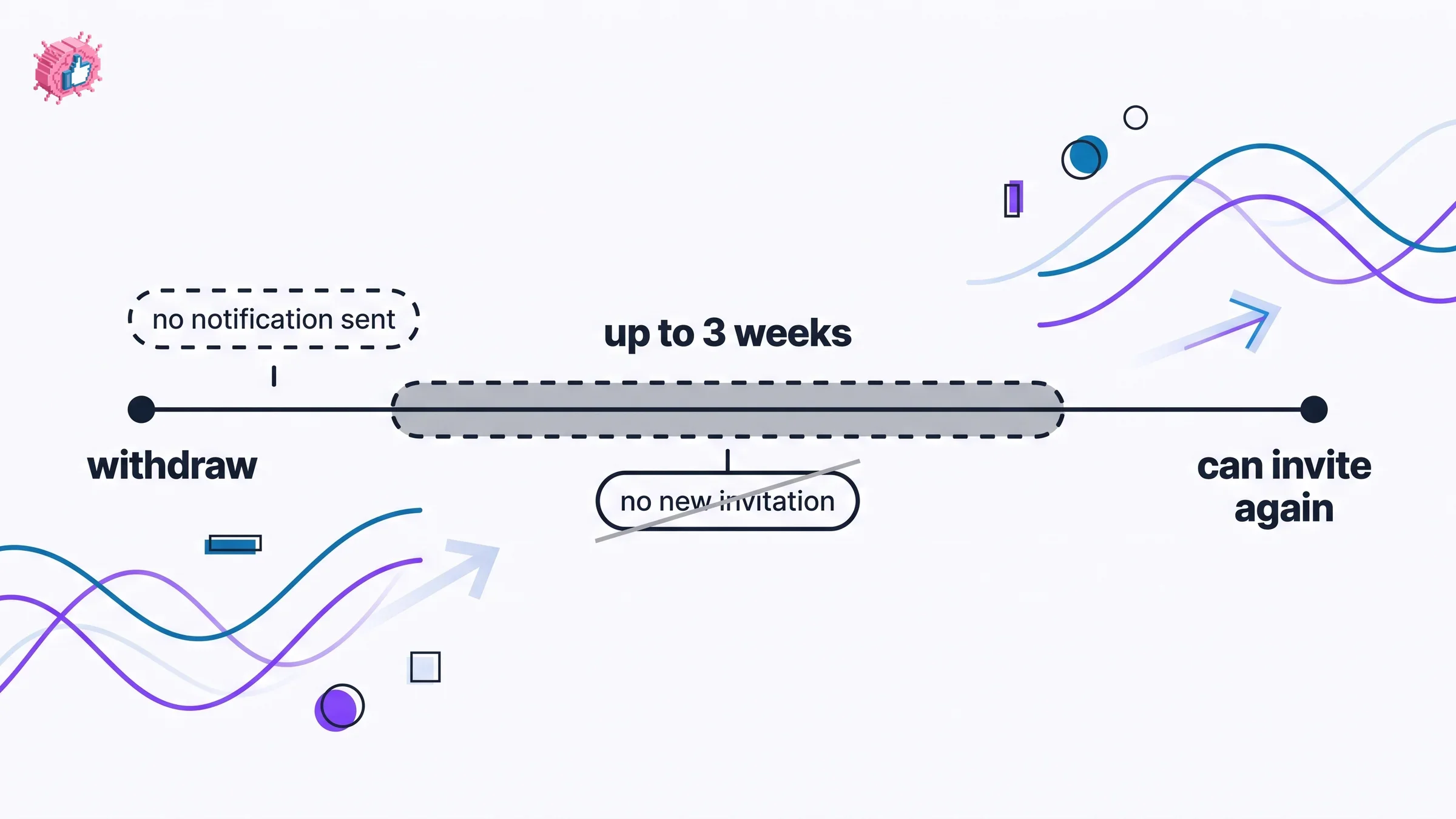
The reminder point is the one good reason to withdraw promptly. An invitation left pending keeps nudging someone who has already decided not to accept.
If the underlying problem is that your invitations are not getting accepted, withdrawing them is treating the symptom. Getting connections that actually matter is about what you send and to whom, and a profile worth accepting starts with a headline that explains why you are worth knowing.
What the documentation does not cover
Three questions come up constantly, and LinkedIn's pages on removal do not answer them. Saying so is more useful than guessing.
Whether removal also ends the follow. LinkedIn documents that unfollowing leaves the connection in place. It does not state the reverse, whether removing a connection also stops you following each other. The remove page is silent on it.
What happens to your message history. The removal page lists the connection status, the Contacts section, recommendations, and endorsements. It says nothing about existing conversations in your inbox.
Whether removal affects profile visibility. Removal changes your degree of connection, which affects what people can see on LinkedIn generally, but the removal page itself makes no claim about it.
Where a page does not say, this guide does not either. The one place LinkedIn is explicit about privacy on the removal flow is the notification line, and that line is clear.
What this means for you
- Removal is silent, not secret. LinkedIn sends no notification, and the person can still tell by looking at your profile or their connection count.
- Check for recommendations before you remove anyone. They are withdrawn permanently and do not come back if you reconnect.
- Unfollow instead when you just want a quieter feed. You stay connected, they are not told, and you keep the contact.
- Re-following is not silent. LinkedIn notifies someone when you start following them again, so an unfollow you reverse is visible.
- Withdrawing an invitation costs you three weeks. You cannot re-invite the same member for up to three weeks, and you cannot bulk withdraw.
- Blocking is a different tool for a different problem. Use it for harassment, not for clutter.
If you are pruning your network as part of a wider reset of how you use LinkedIn, the LinkedIn personal branding guide covers the positioning side and the LinkedIn content strategy guide covers what to publish to the people you keep. For tooling, ViralBrain has a free tier with 3 heroes and 3 posts a month, and pricing covers what a paid plan adds.
Sources: Remove a connection on LinkedIn, Withdraw an invitation, Follow or unfollow people, Block a member overview, Block or unblock a member, LinkedIn Help (accessed October 2026)
FAQ
How do I remove a connection on LinkedIn without them knowing?
Use the normal removal flow. LinkedIn states that "when you remove a connection, they won't be notified," so there is no separate quiet option to find. They can still notice indirectly, because you are no longer a 1st-degree connection and their connection count drops.
How do I remove a connection on the LinkedIn app?
Go to the person's profile, tap the More button or the More icon, then tap Remove connection and confirm with Remove connection in the pop-up. LinkedIn documents the profile route for mobile and does not document a Connections page route there.
How do I cancel a connection request I sent on LinkedIn?
Withdraw it. On desktop, open My Network, reach Manage invitations, open the Sent tab, click Withdraw next to the invitation, and confirm. In the app, tap My Network, tap Invitations, open the Sent tab, tap Withdraw, and confirm.
Can I send another invitation after withdrawing one?
Not right away. LinkedIn says you will not be able to send a new invitation to the same member for up to three weeks after withdrawing.
Does removing a connection delete their recommendation of me?
Yes. LinkedIn states that any recommendations or endorsements between you are withdrawn, and that they "will not be restored if the connection is reestablished." Check your recommendations before removing anyone who wrote one.
How do I remove a connection without visiting their profile?
Use the Connections page route on desktop. Open My Network, click the link showing your number of connections, click the More icon next to the person, click Remove connection, and confirm with Remove. The whole removal happens inside your connections list without opening their profile. LinkedIn documents this route for desktop only, and gives the profile route for mobile.
Can I remove several LinkedIn connections at once?
There is no bulk removal documented. The Connections page route is the fastest option because you stay in the list between removals. LinkedIn separately states that invitations cannot be bulk withdrawn.
Will they still see my posts after I remove them?
LinkedIn's removal page does not address following, so it does not confirm either way. If your goal is to stop seeing someone's posts rather than to end the connection, unfollowing is the documented control, and it leaves you connected.
Can we reconnect after I remove someone?
Yes. Removal does not block anyone, so either of you can send an invitation again. What does not come back is any recommendation or endorsement that existed between you before.
What is the difference between removing and blocking someone on LinkedIn?
Removal ends the 1st-degree connection and withdraws any recommendations and endorsements between you. Blocking is broader: LinkedIn says you will not be able to access each other's profiles, message each other, or see each other's shared content, and if you are connected you will not be connected anymore. Removal is never notified. Blocking is unnotified "in most cases," with LinkedIn reserving the right to notify someone you have shared a Recruiter account with. Use blocking when the issue is harassment rather than a cluttered feed.
Automate your LinkedIn for 30 days
ViralBrain plans, writes, and schedules your LinkedIn content, using official LinkedIn APIs so your account stays safe.
- Official LinkedIn APIs, no risk of ban
- You approve every post before it goes live
- Cancel anytime
Keep reading
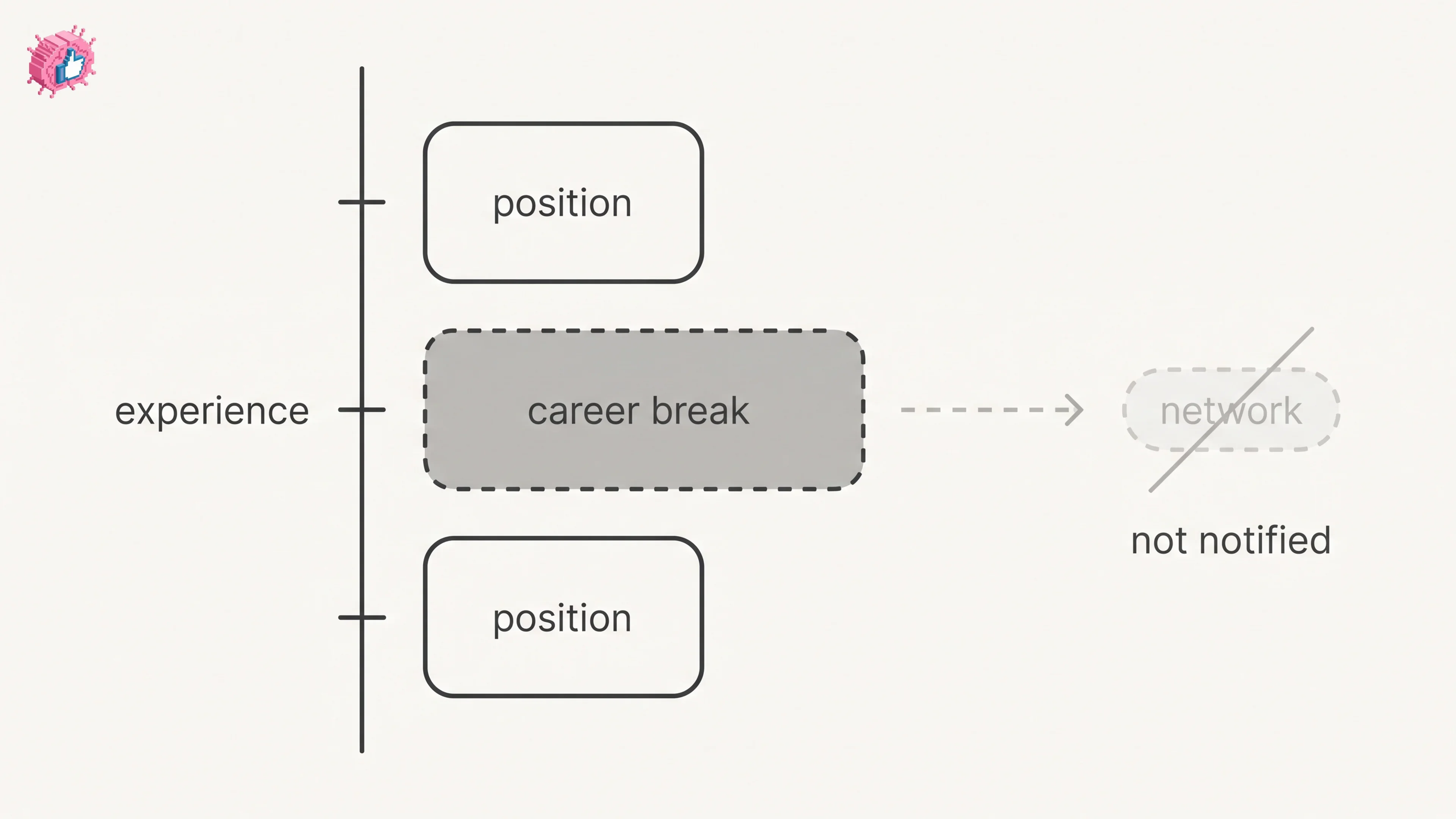
LinkedIn Career Break: How to Add One and Who Sees It
Add a career break on LinkedIn desktop or the app. Your network is not notified, the type is optional, and signed-in members see it. From LinkedIn Help.
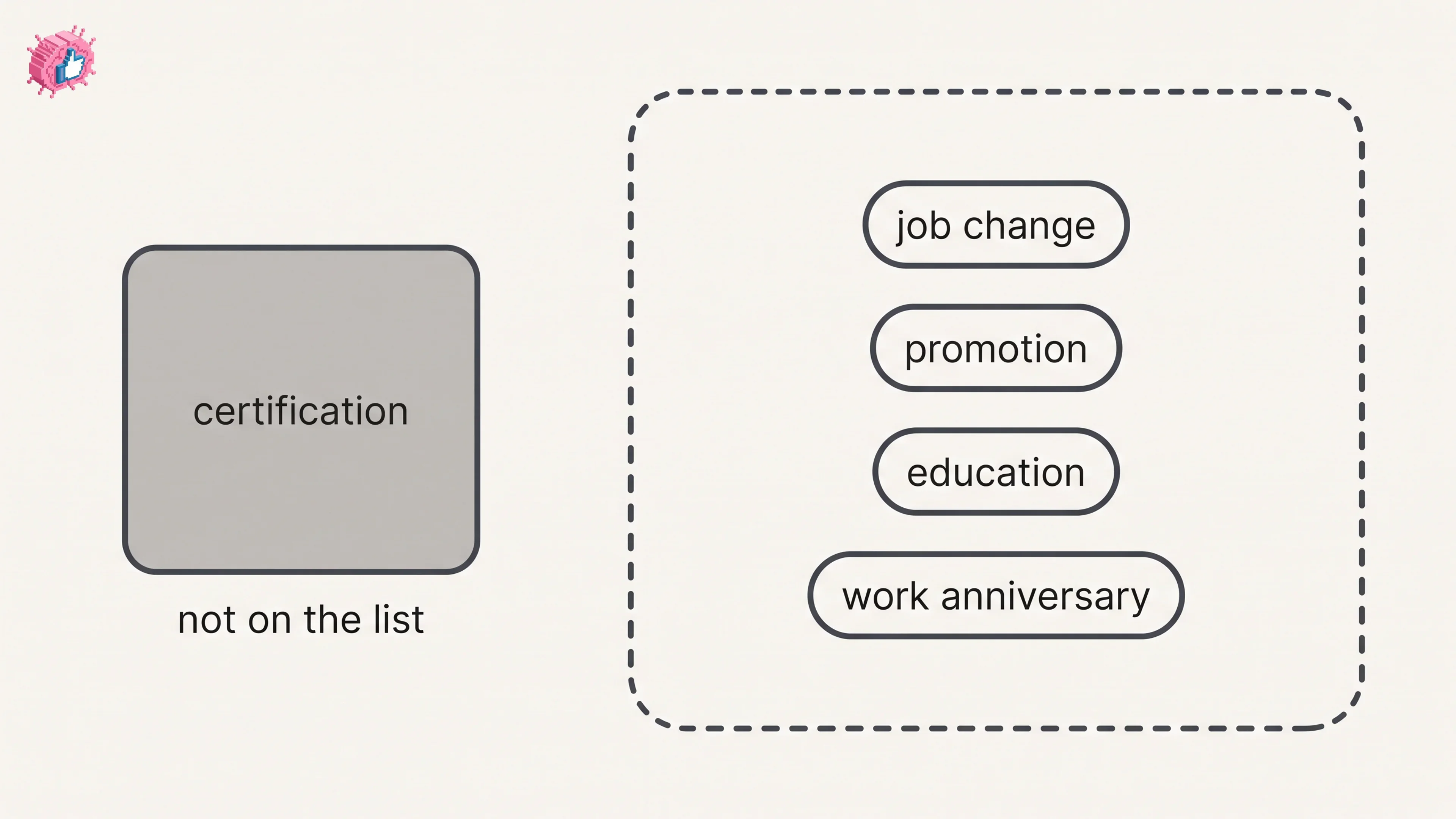
How to Add a Certification to LinkedIn Without Posting
Add a certification on LinkedIn desktop or the app, put credentials after your name, and see what LinkedIn documents about notifying your network.
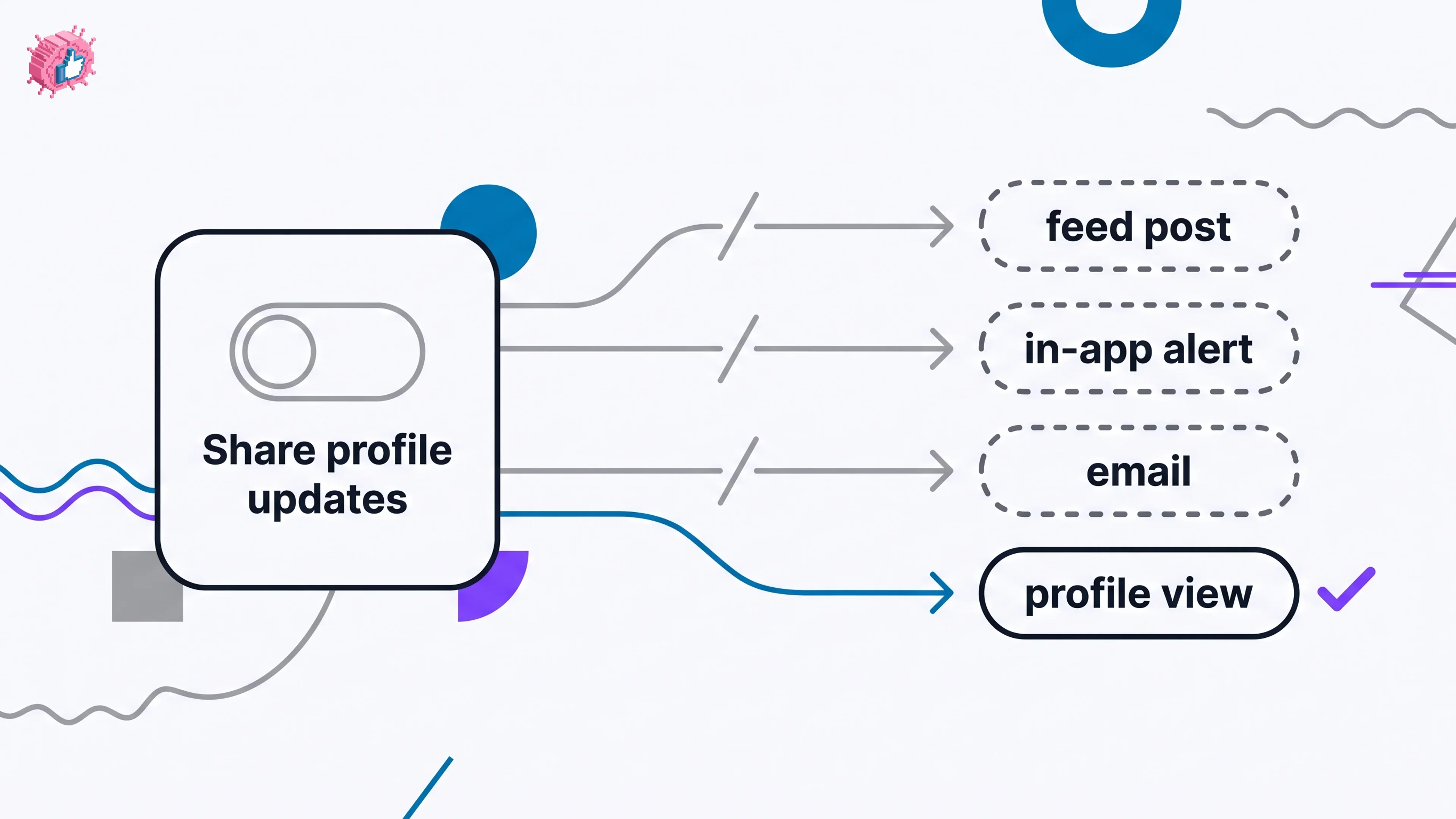
How to Update LinkedIn Without Notifying Your Network
Turn off Share profile updates to edit LinkedIn silently on desktop, app, or mobile browser, and see what still reaches your network. From LinkedIn Help.