

How to Change Your LinkedIn Password
How to change your LinkedIn password on desktop, iOS, Android and a mobile browser, how to reset a forgotten one, and what the sign out control does.
LinkedIn keeps two jobs on two different screens. If you are signed in, you change your password from the Change password page inside settings, under Sign in & security. If you cannot sign in, you start from Forgot password? on the Sign in page, and LinkedIn sends an authentication code to an email address or a phone number on your account before it lets you set a new one.
The signed-in steps are published under four tabs, Desktop, iOS, Android and Mobile Browser, and the four are not identical. Android carries an extra step, the mobile browser starts from a different icon, and the sign-out control is a checkbox on desktop and a toggle on the other three.
The steps and rules below come from LinkedIn Help pages fetched for this guide, quoted where the exact wording decides the answer, and labeled by the platform tab LinkedIn publishes them under. Where those pages do not document something, this guide says so instead of filling it in.
Automate your LinkedIn for 30 days
What LinkedIn documents about changing your password
| Question | What the pages read for this guide document |
|---|---|
| Where the control lives | The Change password page, under Sign in & security |
| Platforms documented | Desktop, iOS, Android and Mobile Browser, as LinkedIn tabs them |
| Minimum length | At least eight characters |
| Case sensitivity | Passwords are case-sensitive |
| What LinkedIn recommends | "a mix of letters, numbers, and special characters" |
| Extra check when you save | You may be prompted for a verification code or an app approval |
| Signing other devices out | An optional control, Require all devices to sign in with new password |
| A maximum length | Not given on the pages read for this guide |
| If you do not remember it | Forgot password at the bottom of the Change password page or on the Sign in page |
How to change your LinkedIn password on desktop
LinkedIn publishes these under its Desktop tab.
- Click the Me icon at the top of your LinkedIn homepage.
- Select Settings & Privacy from the dropdown.
- Under Sign in & security, select Change password.
- Enter your current password, type your new password, and then retype it to confirm.
- Select the checkbox next to Require all devices to sign in with new password if you'd like to be automatically signed out of all devices where you are logged in.
- Click Save password.
LinkedIn attaches two notes to step 4. The first is the rule set: "Passwords are case-sensitive and must have at least eight characters. A strong password should be a mix of letters, numbers, and special characters." The second is hedged: "For security purposes, you may be prompted to enter a verification code sent to your email address or to approve the change through your LinkedIn app."
A second hedge sits on step 6, and it names a different delivery route: "For security purposes, you may be prompted to enter a verification code sent to your phone or email address." Your phone appears there and not in the note on step 4.
How to change your LinkedIn password in the app
LinkedIn publishes separate iOS and Android tabs, and the Android list runs one step longer.
iOS tab:
- Tap your profile picture, then Settings & Privacy, then Sign in & security.
- Under Sign in & Security, tap Change Password.
- Enter your current password, type your new password, and then retype it to confirm.
- Change the toggle to Yes next to Require all devices to sign in with new password if you'd like to be automatically signed out of all active sessions once you change your password.
- Tap Save password.
Android tab:
- Tap your profile picture, then Settings & Privacy, then Sign in & security.
- Under Sign in & Security, tap Change Password.
- Tap Change Password.
- Enter your current password, type your new password, and then retype it to confirm.
- Change the toggle to Yes next to Require all devices to sign in with new password if you'd like to be automatically signed out of all devices where you are logged in.
- Tap Save password.
Step 3 on the Android tab repeats the control name from step 2. That is how LinkedIn publishes it, and it is reproduced here rather than tidied away. The other difference between the two app tabs is the wording on the sign-out control, covered below.
How to change your LinkedIn password in a mobile browser
This tab does not start from your profile picture, and the settings control it names is an icon rather than a menu item.
- Tap the Profile icon in the navigation bar.
- Tap the Settings & Privacy icon at the upper right corner.
- Under the Sign in & security tab, tap Change password.
- Enter your current password, type your new password, and then retype it to confirm.
- Change the toggle to Yes next to Require all devices to sign in with new password if you'd like to be automatically signed out of all devices where you are logged in.
- Tap Save password.
The security note on this tab is worded differently from the other three. It says you may be prompted for a code "sent to your phone or email address or to approve the change through your LinkedIn app," where the Desktop, iOS and Android tabs name only your email address at that point in the list.
| Desktop | iOS | Android | Mobile Browser | |
|---|---|---|---|---|
| Entry point | Me icon | Profile picture | Profile picture | Profile icon in the navigation bar |
| Settings control | Settings & Privacy from the dropdown | Settings & Privacy | Settings & Privacy | Settings & Privacy icon, upper right |
| Control name | Change password | Change Password | Change Password, named in two steps | Change password |
| Sign-out control | A checkbox | A toggle set to Yes | A toggle set to Yes | A toggle set to Yes |
| What it signs out | "all devices where you are logged in" | "all active sessions once you change your password" | "all devices where you are logged in" | "all devices where you are logged in" |
The password rules LinkedIn publishes
Two rules and one recommendation, published on each of the four tabs. In the Desktop tab's wording: "Passwords are case-sensitive and must have at least eight characters. A strong password should be a mix of letters, numbers, and special characters."
The pages read for this guide do not give a maximum length, do not list which special characters are allowed, and do not say whether you can reuse a password you have used before.
LinkedIn does publish a separate page of habits around passwords. These four are quoted from it rather than written here:
- "Don't use the same password across all the sites you visit."
- "Don't share your password with others, and ensure you change it often."
- "Reset your password every couple of months."
- "Sign out of your account anytime you leave a shared or public computer."
Automate your LinkedIn for 30 days
What happens to your other sessions when you change your password
LinkedIn documents an optional control that signs you out, and it describes that control in two different ways depending on which tab you read.
The Desktop, Android and Mobile Browser tabs all tie Require all devices to sign in with new password to being "automatically signed out of all devices where you are logged in." The iOS tab words the same control as being "automatically signed out of all active sessions once you change your password." Both phrasings sit on the same page.
What the pages read for this guide do not state is what happens to those other sessions if you leave the control alone.
Sessions have their own Help page, tabbed Desktop, iOS and Android, and it defines the term: "A session is created when you sign into your LinkedIn account. This session is stored in your settings as an active session with information including location, IP Address, and device type. If you sign out of the account, the session is no longer active and will drop off from the settings."
On desktop, click the Me icon, select Settings & Privacy, then "Under the Sign in & security section on the left rail, click the arrow next to Where you're signed in." To end one session, click Sign out to the right of it, then enter your password and click End session. To end the rest, click Sign out of all these sessions at the top of your list, then enter your password and click End session.
On iOS and Android, both tabs give the same route: tap your profile picture, tap Settings, then under the Sign in & security section tap Where you're signed in. To end one session, tap END to the right of it, enter your password in the box and tap Done. To end the rest, tap End these sessions at the top of your list, enter your password and tap Done.
Three details on that page are worth carrying over. The bulk sign-out spares the session you are using, which LinkedIn writes as "every active session (except your current one)". It attaches an Important note pointing back to this guide's topic: "If you don't recognize a particular login or device, be sure to change your password." And it names a troubleshooting use for the bulk action: "If you're experiencing issues accessing your account or if your account isn't registering the correct time zone, try signing out of every active session to correct the issue."
That page's Desktop tab also documents a separate route for third party applications: "Go to the Partners & services section under Account preferences," then "Click Change next to the listed third parties to view the connected accounts." Revoking a third party tool's access to your data is a different screen again, covered in LinkedIn connected apps.
A practical note about tools rather than about LinkedIn: if a scheduler posts on your behalf, why scheduled LinkedIn posts do not publish recommends reauthorizing that connection after any password change, so an expired token does not quietly drop your queue.
How to reset a forgotten LinkedIn password
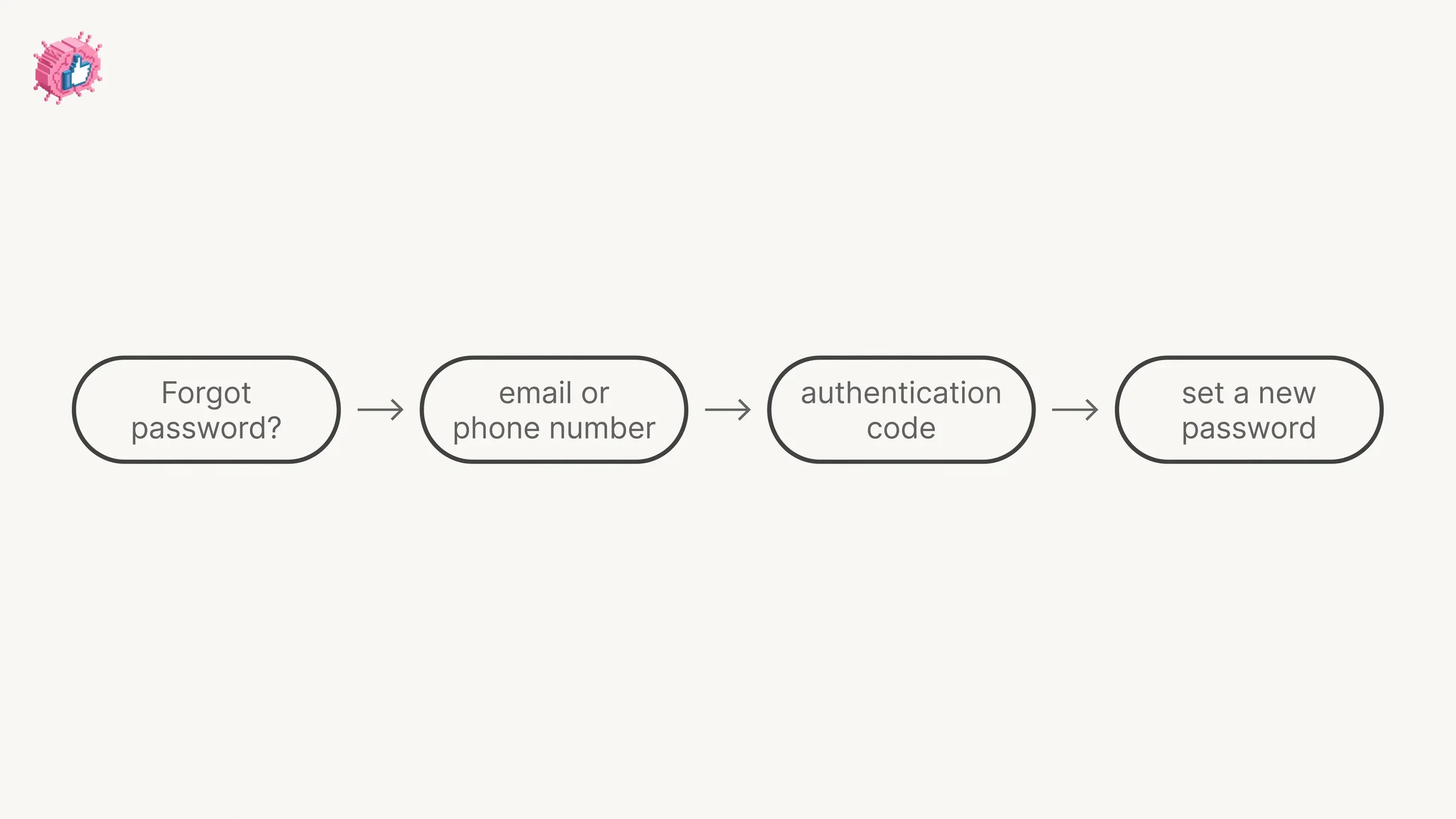
The reset flow starts on the Sign in page and runs on an authentication code. LinkedIn opens its page with the shape of it: "To authenticate your identity, we'll send a authentication code to the email address or phone number associated with your account. After authentication, you will be directed to reset your password."
This page carries no platform tabs, so the steps below are the single set LinkedIn publishes.
- Click Forgot password?
- Enter an email address or phone number associated with your account.
What comes next depends on which one you entered.
If you entered an email address: LinkedIn sends a verification code to that address, you check that inbox, then "Enter the authentication code on the screen and click Submit" and reset your password on the next page.
If you entered a phone number: "If you select to receive a text, we'll send an authentication code to your phone. If you select to receive a call, we'll call your phone number with the authentication code." You then input the code on screen, click Submit, and reset your password on the next page.
Four more lines from that page settle what the step list leaves open:
- There may be extra checks. "You may be asked for a two-factor authentication code if you have it enabled on your account. You may also be prompted for additional challenges for added security for your account."
- The code expires. "The authentication code is valid for a limited time."
- You get a confirmation. "Once you have completed the password reset process, you'll receive an email from us confirming the change."
- If no code arrives. LinkedIn points you to its support team "to help regain access to your account", and separately suggests adding another email address or a phone number once you are back in.
You can reach the same flow from inside the product. The Change password page documents it: "If you don't remember your password, you can get password help by clicking Forgot password at the bottom of the Change password page or on the Sign in page."
The sign-in security prompt during a reset
LinkedIn's reset page lists a sign-in security prompt among the additional challenges a reset may include, and the prompt's own page keeps the hedge: LinkedIn "may show you a sign-in security prompt through your LinkedIn app when attempting to reset your password."
The trigger is documented: "You will receive a push notification prompt on your signed-in mobile device after clicking on Forgot password? and verifying your email."
To approve it, open your device's notifications, click the prompt from LinkedIn, then tap Yes, it's me if you started the reset from another device, and return to your original device to finish. If a prompt arrives and you did not ask for one, LinkedIn's instruction is to tap "No, it's not me", after which "The sign-in attempt will be denied immediately. You will also be prompted to change your password (recommended) to protect your account."
That page publishes four troubleshooting cases. If you answered No, it's not me by accident, LinkedIn says to return to your sign-in screen, refresh the page and attempt to log in again, so a new prompt appears. If no prompt reaches your push notifications, it says to open your LinkedIn app and see whether the prompt is shown there, check your phone's internet connection and retry, and if it still does not appear, "select Verify using SMS."
The prompt page does not say which notification settings the prompt depends on. How LinkedIn push notifications are switched on and off in general, in LinkedIn's own settings and in your device's, is covered in the LinkedIn notifications guide.
What LinkedIn documents when you cannot reach your email or phone
There is a documented route, and it ends in identity verification. LinkedIn's page for this case states the condition plainly: "If you can't recover your password or don't have access to any of the email address(es) or phone number(s) associated with your account, we can help you access your account by verifying your identity."
The path runs from Forgot password on the Sign-in screen, through Can't access this email?, then Don't have access to any of these? if more than one address or number is on the account, a QR code step that LinkedIn notes "only appears on desktop", the new email address you want associated with your account, and finally an image of a valid government issued ID. LinkedIn gives its reason on the same page: "We ask for your ID card to ensure that only you regain access to your account and no unauthorized entity is given access." The full step list is reproduced in how to change your email address on LinkedIn, which covers the same page from the email side.
Two-factor authentication is a separate obstacle with its own page. If you have it on and cannot reach the mobile device tied to it, LinkedIn documents turning it off from a device you are still signed in to, under Sign in & security then Two-factor authentication. If you have no signed-in device at all: "Sign in using your email or phone number and password. On the two-factor authentication prompt screen, select verify your identity at the bottom of the screen," which leads to the same government ID step. Note the precondition in that first line: that route still asks for your password, so it does not replace a reset.
| Situation | What the pages read for this guide document |
|---|---|
| You know your password | Change password under Sign in & security, on all four platform tabs |
| You forgot it, and your email works | Forgot password?, code to your email, then set a new one |
| You forgot it, and your phone works | Forgot password?, code by text or by call, then set a new one |
| A sign-in security prompt is part of the reset | Approve it with Yes, it's me; if no prompt shows, Verify using SMS |
| No code arrives at all | LinkedIn points you to its support team |
| You cannot reach any email or phone on the account | Can't access this email?, then identity verification with a government issued ID |
| Two-factor is on and that device is gone | Turn it off from a signed-in device, or verify your identity from the prompt screen |
Closing an account also needs your password: every documented close flow ends with it, as covered in how to delete a LinkedIn account. The identity verification route above is for regaining access, and LinkedIn's recovery page says the data it receives is processed "for the purpose of account recovery". The verification badge on a profile is covered in getting verified on LinkedIn.
Other per-feature guides are indexed in LinkedIn features explained.
Sources: LinkedIn Help, Change your password, Reset your password, See where you're signed in, Sign-in security prompt for password reset, No access to email address, No access to mobile device for two-factor authentication, Protecting Your Email Address and Password, Verify your identity to recover account access.
FAQ
How do I change my LinkedIn password?
On desktop, click the Me icon, select Settings & Privacy, then under Sign in & security select Change password. Enter your current password, type the new one, retype it to confirm, then click Save password. LinkedIn says you may be prompted for a verification code or for an approval in your LinkedIn app.
How do I change my LinkedIn password on my phone?
In the app, tap your profile picture, then Settings & Privacy, then Sign in & security, then tap Change Password under Sign in & Security. LinkedIn's Android tab adds a second step, "Tap Change Password", that its iOS tab does not have. Enter the current password, the new one and the retype, then tap Save password.
How do I change my LinkedIn password on a laptop or in a mobile browser?
The laptop route is the Desktop tab above, starting from the Me icon. LinkedIn publishes a separate Mobile Browser tab that starts differently: tap the Profile icon in the navigation bar, tap the Settings & Privacy icon at the upper right corner, then tap Change password under the Sign in & security tab.
What are LinkedIn's password requirements?
"Passwords are case-sensitive and must have at least eight characters. A strong password should be a mix of letters, numbers, and special characters." The pages read for this guide do not give a maximum length or list which special characters are accepted.
How do I reset my LinkedIn password if I forgot it?
Click Forgot password? on the Sign in page, enter an email address or phone number associated with your account, then enter the authentication code LinkedIn sends and click Submit. You set the new password on the next page. A code sent by phone can arrive as a text or as a call, depending on which you select.
How do I get into my LinkedIn account without my email?
LinkedIn documents a route, and it ends in identity verification. From Forgot password, choose Can't access this email?, then Don't have access to any of these? if several addresses or numbers are listed, scan the QR code if one is shown (LinkedIn notes that step only appears on desktop), enter a new email address, and submit an image of a valid government issued ID. LinkedIn then processes the information and contacts you.
Does changing my LinkedIn password sign me out everywhere?
LinkedIn documents a control for it: Require all devices to sign in with new password, a checkbox on its Desktop tab and a toggle set to Yes on the other three. Its Desktop, Android and Mobile Browser tabs describe it as signing you out "of all devices where you are logged in", and its iOS tab as signing you out "of all active sessions once you change your password". The pages read for this guide do not say what happens to those sessions if you leave the control alone.
How do I see which devices are signed in to my LinkedIn account?
On desktop, click the Me icon, select Settings & Privacy, then under Sign in & security on the left rail click the arrow next to Where you're signed in. In the app, tap your profile picture, tap Settings, then tap Where you're signed in under Sign in & security. You can end one session or, in LinkedIn's words, "every active session (except your current one)".
Why is LinkedIn asking me to approve the reset in the app?
That is the sign-in security prompt. LinkedIn says it may show one "through your LinkedIn app when attempting to reset your password", delivered as a push notification after you click Forgot password? and verify your email. Tap Yes, it's me if you started the reset. If no prompt shows in your notifications or in the LinkedIn app, LinkedIn's last troubleshooting step is to "select Verify using SMS."
Automate your LinkedIn for 30 days
ViralBrain plans, writes, and schedules your LinkedIn content, using official LinkedIn APIs so your account stays safe.
- Official LinkedIn APIs, no risk of ban
- You approve every post before it goes live
- Cancel anytime
Keep reading
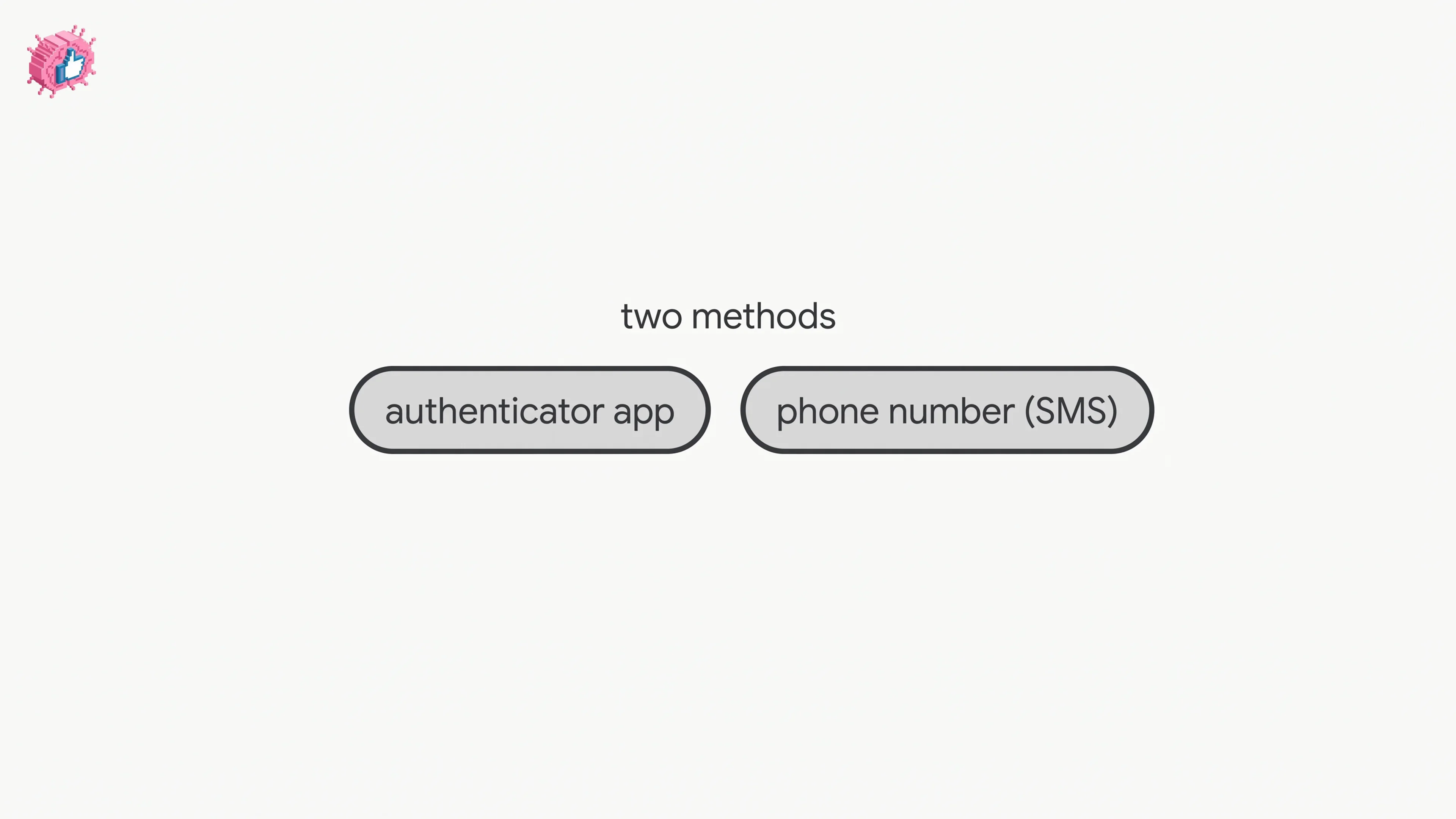
LinkedIn Two Step Verification: How to Turn It On and Off
LinkedIn documents it as two-factor authentication. How to turn it on and off on desktop and in the app, the two methods, and what to do if locked out.
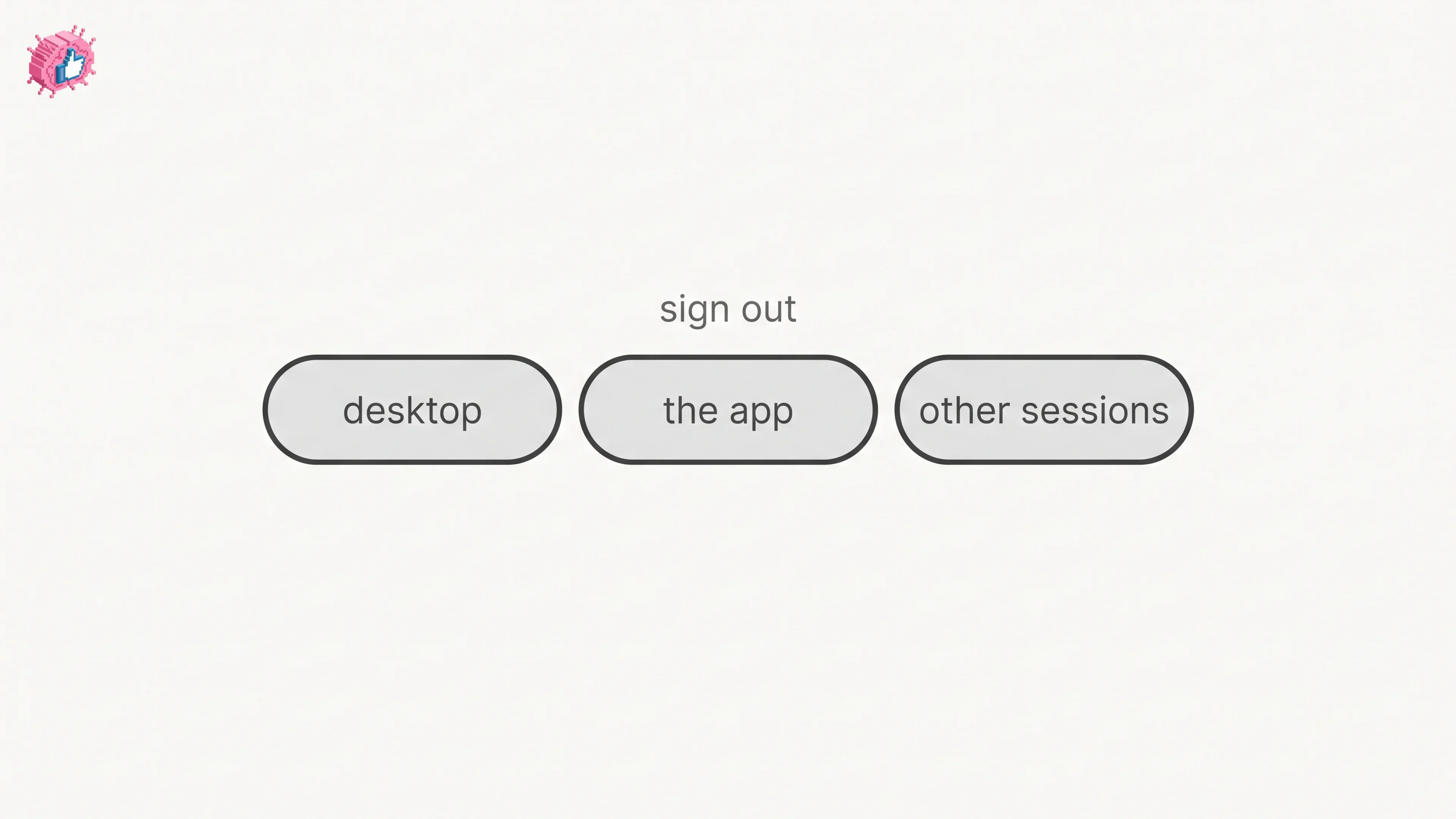
How to Log Out of LinkedIn on Desktop and in the App
How to log out of LinkedIn on desktop, on iOS and on Android, how to sign out of other sessions or all devices, and what Keep me logged in changes.
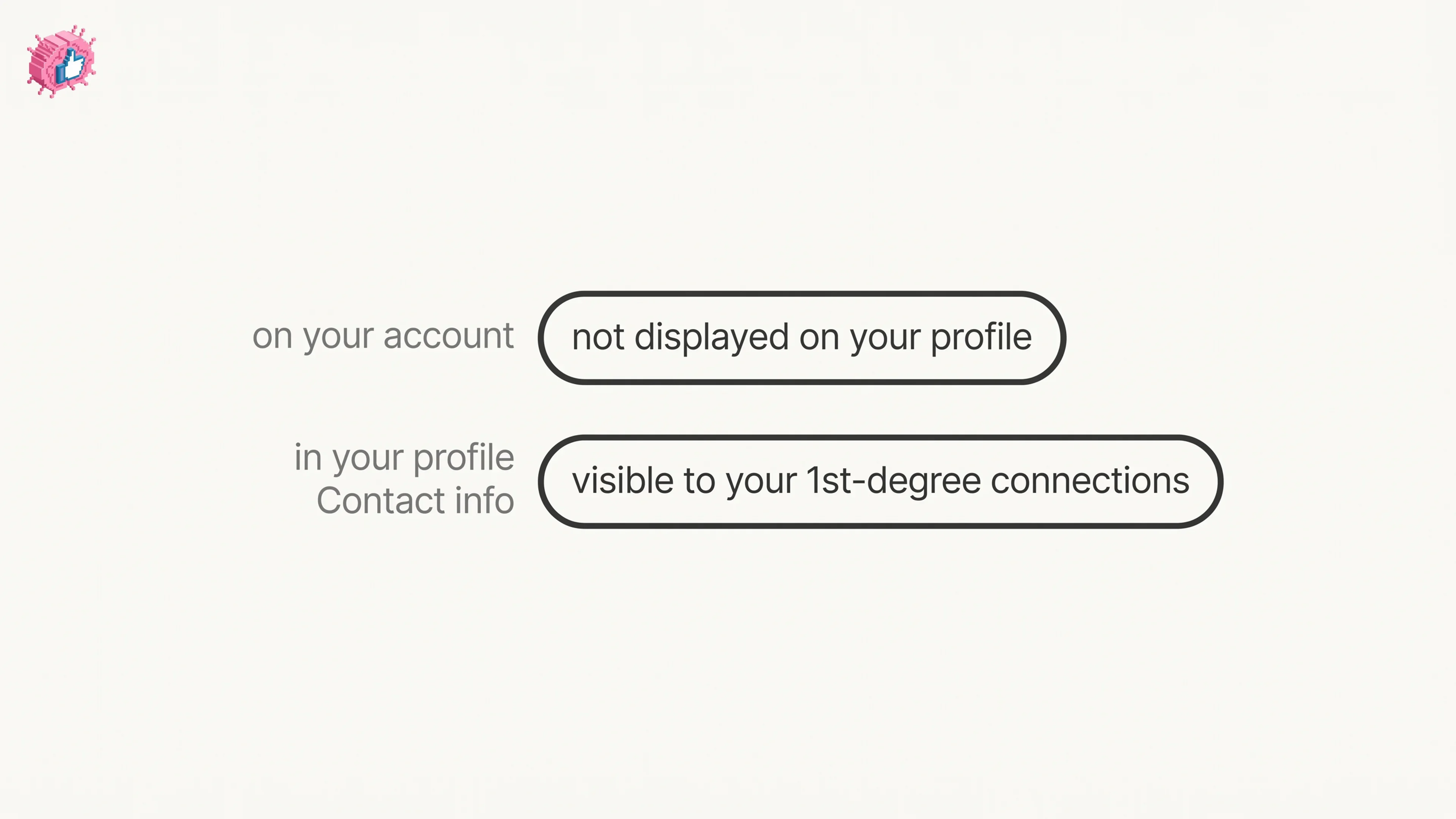
How to Add a Phone Number to LinkedIn
How to add a phone number to your LinkedIn account and to your profile Contact info, on desktop and in the app, plus who can see it and how to remove it.