

How to Hide Connections on LinkedIn (and What Stays)
How to hide your LinkedIn connections with the Connection visibility toggle on desktop, the app and mobile browser, and what it does not hide.
You hide your LinkedIn connections with one toggle: Settings & Privacy, then Visibility, then Connection visibility under Visibility of your profile & network. Switch it to Off and your 1st-degree connections can no longer browse your connections list.
What that toggle does not do is hide every trace of who you know. LinkedIn documents the limit plainly: anyone who shares a connection with you can still see that shared connection, whatever your setting says. Hiding your list narrows the view, it does not close it.
This guide covers the setting on desktop, in the app and in a mobile browser, exactly as LinkedIn tabs them, what the toggle covers, what it leaves exposed, and the five notes LinkedIn attaches to it.
Automate your LinkedIn for 30 days
What the connection visibility setting controls
It controls one thing: whether your 1st-degree connections can open and browse your list of connections.
LinkedIn states the default in its opening line: "By default, your 1st-degree connections can see and browse your list of connections. However, you can manage who can see your connections from your Settings page."
So the audience for your list is already limited before you change anything. A 2nd-degree member or a stranger is not browsing your connections today. The toggle removes the one group that can.
| Question | What LinkedIn documents |
|---|---|
| What the setting is called | Connection visibility |
| Where it lives | Settings & Privacy, then Visibility, under Visibility of your profile & network |
| What the control is | A toggle, On or Off |
| Who can see your list by default | Your 1st-degree connections |
| What switching it off stops | Those connections seeing and browsing your connections list |
| Does it stop shared connections appearing | No |
| Does it need saving | No, "your changes will be saved automatically" |
| Can you hide from specific people only | No, "you cannot selectively hide your connections list" |
LinkedIn uses two different phrasings for the same control across its Help pages. The settings page describes an On or Off toggle named Connection visibility. Its page on profile visibility instead describes the result, "unless you make your connections only visible to you." Same outcome, different wording, and the second phrasing is the clearer description of what Off actually produces.
How to hide your connections on LinkedIn
LinkedIn publishes three sets of steps under tabs it labels Desktop, Mobile and Mobile Browser. The paths differ, so use the one that matches what you are holding.
Desktop:
- Click the Me icon at the top of your LinkedIn homepage.
- Select Settings & Privacy from the dropdown.
- Click Visibility on the left pane.
- Under Visibility of your profile & network, click Connection visibility.
- Switch the toggle to On or Off to choose if your connections can see your connections list.
Mobile:
- Tap your profile photo.
- Tap Settings & Privacy.
- Tap Visibility.
- Under Visibility of your profile & network, tap Connection visibility.
- Switch the toggle to On or Off.
Mobile Browser:
- Tap your profile photo.
- Tap the Settings icon in the upper-right corner.
- Tap Visibility.
- Under Visibility of your profile & network, tap Connection visibility.
- Switch the toggle to On or Off.
LinkedIn repeats the same line on all three: "Your changes will be saved automatically." There is no save button, and no confirmation either, so reopen the setting once and look at the toggle before you assume it took.
Note the split between the app and a mobile browser. The app route goes through Settings & Privacy from your profile photo, while the mobile browser route goes through a Settings icon in the upper-right corner. Those are LinkedIn's own tab labels and its own steps, not a generic set of phone instructions.
What hiding your connections does not hide
Shared connections. This is the single most important limit on the setting, and LinkedIn documents it on more than one page.
Its page on profile visibility puts both halves in one sentence: "Unless you make your connections only visible to you, your 1st-degree connections can see who you're connected to on LinkedIn. Also, all members who have connections in common with you can see those shared connections."
Read the second half carefully. It is not conditional on your setting. All members who have connections in common with you can see those shared connections. LinkedIn repeats that same sentence word for word on its follow visibility page, which covers a different feature, so this is not a one-off phrasing.
Its page on viewing a connection's connections says what changes on your profile and what does not: "Your connection may choose to hide connections they don't want to share. In this case, there won't be a See connections option on the member's profile. However, you can view shared connections from the People tab of the search results page."
So the mechanism is specific. Hiding removes the See connections entry point from your profile. It does not remove you from a mutual contact's view of the people you both know.
| What you are trying to hide | Does the connection visibility toggle do it |
|---|---|
| Your connections list, browsed from your profile | Yes, the See connections option goes away |
| A mutual contact seeing a connection you share | No, shared connections stay visible to all members with one in common |
| Your list appearing on a partner service | No, that is a separate opt-out for profile visibility on partner services |
| Ads targeted at your connections | Partly, LinkedIn ties this to selecting Off under Connection visibility |
| Hiding from one person while showing everyone else | No, LinkedIn states you cannot selectively hide |
| New connection updates in your connections' feeds | No, LinkedIn states you cannot remove all of them |
| Hiding all visibility while on Sales Navigator or TeamLink | Not on its own, LinkedIn says additional steps are required |
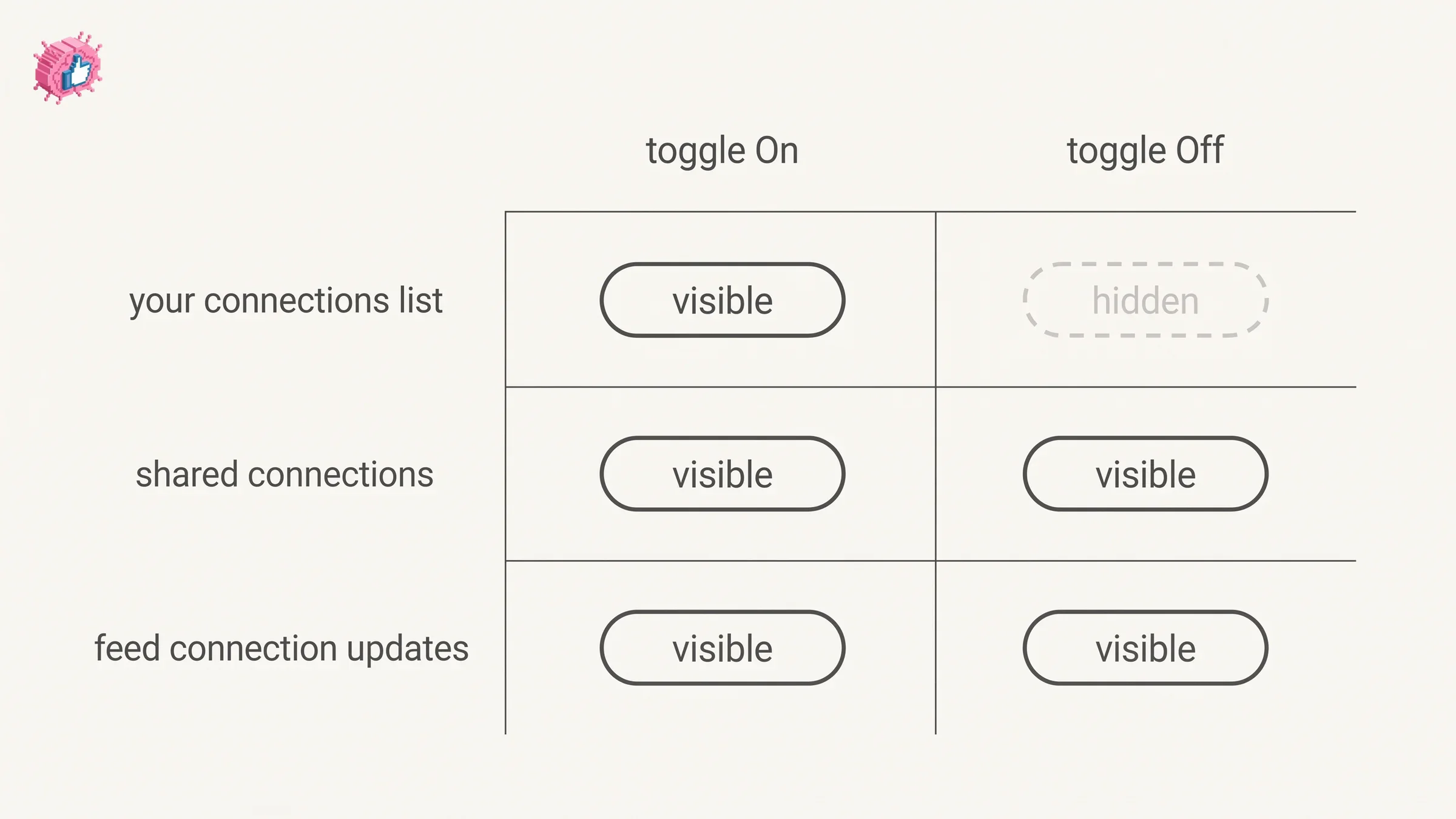
Who can still see your connections after you hide them
Anyone you share a connection with, for the connections you share. Nobody, for the rest of the list.
That is the honest two-part answer, and it follows directly from the two sentences above. A former colleague who knows three of the same people sees those three. They do not get your list.
There is one more route LinkedIn names, and it is easy to miss because it sits in a note rather than in the steps: "Your 1st-degree connections may sync their LinkedIn account to their account on a partner service and see your connections on that service unless you opt out of profile visibility on partner services."
That is a different setting from the one in this guide, and LinkedIn hedges it with may. The point to take from it is that the connection visibility toggle governs LinkedIn's own surfaces, and the partner services opt-out is where you deal with data leaving them.
If the real goal is a specific person rather than your whole network, the toggle is the wrong tool for a different reason: it applies to everyone at once. Blocking someone on LinkedIn is the per-person control, and that guide covers what blocking does and does not cut off.
Automate your LinkedIn for 30 days
The five notes LinkedIn attaches to this setting
LinkedIn publishes five notes below the steps. Four of them are limits.
- Partner services. Your 1st-degree connections "may sync their LinkedIn account to their account on a partner service and see your connections on that service unless you opt out of profile visibility on partner services."
- Advertisers. By default advertisers can serve ads to the connections of a company's employees, though LinkedIn states "advertisers can't see these connections (except to the extent they may be personally connected to you)." You can stop that targeting by selecting Off under Connection visibility, but only "to the extent they are not also the connections of other employees at your company."
- No selective hiding. "You cannot selectively hide your connections list from people hiding theirs."
- Feed updates. "You cannot remove all new connection updates from your connections in your feed."
- Sales Navigator and TeamLink. "If you use Sales Navigator or are opted into TeamLink, additional steps are required if you want to hide all connection visibility."
The advertiser note is the one worth rereading, because it is the only place LinkedIn ties this toggle to something other than browsing. Switching Connection visibility to Off is also the documented way to stop that ad targeting, with one limit: it does not reach connections you share with other employees at your company.
The Sales Navigator note matters if your company put you on a sales seat. LinkedIn says additional steps are required and does not list them on this page, so treat the toggle as incomplete coverage in that case rather than assuming it finished the job.
Connection visibility is not follow visibility
These two settings sit in the same part of your visibility options, so here is the difference as LinkedIn documents it.
Connection visibility governs your connections list, and its control is an On or Off toggle.
Follow visibility governs the members you follow, and its control is a choice between Only visible to me and Anyone on LinkedIn. LinkedIn adds a limit on that one too: "If you follow a member, that member can always see that you follow them."
Different lists, different controls, different option names. Hiding one leaves the other exactly as it was. If the distinction between following and connecting is the part that is fuzzy, follow vs connect covers what each one changes about who sees your activity.
| Connection visibility | Follow visibility | |
|---|---|---|
| What it covers | Your connections list | Members you follow |
| Control type | Toggle, On or Off | Choice of Only visible to me or Anyone on LinkedIn |
| Default audience | Your 1st-degree connections | Not stated on the page |
| Documented exception | Shared connections stay visible | The person you follow always sees it |
What LinkedIn does not document about this setting
Three things, and this guide names them as gaps rather than guessing at them.
Your connection count. LinkedIn's page on viewing a connection's connections describes clicking "[Number] connections below their profile picture" as the way in. It does not say whether that number stays on your profile once you switch the toggle off, only that the See connections option goes away. Check your own profile from a second account if the count matters to you.
Recruiter and other LinkedIn products. The page names Sales Navigator and TeamLink as needing extra steps. It makes no statement about Recruiter or any other product, so there is nothing documented either way.
Timing. No page read for this guide gives a delay for the setting taking effect, and all three platform tabs say changes save automatically. There is no documented waiting period, and there is also no documented confirmation that it worked.
Anything you read that fills in these three with specifics is sourcing them from somewhere other than LinkedIn's Help pages on connection visibility.
When hiding your connections is worth it
It earns its place when your connections list is itself the information you want to protect, rather than your activity or your profile.
Three situations where it does real work:
- You are building a pipeline on LinkedIn. Your connections list is a map of who you are talking to. Competitors read it the same way you would.
- You are job hunting quietly. A list filling up with recruiters at one company is a readable signal, and the toggle is faster than curating who you accept. The notification side of a quiet search is separate, and updating LinkedIn without notifying your network covers the toggle for that.
- You moved roles and your old network is still mostly your old employer. Hiding the list buys time while the balance shifts.
It is worth knowing what you give up in exchange. Shared connections are the raw material for warm introductions, and those stay visible either way, so hiding the list leaves that raw material in place.
Two housekeeping jobs pair naturally with this one. Removing a connection is the permanent version for a specific person, and exporting your connections to a CSV gets you your own copy of the list before you tidy it.
If you are doing a wider privacy pass rather than one setting, the profile optimization checklist walks the profile field by field, Open Profile governs who can message you without connecting, and LinkedIn features explained indexes the individual guides. If the pass is heading somewhere more final, deleting your LinkedIn account covers what you lose.
FAQ
How do I hide my connections on LinkedIn?
Click the Me icon, select Settings & Privacy, click Visibility, click Connection visibility under Visibility of your profile & network, then switch the toggle to Off. LinkedIn saves the change automatically.
How do I hide my connections on the LinkedIn mobile app?
Tap your profile photo, tap Settings & Privacy, tap Visibility, tap Connection visibility under Visibility of your profile & network, then switch the toggle Off. In a mobile browser the second step is different: tap the Settings icon in the upper-right corner instead.
Who can see my LinkedIn connections by default?
Your 1st-degree connections. LinkedIn states: "By default, your 1st-degree connections can see and browse your list of connections." Members outside that circle are not browsing your list before you change anything.
Can people still see our shared connections if I hide my connections?
Yes. LinkedIn states that "all members who have connections in common with you can see those shared connections," with no condition attached to your setting. It also says shared connections can be viewed "from the People tab of the search results page."
What changes on my profile when I hide my connections?
The entry point disappears. LinkedIn states that when a member hides their connections, "there won't be a See connections option on the member's profile."
Can I hide my connections from one person only?
No. LinkedIn states: "You cannot selectively hide your connections list from people hiding theirs." The setting applies to everyone who could otherwise see the list.
Does hiding my connections stop new connection updates in the feed?
No. LinkedIn lists this as a separate limit: "You cannot remove all new connection updates from your connections in your feed."
Does this setting affect ads shown to my connections?
Partly. Advertisers can serve ads to the connections of a company's employees by default, and you can stop that by selecting Off under Connection visibility, but only "to the extent they are not also the connections of other employees at your company." LinkedIn adds that advertisers "can't see these connections" except where they are personally connected to you.
I use Sales Navigator. Is the toggle enough?
No. LinkedIn states that "if you use Sales Navigator or are opted into TeamLink, additional steps are required if you want to hide all connection visibility." It does not list those steps on the connection visibility page.
Is hiding my connections the same as hiding who I follow?
No. Those are two settings in the same part of your visibility options. Connection visibility is an On or Off toggle for your connections list. Follow visibility offers Only visible to me or Anyone on LinkedIn for the members you follow, and LinkedIn notes that anyone you follow can always see that you follow them.
Automate your LinkedIn for 30 days
ViralBrain plans, writes, and schedules your LinkedIn content, using official LinkedIn APIs so your account stays safe.
- Official LinkedIn APIs, no risk of ban
- You approve every post before it goes live
- Cancel anytime
Keep reading
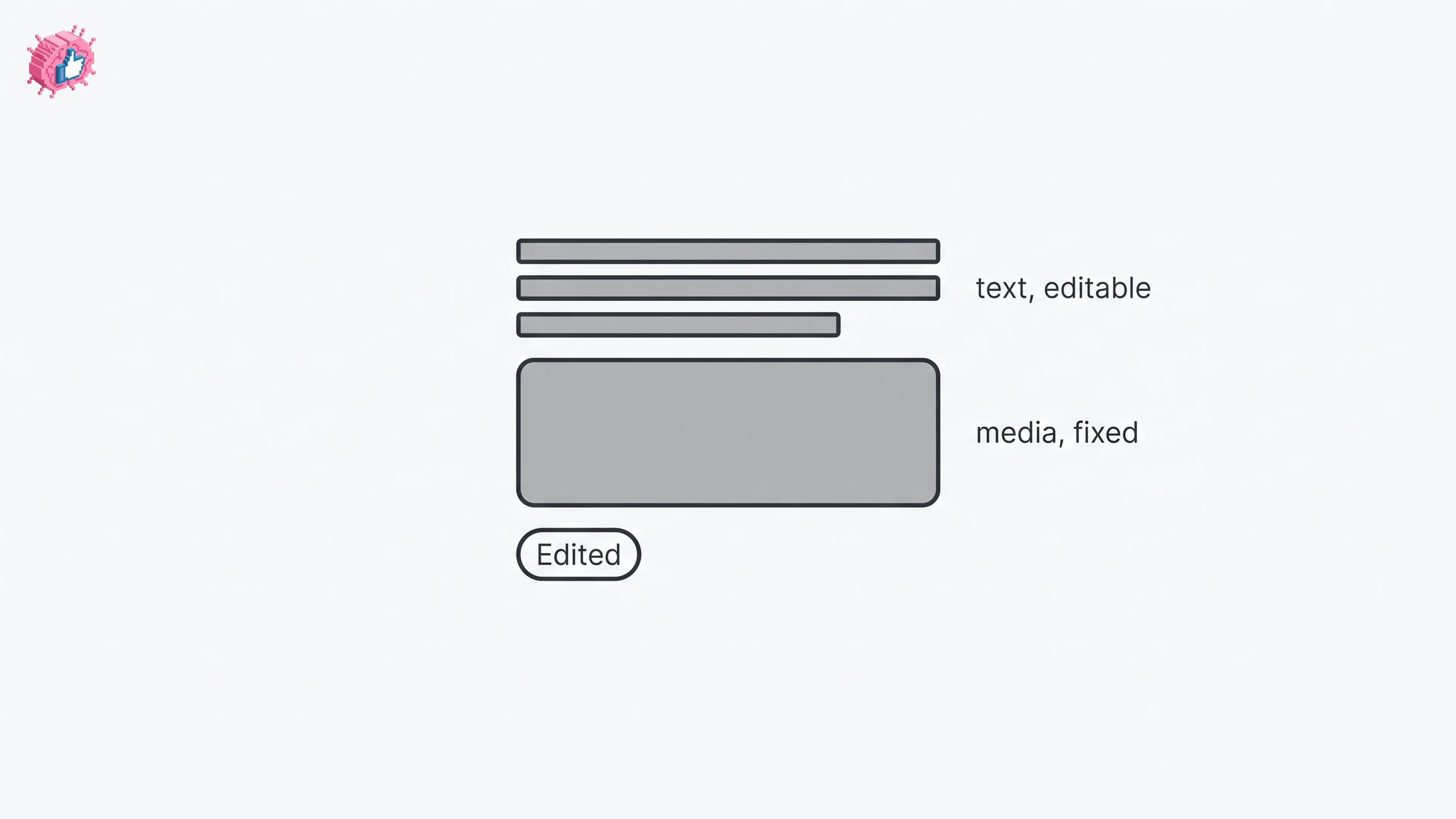
How to Edit a Post on LinkedIn: What You Can Change
Editing a LinkedIn post takes five steps, and on a post you shared only the text can change. LinkedIn's rules on media, previews, Pages and polls.
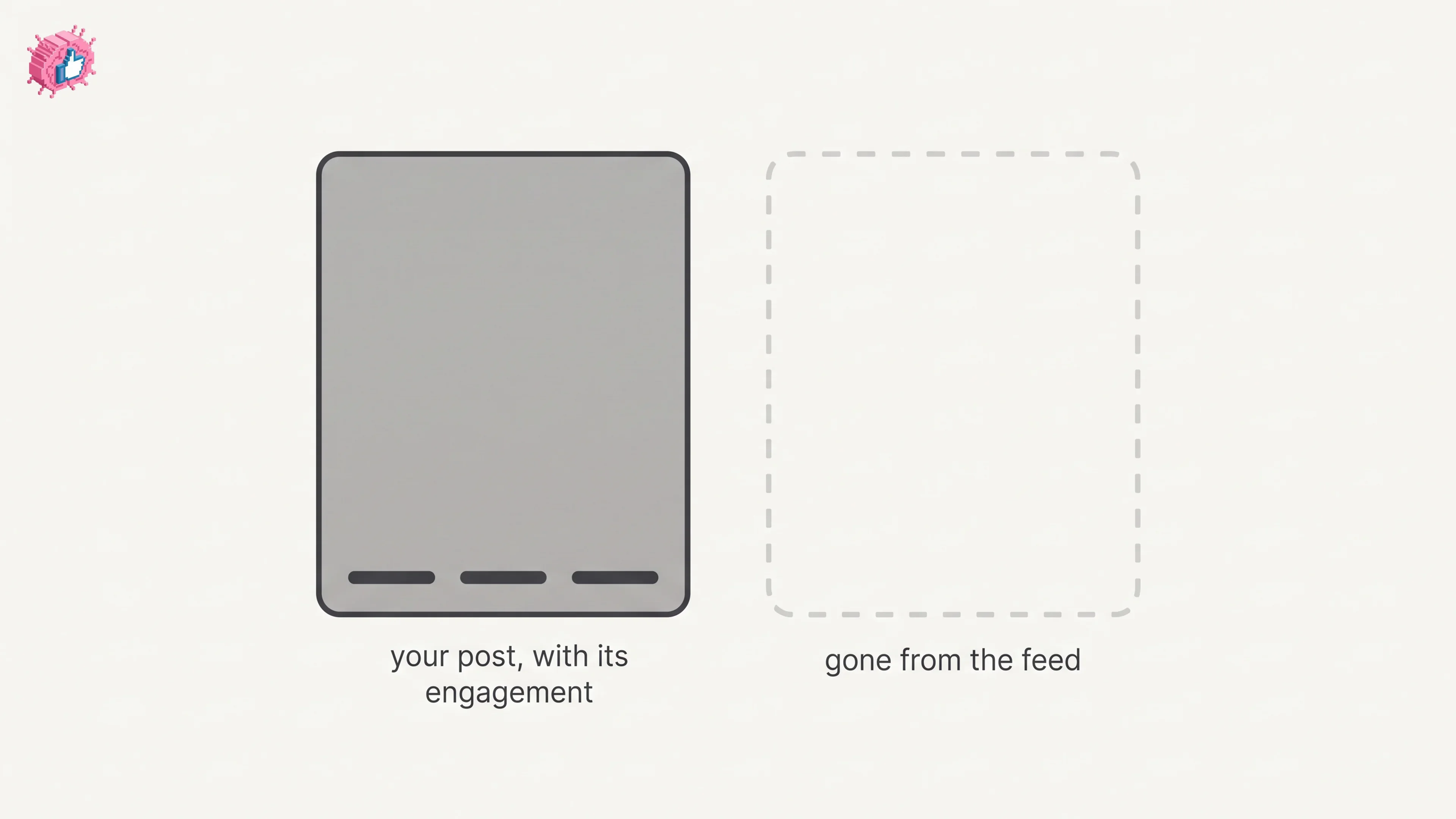
How to Delete a Post on LinkedIn (Feed, Page, Group)
The four documented steps to delete a LinkedIn post on desktop and mobile, plus Page, group, scheduled and comment deletes, and what happens to engagement
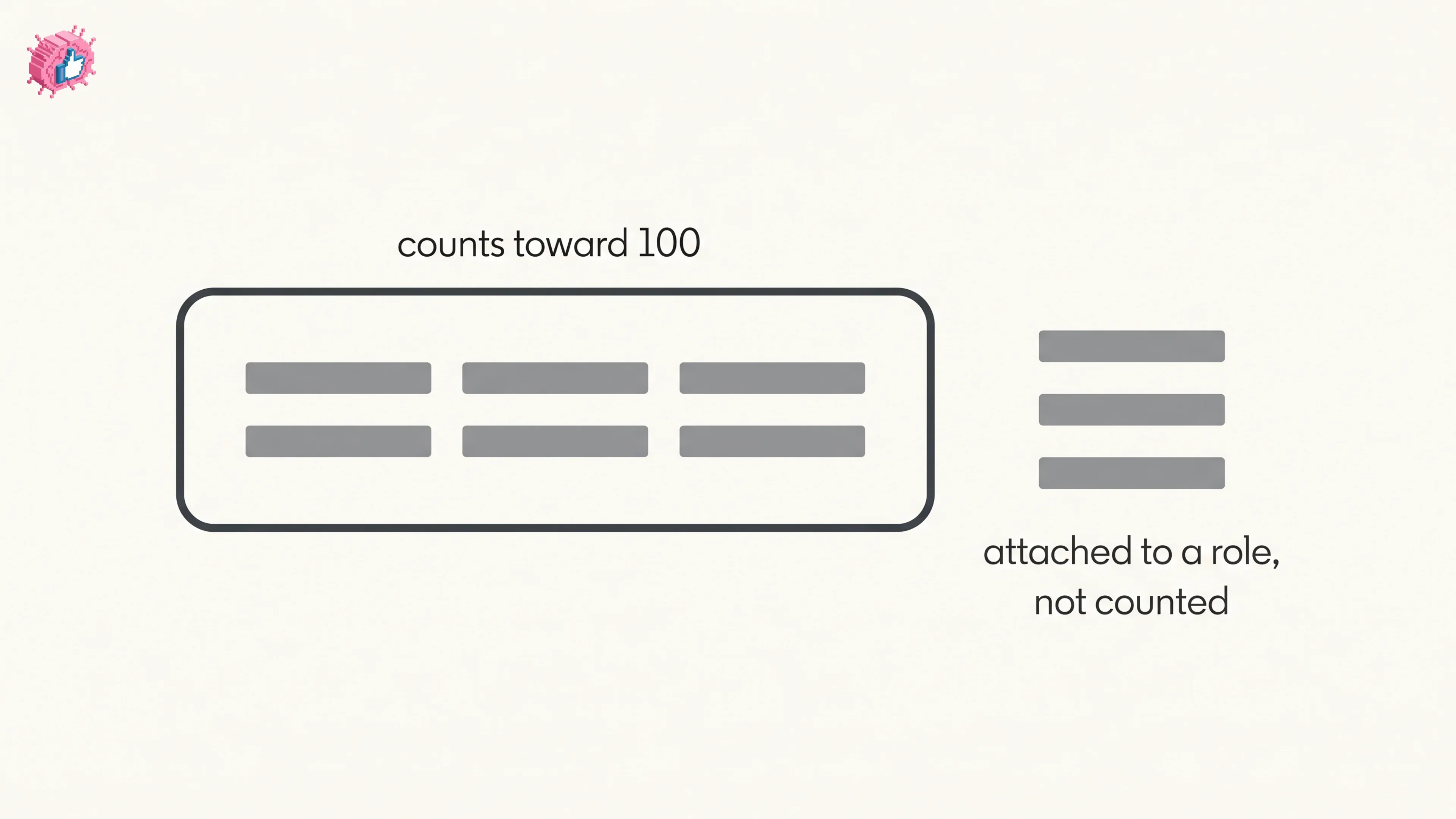
How to Add Skills on LinkedIn: Steps and Limits
How to add skills on LinkedIn on desktop and in the app, the 100 skill cap and its exemption, plus reordering, editing and removing a skill.