

How to Edit a Post on LinkedIn: What You Can Change
Editing a LinkedIn post takes five steps, and on a post you shared only the text can change. LinkedIn's rules on media, previews, Pages and polls.
You can edit a LinkedIn post after publishing it, and the route is five steps on both of LinkedIn's platform tabs: find the post, open the More icon in its upper-right corner, select Edit post, change the text, then save.
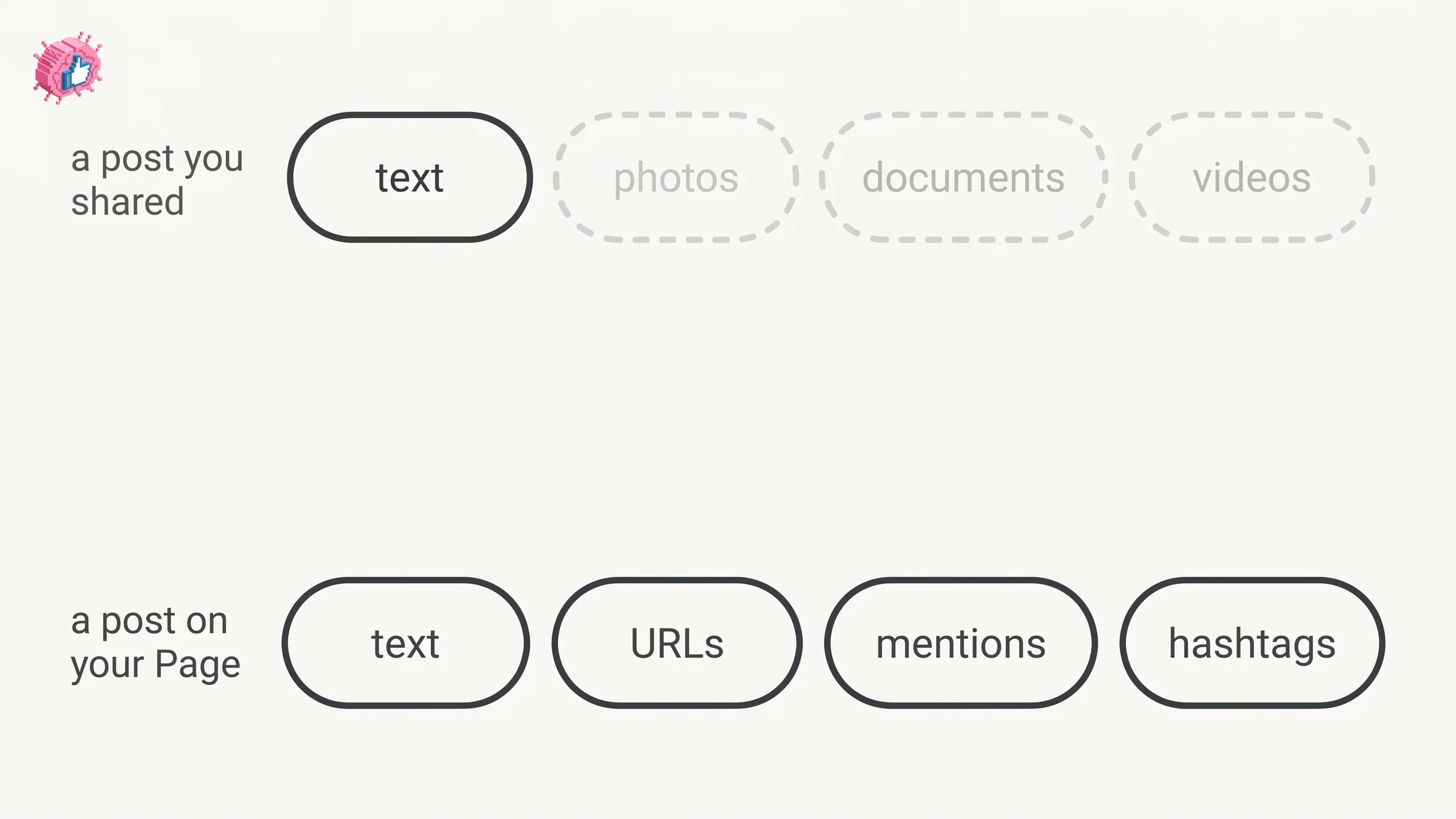
The limit is what you are allowed to change. For a post you shared yourself, LinkedIn's rule is one sentence: "Only the text in a post can be edited." A photo, a document, a video or an article you attached cannot be swapped out, and a new link will not pull in a new preview image.
LinkedIn also marks the change: "The word Edited will appear next to your post to indicate that edits have been made." The pages read for this guide do not document a way to remove that label.
| What you want to change | What LinkedIn documents |
|---|---|
| The text of a post you shared | Editable, through More then Edit post |
| A photo, document, video or article you attached | Cannot be replaced; delete the post and create a new one |
| The preview image on a link | A new URL will not display a new preview image |
| Who can see a post you shared | The visibility option cannot be changed after you share it |
| Text, URLs, mentions and hashtags on a Page post | Editable, per LinkedIn's Page posts FAQ |
| A poll | Cannot be edited once created; it can be deleted |
| A scheduled post | Edit post is documented from the scheduled posts queue |
Automate your LinkedIn for 30 days
How to edit a LinkedIn post
LinkedIn tabs these as Desktop and Mobile, with one Mobile tab rather than separate iOS and Android tabs. Its scope line covers three places at once: "You can edit the text in posts that you've shared from your homepage, Group, or LinkedIn page."
Desktop, under a heading LinkedIn writes as "To edit a post you've shared from your homepage":
- Locate the post you want to edit.
- Click the More icon in the upper-right corner of the post.
- Click Edit post.
- Edit the text of your post.
- Click Save.
Mobile, under a heading LinkedIn writes as "To edit a post you've shared":
- Locate the post you want to edit.
- Tap the More icon in the upper-right corner of the post.
- Tap Edit post.
- Edit your post.
- Tap Save.
Step 4 is where the two tabs differ in wording. The desktop step says to edit the text of your post; the mobile step says to edit your post. The note further down the same page scopes both: only the text can be edited.
What you cannot change after publishing
LinkedIn puts the restriction in a note under the steps, and it is the part that decides whether editing will solve your problem at all.
Text, yes. "Only the text in a post can be edited."
Attached media, no. LinkedIn's note states that shared rich media such as photos, articles, documents and videos cannot be replaced. Its instruction for that case is direct: "To edit shared rich media, you must delete your post and create a new one." If the wrong image went out, editing is the wrong tool, and how to delete a post on LinkedIn covers removing it, so you can create a new one.
Link previews, no. A new URL added by editing will not display a new preview image. LinkedIn adds a second note, on timing: "Currently, LinkedIn's share box remembers the content of the last link you shared for three days. Please wait for three days before sharing the same URL if you'd like the image and title information to be updated in your post."
If you publish first and add a link later by editing, the first of those two notes applies: "new URLs won't be able to display a new preview image." The reach side of that trade is worked through in how to add a link to a LinkedIn post, which also notes that LinkedIn does not document a penalty for editing a published post.
Visibility, no. LinkedIn's page on the visibility of shared posts states: "You can't change the visibility option after you've shared your post."
Does an edited LinkedIn post show that it was edited
Yes. LinkedIn states: "The word Edited will appear next to your post to indicate that edits have been made."
The page gives no setting for suppressing it and no time window after which editing goes unmarked. What the pages read for this guide also do not address is whether editing sends a new notification to anyone, or what it does to a post's distribution.
One point sits outside the Help pages: anyone who read the post before you edited it read the original. The LinkedIn post proofreader guide makes that point from the drafting side, which is the practical argument for catching errors before you publish rather than after.
Editing a post on a LinkedIn Page
Page posts are where the pages read for this guide name more than text as editable, and the role requirement comes first: super admin or content admin.
LinkedIn's Page posts FAQ answers the scope question directly: "At this time, edits can only be made to text, URLs, mentions, and hashtags in your page post."
Desktop:
- Access your Page super or content admin view.
- Click Page posts in the left menu.
- Locate the post you'd like to edit and click the More icon.
- Select Edit post from the dropdown menu.
- Edit the post and click Save.
Mobile:
- Access your Page super or content admin view.
- Tap Dashboard from the upper-left corner and select Page posts from the dropdown.
- Locate the post you'd like to edit and tap the More icon.
- Select Edit post from the dropdown menu.
- Edit the post and tap Save.
Sponsored posts carry an extra condition, and three LinkedIn pages state it in different words. The Page editing page says: "You can only edit a sponsored post if your Page has at least 500 followers or 50 members associated with your Page." The Page posts FAQ says your page "must have at least 500 followers or 50 employees associated with it to have Sponsored Content editing capabilities." LinkedIn's troubleshooting page for Page posts says your Page "must meet one of the following criteria": "At least 500 followers," "At least 50 employees associated with the Page," or "Associated with at least one managed LinkedIn Ads Account." Members on one page, employees on the other two, and none of the three reconciles the difference.
The FAQ then documents an exception to that threshold, which is worth knowing before you assume a small Page is locked out: "Pages that are associated with at least one enterprise ad account have Sponsored Content editing capabilities regardless of follower and employee count." The troubleshooting page's third criterion names a "managed LinkedIn Ads Account" instead, and neither page says whether the two terms mean the same thing. The FAQ also states that where editing is available for your page, super and content admins can edit all posts.
Editing a sponsored post also sends the associated ad back through review, and LinkedIn notes "The original version of the ad might be visible to your page followers while it goes through the review process again."
LinkedIn lists several reasons a sponsored or boosted Page post may not be editable, and they are worth checking before assuming the feature is broken.
| Documented reason | What LinkedIn says applies |
|---|---|
| Admin access | Super admin, content admin or Sponsored Content admin access is needed for a boosted post |
| Ad account access | You must have access to the ad account associated with the Sponsored Content |
| Page size | A sponsored post needs 500 followers, or 50 members or employees depending on the page, unless an ad account criterion applies |
| Boosted video | Boosted video posts cannot be edited after they are live |
| Review status | Posts that are rejected or restricted cannot be edited |
| The button is missing | If the Sponsored Content conditions are not met, the Edit post button will not appear |
Which admin role you hold decides the first row, and LinkedIn Page admin roles sets out all six.
Automate your LinkedIn for 30 days
Editing a scheduled post before it publishes
LinkedIn documents an Edit post option for scheduled posts, and it words the capability two ways on the same page.
Under its scheduling steps, the note says: "Once a post is scheduled, you can reschedule the publish time or delete the post." Under its steps for viewing scheduled posts, the note says: "To edit or reschedule a scheduled post, view your scheduled posts, click the More icon in the upper right, and then click Modify schedule or Edit post." The second note names an edit option that the first one does not. Both notes appear under the Desktop and Mobile tabs, and the first one does not say that editing is unavailable.
For a Page's scheduled posts, the scope is stated up front. LinkedIn says that once scheduled, "you can edit the contents of the post, the visibility settings of the post, control who can comment on the post, and indicate brand partnership, if required." On the Desktop tab, the route runs through the admin view, Page posts, Start a post, the Schedule post dialog, then View all scheduled posts, where the More icon offers Edit post. The Mobile tab runs through Dashboard, Page posts, Post, the Schedule dialog and View all.
Editing a group post and a collaborative post
Group posts have their own short page, and it covers editing and deleting together: "You can edit or delete posts or comments that you posted in a group, but you can't delete another member's posts or comments."
The steps are two. Click or tap the More icon on the upper-right corner of the post, then Edit post to make changes. For a comment, use the More icon on the comment and then Edit, which LinkedIn writes as Edit/Edit comment under its Mobile tab. More on how groups work is in LinkedIn groups.
Collaborative posts add a restriction: only the person who created the post can edit it or change who is listed on it. That flow, including the Edit [number] with others step, is documented in LinkedIn collaborative posts.
A poll cannot be edited once it is created
LinkedIn's polls FAQ answers this in a line: "No, a poll can't be edited once it's created. A poll can be deleted after it is created."
So a typo in a poll question means starting over, and the votes do not come with you. That makes a poll a post type worth checking twice before it goes out.
Reposts and articles
Reposts are covered in how to repost on LinkedIn, which documents the delete path for one; the repost page read for this guide does not document an edit option. Articles are a separate object with their own route, and how to post articles on LinkedIn covers editing one from your profile.
More individual feature guides are indexed in LinkedIn features explained.
Sources: Edit a shared post, Edit a post on your LinkedIn Page, LinkedIn Page posts FAQ, Troubleshoot posts on your LinkedIn Page, Edit a scheduled LinkedIn Page post, Schedule posts, Edit or delete posts or comments on LinkedIn groups, LinkedIn polls FAQ, How to repost a post on LinkedIn, Visibility of shared posts, Collaborate on a LinkedIn post. LinkedIn help pages checked October 9, 2026.
FAQ
How do I edit a post on LinkedIn?
Locate the post, click or tap the More icon in its upper-right corner, select Edit post, change the text, then click or tap Save. LinkedIn publishes these five steps under both its Desktop and Mobile tabs.
Can you edit a LinkedIn post after posting it?
Yes, but for a post you shared, only the text. LinkedIn's note states: "Only the text in a post can be edited." Shared rich media such as photos, articles, documents and videos cannot be replaced, and its instruction for that case is to delete the post and create a new one.
Does LinkedIn show when a post has been edited?
Yes. LinkedIn states: "The word Edited will appear next to your post to indicate that edits have been made." The page read for this guide gives no setting to hide that label.
Can I change the image on a LinkedIn post after posting?
Not by editing. LinkedIn lists photos among the shared rich media that cannot be replaced, and says you must delete the post and create a new one. A new URL added by editing will also not display a new preview image.
Can I edit a post on a company page?
Yes, as a super admin or content admin. LinkedIn's Page posts FAQ states that "edits can only be made to text, URLs, mentions, and hashtags in your page post." Sponsored posts add a threshold that LinkedIn's pages word as 500 followers or 50 members on one page and 500 followers or 50 employees on two others, plus an ad account exception.
Can I edit a scheduled LinkedIn post?
Yes, per LinkedIn's Schedule posts page. It documents an Edit post option in the scheduled posts queue, reached through the More icon in the upper right, alongside Modify schedule. A separate note on the same page mentions only rescheduling and deleting.
Can you edit a LinkedIn poll?
No. LinkedIn states: "No, a poll can't be edited once it's created. A poll can be deleted after it is created."
Why can't I edit my LinkedIn Page post?
LinkedIn lists several documented reasons for sponsored and boosted posts: the page size threshold, needing the right admin access and access to the associated ad account, boosted video posts that are already live, and posts that are rejected or restricted. It also notes that if the post appears in a Sponsored Content ad and you do not meet the conditions, the Edit post button will not appear.
Automate your LinkedIn for 30 days
ViralBrain plans, writes, and schedules your LinkedIn content, using official LinkedIn APIs so your account stays safe.
- Official LinkedIn APIs, no risk of ban
- You approve every post before it goes live
- Cancel anytime
Keep reading
How to Delete a Post on LinkedIn (Feed, Page, Group)
The four documented steps to delete a LinkedIn post on desktop and mobile, plus Page, group, scheduled and comment deletes, and what happens to engagement
How to Add Skills on LinkedIn: Steps and Limits
How to add skills on LinkedIn on desktop and in the app, the 100 skill cap and its exemption, plus reordering, editing and removing a skill.
LinkedIn Read Receipts: How to Turn Them Off
LinkedIn read receipts explained: the setting is called Delivery and typing indicators, how to turn it off on desktop and mobile, and what you lose.