

How to Add Education on LinkedIn: Fields and Steps
How to add education on LinkedIn, the eight fields LinkedIn documents, multiple entries, the expected end date, reordering, and the 24 hour notify window.
You add education on LinkedIn from the Education section of your profile, on desktop or in the mobile app. LinkedIn's Help page opens with the plain version: "Adding education to your LinkedIn profile helps showcase your knowledge and background. You can add, change, or delete entries anytime in the Education section."
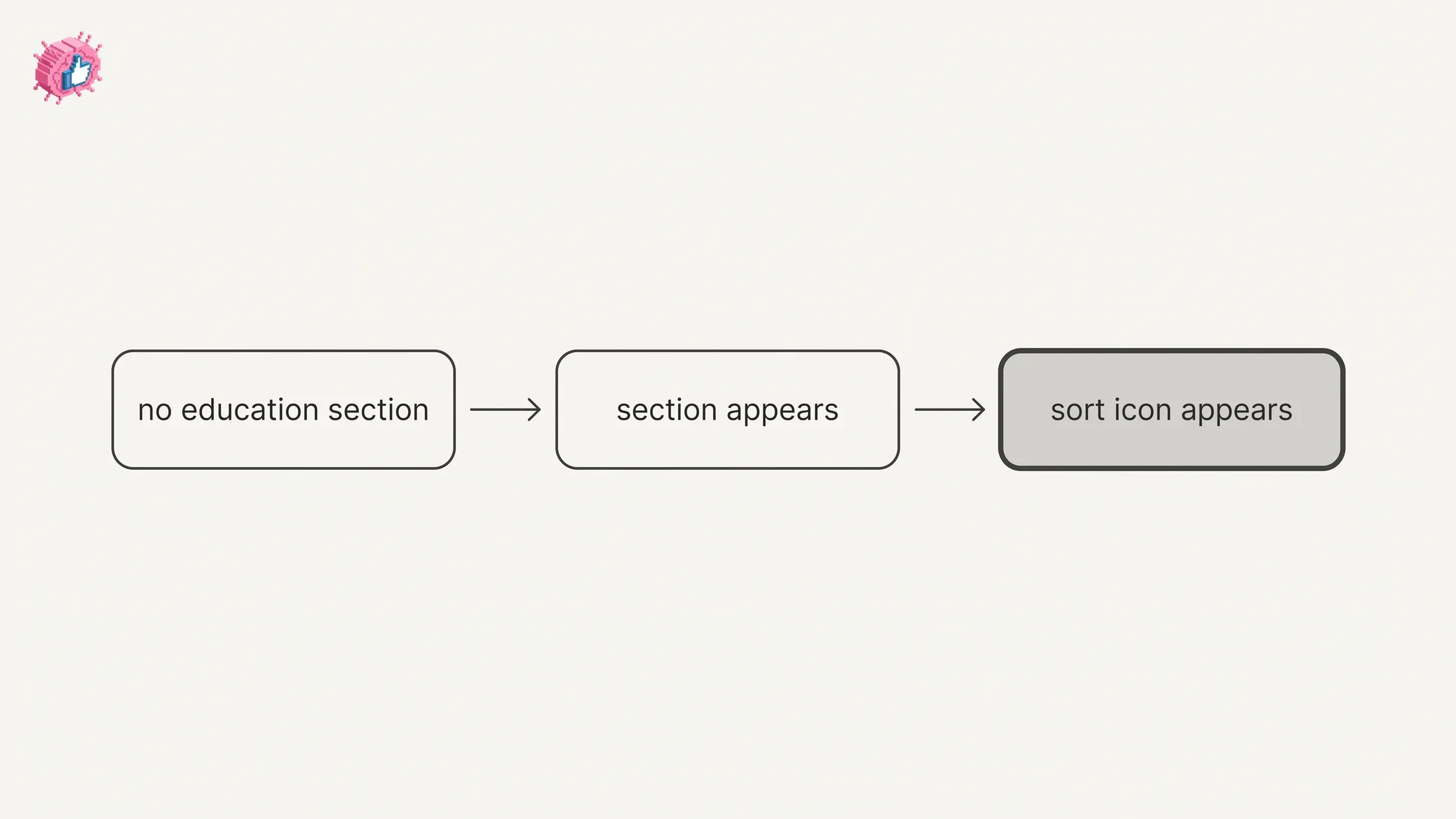
One detail decides whether you can find it at all. LinkedIn states: "The Education section appears only after you add your first education entry." If you have not added an entry yet, a missing section is expected, and the fix is to add a section rather than to hunt for an edit icon.
This guide covers the fields LinkedIn documents, adding more than one school, what the documentation says about a qualification you have not finished yet, reordering, editing, deleting, and whether any of it reaches your network. Every step and quote below comes from a LinkedIn Help page, and those pages are listed before the FAQ.
Automate your LinkedIn for 30 days
What the Education section is on LinkedIn
It is the profile section holding your schools and qualifications. LinkedIn's profile overview describes it in one line: "Education - School and educational information."
It sits in the Core group of sections you can add, alongside About, Position, Services, Career break, and Skills. Education is also one of the details LinkedIn lists as displaying in your introduction section at the top of your profile.
| Question | What LinkedIn documents |
|---|---|
| Where it lives | The Education section on your profile |
| Which group it belongs to | Core, in Add profile section |
| When the section appears | Only after you add your first education entry |
| Where you can add it | Desktop and the mobile app |
| How many entries it holds | More than one, since the Sort icon needs "two or more" |
| What to do if you cannot see it | LinkedIn routes you to its page on adding sections |
The fields LinkedIn documents in an education entry
The page carrying the step by step flow says only "Enter your education details" and does not name the fields. LinkedIn's screen reader page for education does name them, with a step for each field, and marks which ones it calls optional.
| Field | What the screen reader page says |
|---|---|
| School | Type the name, then select from LinkedIn's suggestions |
| Degree | Type and select from suggestions, "This field is optional" |
| Field of study | Type and select from suggestions, "This field is optional" |
| Start date | Month then year, "This field is optional" |
| End date | Month then year, "This field is optional" on the Desktop and Android tabs |
| Grade | Typed freely, "This field is optional" |
| Activities and societies | Typed freely, "This field is optional" |
| Description | A "freeform description where you can expand on anything you added above", "This field is optional" |
On the Desktop and Android tabs, School is the one field not marked optional. Three of them (School, Degree, Field of study) are described as offering suggestions you select rather than free text you type.
If your school does not come up when you search for it, LinkedIn's troubleshooting page says that "might mean a University Page hasn't been created for the school yet," and adds: "You can still add the educational experience without linking a Page, but you cannot add a logo this way."
If a qualification is a license or a certificate rather than a degree, it belongs in a different section, and adding a certification to LinkedIn covers that one. Individual classes have their own home too, covered in adding courses on LinkedIn.
How to add education on LinkedIn
LinkedIn's education page tabs its steps Desktop and Mobile. Here they are as written.
On desktop:
- Click the Me icon at the top of your LinkedIn homepage
- Click View profile
- Scroll down to Education section and click the Add icon
- (Optional) Turn on Notify network toggle if you want to share this update with your connections
- Enter your education details
- (Optional) Add skills or media to support your educational qualification
- Click Save
On mobile:
- Tap your profile photo
- Tap your profile photo again to access your profile page
- Scroll down to Education section and tap the Add icon
- (Optional) Turn on Notify network toggle if you want to share this update with your connections
- Enter your education details
- (Optional) Add skills or media to support your educational qualification
- Tap Save
After the first two steps, which reach your profile, the two lists run the same, including the Notify network toggle, which this page documents under desktop and mobile alike.
If your profile has no Education section yet, LinkedIn's separate page on adding sections is the route in: open Add profile section in your introduction section (Add section in the app), then pick the section from the Core group.
How to add more than one education entry
Repeat the add flow. LinkedIn confirms multiple entries in the rule governing the reordering control: "The Sort icon appears only if you have two or more education entry."
That sentence documents a second, third, or fourth school. It also tells you what to expect on screen: with one entry listed, the control for ordering them is not there to find.
Order is worth a thought once you have several. LinkedIn frames reordering around recency: "You can reorder the Education on your profile to highlight the most recent education. This helps ensure your key education details are more visible to your connections and recruiters."
Current education and an expected end date
If you are still studying, the relevant field is the end date, and the tabs word it differently.
On the Desktop tab of LinkedIn's screen reader page, the end date step finishes with "This field is optional," the same line attached to the degree, field of study, start date, grade, activities, and description steps.
On the iOS and Android tabs of that page, the same field is announced as "End date or expected", and the Android tab repeats the optional line on that step, while the iOS tab does not.
Between them the documentation covers both shapes of an unfinished qualification: a field that accepts an expected date, and Desktop and Android steps that call the field optional. The pages read for this guide do not publish a separate currently studying checkbox for education, and this guide does not claim one.
Automate your LinkedIn for 30 days
How to reorder education on your profile
LinkedIn gives reordering its own page, tabbed Desktop and Mobile, and both lists run the same shape.
- Reach your profile (click the Me icon then View profile on desktop, or tap your profile photo twice in the app)
- Scroll down to the Education section and open the Edit icon
- Use the Sort icon "in the upper-right corner on the right"
- In the Reorder education window, hold the Reorder icon next to an entry and drag it to the desired order
- Use the Cancel icon to save changes
Step five reads oddly and it is what the page says: the Cancel icon is the control LinkedIn names for saving the new order. The same page adds a line worth keeping: "Refresh the page if you don't see the updated order immediately."
How to edit or delete an education entry
Both live behind the same icon. LinkedIn's education page gives one route with two endings.
- Reach your profile as above
- Scroll down to Education section and click or tap the Edit icon
- From here you can:
- Edit: open the Edit icon next to the education entry, update your details, and Save
- Delete: open the Edit icon next to the education entry, then click Delete education at the bottom of the page and confirm
Deleting an entry removes that entry. On a profile holding a single school, the section itself is governed by the rule at the top of this guide, which ties the section's appearance to having added a first entry.
For the sections around it, volunteer experience, honors and awards, and publications each follow a close variant of the same edit icon pattern.
Does adding education notify your network
It may, and LinkedIn names education as one of the specific changes the setting governs: "You can choose to notify your network about job changes, education changes, and work anniversaries. Enabling notifications about your profile changes may generate a post in your network's feed, an in-app notification, or an email notification."
Note the hedge. LinkedIn writes may, across three possible channels, not will.
There are two places to control it. The account-wide one is Share profile updates, under Settings & Privacy then Visibility. The in-editor one is the Notify network toggle that appears in the add flow above.
Timing is documented, and education has its own window: "updates to your education can take up to 24 hours to be shared with your network." Job updates are given as up to two hours. A quiet feed ten minutes after you save is not evidence the toggle worked.
LinkedIn adds two caveats in the same place: "Editing or deleting the update after adding it may affect the notification generation," and automated update posts are "available for up to 90 days," after which "the post and any associated comments and reactions are deleted."
Our guide to updating LinkedIn without notifying your network works through the full setting, including what it does not cover.
What the pages read for this guide do not say
Being straight about the edges of the source matters more than filling them.
- No character limits are given for the Grade, Activities and societies, or Description fields on the pages read for this guide.
- No maximum number of education entries is stated on those pages.
- No separate iOS and Android split appears on the main education page, which tabs its steps Desktop and Mobile. The screen reader page is the one that splits iOS and Android.
Where another article gives you an exact character count or an entry cap, it is sourcing that from somewhere other than the Help pages listed below.
What this means for you
- The section appears after the first entry, not before. LinkedIn states this directly, so a missing Education section is an add-a-section job.
- School is the field the Desktop tab of LinkedIn's screen reader page does not mark optional. Degree, field of study, dates, grade, activities, and description all carry the optional line there.
- Still studying is handled by the end date field, announced on the iOS and Android tabs as "End date or expected".
- Two or more entries bring up the Sort icon. With one entry, there is nothing to reorder and no control for it.
- The Cancel icon saves a reorder. That is LinkedIn's wording, and refreshing the page is its own suggested fix if the order looks stale.
- Education updates can take up to 24 hours to reach your network, when you have chosen to share them at all.
Education is one section of your profile. The LinkedIn profile optimization checklist covers a profile in nine steps, adding languages handles one of the Additional sections, and our index of LinkedIn features works through them one at a time, the same way this guide does, from the documentation. For tooling, ViralBrain has a free tier with 3 heroes and 3 posts a month.
Sources: Add, edit, or delete education on your profile, Add your education with screen reader support, Update the order of education on your profile, Share profile updates, Add sections to your profile, Your LinkedIn profile, Edit your profile, Troubleshoot adding your LinkedIn education experience to your profile, LinkedIn Help (accessed October 2026)
FAQ
How do I add education on LinkedIn?
Reach your profile, scroll to the Education section, and open the Add icon. Enter your education details, optionally add skills or media, then Save. LinkedIn documents a seven step flow for desktop and another for the mobile app.
Why is there no Education section on my profile?
LinkedIn states that "The Education section appears only after you add your first education entry." Until then it does not display, and LinkedIn points you to its page on adding sections to your profile.
Can I add more than one school to LinkedIn?
Yes. LinkedIn's reordering page states that the Sort icon "appears only if you have two or more education entry," which documents multiple entries. Repeat the add flow for each one.
How do I show that I am still studying on LinkedIn?
Use the end date field. On the iOS and Android tabs of LinkedIn's screen reader page it is announced as "End date or expected". The Desktop and Android tabs of that page call the end date field optional.
What fields can I fill in a LinkedIn education entry?
School, Degree, Field of study, Start date, End date, Grade, Activities and societies, and Description. Every one of those except School carries the line "This field is optional" on the Desktop tab of LinkedIn's screen reader page.
How do I reorder education entries on LinkedIn?
Open the Edit icon on the Education section, then the Sort icon "in the upper-right corner on the right". Drag entries by the Reorder icon in the Reorder education window, then use the Cancel icon to save.
How do I delete education from my LinkedIn profile?
Open the Edit icon next to the entry, click or tap Delete education at the bottom of the page, and confirm.
Does adding education notify my network?
It may. LinkedIn names education changes as one of the changes the Share profile updates setting governs, and says enabling it "may generate a post in your network's feed, an in-app notification, or an email notification."
How long does a LinkedIn education update take to show up?
LinkedIn states that "updates to your education can take up to 24 hours to be shared with your network." It gives up to two hours for job updates.
Automate your LinkedIn for 30 days
ViralBrain plans, writes, and schedules your LinkedIn content, using official LinkedIn APIs so your account stays safe.
- Official LinkedIn APIs, no risk of ban
- You approve every post before it goes live
- Cancel anytime
Keep reading
How to Add Organizations on LinkedIn: Full Steps
How to add organizations on LinkedIn, where the section sits, desktop and app steps, editing entries, and why a LinkedIn Page is a different thing.
How to Add Honors and Awards on LinkedIn
How to add the Honors and awards section on LinkedIn on desktop and in the app, the exact steps LinkedIn publishes, and how to edit or delete an entry.
How to Add Courses on LinkedIn to Your Profile
How to add the Courses section on LinkedIn on desktop and in the app, where it sits among profile sections, how to edit or remove an entry.