

LinkedIn Custom Button: Who Gets It and How
The LinkedIn custom button needs Premium Business, Sales Navigator or Recruiter Lite. The seven labels, the setup steps, and where it actually appears.
The LinkedIn custom button is the blue call-to-action that sits in the top card of a profile, next to Connect and Message. It sends visitors to a URL you choose.
Two things about it are worth knowing before you go looking for the setting. It is not part of every Premium plan, and it does not only appear on your profile: LinkedIn puts it in search results, messages and the feed as well, which is where most of its value comes from.
This guide covers exactly which subscriptions include it, the seven labels you can pick from, the setup steps, and the cases where adding one is a waste of a click.
Automate your LinkedIn for 30 days
What is the LinkedIn custom button?
A custom button is a single, labeled link in the introduction section of your profile. You pick one label from a fixed list and supply the destination URL.
It replaces nothing. Connect, Message and Follow stay where they are, and the custom button sits alongside them as an additional action a visitor can take.
The value is that it turns a profile visit into a destination visit without the visitor hunting for a link in your About section or your featured posts. Someone who lands on your profile and wants your booking page can get there in one click.
Which subscriptions include it
This is where most searches for the feature end, so here it is plainly. LinkedIn's documentation names the qualifying subscriptions as "LinkedIn Premium Business, Sales Navigator, and Recruiter Lite subscribers", and describes it as available to a select group.
| Subscription | Custom button |
|---|---|
| Premium Business | Yes |
| Sales Navigator | Yes |
| Recruiter Lite | Yes |
| Premium Career | Not named |
| Free account | No |
Read that list carefully, because the omission matters. Premium Career is not on it. The cheaper personal Premium tier, the one most individuals buy, is not named as qualifying. Neither is a free account.
If you are weighing which subscription to hold, Sales Navigator is one of the three that qualifies, and what it costs sits alongside the rest of LinkedIn's paid tiers in our guide to LinkedIn Premium All-in-One. This page does not repeat that pricing.
The "select group" wording is also worth taking at face value. Holding a qualifying subscription makes you eligible rather than guaranteed, so the button may not appear for you on day one.
The seven labels you can choose from
You do not write your own text. LinkedIn offers a fixed list:
- Visit my store
- Visit my website
- View my portfolio
- View my blog
- Book an appointment
- View my newsletter
- View my services
The label is the whole message, so pick the one that matches what is actually at the other end. A button reading "Book an appointment" that lands on a homepage is a broken promise, and the visitor who clicked it leaves.
How to add a custom button
- Click the Me icon on your LinkedIn homepage
- Select View profile
- Click Add custom button in the introduction section
- Choose one button option from the pop-up
- Enter your URL in the text box
- Click Done
If step 3 offers you nothing, you are either on a subscription that does not qualify or outside the group it has rolled out to.
Where the button actually appears
This is the part that changes how much the feature is worth, and it is easy to miss.
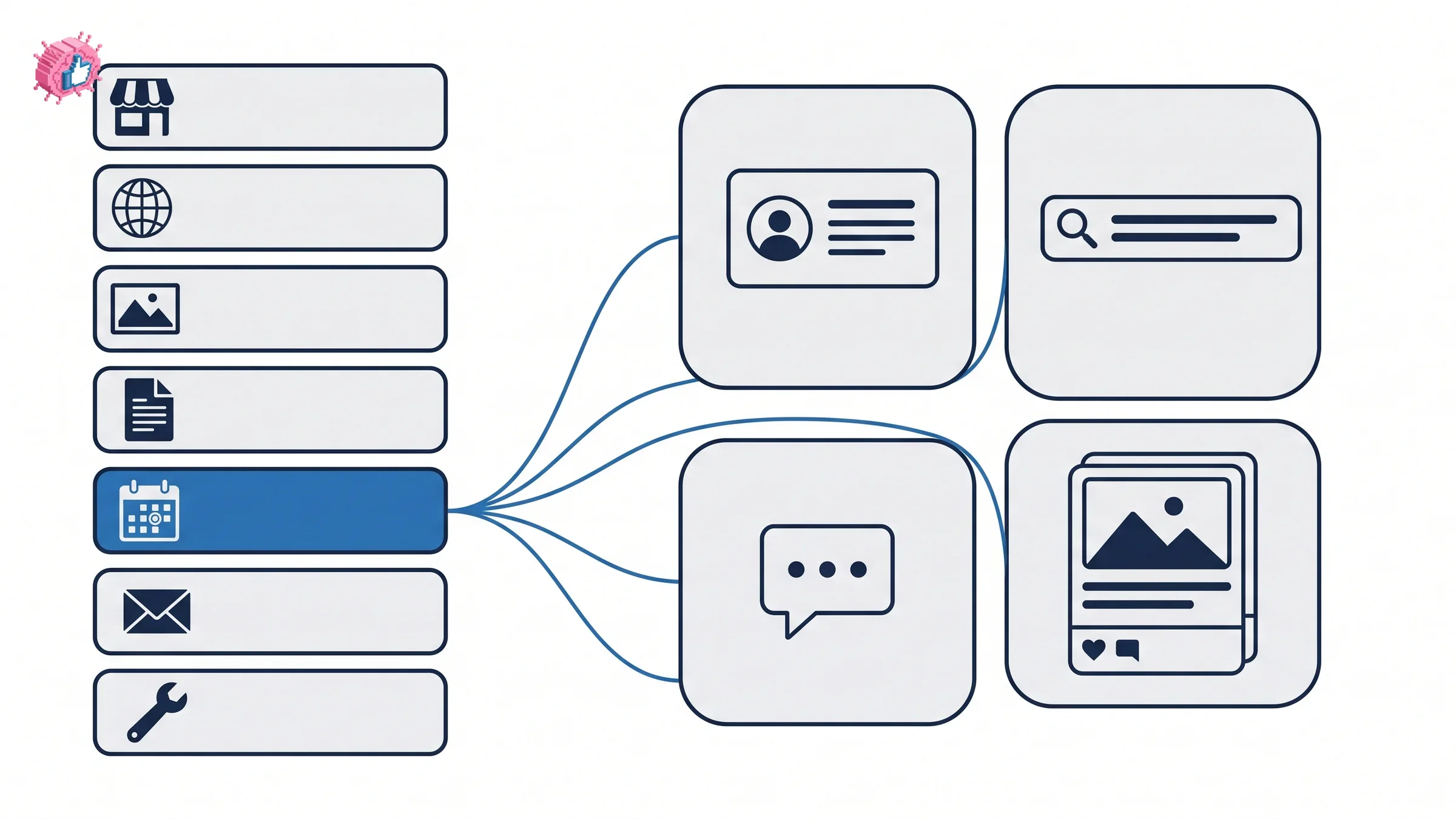
The button appears on your profile, and also in search results, messages and the feed. A setting called "Increase button visibility" controls this, and it is on by default.
That matters because profile visits are the scarce thing. Most people who encounter you on LinkedIn never open your profile at all: they see you in a feed, in a search result, or in a message thread. A button that travels into those surfaces is being shown to people who were never going to click through to your profile in the first place.
So the honest framing of the feature is distribution rather than decoration. The same logic applies to anything that makes your presence work outside the profile page, which is the argument running through building a personal brand.
Automate your LinkedIn for 30 days
How to edit or remove it
Go to your profile, click the Edit icon in the introduction section, scroll to the custom button section, and then either change the URL, select a different option, or click Remove.
Nothing here is permanent. You can swap the label and the destination whenever you want, which makes the button a reasonable thing to point at a campaign for a few weeks and then move.
Choosing a label and a URL that earn the click
Three decisions do most of the work.
Match the label to the page. The seven options are specific on purpose. "View my services" should land on a services page, not a contact form. If you sell through a LinkedIn service page, that is a natural destination.
Send people somewhere that works on a phone. A large share of LinkedIn traffic is mobile, and a booking page that needs a desktop is a dead button.
Pick the action you actually want. A newsletter button grows a list. A booking button generates calls. They are different goals, and you only get one button, so choose the one that matches what you are trying to do this quarter. If the destination belongs to the business rather than to you, the personal brand versus company page question is worth settling first.
Everything else on the profile still has to do its job. The button is a destination, and the reason someone clicks it comes from your headline, your About section and what you post. A profile checklist is the better first pass if those are thin.
Who should add one, and who should not
Worth it if:
- You sell something with a clear next step. Booking, services, store. The button removes a step from a path that already exists.
- You publish a newsletter. A permanent subscribe link next to your name is hard to beat, and it works on people who never open your profile, which is how follower growth compounds into a list.
- You hold one of the three qualifying subscriptions already. Then it costs a minute and adds a channel.
Skip it if:
- You are on Premium Career or a free account. The feature is not named for those, and no workaround puts it there.
- Your destination is generic. A button pointing at a company homepage adds nothing a visitor could not already find.
- You would be buying a subscription purely for this. One button is a thin reason to move to Premium Business, Sales Navigator or Recruiter Lite. Decide on the rest of what those plans do, and treat the button as a small extra.
- Your profile is not converting visits yet. Sending more people to a weak page does not fix the page. Tools that audit a profile, including those covered in profile optimization tools, are a better place to start.
The honest summary
The custom button is a small feature with one genuinely useful property: it escapes the profile. Appearing in search results, messages and the feed means it reaches people who were never going to click through to you.
That makes it worth setting up if you already hold Premium Business, Sales Navigator or Recruiter Lite, and worth close to nothing as a reason to start paying. Pick the label that matches the page, point it somewhere that works on a phone, and change it whenever your priority changes.
FAQ
Do I need Premium for the LinkedIn custom button?
Yes, and not every Premium plan qualifies. LinkedIn names the eligible subscriptions as "LinkedIn Premium Business, Sales Navigator, and Recruiter Lite subscribers." Premium Career is not named, and free accounts do not have it.
What are the LinkedIn custom button options?
Seven labels: Visit my store, Visit my website, View my portfolio, View my blog, Book an appointment, View my newsletter, and View my services. You choose one and supply the URL; you cannot write custom text.
How do I add a custom button to my LinkedIn profile?
Click the Me icon, select View profile, click Add custom button in the introduction section, choose an option from the pop-up, enter your URL, and click Done.
Where does the LinkedIn custom button appear?
On your profile, and also in search results, messages and the feed. A setting called "Increase button visibility" controls the wider placement and is on by default.
Can I change or remove my custom button later?
Yes. Click the Edit icon in your profile's introduction section, scroll to the custom button section, and change the URL, select a different option, or click Remove. There is no limit on changing it.
Why can I not see the Add custom button option?
Either your subscription does not qualify, or the feature has not reached your account. LinkedIn describes the button as available to a select group of Premium Business, Sales Navigator and Recruiter Lite subscribers, so eligibility is not the same as immediate access.
Can I write my own custom button text?
No. The label comes from LinkedIn's fixed list of seven options. Only the destination URL is yours to set.
Does the custom button replace the Connect or Message buttons?
No. It sits alongside the existing actions in the introduction section of your profile rather than replacing any of them.
Automate your LinkedIn for 30 days
ViralBrain plans, writes, and schedules your LinkedIn content, using official LinkedIn APIs so your account stays safe.
- Official LinkedIn APIs, no risk of ban
- You approve every post before it goes live
- Cancel anytime
Keep reading
LinkedIn Career Break: How to Add One and Who Sees It
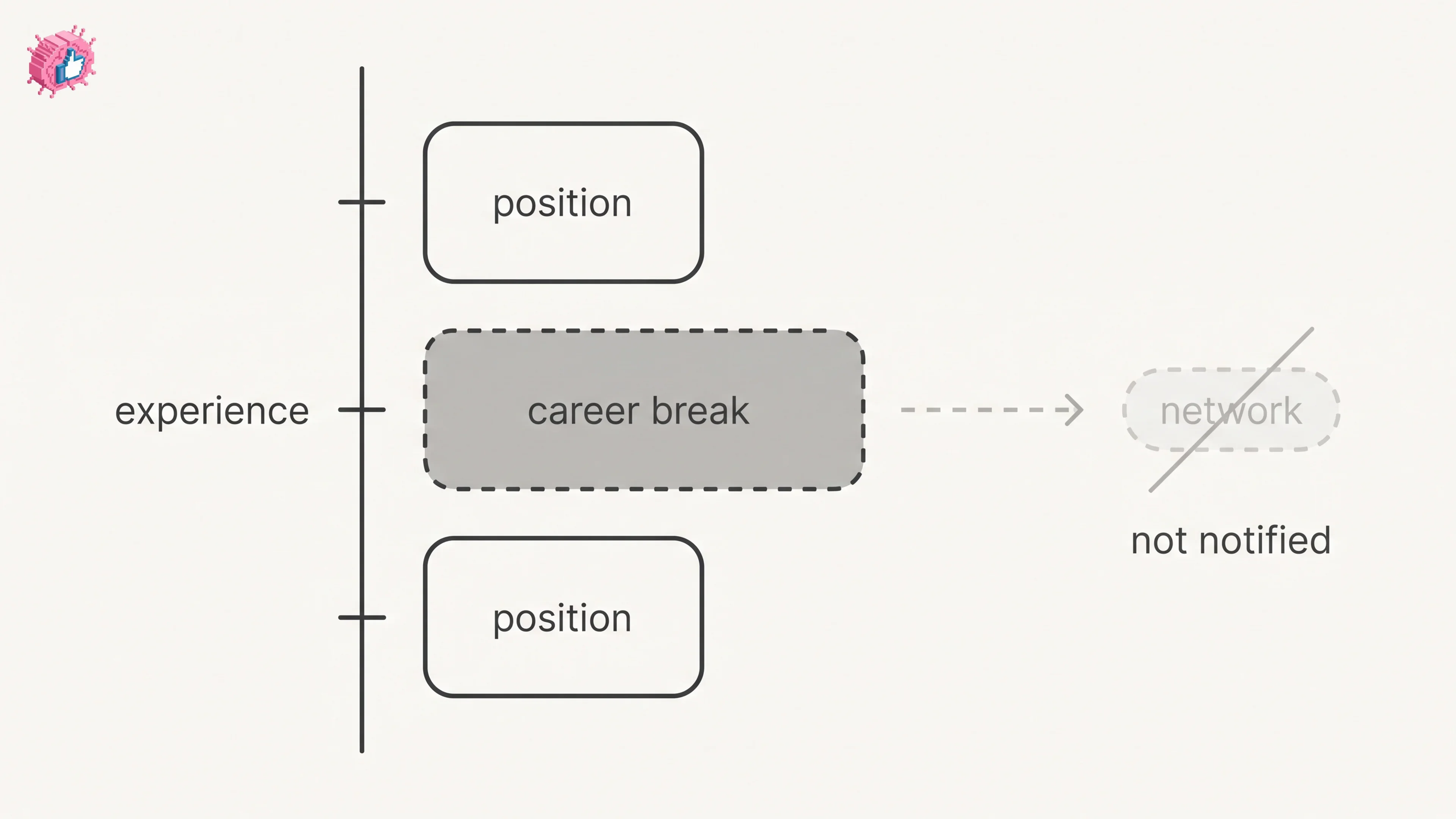
Add a career break on LinkedIn desktop or the app. Your network is not notified, the type is optional, and signed-in members see it. From LinkedIn Help.
How to Add a Certification to LinkedIn Without Posting
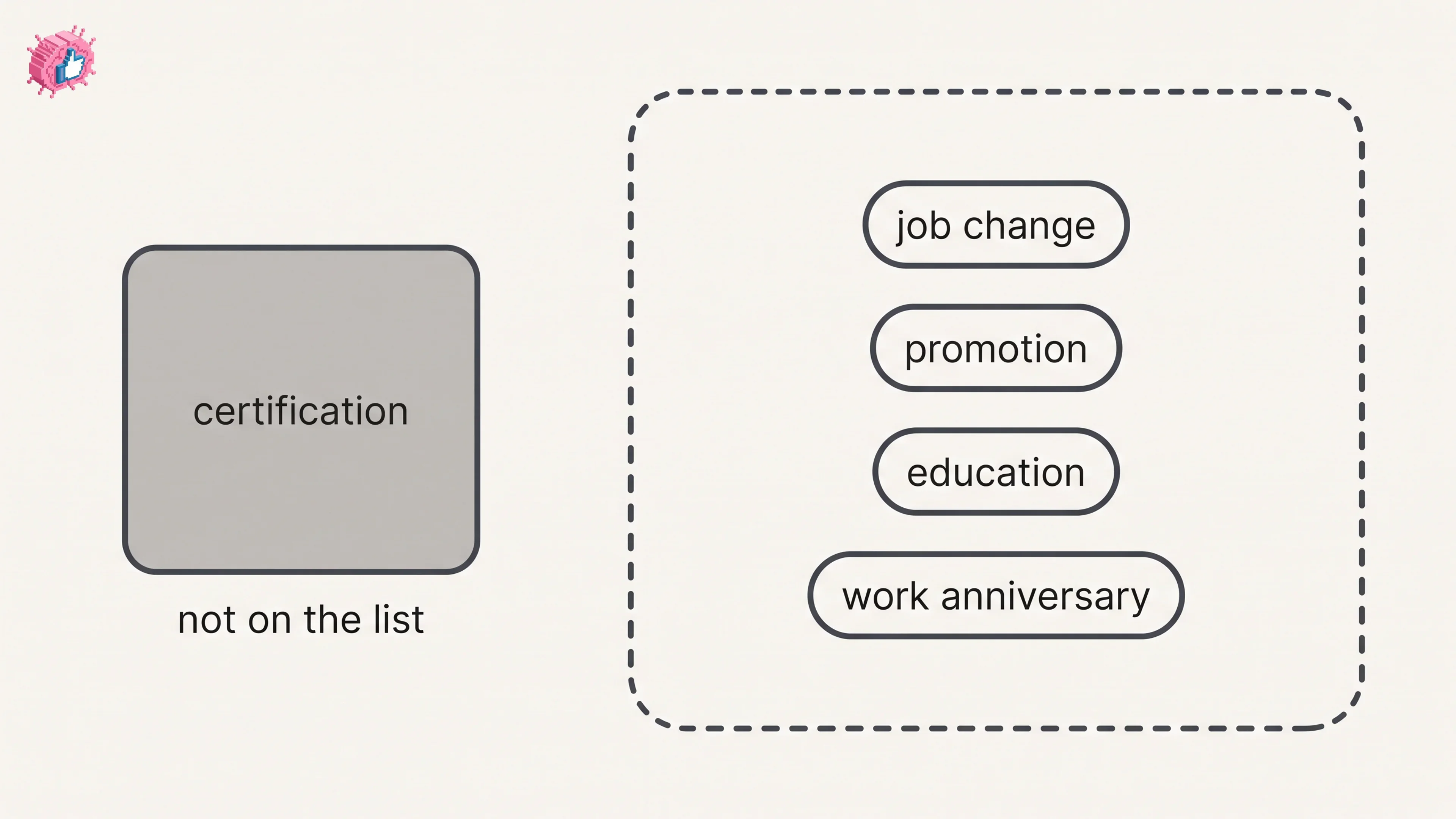
Add a certification on LinkedIn desktop or the app, put credentials after your name, and see what LinkedIn documents about notifying your network.
How to Remove a Connection on LinkedIn: What It Erases
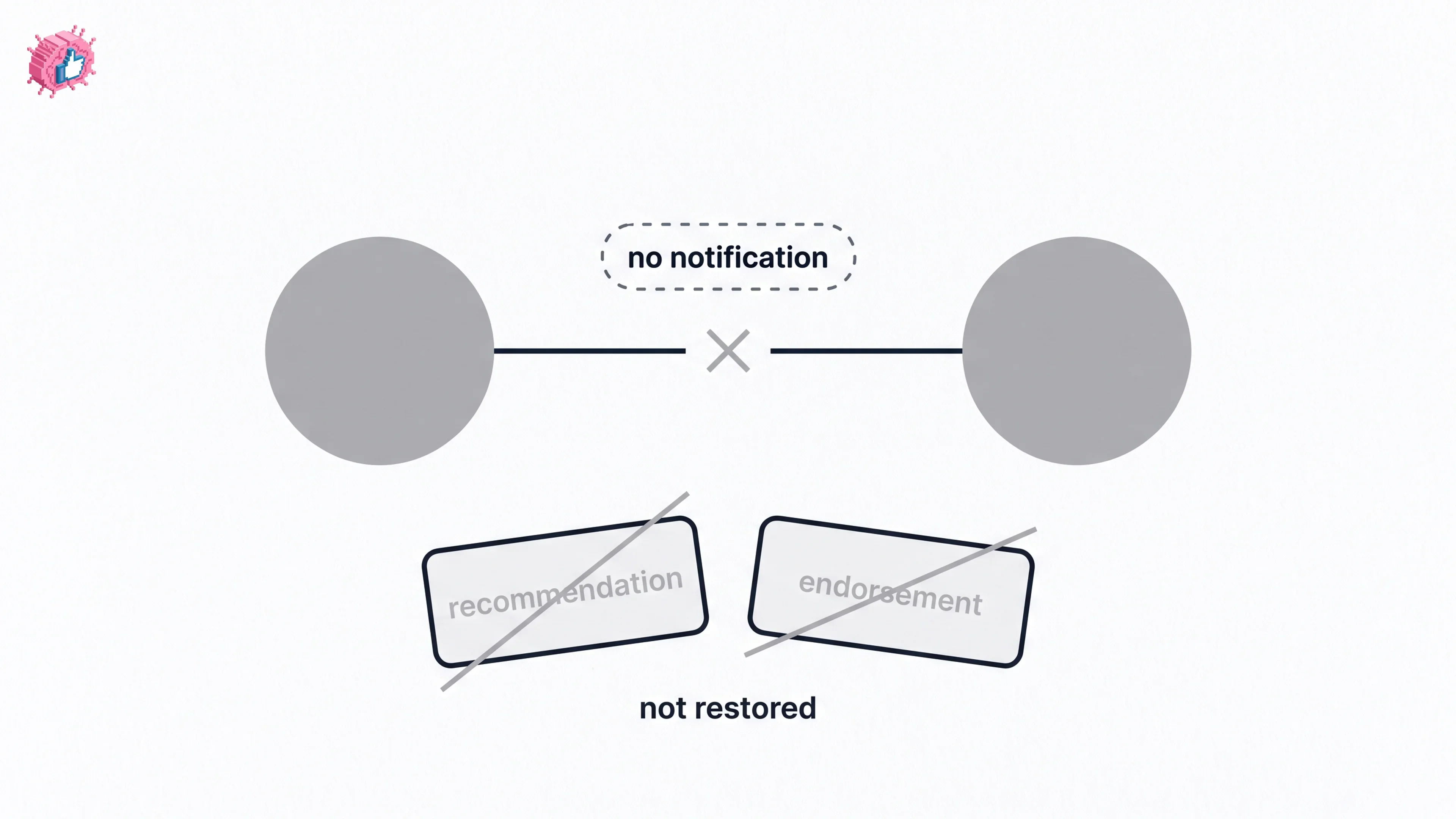
Remove a LinkedIn connection on desktop or the app. They are not notified, but recommendations and endorsements go for good. Steps from LinkedIn Help.