

How to Hide Active Status on LinkedIn
How to hide your LinkedIn active status: the Manage active status setting, its three documented options on desktop and in the app, and what you give up.
LinkedIn's active status is a green circle on a profile photo in LinkedIn Messaging, and who can see yours is one setting called Manage active status. It sits in Settings & Privacy, under Visibility, in the Visibility of your LinkedIn activity section, and it offers three choices: Your Connections only, All LinkedIn members, and No one.
Turning yours off costs you something, and LinkedIn puts it in one sentence: "If you turn off your active status, you'll also lose the ability to see when your connections are active on LinkedIn."
The steps and quotes below come from the LinkedIn Help pages listed before the FAQ. Where those pages are silent, this guide says so rather than filling the space.
Automate your LinkedIn for 30 days
What active status shows and who it shows it to
It shows whether you are active and reachable on LinkedIn. The feature's own page opens with the scope: "You can see which of your connections are currently active and reachable on LinkedIn. A green circle on their profile photo in LinkedIn Messaging indicates they're active."
So the marker is a circle, it rides on a profile photo, and LinkedIn names LinkedIn Messaging as where it appears.
| Question | What these Help pages document |
|---|---|
| What the setting is called | Manage active status |
| Where it lives | Settings & Privacy, then Visibility, under Visibility of your LinkedIn activity |
| What the marker is | A green circle on a profile photo in LinkedIn Messaging |
| Audience choices | Your Connections only, All LinkedIn members, No one |
| Default | "By default, this feature is set to on to your connections" |
| Cost of turning it off | You lose the ability to see when your connections are active |
| Circle states documented | Solid green and hollow green, with different meanings |
| No circle at all | Either not currently active, or active status turned off |
| Does a hidden status block the message | No, "your message will still be sent" |
Two rows there carry most of the decision, and both have sections below: the three audience options, and what LinkedIn says you give up by turning it off.
The three visibility options LinkedIn documents
LinkedIn names three, and publishes a one-line definition for each. The same three appear under both the Desktop and Mobile tabs of its Help page for the setting, worded identically.
- Your Connections only: "Only your 1st-degree connections can see when you're active on LinkedIn."
- All LinkedIn members: "All LinkedIn members can see when you're active on LinkedIn."
- No one: "Your active status will be hidden from all LinkedIn members."
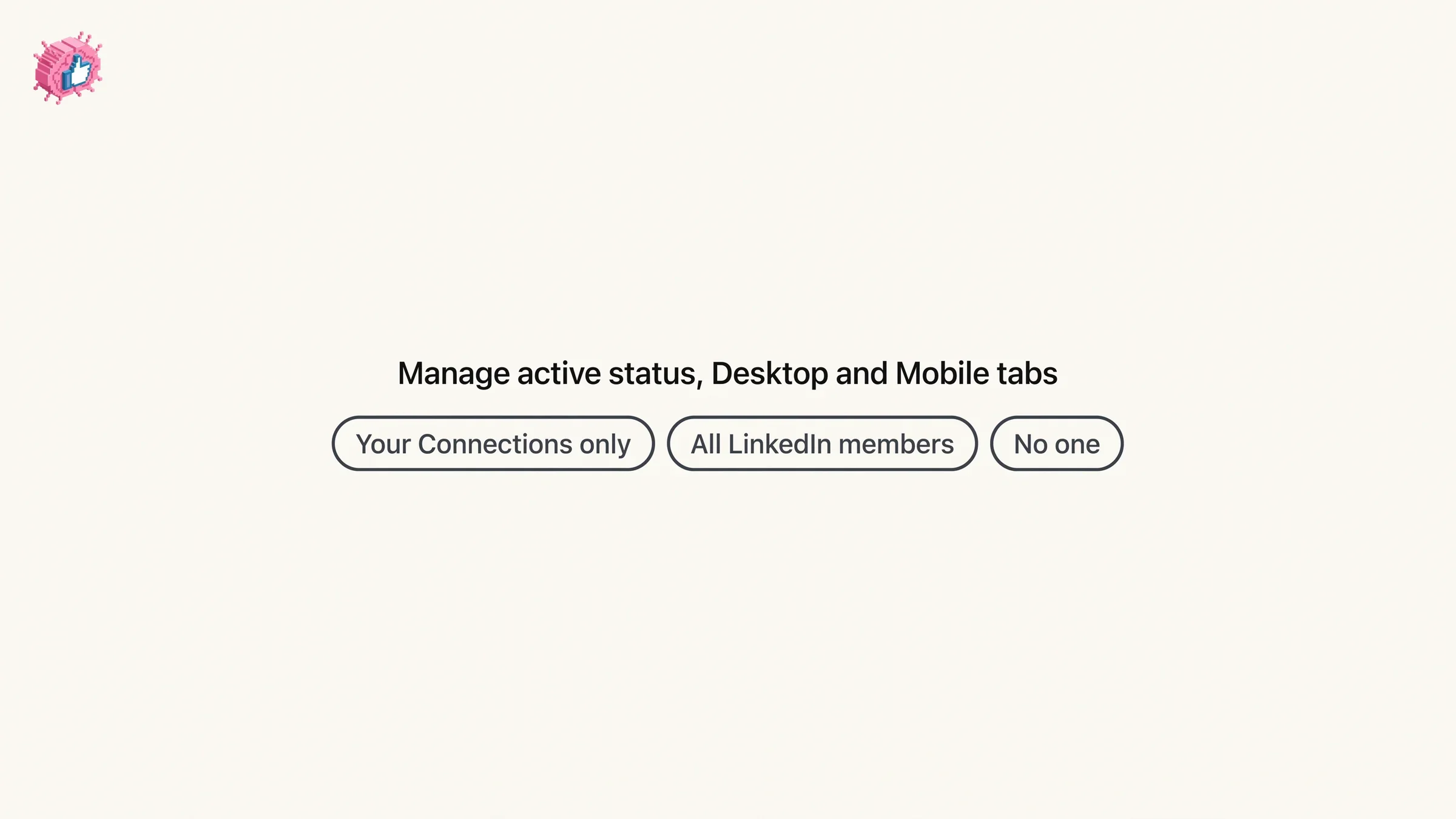
The page's own summary line uses looser wording for the same set: "You can choose to share your active status with your connections, all LinkedIn members, or no one." Both phrasings describe the same three choices.
There is a wording detail worth carrying into the next section. LinkedIn's note below the steps talks about turning your active status off, and its feature page describes a member who "has turned off active status", while neither page states which of the three named options counts as off. The option that hides the status from everyone is No one, by its own definition.
How to change who sees your active status
LinkedIn tabs the steps as Desktop and Mobile. There is no separate iOS tab, Android tab or mobile browser tab on this page, so the Mobile steps below are its single app instruction set.
Desktop:
- Click the Me icon at the top your LinkedIn homepage.
- Select Settings & Privacy from the dropdown.
- Click Visibility in the left rail.
- Under the Visibility of your LinkedIn activity section, click Manage active status.
- Choose who can see when you're active.
Mobile:
- Tap your profile photo, then tap Settings & Privacy.
- Tap Visibility.
- Under the Visibility of your LinkedIn activity section, tap Manage active status.
- Choose who can see when you're active.
The difference between the two is the first step. LinkedIn's Desktop tab splits the Me icon and the Settings & Privacy selection into two steps, and its Mobile tab folds them into one: "Tap your profile photo, then tap Settings & Privacy."
That Visibility of your LinkedIn activity section holds more than this one control. Share profile updates, the toggle that governs whether your network is told about certain profile edits, sits in the same section, and how to update LinkedIn without notifying your network covers it and the edits it governs. A neighboring section, Visibility of your profile & network, is where hiding your connections list sits.
What you give up when you turn it off
Your view of everyone else's. LinkedIn publishes this under Important to know on its Help page for the setting: "If you turn off your active status, you'll also lose the ability to see when your connections are active on LinkedIn."
That is a trade rather than a one-way win, and it is the same shape as the trade on profile viewing, where LinkedIn's who viewed your profile feature restricts what you can see in return for what you hide.
| What you want | Does hiding your active status do it |
|---|---|
| Stop others seeing when you are active | Yes, No one hides it "from all LinkedIn members" |
| Limit it to your connections | Yes, Your Connections only limits it to 1st-degree connections |
| Keep seeing when your connections are active | No, LinkedIn documents that you lose this when you turn it off |
| Stop people messaging you | Not documented as doing that, and messages are still sent |
| Hide whether you read a message | Not documented as doing that, and read status has its own setting |
| Hide that you are typing | Not documented as doing that, and typing status shares that setting |
The last two rows belong to a different setting, which has its own section below.
What the green circle means
LinkedIn documents two circle states, and they mean different things.
Solid green circle. LinkedIn's wording is that your connection "is currently active", and the page adds in the same line that they will be notified instantly when you message them. That second half is paraphrased here, because the page's sentence is missing a word.
Hollow green circle. LinkedIn publishes this one in full: "Your connection isn't actively using LinkedIn but has push notifications enabled on the LinkedIn mobile app. They'll be notified instantly when you message them. On the LinkedIn mobile app, a timestamp next to their profile photo shows when they were last active."
So a hollow circle is not a weaker version of active. It is a statement about push notifications on the mobile app, and on that app it comes with a last-active timestamp.
No circle. LinkedIn covers the ambiguity directly: "If there is no green circle, your connection is either not currently active or has turned off active status. Your message will still be sent, but they won't see it until they access LinkedIn messaging."
An absent circle covers two different situations, and these pages do not document a way to tell them apart. The same quote states that your message "will still be sent" in either case.
Since the circle sits on a profile photo, the photo itself is a separate question with its own settings, and how to change your profile picture on LinkedIn covers adding, changing and removing it along with who can see it.
Automate your LinkedIn for 30 days
Active status is not read receipts or typing indicators
Different setting, different pane, different page. The distinction is worth holding onto, because both features are about LinkedIn Messaging.
Active status is at Settings & Privacy, then Visibility, under Visibility of your LinkedIn activity, as Manage active status. It governs who can see when you are active.
Delivery and typing indicators is at Settings & Privacy, then Data privacy, under Messaging experience, and it is a single toggle. LinkedIn's page on it says that when the indicators are on, they "show for all messages sent between you and your connections", and that if they are off, "no one in the conversation, including you, can see whether messages have been read or if someone is typing a response." The full breakdown, including the two documented exceptions, is in LinkedIn read receipts.
| Manage active status | Delivery and typing indicators | |
|---|---|---|
| Settings pane | Visibility | Data privacy |
| Section | Visibility of your LinkedIn activity | Messaging experience |
| Control type | A choice of three audiences | A single toggle |
| What it governs | Who sees when you are active | Whether read and typing status is visible |
| Reciprocal effect documented | Yes, you lose your view of connections | Yes, nobody in the conversation sees it, including you |
No page read for this guide says that changing one of these settings changes the other, and none describes active status as affecting the message status indicators. The indicators page documents its own cause for a message stopping at Sent: a recipient who "has turned off read receipts and typing indicators".
What these pages do not say
Four questions the pages read for this guide leave open, named as gaps rather than filled in.
- Whether anyone is told when you change the setting. No page read for this guide documents a notification for it. Alerts you receive are a separate panel, covered in LinkedIn notifications.
- How long the status takes to update. No timing is published on either active status page.
- Whether the setting can be applied to one person. The three options are audience-wide as written, and no per-member exception is documented on these pages. If a specific person is the problem, blocking someone on LinkedIn is the per-person control, and that guide covers what blocking does and the lighter measures LinkedIn suggests before it.
- Whether the circle appears anywhere other than LinkedIn Messaging. Both pages name LinkedIn Messaging and neither names another surface.
Anything that fills in these four with specifics is sourcing them from somewhere other than the Help pages behind this guide.
Choosing between the three
The decision is about what the status buys you, since the information flows both ways.
Your Connections only is the documented default: "By default, this feature is set to on to your connections." It keeps the signal with your 1st-degree connections.
All LinkedIn members widens the audience to every LinkedIn member. LinkedIn's definition is plain about that, and these pages describe no exception to it.
No one hides your status "from all LinkedIn members". The Important to know note is worded for turning your active status off, when you "lose the ability to see when your connections are active on LinkedIn", and neither page names which of the three options counts as off.
Who can message you in the first place is a different control again. Open Profile is the Premium setting that lets any member message you without connecting, and it governs messaging rather than who sees when you are active.
What this means for you
- The setting is Manage active status. Settings & Privacy, then Visibility, then the Visibility of your LinkedIn activity section.
- Three options, not a toggle. Your Connections only, All LinkedIn members, No one.
- Turning it off is reciprocal. LinkedIn documents that you lose your view of when connections are active.
- A hollow circle is about push notifications, not about being half active, and it carries a last-active timestamp on the mobile app.
- No circle is ambiguous. It means not currently active or turned off, and the pages give no way to tell which.
- Messages still arrive either way. LinkedIn states the message is still sent.
Active status changes what other people can learn about your availability. Nothing in the pages read for this guide describes it as changing who can reach you, and the read and typing side of a conversation has its own separate control. For the rest of the settings whose labels describe less than they do, the index of LinkedIn features works through them one at a time from the documentation.
Sources: Change active status on LinkedIn Messaging, Active status in LinkedIn Messaging, Delivery and typing indicators, Understand message indicators in LinkedIn Messaging, LinkedIn Help (accessed October 2026)
FAQ
How do I hide my active status on LinkedIn?
Set Manage active status to No one. On desktop, click the Me icon, select Settings & Privacy, click Visibility in the left rail, click Manage active status under Visibility of your LinkedIn activity, and choose No one. LinkedIn defines that option as hiding your active status "from all LinkedIn members".
How do I turn off active status in the LinkedIn app?
Tap your profile photo, then tap Settings & Privacy, tap Visibility, tap Manage active status under Visibility of your LinkedIn activity, then choose who can see when you're active. Those are LinkedIn's steps from the Mobile tab of its Help page for the setting.
What are the LinkedIn active status options?
Three. Your Connections only ("Only your 1st-degree connections can see when you're active on LinkedIn"), All LinkedIn members ("All LinkedIn members can see when you're active on LinkedIn"), and No one ("Your active status will be hidden from all LinkedIn members").
If I hide my active status, can I still see other people's?
Not if you turn it off. LinkedIn states: "If you turn off your active status, you'll also lose the ability to see when your connections are active on LinkedIn." Its pages do not say which of the three options counts as off.
What does the green dot mean on LinkedIn?
A green circle on a profile photo in LinkedIn Messaging indicates that member is active. LinkedIn documents two states: a solid green circle for a connection who is currently active, and a hollow green circle for a connection who "isn't actively using LinkedIn but has push notifications enabled on the LinkedIn mobile app."
What does it mean when there is no green circle?
Two things at once, and LinkedIn says so: "If there is no green circle, your connection is either not currently active or has turned off active status." The pages read for this guide give no way to tell which.
Does hiding my active status stop people messaging me?
Not as documented. LinkedIn states that with no green circle showing, "your message will still be sent, but they won't see it until they access LinkedIn messaging." Who can message you is governed by separate settings.
Is active status the same as read receipts on LinkedIn?
No. Active status is set under Visibility, as Manage active status, and governs who sees when you are active. Read receipts travel with typing indicators on a toggle named Delivery and typing indicators, under Data privacy in the Messaging experience section.
What is the default LinkedIn active status setting?
LinkedIn states: "By default, this feature is set to on to your connections."
Will anyone be notified if I change my active status setting?
No page read for this guide documents a notification for changing it. Those pages cover the setting and the indicator, and say nothing about alerting anyone when you change it.
Automate your LinkedIn for 30 days
ViralBrain plans, writes, and schedules your LinkedIn content, using official LinkedIn APIs so your account stays safe.
- Official LinkedIn APIs, no risk of ban
- You approve every post before it goes live
- Cancel anytime
Keep reading
How to Change Your Profile Picture on LinkedIn
How to add, change and remove your LinkedIn profile photo on desktop, in the app and in a mobile browser, plus who can see it and the file specs.
How to Log Out of LinkedIn on Desktop and in the App
How to log out of LinkedIn on desktop, on iOS and on Android, how to sign out of other sessions or all devices, and what Keep me logged in changes.
LinkedIn Two Step Verification: How to Turn It On and Off
LinkedIn documents it as two-factor authentication. How to turn it on and off on desktop and in the app, the two methods, and what to do if locked out.