

LinkedIn Job Alerts: Create, Manage and Turn Off
How to create LinkedIn job alerts from a search, set daily or weekly delivery, manage and edit them, turn alerts off, and the 20 alert maximum.
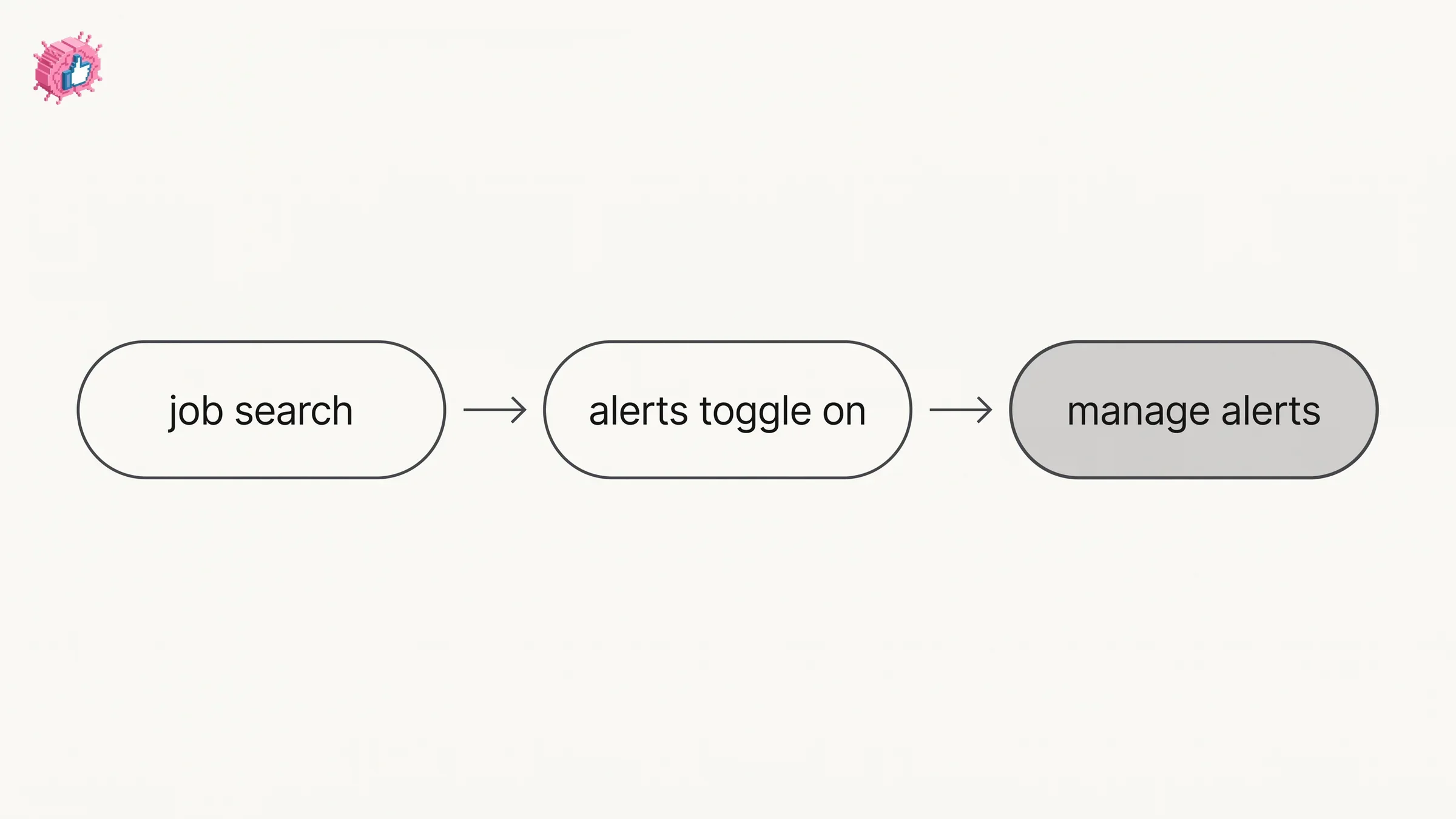
A LinkedIn job alert is created from a job search, or for one company from that company's Page. Run the search, apply your filters, then switch the job alerts toggle to On. LinkedIn documents a daily or weekly frequency, delivered by email, app notifications, or both, and caps you at 20 active alerts at once.
This guide covers creating an alert from a search on desktop and in the app, the frequency and delivery options LinkedIn publishes, managing and editing alerts you already have, turning one off, alerts for a specific company, and the three reasons LinkedIn gives for an alert failing to create. Every step and quote comes from a LinkedIn Help page, named each time.
Automate your LinkedIn for 30 days
What a LinkedIn job alert does
It watches a search you have already run, or one company's Page, and tells you about new postings that match. LinkedIn describes the purpose in one line: "You can create job alerts on LinkedIn to stay updated with new job postings that match your preferences."
| Question | What LinkedIn documents |
|---|---|
| Where you create one | From a job search, using the job alerts toggle |
| What it is based on | Your current search criteria |
| How often | Daily or weekly |
| Where it arrives | Email, app notifications, or both |
| App default when you toggle on | Daily, with both email and LinkedIn notifications |
| Maximum active alerts | 20 |
| Where you manage them | Jobs, then Preferences, then Job alerts on desktop |
| How to stop one | Switch the toggle to Off, or delete the alert |
| Alerts for one company | Created from that company's Page, on its Jobs tab |
LinkedIn puts the maximum in its own Important to know box: "The max number of job alerts a member can have at once is 20."
How to create a LinkedIn job alert on desktop
LinkedIn publishes four steps:
- Search for a job on LinkedIn.
- At the bottom of the search results page, switch the job alerts toggle to On to create a job alert for your current search criteria. You will see a popup that says "Your job alert was created."
- Click Manage alerts to select how often you would like to receive alerts and how you would like to be notified (email, notification, etc).
- Click Done.
Step 2 is where the alert is actually made, and step 3 is where frequency and delivery get set. LinkedIn attaches a note to step 2 covering the reverse: "Switch the toggle to Off to turn off the job alert."
Because the alert copies your current search criteria, filters matter. LinkedIn's page on searching for jobs puts the sequence plainly: "Once you've applied all the filters, you can get job alerts for the search by turning on the alerts toggle." Filter first, then toggle.
How to create a LinkedIn job alert in the app
LinkedIn publishes two steps under its Mobile tab, and a default that the desktop tab does not state:
- Search for a job on LinkedIn.
- Switch the job alerts toggle to On. The job alert will default to daily and you will receive both email and LinkedIn notifications.
That is the practical difference between the two paths. On desktop LinkedIn routes you through Manage alerts to choose frequency and channels; on mobile it documents the alert as defaulting to daily on both channels when you toggle it on. The Mobile tab does not say where to change that default. The app steps LinkedIn documents for editing an alert are in the manage section below.
LinkedIn's job search page documents the same alerts toggle under its own Mobile tab, in the same position after filters.
How often LinkedIn job alerts arrive and where they land
Daily or weekly, by email, app notification, or both. LinkedIn's job alerts, manage and troubleshoot pages repeat the same sentence near the top: "You can choose whether you want to receive these alerts on a daily or weekly basis through email, app notifications, or both."
| Setting | Documented options |
|---|---|
| Frequency | Daily or weekly |
| Delivery | Email, app notifications, or both |
| Where you choose on desktop | Manage alerts, in the creation steps |
| App default | Daily, email and LinkedIn notifications together |
| In-app location for company alerts | The Notifications tab |
For company alerts specifically, LinkedIn names the destination: "Once you've created job alerts, you'll be notified of new jobs that match your skills through the Notifications tab."
Those are the only frequency values the pages read for this guide publish. No hourly, instant or real time option appears on them. If the wider notification stream is what you want to tame, taking control of LinkedIn notifications covers the settings page that governs what reaches you.
How to manage and edit your job alerts
LinkedIn tabs its manage page as Desktop, iOS and Android.
On desktop, four steps:
- Click the Jobs icon at the top of your LinkedIn homepage.
- Find Job alerts by following Jobs > Preferences > Job alerts.
- You can edit or delete search alerts from the Job alerts pop-up that appears.
- Click Done.
In the app, LinkedIn publishes separate iOS and Android tabs carrying the same three steps:
- Tap Jobs > More icon > Job alerts.
- Tap the edit icon next to the job alert you want to edit or delete.
- Tap Edit job alert to edit your job alert or Delete job alert to remove it.
Editing and deleting live behind the same control on both paths. The manage page does not describe editing the underlying search criteria as a separate action from editing the alert, and this guide does not add one.
How to turn off a LinkedIn job alert
LinkedIn documents two controls for this, on different pages:
- Switch the toggle to Off. On the search results page where the alert was created, LinkedIn's note reads: "Switch the toggle to Off to turn off the job alert."
- Delete the alert. From Jobs > Preferences > Job alerts on desktop, or the edit icon and then Delete job alert in the app.
The pages read for this guide do not say whether an alert switched off still counts toward the maximum of 20, while deleting removes the alert.
A third control sits outside the job alerts pages entirely. LinkedIn's page on managing emails documents turning email categories and their frequency on or off from Settings & Privacy, then Notifications, by clicking a category and setting the toggle and frequency. The same page adds that you can click the Unsubscribe link in the footer of an email "(wherever applicable)." Those are account level email controls rather than job alert controls. The troubleshoot page connects the two in one place: the first reason it gives for an alert failing to create is that your settings will not allow any LinkedIn emails to be sent to your email address.
Automate your LinkedIn for 30 days
Job alerts for a specific company
These are created from the company's Page, not from a search.
On desktop, LinkedIn publishes four steps:
- Search for the company you are interested in on the LinkedIn homepage.
- On the Page, click the Jobs tab on the left.
- Click Create job alert.
- Complete the required fields and click Create job alert.
In the app, LinkedIn tabs this page as Desktop and Mobile, and the Mobile steps are:
- Search for the company you are interested in.
- On the Page, tap the Jobs tab.
- Tap the Add icon next to Create a job alert for.
- Complete the required fields and tap Create job alert.
LinkedIn closes that page with a line tying company alerts back to the rest: "You can view and manage all your job alerts at any time."
When a job alert will not create
LinkedIn publishes three reasons for an error at creation. If you are getting one, it states it "may be because":
- Your settings will not allow any LinkedIn emails to be sent to your email address.
- LinkedIn is not able to create an email alert due to the use of offensive words or phrases.
- You may have reached your maximum number of active email alerts.
The hedge is LinkedIn's own. It writes "may be because," not "is because," and this guide keeps it that way.
For the third reason, the job alerts page gives the number: a member can have 20 job alerts at once.
Job alerts and saved jobs are separate lists
LinkedIn's page on searching for jobs documents both controls, and they do different jobs. The alerts toggle watches a search. The Save button keeps one posting: "Click the Save button on the job details page to save the job."
Saved jobs have their own page, their own location under Job tracker, and their own cap, which LinkedIn puts at 2000. The pages read for this guide treat the two as separate features, and nothing on them says an alert saves a job or that saving a job creates an alert.
The job search setting that sits next to alerts
Job alerts control what reaches you. Open to Work controls who can see that you are open to new job opportunities, and it is a different setting with its own visibility choices. LinkedIn's page on it starts from the Open to button on your profile, and on desktop it also documents a route through Jobs > Preferences. Our guide to LinkedIn Open to Work works through each choice and the photo frame that comes with one of them.
Two other guides sit close by. Adding your resume to your profile covers the document side of applying, and updating LinkedIn without notifying your network covers the toggle that decides whether your profile edits are announced while you are searching.
What this means for you
- Alerts are made from searches, so filter before you toggle. LinkedIn copies your current search criteria into the alert.
- The desktop and app steps differ. Desktop sends you to Manage alerts to choose; the app documents a daily default on both email and LinkedIn notifications.
- Twenty is the ceiling. LinkedIn states the maximum active alerts a member can have at once is 20, and the troubleshoot page lists reaching your maximum as one of three possible reasons for a creation error.
- Turning off and deleting use different controls. The toggle on the search page turns an alert off; deleting it from Job alerts removes it.
- Company alerts start on the company Page, on its Jobs tab, not from a search.
- Daily and weekly are the only documented frequencies on the pages read for this guide.
LinkedIn's job search page also asks you to make sure "that you've created a good LinkedIn profile that stands out and showcases your skills and expertise." The profile optimization checklist works through a profile in nine steps, adding a promotion covers recording a step up at the same employer, getting verified covers identity verification, shortening your LinkedIn URL covers the link you paste into applications, and our index of LinkedIn features works through them one at a time, from the documentation. For tooling, ViralBrain has a free tier with 3 heroes and 3 posts a month.
Sources: Job alerts on LinkedIn, Manage job alerts, Troubleshoot job alerts, Create job alerts for specific companies, Search for jobs on LinkedIn, Manage jobs you saved on LinkedIn, Manage emails from LinkedIn, Let recruiters know you're Open to Work, LinkedIn Help (accessed October 2026)
FAQ
How do I set up job alerts on LinkedIn?
Search for a job, apply your filters, then switch the job alerts toggle to On at the bottom of the search results page. On desktop, click Manage alerts to choose frequency and delivery, then click Done. In the app, toggling it on creates the alert with a daily default on both email and LinkedIn notifications.
Where are my LinkedIn job alert settings?
On desktop, LinkedIn documents the path as Jobs > Preferences > Job alerts, which opens a Job alerts pop-up where you can edit or delete alerts. In the app, tap Jobs > the More icon > Job alerts.
How do I edit a LinkedIn job alert?
From the same place you manage them. On desktop, open Jobs > Preferences > Job alerts and edit from the pop-up. In the app, tap the edit icon next to the alert, then tap Edit job alert.
How do I turn off LinkedIn job alerts?
Two documented ways. Switch the job alerts toggle to Off on the search results page, which LinkedIn describes as turning off the job alert. Or delete the alert from Job alerts on desktop, or with Delete job alert in the app.
How many job alerts can I have on LinkedIn?
Twenty. LinkedIn states that "the max number of job alerts a member can have at once is 20." Reaching your maximum is one of the three possible reasons LinkedIn gives for an alert failing to create.
How often do LinkedIn job alerts arrive?
Daily or weekly. LinkedIn documents those two frequencies, delivered through email, app notifications, or both. In the app, a newly toggled alert defaults to daily with both channels on.
Do LinkedIn job alerts come by email or in the app?
Either, or both. You choose on desktop through Manage alerts. For alerts created from a company Page, LinkedIn states you will be notified "through the Notifications tab."
Why can't I create a job alert on LinkedIn?
LinkedIn says an error when creating an alert "may be because" of one of three things: your settings will not allow LinkedIn emails to reach your email address, the alert uses offensive words or phrases, or you have reached your maximum number of active email alerts.
How do I get job alerts for one specific company?
From that company's Page rather than from a search. On desktop, open the Page, click the Jobs tab on the left, click Create job alert, complete the required fields and click Create job alert again. In the app, tap the Jobs tab, then the Add icon next to Create a job alert for.
Automate your LinkedIn for 30 days
ViralBrain plans, writes, and schedules your LinkedIn content, using official LinkedIn APIs so your account stays safe.
- Official LinkedIn APIs, no risk of ban
- You approve every post before it goes live
- Cancel anytime
Keep reading
How to Edit a Post on LinkedIn: What You Can Change
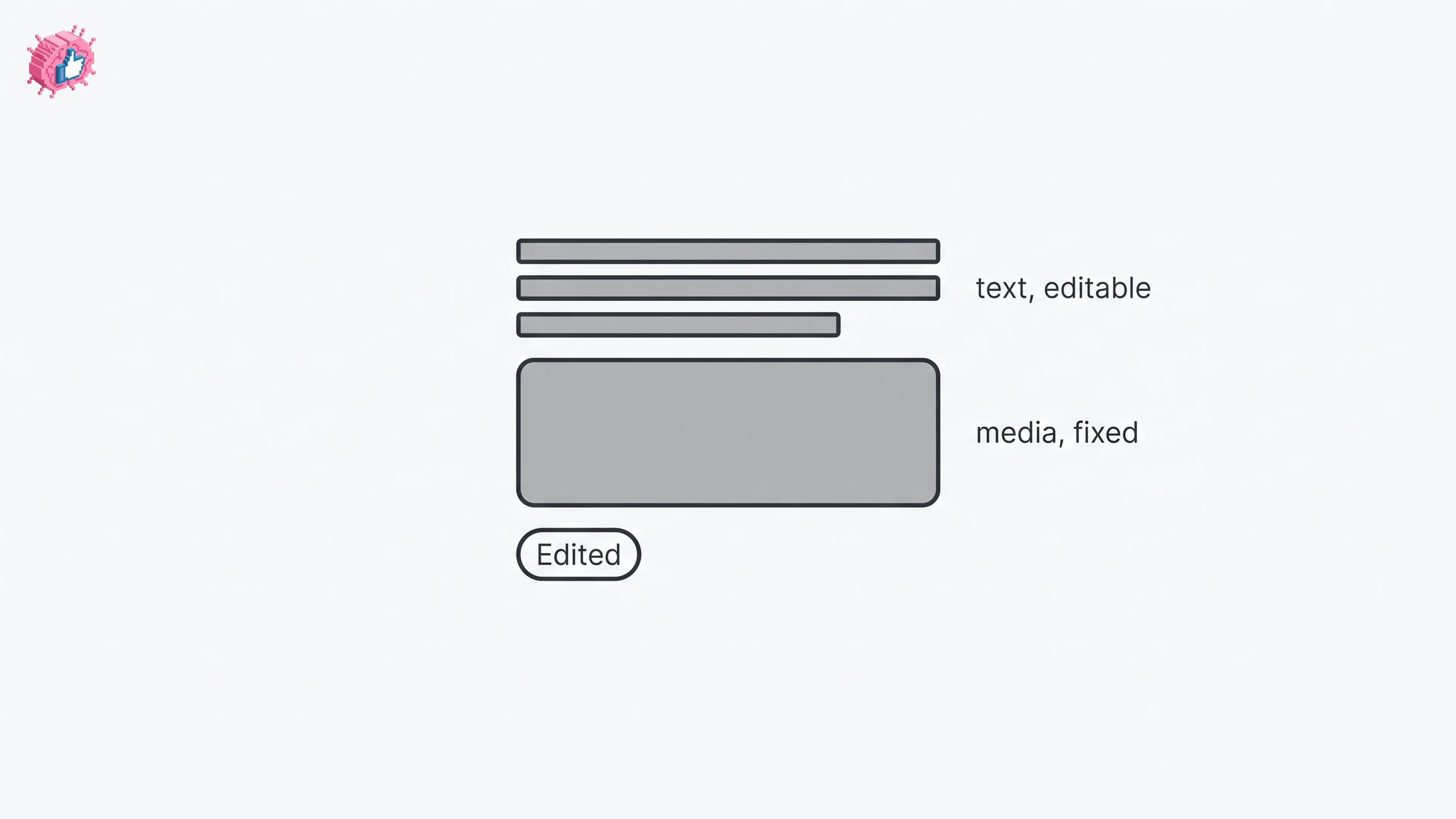
Editing a LinkedIn post takes five steps, and on a post you shared only the text can change. LinkedIn's rules on media, previews, Pages and polls.
How to Delete a Post on LinkedIn (Feed, Page, Group)
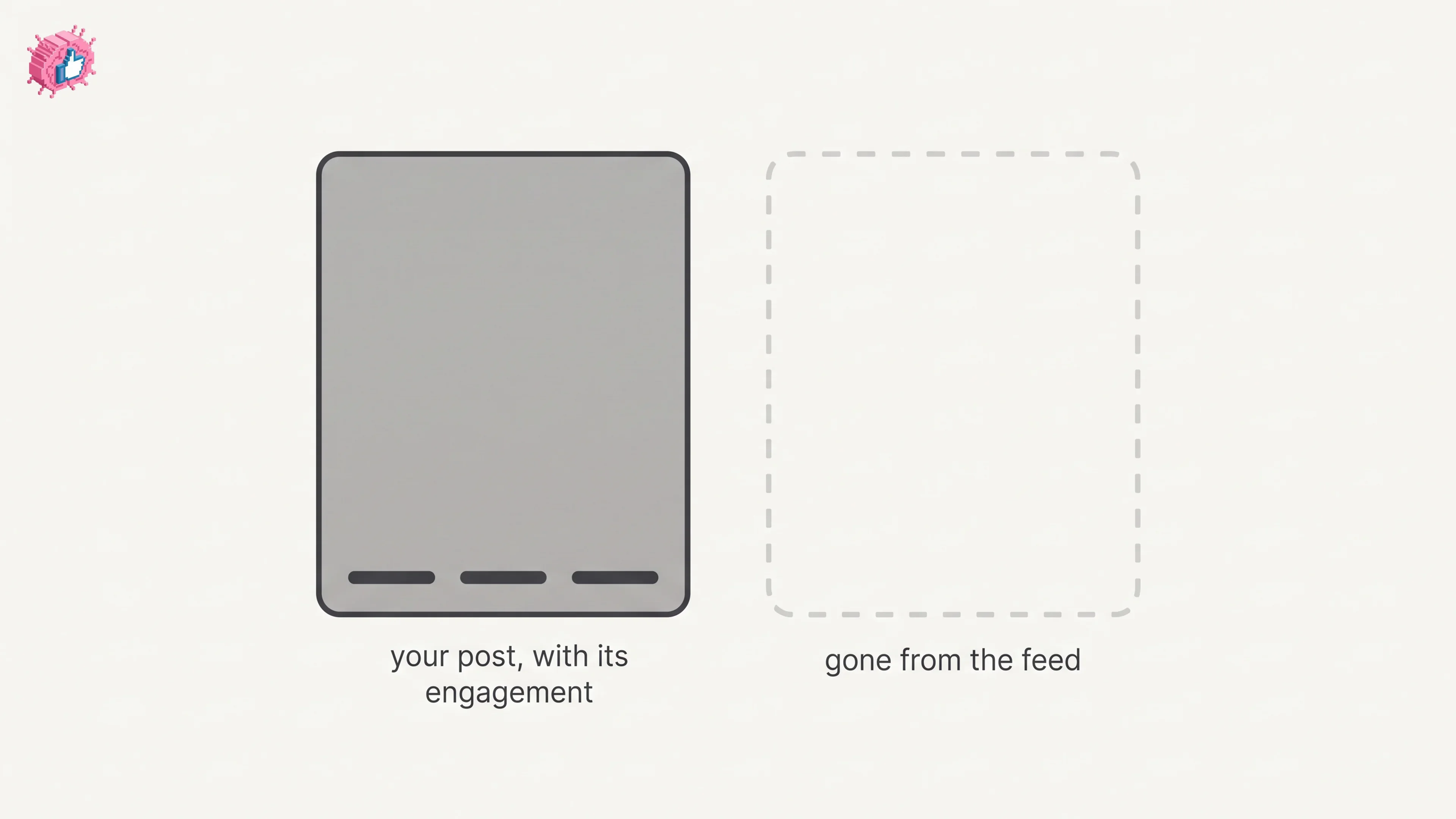
The four documented steps to delete a LinkedIn post on desktop and mobile, plus Page, group, scheduled and comment deletes, and what happens to engagement
How to Add Skills on LinkedIn: Steps and Limits
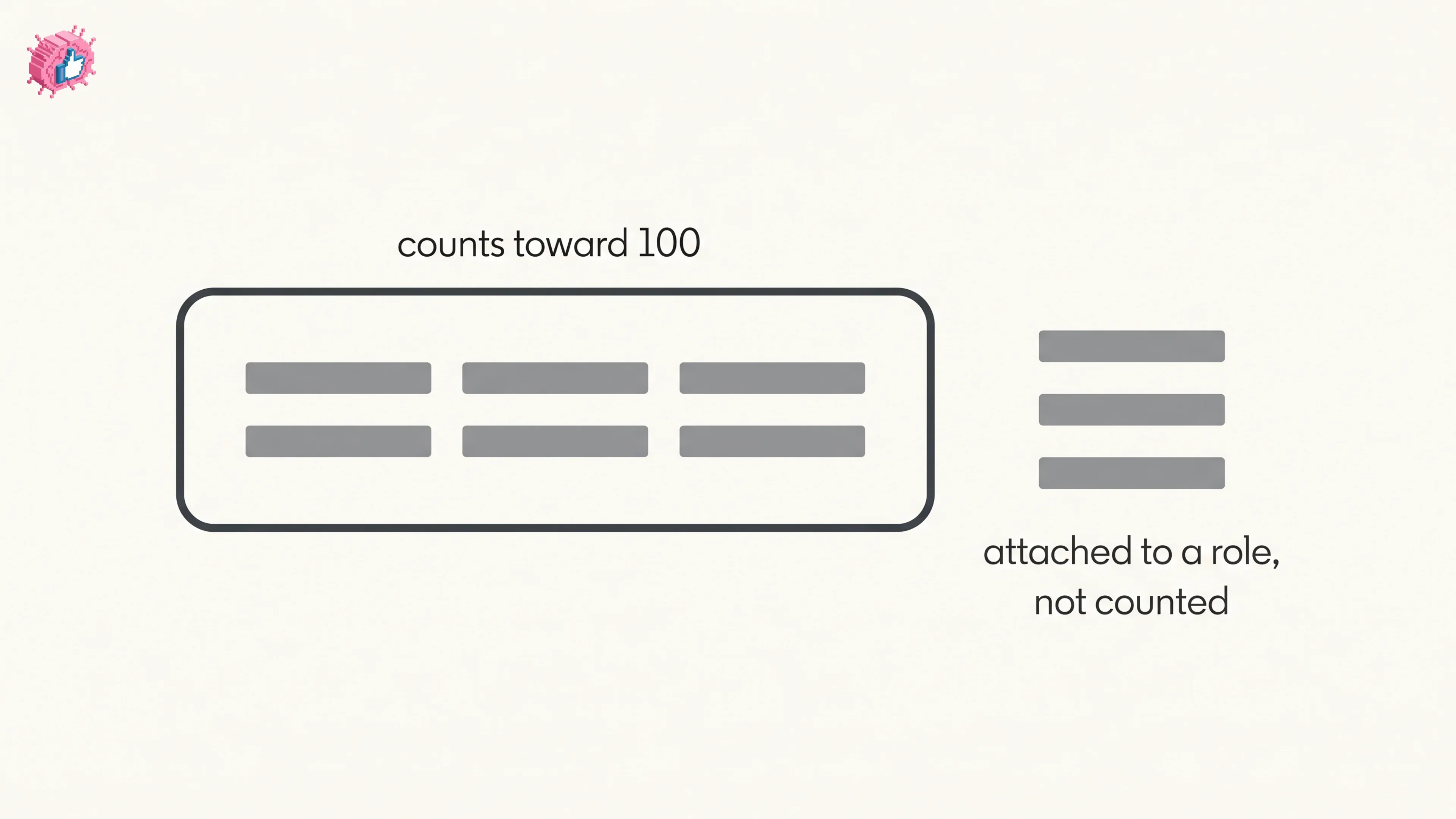
How to add skills on LinkedIn on desktop and in the app, the 100 skill cap and its exemption, plus reordering, editing and removing a skill.