

LinkedIn Projects Section: How to Add, Edit and Hide It
How to add a project on LinkedIn desktop and mobile, the one link tip LinkedIn publishes, how to edit an entry, and how to hide the section.
The projects section on LinkedIn is an optional profile section that LinkedIn files under the Recommended group, alongside Featured, Licenses & certifications, Courses and Recommendations. You add it the same way you add any other section, through the Add profile section button in your introduction section on desktop, or Add section in the app.
LinkedIn publishes very little about it. Its profile Help index lists no dedicated page for the projects section. There is a line in the section list, a one sentence description in the profile overview, and a single tip about links. That is everything the pages read for this guide say about it.
So this guide does two things. It gives you every step the pages read for this guide document, quoted where the wording decides the answer, and it says plainly where the documentation stops rather than filling the gap with guesses.
Automate your LinkedIn for 30 days
What the projects section is on LinkedIn
It is a place to list work you have done, with the people you did it with. LinkedIn's profile overview page gives the description in one sentence: "Showcase the projects you've worked on, along with team members."
That sentence is doing a lot of work, because "along with team members" is the only hint in the pages read for this guide that projects involve anyone other than you. LinkedIn does not name a contributors field, and it does not publish steps for adding one.
| Question | What LinkedIn documents |
|---|---|
| Which menu group | Recommended, in Add profile section |
| What it is for | Projects you have worked on, along with team members |
| Is there a dedicated Help page | None in LinkedIn's profile Help index |
| Are the form fields published | No |
| Is a contributors field published | No, the pages read give only the phrase "along with team members" |
| Can you attach a link | Yes, through Add media, then Add a link |
| Is there a Project URL field | Not for newly added projects |
| Can you edit it | Yes, through the Edit icon next to the section |
| Can you hide it from your public profile | A per setting toggle exists, section names not published |
Two of those rows are the reason this page exists, and both get their own section below: the link tip, and the hiding question.
Where projects sits among the other profile sections
LinkedIn sorts every addable section into three groups, and the group tells you something about how prominent LinkedIn considers the section.
| Group | Sections |
|---|---|
| Core | About, Education, Position, Services, Career break, Skills |
| Recommended | Featured, Licenses & certifications, Projects, Courses, Recommendations |
| Additional | Volunteer experience, Publications, Patents, Honors & awards, Test scores, Languages, Organizations, Causes |
Projects sits in the middle group with licenses and certifications and Featured, which is the group LinkedIn suggests rather than assumes. Your positions and your education are Core. A project is a thing you opt into.
Worth knowing before you start: adding any section uses one shared flow. The route is identical whether you are adding a project, a certification or a course, and you only choose between them at the subsection step.
How to add a project on LinkedIn
LinkedIn publishes these under two tabs, which it labels Desktop and Mobile. It does not split the mobile steps into separate iOS and Android instructions on this page, so the list below is what the documentation gives for the app on either one.
Desktop:
- Click the Me icon at the top of your LinkedIn homepage, then click View Profile.
- Click Add profile section in your introduction section.
- Click on the section you'd like to add and select the subsection, if applicable.
- Enter the required information in the pop-up window that appears.
- Click Save.
Mobile:
- Tap your profile picture.
- Tap your profile photo again to access your profile.
- Tap Add section in your introduction section.
- Tap on the section you'd like to add and select the subsection, if applicable.
- Enter the required information in the page.
- Tap Save.
Step 3 on desktop, step 4 in the app, is where you pick Projects, under the Recommended group. LinkedIn's own steps stay generic there because the same five steps cover every section in the menu.
Notice what step 4 says, and what it does not say. "Enter the required information" is as specific as LinkedIn gets about the project form. The page never lists the fields.
What LinkedIn does not publish about the projects section
This is a real gap rather than an omission in this guide, so here is exactly what is missing and why it matters.
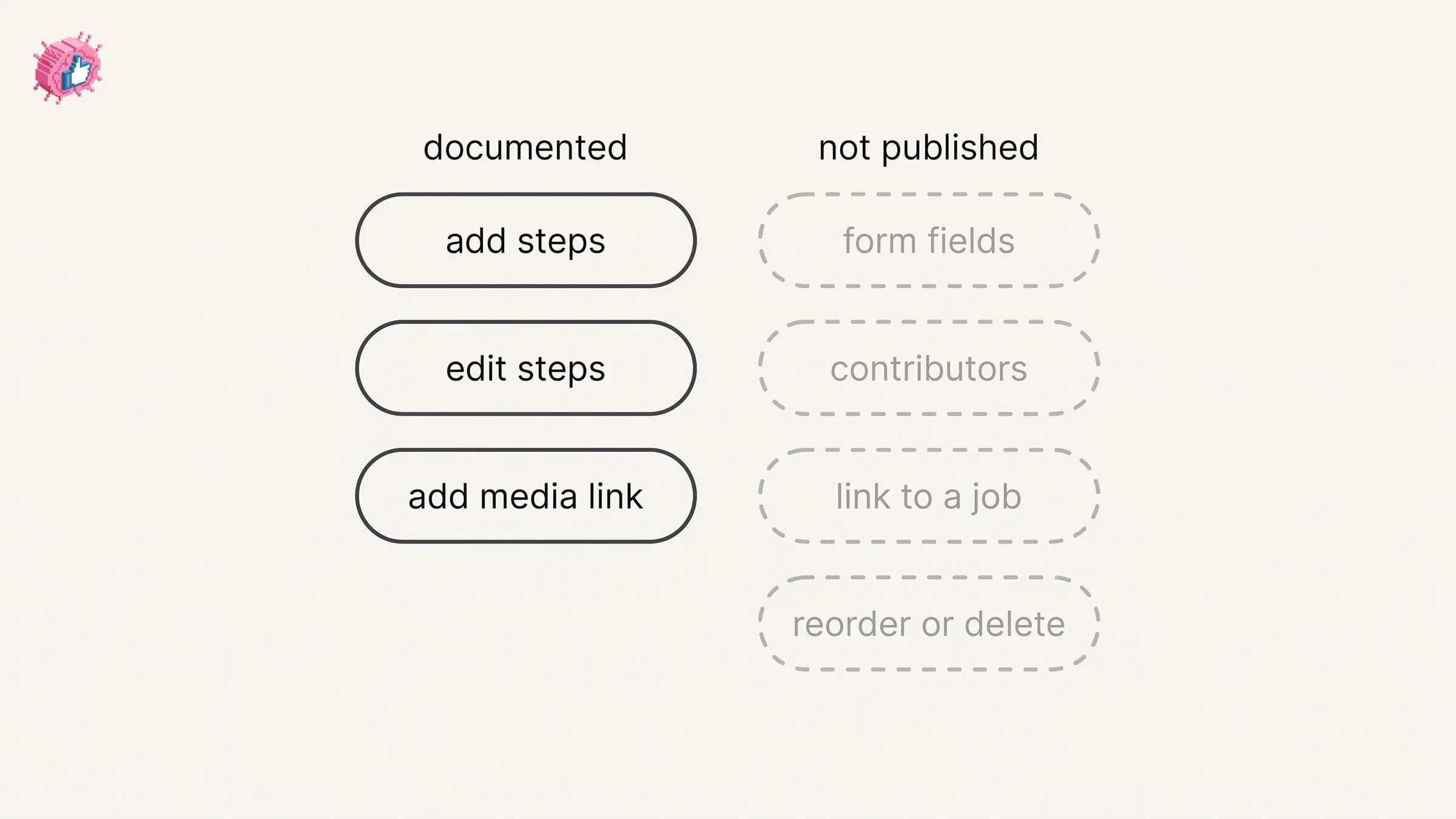
The form fields are not published. No LinkedIn Help page read for this guide names the fields on the project form. Any article giving you a field by field walkthrough is not sourcing it from LinkedIn's Help pages. Your form is the reliable answer, and it is in front of you the moment you reach step 4.
Contributors are not documented as a field. The profile overview says projects are shown "along with team members", which tells you the concept exists. It does not tell you what the control is called or how to use it. LinkedIn publishes no steps for adding a contributor to a project.
Associating a project with a position or an education entry is not documented. None of the Help pages read for this guide describe linking a project to a job or a school. LinkedIn does document association rules for the Experience section, where "associations with organizations in the Experience section of your profile must be accurately labeled", but that page is about positions and never mentions projects.
Deleting a project is not documented on any page read for this guide, and neither is reordering one. LinkedIn publishes reordering instructions for current positions and for education entries; none of the pages read here covers ordering projects. The same is true of removing a single project, as opposed to editing it.
The honest reading is that the projects section is lightly documented, which is itself useful to know. It means you should trust your own form over any third party walkthrough.
The one field tip LinkedIn does publish
LinkedIn gives exactly one tip specific to projects, and it exists because the obvious field is missing.
The page states: "The Project URL field is not available for newly-added projects. To add a link to the Projects section, click / tap Add media, then select Add a link."
So if you are looking for a box to paste a URL into and cannot find one, that is the documented behavior rather than a fault in your account. The link goes in through media.
This matters more than it sounds, because a project with no link is a claim with no evidence. A repository, a case study, a published paper or a live page is what turns the entry from a line on a profile into something a reader can check.
Do not confuse this with the Featured section, which has its own media documentation and its own rules. LinkedIn's page on featured work samples covers posts, articles, links to external websites, and media including "images, documents, presentations, and videos", and it publishes reorder, edit and remove steps for them. None of that page applies to projects.
Automate your LinkedIn for 30 days
How to edit a project on your profile
Editing uses the general profile editing flow, and LinkedIn tabs this one three ways rather than two. It labels them Desktop, Mobile and Mobile Browser.
Desktop:
- Click the Me icon at the top of your LinkedIn homepage, then click View Profile.
- Click the Edit icon to the right of the section you'd like to make changes to.
- Make changes in the fields provided.
- Click Save.
Mobile:
- Tap your profile photo.
- Tap your profile photo again to access your profile.
- Tap the Edit icon to the right of the section you wish to edit.
- Tap the Edit icon next to the individual detail you want to edit.
- Make changes in the fields provided.
- Tap Save.
Mobile Browser:
- Tap your profile photo.
- Tap the Edit icon to the right of the section you wish to edit.
- Make changes in the fields provided.
- Tap Save in the upper-right corner.
The app path has an extra step the other two do not: a second Edit icon next to the individual item, after the one next to the section. That two level structure is how you reach one project rather than the whole section.
How to hide the projects section from your public profile
LinkedIn documents a control that hides profile information from your public profile, and it works by toggle. What LinkedIn does not do is publish which sections appear in that toggle list.
Start with what a public profile is. LinkedIn defines it directly: "Your public profile is a simplified version of your LinkedIn profile. Not all sections of your profile can be displayed publicly." That second sentence is the one to hold on to, because it means some sections are already absent from the public version without you doing anything.
To reach the settings on desktop:
- Click the Me icon at the top of your LinkedIn homepage.
- Click View Profile.
- Click the Edit icon next to Public profile & URL on the right pane.
- Toggle the related setting to Off to hide that information from your public profile.
In the app:
- Tap your profile photo.
- Tap Settings.
- Tap Visibility.
- Tap Edit your public profile under Visibility of your profile & network.
- Toggle the related setting to Off.
LinkedIn confirms that "Changes are saved automatically", so there is no confirm button and no confirmation that it worked. Reopen the page once and look at the toggle.
| What you want | What LinkedIn documents |
|---|---|
| Hide a section from logged out visitors | Toggle the related setting to Off on the public profile page |
| Know which sections are toggleable | Not published, the pages do not name them |
| Hide a section from signed in members | Unclear: one page says the settings limit display "to LinkedIn members and people who aren't signed in," while both frame them as public profile controls |
| Remove the section entirely | Not documented, editing is the published route |
| Turn off the public profile completely | Yes, toggle Your profile's public visibility to Off |
The gap in row two is worth stating plainly. Neither public profile page read for this guide names Projects as a toggleable section, and neither names any other section either. The toggle list is on your settings page, not in the documentation. Open it and look before you assume a section can or cannot be hidden.
One related delay to expect: LinkedIn notes that "it can take several weeks or months at times for search tools like Google, Yahoo, or Bing to detect changes." Hiding something from your public profile does not clear it from a search engine cache the same day.
If what you actually want is control over who sees your whole profile and what visitors can tell about you, the profile optimization checklist goes field by field, and whether LinkedIn shows who viewed your profile covers the other direction.
Project examples, written by us rather than by LinkedIn
These are our illustrations, not LinkedIn templates and not quotes from any Help page. LinkedIn publishes no project examples at all. The patterns below come from what the section is for, which is work you did and can point at.
- A shipped product or feature. Name the thing, the span of time, and what changed because of it. Attach the live page or the release notes through Add media, then Add a link.
- A client engagement you can name. Where a contract allows it, the project entry carries the outcome that your position title cannot. One line on the problem, one on what you built.
- An open source repository or a published paper. The link is the whole point here, so expect to use Add media rather than a URL field.
- An internal initiative with a named result. A migration, a process rebuild, a team you stood up. Useful when the work is real but your job title stayed the same.
- A side project or a community build. Treat it the way you would treat anything else you want checked, which means a link rather than an adjective.
The thread running through all of those is evidence. A project entry that a reader cannot verify does less for you than a sharper About section would, because the About section at least sets expectations honestly.
If the work in question was a promotion rather than a discrete project, that belongs in Experience instead, and adding a promotion at the same company covers the grouping rules LinkedIn documents for it.
Does adding a project notify your network
LinkedIn does not document a notification specific to the projects section on any page read for this guide.
What it does document is an account wide control. Share profile updates sits in Settings & Privacy under Visibility, and LinkedIn describes what it governs: "You can choose to notify your network about job changes, education changes, and work anniversaries." Projects are not in that list, which is not the same as a guarantee of silence.
There is also an in editor toggle, which LinkedIn names differently on different pages. Its page on updating your current position places it "in the Notify network section at the top of the Add experience page", and publishes that line under both its desktop and its mobile steps. That page is about experience rather than projects.
If you are rewriting several sections in one sitting and want the whole pass to stay quiet, updating LinkedIn without notifying your network covers the toggle, the delays and the edits the setting does not cover.
Keep LinkedIn's own hedge in mind while you do it. On the Experience section page the wording is "your network may be informed of the changes." May, not will, and that hedge is consistent across the documentation.
What this means for you
- Projects lives under the Recommended group. Reach it through Add profile section on desktop or Add section in the app, then pick the subsection.
- No Help page read for this guide publishes the form fields. Five generic steps are all the add documentation gives, so your own form is the authority on what it asks for.
- Links go in through Add media. LinkedIn states the Project URL field "is not available for newly-added projects" and routes you to Add media, then Add a link.
- Contributors and association are undocumented. The phrase "along with team members" is all the pages read for this guide say, and none of them describes tying a project to a position or an education entry.
- Hiding works by toggle on the public profile page, but the section list is not published. Open the page and look rather than trusting an article that names the toggles.
- No projects specific notification is documented. The account wide Share profile updates setting is the dependable control if you want a quiet edit.
A project entry earns its place when it carries a link. Most of your profile is assertion, and this is one of the few sections built to hold proof. The full set of individual feature guides lives in LinkedIn features explained, and if the next thing you add is a credential rather than a build, adding a certification without posting about it covers the notification quirk that one has.
For writing the entries themselves, ViralBrain has a free tier with 3 heroes and 3 posts a month, and pricing covers what a paid plan adds.
Sources: Add sections to your profile, Your LinkedIn profile, Edit your profile, Control your public LinkedIn profile, LinkedIn public profile visibility, Manage featured samples of your work on your LinkedIn profile, Manage your profile Experience section, Profile experience association guidelines and conditions, Update your current position in your introduction section, Share profile updates, Reorder your current positions in the Experience section of your profile, Update the order of education on your profile, LinkedIn Help (accessed October 2026)
FAQ
How do I add a projects section to my LinkedIn profile?
On desktop, click the Me icon, click View Profile, click Add profile section in your introduction section, pick Projects under the Recommended group, enter the required information in the pop-up window and click Save. In the app, tap your profile picture, tap your profile photo again to reach your profile, tap Add section, pick the same subsection, and tap Save.
What fields does the LinkedIn projects section have?
LinkedIn does not publish them. Its instruction is to "enter the required information" without listing what that information is, and LinkedIn's profile Help index lists no dedicated page for the section. The form on your own screen is the only reliable answer.
How do I add a link to a LinkedIn project?
Through media rather than a URL box. LinkedIn states that "the Project URL field is not available for newly-added projects" and tells you to "click / tap Add media, then select Add a link."
Can I add contributors or team members to a LinkedIn project?
LinkedIn describes the section as a way to "showcase the projects you've worked on, along with team members", which confirms the idea exists. It publishes no field name and no steps for adding a contributor on any Help page read for this guide.
Can I link a project to a specific job or degree?
Not according to the documentation. No Help page read for this guide describes associating a project with a position or an education entry. LinkedIn documents association rules for the Experience section, and that page does not mention projects.
How do I hide the projects section on LinkedIn?
Use the public profile settings. On desktop, click the Me icon, click View Profile, click the Edit icon next to Public profile & URL, then toggle the related setting to Off. LinkedIn does not publish which sections appear in that toggle list, so check the page itself.
How do I edit a project I already added?
Click or tap the Edit icon to the right of the section, make your changes and save. In the app there is a second Edit icon next to the individual item, which is how you reach one project rather than the section as a whole.
Does adding a project notify my network?
No projects specific notification is documented on any page read for this guide. LinkedIn names job changes, education changes and work anniversaries as what the Share profile updates setting covers. Turning that setting off before you edit is the documented way to keep a profile pass quiet.
Automate your LinkedIn for 30 days
ViralBrain plans, writes, and schedules your LinkedIn content, using official LinkedIn APIs so your account stays safe.
- Official LinkedIn APIs, no risk of ban
- You approve every post before it goes live
- Cancel anytime
Keep reading
How to Add Courses on LinkedIn to Your Profile
How to add the Courses section on LinkedIn on desktop and in the app, where it sits among profile sections, how to edit or remove an entry.
How to Add Organizations on LinkedIn: Full Steps
How to add organizations on LinkedIn, where the section sits, desktop and app steps, editing entries, and why a LinkedIn Page is a different thing.
How to Add Education on LinkedIn: Fields and Steps
How to add education on LinkedIn, the eight fields LinkedIn documents, multiple entries, the expected end date, reordering, and the 24 hour notify window.