

How to Add Organizations on LinkedIn: Full Steps
How to add organizations on LinkedIn, where the section sits, desktop and app steps, editing entries, and why a LinkedIn Page is a different thing.
You add organizations on LinkedIn through Add profile section, where Organizations sits in the Additional group alongside Volunteer experience, Publications, Patents, Honors & awards, Test scores, Languages, and Causes. LinkedIn describes what the section is for in one line: "Organizations - Show your involvement with communities that are important to you."
The pages read for this guide give no examples beyond that line. Read plainly, it fits involvement such as a professional body, an association, a club, or an alumni group. It is a part of your own profile, not a company presence.
LinkedIn's Page documentation also talks about organizations, describing a Page as a way to build "your organization's brand", so this guide settles that difference first, then covers where the section lives, how to add it, how to edit entries, and what the documentation does and does not publish about the form itself.
Automate your LinkedIn for 30 days
Organizations on your profile is not a LinkedIn Page
A LinkedIn Page is a separate thing. LinkedIn describes it this way: "You can create a LinkedIn Page for free, helping you represent and build your organization's brand on LinkedIn." The page types it lists include Company, Showcase page, and Educational institution, and it notes that creating a Page "is not supported on Android mobile devices."
So if what you want is a presence for a business rather than a line on your own profile, the Organizations section is the wrong tool. Our guides to LinkedIn Page admin roles and LinkedIn Showcase Pages cover that side.
| What you want | Where it goes |
|---|---|
| Your membership of an association or club | The Organizations section on your profile |
| A brand or business presence on LinkedIn | A LinkedIn Page |
| A brand, business unit, or initiative under a Page | A Showcase Page |
| A job, internship, contract, or board seat | The Experience section |
| Unpaid work for a cause | Volunteer experience |
Where the Organizations section sits among the profile sections
LinkedIn groups the sections you can add into three sets, and Organizations is in the third.
- Core: About, Education, Position, Services, Career break, Skills
- Recommended: Featured, Licenses & certifications, Projects, Courses, Recommendations
- Additional: Volunteer experience, Publications, Patents, Honors & awards, Test scores, Languages, Organizations, Causes
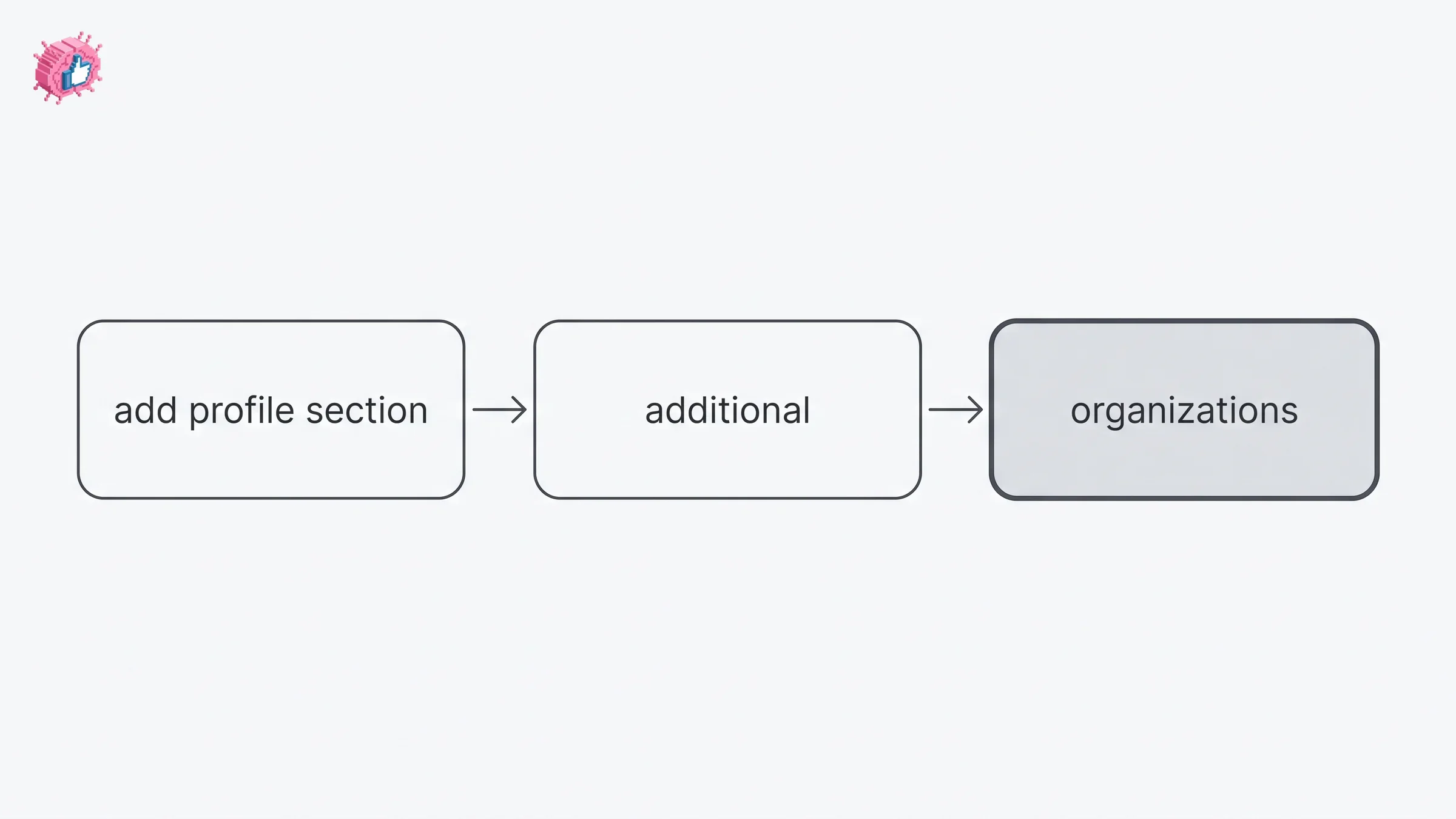
Some of its neighbors in that group have their own guides: volunteer experience, honors and awards, and publications. Courses sits one group up, in Recommended.
How to add the Organizations section to your profile
LinkedIn publishes one flow covering every section in that menu, tabbed Desktop and Mobile. Organizations is added the same way as the rest of them.
On desktop:
- Click the Me icon at the top of your LinkedIn homepage
- Click View Profile
- Click Add profile section in your introduction section
- Click on the section you would like to add and select the subsection, if applicable
- Enter the required information in the pop-up window that appears
- Click Save
On mobile:
- Tap your profile picture
- Tap your profile photo again to access your profile
- Tap Add section in your introduction section
- Tap on the section you would like to add and select the subsection, if applicable
- Enter the required information in the page
- Tap Save
Two differences between the lists are LinkedIn's own, not typos here: the desktop control is called Add profile section while the mobile one is called Add section, and the desktop step describes "the pop-up window that appears" where mobile says "the page".
What the pages read for this guide do not say about the Organizations form
Step five above says "Enter the required information" and does not name a single field.
The Organizations section does not have its own step by step article among the pages read for this guide. What they do publish about it sits across general profile pages: the one-line description of its purpose, its placement in the Additional group, and the shared add and edit flows.
The practical consequence is worth stating plainly rather than papering over:
| Question about the form | Status on the pages read for this guide |
|---|---|
| What the fields are called | Not published |
| Which fields are required | Not published |
| Character limits on any field | Not published |
| Maximum number of entries | Not published |
| Whether entries can be reordered | Not published |
| How to delete an entry | Not published |
Where another article hands you an exact field list or a character count for this section, it is sourcing that from somewhere other than the Help pages listed below. The fields are visible in the form itself once you open it, which is the reliable way to see them.
LinkedIn's rule on naming organizations is for the Experience section
LinkedIn does publish a rule about naming organizations, and it applies to the Experience section rather than this one. It is worth reading before you decide where a membership belongs:
"Associations with organizations in the Experience section of your profile must be accurately labeled and must reflect professional experience with the named organization, such as employment, contract work, official internship or volunteer experience, board service, among others. Informal associations or non-professional experience with organizations shouldn't be included, such as a customer or user of an organization's products or services."
That passage is about Experience. The pages read for this guide do not publish an equivalent rule for the Organizations section. What they do give is the purpose line: involvement with communities that are important to you.
Read together, the two pages give you a split to act on. Board service and official roles are described as Experience material. A membership that is not a professional role fits the Organizations description instead.
Automate your LinkedIn for 30 days
How to edit an organization
Editing runs through the shared profile edit flow, which LinkedIn tabs Desktop, Mobile, and Mobile Browser.
On desktop:
- Click the Me icon at the top of your LinkedIn homepage, then click View Profile
- Click the Edit icon to the right of the section you would like to make changes to
- Make changes in the fields provided
- Click Save
On mobile:
- Tap your profile photo
- Tap your profile photo again to access your profile
- Tap the Edit icon to the right of the section you wish to edit
- Tap the Edit icon next to individual detail you want to edit
- Make changes in the fields provided
- Tap Save
On mobile browser:
- Tap your profile photo
- Tap the Edit icon to the right of the section you wish to edit
- Make changes in the fields provided
- Tap Save in the upper-right corner
The mobile list carries an extra step the desktop one does not: a second Edit icon next to the individual detail, after the one on the section.
The pages read for this guide do not document a delete step for the Organizations section. The edit flow above is the documented way into an entry, so that form is where to look for a delete option.
What the mobile browser can and cannot edit
LinkedIn attaches a caveat to that flow, and it is specific:
"Currently, not all sections are editable on mobile browser. You can only edit the photo, name, headline, location, summary, experience, education, skills, accomplishments, and contact sections."
That list names accomplishments rather than naming the Organizations section individually, so this guide does not tell you which side of the line Organizations falls on. If you are working from a phone browser and the section will not open for editing, the app and the desktop site both have documented flows above.
Does adding an organization notify your network
LinkedIn's page on the setting opens by naming three kinds of change: "You can choose to notify your network about job changes, education changes, and work anniversaries." A later line on the same page adds promotions.
The Organizations section is not named in either list. LinkedIn also states, in the same place, that "even if you've enabled sharing, some types of profile edits won't generate notifications to your network," without listing which edits those are.
So the honest reading is that the pages read for this guide neither promise nor rule out a notification for this section. What they do state is general: enabling the setting "may generate a post in your network's feed, an in-app notification, or an email notification." Note the hedge, which is LinkedIn's.
The control itself is Share profile updates, under Settings & Privacy then Visibility. Our guide to updating LinkedIn without notifying your network covers the setting in full, including the edits it does not reach.
What this means for you
- Organizations is a profile section, not a company presence. LinkedIn's Page documentation covers the other thing, and the two are reached through different parts of the product.
- It lives in the Additional group of Add profile section, alongside Volunteer experience, Publications, Patents, Honors & awards, Test scores, Languages, and Causes.
- One add flow covers every section in that menu, tabbed Desktop and Mobile, with the control named Add profile section on desktop and Add section on mobile.
- The form fields are not published on the pages read for this guide. Open the form to see them rather than trusting a field list from elsewhere.
- LinkedIn's rule about labeling organizations applies to the Experience section, where professional roles belong and informal associations are excluded.
- The mobile browser caveat names accomplishments, not Organizations by name, so treat phone browser editing as unconfirmed for this section.
If the profile is the project rather than this one section, the LinkedIn profile optimization checklist runs through it in order, and our index of LinkedIn features works through them one at a time, the same way this guide does, from the documentation. For tooling, ViralBrain has a free tier with 3 heroes and 3 posts a month.
Sources: Your LinkedIn profile, Add sections to your profile, Edit your profile, Manage your profile Experience section, Share profile updates, Create a LinkedIn Page, LinkedIn Showcase Pages, LinkedIn Help (accessed October 2026)
FAQ
How do I add organizations on LinkedIn?
Open Add profile section in your introduction section, pick Organizations from the Additional group, enter the required information, and Save. On mobile the control is called Add section rather than Add profile section.
Where is the Organizations section on a LinkedIn profile?
In the Additional group of the Add profile section menu, listed with Volunteer experience, Publications, Patents, Honors & awards, Test scores, Languages, and Causes.
What is the Organizations section for?
LinkedIn's description is "Organizations - Show your involvement with communities that are important to you." The pages read for this guide give no examples, but it fits involvement such as membership of a professional body, an association, or a club.
Is adding an organization the same as creating a LinkedIn Page?
No. A Page is created to "represent and build your organization's brand on LinkedIn," with types including Company, Showcase page, and Educational institution. The Organizations section is a part of your personal profile.
What fields does the LinkedIn Organizations section have?
The pages read for this guide do not publish the field names for this section. They say "Enter the required information", which means the form itself is the place to see what it asks for.
Should a membership go in Organizations or Experience?
LinkedIn's Experience rule requires entries there to "reflect professional experience with the named organization, such as employment, contract work, official internship or volunteer experience, board service," and excludes informal associations. A membership that is not a professional role fits the Organizations description instead.
How do I remove an organization from my LinkedIn profile?
The pages read for this guide do not document a delete step for this section. What they document is the way into an entry: the Edit icon to the right of the section, plus a second Edit icon next to the individual detail on mobile. That form is where to look for a delete option.
Can I edit the Organizations section from a phone browser?
LinkedIn states that "not all sections are editable on mobile browser" and lists the ones that are, naming accomplishments rather than Organizations specifically. The app and desktop flows are documented, so use one of those if the section will not open.
Does adding an organization notify my network?
LinkedIn names job changes, promotions, education changes, and work anniversaries as what the setting covers, and says some profile edits will not generate notifications without listing which. The pages read for this guide do not settle it for this section.
Automate your LinkedIn for 30 days
ViralBrain plans, writes, and schedules your LinkedIn content, using official LinkedIn APIs so your account stays safe.
- Official LinkedIn APIs, no risk of ban
- You approve every post before it goes live
- Cancel anytime
Keep reading
How to Add Honors and Awards on LinkedIn
How to add the Honors and awards section on LinkedIn on desktop and in the app, the exact steps LinkedIn publishes, and how to edit or delete an entry.
How to Add Volunteer Experience on LinkedIn, Step by Step
How to add volunteer experience on LinkedIn on desktop and in the app, whether to use the Experience section instead, and what notifies your network.
How to Add Education on LinkedIn: Fields and Steps
How to add education on LinkedIn, the eight fields LinkedIn documents, multiple entries, the expected end date, reordering, and the 24 hour notify window.