

How to Add Honors and Awards on LinkedIn
How to add the Honors and awards section on LinkedIn on desktop and in the app, the exact steps LinkedIn publishes, and how to edit or delete an entry.
LinkedIn writes the section name as Honors & awards, with an ampersand and a lowercase "awards", and you add it through Add profile section in your introduction section. It sits in the Additional group, alongside Volunteer experience, Publications, Patents, Test scores, Languages, Organizations and Causes. If you have never added one, you add the section and the first entry in the same pass.
It has its own dedicated LinkedIn Help page, which means the add, edit and delete steps are published for both desktop and the app rather than inferred from the generic flow.
LinkedIn states the purpose in one sentence: "You can add Honors & awards to showcase your expertise in a particular field and professional achievements from the introduction section on your LinkedIn profile."
Everything below comes from the LinkedIn Help pages listed at the end, quoted where the exact wording settles the answer. Where those pages are silent, this guide says so rather than filling the gap.
Automate your LinkedIn for 30 days
What the Honors & awards section is on LinkedIn
A place to record awards and recognition. LinkedIn's dedicated page opens with the plain version: "You can add Honors & awards to showcase your expertise in a particular field and professional achievements from the introduction section on your LinkedIn profile."
Its profile overview page puts it more bluntly still: "Show off your hard-earned awards."
| Question | What these Help pages document |
|---|---|
| Section name | Honors & awards |
| Which group it belongs to | Additional |
| How you add it | Add profile section on desktop, Add section in the app |
| Dedicated Help page | Yes, with add, edit and delete steps |
| Tab headings on that page | Desktop and Mobile |
| Field names in the form | Not listed on the pages read for this guide |
| Entry limit | Not stated on the pages read for this guide |
| What LinkedIn also calls an entry | An "accomplishment", in the mobile edit heading |
A note on spelling before the steps. If you search for the British form "honours", note that LinkedIn's Help pages and its section list use the American "Honors", so that is the label to look for in the menu.
Where Honors & awards sits among the other profile sections
In the bottom group. LinkedIn sorts everything you can add through Add profile section into three named groups and publishes them as a plain list.
| Group | Sections LinkedIn lists in it |
|---|---|
| Core | About, Education, Position, Services, Career break, Skills |
| Recommended | Featured, Licenses & certifications, Projects, Courses, Recommendations |
| Additional | Volunteer experience, Publications, Patents, Honors & awards, Test scores, Languages, Organizations, Causes |
Honors & awards sits in Additional between Patents and Test scores, next to publications and volunteer experience. Compare that to the projects section and licenses and certifications, which LinkedIn files one group up under Recommended.
The group names are LinkedIn's own labels for how it presents the menu, and the Additional group is the longest of the three. An entry's placement in that list is set by LinkedIn, not by you.
How to add honors and awards on LinkedIn
Through Add profile section, then the Additional dropdown. LinkedIn notes first that "If you've never added an honor or award, you'll first want to add an Honors & awards section", so the section and your first entry arrive together.
Desktop:
- Click the Me icon at the top of your LinkedIn homepage.
- Click View Profile.
- Click Add profile section in your introduction section.
- Click on Additional dropdown in the Add to profile pop-up window.
- Click Add honors & awards and enter the required information in the Add honors & awards pop-up window.
- Click Save.
LinkedIn adds one line after that list: "Repeat the above steps to add more Honors & awards to your profile."
Mobile:
- Tap your profile photo, then View profile.
- Tap Add section in the introduction section.
- Tap the Additional dropdown.
- Tap Add honors & awards and enter the required information in the Add honors & awards page.
- Tap Save.
Two differences between those tabs are worth noticing, because both are in LinkedIn's own wording rather than added here. The desktop button is Add profile section while the app button is Add section. And the desktop form opens in a pop-up window, while the app opens it as a full page.
This page's Mobile tab routes you to your profile with "Tap your profile photo, then View profile." LinkedIn's general add-sections page words the same journey differently, as two taps on your profile photo with no named view step. The two pages describe it differently, so use whichever matches what is actually on your screen.
What the pages read for this guide do not say about the form
They do not list its fields. Step 5 on desktop and step 4 on mobile both say "enter the required information", and the pages read for this guide stop there.
The honest boundary, since this is what a guide can most easily invent:
- The field names in the add form are not listed on these pages.
- A limit on how many honors and awards you can add is not stated on these pages.
- Associating an award with a position or an education entry is not documented on any page read for this guide. LinkedIn does document associations in the Experience section, but that passage is about labeling organizations accurately, not about linking an award to a job.
If you find an exact field list quoted elsewhere, it is coming from somewhere other than these Help pages. The current fields appear in the form on your own profile.
Automate your LinkedIn for 30 days
How to edit or delete an honor or award
Through the Edit icon next to the section, which opens a page where each entry has its own Edit icon. LinkedIn publishes this on both tabs, and the destination is the same: a Honors & awards page listing your entries.
Desktop:
- Click the Me icon at top of your LinkedIn homepage.
- Click View Profile.
- Scroll down to the Honors & awards section.
- Click the Edit icon next to Honors & awards.
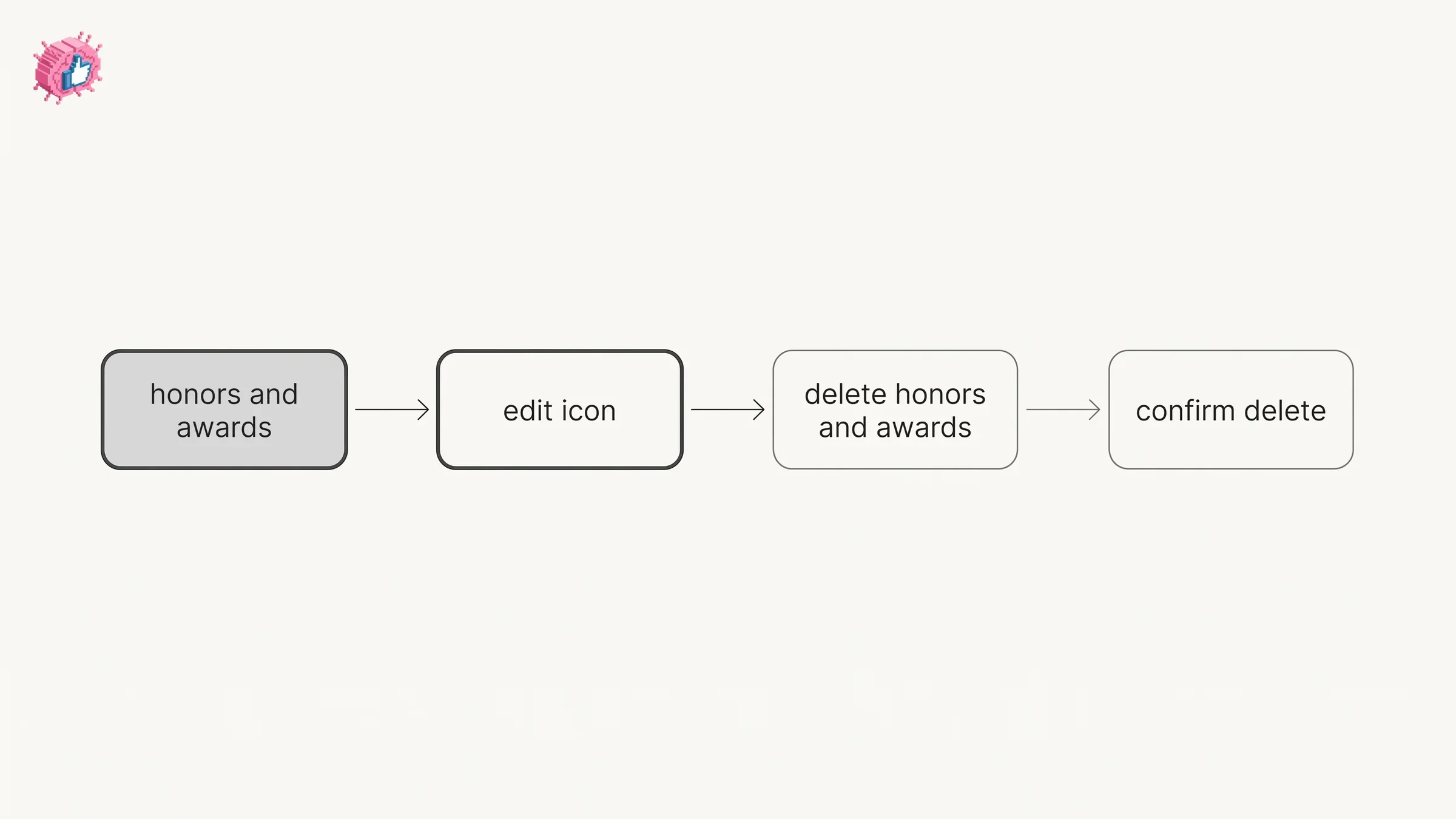
- From the Honors & awards page, you can Edit (click the Edit icon next to the honor or award you'd like to edit, make changes and Save) or Delete (click the Edit icon next to the honor or award you'd like to delete, then click Delete honors & awards and confirm Delete).
Mobile:
- Tap your profile photo, then View profile.
- Scroll down to the Honors & awards section.
- Tap the Edit icon next to Honors & awards.
- From the Honors & awards page, you can Edit (tap the Edit icon next to the honor or award you want to edit, make changes and Save) or Delete (tap the Edit icon next to the honor or award you want to remove, then tap Delete honors & awards on the bottom of the page and confirm Delete).
The structure is the same on both: deleting starts from the Edit icon rather than from a separate remove control, and it ends with a confirmation step.
| Step | Desktop | Mobile |
|---|---|---|
| Reach your profile | Me icon, then View Profile | Tap your profile photo, then View profile |
| Open the section | Edit icon next to Honors & awards | Edit icon next to Honors & awards |
| Start either action | Edit icon next to the entry | Edit icon next to the entry |
| Where delete sits | Delete honors & awards, then confirm | Delete honors & awards on the bottom of the page, then confirm |
LinkedIn heads the mobile version of these steps "To edit or delete an accomplishment", which is the one place these pages connect the section to the word accomplishments. That word matters on a phone browser, as the next section covers.
Editing from a mobile browser
Not every section is editable there, and LinkedIn says so directly on its page for editing a profile: "Currently, not all sections are editable on mobile browser. You can only edit the photo, name, headline, location, summary, experience, education, skills, accomplishments, and contact sections."
Accomplishments appears in that list, and the Honors & awards page heads its mobile edit steps "To edit or delete an accomplishment". Those two sentences sit on different pages and LinkedIn does not state in either one which sections the word covers, so this guide stops at reporting both rather than concluding from them. The dedicated page publishes its steps under Desktop and Mobile tabs, and those are the two paths documented end to end.
Does adding an award notify your network
The pages read for this guide do not document a notification for adding a Honors & awards entry.
Profile edits in general can send an update to your network depending on a separate setting, and how to update LinkedIn without notifying your network covers that toggle and where it lives. If you are adding several entries in one sitting, check that control first.
What this means for you
Honors & awards is the section for recognition you received rather than work you produced. That distinction is what separates it from its neighbours in the same group: a publication is output, an award is a judgment someone else made about you.
A few things worth deciding before you add one:
- Who gave it. An award from a named body carries the name with it. The pages read for this guide do not publish the field list, so the entry form on your profile is where you will see what you can record.
- Whether it is recognition or credential. A certificate usually belongs in licenses and certifications, and coursework in Courses. An award belongs here.
- Whether it still reads as current. This section sits in the optional half of your profile with languages and volunteer experience, and the profile optimization checklist works through that trade-off section by section.
Recognition written by another person has a second home on LinkedIn, in recommendations, which sits in the Recommended group and reads differently because it is a named colleague speaking. The full set of individual feature guides lives in LinkedIn features explained.
Sources: Manage Honors & awards on your profile, Add sections to your profile, Your LinkedIn profile, Edit your profile, Manage your profile Experience section, LinkedIn Help (accessed October 2026)
FAQ
How do I add honors and awards on LinkedIn?
On desktop, click the Me icon, click View Profile, click Add profile section, click the Additional dropdown in the Add to profile pop-up window, click Add honors & awards, enter the required information, then click Save. In the app, tap your profile photo then View profile, tap Add section, tap the Additional dropdown, tap Add honors & awards, enter the information, then tap Save.
What is the Honors & awards section called on LinkedIn?
LinkedIn writes it as Honors & awards, with an ampersand and a lowercase "awards", in both the Add profile section list and its dedicated Help page. Its profile overview page capitalizes it as "Honors & Awards", so the capitalization varies between the pages read for this guide. The American "Honors" spelling is used on all three of them.
Where is the Honors & awards section on a LinkedIn profile?
LinkedIn lists it under the Additional group in the Add profile section menu, alongside Volunteer experience, Publications, Patents, Test scores, Languages, Organizations and Causes. It is a section you add, so it is not on your profile until it has an entry.
What fields does the LinkedIn honors and awards form have?
The pages read for this guide do not list them. Both platforms' steps say only to "enter the required information". The current fields appear in the form on your own profile.
How do I delete an award from my LinkedIn profile?
Scroll to the Honors & awards section, click or tap the Edit icon next to it, then on the Honors & awards page use the Edit icon next to the specific entry, click or tap Delete honors & awards, and confirm Delete. In the app, Delete honors & awards sits at the bottom of the page.
How do I add more than one award?
LinkedIn's instruction is to "Repeat the above steps to add more Honors & awards to your profile." A maximum is not stated on the pages read for this guide.
Can I link an award to a job or a degree?
Associating an award with a position or an education entry is not documented on any page read for this guide. LinkedIn's passage about associations in the Experience section is about labeling organizations accurately, which is a different matter.
Does adding an award notify my connections?
The pages read for this guide do not document a notification for this change. A separate setting governs whether profile edits are shared with your network, and our guide on updating LinkedIn without notifying your network covers it.
Why does LinkedIn call my award an accomplishment?
On the mobile tab of its Honors & awards page, LinkedIn heads the steps "To edit or delete an accomplishment". The word also appears in the list of sections editable on a mobile browser. These pages do not define which sections the term covers.
Automate your LinkedIn for 30 days
ViralBrain plans, writes, and schedules your LinkedIn content, using official LinkedIn APIs so your account stays safe.
- Official LinkedIn APIs, no risk of ban
- You approve every post before it goes live
- Cancel anytime
Keep reading
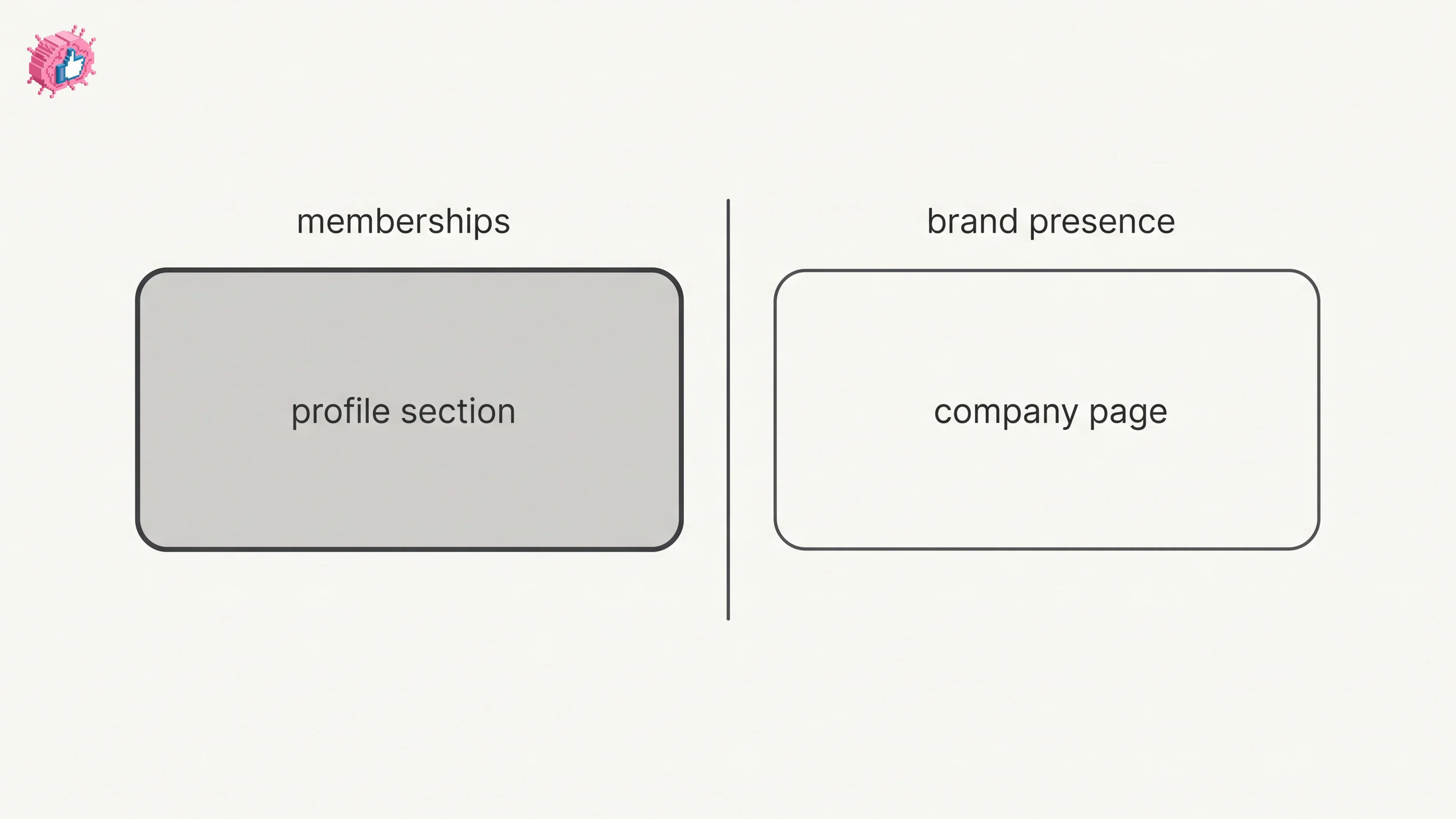
How to Add Organizations on LinkedIn: Full Steps
How to add organizations on LinkedIn, where the section sits, desktop and app steps, editing entries, and why a LinkedIn Page is a different thing.
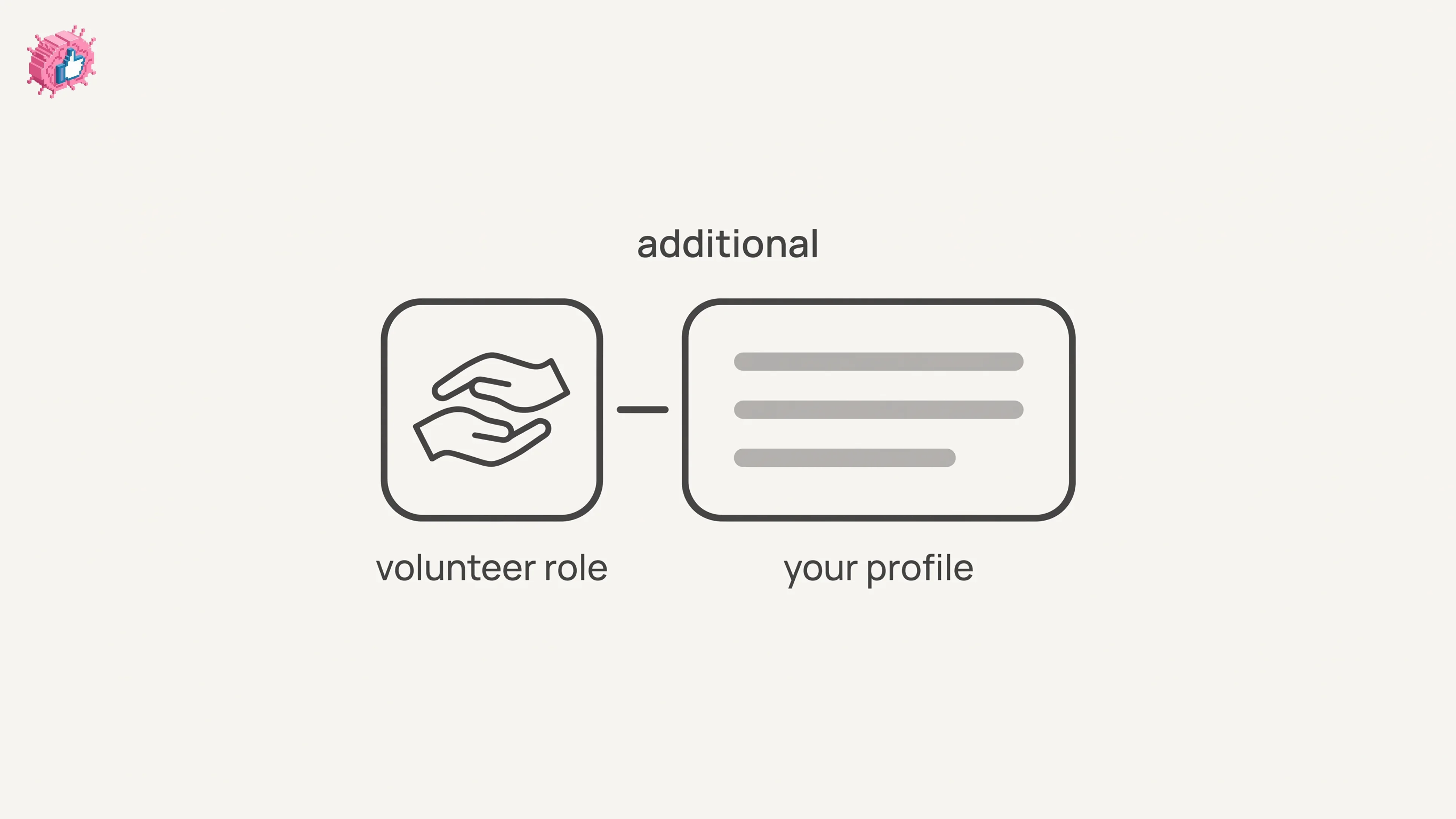
How to Add Volunteer Experience on LinkedIn, Step by Step
How to add volunteer experience on LinkedIn on desktop and in the app, whether to use the Experience section instead, and what notifies your network.
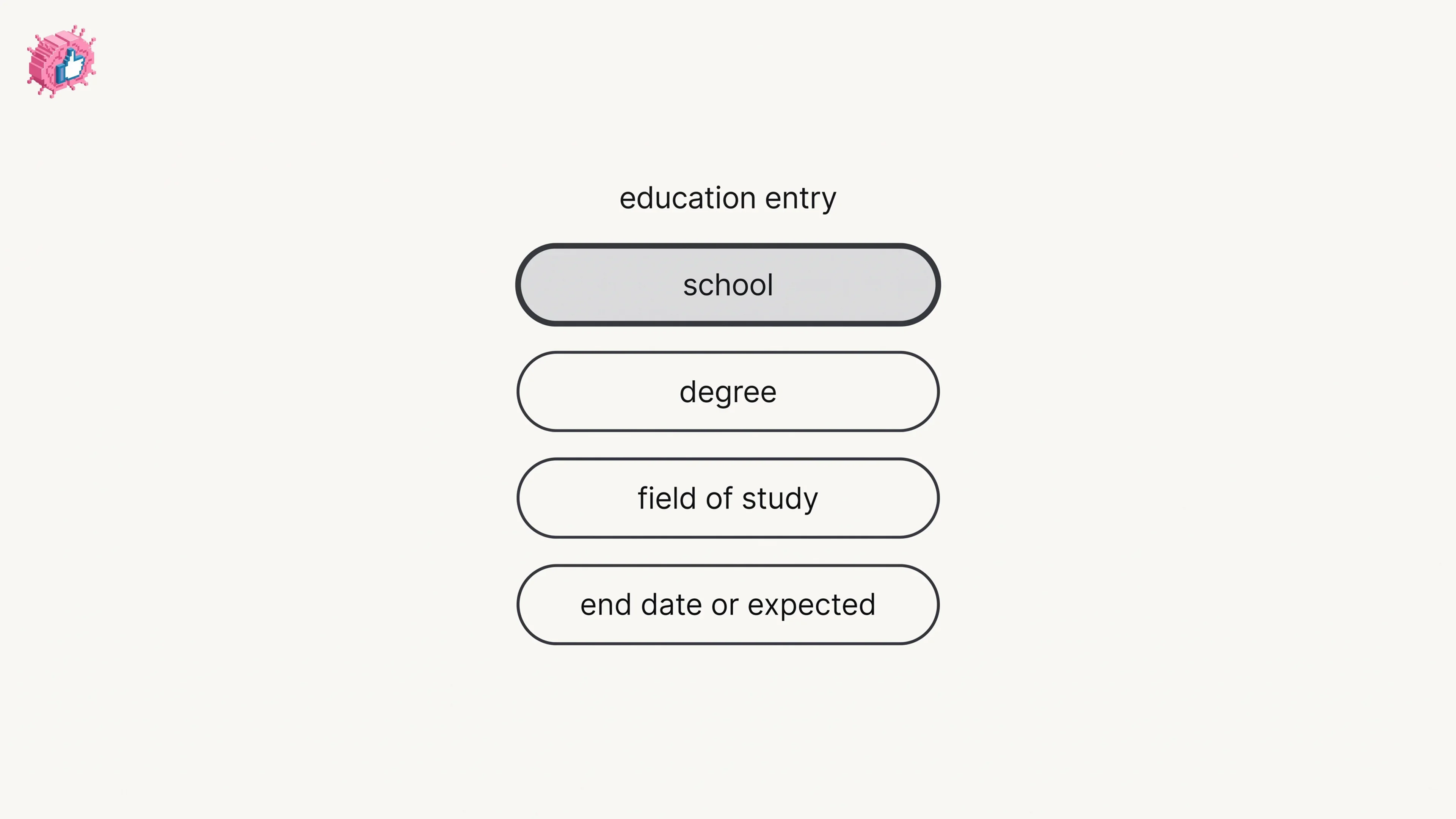
How to Add Education on LinkedIn: Fields and Steps
How to add education on LinkedIn, the eight fields LinkedIn documents, multiple entries, the expected end date, reordering, and the 24 hour notify window.