

LinkedIn Endorsements: How They Actually Work
LinkedIn endorsements need no approval, unlike recommendations. The 100-skill cap and its exemption, how to hide one, and what deletes them permanently.
A LinkedIn endorsement lands on your profile without asking you. A connection clicks a skill, and it is there.
That single design decision explains almost everything about the feature, including why endorsements carry less weight than the written recommendations they sit near, which require you to accept them before anyone sees them. Endorsements are opt-out; recommendations are opt-in.
This guide covers who can endorse you, the skill limit and the exemption most people miss, how to hide one you do not want, how to switch the whole thing off, and the one action that deletes endorsements permanently.
Automate your LinkedIn for 30 days
What is a LinkedIn endorsement?
An endorsement is a one-click confirmation that you have a skill listed on your profile. LinkedIn describes skills as things that "can be validated by 1st-degree connections to reinforce their weighting."
Two mechanics follow from that:
- Only 1st-degree connections can endorse you. Someone outside your network cannot add to your skills.
- No approval is required. LinkedIn states that "you don't need to request a skill endorsement to receive one. By default, you'll receive a notification when a connection endorses one of your skills."
So the arrival is automatic and the notification is the first you hear of it. Your controls all operate after the fact, which is what the rest of this page is about.
The 100-skill limit, and the part people miss
You can list up to 100 skills in the Skills section. The exemption is the useful detail: "The 100-skill limit applies only to the Skills section. Skills associated with roles in your Experience section aren't included in this limit."
Skills attached to individual roles sit outside the cap entirely. If you are near 100 and still want a skill visible against a specific job, that route stays open.
You can also reorder the display order of your skills, which matters more than the count. A reader scans the top of the list, so the ordering is the part doing the work. Which skills belong there at all is a different question, covered in the profile optimization checklist and answerable with the free skills by role and skill recommender tools.
How to hide an endorsement you do not want
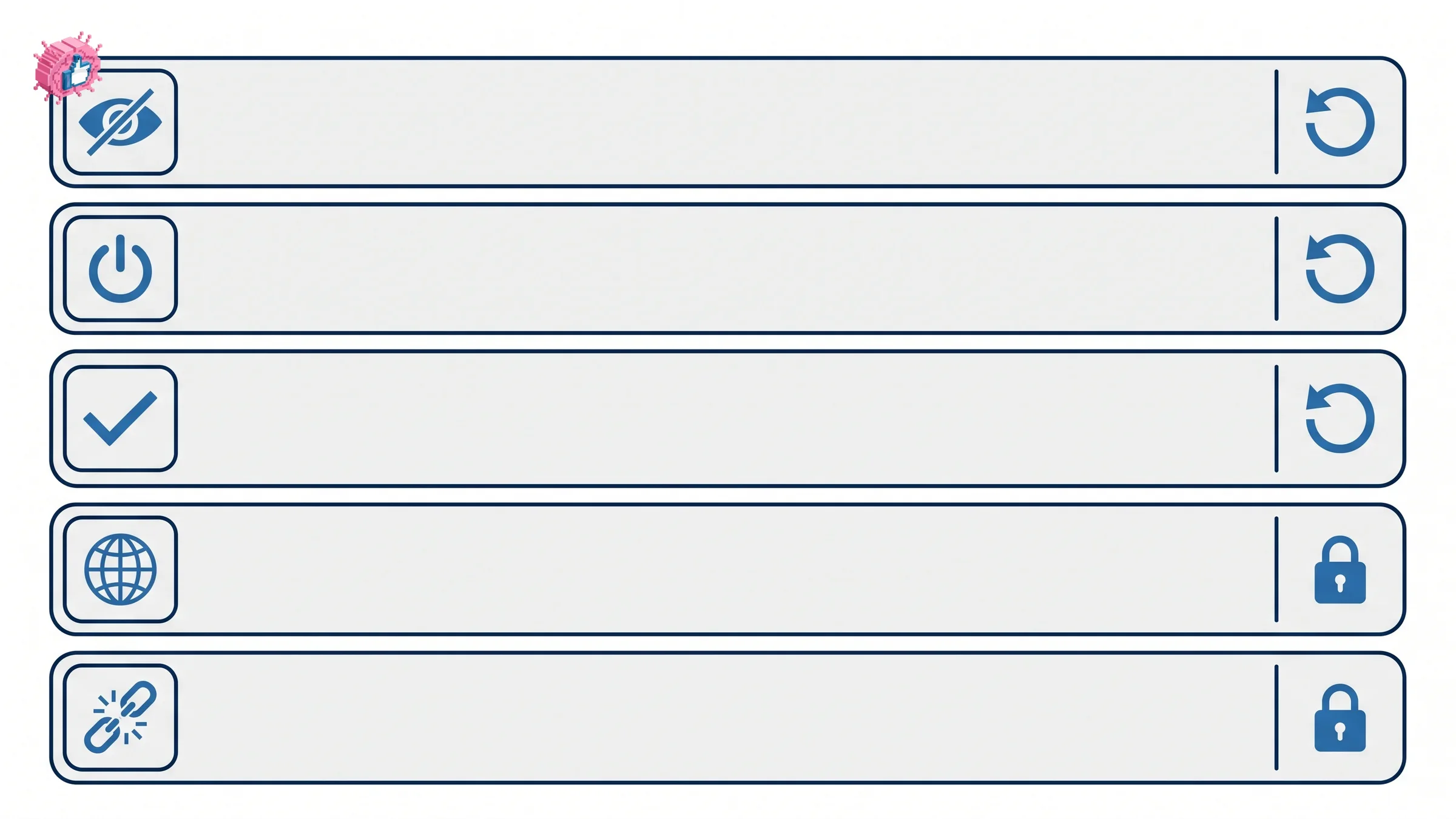
Endorsements arrive unfiltered, so a colleague who has never seen you write code can endorse you for Python. Hiding it is per-person, per-skill.
On desktop: Click the Me icon, then View profile. Scroll to the Skills section and click the name of any of your skills. In the popup, switch the toggle On or Off next to the name of the member whose endorsement you want to hide or show.
On mobile: Tap your profile picture, then View Profile. Scroll to Skills, tap the Edit icon, tap the skill to see who endorsed you, and switch the toggle On or Off next to the member's name.
The toggle is reversible. Switching it back On restores visibility, and the documentation does not state that hiding deletes anything.
LinkedIn does not say whether the endorser is notified when you hide their endorsement, so treat that as undocumented rather than assuming either way.
How to opt out of endorsements entirely
If the feature is more trouble than it is worth, you can switch it off:
- Click the Me icon at the top of your LinkedIn homepage
- Click View Profile
- Scroll to the Skills section and click the Edit icon
- Click the More icon on the upper right of the Skills page
- Click Endorsement settings from the dropdown
- In the Endorsements popup, switch the toggle next to I want to be endorsed to No
- Click Close
LinkedIn lists four effects. Turning it off will:
- "Prevent your connections from endorsing you."
- "Hide all of your endorsements."
- "Prevent endorsement suggestions from displaying on profiles you view."
- "Prevent endorsement suggestions from displaying on your own profile when others view it."
Read the second one carefully: opting out hides your endorsements rather than deleting them. That is a meaningful difference from the permanent case further down.
The third effect is worth having on its own. It stops LinkedIn prompting you to endorse people while you browse, which is the mechanism that produces most low-quality endorsements in the first place.
Automate your LinkedIn for 30 days
How to remove an endorsement you have given
Changed your mind about endorsing someone? The steps start on their profile.
On desktop: Navigate to the 1st-degree connection's profile, scroll to the Skills & endorsements section, find the skill, and click the Checkmark icon to its left.
On mobile: Navigate to their profile, scroll to Featured Skills and Endorsements, find the endorsement, and tap the checkmark to its left.
Two things make this lower stakes than it feels. "Your connection will not be notified if you remove an endorsement." And it is not final: the checkmark becomes an Add icon, so you can re-endorse later.
What permanently deletes endorsements
Most of the controls above are reversible. Two situations are not.
| Action | Effect | Reversible |
|---|---|---|
| Hide one endorsement | Removed from display | Yes, toggle it back on |
| Opt out entirely | Hides all, blocks new ones | Not stated by LinkedIn |
| Remove one you gave | Removed, silently | Yes, re-endorse |
| Change a skill's language | Permanently deletes its endorsements | No |
| Disconnect from the endorser | Automatically removed | No, not reinstated |
Changing a skill's language. Skills cannot be switched between languages in place. Doing it means removing and re-adding the skill, and LinkedIn is blunt about the consequence: that "will permanently delete all the associated endorsements." Anyone maintaining a profile in more than one language should know that before they tidy anything.
Disconnecting from the endorser. If your connection with someone ends, "any endorsements between the two of you are automatically removed and not reinstated if you re-establish the connection" unless you manually re-endorse. Reconnecting does not restore what was lost, in either direction.
Are endorsements worth anything?
The honest answer is: a little, and less than the count suggests.
The case against. Nobody approves them, they take one click, and LinkedIn actively prompts people to give them while browsing. A number built that way is weak evidence, and a reader knows it. Worse, a whole category of automation tools offers bulk auto-endorsement as a feature, which is visible in the LinkedIn automation tools market and further devalues the signal.
The case for. Skills are a structured field, and endorsements reinforce their weighting, so they are doing something in LinkedIn's own ranking rather than only decorating the page. Ten endorsements on the skill you actually want to be found for is a cheap, low-effort nudge.
The read. Treat endorsements as tidying rather than as proof. Get the skills list right and ordered, accept what arrives, hide anything misleading, and put your effort into the signals a reader treats as real: a written recommendation, a verified profile, or content credentials that show the work. None of those can be produced by a browser extension, which is precisely why they still mean something.
The honest summary
Endorsements arrive without your permission, which is the whole story. That makes them easy to accumulate and easy to discount.
The two facts worth remembering are that the 100-skill cap does not cover skills attached to your Experience entries, and that changing a skill's language permanently destroys its endorsements. Everything else here is a toggle you can flip back, and building a personal brand is where the effort actually pays.
FAQ
Who can endorse my skills on LinkedIn?
Only 1st-degree connections. LinkedIn describes skills as something that "can be validated by 1st-degree connections to reinforce their weighting," so people outside your network cannot endorse you.
Do I have to approve a LinkedIn endorsement?
No. LinkedIn states that "you don't need to request a skill endorsement to receive one" and that by default you receive a notification when a connection endorses a skill. This is the opposite of a recommendation, which only appears after you accept it.
How many skills can I list on LinkedIn?
Up to 100 in the Skills section. LinkedIn adds an exemption most people miss: "the 100-skill limit applies only to the Skills section. Skills associated with roles in your Experience section aren't included in this limit."
How do I hide a LinkedIn endorsement?
Open your profile, scroll to Skills, click the skill name, and in the popup switch the toggle Off next to the member whose endorsement you want to hide. On mobile, tap the Edit icon in Skills first, then tap the skill. The toggle can be switched back On.
How do I turn off LinkedIn endorsements completely?
Go to your profile, click the Edit icon in the Skills section, click the More icon, choose Endorsement settings, and switch I want to be endorsed to No. This prevents new endorsements, hides your existing ones, and stops endorsement suggestions appearing to you and to visitors.
Does opting out delete my endorsements?
No. LinkedIn's stated effect is to "hide all of your endorsements," which is different from deleting them.
Will someone know if I remove an endorsement I gave them?
No. LinkedIn states that "your connection will not be notified if you remove an endorsement." The checkmark turns into an Add icon, so you can re-endorse the same skill later.
What happens to endorsements if I disconnect from someone?
They are removed automatically, and LinkedIn states they are "not reinstated if you re-establish the connection" unless you manually re-endorse. The same applies in both directions.
Automate your LinkedIn for 30 days
ViralBrain plans, writes, and schedules your LinkedIn content, using official LinkedIn APIs so your account stays safe.
- Official LinkedIn APIs, no risk of ban
- You approve every post before it goes live
- Cancel anytime
Keep reading
LinkedIn Career Break: How to Add One and Who Sees It
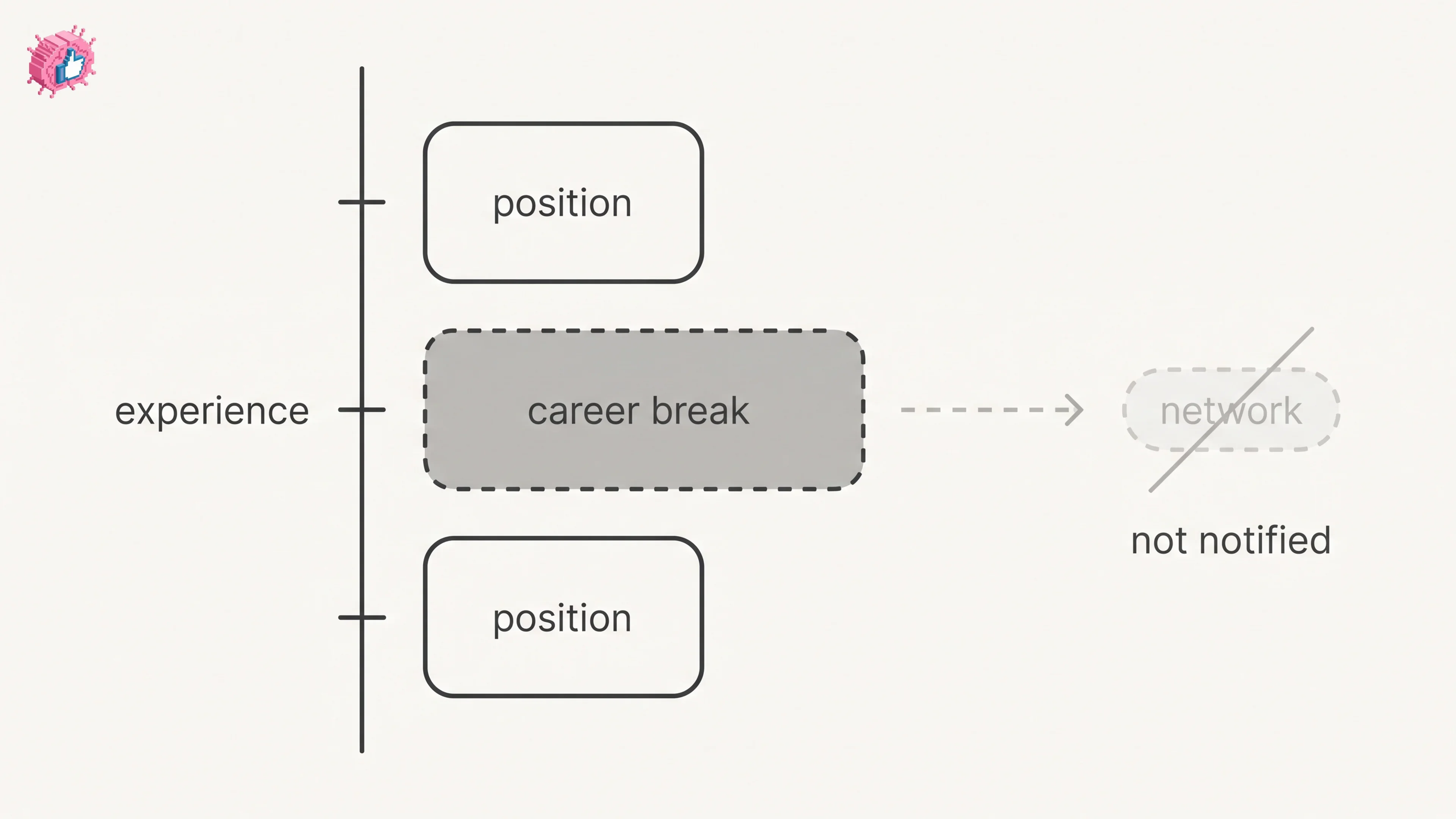
Add a career break on LinkedIn desktop or the app. Your network is not notified, the type is optional, and signed-in members see it. From LinkedIn Help.
How to Add a Certification to LinkedIn Without Posting
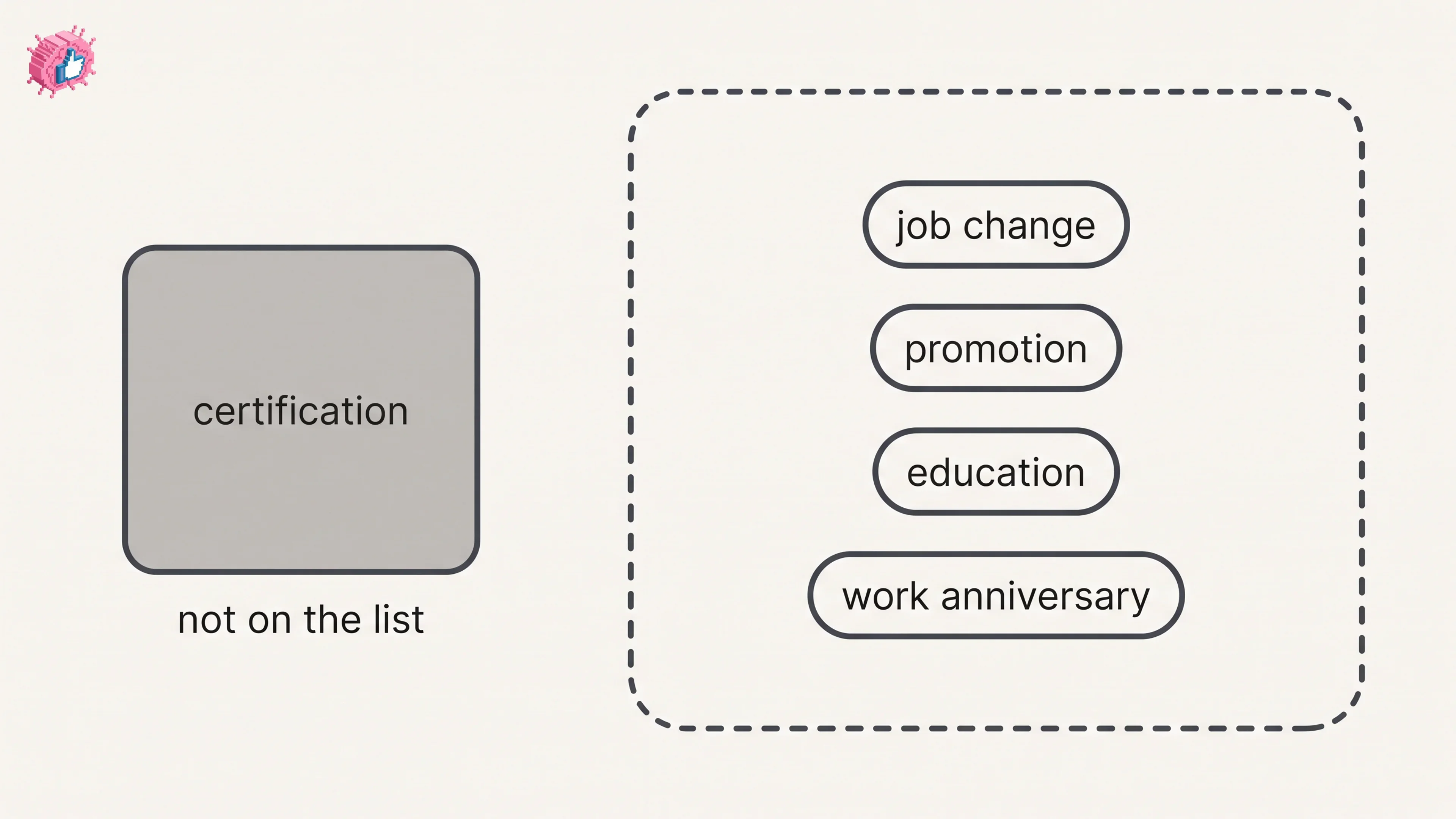
Add a certification on LinkedIn desktop or the app, put credentials after your name, and see what LinkedIn documents about notifying your network.
How to Remove a Connection on LinkedIn: What It Erases
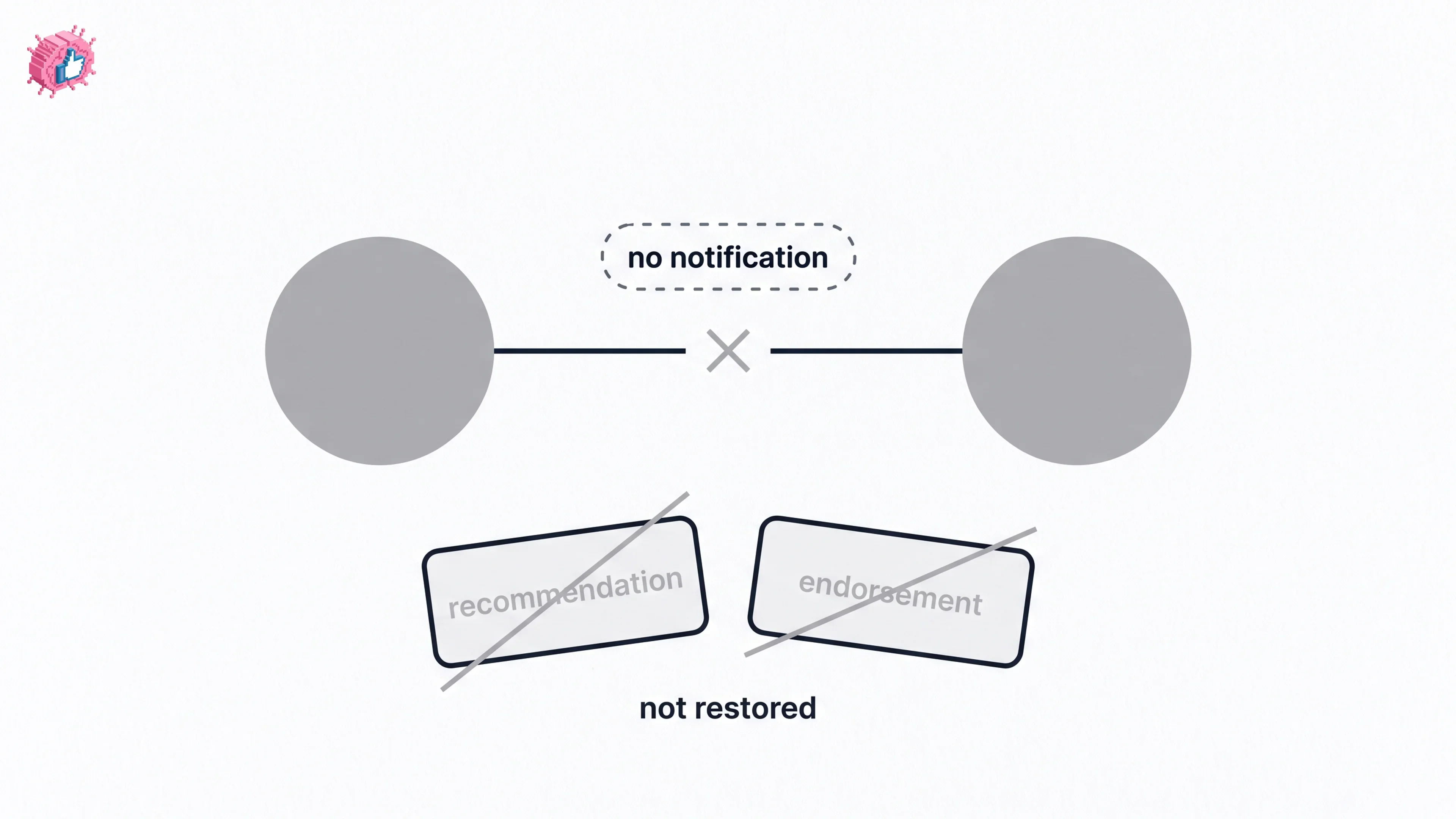
Remove a LinkedIn connection on desktop or the app. They are not notified, but recommendations and endorsements go for good. Steps from LinkedIn Help.