

How to Delete a Post on LinkedIn (Feed, Page, Group)
The four documented steps to delete a LinkedIn post on desktop and mobile, plus Page, group, scheduled and comment deletes, and what happens to engagement
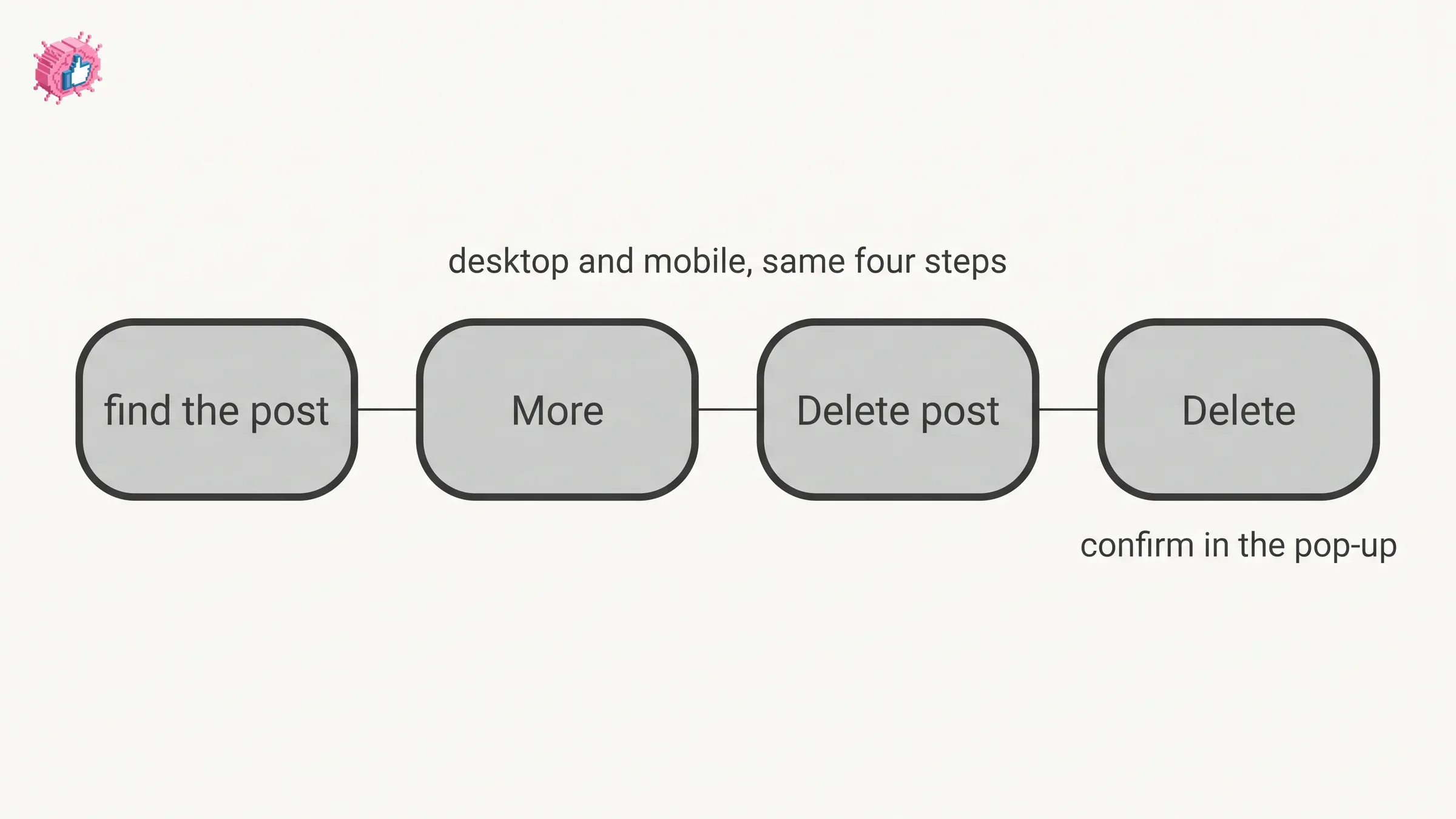
Deleting a post you shared on LinkedIn takes four steps, and LinkedIn publishes the same four under both of its platform tabs: find the post, open the More icon in its upper-right corner, select Delete post, then confirm in the pop-up.
The steps are the easy part. The parts worth knowing are the limits LinkedIn documents on what you can remove, its note that a deleted post could still appear in a digest email sent to your connections, and the question of what happens to the reactions and comments it collected, which LinkedIn answers for some post types and not for others.
A LinkedIn post is not one object. A post on your feed, a post on a Page you admin, a post inside a group and a post still sitting in your scheduled queue each have their own Help page and their own delete flow. This guide covers each one, and says plainly where the documentation stops.
| What you want to remove | Where LinkedIn documents the flow | Who can do it |
|---|---|---|
| A post you shared from your feed | The More icon on the post | You, on your own posts |
| An older post | Your profile Activity page, for content up to two years old | You, on your own posts |
| A comment | The More icon on the comment | You, for "comments you've made on other members' posts or comments on content you shared" |
| A post on a Page | Page posts in the admin view | A super admin or content admin |
| A post in a group | The More icon on the post | You, plus group owners and managers on other members' posts |
| A scheduled post | The scheduled posts queue, before it publishes | You, or a super admin or content admin for a Page |
Automate your LinkedIn for 30 days
How to delete your own LinkedIn post
LinkedIn tabs its instructions as Desktop and Mobile, with one Mobile tab rather than separate iOS and Android tabs. The opening line sets the scope: "You can delete content you've recently shared using the LinkedIn desktop site or the LinkedIn mobile app."
Desktop:
- Locate the post you want to delete.
- Click the More icon in the upper-right corner of the post.
- Click Delete post from the dropdown.
- Click Delete to confirm in the Delete post? pop-up window.
Mobile:
- Locate the post you want to delete.
- Tap the More icon in the upper-right corner of the post.
- Tap Delete post.
- Tap Delete to confirm in the Delete post pop-up window.
The flows match step for step. In the confirmation step, LinkedIn writes the desktop pop-up as Delete post? with a question mark and the mobile one as Delete post without it.
Deleting an older post from your Activity page
Scrolling your feed to find a post from last year is not the route LinkedIn documents for older content. Its Activity page is.
LinkedIn states: "You can view and delete content up to two years old from your profile Activity page." To get there, click the Me icon or your profile picture at the top of your homepage, click View profile, go to the Activity section, then click the type of activity you want, for example Posts, Comments or Videos.
From there the delete flow adds one step to the feed version:
- On the Activity page, click the Posts tab and locate the post you want to delete.
- Click on the post you want to delete.
- Click the More icon in the top right corner of the post.
- Click Delete post from the dropdown.
- Click Delete to confirm.
Two details on that page are easy to miss. If you have had no activity on LinkedIn for 360 days, LinkedIn states your Activity section will be hidden from your profile. And for content past the two year mark, the page points you to your data archive.
The two pages also scope the same job differently. One says you can delete content you have "recently shared", the other gives a two year window on the Activity page. Both are quoted here as written, and LinkedIn does not reconcile them on either page. A third LinkedIn page, on viewing your activity, words it more broadly: "You can always view and delete your activity anytime."
What happens to the reactions and comments on a deleted post
This depends on where the post lived, and LinkedIn documents it in some places and not others.
| Where the post lives | What LinkedIn documents about its engagement |
|---|---|
| A post you shared from your feed | The page covering these posts does not state what happens to its reactions and comments |
| A post on a Page you admin | "Any likes, comments, or shares associated with the post will be lost" |
| A post in a LinkedIn group | "If you delete a post or comment, all likes, reactions, and comments will also be removed" |
| A comment you made | "When you delete a comment, all likes and replies on it are removed" |
For three of those four, the answer is published, and all three point the same way: the engagement goes with what you delete. The lists are not worded alike, though. The Page page names likes, comments and shares, the group page names likes, reactions and comments, and the comment page names likes and replies. For a post you shared from your feed, the page read for this guide does not address it. Treat deletion as one-way, while noting that the sentence confirming it for feed posts is not on the page that covers them.
The same gap shows up for reposts, and how to repost on LinkedIn documents the delete steps for those and flags it too.
Two notes on LinkedIn's main delete page
Both sit in the notes at the bottom of the main delete page, and both are worth reading before you assume a post is gone.
Content marked as spam cannot be deleted by you. LinkedIn writes: "You can view and delete your activity. However, you will not be able to delete content that has been marked as spam."
A deleted post can still arrive by email. LinkedIn states: "If some time has passed after you've deleted a post, it could still appear in a digest email sent to your connections." The hedge there is LinkedIn's own: it says the post "could still appear", not that it will.
The pages read for this guide do not say how long after a delete that can happen.
How to delete a comment on LinkedIn
Comments have their own page and their own four steps, and LinkedIn opens it with the consequence rather than burying it: "You can delete comments you've made on other members' posts or comments on content you shared. When you delete a comment, all likes and replies on it are removed."
Desktop: go to the comment, click the More icon in the upper-right corner of the comment, click Delete, then click Delete in the confirmation pop-up window.
Mobile: go to the comment, tap the More icon in the upper-right corner of the comment, tap Delete, then tap Delete in the confirmation pop-up window.
LinkedIn adds an "Important to know" note that is easy to skip past: "Deleting your own comment from a post is different from turning off or limiting comments on your posts." Turning off and limiting comments are covered in LinkedIn comment controls, and that guide makes the same distinction from the other direction, noting that turning comments off does not delete the ones already there.
If the comment is older, the Activity page route works for comments too: click Comments, open the comment or contribution, click the More icon, click Delete, then confirm.
Automate your LinkedIn for 30 days
How to delete a post from a LinkedIn Page
For Page posts, LinkedIn lists the consequences of deleting alongside the steps, and the role requirement comes first: this is for a super admin or content admin.
LinkedIn lists three types of Page post you can delete: your posts, posts that you reposted, and posts that you imported on your Page from external sources like your organization's website, blogs, YouTube channels and other RSS supported sources.
Desktop:
- Access your Page super or content admin view.
- Click Page posts in the left menu.
- Locate the post you'd like to delete and click the More icon.
- Select Delete post.
- Click Delete to confirm.
Mobile:
- Access your Page super or content admin view.
- Tap Dashboard from the upper-left corner and select Page posts from the dropdown.
- Locate the post you'd like to delete and tap the More icon.
- Tap Delete post.
- Tap Delete to confirm.
LinkedIn then spells out three implications. The post "is permanently removed and won't be visible to your followers or anyone visiting your Page", and "This action cannot be undone". Any likes, comments or shares associated with the post will be lost. Metrics and insights such as views, clicks and engagement rates will no longer be available, which LinkedIn says can affect your overall Page analytics.
One caveat is LinkedIn's own and is worth repeating exactly: "the deleted post might still appear in other places on LinkedIn if a member has the direct URL to the post." The word is "might".
Which admin roles can do this at all is set out in LinkedIn Page admin roles.
How to delete a scheduled post before it publishes
Scheduled posts are deleted from the scheduled queue rather than from the feed, because they are not in the feed yet.
For your own scheduled posts: open your scheduled posts, then click the Delete icon next to the post. In the Delete scheduled post? pop-up window, click Delete and confirm your action. LinkedIn gives the same instructions with taps under its Mobile tab. On its Desktop tab, the queue is reached from Start a post, then the Clock icon, then View all scheduled posts; its Mobile tab starts from Post in the navigation bar and ends with View all. Both tabs state that "Once a post is scheduled, you can reschedule the publish time or delete the post."
For a Page's scheduled posts: LinkedIn is blunt about the stakes. "You can delete a scheduled post any time before it's published. You cannot recover a deleted post." It also offers a tip in place of deleting: if you only want to move the date and time, reschedule the post instead.
LinkedIn's page on scheduled Page posts adds that super and content admins "can also view, edit, reschedule, and delete posts that are scheduled by other Page admins."
Deleting a post inside a LinkedIn group
Group posts follow their own page, and it draws a line around whose posts you can remove: "You can edit or delete posts or comments that you posted in a group, but you can't delete another member's posts or comments. Only group owners or managers can delete posts or comments of other members."
The steps are short. Click or tap the More icon on the upper-right corner of the post, then Delete post. For a comment, use the More icon on the comment and then Delete, which LinkedIn writes as Delete/Delete comment under its Mobile tab.
The same page carries the engagement consequence quoted earlier: if you delete a group post or comment, all likes, reactions and comments will also be removed. How groups work more broadly is covered in LinkedIn groups.
Reposts, articles and your whole account
Three neighboring jobs have their own homes, so this guide points rather than repeats.
- A repost is removed through the same More icon and Delete post path, documented on LinkedIn's repost page and covered step by step in how to repost on LinkedIn.
- An article is a different object with a different route. LinkedIn documents deleting one through the publishing tool's Manage dropdown and states that the feature "is not available on the LinkedIn mobile app." Articles in general are covered in how to post articles on LinkedIn.
- Everything at once is a separate decision with a 14 day window to reopen the account, worked through in how to delete your LinkedIn account.
If the post has a typo rather than a problem, you may not need this guide at all: how to edit a post on LinkedIn covers changing a published post in place, and what LinkedIn allows you to change.
More individual feature guides are indexed in LinkedIn features explained.
Sources: Delete content you've shared, Manage shared content and profile activity, Delete comments in your LinkedIn feed, Delete a post on your LinkedIn Page, Edit or delete posts or comments on LinkedIn groups, Schedule posts, Delete a scheduled LinkedIn Page post, LinkedIn Page posts FAQ, How to repost a post on LinkedIn, Delete an article or a draft, View your activity or a member's activity on LinkedIn, Scheduled posts for LinkedIn Pages. LinkedIn help pages checked October 9, 2026.
FAQ
How do I delete a post on LinkedIn?
Locate the post, click or tap the More icon in its upper-right corner, select Delete post, then confirm with Delete in the pop-up. LinkedIn publishes the same four steps under its Desktop and Mobile tabs. The desktop pop-up is titled Delete post? and the mobile one Delete post.
Can I delete a LinkedIn post from the app?
Yes. LinkedIn's page covers the desktop site and the mobile app, with one Mobile tab rather than separate iOS and Android tabs. The app steps are the same four, using taps instead of clicks.
Does deleting a LinkedIn post delete its likes and comments?
For a Page post, LinkedIn states that any likes, comments or shares associated with it will be lost. For a group post, it states all likes, reactions and comments will also be removed. For a comment, all likes and replies on it are removed. The page covering posts you shared from your feed does not state what happens to theirs.
Can people still see a post after I delete it?
The pages read for this guide document two ways that can happen. A deleted post "could still appear in a digest email sent to your connections" if some time has passed after you deleted it. And a deleted Page post "might still appear in other places on LinkedIn if a member has the direct URL to the post."
Why can't I delete a LinkedIn post?
One documented reason is spam. LinkedIn states: "you will not be able to delete content that has been marked as spam." For a Page post, deleting requires super admin or content admin access.
How do I delete an old LinkedIn post?
Through your profile Activity page, which LinkedIn says lets you view and delete content up to two years old. Click the Me icon, click View profile, go to Activity, click Posts, open the post, then use the More icon and Delete post. For content older than two years, the page points you to your data archive.
How do I delete a scheduled LinkedIn post?
Open your scheduled posts, click the Delete icon next to the post, then click Delete in the Delete scheduled post? pop-up and confirm. For a Page, LinkedIn notes you can delete a scheduled post any time before it is published and that you cannot recover a deleted post.
Can I undo deleting a LinkedIn post?
LinkedIn states for Page posts that the action cannot be undone, and for scheduled Page posts that you cannot recover a deleted post. The pages read for this guide do not document an undo for a post shared from your feed.
Automate your LinkedIn for 30 days
ViralBrain plans, writes, and schedules your LinkedIn content, using official LinkedIn APIs so your account stays safe.
- Official LinkedIn APIs, no risk of ban
- You approve every post before it goes live
- Cancel anytime
Keep reading
How to Edit a Post on LinkedIn: What You Can Change
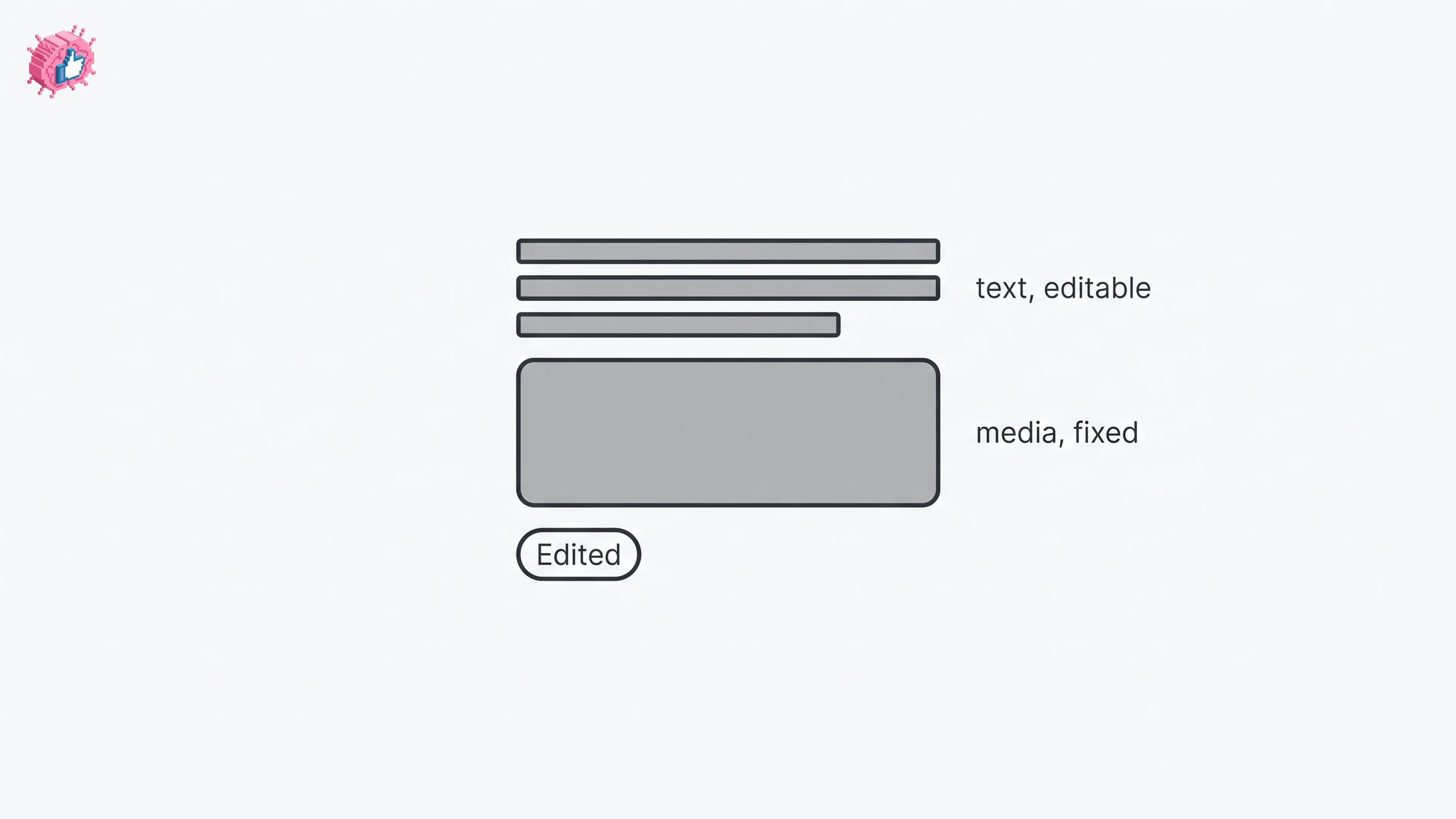
Editing a LinkedIn post takes five steps, and on a post you shared only the text can change. LinkedIn's rules on media, previews, Pages and polls.
How to Add Skills on LinkedIn: Steps and Limits
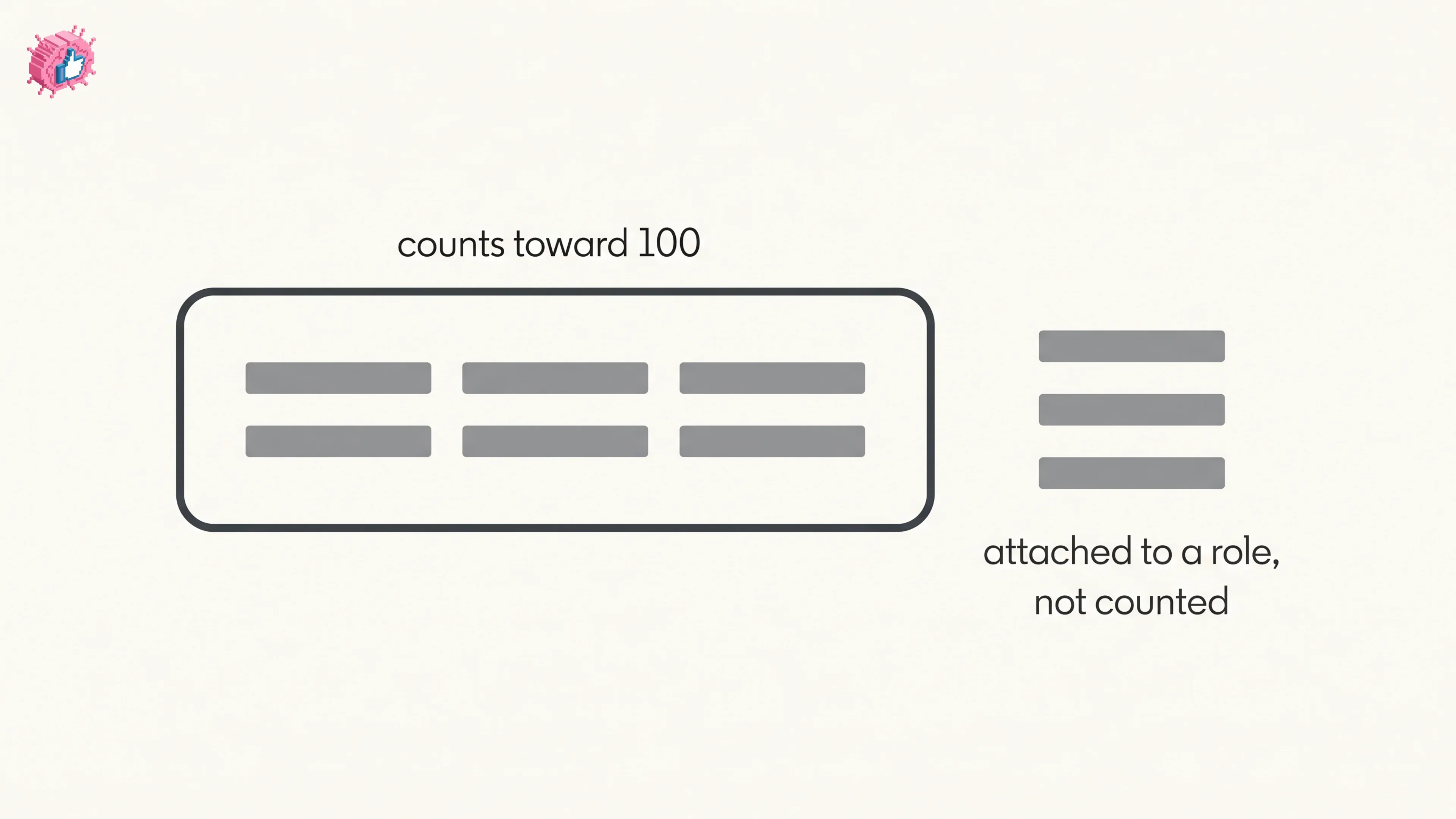
How to add skills on LinkedIn on desktop and in the app, the 100 skill cap and its exemption, plus reordering, editing and removing a skill.
LinkedIn Read Receipts: How to Turn Them Off
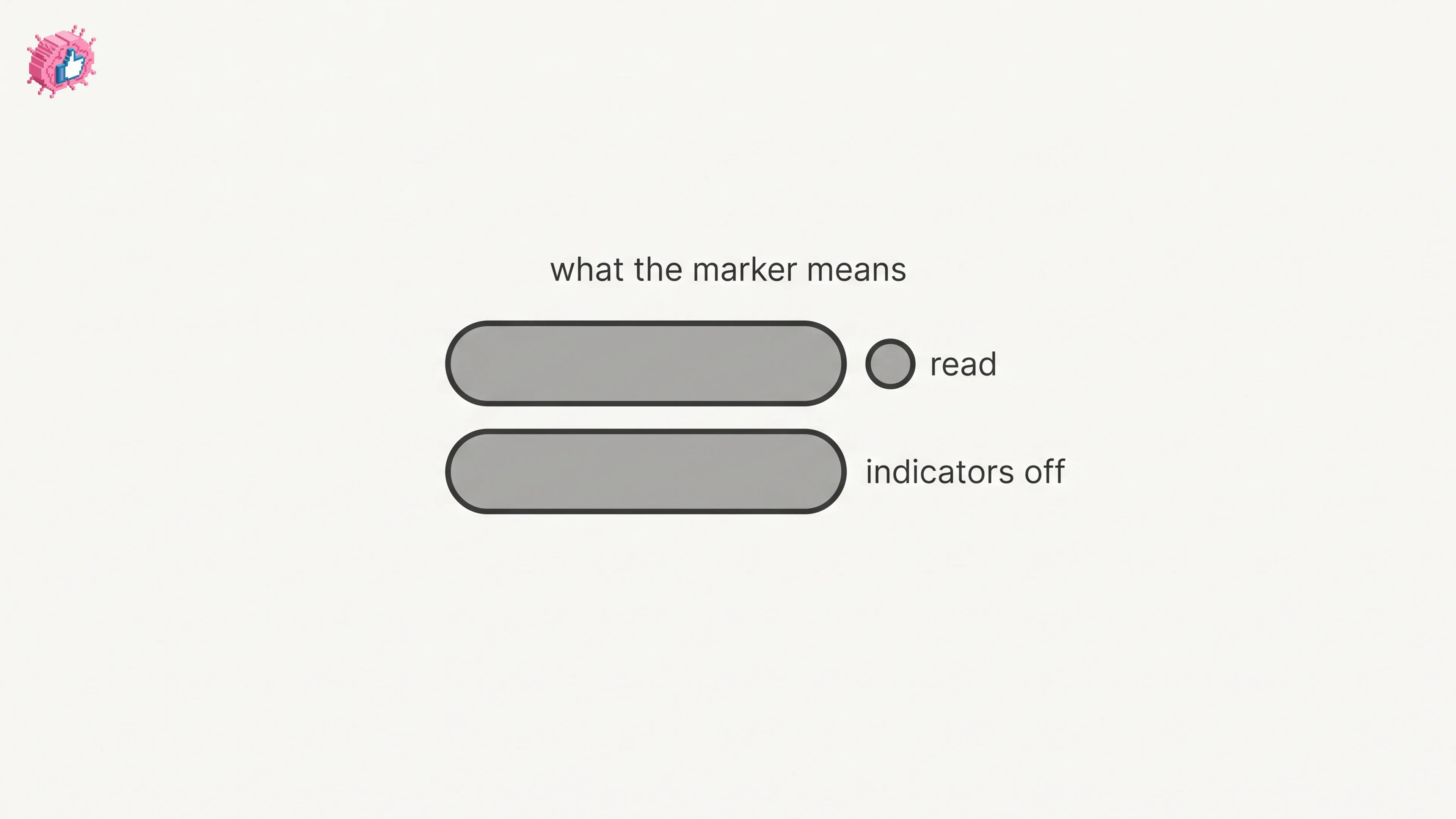
LinkedIn read receipts explained: the setting is called Delivery and typing indicators, how to turn it off on desktop and mobile, and what you lose.