

LinkedIn Name Pronunciation: How to Record Yours
How to record your LinkedIn name pronunciation in the app, the 10 second limit, why desktop can delete it but not record it, and who can hear it.
LinkedIn name pronunciation is a recording of your own name, up to 10 seconds long, that plays next to your name on your profile. You can only create it in the LinkedIn mobile app. The desktop site cannot record it or edit it, though it can delete it.
That asymmetry is the single most confusing thing about the feature, and it is documented rather than a bug in your setup. If you have been hunting for the option on your laptop, it is not there.
Everything below comes from LinkedIn's two Help pages on the feature, quoted where the exact wording decides the answer. Where LinkedIn does not document something, this guide says so rather than filling it in from elsewhere.
Automate your LinkedIn for 30 days
What name pronunciation is on LinkedIn
It is an audio clip of your name attached to your profile. LinkedIn opens its page with the plain version: "You can record your name pronunciation and display it on your LinkedIn profile for others to listen to."
Once saved, placement is fixed. LinkedIn states: "Your recording will display next to your name in your introduction section." You do not choose where it sits.
| Question | What LinkedIn documents |
|---|---|
| What it is | A recording of your name, played from your profile |
| Where it appears | Next to your name in your introduction section |
| Maximum length | Within 10 seconds |
| Where you can record it | The LinkedIn iOS or Android mobile app only |
| Can you record it on desktop | No |
| Can you edit it on desktop | No |
| Can you delete it on desktop | Yes |
| Who can hear it | A visibility choice exists, option names not published |
| What it should contain | Your "preferred professional name pronunciation" |
Two rows there are worth their own sections, and both are below: the desktop split, and the visibility question.
Why you cannot add name pronunciation on desktop
Because LinkedIn does not build it there. The sentence is unambiguous: "You currently can't record or edit your name pronunciation on the LinkedIn desktop site."
Its companion page repeats the restriction and routes you to the app: "You can't use the desktop browser version of LinkedIn to record your name pronunciation. If you want to do this, please use the LinkedIn mobile app."
LinkedIn names the platforms directly, saying it "can only be done on the LinkedIn iOS/Android mobile app." A phone or tablet running the app is the only documented way in.
This is worth stating plainly because the introduction section is editable on desktop. You can change your headline and your location from a browser, so it is reasonable to expect the audio control to sit beside them. It does not. Your custom URL is a desktop job too, though it lives on a separate public profile settings page rather than in this editor, and how to shorten your LinkedIn URL covers it.
How to record your name pronunciation on LinkedIn
LinkedIn publishes these under a heading it calls Mobile Steps, as one list rather than separate iOS and Android tabs.
In the LinkedIn mobile app (iOS and Android):
- Tap your profile photo, then View Profile.
- Tap the Edit icon from your introduction section.
- Tap Record name pronunciation.
- Tap the recording button and hold to record your name.
- Tap the Use button when you're satisfied with your recording.
- Tap Save.
Step 4 is a press and hold, not a tap to start and tap to stop. Releasing ends the recording.
Note that LinkedIn's main page gives one combined mobile list here. Its screen reader page is the one that splits into separate iOS and Android tabs, with eight steps each, and it names the control there as the Add name pronunciation button. If you use a screen reader, that second page is the one written for your path.
The 10 second limit and what LinkedIn says about recording quality
Ten seconds is the ceiling: "Make sure that the total recording time is within 10 seconds."
That is enough for a name, said twice, unhurried. It is not enough for an introduction, and LinkedIn is direct about scope: "This feature should be used only to record your preferred professional name pronunciation." The field is for your name, not a tagline or a pitch.
LinkedIn publishes three recording tips:
- Limit background noise.
- Speak slowly and pronounce each syllable clearly.
- Hold the phone four inches from your mouth.
LinkedIn gives no reason for the four inch figure, and this guide does not invent one.
A practical reading of the length cap: say your name, pause, then say it again. The repetition fits inside 10 seconds for almost every name and gives the listener a second pass, which is the whole point of the feature.
Automate your LinkedIn for 30 days
Who can hear your LinkedIn name pronunciation
A visibility choice exists. LinkedIn does not publish what the options are called.
This is a real gap rather than an omission in this guide, so here is exactly what the documentation supports. The feature's Help page refers to the setting while describing a different warning: "If you've chosen for your last name to only appear to your connections, then while selecting name pronunciation visibility, you'll be notified through a 'Name display restriction' pop-up."
That sentence proves two things. There is a step where you select name pronunciation visibility, and your last name visibility setting interacts with it. What the sentence does not do is name the available choices.
LinkedIn's screen reader page does not name them either. Neither page published a list of visibility options when both were read for this guide.
So the honest position is this. You do get to choose who hears your recording, and any article that tells you the exact option names is sourcing that from somewhere other than these two Help pages. Check the setting on your own device, where the live options appear during the save flow.
If you already restrict your last name to connections, expect the Name display restriction pop-up when you set this. That is LinkedIn telling you the two settings overlap, not an error.
For the broader map of which profile elements are public by default and which you control, the LinkedIn profile optimization checklist goes field by field.
How to change or delete your name pronunciation
Here the desktop and mobile paths genuinely diverge, and LinkedIn documents both.
To replace or remove it in the mobile app: "If you've already recorded your name, you can tap the Edit icon to delete or replace the existing recording." You re-enter through the same introduction section editor you used to create it.
To delete it from desktop:
- Click the Me icon at the top of your LinkedIn homepage.
- Click View profile.
- Click the Edit icon in your introduction section.
- Click the Delete icon next to your Name pronunciation.
- In the confirmation pop-up window, click Delete.
| Action | Desktop | Mobile app |
|---|---|---|
| Record a new pronunciation | Not available | Yes |
| Edit or replace an existing one | Not available | Yes, via the Edit icon |
| Delete an existing one | Yes, five steps with a confirmation | Yes, via the Edit icon |
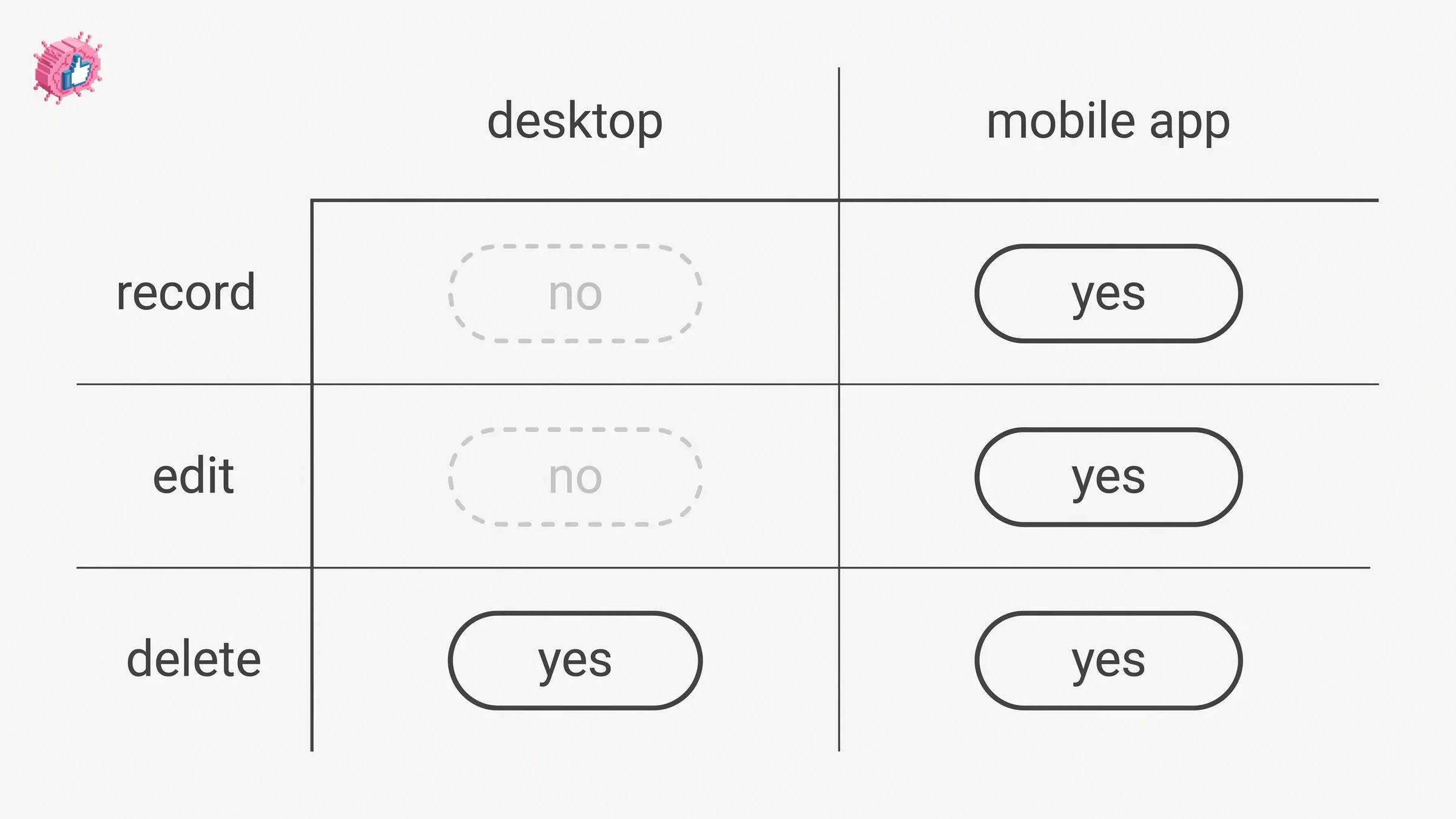
LinkedIn publishes both of these on the same page: the line saying you cannot record or edit on desktop, and a five step desktop delete flow. Both are reproduced above as written. LinkedIn does not explain why deletion is available where creation is not, and this guide will not speculate about it.
The practical consequence is simple. If you are on a laptop and want the recording gone, you can do that right now. If you want to fix a recording you are unhappy with, you need your phone, and deleting from desktop will not get you any closer to re-recording.
Does recording your name notify your network
LinkedIn does not document a notification for this change on either page read for this guide.
Profile edits in general can trigger an update to your network depending on your settings, which is a separate control. If you are editing several profile fields and want them to stay quiet, how to update LinkedIn without notifying your network covers the toggle that governs it and where it lives.
When name pronunciation is worth adding
It earns its place when your name gets mispronounced, misspelled or avoided. That last one is the underrated case, because people who are unsure how to say a name often say nothing at all, which quietly costs you introductions.
Three situations where the recording does real work:
- Your name is commonly mispronounced in your market. The recording settles it before a first call rather than during one.
- You are interviewing or job hunting. Recruiters read names aloud in screens and panel handoffs, and LinkedIn Open to Work already puts you in front of them.
- You speak at events or on podcasts. Hosts look you up beforehand, and a 10 second clip is faster than an email exchange about it.
It pairs naturally with the other introduction section signals people check on a first visit, like verification and a credible set of recommendations. None of these individually changes how you are found. Together they change how a stranger reads the top of your profile in the first five seconds.
If you are filling out the rest of that profile in the same sitting, adding a certification without posting about it covers a nearby edit that has its own notification quirk. The full set of individual feature guides lives in LinkedIn features explained.
One more profile control that affects who can reach you after they find you is Open Profile, which governs messaging rather than presentation.
FAQ
How do I add name pronunciation on LinkedIn?
In the mobile app only. Tap your profile photo, then View Profile, tap the Edit icon in your introduction section, tap Record name pronunciation, tap and hold the recording button to record, tap Use, then tap Save.
Why can't I find name pronunciation on LinkedIn desktop?
Because LinkedIn does not offer it there. It states: "You currently can't record or edit your name pronunciation on the LinkedIn desktop site." Its other page adds that you should "use the LinkedIn mobile app" instead. The feature "can only be done on the LinkedIn iOS/Android mobile app."
How long can a LinkedIn name pronunciation recording be?
Up to 10 seconds. LinkedIn's instruction is to "Make sure that the total recording time is within 10 seconds." There is no documented minimum.
Who can hear my name pronunciation on LinkedIn?
You choose, but LinkedIn does not publish the option names on either Help page about the feature. It confirms the step exists by describing a pop-up shown "while selecting name pronunciation visibility." The live options appear on your device during the save flow.
Can I delete my name pronunciation from a computer?
Yes. Click the Me icon, click View profile, click the Edit icon in your introduction section, click the Delete icon next to your Name pronunciation, then click Delete in the confirmation pop-up. Deleting works on desktop even though recording and editing do not.
How do I change a recording I already made?
On mobile. LinkedIn states that if you have already recorded your name, "you can tap the Edit icon to delete or replace the existing recording." There is no desktop path to replace a recording, only to remove one.
Where does the name pronunciation appear on my profile?
Next to your name. LinkedIn states: "Your recording will display next to your name in your introduction section." The position is not configurable.
Can I record something other than my name?
LinkedIn limits the scope: "This feature should be used only to record your preferred professional name pronunciation." It is for your name, not a greeting, a title or a pitch.
Does name pronunciation work with screen readers?
LinkedIn publishes a separate Help page for recording it with screen reader support, which splits into iOS and Android tabs with eight steps each and names the control the Add name pronunciation button. That page does not state a length limit or list visibility options.
Automate your LinkedIn for 30 days
ViralBrain plans, writes, and schedules your LinkedIn content, using official LinkedIn APIs so your account stays safe.
- Official LinkedIn APIs, no risk of ban
- You approve every post before it goes live
- Cancel anytime
Keep reading
How to Add Organizations on LinkedIn: Full Steps
How to add organizations on LinkedIn, where the section sits, desktop and app steps, editing entries, and why a LinkedIn Page is a different thing.
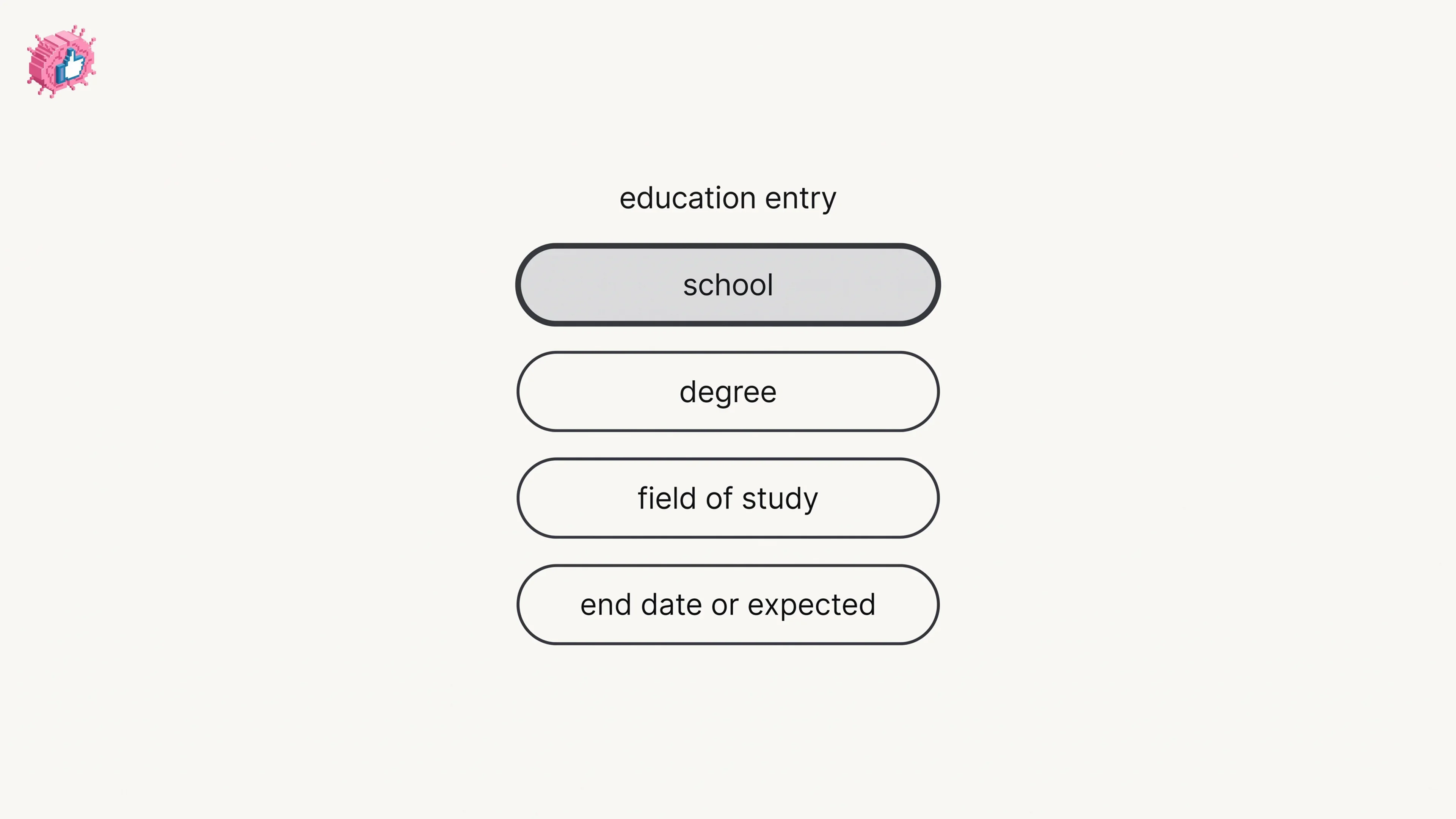
How to Add Education on LinkedIn: Fields and Steps
How to add education on LinkedIn, the eight fields LinkedIn documents, multiple entries, the expected end date, reordering, and the 24 hour notify window.
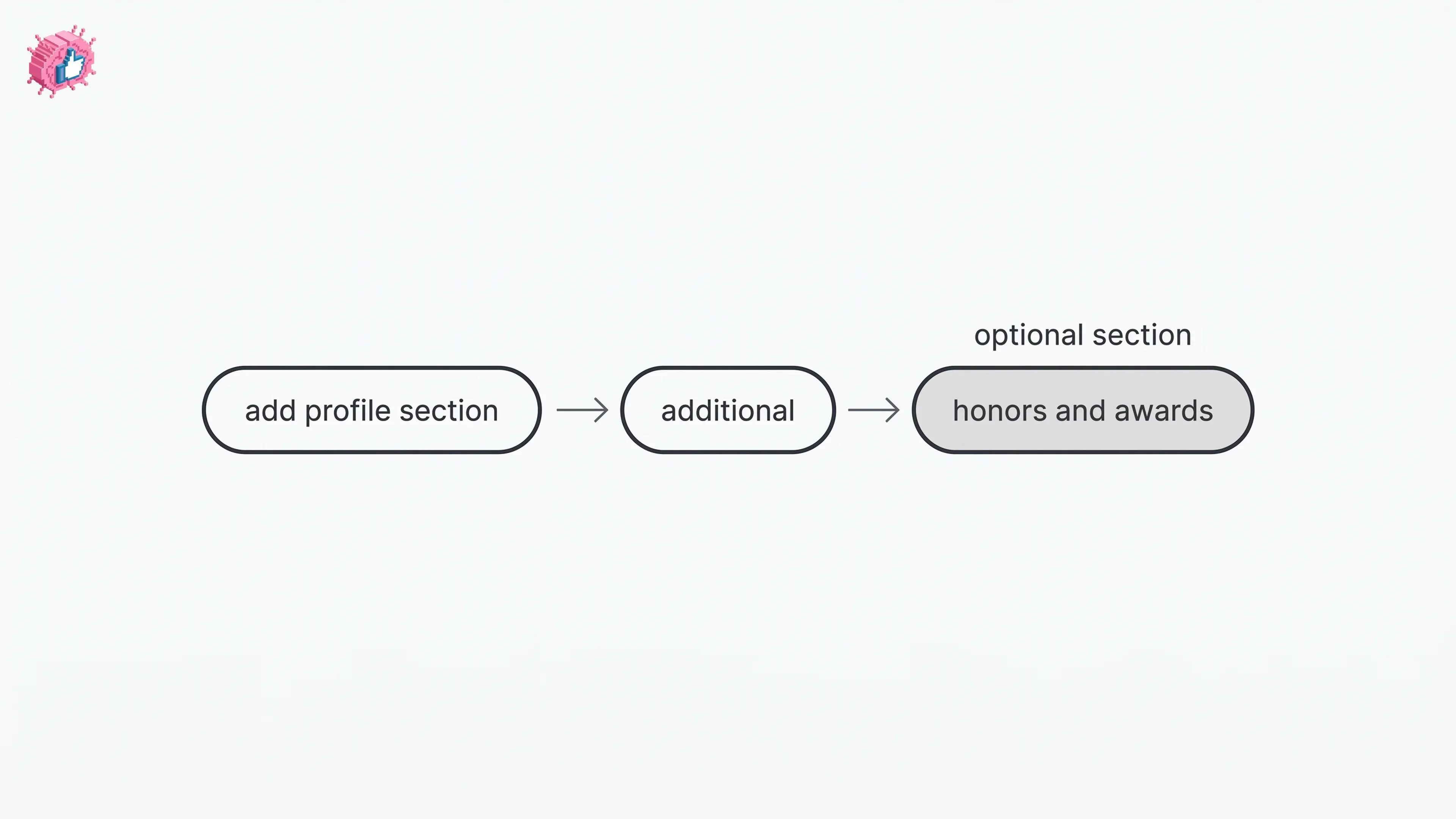
How to Add Honors and Awards on LinkedIn
How to add the Honors and awards section on LinkedIn on desktop and in the app, the exact steps LinkedIn publishes, and how to edit or delete an entry.