

LinkedIn Notifications: How to Take Control
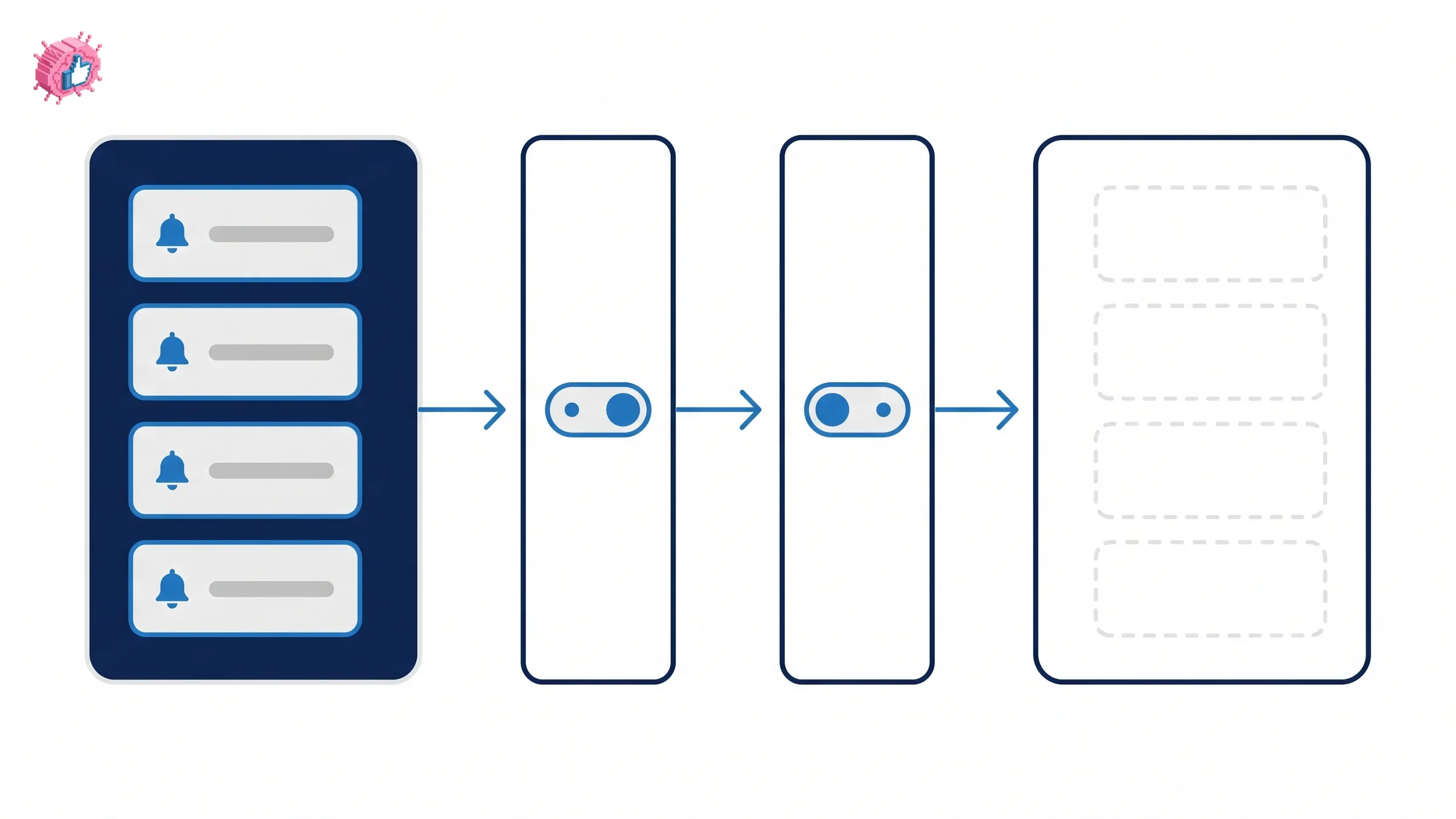
Turning off a LinkedIn notification type also deletes the ones already in your tab. Where the settings live, and the two layers that control delivery.
There is one thing to know before you start switching LinkedIn notifications off, because it is not reversible in the way people assume.
LinkedIn states that "if you turn off a notification update, all existing notifications for that type will be removed from the Notifications tab, and you'll no longer receive the alerts."
Turning a type off is not only a decision about the future. It clears what is already sitting there, including anything unread you had meant to come back to. Read the tab before you tidy it.
This guide covers where the settings actually live, the difference between deleting one notification and turning off its whole type, the two separate layers that control whether a notification reaches your phone, and the questions LinkedIn's documentation does not answer.
Automate your LinkedIn for 30 days
Where notification settings live
There are two routes, and they land in different places.
From the notifications tab, which is the quicker one for fixing a single annoyance: click the Notifications icon at the top of your homepage, then on desktop click View Settings under Manage your Notifications in the left pane.
From settings, which is where the full list lives:
- Click your profile picture, then Settings & Privacy
- Choose Notifications from the left navigation
- Under Notifications you receive, click a category
- Toggle the individual notification types
On mobile the path is the same shape: tap your profile photo, tap the Settings icon, choose Notifications, then work through Notifications you receive.
Delete and Turn off are different buttons
On any individual notification, the More icon offers two actions that people use interchangeably and should not.
- Delete removes that one notification.
- Turn off stops "receiving updates on a specific post, person, or a particular thread" or that notification type.
Delete is housekeeping. Turn off is a policy change, and it carries the consequence at the top of this page. If a single notification is the problem, delete it. If the category is the problem, turn it off deliberately and accept that the tab will be cleared of that type.
| Control | Where it lives | What it does |
|---|---|---|
| Delete | More icon on one notification | Removes that single notification |
| Turn off | More icon, or Settings | Stops the type and clears existing ones of that type |
| Category toggles | Settings & Privacy, Notifications, Notifications you receive | Turns notification types on or off |
| Push toggle | Same area, per category | Controls push delivery |
| Device settings | iOS or Android system settings | Blocks LinkedIn push at the operating system |
The two control layers
This is the part that makes people think LinkedIn is ignoring their settings.
Notifications pass through two independent gates: LinkedIn's own settings, and your device's operating system. Push notifications are delivered through Apple's Push Notification Service on iOS and Google's Cloud Messaging on Android, and each platform has its own switch.
Inside LinkedIn: profile picture, then Settings & Privacy, then Notifications, select a category, and toggle Push notifications.
On Android: device settings, then Notifications, then the LinkedIn app, then check or uncheck Updates.
On iOS: device settings, then Notifications, then LinkedIn, then toggle Allow Notifications.
Worth knowing: push is not only a phone thing. LinkedIn lists desktop alongside iOS and Android as a push destination, so a notification you switched off on your phone can still arrive on your laptop.
LinkedIn does not document which layer wins when the two disagree. If something keeps arriving after you switched it off, check the other layer rather than assuming the setting failed.
Email is a separate channel again
Email sits alongside push rather than underneath it, and it is controlled from the same Notifications you receive area in Settings & Privacy.
LinkedIn's page on turning email and mobile notifications on and off does not state whether switching one channel off affects the others, so treat them as independent until you have tested your own account. Turning off a push alert is not a reason to expect the email to stop.
Automate your LinkedIn for 30 days
What your connections trigger
A large share of the noise is other people's ordinary activity. LinkedIn's page on connection notifications names the categories it covers:
- Updates from connections
- Updates from people you follow
- Birthdays and job anniversaries
- "Connections in the news" emails
Each is a toggle under Settings & Privacy, then Notifications, where you move the toggle to Off or On.
Individual features carry their own notification behavior on top of these settings, and it is not always what you would guess. LinkedIn Live, Events, newsletters and collaborative posts each handle alerts differently, and those rules sit in the feature rather than in this settings panel.
Birthdays and job anniversaries are the usual first cut. They generate a steady trickle of prompts to send a message that the recipient knows was prompted, which is worth less than one genuine comment on something they posted. If the goal is to stay visible to your network, reacting or commenting deliberately does more than an anniversary note.
What the documentation does not cover
Three gaps, named rather than filled in, because guessing here produces confident wrong advice.
Whether the channels are independent. Not stated on the email and mobile page.
Which layer takes precedence. Not stated on the push page when LinkedIn and device settings disagree.
How to control notifications about your own updates. The connection notifications page covers what you receive about other people. It does not address whether your network is told when you change jobs or edit your profile, so that setting is not documented on any of the pages behind this guide.
One more caveat on freshness: the push notifications page carries a "last updated" date of roughly two years ago, so the device paths may have drifted with newer OS versions even though the LinkedIn side is current.
A setup that survives contact
A practical default, rather than switching everything off and missing the things that matter.
- Keep anything where somebody is waiting on you: messages, invitations, mentions and comments on your own posts.
- Turn off birthdays and work anniversaries. They are the highest-volume, lowest-signal category.
- Delete rather than turn off when a single noisy thread is the problem, so you keep the type for next time.
- Fix push at the device layer if LinkedIn's toggles are not holding, since that is the gate LinkedIn does not control.
- Check the tab before a big cleanup, because turning a type off takes its existing notifications with it.
- Ignore notification-driven engagement games. Chasing every prompt is the same impulse that makes engagement pods attractive, and it pays as badly.
Notifications are a distribution channel pointed at you, not a growth lever. What actually moves your own numbers is publishing on a schedule and posting when your audience is reading, which the notification tab does nothing for. Treating the tab as a to-do list is how people end up busy on LinkedIn without building anything.
The honest summary
Notification settings are in two places, they run through two independent layers, and turning a type off deletes the notifications you already had of that type.
Cut birthdays and anniversaries, keep the things a person is waiting on, and when a setting does not seem to work, check the device rather than assuming LinkedIn ignored it.
FAQ
How do I turn off LinkedIn notifications?
Click your profile picture, choose Settings & Privacy, select Notifications, then under Notifications you receive click a category and toggle the types you want off. You can also click the More icon on any single notification and choose Turn off.
Does turning off a notification delete the ones I already have?
Yes. LinkedIn states that "if you turn off a notification update, all existing notifications for that type will be removed from the Notifications tab, and you'll no longer receive the alerts." Check the tab before switching a type off.
What is the difference between Delete and Turn off on a LinkedIn notification?
Delete removes that single notification. Turn off stops updates on "a specific post, person, or a particular thread" or that whole notification type, and also clears existing notifications of that type.
Why am I still getting LinkedIn notifications after turning them off?
Notifications pass through two independent layers: LinkedIn's own settings and your device's operating system. LinkedIn does not document which one takes precedence, so check the device settings as well. On Android, uncheck Updates for the LinkedIn app; on iOS, toggle Allow Notifications off.
Can I get LinkedIn push notifications on desktop?
Yes. LinkedIn lists desktop alongside iOS and Android for push notifications, so an alert switched off on your phone can still reach your computer.
How do I stop LinkedIn birthday and work anniversary notifications?
Go to Settings & Privacy, then Notifications, find the category covering birthdays and job anniversaries, and move the toggle to Off. The same area covers updates from connections, updates from people you follow, and "Connections in the news" emails.
Are LinkedIn email and push notifications controlled separately?
They are managed from the same Notifications you receive area, but LinkedIn's page does not state whether turning one channel off affects the other. Treat them as independent until you have confirmed it on your own account.
Can I stop LinkedIn telling my network when I update my profile?
The LinkedIn notification pages covered here deal with what you receive about other people, not with what your network is told about you. That control is not documented on any of them.
Automate your LinkedIn for 30 days
ViralBrain plans, writes, and schedules your LinkedIn content, using official LinkedIn APIs so your account stays safe.
- Official LinkedIn APIs, no risk of ban
- You approve every post before it goes live
- Cancel anytime
Keep reading
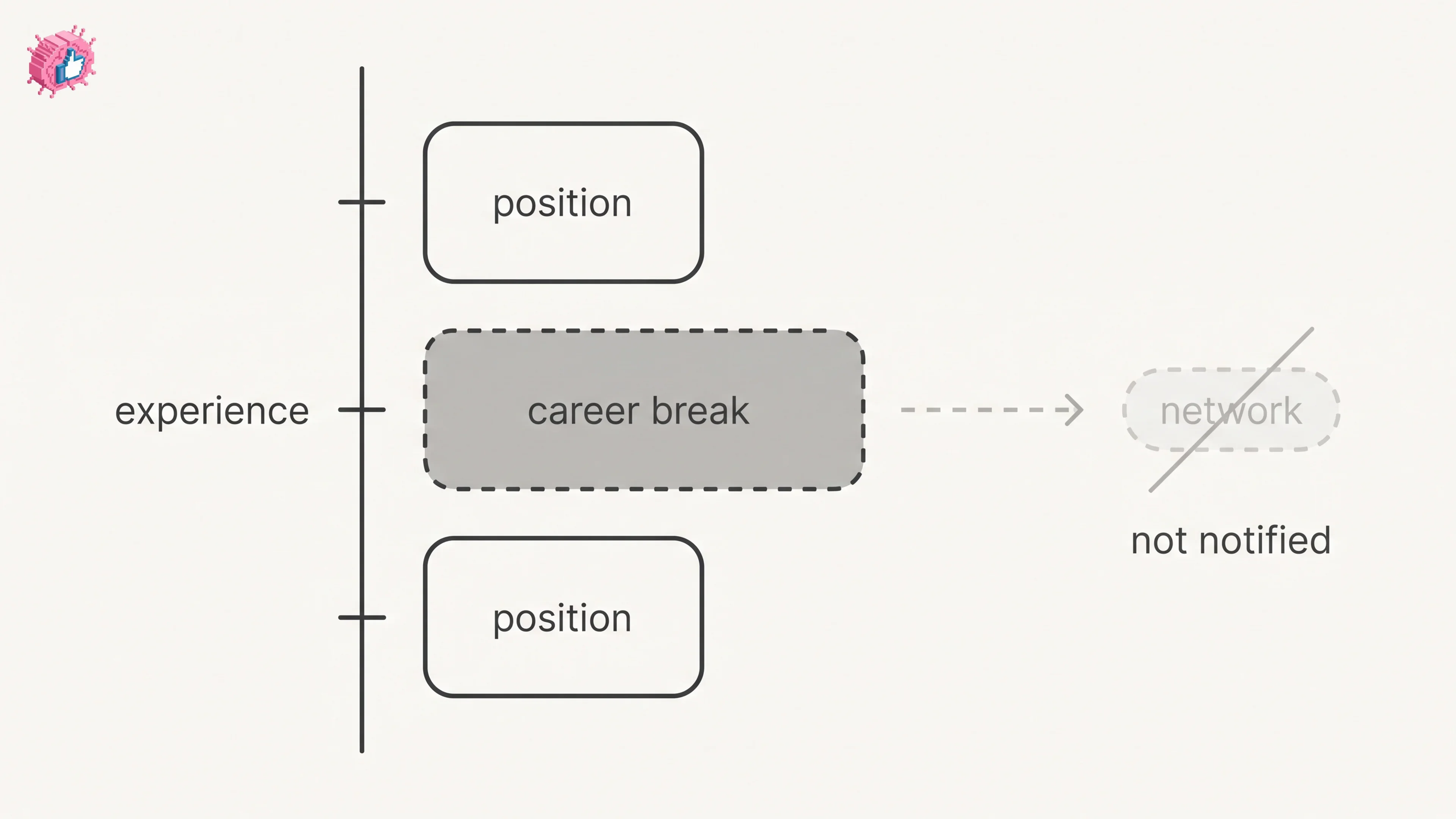
LinkedIn Career Break: How to Add One and Who Sees It
Add a career break on LinkedIn desktop or the app. Your network is not notified, the type is optional, and signed-in members see it. From LinkedIn Help.
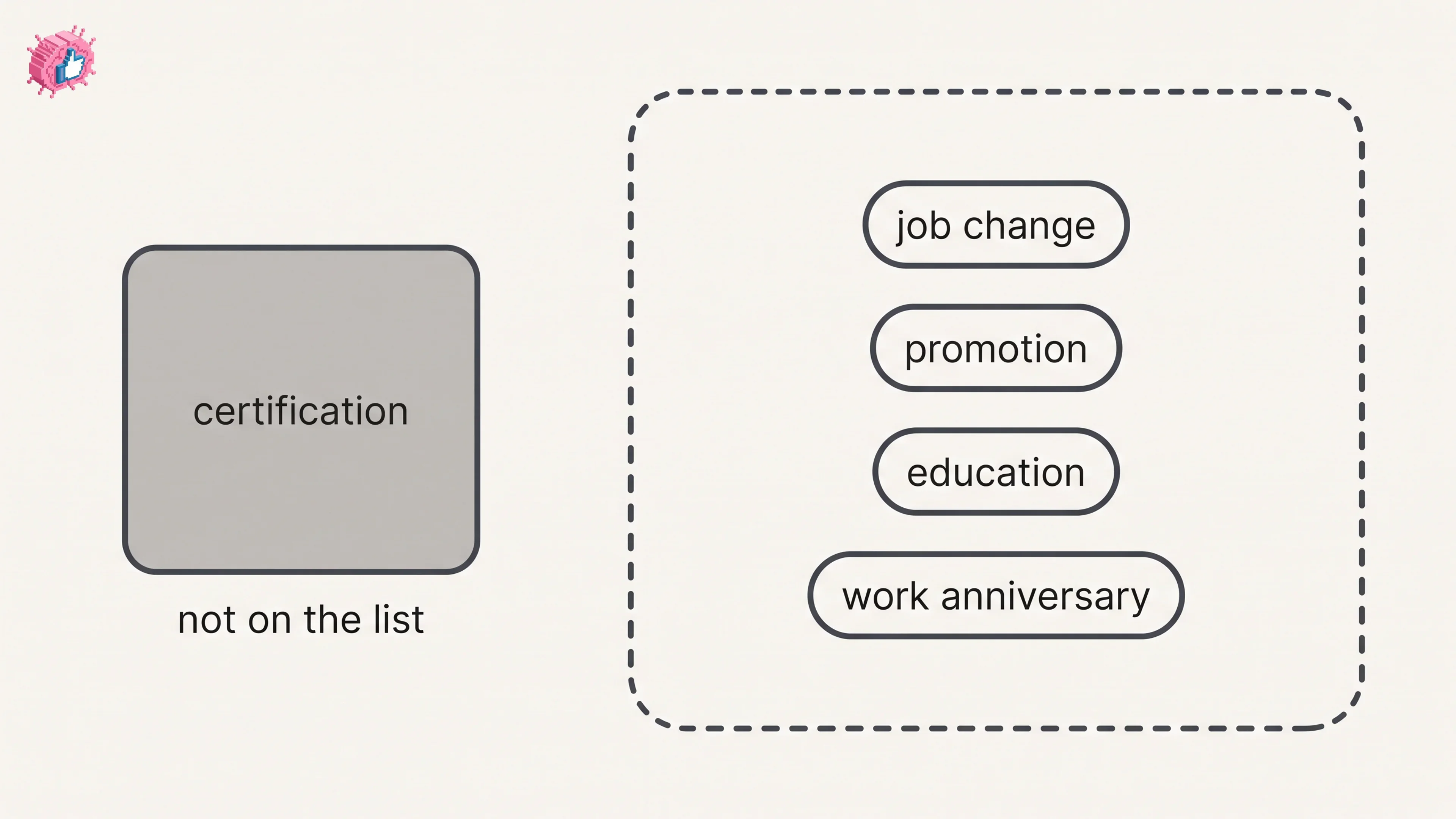
How to Add a Certification to LinkedIn Without Posting
Add a certification on LinkedIn desktop or the app, put credentials after your name, and see what LinkedIn documents about notifying your network.
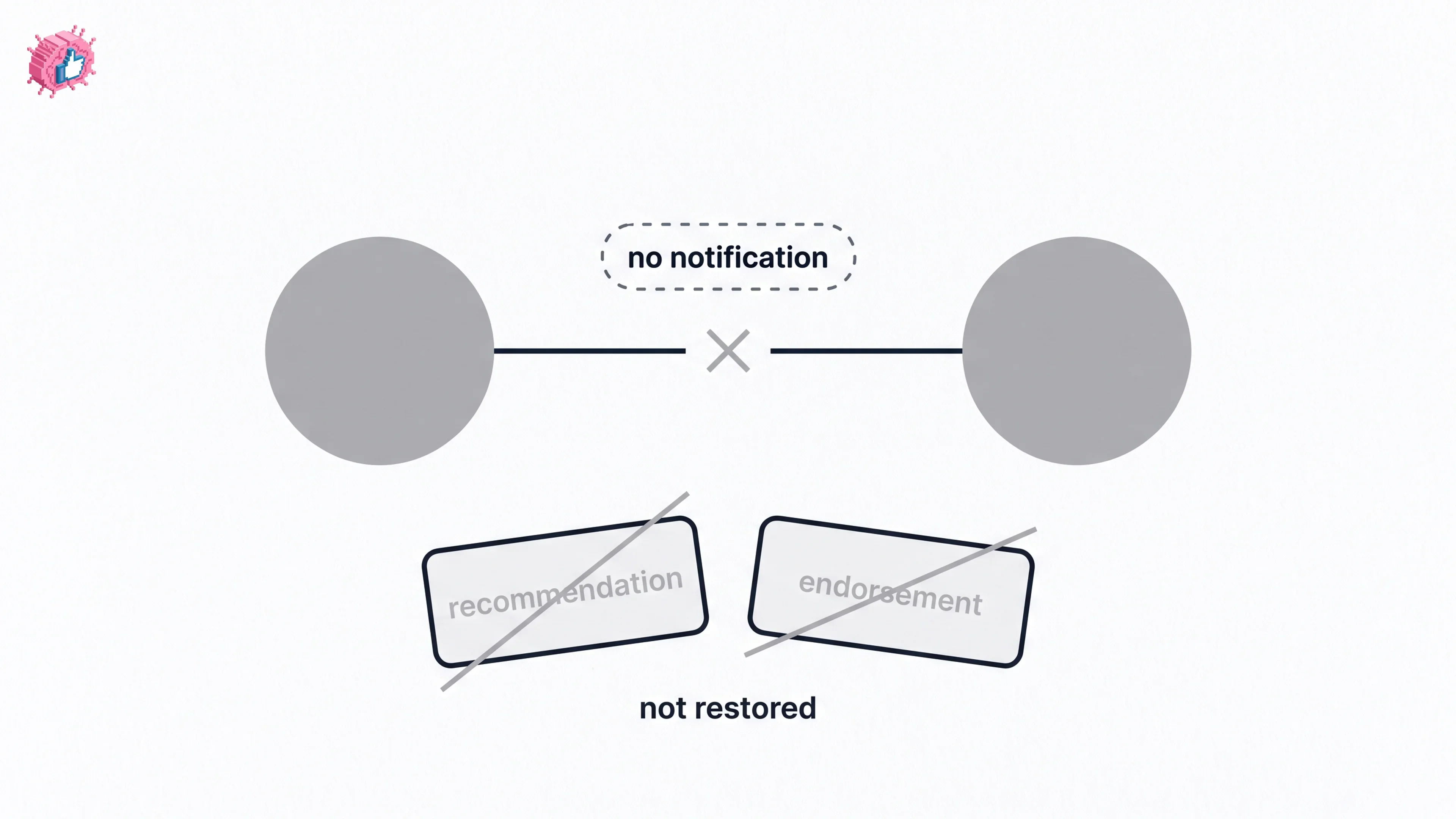
How to Remove a Connection on LinkedIn: What It Erases
Remove a LinkedIn connection on desktop or the app. They are not notified, but recommendations and endorsements go for good. Steps from LinkedIn Help.