

How to Change Your Name on LinkedIn (Desktop and App)
How to change your name on LinkedIn on desktop and in the app, the Additional name field for a maiden name, last name visibility, and who gets notified.
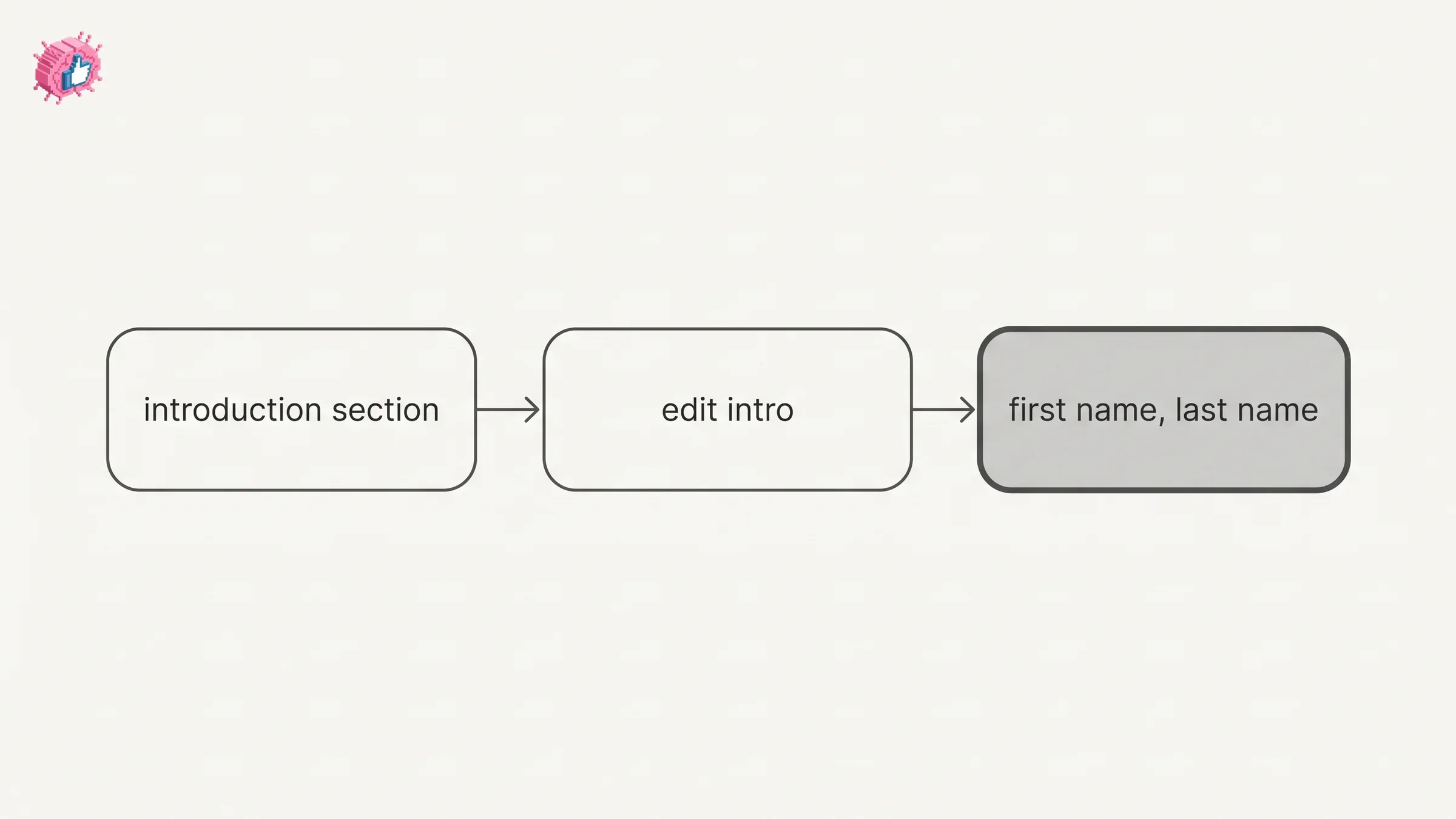
Your name on LinkedIn lives in the introduction section of your profile, and you change it inside the same Edit intro window that holds your headline and your photo. LinkedIn publishes a five step flow for desktop and a five step flow for the app, and its page on the introduction section states that your network is not notified when you edit that section.
This guide covers the First Name and Last Name fields, the separate Additional name field that holds a former name, maiden name or nickname, the setting that controls who sees your full last name, and the names LinkedIn allows. Every step and quote comes from a LinkedIn Help page, named each time. Where those pages do not answer a question, this guide says so instead of filling the gap.
Your public profile URL is a separate setting with its own steps. How to shorten your LinkedIn URL covers that one.
Automate your LinkedIn for 30 days
What changing your name on LinkedIn actually changes
It changes the name fields in your introduction section. If your profile carries a verification, LinkedIn's page on verifications adds that you may have to re-verify afterward, covered below.
| Question | What LinkedIn documents |
|---|---|
| Where the name fields sit | The introduction section, in the Edit intro window |
| Which fields you edit | First Name and Last Name |
| Steps on desktop | Five |
| Steps in the app | Five, on both the iOS and Android tabs |
| Former or maiden name | A separate Additional name field |
| Who can see an Additional name | Only you, Your connections, Your network, or All LinkedIn members |
| Additional name on public profiles | Not displayed |
| Last name visibility | A separate setting for people who are not connections, documented for members who have turned off their public profile |
| Notification to your network | Not sent for a name change, per LinkedIn's introduction section page |
| A verification on your profile | You may have to re-verify after a name change |
| A limit on how often you can change it | Not stated on the pages read for this guide |
Three of those rows carry the questions most of this guide is about: the Additional name field, last name visibility, and the notification question.
How to change your name on LinkedIn from a desktop browser
LinkedIn publishes five steps under the heading To change your name on your profile:
- Click the Me icon at the top of your LinkedIn homepage.
- Click View Profile.
- Click the Edit icon in the top section of your profile, to the right of your picture.
- On the Edit intro pop-up window, update your name in the First Name and/or Last Name text boxes.
- Click Save.
One detail about where these steps live is worth knowing before you go looking. The page carrying them is titled Last name visibility. Other Help pages link to that same page under the title Change how your name appears on your profile. The two titles word it differently, and both point at the page quoted throughout this section.
LinkedIn adds a second route in a note: "You can also update the name information you want displayed from your Public Profile page."
How to change your name in the LinkedIn app
LinkedIn tabs this page as Desktop, iOS and Android, and the iOS and Android tabs carry the same five steps, under the heading To change how your name appears on mobile:
- Tap your profile picture.
- Tap on your name.
- Tap the Edit icon.
- Update your name underneath First name and Last name.
- Tap Save.
Step 2 is the one to read closely. The flow goes through your name, not through a View profile control, and LinkedIn's wording for it is "Tap on your name."
How to add a former name, maiden name or nickname
Use the Additional name field, which is separate from First Name and Last Name. LinkedIn introduces it plainly: "You can add an additional name (former name, maiden name, or nickname) on your profile."
That page carries a note about where the field does not appear. LinkedIn states that "Public profiles don't display the Additional name field," and that searches run on search engines using that information "will not yield any results."
On desktop, LinkedIn publishes six steps:
- Click the Me icon at the top of your LinkedIn homepage.
- Click View Profile.
- Click the Edit icon in your introduction section.
- Enter the appropriate details in the Additional name field, under Basic info section from the Edit intro pop-up window.
- Click the Visibility icon and select the visibility for who can see your Additional name.
- Click Save.
In the app, LinkedIn tabs this page as Desktop and Mobile, with no separate iOS and Android split, and publishes seven steps:
- Tap your profile picture.
- Tap your profile photo again to access your profile.
- Tap the Edit icon in your introduction section.
- Enter the appropriate details in the Additional name field, under Basic info section from the Edit intro page.
- Tap Done or Enter on your keyboard for the Visibility field to appear.
- Tap the Visibility icon to select the visibility for who can see your additional name.
- Tap Save.
Step 5 has no counterpart in the desktop list. On the app path, LinkedIn's step has you tap Done or Enter on your keyboard for the Visibility field to appear.
Who can see your Additional name
LinkedIn lists four options, identically on both the Desktop and Mobile tabs:
- Only you
- Your connections
- Your network
- All LinkedIn members
LinkedIn does not define Your connections against Your network on this page, and this guide does not guess at the boundary. For the difference between a connection and a follower, follow versus connect works through what LinkedIn documents about each.
Who can see your full last name
Your connections always do. LinkedIn opens the page with it: "Your 1st-degree connections always see your full name, regardless of your settings."
For everyone else there is a separate setting, and LinkedIn attaches a condition to it. On its Desktop tab it gives the condition and the route in one sentence: "If you've turned off your public profile you can choose to display your first name and only the first letter of your last name for anyone who isn't a connection by going to your Settings & Privacy page:"
The six steps it gives there:
- Click the Me icon at the top of your LinkedIn homepage.
- Select Settings & Privacy from the dropdown.
- Click Visibility on the left rail.
- Under the Visibility of your profile & network section, click Change next to Last name visibility.
- Select how your last name appears to others.
- Your changes will be saved automatically.
The two app tabs differ by one step, which is the kind of thing worth checking before you decide a setting is missing:
| Step | iOS tab | Android tab |
|---|---|---|
| 1 | Tap your profile picture | Tap your profile picture |
| 2 | Tap Settings | Tap the Settings icon in the top right corner |
| 3 | Under the Visibility tab, tap Last name visibility | Under the Visibility tab, tap Last name visibility |
| 4 | Select the name you want to display from the list | Select the name you want to display from the list |
| 5 | Changes are saved automatically | Changes are saved automatically |
LinkedIn repeats the same reassurance under all three tabs: "Your connections will continue to see your full first and last name. Anyone who is interested in connecting with you can still find you by using your first and last name."
Automate your LinkedIn for 30 days
Does changing your name notify your network
No, according to LinkedIn's page on the introduction section. Its note is direct: "Your network won't be notified when you make changes to the introduction section on your profile. However, you can control whether your network is notified about other profile changes, as well as manage your profile privacy from the Settings & Privacy page."
Name is the first field that page lists for the section, so that note covers a name change. Adding a new position from the same Edit intro window is a separate case: LinkedIn's page on updating your current position places a toggle "in the Notify network section at the top of the Add experience page," under both its Desktop and Mobile steps. A name change does not go through that page.
The companion page on the Share profile updates setting opens by naming three kinds of change: "You can choose to notify your network about job changes, education changes, and work anniversaries." A later line on the same page adds promotions. It also states that "even if you've enabled sharing, some types of profile edits won't generate notifications to your network," without publishing the full list of which ones.
The Share profile updates page makes a separate point, and it is the one worth carrying away. No notification does not mean no visibility. LinkedIn states: "Anyone that views your profile will see your edits as soon as you save them, even if you haven't chosen to notify your network about any changes you make."
If you are editing more than your name, updating LinkedIn without notifying your network covers the account wide toggle, and adding a promotion covers a change type that the setting does govern.
What LinkedIn allows in your name fields
Your real or preferred professional name. LinkedIn's page on names allowed on profiles sets the boundary in one sentence: "The name fields of your profile name may only include the first, middle, and last names of your real or preferred professional name, plus your preferred pronouns."
The same page lists what is turned away at registration. LinkedIn states it "does not allow members to use pseudonyms, fake names, business names, associations, groups, email addresses, or special characters that do not reflect your real or preferred professional name."
LinkedIn's page on representing yourself accurately publishes the restriction as a list, naming pseudonyms, business names, associations, groups, your email address, your phone number, and "other characters that don't reflect your real name."
Two things follow from reading both pages side by side:
- Middle names are named as allowed on the names-allowed page, which covers "the first, middle, and last names" of your name, while the editing steps name the First Name and Last Name boxes. The pages word the fields differently, and this guide reports both rather than reconciling them.
- A company name belongs on a Page, not in your name field. LinkedIn states that "although you can't create a profile with your organization's name, you can share information about your organization when you create a LinkedIn Page."
The page on representing yourself accurately also says that, while LinkedIn expects your real name, you "can add a former name, nickname, or maiden name, preferred pronouns, and professional certifications." For certifications, LinkedIn's page on suffixes says: "Currently, LinkedIn profiles don't have a suffix field. For now, you can show your credentials by editing your profile and adding it to the Last Name field (for example, Last Name = Smith Ph.D.)." Adding a certification covers one of the two alternatives that page offers.
LinkedIn also publishes what is at stake: untruthful information "violates the LinkedIn User Agreement and Professional Community Policies," and "could lead other members to flag your profile as suspicious, which could result in restrictions to your account." Note the hedge. LinkedIn writes could, not will.
A name change may also affect a verification on your profile. LinkedIn's page on verifications states: "If you change your name, you may have to re-verify to keep your verification visible on your profile. When you verify your identity, workplace, or educational institution, the name you use must match the name on your LinkedIn profile." Getting verified on LinkedIn covers the verification paths themselves.
What the pages read for this guide do not cover
Three questions are not answered by any of the Help pages behind this guide:
- How often you can change your name. None of these pages states a limit, a cooldown, or a waiting period between changes.
- Whether a name change updates your custom profile URL. None of these pages ties the two together. The custom URL is its own setting on its own page, covered in how to shorten your LinkedIn URL.
- Whether a name change is reviewed before it goes live. None of these pages describes a review or approval step for editing the name fields.
Treat each of those as undocumented on these pages rather than as a settled yes or no.
What this means for you
- The name fields are an introduction section edit, which is why the steps start at your profile and not in Settings.
- The app's name-change steps go through your name, not through a View profile control. LinkedIn's step is "Tap on your name."
- A former or maiden name is a different field with its own four option visibility control, and it does not show on your public profile.
- Last name visibility is conditional. LinkedIn documents the first initial option for members who have turned off their public profile, and connections see your full name either way.
- A name change does not notify your network, per LinkedIn's page on the introduction section, though anyone who opens your profile sees the change as soon as you save it.
- A verification may need redoing. LinkedIn states that if you change your name, you may have to re-verify to keep your verification visible.
- Pronouns and middle names are named as allowed in the name fields; business names, group names, contact details and pseudonyms are not.
Your name is one field in a profile with many. LinkedIn name pronunciation covers the audio clip that sits next to it, the profile optimization checklist works through a profile in nine steps, Open Profile governs who can message you once they find you, adding education handles another documented section, and our index of LinkedIn features works through them one at a time, from the documentation. For tooling, ViralBrain has a free tier with 3 heroes and 3 posts a month.
Sources: Last name visibility, Additional name on your profile, Names allowed on profiles, Representing Yourself Accurately on Your Profile, Edit the Introduction section on your profile, Share profile updates, Update your current position in your introduction section, Add a suffix or certifications to your profile name, Verifications on your LinkedIn profile, LinkedIn Help (accessed October 2026)
FAQ
How do I change my name on LinkedIn?
On desktop, click the Me icon, click View Profile, click the Edit icon in the top section of your profile to the right of your picture, update the First Name and Last Name boxes in the Edit intro pop-up, then click Save. In the app, tap your profile picture, tap on your name, tap the Edit icon, update the fields, then tap Save.
How do I change my last name on LinkedIn after marriage?
The same way as any name change, in the Last Name box of the Edit intro window. If you want your previous surname on your profile as well, LinkedIn documents a separate Additional name field for a "former name, maiden name, or nickname," with its own visibility setting.
Will my network be notified if I change my name?
LinkedIn's page on the introduction section states that "your network won't be notified when you make changes to the introduction section on your profile." Your name is in that section. Anyone who visits your profile still sees the new name as soon as you save it.
How do I hide my last name on LinkedIn?
LinkedIn describes a Last name visibility setting for members who have turned off their public profile, which can display your first name and only the first letter of your last name to anyone who is not a connection. On desktop it is under Settings & Privacy, then Visibility, then Change next to Last name visibility. Your connections continue to see your full name.
Where is the Additional name field on LinkedIn?
Under Basic info in the Edit intro window, reached through the Edit icon in your introduction section. In the app, LinkedIn documents one extra step: tap Done or Enter on your keyboard for the Visibility field to appear.
Who can see my former or maiden name on LinkedIn?
Whichever of four options you pick: Only you, Your connections, Your network, or All LinkedIn members. LinkedIn also states that public profiles do not display the Additional name field.
How often can I change my name on LinkedIn?
The Help pages read for this guide do not state a limit, a cooldown or a waiting period. Treat that as undocumented on those pages rather than as confirmation that no limit exists.
What names does LinkedIn not allow?
LinkedIn states that it "does not allow members to use pseudonyms, fake names, business names, associations, groups, email addresses, or special characters that do not reflect your real or preferred professional name." Its page on representing yourself accurately also lists phone numbers. It notes that untruthful information could result in restrictions to your account.
Does changing my name change my LinkedIn URL?
None of the Help pages read for this guide connects the two. The custom profile URL is edited on its own public profile settings page, covered separately in our guide to shortening your LinkedIn URL.
Automate your LinkedIn for 30 days
ViralBrain plans, writes, and schedules your LinkedIn content, using official LinkedIn APIs so your account stays safe.
- Official LinkedIn APIs, no risk of ban
- You approve every post before it goes live
- Cancel anytime
Keep reading
How to Edit a Post on LinkedIn: What You Can Change
Editing a LinkedIn post takes five steps, and on a post you shared only the text can change. LinkedIn's rules on media, previews, Pages and polls.
How to Delete a Post on LinkedIn (Feed, Page, Group)
The four documented steps to delete a LinkedIn post on desktop and mobile, plus Page, group, scheduled and comment deletes, and what happens to engagement
How to Add Skills on LinkedIn: Steps and Limits
How to add skills on LinkedIn on desktop and in the app, the 100 skill cap and its exemption, plus reordering, editing and removing a skill.