

LinkedIn Two Step Verification: How to Turn It On and Off
LinkedIn documents it as two-factor authentication. How to turn it on and off on desktop and in the app, the two methods, and what to do if locked out.
LinkedIn documents this feature as two-factor authentication. Every Help page read for this guide that names the feature uses that name, and the control sits in one place on both platform tabs of the page that turns it on and off: Settings & Privacy, then Sign in & security, then Two-factor authentication.
There are two methods. LinkedIn states it plainly: "There are two options for you to choose from", and names them Authenticator App and Phone Number (SMS). On a separate page it adds a preference: "LinkedIn recommends the authenticator app as the preferred two-factor authentication method."
The steps and rules below come from LinkedIn Help pages fetched for this guide, quoted where the exact wording decides the answer, and labeled by the platform tab LinkedIn publishes them under. Where those pages do not document something, this guide says so instead of filling it in.
Automate your LinkedIn for 30 days
What LinkedIn documents about two-step verification
| Question | What the pages read for this guide document |
|---|---|
| LinkedIn's name for it | Two-factor authentication, which it abbreviates 2FA |
| Where the control lives | Settings & Privacy, Sign in & security, Two-factor authentication |
| Platform tabs on the on-and-off page | Desktop and Mobile |
| The two methods | Authenticator App and Phone Number (SMS) |
| Which one LinkedIn recommends | The authenticator app |
| What triggers the second step | A device LinkedIn "does not recognize" |
| Code length at setup | A 6-digit authentication code |
| A documented alternative to the code | A sign-in security prompt in your LinkedIn app |
| If you ask for too many codes | Another code "24 hours after your last attempt" |
| If you cannot reach your device | Turn it off from a signed-in device, or verify your identity |
| A maximum number of trusted devices | Not given on the pages read for this guide |
The method choice and the lockout routes each get a full section below.
Why these pages say two-factor authentication instead
Because that is the name LinkedIn uses in the text. Every Help page read for this guide that names the feature calls it two-factor authentication, and none of them used the phrase two-step verification in its own wording. The page on exceeding the number of verification requests does not name the feature at all.
One detail is worth recording, because it is where the other name shows up. On LinkedIn's overview page, the words Two-factor authentication in the opening sentence are a link, and the address that link points to reads https://www.linkedin.com/psettings/two-step-verification/enroll. That is a settings address rather than a Help page, and this guide did not open it, so what it displays is not reported here.
The practical reading: the two names point at the same control. This guide uses LinkedIn's own wording whenever it is quoting or describing documented behavior.
How to turn two-step verification on or off on desktop
LinkedIn publishes these under its Desktop tab.
- Click the Me icon at the top of your LinkedIn homepage.
- Select Settings & Privacy from the dropdown.
- Click Sign in & security on the left rail and click Two-factor authentication.
- Click Turn on or Turn off to change the status of two-factor authentication.
- Click Set up to enable two-factor authentication, then choose the preferred authentication method from the dropdown, and click Continue.
Two notes sit inside step 4 on that tab. The first is hedged twice over: "You may be asked to enter your password for security reasons. You may also be asked to enter a authentication code sent to your email address or to approve the change through your LinkedIn app." The missing letter in "a authentication code" is LinkedIn's, reproduced rather than tidied.
The second note names where the setup code goes: "When turning two-factor authentication on, enter the authentication code sent to your phone."
How to turn two-step verification on or off in the app
LinkedIn publishes one Mobile tab here rather than separate iOS and Android tabs, so these are its steps as written.
- Tap your profile picture and tap Settings & Privacy.
- Tap Sign in & security and tap Two-factor authentication.
- Tap the toggle to turn two-factor authentication on or off.
- Tap Set up to enable two-factor authentication, then choose the preferred authentication method from the dropdown, and tap Continue.
The Mobile tab's notes differ from the Desktop tab's in one substantive way. Its security note reads "an authentication code sent to your email address or to approve the change through your LinkedIn app", and its setup note names a second destination the Desktop tab does not: "When turning two-factor authentication on, enter the authentication code sent to your phone or primary email address."
| Desktop tab | Mobile tab | |
|---|---|---|
| Entry point | The Me icon | Your profile picture |
| On-off control | Turn on or Turn off | A toggle |
| Where the setup code goes | "sent to your phone" | "sent to your phone or primary email address" |
| Choosing the method | Set up, a dropdown, then Continue | Set up, a dropdown, then Continue |
| Password or app approval | "may be asked", on both tabs | "may be asked", on both tabs |
Both tabs hedge the password step with "may", so treat an extra prompt as possible rather than certain.
The two verification methods LinkedIn documents
LinkedIn's on-and-off page describes the pair side by side, and these are its definitions.
Authenticator App: "This method uses an app-based authentication code. You'll need a phone compatible with an authenticator app, such as Microsoft Authenticator."
Phone Number (SMS): "You'll need a phone capable of receiving SMS (text) messages. The phone number you enter to turn on two-factor authentication won't appear on your LinkedIn profile. Note: Carrier charges may apply."
| Authenticator App | Phone Number (SMS) | |
|---|---|---|
| What you need | A phone compatible with an authenticator app | A phone "capable of receiving SMS (text) messages" |
| Named example | Microsoft Authenticator | Not applicable |
| A prerequisite on your account | Not stated on the pages read for this guide | "a mobile phone number associated with your LinkedIn account" |
| Code length at setup | A 6-digit code from the app | A 6-digit code sent to your phone |
| Cost note | Not stated on the pages read for this guide | "Carrier charges may apply." |
| Shown on your profile | Not addressed on the pages read for this guide | "won't appear on your LinkedIn profile" |
| What a new phone does to it | "unique to each mobile device and each app install" | Not addressed on the pages read for this guide |
To set up the authenticator app, LinkedIn's steps are: install an authenticator app such as Microsoft Authenticator, click the profile icon and select Settings & Privacy, click Two-factor authentication under Sign in & security, click Set up and select Authenticator App as the method, open your authenticator app and tap Add Account or click the Add icon in the top right corner, select Other and use LinkedIn as the account name, enter the secret key provided by LinkedIn into the authenticator app, then "Enter the 6-digit authentication code generated by your authenticator app to verify your device."
LinkedIn's separate page on the authenticator app words the same setup differently in places. At the step where you choose the method, it asks you to "Select Continue and submit your LinkedIn password", where the on-and-off page says to click Set up and select Authenticator App. The two pages describe the same method in different words, and neither is presented here as correcting the other.
That separate page also carries a warning the on-and-off page does not: "The authenticator app connection is unique to each mobile device and each app install. If you uninstall the app, reset your mobile phone, or get a new mobile phone, you will need to set up the authenticator app again."
To set up SMS, LinkedIn states the prerequisite first: "If you choose SMS authentication, you'll have to use a mobile phone number associated with your LinkedIn account before you can complete the two-factor authentication." Then click the profile icon and select Settings & Privacy, click Two-factor authentication under Sign in & security, click Set up and select Phone Number (SMS), click Continue, "Enter your phone number and LinkedIn password, then click Send code to receive a 6-digit code sent to your phone", and enter that code and click Verify.
Putting a number on your account is a separate job with its own screens, and how to add a phone number to LinkedIn covers it, including the account-versus-profile split that decides whether the number is ever displayed.
Automate your LinkedIn for 30 days
What happens when you sign in with it turned on
LinkedIn describes the sequence on its overview page: "When LinkedIn does not recognize the device that you're attempting to sign in from, you'll be asked to enter your account password as the first layer of authentication and a numerical code (also called a PIN code) as the second layer of authentication. The code will be sent to your phone via SMS or authenticator app, depending on the two-factor authentication method you selected."
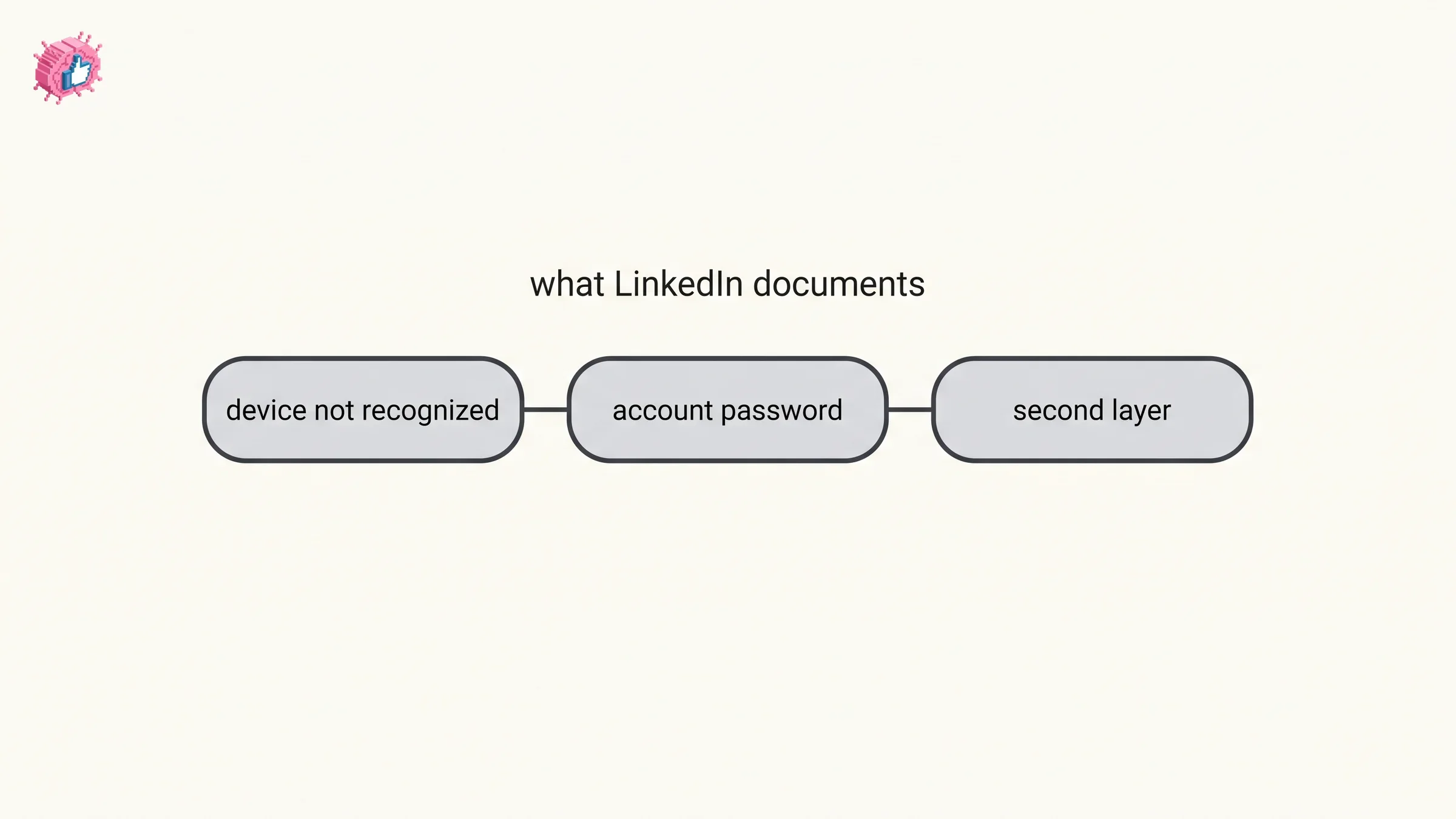
Note what triggers it. The overview page's condition is a device LinkedIn does not recognize, not every sign-in. LinkedIn's Campaign Manager FAQ words it more loosely: "You'll be prompted for a verification code when you log in (sometimes on trusted devices, always on new devices)."
The same page adds a substitution, hedged: "If you are logged into LinkedIn on a mobile device, you may receive a push notification on your mobile device with a sign-in security prompt instead of one of the two-factor authentication methods." That prompt has its own section below.
LinkedIn also documents an email that travels with this: "If you sign up for two-factor authentication, we'll send a security email every time you attempt to access your account from a new device or browser, and after you recently clear your cache and cookies." Its instruction if one arrives unexpectedly: "please reset your password right away and contact us for further assistance."
The page does not say which of your account's email addresses receives it. How to change your email address on LinkedIn covers adding, confirming and promoting an address, and the order LinkedIn requires.
The sign-in security prompt that can replace the code
LinkedIn documents this as an additional layer with its own page, and keeps the hedge: it "may prompt you to authenticate your sign in through your LinkedIn app when a new device is detected instead of sending a pin code through SMS or an authenticator app."
The trigger is documented: "You will receive a push notification prompt on your signed-in device after entering your login credentials into the new or unknown device."
To approve a sign-in you started: go to your device's notifications and click the prompt from LinkedIn, tap Yes, it's me, then return to your original device, where LinkedIn says "you will be logged in."
If a prompt arrives and you did not ask for one: tap "No, it's not me" on the prompt. LinkedIn states what follows: "The sign-in attempt will be denied immediately. You will also be prompted to change your password (recommended) to protect your account." Changing it is covered step by step in how to change your LinkedIn password.
That page publishes four troubleshooting cases, and they are worth reading before you need them:
- You answered "No, it's not me" by accident. Return to your sign-in screen, refresh the page, and attempt to log in again, and "A new prompt will appear from your LinkedIn app."
- You answered Yes when you did not start the request. Refresh the sign-in screen and "click Reset password as quickly as possible. If you are locked out of your account, please contact us."
- You were told to check your app and no prompt came. Open your LinkedIn app and see whether the prompt is shown there, check your phone's internet connection and retry, and if it still does not appear, "select Verify using SMS."
- You cannot reach a recognized mobile device. LinkedIn routes you to its page on exactly that case, covered below.
The on-and-off page states when the prompt replaces the code, without the overview's "may": "If you are logged into LinkedIn on a mobile device and have push notifications enabled, you will receive a push notification on your mobile device with a sign-in security prompt instead of one of the two-factor authentication methods." It does not say which setting that refers to. How LinkedIn's own toggles and your device's settings interact is covered in the LinkedIn notifications guide.
One distinction worth keeping straight: LinkedIn publishes a separate sign-in security prompt page for password resets, with a different trigger and slightly different wording. That one is covered in the password guide linked above.
What LinkedIn documents when the code does not work
Four different cases, four different pages, and the answers are not the same.
You deleted the text by accident. "If you've accidentally deleted the authentication code that was sent to your mobile device, try signing back in to your account. This will prompt a new authentication code to be sent to your mobile device."
You asked for too many codes. "If you've exceeded the maximum number of requests, you will not be able to receive a verification code. You may request another verification code 24 hours after your last attempt." LinkedIn attaches a note that softens it: "You'll still be able to sign in to your account from a recognized device."
It is your first sign-in after turning it on. LinkedIn's steps are to check your text messages after your first attempt to sign in, sign in again using your username and password, then enter the authentication code that was sent to your mobile device.
The app code is rejected, or it has eight digits. LinkedIn gives the same cause for both: "Your authenticator app was not set up correctly. Please repeat the steps above." It adds a route for a new device: "you can disable two-factor authentication from an active desktop or mobile session and re-enable two-factor authentication with a new authenticator app set-up." If you have no active sessions and are fully locked out, its eight-digit answer says to contact LinkedIn, and its rejected-code answer points to the page for having no access to your mobile device.
Two of those four answers lean on a device LinkedIn already knows. The request-limit page says you will "still be able to sign in to your account from a recognized device", and the authenticator fix asks you to disable the feature "from an active desktop or mobile session". Where your active sessions are listed is covered in how to log out of LinkedIn.
What LinkedIn documents if you are locked out
There are two documented routes, and which one applies depends on whether any device is still signed in.
If you can still reach a signed-in device, LinkedIn's page tabs the steps Desktop and Mobile.
Its Desktop tab reads: "Click the Me icon at top of your LinkedIn homepage and select Settings & Privacy", then "Select Settings & Privacy from the dropdown", then "Under the Sign in & security, click Two-factor authentication", then click the toggle button to turn it off, then click Done. The first two items both name Settings & Privacy, which is how LinkedIn publishes that list.
Its Mobile tab reads: tap your profile picture, tap the Settings & Privacy icon, tap the Sign in & security tab, tap Two-factor authentication, then tap the toggle to turn two-factor authentication off.
If no device is signed in, LinkedIn publishes three steps and warns what the last one asks for: "Sign in using your email or phone number and password. On the two-factor authentication prompt screen, select verify your identity at the bottom of the screen." Then: "You will be prompted to submit a picture of a government issued identification document to ensure that only you regain access to your account and any unauthorized entity is not given access."
Read the precondition in that first line. It still asks for your password, so this route does not stand in for a password reset. If the password is the thing you have lost, the reset flow comes first, and the password guide above covers it.
| Situation | What the pages read for this guide document |
|---|---|
| You have a signed-in device | Turn it off under Sign in & security, then Two-factor authentication |
| No prompt reached your app | Open the app, check the connection, then Verify using SMS |
| You deleted the text with the code | Sign back in to trigger a new one |
| You exceeded the request limit | Wait 24 hours, or sign in from a recognized device |
| The app code is rejected | Set the app up again, from an active session if you have one |
| No device is signed in | Identity verification with a government issued ID |
| You have also lost the password | The password reset runs first, since this route asks for it |
The identity verification route is for regaining access, and LinkedIn's recovery page says the data it receives is processed "for the purpose of account recovery". The verification badge on a profile is covered in how to get verified on LinkedIn. Regaining access is also the precondition for other account actions: how to delete a LinkedIn account quotes LinkedIn routing a member who cannot sign in to recovery rather than to the close flow.
What turning it on changes elsewhere
Three documented knock-on effects, each from a different page.
Three LinkedIn products can require it. LinkedIn states it on the on-and-off page: "all LinkedIn Recruiter, Campaign Manager, and Sales Navigator users must turn on two-factor authentication through their LinkedIn.com account to access their Recruiter, Campaign Manager, and Sales Navigator accounts. If you turn off two-factor authentication on your LinkedIn.com account, this will prevent access to your Recruiter, Campaign Manager, and Sales Navigator accounts." The same page says turning it on and off "won't impact access to your LinkedIn.com account" itself. The product FAQ pages it links to qualify the rule. The Campaign Manager FAQ words the effect as "You won't be able to take certain actions in Campaign Manager without first enabling two-factor authentication." The Recruiter FAQ says "Single Sign-on (SSO) customers are automatically exempt from the requirement", and the Sales Navigator FAQ applies the rule "unless your account uses Single Sign-On (SSO)".
Keep me logged in stops being available. On its auto sign-in page, LinkedIn lists this among its important notes: "Keep me logged in is not available if two-factor authentication is enabled on your account." What that setting does, and the separate Devices that remember your password screen behind it, is covered in how to log out of LinkedIn.
A phone number used for it can be hard to remove. LinkedIn's phone number page carries the blocker: "You may not be able to remove a phone number if it's been used to establish two-factor authentication for your account. You'll have to disable two-factor authentication before you can remove the phone number from your account." Note the hedge in "may not", which that page does not expand on.
If you are working through account settings in one sitting, the other per-feature guides are indexed in LinkedIn features explained.
Sources: LinkedIn Help, Turn two-factor authentication on and off, Two-factor authentication overview, Authenticator app overview, Approved phones for two-factor authentication, Sign-in security prompt for two-factor authentication, No access to mobile device for two-factor authentication, Deleted verification code for two-factor authentication, Exceeded number of verification requests, Notification emails for two-factor authentication, Can't sign in to the application using two-factor authentication, Manage Auto Sign-In and Keep me logged in on LinkedIn, Add and remove mobile phone numbers from your account, Verify your identity to recover account access, Two-factor authentication in Recruiter FAQ, Two-factor authentication Campaign Manager FAQs, Two-factor authentication in Sales Navigator FAQs.
FAQ
How do I turn on two-step verification on LinkedIn?
LinkedIn calls it two-factor authentication. On its Desktop tab: click the Me icon, select Settings & Privacy, click Sign in & security then Two-factor authentication, click Turn on, then click Set up, choose your method from the dropdown and click Continue. On its Mobile tab: tap your profile picture, tap Settings & Privacy, tap Sign in & security then Two-factor authentication, tap the toggle, then tap Set up and choose a method.
How do I turn two-step verification off on LinkedIn?
The same screen handles both. On desktop you click Turn off; on the Mobile tab you tap the toggle. LinkedIn says you "may be asked" for your password, for a code sent to your email address, or to approve the change in your LinkedIn app. The on-and-off page adds that turning it off "will prevent access to your Recruiter, Campaign Manager, and Sales Navigator accounts", which the product FAQ pages qualify, as covered above.
What are the two LinkedIn two-step verification methods?
Authenticator App, which "uses an app-based authentication code" and needs "a phone compatible with an authenticator app, such as Microsoft Authenticator", and Phone Number (SMS), which needs "a phone capable of receiving SMS (text) messages". LinkedIn recommends the authenticator app as its preferred method.
Is LinkedIn two-step verification the same as two-factor authentication?
LinkedIn's Help pages read for this guide use the name two-factor authentication wherever they name the feature. The phrase two-step verification appears in the address of the settings page its overview links to, which reads /psettings/two-step-verification/enroll. The overview links its own name for the feature to that address.
Why is LinkedIn two-step verification not working?
Four of the cases LinkedIn documents, each on its own page. A deleted text: sign back in to trigger a new code. Too many requests: "You may request another verification code 24 hours after your last attempt." No app prompt: open the LinkedIn app, check your phone's connection, then "select Verify using SMS." An app code that is rejected or arrives with eight digits: LinkedIn's answer is that the app "was not set up correctly" and the setup should be repeated.
I am locked out of LinkedIn with two-step verification on. What do I do?
If any device is still signed in, turn it off there under Sign in & security, then Two-factor authentication. If nothing is signed in, LinkedIn's route is to "Sign in using your email or phone number and password", select verify your identity at the bottom of the two-factor authentication prompt screen, and submit a picture of a government issued identification document. That route still asks for your password.
Does LinkedIn ask for a code every time I sign in?
The documented trigger is narrower than that. LinkedIn asks for the second layer "When LinkedIn does not recognize the device that you're attempting to sign in from". It also says that if you are logged in on a mobile device, you may get a push notification sign-in security prompt "instead of one of the two-factor authentication methods". Its Campaign Manager FAQ words the trigger more loosely: "sometimes on trusted devices, always on new devices".
What happens to my authenticator app if I get a new phone?
LinkedIn states that "The authenticator app connection is unique to each mobile device and each app install. If you uninstall the app, reset your mobile phone, or get a new mobile phone, you will need to set up the authenticator app again." Its documented workaround is to disable two-factor authentication from an active desktop or mobile session and set the app up again.
Will the phone number I use show on my profile?
No. LinkedIn states that "The phone number you enter to turn on two-factor authentication won't appear on your LinkedIn profile." Displaying a number is a separate edit in the Contact info section of your profile.
Automate your LinkedIn for 30 days
ViralBrain plans, writes, and schedules your LinkedIn content, using official LinkedIn APIs so your account stays safe.
- Official LinkedIn APIs, no risk of ban
- You approve every post before it goes live
- Cancel anytime
Keep reading
How to Log Out of LinkedIn on Desktop and in the App
How to log out of LinkedIn on desktop, on iOS and on Android, how to sign out of other sessions or all devices, and what Keep me logged in changes.
How to Change Your LinkedIn Password
How to change your LinkedIn password on desktop, iOS, Android and a mobile browser, how to reset a forgotten one, and what the sign out control does.
How to Add a Phone Number to LinkedIn
How to add a phone number to your LinkedIn account and to your profile Contact info, on desktop and in the app, plus who can see it and how to remove it.