

How to Change Your Profile Picture on LinkedIn
How to add, change and remove your LinkedIn profile photo on desktop, in the app and in a mobile browser, plus who can see it and the file specs.
You change your LinkedIn profile picture from the introduction section at the top of your profile, and LinkedIn publishes a different route for each of three platforms it tabs Desktop, Mobile and Mobile Browser. On desktop it is three clicks to the pop-up: the Me icon, View profile, then your profile photo.
One note is worth reading before you upload anything. LinkedIn states: "We won't be able to restore or retrieve your old photo if you delete your old photo or upload a new one." There is no undo on that page.
The steps and quotes below come from the LinkedIn Help pages listed before the FAQ. Where those pages are silent, this guide says so rather than filling the space.
Automate your LinkedIn for 30 days
What LinkedIn documents about your profile photo
The scope sentence covers four actions at once: "You can add, change, edit, or delete your LinkedIn profile photo at any time from the introduction section on your profile. You can also change the visibility of your profile photo to decide who can see it."
| Question | What these Help pages document |
|---|---|
| Where the photo lives | The introduction section on your profile |
| Platform tabs published | Desktop, Mobile, Mobile Browser |
| Actions covered | Add, change, edit, delete, and set visibility |
| What the pop-up is called | The Profile photo pop-up on desktop |
| Controls inside it | Edit, Add photo, Frames, Delete |
| Visibility options on the profile page | 1st-degree connections only, Your network, All LinkedIn members, Anyone |
| Default visibility | "The default photo setting is Anyone/Everyone" |
| Maximum file size | 8MB |
| Accepted file types | PNG or JPG, and "We don't support GIFs" |
| Is a photo required | "Posting a profile photo is optional" |
| Can you get the old one back | No, LinkedIn states it cannot restore or retrieve it |
The platform split, the visibility options and the file specifications each get a full section below.
How to change your profile picture on desktop
LinkedIn publishes five steps for changing, editing or deleting an existing photo. The fourth step is where the pop-up gives you four separate controls.
- Click the Me icon at the top of your LinkedIn homepage.
- Click View profile.
- Click on your profile photo in your introduction section.
- In the Profile photo pop-up, you can click Edit "to crop the photo, use photo filters, adjust, change the position and size, rotate or change the visibility of your profile photo", click Add photo and follow prompts to change your profile photo, click Frames to add a frame, or click Delete to delete your photo.
- Click Save photo.
Note which control does what. Add photo is the one that swaps the image, and Edit is the one that reworks the photo already there, including its visibility. Both sit in the same pop-up.
How to change your profile picture in the app
LinkedIn tabs these as Mobile, and publishes five steps. They are not the same route as desktop, and the third step has no desktop counterpart.
- Tap your profile photo, then tap View Profile.
- On your profile, tap your profile photo in the upper left corner.
- Tap View or edit profile photo in the pop-up.
- In the Profile Photo pop-up, you can tap Edit to crop, filter, adjust, reposition, rotate or change visibility, tap the Add photo and follow the prompts to change your photo, tap Add Frames to add a frame, or tap the Delete icon to delete your profile photo.
- Tap Save.
Two details are easy to miss. The app inserts a View or edit profile photo step that desktop does not have, and the frames control is named Add Frames here against Frames on the Desktop tab.
How to change your profile picture in a mobile browser
The Mobile Browser tab is a genuinely different flow, with seven steps and its own labels in capitals.
- Tap your profile photo.
- Tap your profile photo again, tap Edit.
- In the Edit Photo pop-up window, tap CHANGE PHOTO.
- Tap Take Photo or select an image from your Photo Library.
- Follow the prompts to take a new photo or upload one.
- From here, you can change the position and size by dragging the photo, edit the visibility of your photo (optional), or tap the More icon next to the photo in the Edit photo pop-up and tap Delete to delete the photo.
- Tap SAVE on the upper right.
Three tabs, three sets of labels, and the Mobile Browser set is the one that diverges most. These are LinkedIn's own tabs and its own steps rather than a generic set of phone instructions, so match the tab to the thing you are holding before you follow a route.
How to add a photo when you do not have one yet
Adding a first photo is a separate flow from changing one, and on the Desktop and Mobile tabs it starts from a control LinkedIn says you will not see once a photo is there.
On the Desktop tab, you click the Me icon, click View Profile, then click the Camera icon in your introduction section, and LinkedIn attaches a condition to that step: "If you've already added a profile photo, you won't see the Camera icon." From the Add photo pop-up you can click Use camera to take a photo with your device's camera or Upload photo to select an image from your computer, then follow the prompts, adjust the result, and click Save photo.
The Mobile tab runs the same way with the same condition attached to the same icon: "Tap your profile photo", "Tap your profile photo again to access your profile", then tap the Camera icon at the upper left, tap Photo to take one or pick from your library, follow the prompts, then tap Save.
The Mobile Browser tab uses different labels again: tap the Profile icon, tap the Add Photo icon then Add profile photo, tap Take Photo or pick from your Photo Library, drag to set position and size, edit visibility if you want to, then tap SAVE on the upper right.
So a missing camera icon is documented behavior rather than a fault. If there is already a photo on the profile, LinkedIn states you will not see that icon, and the change route above is the one to use.
How to remove your profile photo, and what that costs
Delete sits inside the same pop-up as everything else: the Delete control on the Desktop tab, the Delete icon on the Mobile tab, and the More icon then Delete on the Mobile Browser tab.
LinkedIn publishes two notes about what happens to the file, and they are worth reading together.
- "We'll keep your original photo until you upload a new one, in case you want to make changes."
- "We won't be able to restore or retrieve your old photo if you delete your old photo or upload a new one."
Read together: LinkedIn holds the original while it is the current photo, and states it cannot restore or retrieve it once you delete it or upload a new one.
Removing the photo and narrowing who sees it are two different outcomes. LinkedIn frames the photo itself as a credibility signal, "Adding a profile photo increases the credibility of your profile as it allows people to see who you are when you send invitations to connect", and also states that "Posting a profile photo is optional". If the audience is the problem rather than the image, the visibility setting below is the control for that.
Who can see your profile photo
Four options, worded three ways on the same Help page.
On the Desktop and Mobile tabs, the visibility control on your profile page offers the same four: 1st-degree connections only, Your network, All LinkedIn members, Anyone. On desktop you reach it with the Visibility icon on the left of the Profile photo pop-up window, and on mobile through View or edit profile photo then the Visibility icon, where "the change is saved automatically".
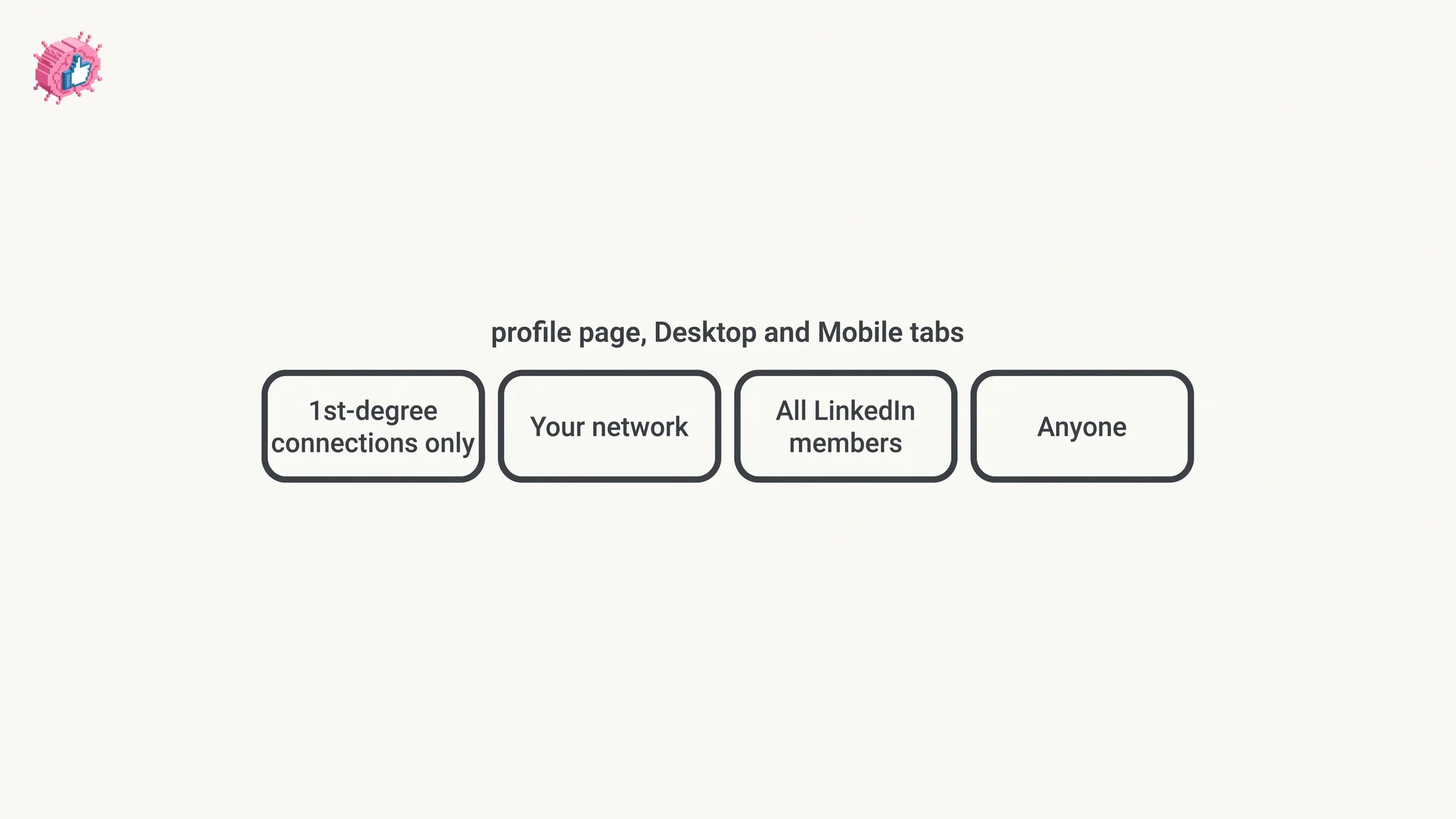
The other two lists LinkedIn publishes on the same page use different words.
| Where LinkedIn publishes the list | The options as worded there |
|---|---|
| Profile page, Desktop and Mobile tabs | 1st-degree connections only, Your network, All LinkedIn members, Anyone |
| Public profile settings, Desktop tab | Only 1st-degree connections, Your network, All LinkedIn Members, Public |
| Mobile Browser tab, the Visible To dropdown | Everyone, Connections, Network, All LinkedIn members |
LinkedIn states the default once, covering two of those wordings at the same time: "The default photo setting is Anyone/Everyone."
The page's other three notes qualify the setting:
- A profile page change carries over to your public profile. "If you edit your profile photo visibility settings from your profile page, it automatically updates the settings on your public profile page too."
- You can still differ by section. "You can set different visibility for your public profile and the profile view your LinkedIn connections see", with Posts and Activities given as an example.
- A disabled public profile caps the setting. "If your public profile is disabled (visible to no one), your profile photo visibility setting cannot be set as Public."
There is one more line on that page worth quoting rather than paraphrasing, because the same page appears to work both ways. Directly under its public profile steps, on the Desktop tab, LinkedIn writes: "Important: These settings must be updated on our desktop site and can't be changed on the LinkedIn mobile app." The same page's Mobile tab then publishes six numbered steps for changing profile photo visibility in the app, the last one reading "The change is saved automatically." LinkedIn does not say whether the Important line reaches that route, so both are reproduced here and neither is picked.
If the goal is one specific person rather than an audience setting, that is a different tool. Blocking someone on LinkedIn covers the per-person control, what it does, and the lighter measures LinkedIn suggests trying first.
Automate your LinkedIn for 30 days
Photo frames
LinkedIn documents two frames by name on its frames page: #OpenToWork and #hiring. The page opens with the scope: "You can easily edit or delete profile #OpenToWork or #hiring photo frames that you've added to your profile photo."
The route is the photo pop-up again. The page's first list carries no platform label and uses clicks: the Me icon, View profile, click your profile photo near the top of the page, click Frames, select the frame you want or the Original photo to revert, click Apply, then click Save/Remove. The same page publishes a second list under a heading it calls Mobile steps, which runs through your profile picture, your profile photo again, your profile photo on the upper left, then Frames, then Apply on the upper right, then Remove.
On removal, LinkedIn publishes three choices and prefixes them with a caveat, "options vary depending on the existing frame":
- "Remove 'Open to Work' from profile to remove this feature completely from your profile."
- "Share 'Open to Work' with recruiter only to share that you're open to work with recruiters only. It won't be visible to all LinkedIn members."
- "Remove this frame and the jobs you have showcased on profile."
The middle option is the useful one if you want the ring gone without ending the signal. LinkedIn Open to Work covers that feature's three visibility choices and how the frame is tied to the all-members option.
Photo size and file type
These come from LinkedIn's page on a photo that will not upload, which publishes them as upload requirements.
- Maximum file size is 8MB.
- Profile photo pixel size is "between 400 (w) x 400 (h) pixels and 7680 (w) x 4320 (h) pixels", and LinkedIn recommends "adding a photo that won't require much cropping". It adds: "You can adjust the photo after it has been uploaded."
- File type must be PNG or JPG.
- GIFs: "We don't support GIFs."
- Background photo, on the same page: "Recommended pixel dimensions are 1584 (w) x 396 (h) pixels."
LinkedIn's troubleshooting advice if it still will not upload is to try a different browser, then to try compressing the photo on your system and uploading it again.
Those five lines are the whole of what the pages read for this guide publish about dimensions and file types. No aspect ratio is stated on them, and no display size is given. The background photo figure is the one spec here that belongs to a different image, and if the banner is what you are working on, the best LinkedIn banners covers banner examples by role and what each one is doing.
What LinkedIn allows in a profile photo
The rule is likeness. LinkedIn's guidelines page states: "You can use an illustration, caricature, or other artistic rendering of yourself, but your profile photo must reflect your likeness."
It then names eight kinds of image it may remove, as photos that "consist solely of" one of them:
- Company logos
- Emojis
- Landscapes
- Animals
- Words or phrases
- Flags
- Childhood or baby photos
- Others' likenesses, including stock imagery, photos of celebrities, and depictions of fictional characters
Keep LinkedIn's hedge on that list. The page says LinkedIn "may remove" such photos, under its User Agreement and Professional Community Policies, and adds that if a photo is removed "you can upload a different photo to replace it."
The first item on that list, company logos, has its own home elsewhere on LinkedIn, and the last section below covers where that is.
Does changing your photo notify your network
Two Help pages speak to this, and they answer from different angles.
LinkedIn's page on the introduction section lists Profile photo among the fields you edit there, on both its Desktop and Mobile tabs, and attaches this note: "Your network won't be notified when you make changes to the introduction section on your profile. However, you can control whether your network is notified about other profile changes, as well as manage your profile privacy from the Settings & Privacy page."
The Share profile updates setting is the control that note points at. Its page names the changes it governs, "job changes, education changes, and work anniversaries", adds promotions later on the page, and states that "even if you've enabled sharing, some types of profile edits won't generate notifications to your network" without publishing the list of which ones. A profile photo is not among the changes it names.
The Share profile updates page adds the part that matters more than the notification: "Anyone that views your profile will see your edits as soon as you save them, even if you haven't chosen to notify your network about any changes you make." Quiet is not the same as unseen.
Photo frames are the exception to watch, and they sit outside the profile update setting entirely. The #OpenToWork frame is a visible element on your photo rather than a notification, and LinkedIn's #Hiring page states that when you create or share a job from your profile, it will "notify your network that you're hiring". How to update LinkedIn without notifying your network covers the account-wide toggle, the three channels it switches off together, and what still reaches your network regardless.
A LinkedIn Page logo is a different control
A LinkedIn Page is not a member profile, and its image is changed somewhere else entirely by someone with a specific role.
LinkedIn's page on this opens with the requirement: "As a LinkedIn Page super admin, you can add or change a logo image for your Page or Showcase Page." It tabs the steps as Desktop and Mobile.
Desktop: go to your Page super admin view, click Edit Page in the left menu, click the Page info tab, click the Edit icon on the current logo, select an image from your computer, then click Save in the upper-right corner.
Mobile: go to your Page super admin view, tap Dashboard from the upper-left corner and select Edit page from the dropdown, tap the Edit icon on the current logo in the Page info tab, tap Upload new logo, select an image from your mobile device, then tap Save in the upper-right corner.
One rule sits under those steps as a tip, and it is the opposite of how a member photo behaves: "Once you upload a logo to your Page, it can only be replaced by a new logo image and can't be left empty." A member can delete a profile photo and have none. A Page logo, once uploaded, is replaced rather than removed.
The super admin requirement decides who can make the change. LinkedIn Page admin roles covers the six roles and what each one can do, including which permissions belong to super admins alone.
What this means for you
- The photo lives in your introduction section, and the route differs across LinkedIn's Desktop, Mobile and Mobile Browser tabs.
- Add photo swaps the image, Edit reworks the one already there. Both are in the same pop-up, alongside frames and delete.
- A missing camera icon is documented, not a fault: LinkedIn states you will not see it once a photo is there.
- Deleting or replacing ends the holding period. LinkedIn keeps your original until you upload a new one, and states it cannot retrieve it once you delete or replace it.
- Four visibility options, worded three ways across the tabs, with Anyone/Everyone as the documented default.
- 8MB, PNG or JPG, 400 x 400 up to 7680 x 4320 pixels, and no GIFs.
- Your network is not notified for an introduction section change, though anyone who opens your profile sees the new photo as soon as you save it.
The photo is one field in a profile with many. How to change your name on LinkedIn covers the name fields in the same Edit intro window, LinkedIn name pronunciation covers the audio clip that sits beside your name, the profile optimization checklist works through a profile section by section in nine steps, and hiding your active status governs the marker that appears on your photo in LinkedIn Messaging. The index of LinkedIn features works through the rest one at a time, from the documentation.
Sources: Add, change, edit, or delete your LinkedIn profile photo, Settings for profile photo visibility, Photo won't upload to your profile, Profile photo guidelines and conditions, Change Your Profile Photo Frames, Edit the Introduction section on your profile, Change the logo image for your LinkedIn Page or Showcase Page, Share profile updates, Create and share a job post via #Hiring on LinkedIn, Let recruiters know you're Open to Work, LinkedIn Help (accessed October 2026)
FAQ
How do I change my profile picture on LinkedIn?
On desktop, click the Me icon, click View profile, click your profile photo in your introduction section, then use Add photo in the Profile photo pop-up to swap the image, and click Save photo. Edit in the same pop-up reworks the photo already there, including its visibility.
How do I change my LinkedIn profile picture on my phone?
In the app, LinkedIn's Mobile tab gives five steps: tap your profile photo then View Profile, tap your profile photo in the upper left corner, tap View or edit profile photo, use Edit, Add photo, Add Frames or the Delete icon in the Profile Photo pop-up, then tap Save. The Mobile Browser tab is a different flow that runs through Edit and CHANGE PHOTO.
Why can I not see the camera icon on my LinkedIn profile?
LinkedIn documents one reason: there is already a photo there. It attaches this condition to the add-a-photo step on both its Desktop and Mobile tabs: "If you've already added a profile photo, you won't see the Camera icon." Use the change route instead.
How do I delete my LinkedIn profile picture?
Open the photo pop-up and use Delete: the Delete control on desktop, the Delete icon on the Mobile tab, or the More icon then Delete on the Mobile Browser tab. LinkedIn states it "won't be able to restore or retrieve your old photo" once you delete or replace it.
Who can see my LinkedIn profile picture?
Whoever your visibility setting allows. On the profile page, LinkedIn's Desktop and Mobile tabs list four options: 1st-degree connections only, Your network, All LinkedIn members, and Anyone. LinkedIn states the default is "Anyone/Everyone", and that changing it from your profile page updates your public profile too.
What size should my LinkedIn profile picture be?
LinkedIn's upload page states the pixel size is "between 400 (w) x 400 (h) pixels and 7680 (w) x 4320 (h) pixels", with a maximum file size of 8MB and a file type of PNG or JPG. It adds that GIFs are not supported, and recommends a photo "that won't require much cropping".
Will my network be notified when I change my profile picture?
LinkedIn's page on the introduction section lists Profile photo among that section's fields and states: "Your network won't be notified when you make changes to the introduction section on your profile." The Share profile updates setting names job changes, education changes, promotions and work anniversaries, and a profile photo is not among them. Anyone who opens your profile still sees the new photo as soon as you save it.
Can I use a logo or a cartoon as my LinkedIn profile photo?
LinkedIn allows "an illustration, caricature, or other artistic rendering of yourself", on the condition that the photo "must reflect your likeness". It also lists images it may remove when they consist solely of company logos, emojis, landscapes, animals, words or phrases, flags, childhood or baby photos, or others' likenesses.
How do I add or remove the #OpenToWork frame?
LinkedIn adds it when you share Open to Work with all LinkedIn members: "If you choose to share with all LinkedIn members, we'll add an #OpenToWork photo frame to your profile photo." To change or remove a frame, open your profile photo and use Frames, which the photo page's Mobile tab labels Add Frames, select a frame or the Original photo to revert, then apply. On removal LinkedIn offers to "Remove 'Open to Work' from profile", to "Share 'Open to Work' with recruiter only", or to remove the frame and the jobs showcased on your profile, noting that "options vary depending on the existing frame".
How do I change the logo on my LinkedIn Page?
That is a Page control, not a member profile one, and LinkedIn documents it for super admins. On its Desktop tab: go to your Page super admin view, click Edit Page, open the Page info tab, click the Edit icon on the current logo, select an image, then save. LinkedIn adds that a Page logo "can only be replaced by a new logo image and can't be left empty".
Automate your LinkedIn for 30 days
ViralBrain plans, writes, and schedules your LinkedIn content, using official LinkedIn APIs so your account stays safe.
- Official LinkedIn APIs, no risk of ban
- You approve every post before it goes live
- Cancel anytime
Keep reading
How to Hide Active Status on LinkedIn
How to hide your LinkedIn active status: the Manage active status setting, its three documented options on desktop and in the app, and what you give up.
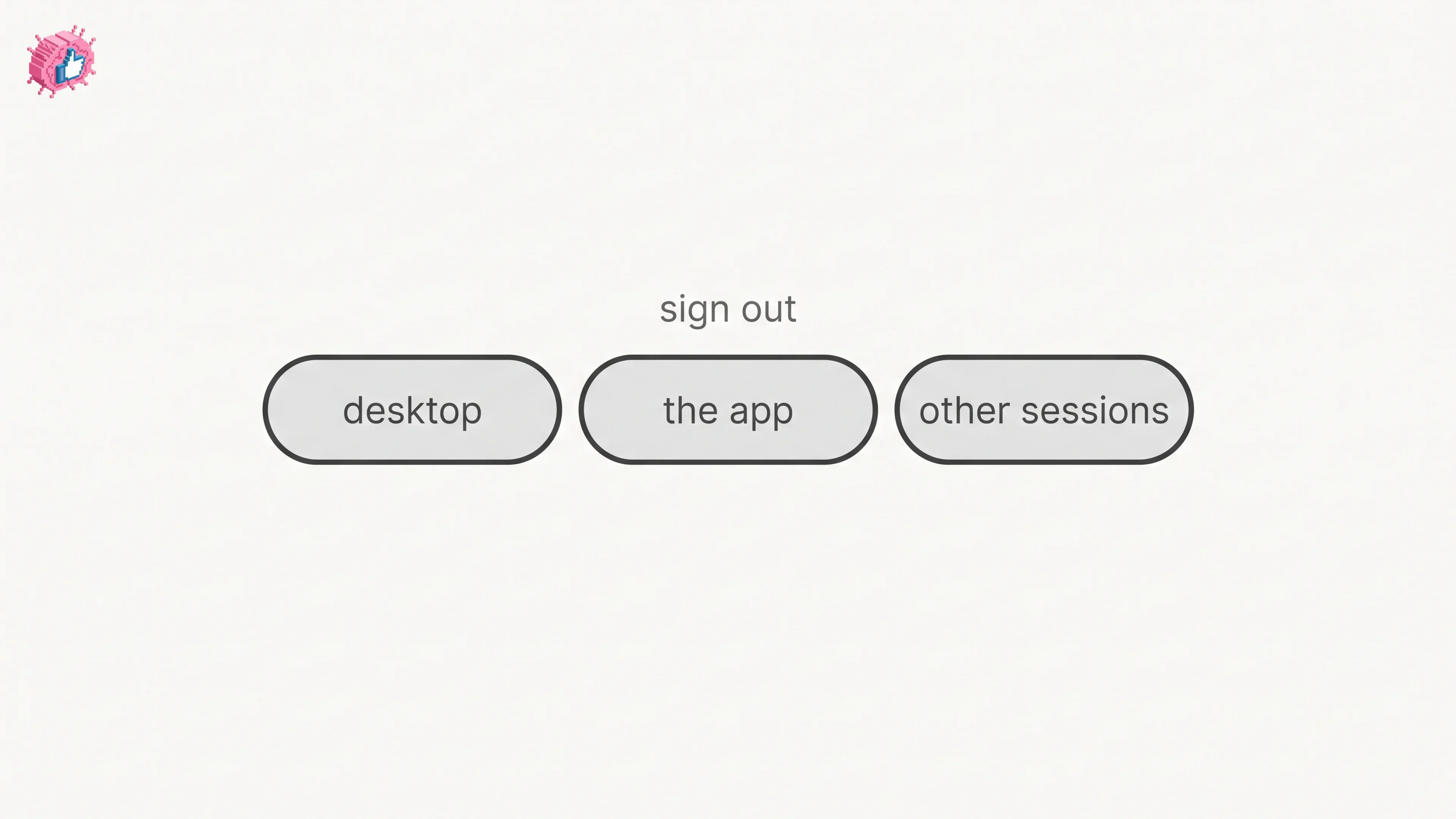
How to Log Out of LinkedIn on Desktop and in the App
How to log out of LinkedIn on desktop, on iOS and on Android, how to sign out of other sessions or all devices, and what Keep me logged in changes.
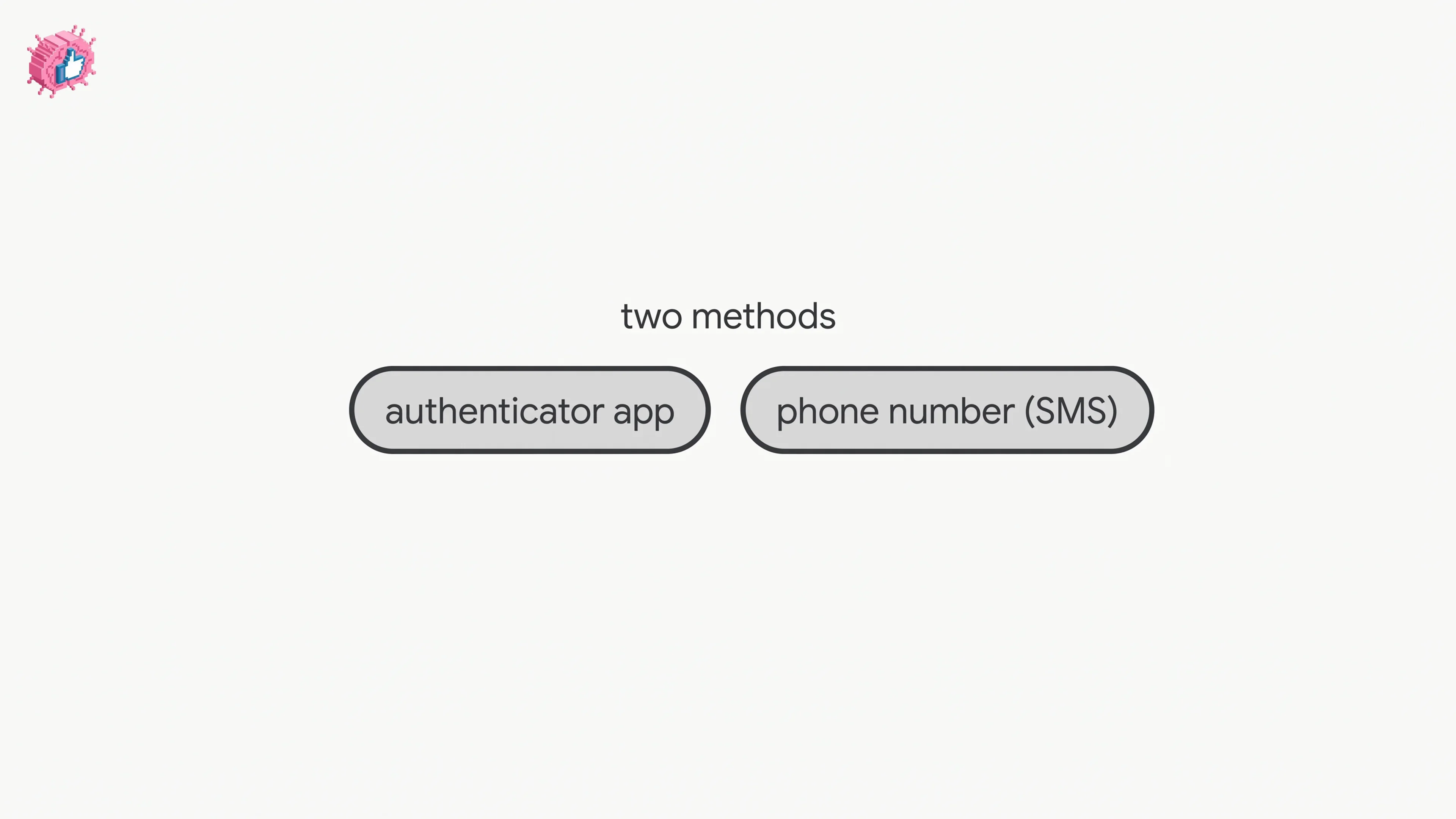
LinkedIn Two Step Verification: How to Turn It On and Off
LinkedIn documents it as two-factor authentication. How to turn it on and off on desktop and in the app, the two methods, and what to do if locked out.