

LinkedIn Read Receipts: How to Turn Them Off
LinkedIn read receipts explained: the setting is called Delivery and typing indicators, how to turn it off on desktop and mobile, and what you lose.
LinkedIn read receipts tell you when a message you sent has been read, and they travel with typing indicators on a single switch. LinkedIn's steps do not file that switch under the word "receipts": they place it in Settings & Privacy, under Data privacy, in the Messaging experience section, where it is labeled Delivery and typing indicators.
The switch cuts both ways, and LinkedIn says so in one sentence: "If they are turned off, no one in the conversation, including you, can see whether messages have been read or if someone is typing a response."
The steps and quotes below come from the LinkedIn Help pages listed before the FAQ. Where those pages are silent, this guide says so rather than filling the space.
Automate your LinkedIn for 30 days
What read receipts are in LinkedIn messaging
They are a status on a message you sent. LinkedIn opens its page with the plain version: "Read receipts and typing indicators let you know when a message has been read and when someone is actively typing a response. They help make communication more timely and transparent and give you more control of your messaging experience."
| Question | What these Help pages document |
|---|---|
| What the setting is called | Delivery and typing indicators |
| Where it lives | Settings & Privacy, then Data privacy, then Messaging experience |
| Who it applies to when on | "all messages sent between you and your connections" |
| What switching it off does | "no one in the conversation, including you" sees read or typing status |
| Default state | Typing indicators are "on by default" |
| What the read marker is | "a small profile photo appears next to the message" |
| Sent message statuses | Sending message, Message sent, Message read |
| InMail senders | Indicators "do not appear to senders of InMail messages" |
| Message requests | Read receipts "appear only after the recipient accepts the request" |
Three rows there get their own sections below: the marker itself, the symmetry of switching it off, and the two exceptions.
What the read marker looks like in a conversation
A small profile photo, not a word and not a tick. LinkedIn describes the delivery indicator like this: "When the recipient of a message you sent has read your message, a small profile photo appears next to the message to indicate that the recipient has read the message."
Alongside that, LinkedIn's page on message indicators publishes three statuses for a message you sent, and gives each one a sentence:
- Sending message: "Your message is being sent. If the message fails to send, you'll see an error message prompting you to try again."
- Message sent: "Your message is successfully sent and will be delivered to the recipient's inbox."
- Message read: "Your message has been read."
LinkedIn's page shows an icon next to each status name. The pages read for this guide give the status names and what they mean, and do not describe the shape of the icons in words, so this guide names the statuses rather than the symbols.
How to turn LinkedIn read receipts on or off
LinkedIn publishes the steps under two tab headings, Desktop and Mobile, and the same toggle does both directions.
Desktop:
- Click the Me icon at the top of your LinkedIn homepage.
- Select Settings & Privacy from the dropdown.
- Click Data privacy on the left pane.
- Under the Messaging experience section, click Delivery and typing indicators.
- Turn on or off the Delivery and typing indicators using the toggle.
Mobile:
- Tap your profile photo, then tap Settings & Privacy.
- Tap Data privacy.
- Under the Messaging experience section, tap Delivery and typing indicators.
- Turn on or off the Delivery and typing indicators using the toggle.
Two things to notice. LinkedIn's Mobile tab folds the first two desktop steps into one: "Tap your profile photo, then tap Settings & Privacy." And LinkedIn documents one toggle, not two, so the page read for this guide gives no way to set read receipts and typing indicators separately.
The page read for this guide publishes no separate iOS tab, Android tab or mobile browser tab, so the Mobile steps above are its single mobile instruction set.
Turning them off hides what you see as well
This is the part that decides whether switching it off is worth it to you, and LinkedIn documents it rather than leaving it to be inferred.
Your own setting, off: "If they are turned off, no one in the conversation, including you, can see whether messages have been read or if someone is typing a response."
The other person's setting, off: LinkedIn's message indicators page covers the mirror case. "If a recipient has turned off read receipts and typing indicators, you won't see when they've read your message or started typing a response. In such cases, the message status indicator will show as Sent."
Read together, those two sentences describe a symmetric trade. Switching the setting off buys you privacy about your own reading and costs you the same information about everybody else in the thread. It is the same shape of trade as browsing profiles privately, where LinkedIn's who viewed your profile feature restricts what you can see in return for what you hide.
One detail in that second quote is worth holding onto. When the other person has indicators off, your message does not sit in limbo: it shows as Sent. A status that stops at sent does not mean the message failed to send, and it does not tell you whether it was read.
Note also what the scope sentence says about who sees these at all when the setting is on: "they'll show for all messages sent between you and your connections."
Typing indicators ride on the same switch
There is no separate control for them on the page read for this guide. LinkedIn describes them in one line, "Typing indicators appear when someone is typing a response," and adds, "This feature is on by default."
The default matters if you have never opened this setting. LinkedIn documents typing indicators as on by default, and the page publishes one toggle for both halves.
The consequence of the shared switch is the thing to decide on. Turning off read receipts to stop people seeing when you have read a message also stops them seeing when you are mid-reply, and stops you seeing the same about them. If the goal is fewer alerts rather than a quieter status, notification settings are a different panel, covered in LinkedIn notifications.
The two documented exceptions
LinkedIn publishes both of these under Important to know on the same page.
InMail. "Read receipts and typing indicators do not appear to senders of InMail messages." An InMail is the paid route to someone you are not connected to, which LinkedIn describes as "a premium feature" that "allows you to directly message another LinkedIn member that you're not connected to." So a sender who spent a credit on you does not get a read status back. What LinkedIn InMail is covers the credit system behind that message.
Message requests. "For message requests, read receipts appear only after the recipient accepts the request." A message request is another way to reach someone you are not connected to without an InMail: LinkedIn describes it as a way "to communicate with coworkers or Group members that you aren't already connected with", and says you are notified when you receive one and can "either accept or privately decline."
| Message type | Does the sender get a read receipt |
|---|---|
| A message between connections, indicators on | Yes, documented as showing for all messages between you and your connections |
| A message where either side has indicators off | No. When the recipient has them off, the status shows as Sent |
| An InMail | No, documented as not appearing to InMail senders |
| A message request, before you accept | No, documented as appearing only after acceptance |
| A message request, after you accept | Yes, with indicators on, per the same sentence |
The message request row is the practical one. LinkedIn states that read receipts on a request appear only after acceptance, and that a member who declines a request leaves the sender unnotified, so a request you have opened but not acted on sends no receipt.
A different setting governs whether any LinkedIn member can message you for free, rather than what they learn afterward. That one is Open Profile, and it is a Premium control on the receiving side.
Automate your LinkedIn for 30 days
What the sent message statuses mean
Three statuses, in the order LinkedIn lists them.
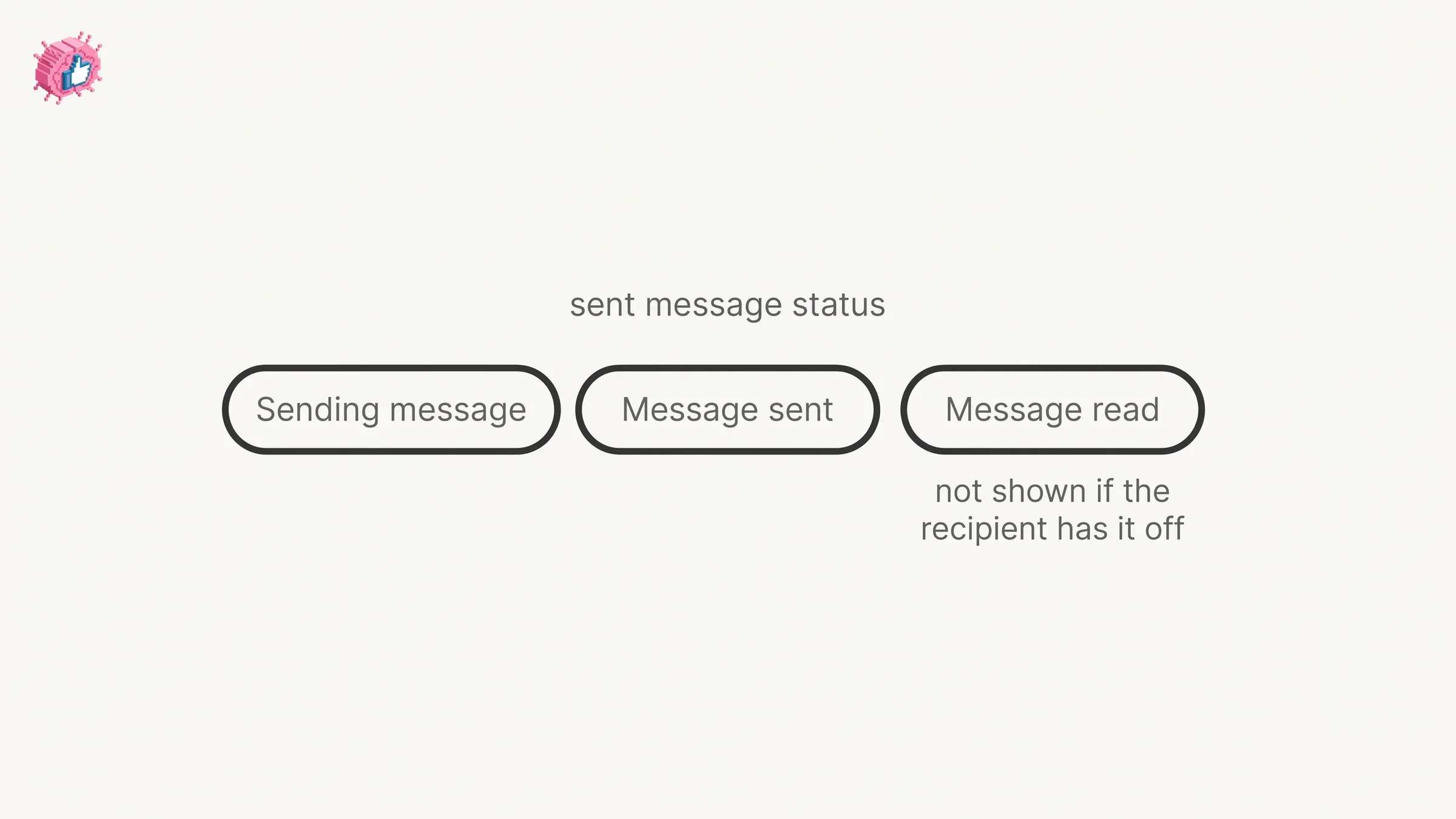
Sending message is transient and has a documented failure path: if it fails, "you'll see an error message prompting you to try again."
Message sent means it was sent successfully: "Your message is successfully sent and will be delivered to the recipient's inbox." It is also the status your message stays on when the other side has indicators off.
Message read means exactly what it says: "Your message has been read."
That middle status can mean more than one thing. A message stuck on sent may not have been read yet, or may have been read by a recipient who turned the feature off, and the pages read for this guide do not describe a way to tell those apart. With your own setting off, LinkedIn states that you cannot see whether messages have been read at all.
Unseen and unread are two different counts
LinkedIn's message indicators page also covers what you receive, and it distinguishes two counters that sound alike.
- Unseen messages: "New messages you haven't seen yet. A red badge on the Messaging icon shows the number of unseen messages."
- Unread messages: "Messages you haven't read yet. A blue badge next to the conversation or group chat shows the number of unread messages."
The two can differ, and LinkedIn flags it: "Clicking on the Messaging icon will clear the number of unseen messages even if some messages are still unread."
So opening your inbox clears the red badge without clearing the blue ones. If your messaging icon looks clean while conversations still show a count, that matches the documented behavior.
What the pages read for this guide do not say is whether clearing the unseen count sends anything to the sender. The read receipt is documented against the message being read, not against the inbox being opened, and this guide does not go further than that.
The setting goes by more than one name
The page that documents the control is titled Delivery and typing indicators, and the toggle on it carries the same name. The prose on that same page calls the feature "read receipts and typing indicators". LinkedIn's message indicators page links to it under a third wording, "Manage read receipts and typing indicators in LinkedIn Messaging".
The two pages word it differently, which is worth knowing before you go hunting in your settings for the phrase you read somewhere. In LinkedIn's steps, the control is labeled Delivery and typing indicators, not "read receipts."
This is not the only LinkedIn setting with a naming gap like this, and the index of LinkedIn features works through others from the documentation. The profile-update control has its own version of the same problem, mapped in how to update LinkedIn without notifying your network.
Should you turn read receipts off
A judgment call, and the documented trade is the thing to weigh rather than any etiquette rule.
Leave them on if the status is useful to you. With the setting on, you can see when a message you sent has been read, unless the recipient has switched theirs off, and the same information flows back about you. That is the trade LinkedIn documents, and tooling built around that inbox is covered in the best LinkedIn DM and outreach tools.
Switch them off if the status itself is the problem. The documented effect is that nobody in the conversation sees whether you read a message or started typing, so a message you opened reports nothing back.
Remember what it does not do. Nothing on the page read for this guide says it changes who can message you or removes anyone. Who can message you has its own documented control, Messages under Who can reach you in the same Data privacy pane, and LinkedIn notes there that "you can't stop receiving messages from your 1st-degree connections." Removing someone is separate again: removing a connection ends the 1st-degree link, and blocking is documented as stopping messaging between you in both directions.
What this means for you
- The setting is Delivery and typing indicators. Settings & Privacy, then Data privacy, then the Messaging experience section.
- One toggle covers both halves. The page read for this guide documents no way to set read receipts and typing indicators separately.
- Off is symmetric. LinkedIn states that nobody in the conversation, including you, sees read or typing status.
- The read marker is a small profile photo. It appears next to the message once the recipient has read it.
- A status stuck on Sent is ambiguous. It can mean unread, or read by a recipient who has the feature off.
- InMail senders and pending message requests get no read receipt. Both exceptions are published under Important to know.
Read receipts change what each side can see about a conversation, not who is in it. If the inbox is the bottleneck, the Who can reach you settings covered above are the place to start.
Sources: Delivery and typing indicators, Understand message indicators in LinkedIn Messaging, InMail Messages, Send, receive, and manage message requests, Manage the types of messages you receive, LinkedIn Help (accessed October 2026)
FAQ
Does LinkedIn have read receipts?
Yes. LinkedIn describes them as letting you know "when a message has been read and when someone is actively typing a response". The setting that controls them is named Delivery and typing indicators.
How do I turn off read receipts on LinkedIn?
On desktop, click the Me icon, select Settings & Privacy, click Data privacy on the left pane, click Delivery and typing indicators under Messaging experience, and switch the toggle off. In the app, tap your profile photo, tap Settings & Privacy, tap Data privacy, tap Delivery and typing indicators, and switch the toggle off.
If I turn off read receipts, can I still see other people's?
No. LinkedIn states that if they are turned off, "no one in the conversation, including you, can see whether messages have been read or if someone is typing a response."
What does the check mark or marker next to a LinkedIn message mean?
LinkedIn describes the read marker as a small profile photo: "When the recipient of a message you sent has read your message, a small profile photo appears next to the message." Its message indicators page lists three sent statuses, Sending message, Message sent and Message read, shown as icons it does not describe in words.
Why does my LinkedIn message still say Sent?
It may not have been read yet, or the recipient may have the feature switched off: LinkedIn states that if a recipient has turned off read receipts and typing indicators, "the message status indicator will show as Sent." With your own setting off, LinkedIn states that no one in the conversation, including you, can see whether messages have been read.
Are LinkedIn typing indicators on by default?
Yes. LinkedIn states that typing indicators "appear when someone is typing a response" and that "this feature is on by default".
Do read receipts work on InMail?
No. LinkedIn publishes it as a note: "Read receipts and typing indicators do not appear to senders of InMail messages."
Does the sender of a message request see that I read it?
Only after you accept. LinkedIn states that "for message requests, read receipts appear only after the recipient accepts the request."
Can I turn off read receipts but keep typing indicators?
The page read for this guide publishes one toggle covering both, named Delivery and typing indicators, with no separate control for either half.
Why does my message count clear but conversations still show unread?
Because they are two counters. LinkedIn states that "clicking on the Messaging icon will clear the number of unseen messages even if some messages are still unread." Unseen shows as a red badge on the Messaging icon, unread as a blue badge next to the conversation.
Automate your LinkedIn for 30 days
ViralBrain plans, writes, and schedules your LinkedIn content, using official LinkedIn APIs so your account stays safe.
- Official LinkedIn APIs, no risk of ban
- You approve every post before it goes live
- Cancel anytime
Keep reading
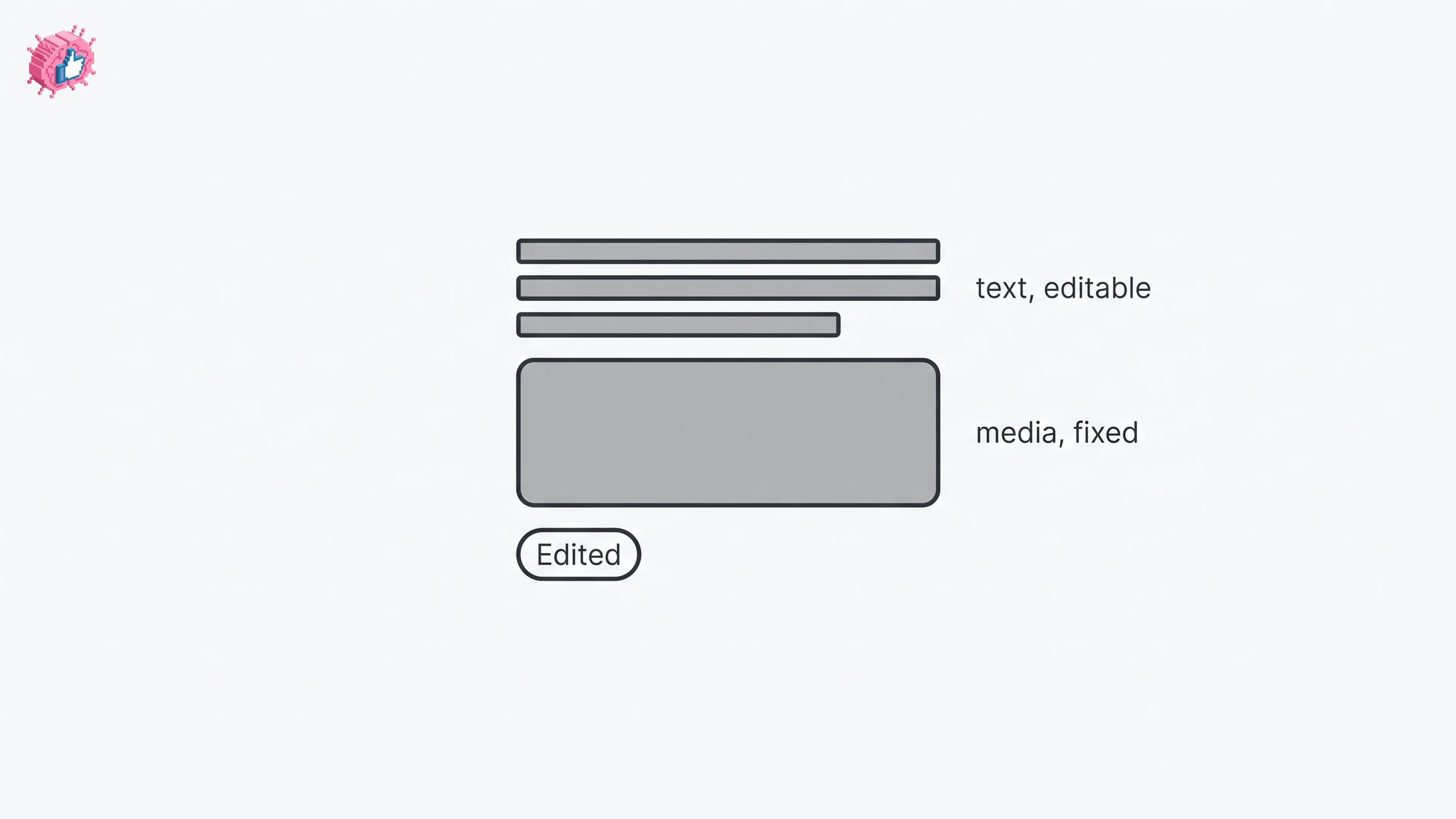
How to Edit a Post on LinkedIn: What You Can Change
Editing a LinkedIn post takes five steps, and on a post you shared only the text can change. LinkedIn's rules on media, previews, Pages and polls.
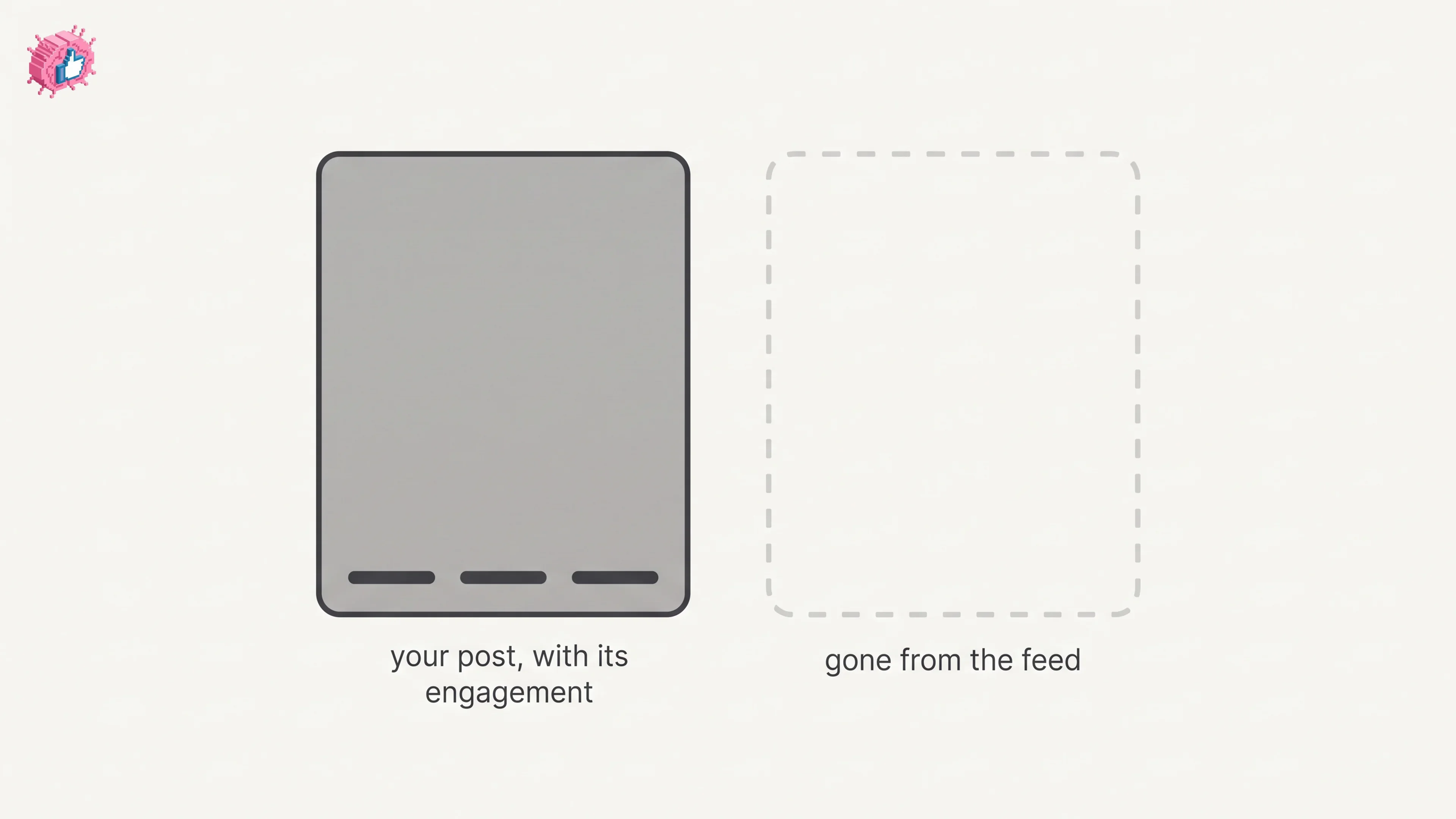
How to Delete a Post on LinkedIn (Feed, Page, Group)
The four documented steps to delete a LinkedIn post on desktop and mobile, plus Page, group, scheduled and comment deletes, and what happens to engagement
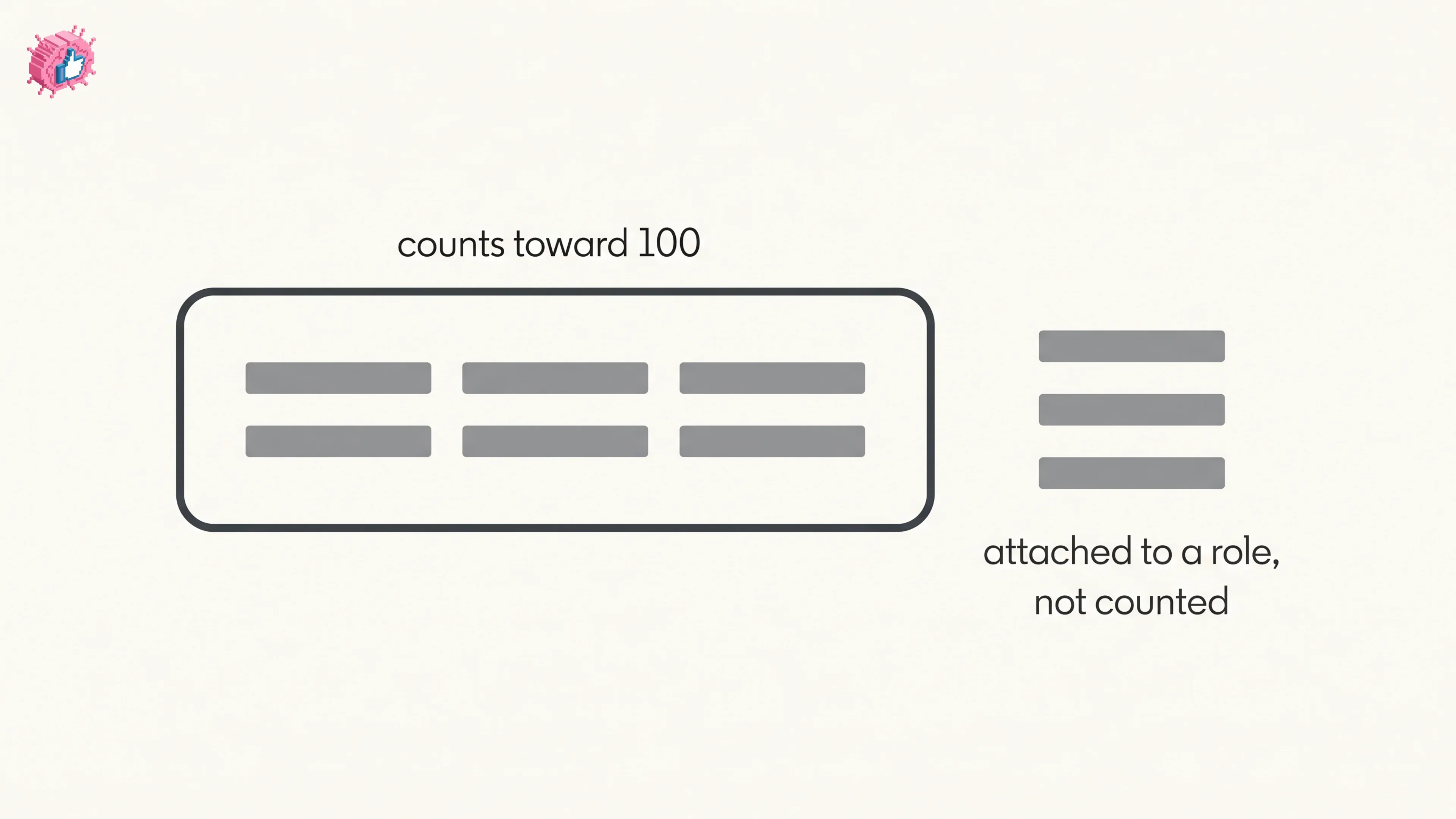
How to Add Skills on LinkedIn: Steps and Limits
How to add skills on LinkedIn on desktop and in the app, the 100 skill cap and its exemption, plus reordering, editing and removing a skill.