

LinkedIn Saved Jobs: Where They Live
Save a job from the job details page and find it under Jobs, Job tracker, Saved. The 2000 cap, why archiving does not free space, and no bulk unsave.
You save a job on LinkedIn with the Save button on the job details page, and you find it again under Jobs, then Job tracker, then the Saved tab. LinkedIn publishes that same set of stops on both its Desktop and Mobile tabs.
LinkedIn's saved jobs page publishes two limits. You can hold up to 2,000 saved and archived jobs at any given point, and there is no bulk unsave: "Currently, there is no way to unsave multiple jobs at once. You will need to remove them manually."
LinkedIn documents saved jobs and saved posts in different places, behind different menus, with different actions. The steps and limits below come from LinkedIn Help pages, named each time, and quoted where the exact wording decides the answer.
Automate your LinkedIn for 30 days
How to save a job on LinkedIn
One button, on the job itself. LinkedIn's page on managing jobs you saved states it above its platform tabs: "When you search for a job on LinkedIn, you can save it at any time by clicking the Save button on the job details page."
Its Mobile tab gives the app version in one line: "To save a job from the LinkedIn mobile app, tap Save on the job details page."
LinkedIn's page on searching for jobs repeats the control on both of its own tabs, as a note at the end of the search steps. The Desktop tab reads "Click the Save button on the job details page to save the job." The Mobile tab reads "Tap Save to save the job post."
So the documented control sits on the job details page. LinkedIn's best practices page for finding jobs puts it differently: "Save jobs while browsing job search results on LinkedIn to come back later to apply for them." Saving from the feed is a separate case, covered below.
| Question | What LinkedIn documents |
|---|---|
| Where you save from | The Save button on the job details page |
| Where saved jobs live | Jobs, Job tracker, the Saved tab |
| Platform tabs on that page | Desktop and Mobile, with the same four stops |
| Actions on a saved job | Apply, Change stage, Archive, Unsave |
| Maximum saved at once | 2000 |
| What counts toward that maximum | Saved and archived jobs, not jobs you have applied to |
| Bulk unsave | "Currently, there is no way to unsave multiple jobs at once" |
| Saved from your feed | You "won't be able to save jobs recommended for you" there |
Where saved jobs live on LinkedIn
In the Job tracker, under a tab called Saved. LinkedIn documents the route there from the Jobs section rather than from the Saved Items list that holds saved posts and articles on desktop.
On desktop, LinkedIn publishes four steps:
- Click Jobs at the top of your homepage.
- Click Job tracker in the left-hand rail.
- Under the Saved tab, click the More icon next to the saved job you want to manage.
- Select the action you want to take.
On mobile, the same page's Mobile tab publishes:
- Tap the Jobs icon.
- Tap Job tracker.
- Under the Saved tab, tap the More icon next to the job you want to manage.
- Select the action you want to take.
The Job tracker holds more than your saved jobs. LinkedIn's page on viewing jobs you have applied for routes through the same place to a different tab: on desktop, click the Jobs icon, click Job tracker in the left-hand rail, then click the Applied tab. Its Mobile tab describes the app differently again: tap the Jobs icon, tap Job tracker under the search bar, then "Tap the dropdown to select Applied and tap Update."
The two pages describe the app's tab switching differently. The saved jobs page says "Under the Saved tab", and the applied jobs page describes a dropdown and an Update button. Both are quoted here as written.
One more line sits on the job search page's Mobile tab, and LinkedIn hedges it rather than stating it as a rule: "To view your saved jobs and manage your job search most effectively, we recommend downloading the LinkedIn mobile app or accessing it via desktop. You may find it easier to complete your application on your computer."
What you can do with a saved job
Four actions, behind the More icon next to the job. LinkedIn lists them in the same order on both its Desktop and Mobile tabs, with the same descriptions:
- Apply to apply for the job
- Change stage to move it to a different job stage
- Archive to move the job to the Archived list
- Unsave to remove the job from your Saved list
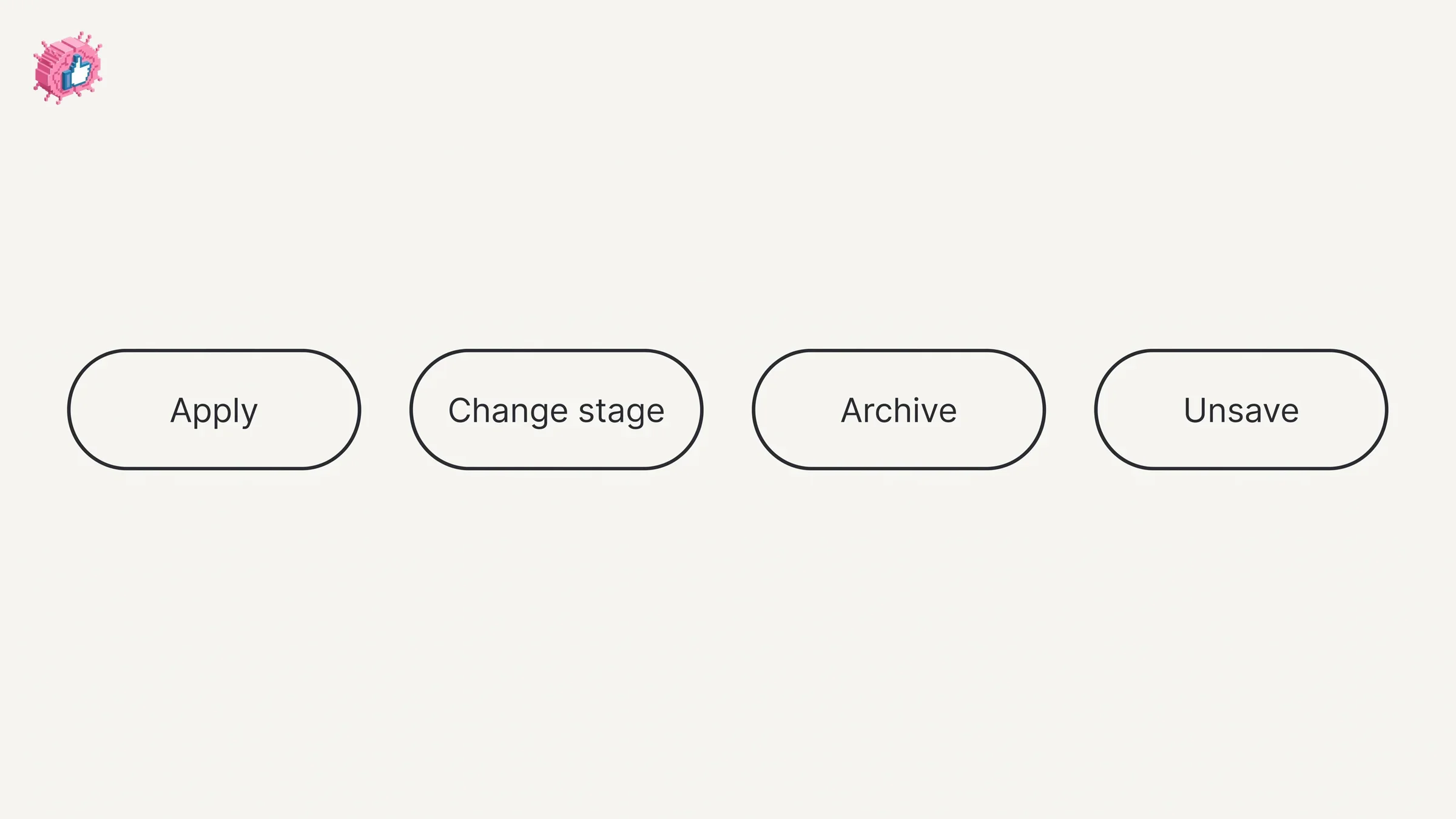
Archive and Unsave are not the same move, and the difference matters for the cap below. Archiving moves a job to the Archived list, and archived jobs still count toward your maximum. Unsaving removes it from the Saved list.
Change stage gets no further detail on the pages read for this guide. LinkedIn names the action and says it moves the job "to a different job stage", and the page does not list what the stages are called.
The 2,000 saved job limit
LinkedIn puts it in an Important to know box at the top of the saved jobs page: "The maximum number of jobs that a member can save at any given point is 2000. This does not include jobs that have been applied to and includes only saved and archived jobs."
Read the second sentence carefully, because it decides what to do when you hit the ceiling:
- Archived jobs count. Archiving clears a job out of your Saved list without buying you any room under the cap.
- Applied jobs do not count. Once you have applied, the job is outside the maximum.
- Unsaving frees space, and the same page states there is no way to do it in bulk.
The no-bulk-unsave line is worth keeping in LinkedIn's own words, hedge and all: "Currently, there is no way to unsave multiple jobs at once. You will need to remove them manually."
How to unsave a job on LinkedIn
From the Saved tab, per LinkedIn's saved jobs page. Open Jobs, then Job tracker, then the Saved tab, click or tap the More icon next to the job, and select Unsave. LinkedIn describes the result as removing "the job from your Saved list".
The pages read for this guide do not describe an undo for that, do not describe a confirmation step, and do not say whether the posting is still findable through search afterward. None of those is stated either way, so check it on your own account rather than relying on a write-up.
Automate your LinkedIn for 30 days
Saved jobs, saved posts and job alerts are three different features
LinkedIn documents the three on separate pages, with separate homes and separate controls, and the pages read for this guide state a limit for two of them.
| Saved jobs | Saved posts | Job alerts | |
|---|---|---|---|
| What it keeps | One job posting | Posts and articles from your feed | A search, watched for new postings |
| Where you create it | The Save button on the job details page | The More icon on feed content, then Save | The job alerts toggle on a search, or a company Page |
| Where it lives | Jobs, Job tracker, the Saved tab | Saved Items, then Saved posts and articles on desktop | Jobs, Preferences, Job alerts on desktop |
| Documented limit | 2000 saved and archived | None stated on the page read | 20 at once |
| Bulk removal | "Currently, there is no way to unsave multiple jobs at once" | Not described on the page read | Not described on the pages read |
LinkedIn also puts a restriction on its feed save feature that names jobs. Its page on saving content in your feed states: "You won't be able to save jobs recommended for you, follow recommendations, work anniversary and profile change updates on your feed." A job that turns up in your feed as a recommendation is one you won't be able to save from there. You open the posting and use its Save button instead.
LinkedIn saved posts covers the feed side, including where that list sits and what the section is called. This guide stays on the Jobs side.
Job alerts are the third thing, and they hold searches rather than postings. An alert watches a search and tells you about new postings, with a published maximum of 20 at once. LinkedIn job alerts covers creating, editing and turning one off. Nothing on the pages read for this guide says that saving a job creates an alert, or that an alert saves a job.
What the pages read do not document
Four more gaps, in addition to the unsave questions above.
The names of the job stages. Change stage is listed as an action and the stages are not enumerated on the page.
Whether a saved job survives the posting closing. The saved jobs page does not say what happens to an entry when the employer closes or removes the listing.
Whether anyone else can see what you saved. The saved jobs page does not address visibility to the job poster or to anyone else, which is silence rather than a reassurance.
Where archived jobs are read back. Archive is described as moving the job "to the Archived list", and the steps on the page are written for the Saved tab.
Using the Saved tab as a job search system
The tab is a holding area, so its value depends on what you do between saving and applying.
Save from the posting, not from the feed. Recommended jobs in the feed are excluded from the feed save feature, and the Save button LinkedIn documents is on the job details page.
Unsave as you go, because there is no bulk clear. The removal path is manual by LinkedIn's own description, and the 2,000 ceiling counts archived jobs as well as saved ones, so the clearing work does not get smaller by being postponed.
Use Archive for jobs you have decided against and Unsave for jobs you want out of the count. The two actions sound interchangeable and are not.
Pair the Saved tab with an alert rather than replacing one with the other. Alerts bring new postings to you; the Saved tab holds the ones you already found.
Before you work through that list, the profile the application points at is worth a pass. Adding your resume to your profile covers three ways to add a resume and which of them stays private, LinkedIn Open to Work covers the two visibility choices and the privacy limit LinkedIn states for the recruiters-only one, and the profile optimization checklist works through the profile field by field. Shortening your LinkedIn URL covers the link you paste into applications.
A job search generates a steady stream of alerts and updates, and taking control of LinkedIn notifications covers the settings that govern it, including what turning a type off does to the notifications already in your tab. Our index of LinkedIn features works through the individual features one at a time, from the documentation.
What this means for you
- Save from the job details page. The Save button on the posting is the documented route on both desktop and in the app.
- Look in Job tracker. Saved jobs sit under Jobs, then Job tracker, then the Saved tab.
- The ceiling is 2000, and archived jobs count toward it. The maximum covers saved and archived jobs, and excludes jobs you have applied to.
- There is no bulk unsave. LinkedIn states you will need to remove them manually.
- Archive and Unsave do different things. One moves the job to the Archived list, the other takes it off your Saved list.
- Recommended jobs in your feed are excluded from feed saving. LinkedIn states you won't be able to save jobs recommended for you on your feed.
Sources: Manage jobs you saved on LinkedIn, Search for jobs on LinkedIn, View jobs you've applied for on LinkedIn, Save content in your feed, Job alerts on LinkedIn, Manage job alerts, Create job alerts for specific companies, Find jobs on LinkedIn best practices, LinkedIn Help (accessed October 2026)
FAQ
Where are my saved jobs on LinkedIn?
Under Jobs, then Job tracker, then the Saved tab. On desktop LinkedIn says to click Jobs at the top of your homepage and click Job tracker in the left-hand rail. In the app, tap the Jobs icon and tap Job tracker.
How do I find saved jobs on the LinkedIn app?
Tap the Jobs icon, tap Job tracker, then look under the Saved tab. Tapping the More icon next to a job gives you Apply, Change stage, Archive and Unsave.
How do I save a job on LinkedIn?
Open the job and use the Save button on the job details page. LinkedIn documents the same control in the app: "To save a job from the LinkedIn mobile app, tap Save on the job details page."
How many jobs can I save on LinkedIn?
- LinkedIn states: "The maximum number of jobs that a member can save at any given point is 2000. This does not include jobs that have been applied to and includes only saved and archived jobs."
How do I unsave a job on LinkedIn?
Open Job tracker, go to the Saved tab, click or tap the More icon next to the job, and select Unsave, which LinkedIn describes as removing the job from your Saved list.
Can I unsave all my LinkedIn saved jobs at once?
No. LinkedIn states: "Currently, there is no way to unsave multiple jobs at once. You will need to remove them manually."
What is the difference between archiving and unsaving a job on LinkedIn?
LinkedIn describes Archive as moving the job to the Archived list and Unsave as removing it from your Saved list. Archived jobs still count toward the maximum of 2000, because that figure "includes only saved and archived jobs".
Are saved jobs and saved posts the same list?
No. Saved posts and articles live under Saved Items on desktop, and saved jobs live under Jobs, then Job tracker, then the Saved tab. LinkedIn also states you will not be able to save jobs recommended for you from your feed.
Is a saved job the same as a job alert?
No. Saving keeps one posting. An alert watches a search and tells you about new postings, and LinkedIn caps members at 20 job alerts at once. Nothing on the pages read for this guide says one creates the other.
Can other people see the jobs I save on LinkedIn?
The pages read for this guide do not address it. They do not say whether the job poster or anyone else can see what you saved, so treat it as undocumented rather than confirmed private.
Automate your LinkedIn for 30 days
ViralBrain plans, writes, and schedules your LinkedIn content, using official LinkedIn APIs so your account stays safe.
- Official LinkedIn APIs, no risk of ban
- You approve every post before it goes live
- Cancel anytime
Keep reading
How to Change Your Email Address on LinkedIn
How to change your email on LinkedIn: add the new address, confirm it, make it primary and remove the old one, on desktop and in the app.
How to Add a Website to LinkedIn (Profile and Page)
How to add a website to your LinkedIn profile on desktop and in the app, the three link limit, the Website type dropdown, and the Page route.
How to See Your Followers on LinkedIn
The four steps LinkedIn publishes to open your followers list, where the follower count sits, the setting that removes followers, and Page followers.