

How to Delete Your LinkedIn Account (and What You Lose)
How to close your LinkedIn account on desktop, iOS, Android or mobile browser, what you permanently lose, and how hibernating differs. From LinkedIn Help.
Closing your LinkedIn account deletes your profile permanently. Hibernating it hides your profile and keeps the account intact. LinkedIn publishes both as separate flows, and it gives you a 14 day window to reopen a closed account before the option disappears.
The difference matters, because the two paths treat your Premium subscription in opposite ways. One makes you cancel Premium yourself before it will let you close. The other cancels it for you the moment you hibernate.
Everything below comes from LinkedIn's own Help pages, quoted where the exact wording decides the answer. Where LinkedIn does not document something, this guide says so instead of filling the gap.
Automate your LinkedIn for 30 days
Closing vs hibernating a LinkedIn account
Closing deletes. Hibernating hides. LinkedIn frames hibernation directly as the softer option: "Hibernate your LinkedIn account as an alternative to closing it."
| Close the account | Hibernate the account | |
|---|---|---|
| What happens to your profile | Deleted, no longer visible on LinkedIn | Hidden, "won't be visible to anyone, even your connections" |
| Your posts and comments | Removed with the account | Stay up, attributed to "A LinkedIn member" |
| Your connections | Lost | Kept |
| Reversible | Yes, "in most cases" within 14 days | Yes, any time after 24 hours |
| Your Premium subscription | You must resolve it before you can close | "automatically cancelled immediately" |
| Appears in LinkedIn search | No | No |
| How long until you can undo it | Immediately, up to 14 days | You must wait 24 hours |
The Premium row is covered in full further down.
What closing your LinkedIn account deletes
Closing removes the profile and the social record attached to it. LinkedIn lists what goes: recommendations and endorsements you have given or received, your messages, and your connections. Your profile stops being visible on LinkedIn.
Two things survive closure in ways you might not expect.
The first is search engines. LinkedIn states plainly: "Search engines like Yahoo!, Bing, and Google may still display your information temporarily due to the way they collect and update their search data." Your profile leaving LinkedIn does not pull it out of Google the same day.
The second is your data on LinkedIn's side. The page points to the privacy policy rather than publishing a deletion clock in the article itself, saying your data is deleted as described in section 4.3 of that policy. If you need a specific retention period, that policy is where LinkedIn puts it.
What you cannot get back, even if you reopen
This is the part worth reading before you click anything. Reopening a closed account inside the 14 day window does not restore everything. LinkedIn is explicit about the gap: "You can reopen your account in most cases if it's been closed less than 14 days, but we're unable to recover the following even if you reopen your account."
The unrecoverable list:
- Endorsements and recommendations. Every endorsement and every recommendation you collected is gone for good, including ones other people wrote about you.
- Ignored or pending invitations. Anything sitting in your invitation queue disappears.
- Followings. LinkedIn names "Top Voices, Companies, etc." as examples.
- Group memberships. You rejoin from scratch.
Your connections do come back. LinkedIn confirms it in one line: "When reopening an account, you'll get access to all your connections."
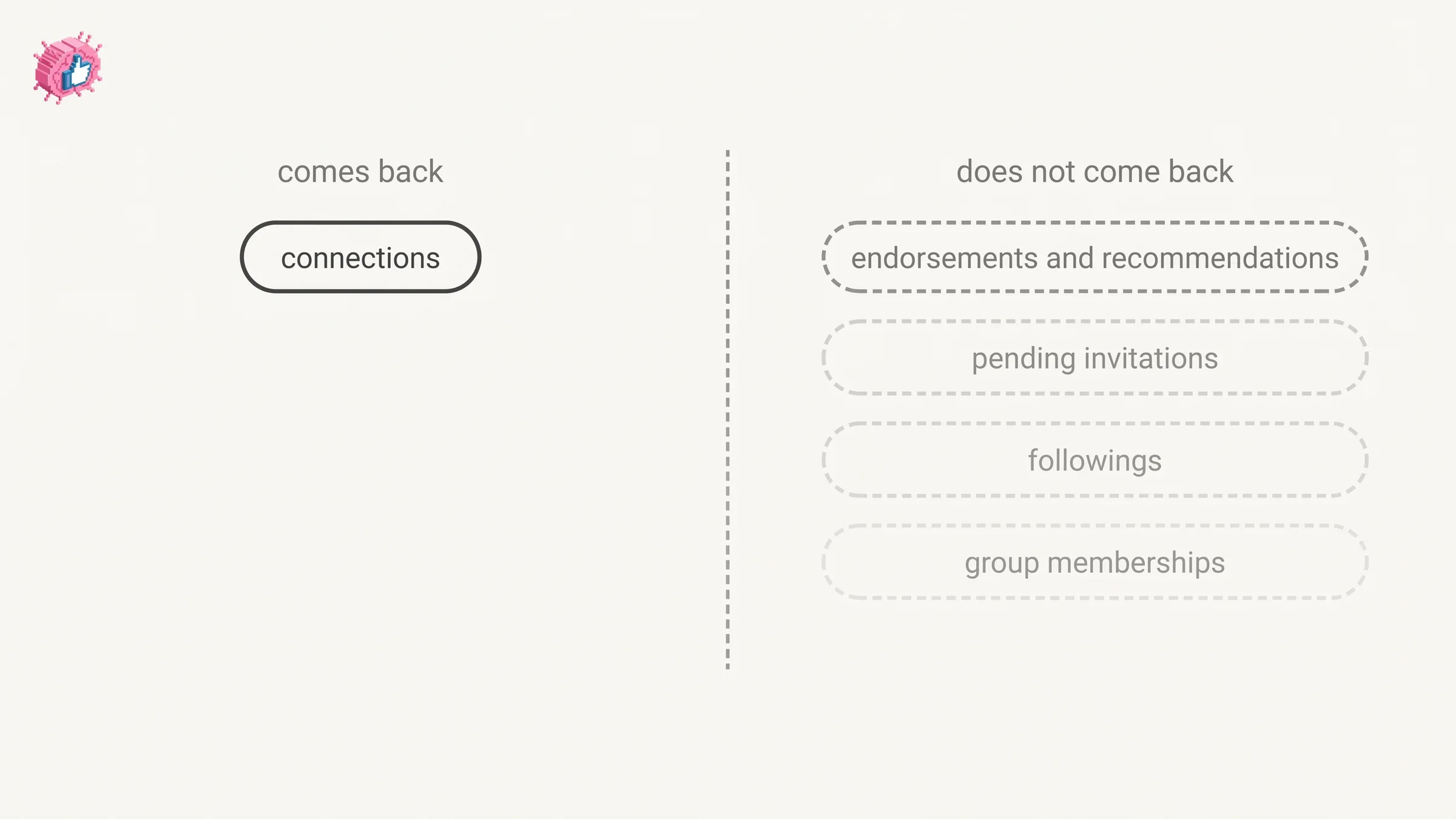
So the honest summary is that reopening restores your network and your profile, and it does not restore your social proof. If recommendations took you years to collect, treat closing as permanent for those regardless of the 14 day window.
What to do before you close your account
LinkedIn recommends one step directly: "You may want to download a copy of your data before you close your account with us."
The archive request lives in settings, on desktop:
- Click the Me icon at the top of your LinkedIn homepage.
- Select Settings & Privacy from the dropdown.
- Click the Data Privacy on the left rail.
- Under the How LinkedIn uses your data section, click Download your data.
- Select the data that you're looking for and Request archive.
Timing depends on what you ask for. LinkedIn states: "If you select a specific type of data, we'll email you within minutes. If you select the larger download, you'll receive an email within 24 hours." Then a second clock starts, because "The data will be available for download for 72 hours."
Request the archive a day before you plan to close, not an hour before. If your main concern is your contact list specifically, the connections export is a narrower route with its own quirks, covered in how to export LinkedIn connections.
It is also worth reviewing which third party tools still hold access to your account, since those authorizations are managed separately from your profile. That list and how to revoke it is in LinkedIn connected apps.
Why LinkedIn may block you from closing your account
If the close flow refuses to finish, you probably hold something LinkedIn wants resolved first. The page states the rule in one sentence: "If you have a premium membership, own a LinkedIn group, or have a premium account license, you'll have to resolve those accounts before being able to close your Basic account."
So three things can hold the door shut:
- An active Premium membership
- Ownership of a LinkedIn group
- A Premium account license, the seat type issued through products like Recruiter
LinkedIn also offers a middle path: "If you have a Premium account, you can cancel the Premium access, but still keep your free Basic account to retain your profile, connections, and other information."
If the thing you want to stop is the bill rather than the presence, cancelling Premium and keeping Basic does that without deleting anything. Whether the subscription was worth it in the first place is a separate question, and LinkedIn Premium all in one works through it.
One note on wording. LinkedIn does not publish a sentence saying closure automatically cancels Premium billing. What it publishes is the prerequisite above. Treat the subscription as something you cancel deliberately, not something closure handles for you.
How to close your LinkedIn account on desktop
LinkedIn publishes the desktop steps in the body of its closing article, and three tabs labeled iOS, Android and Mobile Browser for the rest. The steps differ between them, so they are reproduced separately rather than merged.
On desktop:
- Click the Me icon at top of your LinkedIn homepage.
- Select Settings & Privacy from the dropdown.
- Under Account management, click Change next to Close account.
- Check the reason for closing your account and click Next.
- Enter your account password and click Close account.
How to delete your LinkedIn account on mobile
On iOS:
- Tap your profile picture, then Settings, then Account preferences.
- Tap Close account under Account management.
- Tap Continue to proceed with closing your account.
- Tap the reason for closing your account and tap Next.
- Enter your account password and tap Done.
On Android: LinkedIn publishes the same five steps as iOS, in the same order, under its own tab.
On a mobile browser:
- Tap the Profile icon in the navigation bar.
- Tap the Settings icon in the top right corner.
- Tap Close account under Account management.
- Tap Continue to proceed with closing your account.
- Tap the reason for closing your account and tap Next.
- Enter your account password and tap Done.
The mobile browser route takes six steps rather than five, because it opens with two navigation taps instead of one. Every flow ends with your password, so you cannot close an account you are signed into but cannot authenticate.
Automate your LinkedIn for 30 days
How to hibernate your LinkedIn account instead
Hibernation is the reversible option, and it is a single flow. Unlike the closure article, LinkedIn's hibernation page publishes no platform tabs at all: there is one set of steps, under the heading Turn on Hibernation, written for the desktop path.
- Click your profile photo at the top of your LinkedIn homepage and select Settings & Privacy.
- Select Hibernate account under Account management.
- Select the option that describes why you're hibernating your account.
- Enter your password and click Hibernate account to complete the hibernation process.
Because LinkedIn does not publish separate iOS, Android or mobile browser steps for hibernation, this guide does not invent them. If the option is not where you expect in the app, the documented route is the one above.
Hibernation can also have prerequisites, phrased more loosely than the closure rule: "You may need to complete specific actions before hibernating your account. These actions could include paying balances, reassigning group admin roles, or deactivating a LinkedIn Learning or Recruiter license."
What happens to your posts and messages while hibernated
Your content stays on LinkedIn. Your name comes off it. That is the whole mechanic, and LinkedIn applies the same replacement label across every content type.
| What | While your account is hibernated |
|---|---|
| Your profile | "won't be visible to anyone, even your connections" |
| LinkedIn search, including Recruiter | "won't appear in searches on the platform" |
| Messages you sent | Remain, but you are identified as "A LinkedIn member" |
| Your posts and comments | "remain intact", identified as "A LinkedIn member" |
| Recommendations and endorsements you gave others | Remain, identified as "A LinkedIn member" |
| Your Premium subscription | "automatically cancelled immediately" |
The Premium line is worth repeating because it reverses the closure rule. Closing requires you to resolve a Premium membership before LinkedIn will let you finish. Hibernating cancels the subscription for you, right away, and LinkedIn warns that "Any promotional pricing you previously had may no longer be honored." If you hibernate for a quiet month, you are not pausing Premium, you are ending it. One exception on billing: if you bought Premium through Apple, LinkedIn says hibernating cancels it with LinkedIn, but "you'll have to cancel the subscription directly with Apple to complete the cancellation and prevent future billing."
Hibernation is also why a profile sometimes vanishes without anyone blocking anyone. How to block someone on LinkedIn covers the four reasons a person can disappear from your view, and hibernation is one of them.
How to reopen a closed LinkedIn account
You log back in. LinkedIn does not publish a separate recovery form for this inside the 14 day window.
- On the login page, enter the email address that is registered to your LinkedIn account, enter your password, and click Sign In. You can also click the link received in the original account closure email.
- Click Reactivate to initiate this process. LinkedIn then sends an email where you confirm that you want to reopen the account.
The deadline is firm and stated twice: "In most cases we can reopen your account if it's been closed less than 14 days. We're unable to reopen accounts closed for more than 14 days."
Note the hedge in LinkedIn's own sentence. It says "in most cases", not always, even inside the window. Reopening is a likelihood, not a guarantee.
Ending hibernation works differently and has a floor rather than a ceiling: "To reactivate your account and end hibernation, log in with your credentials 24 hours after you hibernated the account." You cannot undo hibernation in the first day.
One cosmetic effect to expect afterward: "Upon reactivating your account you may notice a discrepancy in your connection and follower count. This is temporary and should resolve within 48 hours."
Closing an account you cannot log into
Every documented close flow ends with your password, so there is no published route that skips the login. LinkedIn routes this case to account recovery rather than to closure: "If you can't access the account you want to close, find out how we can help you get access to your email or reset your password."
The honest reading is that you regain access first, then close. There is no documented route that closes an account without logging in, and any guide offering one is describing something LinkedIn does not publish.
What LinkedIn does not document about restricted accounts
If your account is restricted, LinkedIn's Account restrictions page covers what restriction means and how to challenge it. It does not address whether you can close a restricted account, and this guide will not guess.
What the page does document is the appeal route. For content violations: "you can login and follow the onscreen prompts to ask us to revisit our decision." For profile or identity violations: "please login and follow the onscreen steps to verify your identity."
Restriction severity varies: "Depending on the type of violation, access to your account may be restricted either temporarily or indefinitely." Some categories carry permanent restriction after a single violation.
Both appeal routes start with logging in, which is the same precondition closure has. If you can sign in, the standard close flow is the documented path. If you cannot, account recovery comes first either way.
Quieter alternatives to deleting your account
Deletion is the heaviest available option, and several lighter ones solve the problem people usually bring to it.
- Cancel Premium, keep Basic. Documented above, and it stops the billing without touching your profile.
- Hibernate. Your profile goes dark and comes back whenever you want it.
- Prune your network. If the problem is specific people rather than the platform, removing a connection is reversible and silent.
- Go quiet without disappearing. If you want to stop broadcasting activity while staying reachable, updating LinkedIn without notifying your network covers the settings that control it.
For a map of the other profile and privacy controls that sit between doing nothing and deleting everything, LinkedIn features explained collects the individual guides.
FAQ
Is deleting a LinkedIn account permanent?
Yes, with a 14 day grace period. LinkedIn can reopen a closed account "in most cases if it's been closed less than 14 days" and states it is "unable to reopen accounts closed for more than 14 days." Endorsements, recommendations, followings, group memberships and pending invitations do not come back even inside the window.
How do I delete my LinkedIn account on my phone?
Tap your profile picture, then Settings, then Account preferences, then Close account under Account management. Tap Continue, select a reason, tap Next, then enter your password and tap Done. LinkedIn publishes the same five steps for iOS and Android, and a six step variant for a mobile browser.
Can I delete my LinkedIn account without logging in?
Not through any flow LinkedIn documents. Every published close path ends with entering your account password. LinkedIn directs people who cannot sign in to account recovery, saying "If you can't access the account you want to close, find out how we can help you get access to your email or reset your password."
Do I have to cancel LinkedIn Premium before deleting my account?
If you hold a Premium membership, yes. LinkedIn states you "have to resolve those accounts before being able to close your Basic account", naming Premium memberships, LinkedIn group ownership and Premium account licenses. Hibernation works the opposite way: an active subscription "will be automatically cancelled immediately when you hibernate your account." If you bought Premium through Apple, you also have to cancel it directly with Apple to stop future billing.
What is the difference between hibernating and deleting a LinkedIn account?
Hibernating hides your profile and keeps the account, your connections and your content, with your posts reattributed to "A LinkedIn member". Closing deletes the profile, your messages, your connections and your endorsements. Hibernation reverses after 24 hours. Closure reverses within 14 days, partially.
Will my LinkedIn profile disappear from Google when I close my account?
Not immediately. LinkedIn states that "Search engines like Yahoo!, Bing, and Google may still display your information temporarily due to the way they collect and update their search data." The profile stops being visible on LinkedIn first, and search engine listings catch up on their own schedule.
Can I close a restricted LinkedIn account?
LinkedIn's Account restrictions page does not say. It documents how to appeal a restriction, both routes starting with logging in, and it does not address closure for restricted accounts. Any specific answer you find elsewhere is not coming from that documentation.
How long does it take to get my LinkedIn data before closing?
It depends on the request. LinkedIn states: "If you select a specific type of data, we'll email you within minutes. If you select the larger download, you'll receive an email within 24 hours." The download link then stays live for 72 hours.
What happens to my messages if I hibernate?
They stay in the conversation. LinkedIn states messages you participated in or exchanged "will remain but you'll only be identified as A LinkedIn member." The same relabeling applies to your posts, comments, and the recommendations and endorsements you gave other people.
Automate your LinkedIn for 30 days
ViralBrain plans, writes, and schedules your LinkedIn content, using official LinkedIn APIs so your account stays safe.
- Official LinkedIn APIs, no risk of ban
- You approve every post before it goes live
- Cancel anytime
Keep reading
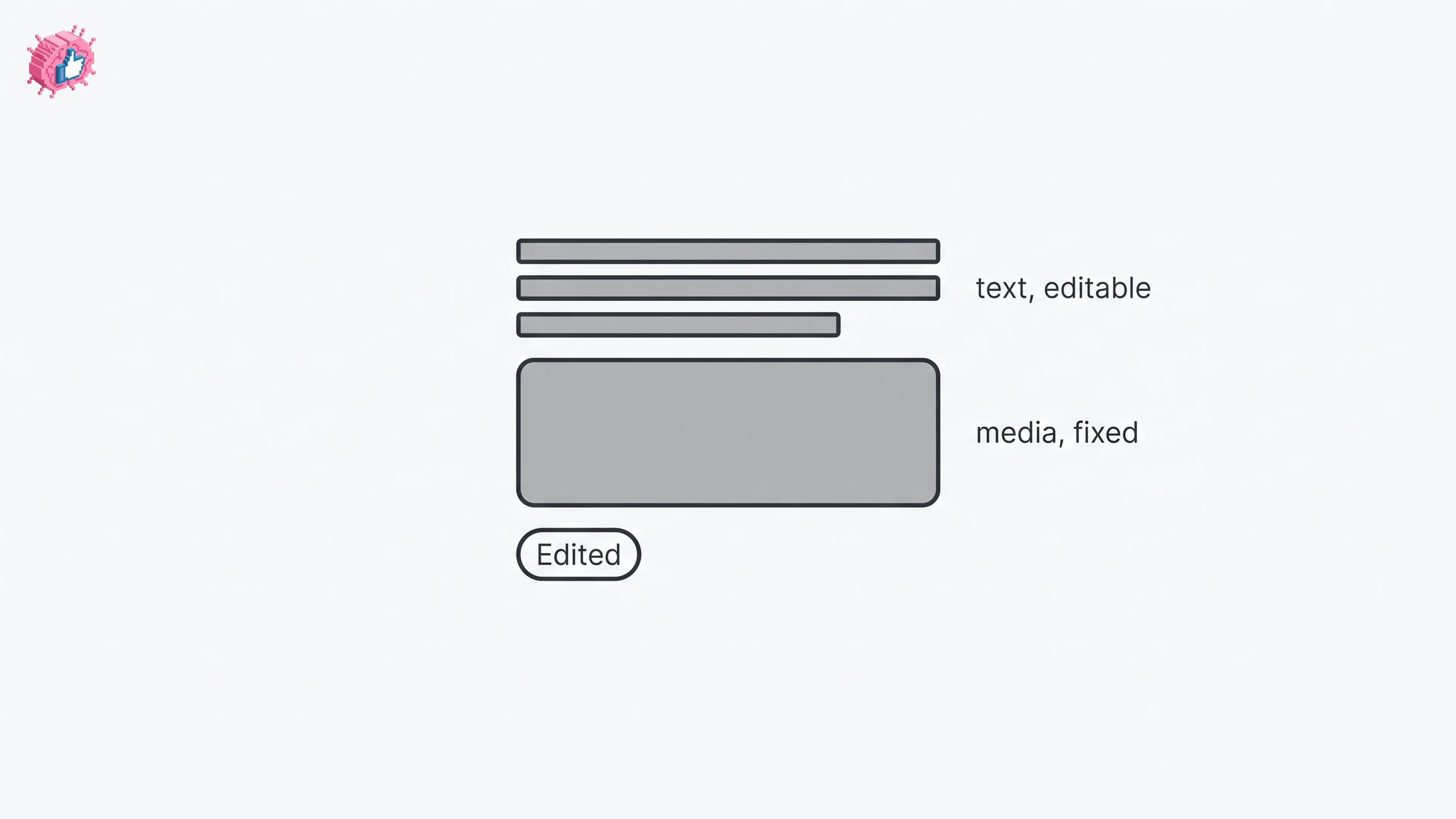
How to Edit a Post on LinkedIn: What You Can Change
Editing a LinkedIn post takes five steps, and on a post you shared only the text can change. LinkedIn's rules on media, previews, Pages and polls.
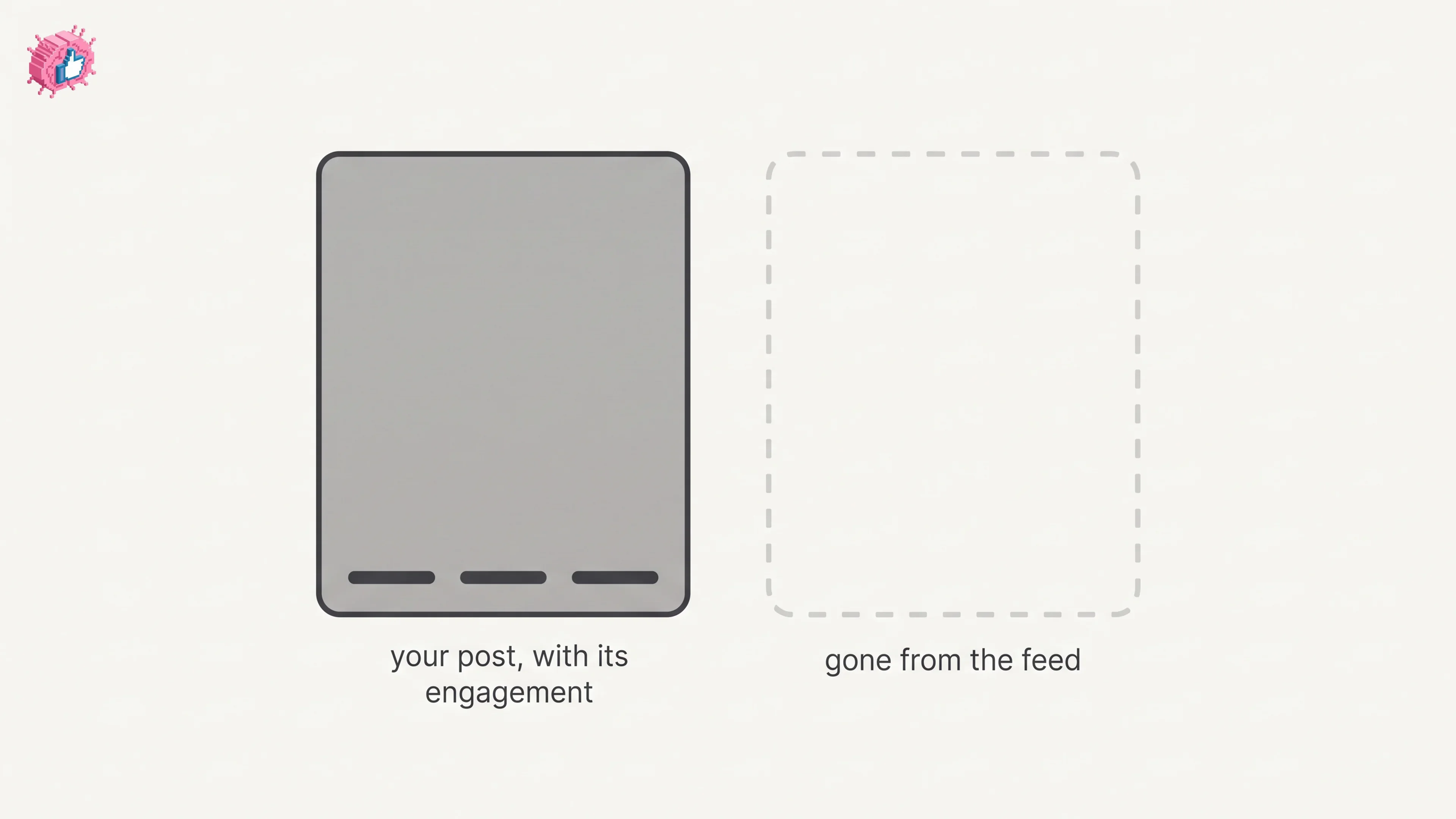
How to Delete a Post on LinkedIn (Feed, Page, Group)
The four documented steps to delete a LinkedIn post on desktop and mobile, plus Page, group, scheduled and comment deletes, and what happens to engagement
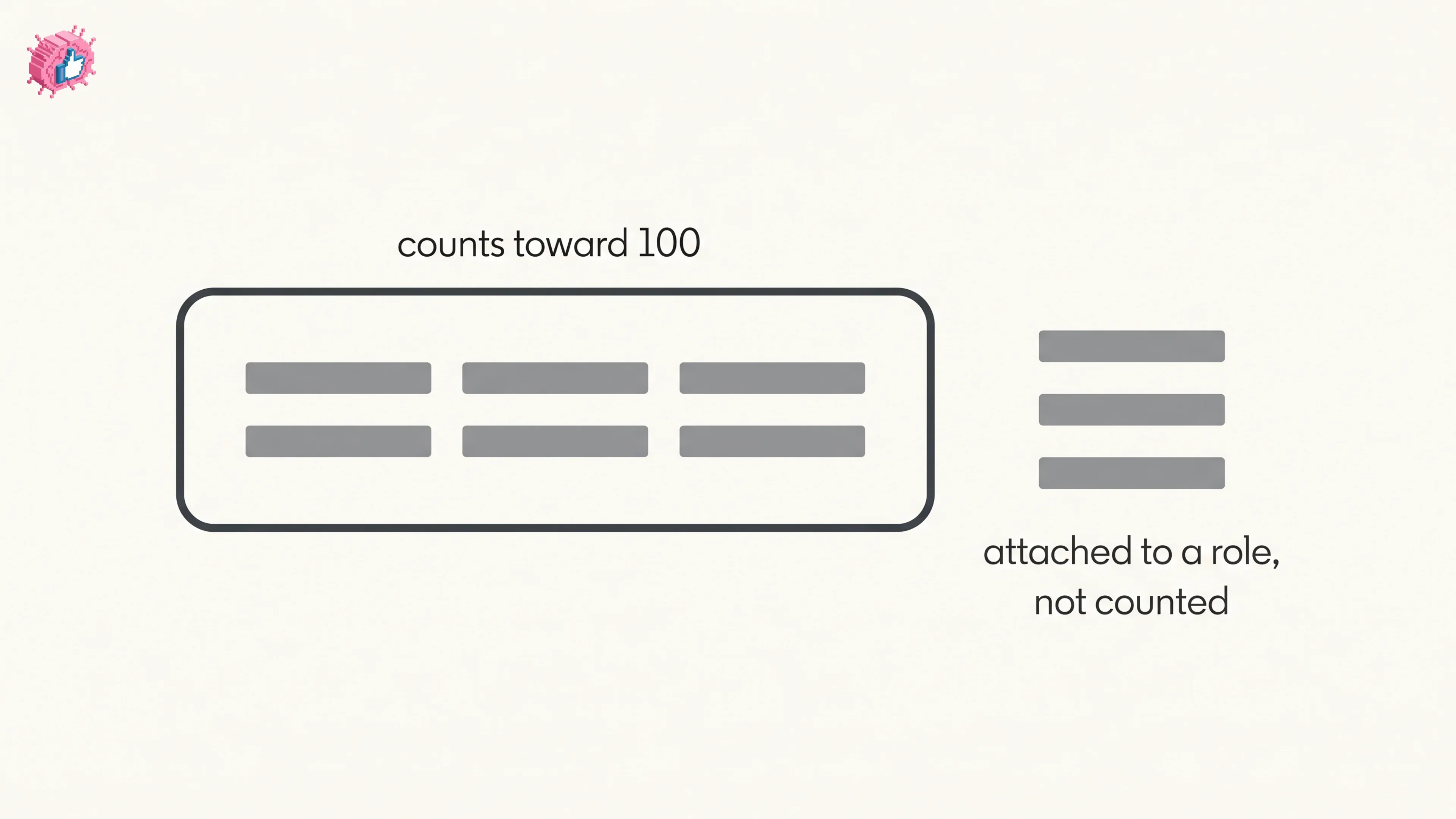
How to Add Skills on LinkedIn: Steps and Limits
How to add skills on LinkedIn on desktop and in the app, the 100 skill cap and its exemption, plus reordering, editing and removing a skill.