

How to Add Courses on LinkedIn to Your Profile
How to add the Courses section on LinkedIn on desktop and in the app, where it sits among profile sections, how to edit or remove an entry.
Courses is an optional section on your LinkedIn profile, and you add it through Add profile section in your introduction section. LinkedIn files it under the Recommended group, next to Featured, Licenses & certifications, Projects and Recommendations. The section is not on your profile until you put an entry in it.
LinkedIn's own description of the section runs to one sentence: "Adding your body of coursework can help your education to stand out."
This guide covers the Courses section itself. If your course came from LinkedIn Learning, that is a different route with its own controls, and how to add a certification to LinkedIn already walks through it. Everything below is drawn from the LinkedIn Help pages listed at the end, quoted where the exact wording settles the answer. Where those pages are silent, this guide says so instead of filling the space.
Automate your LinkedIn for 30 days
What the Courses section is on LinkedIn
It is a place to list coursework you have done. LinkedIn's profile overview page gives it a single line: "Adding your body of coursework can help your education to stand out."
That sentence is the whole published description on the pages read for this guide. It tells you the intent, coursework framed as support for your education, without telling you what the entry form contains.
| Question | What these Help pages document |
|---|---|
| Section name | Courses |
| Which group it belongs to | Recommended |
| How you add it | Add profile section on desktop, Add section in the app |
| Does it appear before you add an entry | It is one of the sections you add, rather than one already there |
| Published description | "Adding your body of coursework can help your education to stand out." |
| Field names in the form | Not listed on the pages read for this guide |
| Entry limit | Not stated on the pages read for this guide |
Two rows there deserve their own sections, and both are below: the group placement, and the gap around the form.
Where Courses sits among the other profile sections
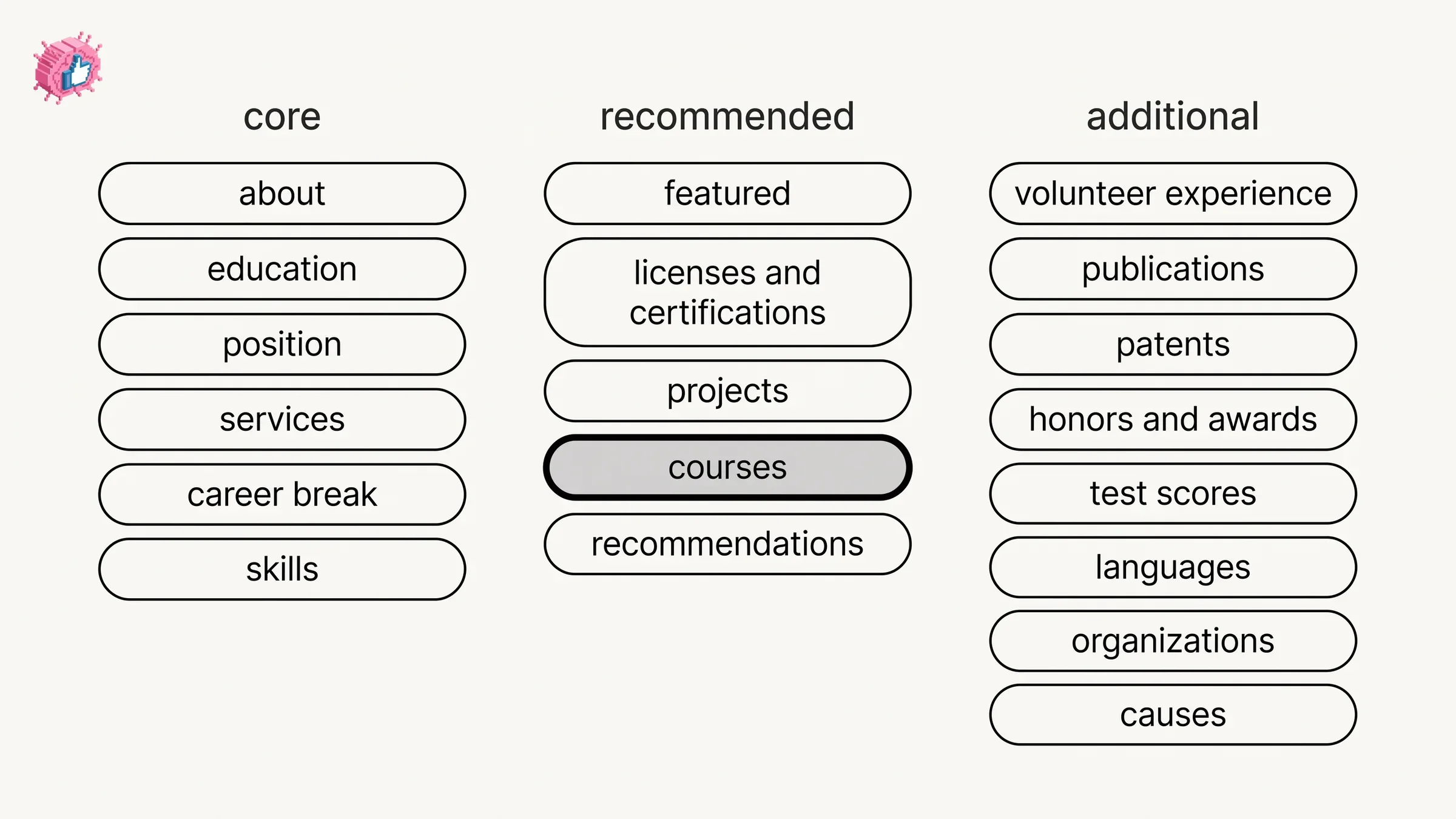
In the middle group. LinkedIn sorts everything you can add through Add profile section into three named groups, and publishes them as a plain list.
| Group | Sections LinkedIn lists in it |
|---|---|
| Core | About, Education, Position, Services, Career break, Skills |
| Recommended | Featured, Licenses & certifications, Projects, Courses, Recommendations |
| Additional | Volunteer experience, Publications, Patents, Honors & awards, Test scores, Languages, Organizations, Causes |
Courses sits in Recommended with licenses and certifications, the projects section and Featured. That is the group LinkedIn suggests rather than assumes. Your positions and your education are Core. A course is something you opt into.
One practical consequence: the route is the same whatever you are adding. You pick between a course, a publication and a language at the subsection step, not at the start.
How to add a course on LinkedIn
Through Add profile section, then the subsection step. LinkedIn publishes the steps under two tab headings, Desktop and Mobile, and the wording differs between them.
Desktop:
- Click the Me icon at the top of your LinkedIn homepage.
- Click View Profile.
- Click Add profile section in your introduction section.
- Click on the section you'd like to add and select the subsection, if applicable.
- Enter the required information in the pop-up window that appears.
- Click Save.
Mobile:
- Tap your profile picture.
- Tap your profile photo again to access your profile.
- Tap Add section in your introduction section.
- Tap on the section you'd like to add and select the subsection, if applicable.
- Enter the required information in the page.
- Tap Save.
Three details are worth pulling out of those lists.
- The button is named differently per platform: Add profile section on desktop, Add section in the app.
- The app route to your profile is two taps on your own photo, with no separate view step between them.
- Step 4 is generic because this one flow serves every section. Courses is what you choose at that step.
LinkedIn writes "select the subsection, if applicable" rather than naming a subsection for Courses, so this guide does not name one either.
What the pages read for this guide do not say about the Courses form
They do not list its fields. Step 5 on both tabs reads "Enter the required information", and the pages read for this guide stop there.
Here is the honest boundary, because this is the part a guide can most easily invent:
- The field names in the add form are not listed on these pages.
- A limit on how many courses you can add is not stated on these pages.
- Associating a course with a position or an education entry is not documented on any page read for this guide. LinkedIn does document associations in the Experience section, but that passage is about labeling organizations accurately, not about linking a course to a job.
If you find an exact field list or a maximum number of courses quoted elsewhere, it is coming from somewhere other than these Help pages. The reliable way to see the current fields is to open the form on your own profile, where the live version appears.
This is the same documentation gap the publications section runs into, and it is worth knowing about before you go hunting for a setting that may not be published.
LinkedIn Learning courses use a different route
They start in your Learning History rather than in Add profile section. LinkedIn Learning has its own flow, with its own sharing controls, and how to add a certification to LinkedIn covers it step by step including the Share with network box that decides whether an update goes out.
The short version of the boundary: if you completed the course inside LinkedIn Learning, use that flow. If the course came from a university, a bootcamp or any provider outside LinkedIn Learning, the Add profile section route on this page is the one you want.
Automate your LinkedIn for 30 days
How to edit or remove a course on your profile
Through the Edit icon next to the section. LinkedIn publishes the editing steps across three tabs on its page for editing a profile, and they differ by platform.
Desktop:
- Click the Me icon at the top of your LinkedIn homepage, then click View Profile.
- Click the Edit icon to the right of the section you'd like to make changes to.
- Make changes in the fields provided.
- Click Save.
Mobile:
- Tap your profile photo.
- Tap your profile photo again to access your profile.
- Tap the Edit icon to the right of the section you wish to edit.
- Tap the Edit icon next to individual detail you want to edit.
- Make changes in the fields provided.
- Tap Save.
Mobile Browser:
- Tap your profile photo.
- Tap the Edit icon to the right of the section you wish to edit.
- Make changes in the fields provided.
- Tap Save in the upper-right corner.
Note the extra step on the Mobile tab: you tap Edit twice, once for the section and once for the individual detail inside it. Desktop and mobile browser take you straight into the fields.
What the mobile browser can and cannot edit
Not every section is editable there, and LinkedIn says so directly: "Currently, not all sections are editable on mobile browser. You can only edit the photo, name, headline, location, summary, experience, education, skills, accomplishments, and contact sections."
Accomplishments is the word doing the work in that sentence. LinkedIn does not define it, but its Honors & awards page heads the mobile edit steps "To edit or delete an accomplishment", which suggests the word covers at least some optional sections. The pages read for this guide do not spell out which sections fall inside the word, so if you are editing from a phone browser rather than the app and the control is missing, the app is the path documented end to end.
| Action | Desktop | Mobile app | Mobile browser |
|---|---|---|---|
| Add the section | Yes, via Add profile section | Yes, via Add section | Not documented on these pages |
| Edit an entry | Yes, one Edit icon | Yes, two Edit icons | Limited to the sections LinkedIn lists |
| Reach your profile | Me icon, then View Profile | Two taps on your profile photo | One tap on your profile photo |
Does adding a course notify your network
The pages read for this guide do not document a notification for adding a Courses entry.
Profile edits in general can send an update to your network depending on a separate setting, and how to update LinkedIn without notifying your network covers that toggle and where it lives. If you are adding several entries in one sitting, that is the control to check first.
The LinkedIn Learning route has a documented sharing checkbox of its own, and the certification guide linked above has it.
What this means for you
Courses is a low-cost section with a clear job: it records coursework that your Education entry alone does not show. It earns its place when the training is real but arrived without a certificate to file under Licenses & certifications.
A few things worth deciding before you start:
- Where the course actually came from. LinkedIn Learning has its own flow. Everything else goes through Add profile section.
- Whether a certificate exists. If it does, Licenses & certifications may suit it better, and Courses can carry the coursework that came without one.
- Whether it still earns the space. This section sits alongside volunteer experience and projects in the optional half of your profile, and the profile optimization checklist works through that trade-off section by section.
The full set of individual feature guides lives in LinkedIn features explained.
Sources: Add sections to your profile, Your LinkedIn profile, Edit your profile, Manage your profile Experience section, Manage Honors & awards on your profile, LinkedIn Help (accessed October 2026)
FAQ
How do I add courses on LinkedIn?
On desktop, click the Me icon, click View Profile, click Add profile section in your introduction section, click the section you want and select the subsection if applicable, enter the required information in the pop-up window, then click Save. In the app, tap your profile picture, tap your profile photo again to access your profile, tap Add section, then follow the same subsection and Save steps.
Where is the Courses section on a LinkedIn profile?
LinkedIn lists Courses under the Recommended group in the Add profile section menu, alongside Featured, Licenses & certifications, Projects and Recommendations. It is a section you add, so it is not on your profile until it has an entry.
What fields does the LinkedIn Courses form have?
The pages read for this guide do not list them. Both the desktop and mobile steps say only "Enter the required information". The current fields appear in the form on your own profile.
How many courses can I add to LinkedIn?
A maximum is not stated on the pages read for this guide. A figure quoted elsewhere is not coming from these pages.
Can I link a course to a job or a degree on my profile?
Associating a course with a position or an education entry is not documented on any page read for this guide. LinkedIn's passage about associations in the Experience section is about labeling organizations accurately, which is a different matter.
How do I add a LinkedIn Learning course to my profile?
Through LinkedIn Learning rather than Add profile section. The flow starts in your Learning History and includes a Share with network box that controls whether an update goes out. Our certification guide has the full desktop and app steps.
How do I edit or delete a course on LinkedIn?
Use the Edit icon to the right of the section. On desktop you then make changes in the fields provided and click Save. In the app there is a second Edit icon next to the individual detail before you reach the fields.
Can I add courses from the mobile browser?
The add-section page read for this guide publishes its steps under Desktop and Mobile tabs, with no mobile browser tab. For editing, LinkedIn states that "not all sections are editable on mobile browser" and lists photo, name, headline, location, summary, experience, education, skills, accomplishments and contact as what you can edit there.
Does adding a course tell my connections?
The pages read for this guide do not document a notification for this change. A separate setting governs whether profile edits are shared with your network, and our guide on updating LinkedIn without notifying your network covers it.
Automate your LinkedIn for 30 days
ViralBrain plans, writes, and schedules your LinkedIn content, using official LinkedIn APIs so your account stays safe.
- Official LinkedIn APIs, no risk of ban
- You approve every post before it goes live
- Cancel anytime
Keep reading
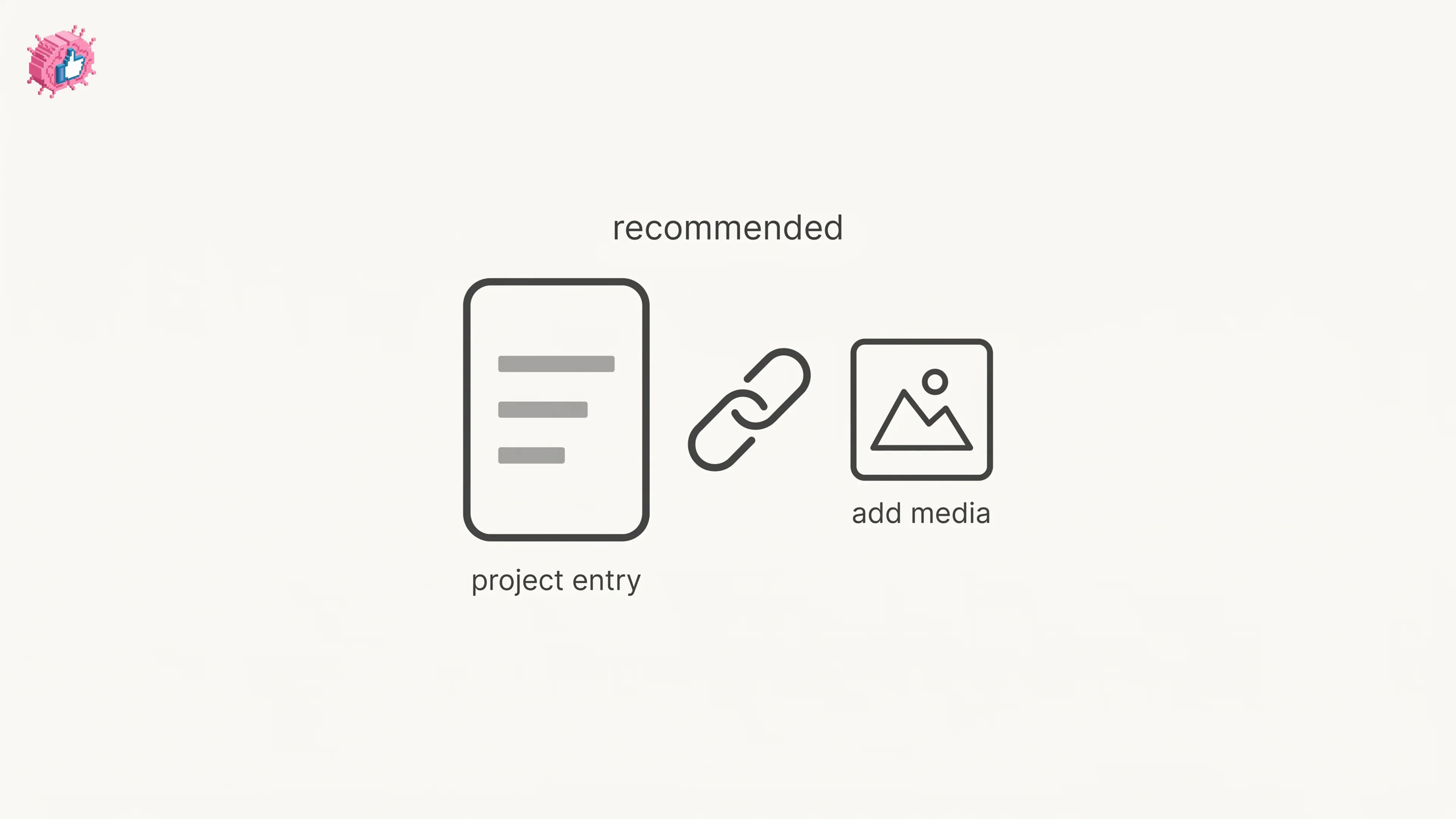
LinkedIn Projects Section: How to Add, Edit and Hide It
How to add a project on LinkedIn desktop and mobile, the one link tip LinkedIn publishes, how to edit an entry, and how to hide the section.
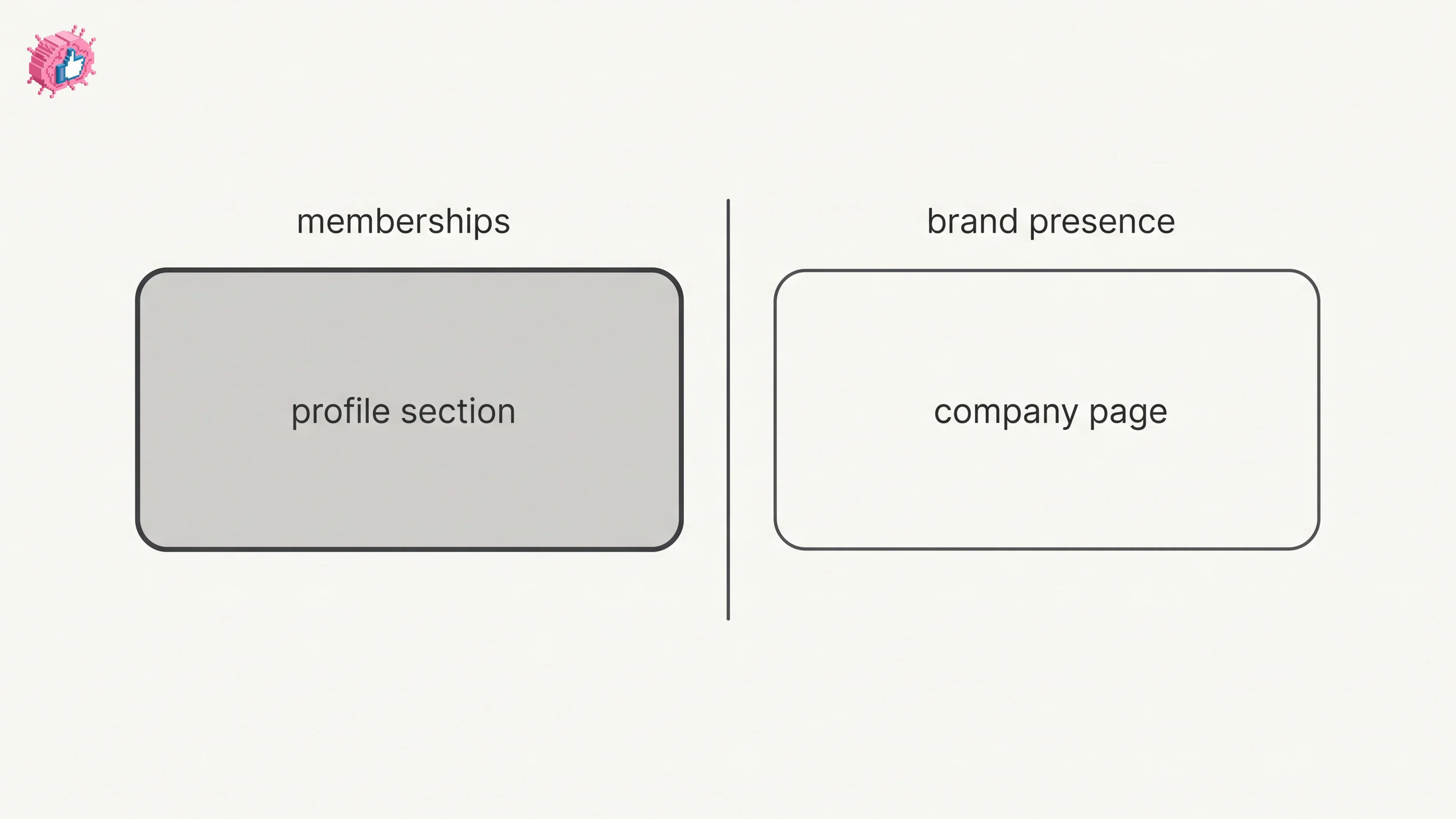
How to Add Organizations on LinkedIn: Full Steps
How to add organizations on LinkedIn, where the section sits, desktop and app steps, editing entries, and why a LinkedIn Page is a different thing.
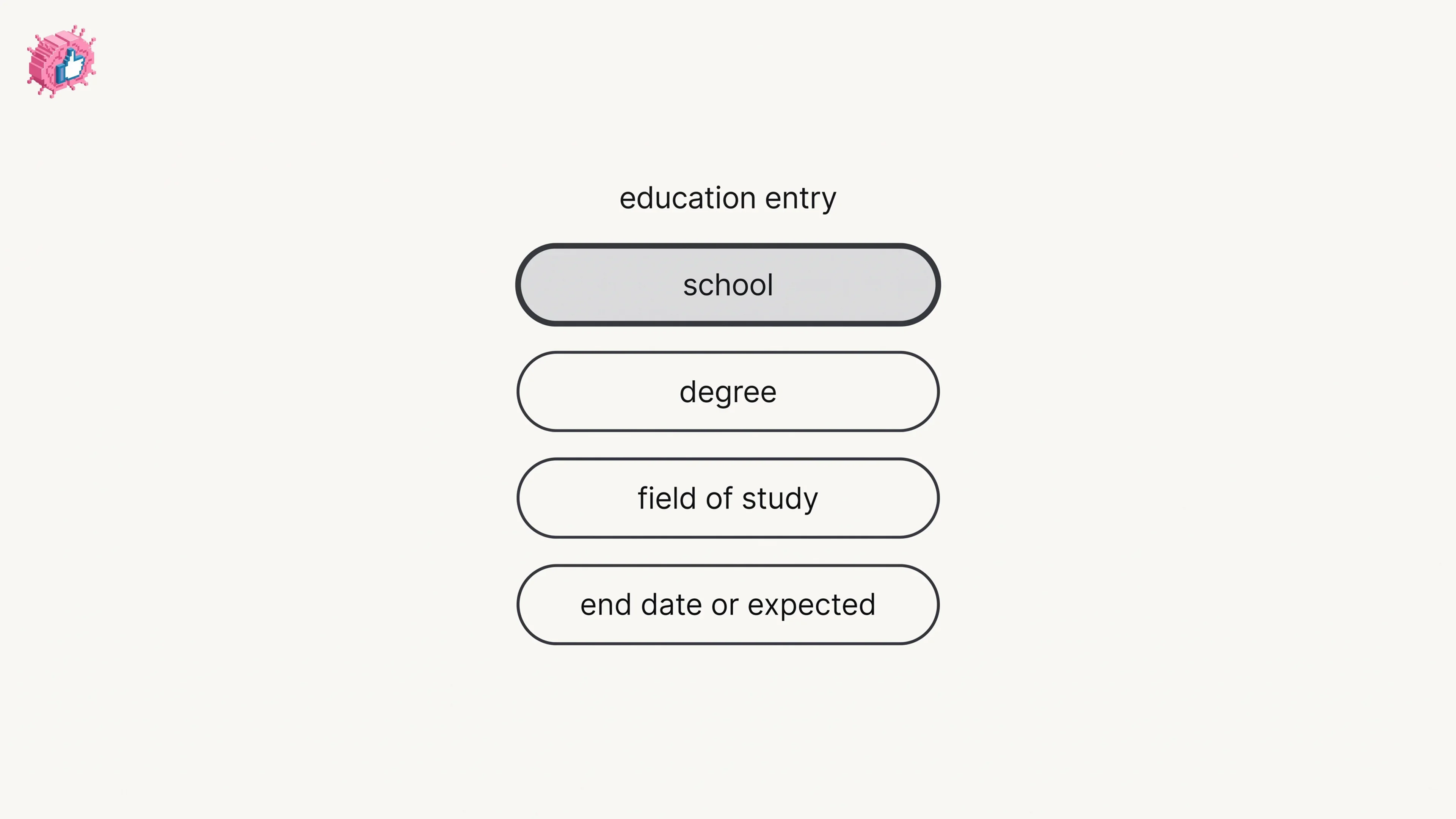
How to Add Education on LinkedIn: Fields and Steps
How to add education on LinkedIn, the eight fields LinkedIn documents, multiple entries, the expected end date, reordering, and the 24 hour notify window.