

How to Export LinkedIn Connections to a CSV File
Export LinkedIn connections to CSV from desktop only. The six fields you get, why the email column is mostly empty, and the real wait time.
LinkedIn lets you download a list of everyone you are connected to as a spreadsheet. The export is not hidden, but it does not work quite the way the button suggests.
Two things trip people up. The file can take up to two days to arrive, and the email address column is mostly empty for reasons you cannot do anything about. Both of those are documented by LinkedIn, and both are covered below.
Everything here comes from LinkedIn's own Help pages, quoted where the wording matters. Where LinkedIn's documentation contradicts itself, which it does on timing, that is pointed out rather than smoothed over.
Automate your LinkedIn for 30 days
What the LinkedIn connections export contains
The Connections file holds six fields for every 1st-degree connection you have. LinkedIn documents the contents in one sentence: "Contains the first and last name, public profile URL, email address, company, position, and connection date for all 1st degree connections."
| Field | What it holds |
|---|---|
| First and last name | The connection's name |
| Public profile URL | Their public profile address, the same one covered in our guide to finding your LinkedIn URL |
| Email address | Present only when that person allows it, see below |
| Company | Their company |
| Position | Their position |
| Connection date | The date you two connected |
That is the whole file. There are no phone numbers, no message history, no mutual-connection counts, and no follower data in it.
Note what the scope line says: all 1st degree connections. LinkedIn states plainly that "You currently can't export a list of your contacts that aren't 1st-degree connections." People you follow without connecting are not in this file, which is one of the practical differences between the two relationships covered in follow vs connect.
How to export your LinkedIn connections
LinkedIn publishes one set of steps on its Export connections page, with no separate mobile instructions. The steps use desktop language throughout, and the reason for that is covered in the next section.
On desktop:
- Click the Me icon at the top of your LinkedIn homepage.
- Select Settings & Privacy from the dropdown.
- Click Data privacy on the left pane.
- Under the How LinkedIn uses your data section, click Get a copy of your data.
- Select Download larger data archive, including connections, verifications, contacts, account history, and information we infer about you based on your profile and activity.
- Select Request archive.
- You'll receive an email to your Primary Email address which will include a link where you can download your data.
Step 5 is the one worth reading twice. LinkedIn's export-connections page routes you to the larger data archive, not to a single Connections file, and that choice is what sets your wait time.
One wrinkle to expect on screen: LinkedIn's two Help pages label the same menu item differently. The export-connections page calls it Get a copy of your data, while the Download your data page calls it Download your data. Either label puts you in the same place. No Help page in this flow mentions a password confirmation step.
You cannot export LinkedIn connections on mobile
LinkedIn states it directly in the Important callout on its Download your data page: "This feature is currently not available on mobile."
That one sentence settles whether there is an app route.
| Platform | Can you export connections |
|---|---|
| Desktop web | Yes, this is the documented route |
| iOS app | No, LinkedIn states the feature is not available on mobile |
| Android app | No, the same statement covers it |
| Mobile browser | Not documented either way |
Mobile browser sits in a gap. LinkedIn's statement names mobile without separating the app from a phone browser, and neither Help page publishes a mobile browser tab. Use a computer rather than guessing a route on a phone.
How long the LinkedIn data export takes
This is where LinkedIn's documentation disagrees with itself, and it is worth knowing before you sit refreshing your inbox.
Near the top of the Download your data page, LinkedIn writes: "If you select a specific type of data, we'll email you within minutes. If you select the larger download, you'll receive an email within 24 hours."
Further down the same page, two tables sort every data category by wait time. Their headings read Available within 10 minutes and Available within 48 hours. Connections sits in the 48 hours table, not the 10 minutes one.
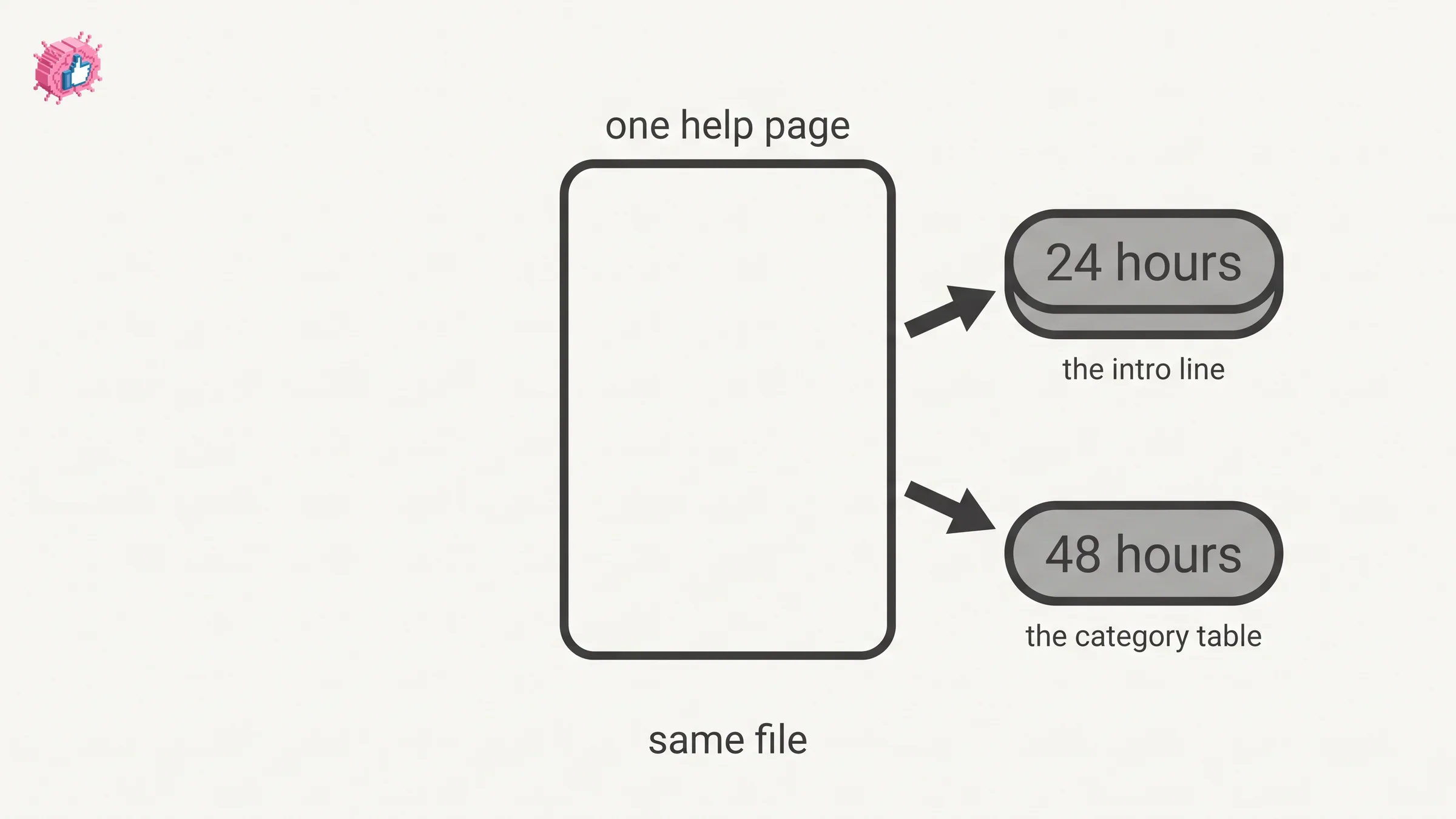
| Source on the page | Stated wait for connections data |
|---|---|
| The intro line, larger download | Within 24 hours |
| The category table Connections appears in | Within 48 hours |
| The intro line, specific data type | Within minutes, but connections is not in the 10 minute table |
So LinkedIn documents 24 hours in one place and 48 hours in another for the same file. Plan around the longer number. If you need a connections list for a deadline, request it two days early.
When the email does arrive, you are on a clock: "The data will be available for download for 72 hours." Miss that window and you request the archive again.
Why email addresses are missing from your export
Most people open the file, see a half-empty email column, and assume the export broke. It did not.
LinkedIn documents the rule more than once. On the export page: "When you're exporting your connection data, you may notice that some of the email addresses are missing. You will only see email addresses for connections who have allowed their connections to see or download their email address." In the category table: "An email address for the connection will be included only when authorized by the connection in their privacy settings."
Read that carefully, because it decides what this file is good for. The email column reflects each connection's own privacy setting, not yours. There is no setting on your side that fills it in, and no supported way to recover the missing addresses. A connection who has never touched that setting may simply not appear in the column.
This is the biggest gap between what people expect from a connections export and what LinkedIn hands over. If your plan depends on emailing your connections in bulk, the file will not carry that plan on its own.
Automate your LinkedIn for 30 days
What the export leaves out
Beyond the empty email cells, two documented limits catch people.
- Non-connections are out of scope. "You currently can't export a list of your contacts that aren't 1st-degree connections." Followers and people you follow are not included.
- Some character sets do not survive the file format. LinkedIn states: "The CSV and vCard formats don't support all characters. As a result, languages with extended character sets (such as Chinese, Japanese, or Hebrew) aren't supported." If your network is international, expect names in those scripts to come through damaged.
LinkedIn also adds a note for one specific situation: "If you're exporting your connections because you have a duplicate account, remember to close your extra account and import your connections list to another LinkedIn account."
Connections export vs the full data archive
These are not two separate tools. They are two sizes of the same request, and the connections list only ships with the bigger one.
| Specific data type | Larger data archive | |
|---|---|---|
| What it is | One or more individual categories | The broad archive, including connections |
| Documented wait | Within minutes, per the intro line | Within 24 hours per the intro, 48 hours per the table |
| Includes connections | Not in the 10 minute category table | Yes, this is the route LinkedIn's export page gives |
| Download window | 72 hours from the email | 72 hours from the email |
The practical read: ask for the larger archive, expect to wait, and do not request it twice because the first one felt slow.
What the documentation does not cover
Being clear about the edges is more useful than filling them with guesses.
- Exact column headers. LinkedIn names the six fields in prose. It does not publish the literal header row, so any article showing you one is reading its own download rather than the documentation.
- Mobile browser. Named as mobile, never broken out.
- What share of emails are typically present. No figure is published, and anyone quoting a percentage is estimating.
- Whether removed connections disappear from a future export. Not addressed on either page. Our guide to removing a connection covers what LinkedIn does document about that action, including what it costs you.
- Which menu label is current. Both Help pages are live and they disagree.
What this means for you
Treat the export as a record of your network, not a contact database. It is reliable for names, companies, positions, profile URLs, and the date you connected, which is enough to audit who you are actually connected to, spot dormant relationships, and track how your network has grown by role or company.
It is unreliable as an email list, by design, and no workaround changes that.
If the goal behind the export was reaching more of the right people, the lever sits upstream of the spreadsheet: who you connect with, and what shows up on your profile when they check. Our profile optimization checklist and the full index of LinkedIn features both start there. If you are auditing your network because you are about to change how you show up, updating your profile without notifying your network is worth reading first, as is our guide to adding a career break if there is a gap to account for.
FAQ
How do I export LinkedIn connections to CSV?
Follow the seven desktop steps above and select the larger data archive. LinkedIn's own notes confirm the format indirectly by documenting that "The CSV and vCard formats don't support all characters."
Can I export LinkedIn connections on my phone?
No. LinkedIn states "This feature is currently not available on mobile." Use a computer.
Why does my LinkedIn export have no email addresses?
Because each connection controls that individually. You only see addresses for people who have allowed their connections to see or download their email address, and nothing on your side overrides it.
How long does the LinkedIn connections export take?
LinkedIn documents 24 hours for the larger download in one place and lists connections under a 48 hours heading in another. Plan for 48 hours.
Can I export people I follow but am not connected to?
No. LinkedIn states you cannot export contacts who are not 1st-degree connections. The difference between those two relationships is covered in follow vs connect.
How long is the download link valid?
72 hours. After that you request the archive again.
Does exporting my connections notify anyone?
No Help page documents a notification to connections when you export your data.
Can I export my LinkedIn messages or who viewed my profile?
Messages, yes: they are a separate category in the same archive request, listed under the 48 hours heading. Who viewed your profile, no: LinkedIn states it "does not provide People You May Know or Who's Viewed Your Profile data." Neither is part of the Connections file, which holds only the six fields listed above.
Does blocking someone remove them from my export?
Not documented. Blocking does remove a connection, and what blocking does and does not do is covered in our guide to blocking someone on LinkedIn.
What does the connections file say about when I connected with someone?
It carries a connection date for every 1st-degree connection, which is the field most people overlook and the one that makes the export useful for auditing how your network grew.
Automate your LinkedIn for 30 days
ViralBrain plans, writes, and schedules your LinkedIn content, using official LinkedIn APIs so your account stays safe.
- Official LinkedIn APIs, no risk of ban
- You approve every post before it goes live
- Cancel anytime
Keep reading
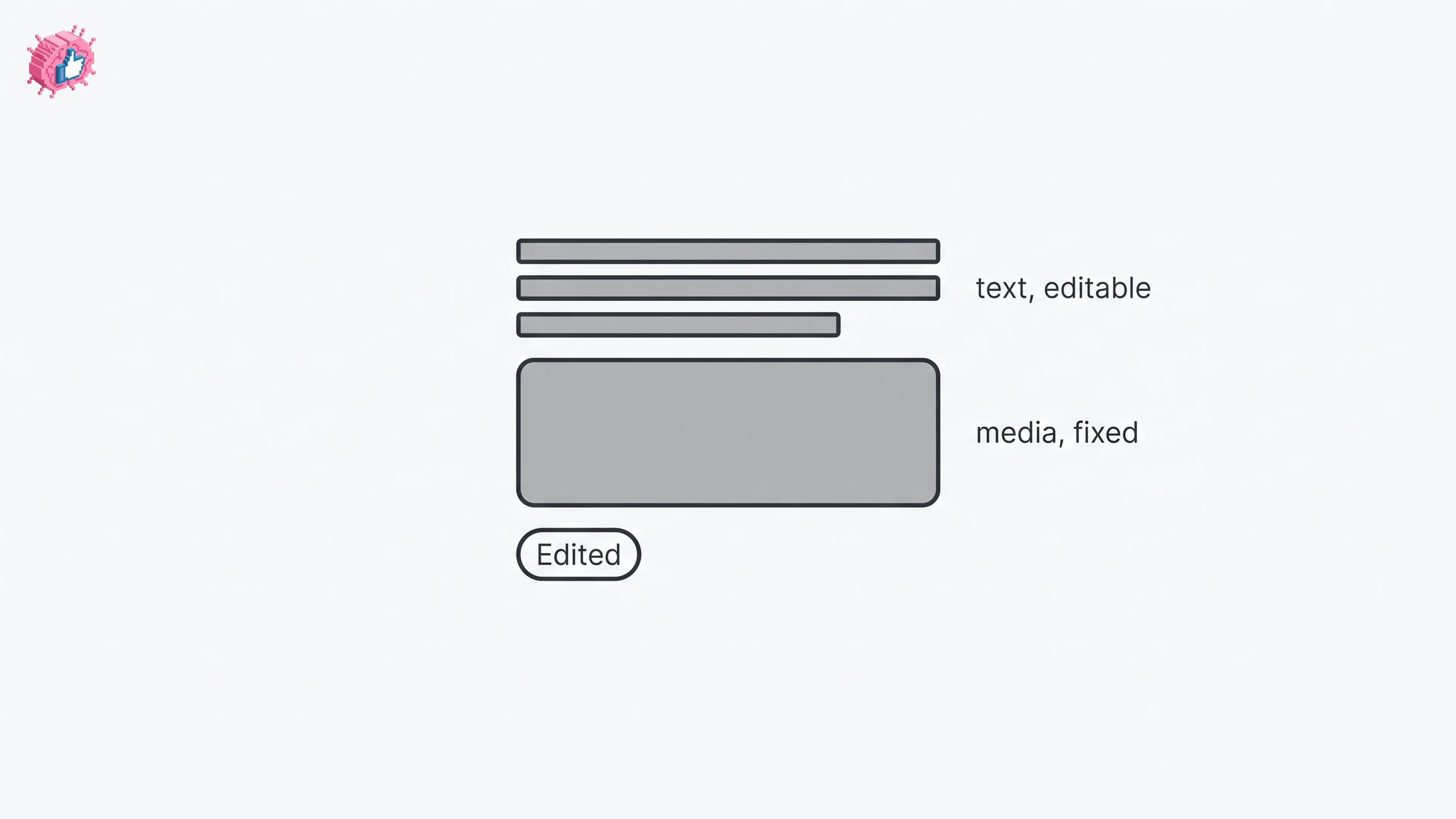
How to Edit a Post on LinkedIn: What You Can Change
Editing a LinkedIn post takes five steps, and on a post you shared only the text can change. LinkedIn's rules on media, previews, Pages and polls.
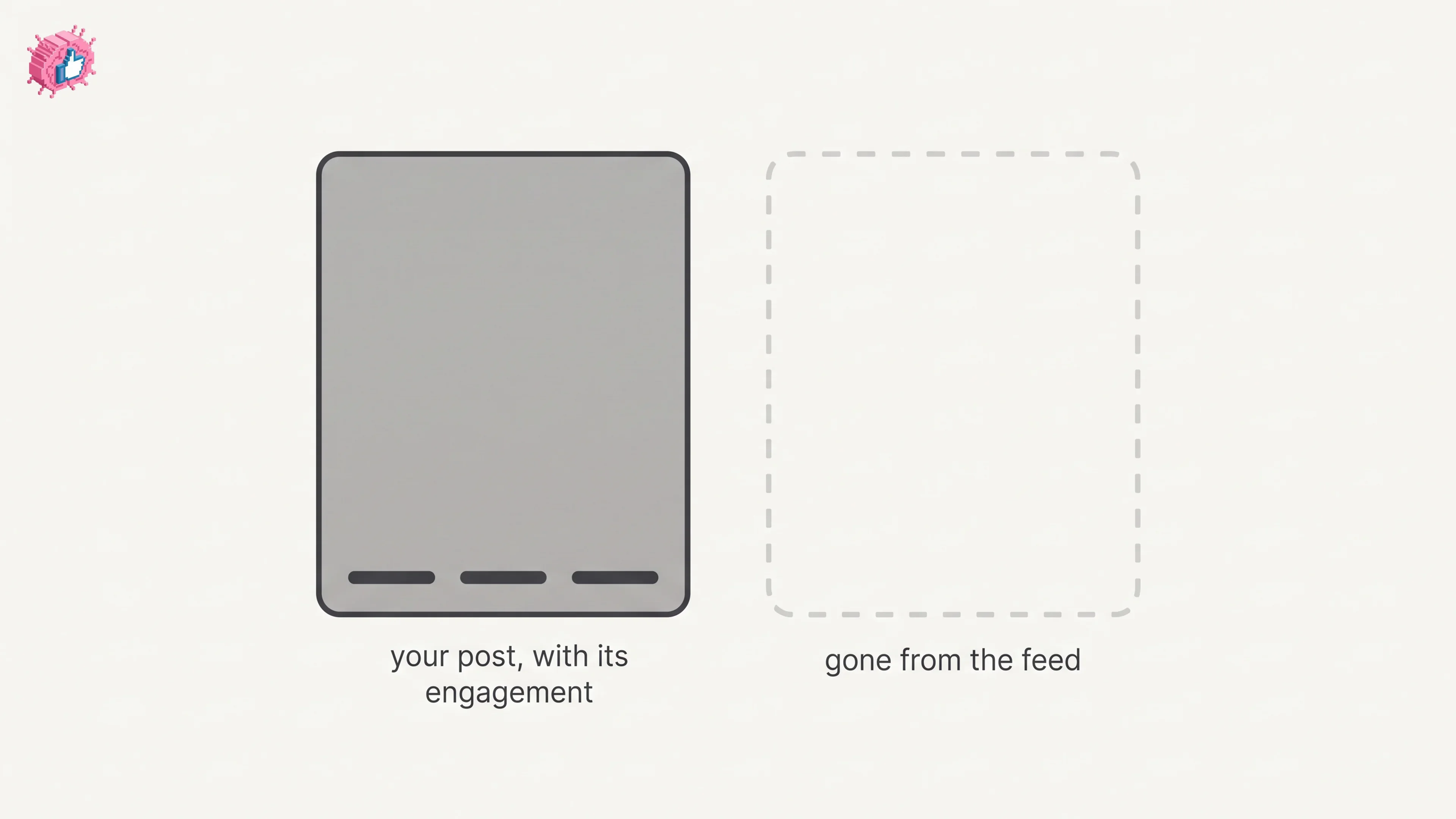
How to Delete a Post on LinkedIn (Feed, Page, Group)
The four documented steps to delete a LinkedIn post on desktop and mobile, plus Page, group, scheduled and comment deletes, and what happens to engagement
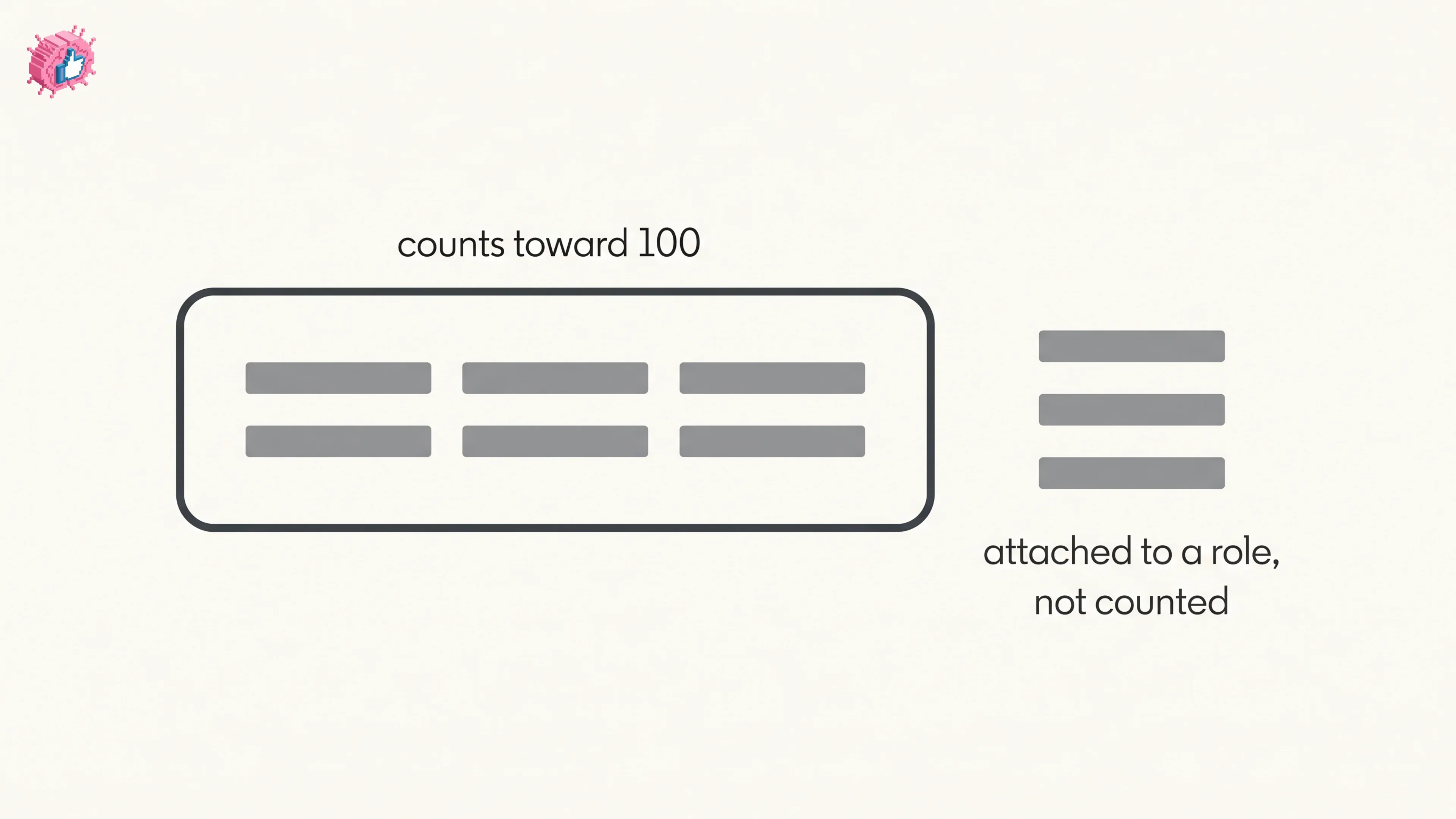
How to Add Skills on LinkedIn: Steps and Limits
How to add skills on LinkedIn on desktop and in the app, the 100 skill cap and its exemption, plus reordering, editing and removing a skill.