

LinkedIn Open to Work: Recruiters Only vs Everyone (2026)
Turn on LinkedIn Open to Work, choose recruiters only or all members, and manage the #OpenToWork photo frame. Steps and limits from LinkedIn's Help pages.
LinkedIn Open to Work has two sharing options with very different outcomes, and most people pick the wrong one by accident. Choose one option and a green #OpenToWork frame wraps your profile photo for everyone, including the people you work with today. Choose the other and nothing visible changes at all, while recruiters searching in LinkedIn Recruiter still see you.
The difference is not cosmetic. It decides whether your job search is a public announcement or a private signal, and LinkedIn is unusually direct in its own documentation about what the private option can and cannot protect.
This guide walks through both choices, the exact steps to turn the feature on and off, what the photo frame does, what recruiters see on their side of the search, and the one privacy limit LinkedIn states plainly. Every step and quote here comes from LinkedIn's own Help pages, not from third-party commentary.
Automate your LinkedIn for 30 days
What LinkedIn Open to Work actually does
Open to Work shares your job preferences with recruiters so your profile surfaces when they search for candidates. LinkedIn describes the feature as letting members "privately share their career interests with Recruiter users who aren't affiliated with their current or related companies."
When you switch it on, you fill in a short set of preferences:
- Job titles you want
- Locations, and location types such as on-site, hybrid, or remote
- Start date
- Employment types, such as full-time or contract
- Who can see the signal
That last item is the decision that matters, and it is the one this guide spends most of its time on.
Open to Work sits under the same Open to button as two other options: open to providing services, and open to hiring. They are separate signals with separate effects, so turning one on does not turn on another.
It is one of a long list of LinkedIn settings that do something different from what their label suggests. Our index of LinkedIn features covers the rest of them, read the same way this guide is, from LinkedIn's own documentation.
Recruiters only vs all LinkedIn members
The visibility choice changes who sees the signal and whether a photo frame appears. LinkedIn's own wording for the two options is short and worth reading literally.
All LinkedIn members: "This also includes recruiters and people at your current company. It also adds the #OpenToWork photo frame."
Recruiters only: "People using LinkedIn Recruiter only."
There is also a third choice, Visible only to you, which shares nothing with anyone: "Your job preferences are used for LinkedIn to tailor your job recommendation." It is not a job-search signal, which is what makes it the right setting for pausing a search.
Here is how the two compare on the things people actually care about.
| What changes | All LinkedIn members | Recruiters only |
|---|---|---|
| #OpenToWork photo frame | Added to your profile photo | Not displayed |
| Visible to your current colleagues | Yes, LinkedIn says so explicitly | Not intended, with a stated caveat |
| Visible to anyone browsing your profile | Yes | No |
| Appears in the recruiter Open to work spotlight | Yes | Yes |
| Signals to your network that you are searching | Yes | No |
The row that surprises people is the one about the spotlight. Choosing recruiters only does not hide you from recruiters searching for candidates. LinkedIn confirms that a candidate who shares only with recruiters "will still appear in an Open to work spotlight search; however, the #OPENTOWORK photo frame won't display."
So the private option costs you the public announcement, not the recruiter visibility. If your goal is to be found by recruiters without telling your employer, recruiters only is the option built for that.
When all members is the better choice
Public visibility makes sense when your search is already known, or when there is nothing to lose by announcing it. If you were laid off, are between contracts, or are a freelancer whose network is a lead source, the frame works as a broadcast to people who might refer you. Your first-degree connections see it, and referrals often come from them rather than from recruiters. If you are not sure who counts as a connection versus a follower, the difference is covered in follow vs connect.
Public visibility also pairs with the rest of your profile doing its job. A frame that points at a thin headline wastes the attention it earns, so it is worth tightening your LinkedIn headline and your About section with a LinkedIn summary generator before you switch it on.
When recruiters only is the better choice
Recruiters only is for a confidential search while you are still employed. You keep the inbound from recruiters and you skip the public signal that you are leaving.
It is the right default for anyone who has not told their manager yet. Read the privacy section below before you rely on it, because LinkedIn is candid that the protection is an effort rather than a guarantee.
How to turn on LinkedIn Open to Work
The flow is the same on both desktop and mobile, with slightly different taps to reach your profile.
On desktop:
- Click the Me icon at the top of your LinkedIn homepage
- Click View profile
- Click the Open to button
- Click Finding a new job
- Fill in the requested information in the window that appears
- Click Save
On mobile:
- Tap your profile photo
- Tap your profile photo again to open your profile
- Tap the Open to button in your introduction card
- Tap Finding a new job
- Fill in the requested information
- Tap Save
The visibility choice lives inside that same form. Set it deliberately on the way through rather than saving first and fixing it after, because saving with the wrong option selected is what puts the frame on your photo in front of your colleagues.
The #OpenToWork photo frame
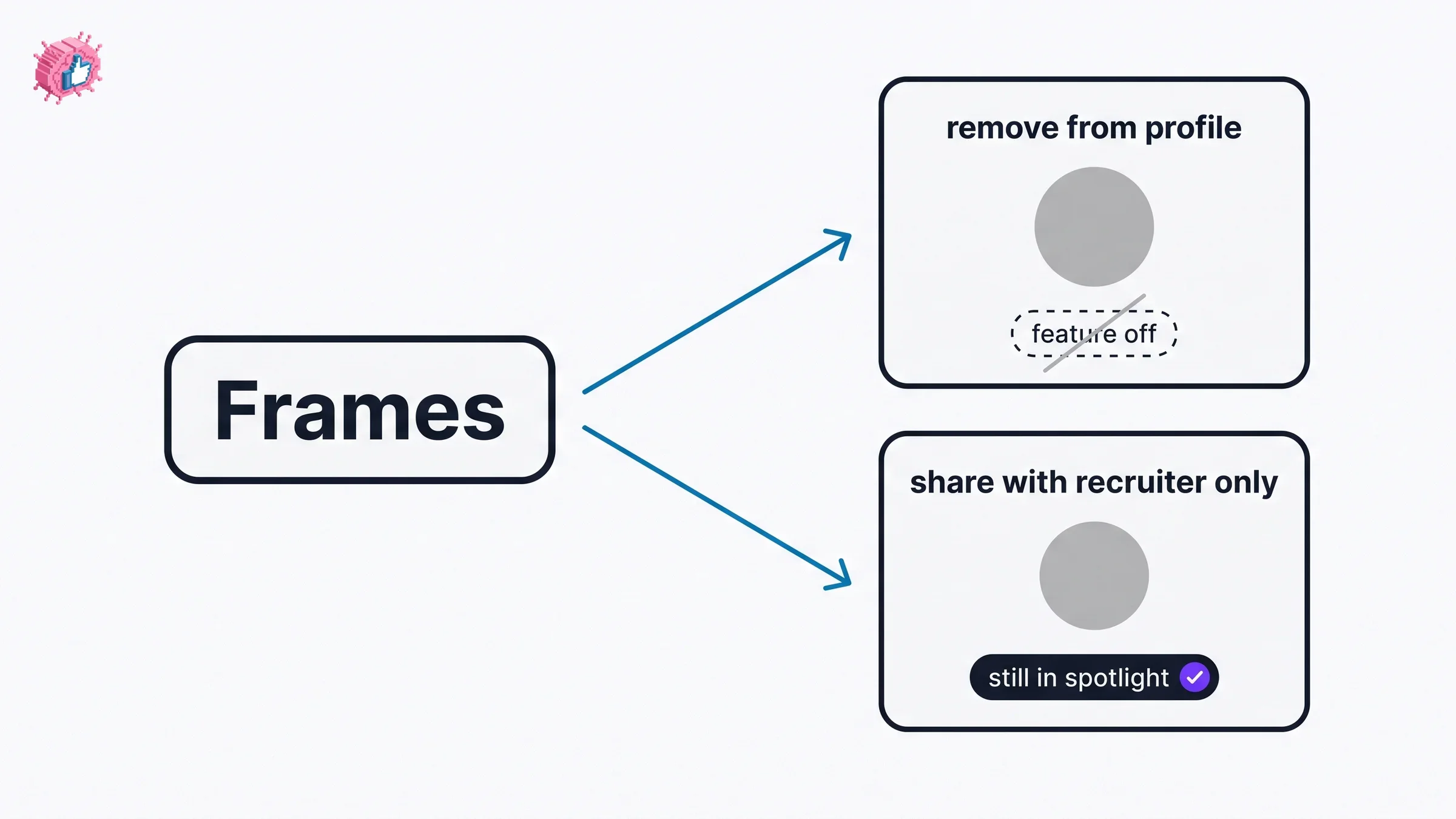
The frame is the visible half of the feature. LinkedIn adds it automatically with the public option: "If you choose to share with all LinkedIn members, we'll add an #OpenToWork photo frame to your profile photo."
You do not add it separately, and you cannot keep the frame while hiding the underlying signal. The frame is what the public setting looks like.
You can manage frames directly from your photo:
- Click the Me icon at the top of your LinkedIn homepage
- Click View profile
- Click your profile photo
- Click Frames
- Select the photo frame you want
- Click Apply
From that panel you can Remove "Open to Work" from profile to take the feature off entirely, or Share "Open to Work" with recruiter only so it is no longer visible to all LinkedIn members. That second option is the one to use when you want the frame gone but want to stay findable by recruiters, and it is faster than rebuilding your preferences from scratch.
#OpenToWork is not the only frame. LinkedIn also offers a #Hiring frame, added when you create or share a job from your profile, which also features your profile in the job post's Meet the team section and notifies your network. The two frames answer opposite questions, so pick the one that matches what you want from visitors.
If you want a visual signal that carries more information than a green ring, your banner is the larger surface. It works whether or not the frame is on.
Automate your LinkedIn for 30 days
What recruiters see on their side
Understanding the recruiter view makes the visibility choice easier, because the two settings look more similar from their seat than from yours.
Recruiters run a search, then click Open to work under Spotlights at the top of the search results page. That filters the results to candidates who have turned the feature on. On each matching candidate, LinkedIn notes that "at the bottom of the candidate's profile card on the search results page, you'll see Open to work."
Both visibility settings land you in that spotlight. The only difference a recruiter notices is the frame on your photo.
This is the practical takeaway: recruiters only is not a weaker version of the feature for job-search purposes. It removes the public signal and keeps the recruiter-facing one.
The privacy limit LinkedIn states plainly
LinkedIn does not claim the private option is airtight, and the exact wording matters if you are searching while employed:
"To protect your privacy, we take steps to prevent LinkedIn Recruiter users who work at your current company from seeing your shared career interests, but we can't guarantee complete privacy."
LinkedIn works out who to hide you from using the current company on your profile, specifically the one marked as I am currently working here. Two things follow from that.
First, if your current role is missing, outdated, or not marked as current, the filter has nothing accurate to work from. Check your profile before you rely on the setting.
Second, the filter targets Recruiter users at your company. A colleague who is not using LinkedIn Recruiter is a different situation, and so is a recruiter at an agency your employer works with. LinkedIn's phrase "related companies" acknowledges the boundary without drawing it precisely.
None of this makes recruiters only a bad option. It makes it a good option with a known edge, and knowing the edge is better than assuming there isn't one.
How to edit, pause, or turn off Open to Work
To change your preferences, click the Edit icon from the Open to Work box on your profile, change what you need, and click Save.
To turn the feature off, use Delete in that same box. One detail is easy to miss: when you delete it, your preferences are not kept for later. Turning it back on means filling the form in again, so if you are pausing a search rather than ending it, switch visibility to Visible only to you. That keeps your preferences and stops sharing the signal, where deleting discards them and recruiters only keeps you in the recruiter spotlight.
LinkedIn may also switch it off for you. If you stop responding to recruiter InMails, LinkedIn emails you to confirm you are still open to work, and removes the feature automatically if you do not reply. If your signal quietly disappeared, an unanswered confirmation email is the first thing to check.
What this means for you
- Decide visibility before you save, not after. The frame appears the moment you save with all LinkedIn members selected, and your colleagues see it in the feed.
- Use recruiters only for a confidential search. You stay in the recruiter Open to work spotlight either way, so the private option costs you the announcement, not the inbound.
- Check that your current role is marked as current. LinkedIn hides your interests from Recruiter users at that company, and an outdated profile breaks the filter it depends on.
- Switch to Visible only to you rather than deleting when you pause. Deleting discards your job preferences, and you will retype them.
- Fix the profile the frame points at. Sort out your headline, your About section, and where your resume sits on your profile before you invite extra traffic to it. If you are working through the profile end to end, getting verified is another setting on the same pass.
- Keep posting while you search. A profile with recent activity gives a recruiter something to read. The LinkedIn content strategy guide covers the cadence, and the LinkedIn post generator helps you keep it up without the blank-page problem.
If you are rebuilding your positioning during a search, not just your settings, the LinkedIn personal branding guide is the longer read. For tooling, ViralBrain has a free tier with 3 heroes and 3 posts a month, and pricing covers what a paid plan adds.
Sources: Let recruiters know you're Open to Work, View candidates who are open to work in Recruiter, Change your profile photo frames, Create and share a job post via #Hiring, LinkedIn Help (accessed September 2026)
FAQ
Can my boss see if I turn on Open to Work?
If you choose all LinkedIn members, yes. LinkedIn states that option "also includes recruiters and people at your current company." If you choose recruiters only, LinkedIn takes steps to hide your career interests from LinkedIn Recruiter users at your company, but says it "can't guarantee complete privacy."
Does Open to Work show a green frame if I select recruiters only?
No. LinkedIn confirms that a candidate sharing with recruiters only "will still appear in an Open to work spotlight search; however, the #OPENTOWORK photo frame won't display." The frame is tied to the all-members setting.
How do I remove the #OpenToWork frame but stay open to recruiters?
Open your profile, click your photo, click Frames, and choose Share "Open to Work" with recruiter only. That drops the public frame and keeps you visible to recruiters. Choosing Remove "Open to Work" from profile instead turns the whole feature off.
Do recruiters still find me if I pick recruiters only?
Yes. Both settings put you in the Open to work spotlight that recruiters filter by at the top of their search results. The frame on your photo is the only difference they see.
What information does Open to Work ask for?
Job titles, locations and location types, your start date, employment types such as full-time or contract, and your visibility setting. You can edit all of it later from the Open to Work box on your profile.
Why did my Open to Work setting turn itself off?
LinkedIn emails you to confirm you are still open to work if you stop responding to recruiter InMails, and removes the feature automatically if you do not reply. Check for that confirmation email before turning it back on.
Does deleting Open to Work save my preferences for later?
No. LinkedIn notes that your preferences are not saved for re-enabling, so you will fill the form in again. If you are pausing rather than stopping, switch visibility to Visible only to you instead of deleting.
Is Open to Work the same as the #Hiring frame?
No. #Hiring is a separate frame LinkedIn adds when you create or share a job post from your profile, and it also features your profile in the job post's Meet the team section. Open to Work signals that you are looking, not that you are recruiting.
Automate your LinkedIn for 30 days
ViralBrain plans, writes, and schedules your LinkedIn content, using official LinkedIn APIs so your account stays safe.
- Official LinkedIn APIs, no risk of ban
- You approve every post before it goes live
- Cancel anytime
Keep reading
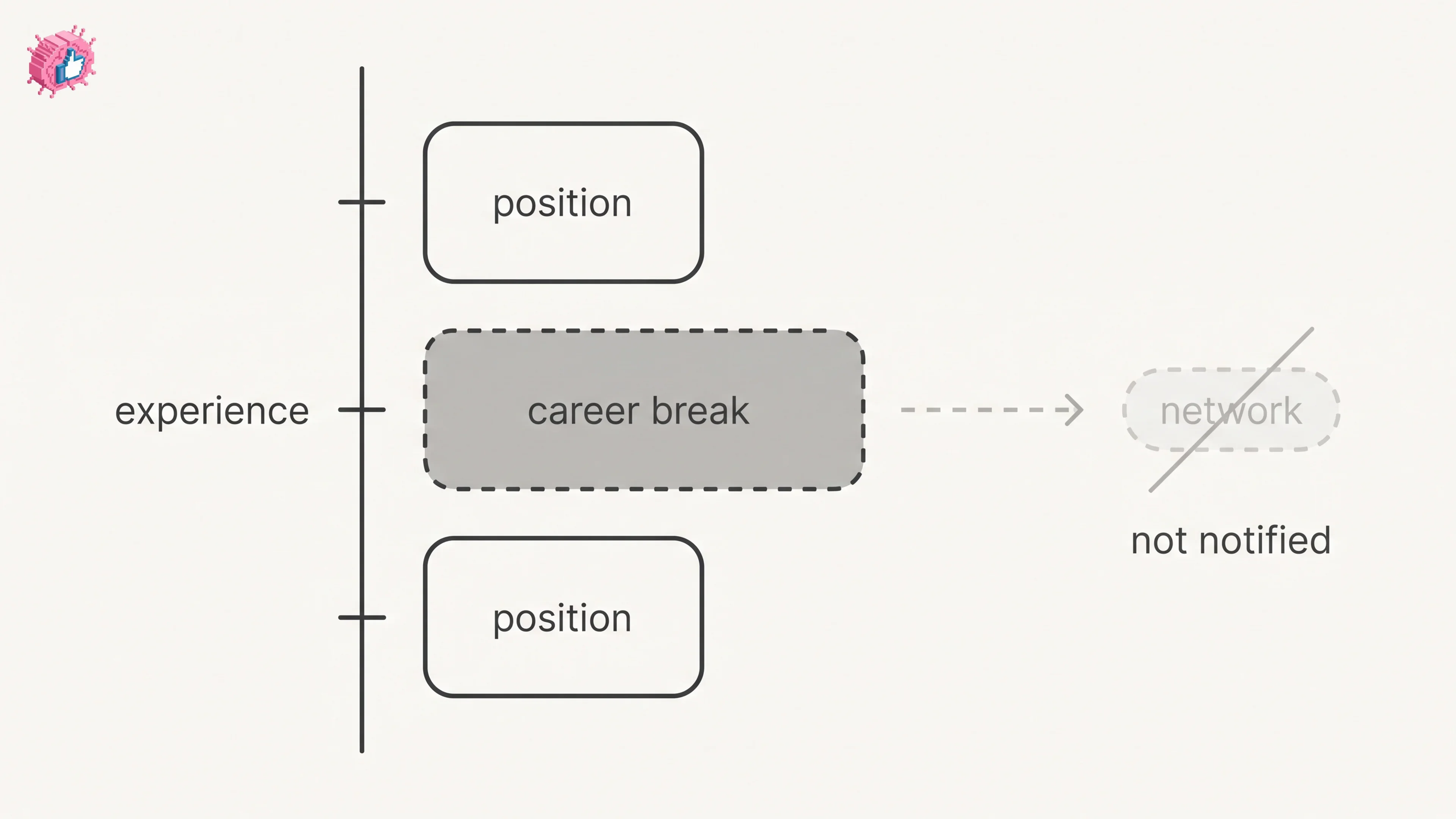
LinkedIn Career Break: How to Add One and Who Sees It
Add a career break on LinkedIn desktop or the app. Your network is not notified, the type is optional, and signed-in members see it. From LinkedIn Help.
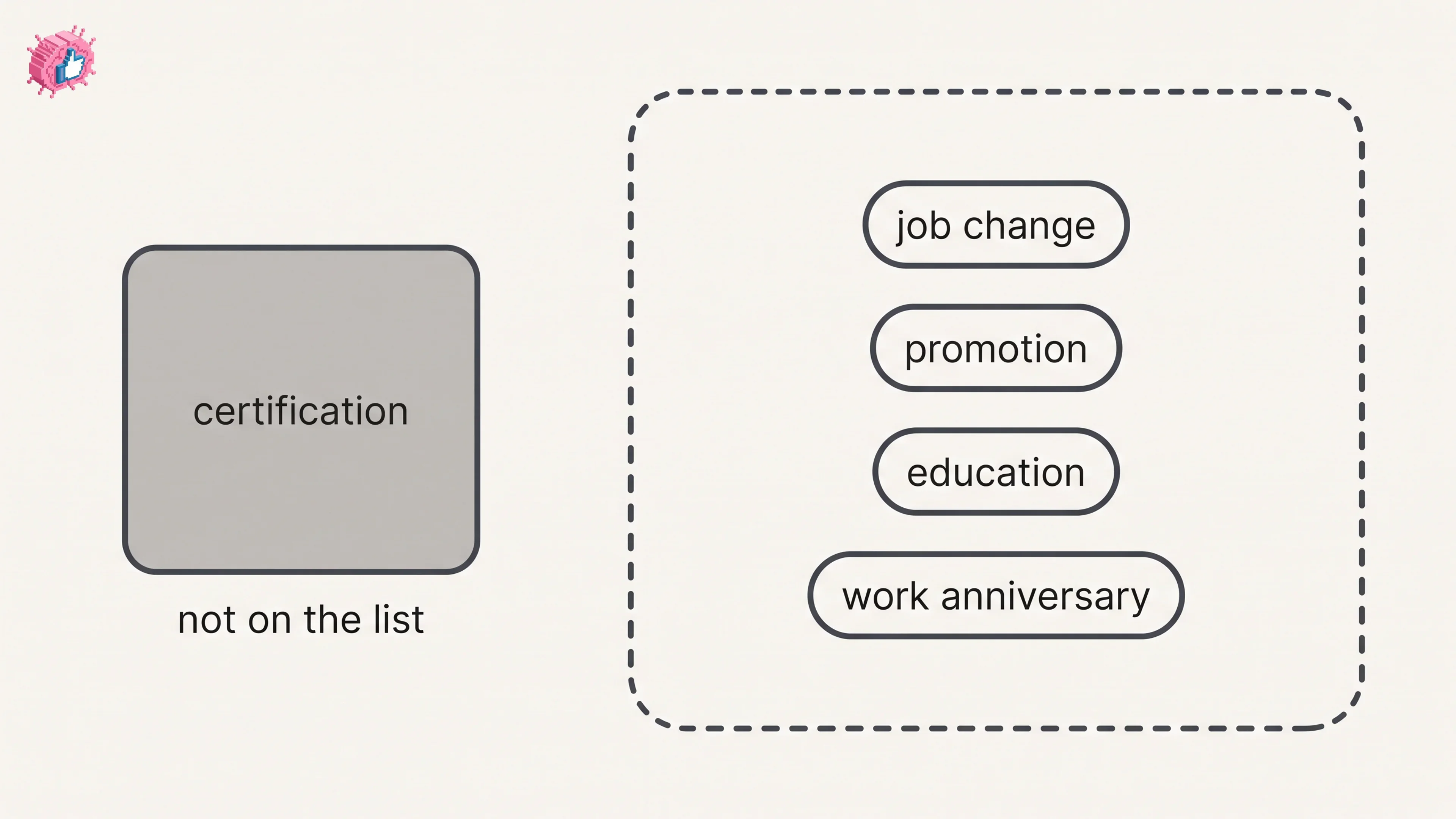
How to Add a Certification to LinkedIn Without Posting
Add a certification on LinkedIn desktop or the app, put credentials after your name, and see what LinkedIn documents about notifying your network.
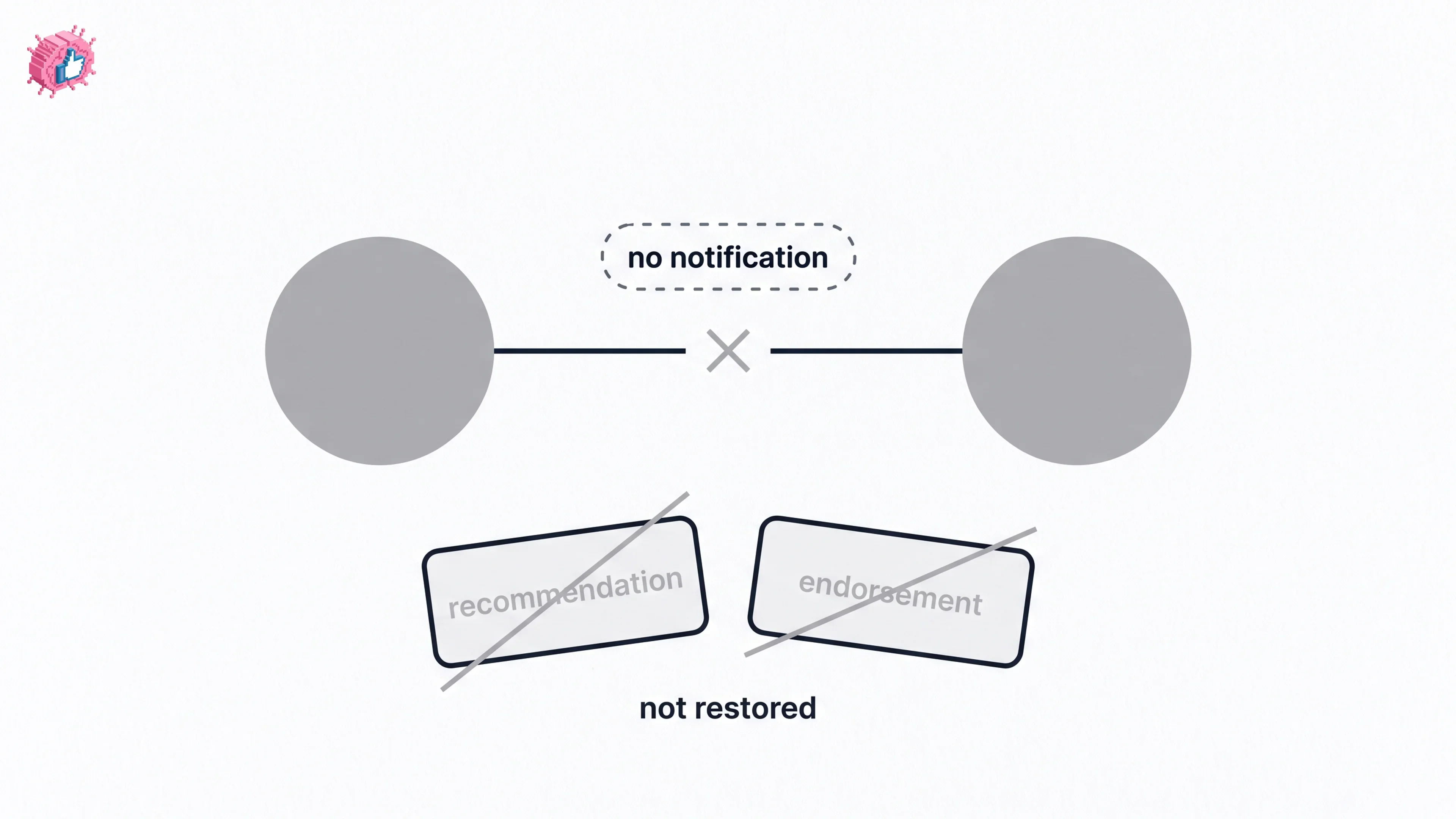
How to Remove a Connection on LinkedIn: What It Erases
Remove a LinkedIn connection on desktop or the app. They are not notified, but recommendations and endorsements go for good. Steps from LinkedIn Help.