

How to Add a Website to LinkedIn (Profile and Page)
How to add a website to your LinkedIn profile on desktop and in the app, the three link limit, the Website type dropdown, and the Page route.
You can display up to three website links on your LinkedIn profile, and they appear in the Contact info section of your introduction section. On desktop you get there through Me, View Profile, Contact info, then the Edit icon. In the app you get there through your profile photo, the Edit icon in your introduction section, then Edit contact info. Either way, the control is called Add website, and each link takes a Website URL and a Website type picked from a dropdown.
A LinkedIn Page is a separate job on a separate route, and the pages read for this guide do not apply the three link figure to it. LinkedIn documents the Page website as a Website URL field inside Edit page, reached from the Page super admin view.
The steps and rules below come from LinkedIn Help pages fetched for this guide, quoted where the exact wording decides the answer, and labeled by the platform tab LinkedIn publishes them under. Where those pages do not document something, this guide says so instead of filling it in.
Automate your LinkedIn for 30 days
What LinkedIn documents about adding a website
LinkedIn's dedicated page on this opens with the two facts that answer most of the question: "You can display up to three website links to your profile. The websites you add will be displayed in the Contact info section of your introduction section."
| Question | What the pages read for this guide document |
|---|---|
| How many websites on a profile | Up to three |
| Where they show up | The Contact info section of your introduction section |
| The control to add one | Add website |
| What you supply | A Website URL and a Website type from a dropdown |
| Platforms documented | Desktop and Mobile, as LinkedIn tabs them |
| The Website type options | Not published on the pages read for this guide |
| How to remove one | Remove under the website you want gone |
| Website on a LinkedIn Page | A separate field inside Edit page, super admin view |
Where the link sits: Contact info, not a bio field
The LinkedIn Help pages read for this guide do not use the word "bio" for any part of a member profile. The section they place a website in is Contact info, which sits inside the introduction section, the top block of the profile.
LinkedIn lists what Contact info can hold:
- Direct link to your LinkedIn profile
- Email address
- Phone number
- Website
- Instant messenger accounts
- Your birthday
That same page adds a visibility caveat worth reading before you paste anything in: "Some of your information is only visible to your connections, while the rest of it is visible to other members on LinkedIn." LinkedIn's page on what people can see on your profile puts a website on the wider side, with a hedge: "Other information that could be used to contact you, such as your webpage, blog URL or Twitter handle, may be visible to all members."
The introduction section itself holds fields such as your name, profile photo, background photo, headline, current position, education, location and contact info. A website link in that block sends a visitor off LinkedIn, which is why the destination is worth choosing rather than defaulting to a homepage.
How to add a website to your LinkedIn profile on desktop
LinkedIn publishes these under its Desktop tab.
- Click the Me icon at the top of your LinkedIn homepage.
- Click View Profile.
- Click Contact info in your introduction section.
- In the Contact Info pop-up window, click the Edit icon.
- From the Edit contact info pop-up window, click Add website and copy and paste or type your website address into the Website URL field, then choose Website type from the dropdown.
- Click Save.
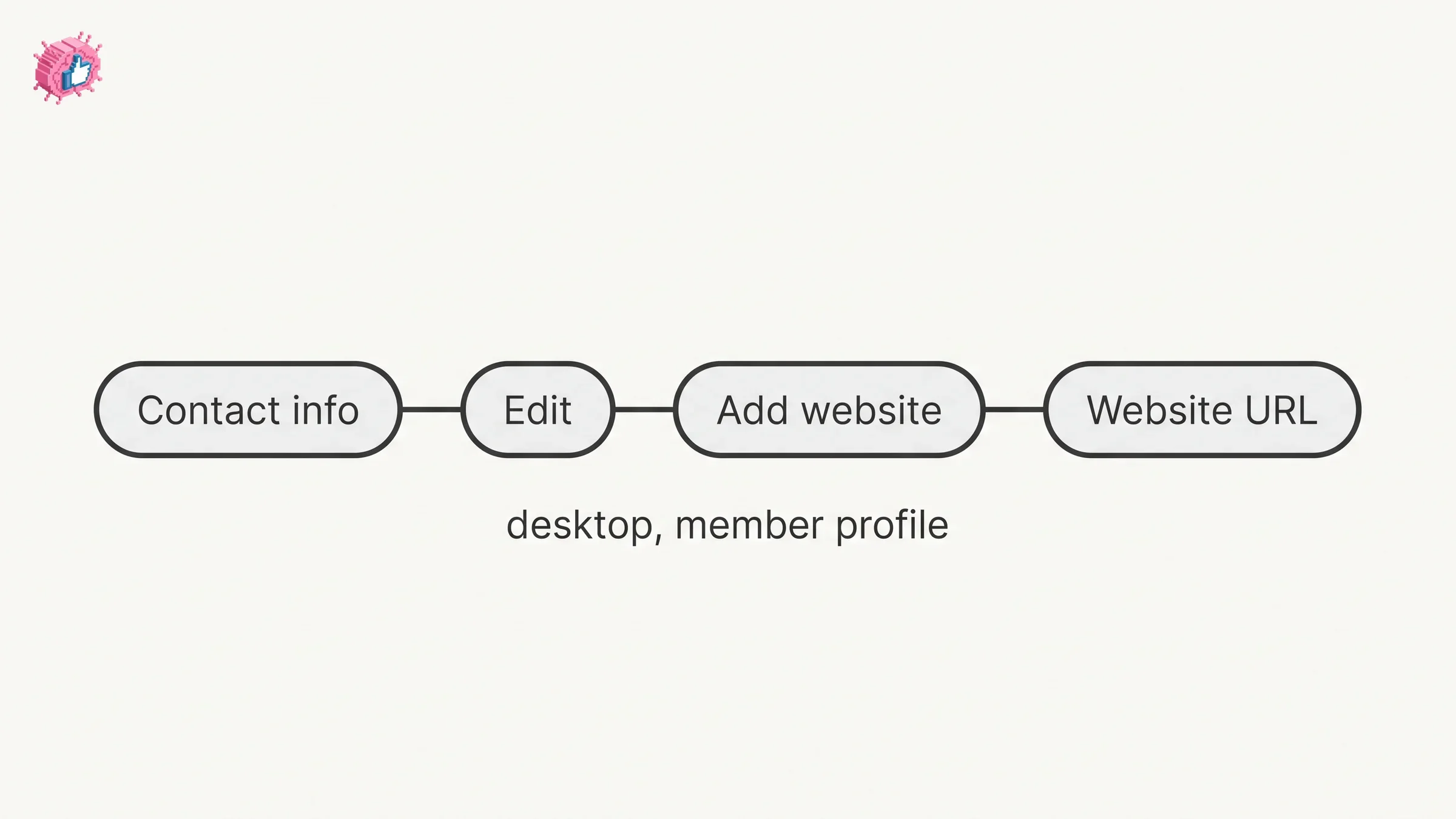
Step 4 matters because LinkedIn names two pop-ups on this route: clicking Contact info opens the Contact Info pop-up, and the Edit icon inside it opens the Edit contact info pop-up, where Add website is.
The same Edit contact info form is where your Profile URL sits, and LinkedIn flags what happens if you click it: "Clicking on your Profile URL will redirect you to the Public profile settings page." That is a different screen for a different job, covered in how to find and share your LinkedIn URL and, if you want to clean the slug up, how to shorten your LinkedIn URL.
How to add a website to your LinkedIn profile in the app
LinkedIn publishes these under its Mobile tab, as one list rather than separate iOS and Android tabs.
- Tap your profile photo.
- Tap View profile or tap your profile photo again.
- Tap the Edit icon in your introduction section.
- In the Edit intro page scroll down and tap Edit contact info under Contact info.
- Tap Add website and copy and paste or type your website address into the Website URL field, then choose Website type from the dropdown.
- Tap Save.
LinkedIn's general Contact info page has no platform tabs and gives a different route under a collapsible Mobile steps heading. It tells you to tap your profile photo, "Tap your profile photo again to access your profile", then tap the More icon next to Add section in your introduction section, select Contact info and tap the Edit icon. The two pages reach the same Edit contact info pop-up by different paths, so if the route on one page does not match your screen, the other is worth trying.
A third page, written for screen reader users, splits into Desktop, iOS and Android tabs. It confirms the same two controls on all three: an "Add website button" and a "Website type" dropdown you browse with arrow keys or swipes.
The three link limit and the Website type dropdown
Three is the documented ceiling for a profile: "You can display up to three website links to your profile." The page does not say what happens when you try to add a fourth, and the pages read for this guide do not publish a character limit for the URL field.
The Website type dropdown is documented as present and undocumented in its contents. Here is exactly how far the sourcing goes. LinkedIn's screen reader page describes selecting the type as a generic dropdown action: "To select what kind of a website it is, press the Tab key until you hear 'Website type,' and then press Enter. Use the Down and Up arrow keys to browse the options, and then press Enter to select the option you want."
Compare that to how the same page handles the phone field earlier in the same list, where it names the choices outright: "To select whether your phone number is your home, work, or mobile number". The page spells out the phone options and leaves the website options unnamed.
A Website type dropdown exists on desktop, iOS and Android, and none of the pages read for this guide lists what is in it. The live options appear on your own screen when you open the form.
| Field | Documented as present | Options published |
|---|---|---|
| Website URL | Yes, on desktop and mobile | Free text, no limit given |
| Website type | Yes, on desktop, iOS and Android | No |
| Phone type | Yes | Yes: home, work, or mobile |
Automate your LinkedIn for 30 days
How to change or remove a website link
Removal uses the same form and the same two routes. On desktop, from the Edit contact info pop-up window, click Remove under the website you want to remove, then click Save. In the app, tap Remove under the website you want to remove, then tap Save.
The website page lists two things you can do in the Edit contact info pop-up, Add website and Remove website. LinkedIn's general Contact info page says that in the same form you can "enter, edit or delete your information", without naming a control for editing a saved website link. If the form gives you no way to type over a saved URL, removing the entry and adding it again gets you to the same place inside the three link allowance.
How to add a website to a LinkedIn Page you admin
This is a different screen with a different permission requirement, and LinkedIn documents it on the Pages side.
The route LinkedIn publishes, under its Desktop tab:
- Go to your Page super admin view.
- Click Edit page in the left menu.
- Click the relevant tabs to edit the desired section of your Page.
Under its Mobile tab: go to your Page super admin view, "Tap Dashboard from the upper-left corner and select Edit page from the dropdown", then tap the relevant tabs.
LinkedIn names Website URL as one of the key sections it recommends completing when you edit your Page, alongside Industry, Company size, Overview, Description, Logo, Commitments, Location, the custom call-to-action option and work email verification. Neither Page article read for this guide names the tab inside Edit page that the Website URL field sits under.
LinkedIn attaches a claim to completing those fields, with its own hedge intact: "Pages with complete information such as logo, description, and website URL are more discoverable and potentially receive 30% more weekly views."
The documented entry point is the Page super admin view, and super admin is the role that carries editing Page information in LinkedIn's Page admin roles. The same Edit page flow covers Showcase Pages, which LinkedIn names in the same article.
| Website field | Member profile | LinkedIn Page |
|---|---|---|
| Where it goes | Contact info, introduction section | A field inside Edit page |
| Documented route | Me, View Profile, Contact info, Edit | Page super admin view, Edit page |
| Number documented | Up to three | Not given on the pages read |
| Who can do it | You | Documented from the super admin view |
Where else a link can go on LinkedIn
A Contact info link is small and sits behind a click. Two other documented placements on a member profile put a destination in front of a visitor instead.
The Featured section. LinkedIn lists what it can hold, and external links are on that list: "Links to external websites, for example your personal blog or portfolio." It also holds LinkedIn posts you created or re-shared, articles you published on LinkedIn, and uploaded media. LinkedIn puts a prerequisite on the post and article options: "You must have already authored and published a post or article on the LinkedIn platform to be able to add it to your Featured section." The Featured section guide covers setup and how it differs from Activity.
The custom button. This is the labeled call-to-action in the top card of a profile, and one of its seven fixed labels is "Visit my website". It is not available on every plan, and the LinkedIn custom button guide covers which subscriptions qualify and where the button turns up besides your profile. For an organization, LinkedIn documents a separate Page call-to-action. Its page on completing a Page states that "the custom call-to-action button is only available if you have a LinkedIn Premium Company Page subscription", and that without one "you can add a call-to-action which your members can see when they click the More button." A LinkedIn Premium Company Page subscription and the subscriptions behind the profile button are bought in different places.
| Placement | What it holds | Prerequisite documented |
|---|---|---|
| Contact info | Up to three website links | None given |
| Featured | External links, posts, articles, media | Posts and articles must already be published by you |
| Custom button | One URL, one of seven fixed labels | Named subscriptions only |
| Page call-to-action | A Page-level action | A button with LinkedIn Premium Company Page; behind More without it |
Does adding a website notify your network
LinkedIn's page on editing the introduction section, which lists Contact info among the fields on its Desktop tab, carries this note: "Your network won't be notified when you make changes to the introduction section on your profile." Neither that page nor the website page names website links specifically.
LinkedIn also publishes a toggle that governs profile change notifications more broadly. The guide to updating LinkedIn without notifying your network quotes what LinkedIn says it covers: job changes, education changes, and work anniversaries. A contact info edit is not named in that list.
If you are doing a run of profile edits in one sitting, the LinkedIn profile optimization checklist covers other profile fields, and the per-feature guides are indexed in LinkedIn features explained.
Sources: LinkedIn Help, Add or remove a website from your profile, Edit the Contact Info Section of Your Profile, Contact Info Section of Your Profile, Information Displayed on the Introduction Section on Your Profile, Edit your contact info with screen reader support, Manage featured samples of your work on your LinkedIn profile, Edit your LinkedIn Page or Showcase Page, Complete your LinkedIn Page, What People Can See on Your Profile, Edit the Introduction section on your profile, Share profile updates.
FAQ
How do I add a website to my LinkedIn profile?
On desktop, click the Me icon, click View Profile, click Contact info in your introduction section, click the Edit icon in the pop-up, click Add website, paste the address into the Website URL field, choose a Website type, then click Save.
How do I add a website to LinkedIn on the app?
Tap your profile photo, tap View profile or tap your profile photo again, tap the Edit icon in your introduction section, scroll down in the Edit intro page and tap Edit contact info under Contact info, tap Add website, enter the Website URL, choose a Website type, then tap Save.
How many websites can I add to LinkedIn?
Three on a member profile. LinkedIn states: "You can display up to three website links to your profile." The pages read for this guide do not apply that figure to a LinkedIn Page.
What are the Website type options on LinkedIn?
The dropdown exists on desktop, iOS and Android, and the pages read for this guide do not list what is in it. The screen reader page describes browsing the options with arrow keys without naming them, while naming the phone type options (home, work, or mobile) earlier in the same list. The live list appears in the form on your own account.
Where does the website appear on my LinkedIn profile?
In the Contact info section of your introduction section. LinkedIn states: "The websites you add will be displayed in the Contact info section of your introduction section."
How do I add a website to a LinkedIn company page?
From the Page super admin view, click Edit page in the left menu on desktop, or tap Dashboard in the upper-left corner and select Edit page on mobile, then open the relevant tab. LinkedIn names Website URL among the key sections to complete but does not name the tab it sits under.
How do I remove a website from my LinkedIn profile?
Open the same Edit contact info form, click or tap Remove under the website you want gone, then save. The pages read for this guide give the same two controls on desktop and in the app.
Can I put a link in my LinkedIn bio?
The LinkedIn Help pages read for this guide do not use the word "bio" for a member profile. The places they document for a link on a member profile are the Contact info section and the Featured section, and LinkedIn also offers a custom button to members on a qualifying subscription.
Does LinkedIn notify my network when I add a website?
LinkedIn's page on editing the introduction section, which lists Contact info among its fields on the Desktop tab, says: "Your network won't be notified when you make changes to the introduction section on your profile." The Share profile updates toggle is documented as covering job changes, education changes, and work anniversaries, and a contact info edit is not named in that list.
Automate your LinkedIn for 30 days
ViralBrain plans, writes, and schedules your LinkedIn content, using official LinkedIn APIs so your account stays safe.
- Official LinkedIn APIs, no risk of ban
- You approve every post before it goes live
- Cancel anytime
Keep reading
How to Change Your Email Address on LinkedIn
How to change your email on LinkedIn: add the new address, confirm it, make it primary and remove the old one, on desktop and in the app.
LinkedIn Saved Jobs: Where They Live
Save a job from the job details page and find it under Jobs, Job tracker, Saved. The 2000 cap, why archiving does not free space, and no bulk unsave.
How to See Your Followers on LinkedIn
The four steps LinkedIn publishes to open your followers list, where the follower count sits, the setting that removes followers, and Page followers.