

How to Log Out of LinkedIn on Desktop and in the App
How to log out of LinkedIn on desktop, on iOS and on Android, how to sign out of other sessions or all devices, and what Keep me logged in changes.
On desktop, click the Me icon at the top of your LinkedIn homepage and select Sign out. In the LinkedIn app, on the page LinkedIn writes for signing out, its iOS and Android tabs give the same three taps: tap your profile picture, tap the Settings & Privacy icon, then "Scroll down and tap Sign Out at the bottom of the screen."
Signing out of a device you no longer hold is a different screen. That one is Where you're signed in, under Sign in & security, and it is where LinkedIn documents ending one other session or every active session except the one you are using.
Signing out also has a documented effect on your settings. LinkedIn defines a session this way: "A session is created when you sign into your LinkedIn account. This session is stored in your settings as an active session with information including location, IP Address, and device type. If you sign out of the account, the session is no longer active and will drop off from the settings."
The steps and rules below come from LinkedIn Help pages fetched for this guide, quoted where the exact wording decides the answer, and labeled by the platform tab LinkedIn publishes them under.
Automate your LinkedIn for 30 days
What LinkedIn documents about signing out
| Question | What the pages read for this guide document |
|---|---|
| Desktop route | The Me icon, then Sign out |
| Where the desktop link sits | "under your photo in the top right of your homepage" |
| App route on the app sign-out page | Profile picture, the Settings & Privacy icon, then Sign Out |
| Platform tabs for the app steps | iOS and Android, word for word the same on one page |
| Signing out of one other device | Sign out or END next to that session, then your password |
| Signing out of the rest | "every active session (except your current one)" |
| Signing out of every device at once | Require all devices to sign in with new password, during a password change |
| Staying signed in | Keep me logged in, which LinkedIn says is desktop only |
| Devices with Keep me logged in | "up to five devices" |
| Being signed back in | Documented, and hedged with "may" on two of the three pages that describe it |
| A mobile browser tab for signing out | Not published on the pages read for this guide |
How to log out of LinkedIn on desktop
Two steps, and LinkedIn publishes them without platform tabs.
- Click the Me icon at top of your LinkedIn homepage.
- Select Sign out.
A second page describes where that link lives rather than listing steps, under its Desktop tab: "On desktop, the Settings & Privacy or the Sign out link can be found under your photo in the top right of your homepage."
Those are the two steps on that page. The pages read for this guide do not describe a confirmation step or a password prompt at this point, though LinkedIn's Keep me logged in page documents a prompt that can appear as you sign out, covered below.
How to log out of the LinkedIn app
Two LinkedIn pages cover this, and their iOS tabs do not give the same route. Both are reproduced rather than merged.
The page written for signing out of the app tabs iOS and Android, and its two tabs are word for word identical:
- Tap your profile picture.
- Tap the Settings & Privacy icon.
- Scroll down and tap Sign Out at the bottom of the screen.
The page written for locating the links gives a different iOS list, with a step the other page does not have:
- Tap your profile picture.
- Tap the Me tab on the navigation bar.
- Tap the Settings icon in the top right of the screen.
- Scroll down and tap Sign Out.
Its Android tab is three taps again: tap your profile picture, "Tap the Settings & Privacy icon in the top right of the screen", then scroll down and tap Sign Out.
| iOS, sign-out page | iOS, locate-the-links page | Android, both pages | |
|---|---|---|---|
| Step 1 | Tap your profile picture | Tap your profile picture | Tap your profile picture |
| A navigation step | None | Tap the Me tab on the navigation bar | None |
| Settings control | The Settings & Privacy icon | The Settings icon, top right | The Settings & Privacy icon |
| Last step | Scroll down, tap Sign Out | Scroll down, tap Sign Out | Scroll down, tap Sign Out |
So the two pages name the settings control differently on iOS, and one of them adds a Me tab step. Both are LinkedIn's, and this guide does not pick between them. The ending is the same either way: scroll down and tap Sign Out.
Neither page publishes a Mobile Browser tab for signing out, so no mobile browser steps are given here.
How to log out of LinkedIn on other devices
This is the answer when the phone is gone, the laptop is at the office, or a session you do not recognize is listed. LinkedIn's own sign-out page for the app points here: "If you have lost access to your device and want to make sure that you are logged out, you can do so from the list of places where you are logged in."
That list shows "all devices that are signed in to your LinkedIn account, when you last signed in, what browser was used, the IP address, and the city and state the login occurred in."
On desktop: click the Me icon, select Settings & Privacy, then "Under the Sign in & security section on the left rail, click the arrow next to Where you're signed in." To end one, click Sign out to the right of that session, enter your password and click End session. To end the others, click Sign out of all these sessions at the top of your list, enter your password and click End session.
On iOS and Android, LinkedIn's two tabs give the same route: tap your profile picture, tap Settings, then under the Sign in & security section tap Where you're signed in. To end one, tap END to the right of it, enter your password in the box and tap Done. To end the others, tap End these sessions at the top of your list, enter your password and tap Done.
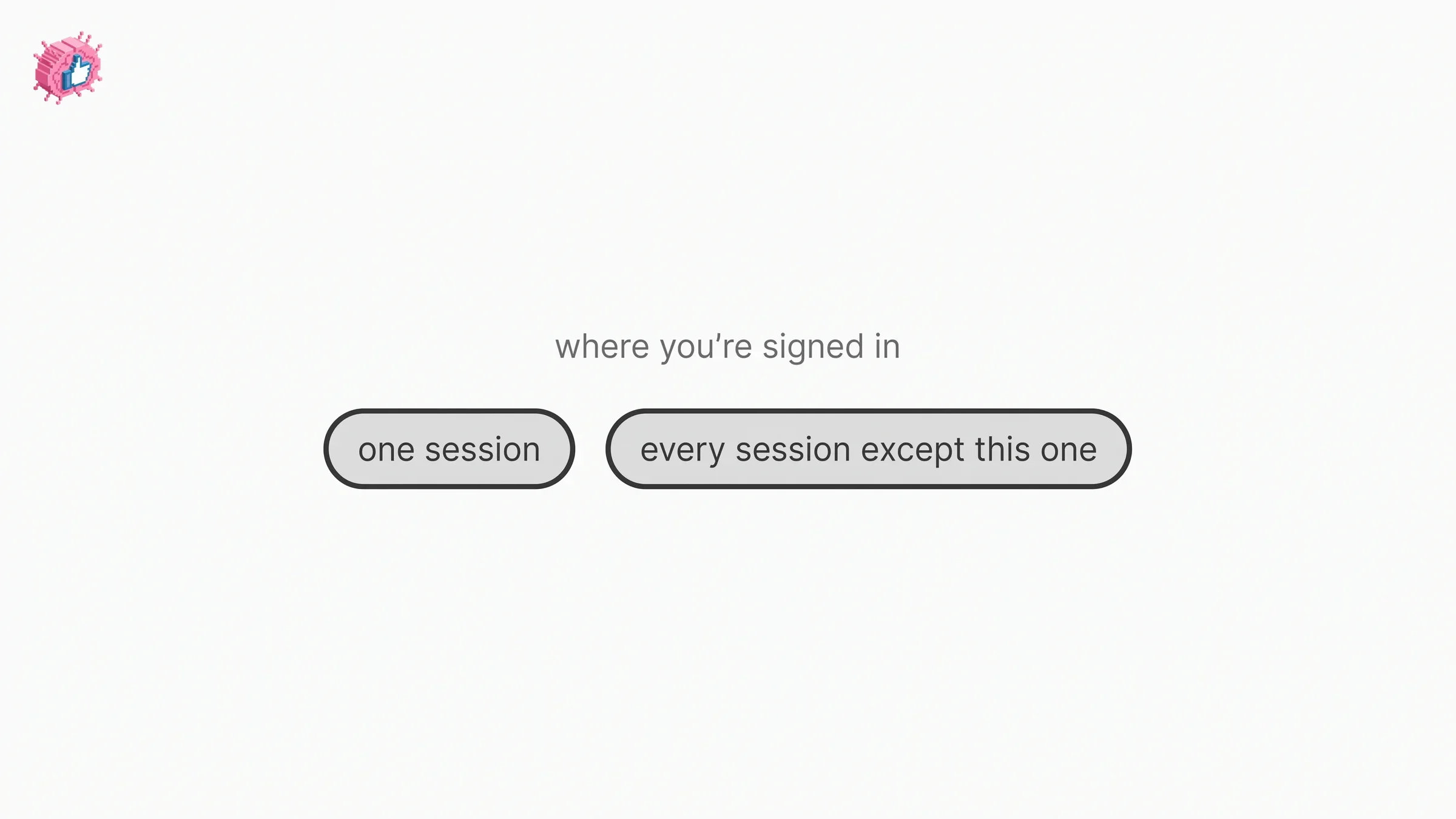
Read the bulk action carefully. It spares the session you are in, which LinkedIn writes as "every active session (except your current one)". It is not a sign-out-everywhere button, and the next section covers the control that is.
Two more lines from that page are worth carrying. LinkedIn attaches an Important note: "If you don't recognize a particular login or device, be sure to change your password." And it names another use for the bulk action: "If you're experiencing issues accessing your account or if your account isn't registering the correct time zone, try signing out of every active session to correct the issue."
Each of these asks for your password before it ends a session, so this screen is not a route around a forgotten one. How to change your LinkedIn password covers both the signed-in change and the reset flow.
How to sign out of LinkedIn on all devices
The control that includes the device you are holding sits on the password change screen. LinkedIn puts an optional control on that screen, and its name is the same on every tab: Require all devices to sign in with new password.
The control's form changes by platform. On the Desktop tab it is a checkbox: "Select the checkbox next to Require all devices to sign in with new password if you'd like to be automatically signed out of all devices where you are logged in." On the iOS, Android and Mobile Browser tabs it is a toggle you change to Yes.
LinkedIn also describes what it signs out in two different ways on the same page. Its Desktop, Android and Mobile Browser tabs say "all devices where you are logged in". Its iOS tab says "all active sessions once you change your password". Both phrasings are LinkedIn's, and neither is treated here as the more accurate one.
What the pages read for this guide do not state is what happens to your other sessions if you change the password and leave that control alone.
| Goal | What LinkedIn documents |
|---|---|
| Sign out of the device in front of you | Sign out on desktop, Sign Out in the app |
| Sign out of one other device | Sign out or END next to that session, then your password |
| Sign out of the rest, but stay signed in here | Sign out of all these sessions or End these sessions |
| Sign out of every device including this one | Require all devices to sign in with new password |
| Stop a browser from remembering you | Devices that remember your password, then Remove |
| Stop every browser from remembering you | Remove all devices |
Automate your LinkedIn for 30 days
Devices that remember your password, and how to clear them
LinkedIn documents a separate setting for staying signed in, called Keep me logged in, and describes it as "an alternative sign-in method that allows you to sign in to LinkedIn on trusted browsers without having to re-entering your username."
Three notes sit in LinkedIn's own Important list:
- "We don't store or save your password on your device."
- "You can only enable Keep me logged in on up to five devices."
- "Keep me logged in is not available if two-factor authentication is enabled on your account."
That last line connects the two settings, and LinkedIn two step verification covers the one that makes Keep me logged in unavailable.
LinkedIn states the method itself is limited to one platform: "The Keep me logged in sign-in is available only on the LinkedIn desktop experience." The page still publishes a Mobile tab, which gives a route for turning auto sign-in off from the app rather than for turning it on. Both are described below as the page presents them.
Turning it on, from the Desktop tab, is any one of three steps: select the Keep me logged in checkbox during sign-in, "Click Save when prompted to store your information after signing in", or "Click Remember and sign out when prompted to remember your information when you sign out of LinkedIn."
That third one matters for a guide about signing out. LinkedIn documents a prompt that appears at the moment you sign out and offers to remember your information. Signing out and being remembered are not opposites here.
Turning it off on the login page: go to the login address, click the icon next to your profile picture, then click Forget this account.
Turning it off in settings, Desktop tab: click your profile picture on the upper-right corner, click Settings & Privacy, "Select Sign in & security and click Devices that remember your password", then "Select Remove all devices to log out of all the devices, or click Remove next to the specific device you want to remove."
Turning it off in settings, Mobile tab: tap your profile photo, "Tap the Settings icon in the bottom left corner", tap Sign in & security, then under Account access tap Devices that remember your password, and select Remove all devices or tap Remove next to one device.
Why LinkedIn may sign you back in after you sign out
Because LinkedIn documents an automatic sign-in. Its sign-in and sign-out page and its auto sign-in page both hedge it with "may".
The sign-in and sign-out page ties it to email: "If you signed out of LinkedIn, you may be automatically signed back in when clicking a link from a LinkedIn email to help you access the LinkedIn platform directly. This will only occur if you have previously signed in to LinkedIn from the same device."
The auto sign-in page words it without the email: "If you sign out of LinkedIn, you may be automatically signed back in, allowing you to access the LinkedIn platform directly. This will only occur if you have previously signed in to LinkedIn from the same device." The same-device condition appears in both.
Since the first version is triggered by a link in a LinkedIn email, which emails LinkedIn sends you is part of the picture, and the LinkedIn notifications guide covers where those controls live.
If you sign in with Google, LinkedIn documents a second automatic route. It describes Google Auto-login as enabled automatically once you complete the Google One Tap sign-in, and says Google Automatic Sign-in "allows you to automatically sign into your Google account once you open the LinkedIn website or open the LinkedIn application on an Android or iOS mobile device." LinkedIn lists two conditions for it: being signed in to your browser or Android device with a Google account you have used for LinkedIn before, and being signed in with only one Google account.
There is an escape hatch and a limit, both quoted. The escape hatch: "If you do not want to be logged in automatically, you will be given a few seconds to select the option to cancel the automatic sign-in process." The limit: to disable One Tap and auto sign-in you go to Google rather than to LinkedIn, and LinkedIn says plainly that "LinkedIn support is not able to help you disable Google login credentials."
That page repeats the email behavior too, without the "may": "If you signed out of your LinkedIn account, you can still directly access the LinkedIn platform when visiting links from a LinkedIn email without having to log back in."
Signing out on a shared computer
LinkedIn publishes this as one of its password-safeguarding tips, in its own words: "Sign out of your account anytime you leave a shared or public computer."
It also documents one possible result of skipping that step. On the page for opening the wrong account, LinkedIn's first explanation is hedged: "It's possible that someone else used your computer to sign in to their LinkedIn account and then forgot to sign out". If someone else's picture is in the upper right corner of your homepage, its fix is two steps: "Click the Me icon at top of your LinkedIn homepage and select Sign Out from the dropdown menu", then "Click the Sign In link near the top of the page, enter your email address and password to access your account."
Worth pairing with the section above: LinkedIn describes Keep me logged in as a sign-in for "trusted browsers", and one of its prompts, Remember and sign out, appears as you sign out.
What signing out does not do
Three separations worth knowing, because each one has its own screen.
It does not close or hibernate your account. Signing out ends a session. Closing deletes the profile and hibernating hides it, and both are different flows with their own prerequisites, covered in how to delete a LinkedIn account.
It does not revoke third party access. The sessions page sends third party applications to a different section on its Desktop tab, for viewing them: "Go to the Partners & services section under Account preferences," then "Click Change next to the listed third parties to view the connected accounts." A tool's authorization to your LinkedIn data is managed separately from your sessions, and LinkedIn connected apps covers revoking that access under Permitted Services, and what disconnecting does and does not undo.
A practical note about tools rather than about LinkedIn: if a scheduler posts for you, why scheduled LinkedIn posts do not publish recommends reauthorizing that connection after any password change. The Change password screen is also where Require all devices to sign in with new password sits.
It does not change which credentials get you back in. Your account email addresses and phone numbers are what the sign-in and recovery screens use, and they are managed under Sign in & security. How to change your email address on LinkedIn and how to add a phone number to LinkedIn cover each one, including which number LinkedIn enables for password resets.
The other per-feature guides are indexed in LinkedIn features explained.
Sources: LinkedIn Help, Sign in and out of your account, Sign out of your LinkedIn mobile app, Locate "Settings & Privacy" or "Sign Out" links, See where you're signed in, Change your password, Manage Auto Sign-In and Keep me logged in on LinkedIn, Sign in to LinkedIn with Google One Tap and Google Auto-login, Wrong Account Opens When Accessing LinkedIn, Protecting Your Email Address and Password.
FAQ
How do I log out of LinkedIn?
On desktop, click the Me icon at the top of your LinkedIn homepage and select Sign out. LinkedIn's other page describes the same link as sitting "under your photo in the top right of your homepage". There is no confirmation step documented on the pages read for this guide.
How do I log out of the LinkedIn app?
On its app sign-out page, LinkedIn's iOS and Android tabs give the same three taps: tap your profile picture, tap the Settings & Privacy icon, then "Scroll down and tap Sign Out at the bottom of the screen."
How do I log out of LinkedIn on my iPhone?
Two LinkedIn pages give different iOS routes. One is the three taps above. The other adds a step: tap your profile picture, "Tap the Me tab on the navigation bar", tap the Settings icon in the top right of the screen, then scroll down and tap Sign Out. Both are LinkedIn's wording, and both end with scrolling down to tap Sign Out.
How do I log out of LinkedIn on all devices?
The bulk control on the sessions screen spares the one you are using, in LinkedIn's words "every active session (except your current one)". To include your current device, LinkedIn documents Require all devices to sign in with new password on the Change password screen, a checkbox on its Desktop tab and a toggle set to Yes on its iOS, Android and Mobile Browser tabs.
How do I sign out of LinkedIn on a device I no longer have?
Use Where you're signed in under Sign in & security. On desktop, click Sign out to the right of that session, enter your password and click End session. In the app, tap END to the right of it, enter your password and tap Done. LinkedIn's app sign-out page points here for exactly this case.
Why does LinkedIn sign me back in after I log out?
LinkedIn documents it, and two pages hedge it. One page says you "may be automatically signed back in when clicking a link from a LinkedIn email", the other says you "may be automatically signed back in" without naming email, and both add that this "will only occur if you have previously signed in to LinkedIn from the same device". If you sign in with Google, LinkedIn separately documents Google Auto-login, which it says you can cancel within a few seconds when it starts.
How do I stop LinkedIn remembering me on a browser?
On the login page, click the icon next to your profile picture and click Forget this account. In settings, go to Sign in & security, then Devices that remember your password, then "Select Remove all devices to log out of all the devices, or click Remove next to the specific device you want to remove."
How many devices can stay signed in to LinkedIn?
For Keep me logged in, LinkedIn gives a number: "You can only enable Keep me logged in on up to five devices." It also says the feature "is not available if two-factor authentication is enabled on your account", and that the sign-in method "is available only on the LinkedIn desktop experience". The pages read for this guide do not give a limit for active sessions.
Does signing out of LinkedIn delete my account?
No. Signing out ends a session, and LinkedIn says that session "will drop off from the settings". Closing an account deletes your profile and hibernating hides it, and those are separate flows with their own steps and prerequisites.
Automate your LinkedIn for 30 days
ViralBrain plans, writes, and schedules your LinkedIn content, using official LinkedIn APIs so your account stays safe.
- Official LinkedIn APIs, no risk of ban
- You approve every post before it goes live
- Cancel anytime
Keep reading
LinkedIn Two Step Verification: How to Turn It On and Off
LinkedIn documents it as two-factor authentication. How to turn it on and off on desktop and in the app, the two methods, and what to do if locked out.
How to Change Your LinkedIn Password
How to change your LinkedIn password on desktop, iOS, Android and a mobile browser, how to reset a forgotten one, and what the sign out control does.
How to Add a Phone Number to LinkedIn
How to add a phone number to your LinkedIn account and to your profile Contact info, on desktop and in the app, plus who can see it and how to remove it.