

How to See Your Followers on LinkedIn
The four steps LinkedIn publishes to open your followers list, where the follower count sits, the setting that removes followers, and Page followers.
LinkedIn's page on viewing your followers gives one route to the list of people who follow you: the My Network icon, then the Manage my network dropdown, then Following & followers, then the Followers tab. The page does not split those steps into platform tabs.
Your follower number is somewhere else again. It sits in the Analytics section of your own profile, documented on a different Help page, which does tab Desktop and Mobile. The list and the count are reached by two separate routes.
The steps and rules below come from LinkedIn Help pages, named each time, and quoted where the exact wording decides the answer. Where the pages read for this guide are silent, this guide says so instead of filling the gap in.
Automate your LinkedIn for 30 days
How to see your followers on LinkedIn
Four steps, from LinkedIn's page on viewing your followers:
- Click the My Network icon at the top of your LinkedIn homepage.
- Click the Manage my network dropdown on the left pane.
- Click on Following & followers.
- Click on the Followers tab near the top of the page to view your followers.
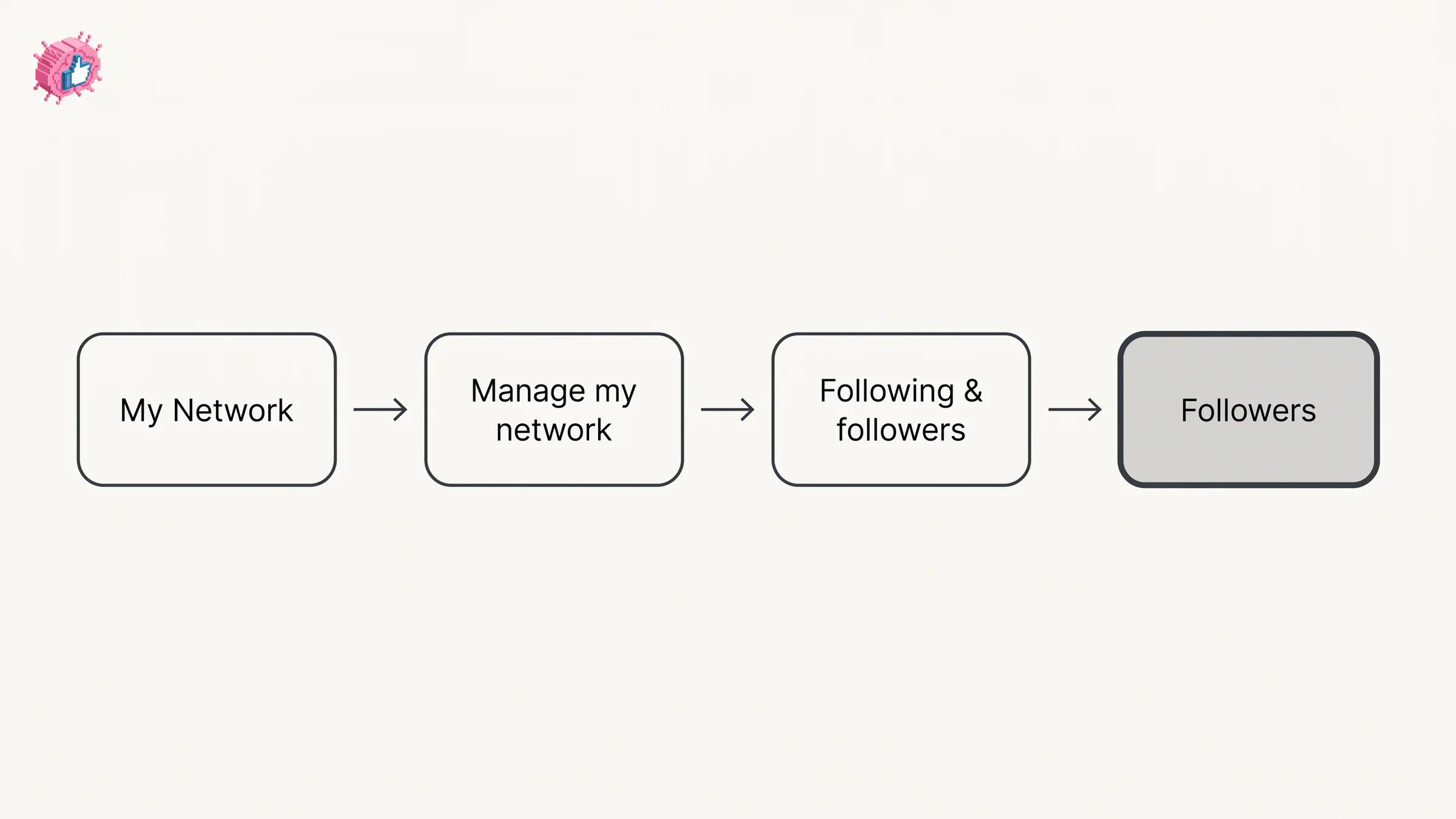
Step 4 matters because Following & followers is a single destination carrying more than one tab, so arriving at the right screen is not the same as arriving at the right list.
The page opens with who is eligible to be there: "Anyone can follow your public posts and articles. You'll receive a notification whenever someone follows you who isn't a connection."
| Question | What LinkedIn documents |
|---|---|
| Where the list lives | My Network, Manage my network, Following & followers, the Followers tab |
| Platform tabs on that page | None, it publishes one set of steps |
| Who can follow you | "Anyone can follow your public posts and articles" |
| Are you told about a new follower | Yes, for "someone follows you who isn't a connection" |
| Where your follower number sits | The Analytics section of your profile |
| Followers of a Page you admin | Worded differently on two pages, covered below |
| Who else can see your followers list | Not stated on the pages read for this guide |
One note on that page is easy to misread, so here it is verbatim: "The search results displayed when viewing connections are limited to 100 pages or 1000 results." The note sits on the followers page and uses the word connections, and the page does not say whether the same limit applies to the followers list.
Followers in the LinkedIn app
The followers list page gives one route and does not tab it by platform, so there is no separate iOS or Android list of steps to quote from it. Its steps are written with Click.
For viewing followers in the app, what the pages read for this guide publish is the follower side of your analytics. LinkedIn's creator analytics page tabs Desktop and Mobile, and its Mobile tab reads:
- Tap your profile photo.
- Tap on your profile photo again to access your profile.
- In your Analytics section, tap on Show all analytics.
- Tap the [Number] Post impressions in the Analytics section to see your combined post analytics or the [Number] Total followers to see your audience analytics.
That route gives you your follower total and your follower demographics. Neither that page nor the audience analytics page describes audience analytics as listing individual followers by name, so treat the app route as the numbers rather than the list. Both analytics pages add one app-only detail: "Custom date range selection is available only in the LinkedIn mobile app."
Where your follower count shows
In the Analytics section of your profile. The desktop steps on the same page are:
- Click the Me icon at the top of your LinkedIn homepage.
- Click View Profile.
- Scroll down to the Analytics section and click on Show all analytics.
- Click on [Number] Post impressions to see your combined post analytics or the [Number] Total followers to see your audience analytics.
LinkedIn states that "All LinkedIn members have access to creator analytics", which includes audience analytics, described as providing "insights about your follower growth trends and follower demographics".
What that number counts is spelled out: "Total followers- This represents your total follower count, including connections and non-connection followers." Your connections are inside the number, which is why it can be higher than a count of people who followed you without connecting.
The audience analytics page adds two notes worth keeping rather than rounding off: "All numbers displayed are estimates and may not be precise", and "Demographics from organizations aren't included". LinkedIn's page on inactive account filtering adds that inactive accounts "including restricted and hibernated accounts will no longer be included in the total number of followers and connections listed on a member's profile."
The date range control has a documented exception too: the range you pick "will be applied to the New followers graph and the Top demographics section, not to the Total followers count at the top". Changing the range does not change the headline number.
Who can follow you, and the setting that removes followers
This is the setting behind both halves of the question. Manage who can follow you settings tabs Desktop and Mobile, and it opens with the default: "While your 1st-degree connections automatically follow your posts and articles, anyone can follow you, even if they're not in your network."
On desktop:
- Click the Me icon at the top of your LinkedIn homepage.
- Select Settings & Privacy from the dropdown.
- Select Visibility on the left pane.
- Under the Visibility of your LinkedIn activity section, click Followers.
- In the Who can follow you section, select one of the options.
On mobile:
- Tap your profile picture, then tap Settings & Privacy.
- Tap the Visibility tab.
- Tap Followers in the Visibility of your LinkedIn activity section.
- In the Who can follow you screen, select one of the options.
The two options are Everyone on LinkedIn and Your connections, and the two tabs word the second one differently. The Desktop tab reads "Your connections - Only your 1st-degree connections can follow your updates." The Mobile tab reads "Your connections - Only your connections can follow your updates." Both tabs give Everyone on LinkedIn identically: "All LinkedIn members can follow your updates. This option also enables your posts to be shared off of LinkedIn."
Now the part that answers removing followers. LinkedIn attaches three notes to this setting:
- "If you limit followers to your connections, followers outside your network will be removed and your follower number will be the same as your total connections."
- "Once you select Your connections, there will no longer be a Follow button next to your posts or articles."
- "Changes can take up to 24 hours to take effect."
So removal is documented as a consequence of switching the setting, applied to followers outside your network as a group rather than one by one. The pages read for this guide do not document removing one individual follower while leaving the rest in place. If the target is one specific person rather than a category, per-person controls are documented on other pages, though none of them is described there as removing a follower: removing a connection ends the connection, LinkedIn's block page states that after a block "You won't be able to see each other's shared content", and mute versus unfollow covers what you can do about their posts in your own feed.
The same settings screen carries a second control. Under Make follow primary, turning the toggle on displays Follow as the primary action for members viewing your profile, and turning it off displays Connect.
Automate your LinkedIn for 30 days
Followers of a LinkedIn Page you admin
Two LinkedIn pages word this differently, so here are both.
The page on viewing your followers carries this note: "You can't view the followers of your LinkedIn Page."
The page on follower analytics for a LinkedIn Page opens from the admin side: "As a LinkedIn Page admin, you can access analytics that provide an insightful look into the followers that have taken interest in your Page." Among the analytics it lists is All followers, described as showing "your current Page followers along with their current place of employment and when they followed your Page", with People and Pages as the two selections, and followers "listed in order of recency".
One is a note on the page about your own followers; the other sits in Page admin analytics, and that page is the one that describes a list of current followers. Neither page links to or mentions the other.
Three of the qualifiers LinkedIn attaches to the admin view, in its own words:
- "All followers are approximately rounded, which means it may appear greater or less than the exact number of followers."
- "The total number of followers is updated once a day."
- "To better support admins with more reliable insights about reach and engagement, inactive accounts, including restricted and hibernated accounts, aren't included in the total number of followers."
The follower analytics page is written for Page admins, and LinkedIn's admin roles do not all carry the same permissions. LinkedIn Page admin roles covers what each role is permitted to do.
Who can see your follower list
The pages read for this guide do not say. That is a gap worth naming rather than filling, because the neighboring settings make it look answered when it is not.
What LinkedIn does publish is a setting pointing the other way. Follow visibility governs who can see the members you follow, with two choices, Only visible to me or Anyone on LinkedIn. It carries a limit: "If you follow a member, that member can always see that you follow them." It also states the scope: "This setting only applies to members you follow and not Groups or LinkedIn Pages."
The same page confirms the notification rule from the other direction: "Members are able to see if you follow them and will receive a notification whenever a non-connection follows them."
Your connections list has its own separate control, Connection visibility, which LinkedIn describes as a toggle switched On or Off, and the follow visibility page adds that "all members who have connections in common with you can see those shared connections." Hiding your connections on LinkedIn works through that setting.
| Your followers | Your connections | Members you follow | |
|---|---|---|---|
| Where the list is documented | Following & followers, the Followers tab | The connections link under your profile name on My Network | People I Follow, under Manage my network |
| Setting over who may be on it | Who can follow you, with two options | Invitations sent and accepted | Your own follows |
| Setting over who else can see it | Not stated on the pages read for this guide | Connection visibility, a toggle | Follow visibility, two options |
| Documented ceiling | "unlimited", per LinkedIn's network size limit page | "up to 30,000 1st-degree connections" | Worded two ways on two pages, quoted below |
Followers and connections are two different numbers
They overlap, which is what makes the counts hard to reconcile. Your 1st-degree connections automatically follow your posts and articles, and your Total followers figure includes them. Someone who follows you without connecting is in the follower number and nowhere in the connection number.
LinkedIn's network size limit page states that "the number of people who can follow you (and who you can follow) is unlimited." Its page on following people gives a different figure for the people you follow, on its Desktop tab: "Members can follow up to 5,000 people who aren't connections." Neither page mentions the other's figure. The relationship itself, including what each one gives you and what happens at the connection ceiling, is covered in LinkedIn follow vs connect, and the 5,000 wording is quoted in mute vs unfollow. This guide stays on finding and reading your own follower list.
LinkedIn says you'll receive a notification whenever someone who isn't a connection follows you, so follower growth also shows up in your notifications. Taking control of LinkedIn notifications covers the settings that govern that stream, including the consequence of switching a type off.
If you are opening this screen because you want the number to move, the next steps sit on the profile and invitation side rather than in the list: the profile optimization checklist works through the profile field by field, and getting connections that matter covers the invitation half. Our index of LinkedIn features works through the individual settings one at a time, from the documentation.
What this means for you
- The list and the count live in different places. The list is under Following & followers; the count is in the Analytics section of your profile.
- Followers is a tab on that screen. Following & followers has to be switched to Followers.
- Your follower total includes your connections. LinkedIn defines it that way, so it can be higher than a count of non-connection followers.
- Followers outside your network will be removed if you switch to Your connections. LinkedIn documents it as a consequence of the setting, and changes can take up to 24 hours.
- Two LinkedIn pages word Page followers differently. The note on the followers page and the admin analytics description are both quoted above.
- Who can see your follower list is not stated on the pages read for this guide, though who can see the members you follow is.
Sources: View your followers, Manage who can follow you settings, View your creator analytics, Audience analytics, Follow visibility, Follower analytics for your LinkedIn Page, Follow or unfollow people, Follow and connect on LinkedIn, Network size limit, Connection visibility, Remove a connection on LinkedIn, Block a member overview, Inactive account filtering, LinkedIn Help (accessed October 2026)
FAQ
How do I see who follows me on LinkedIn?
Click the My Network icon at the top of your homepage, click the Manage my network dropdown on the left pane, click Following & followers, then click the Followers tab near the top of the page. LinkedIn publishes those four steps as one set and does not tab them by platform.
How do I see my followers on the LinkedIn app?
The page on viewing your followers gives one route, written with Click, and does not publish separate iOS or Android steps. For follower numbers in the app, LinkedIn's creator analytics page tabs Mobile and reads: tap your profile photo, tap on your profile photo again to access your profile, tap Show all analytics in your Analytics section, then tap the [Number] Total followers to see your audience analytics.
Where is my follower count on LinkedIn?
In the Analytics section of your profile, shown as [Number] Total followers. LinkedIn defines it as "your total follower count, including connections and non-connection followers", and notes that all numbers displayed are estimates and may not be precise.
Does my follower count include my connections?
Yes. LinkedIn states that Total followers includes connections and non-connection followers, and that your 1st-degree connections automatically follow your posts and articles.
Can I see the followers of my LinkedIn Page?
LinkedIn's page on viewing your followers states "You can't view the followers of your LinkedIn Page." Its page on follower analytics for a Page, written for Page admins, describes an All followers view showing "your current Page followers along with their current place of employment and when they followed your Page". The two pages word it differently, and both are quoted above.
Can I remove a follower on LinkedIn?
The pages read for this guide document removal as a consequence of one setting rather than as a per-person action: "If you limit followers to your connections, followers outside your network will be removed and your follower number will be the same as your total connections." LinkedIn adds that changes can take up to 24 hours to take effect.
Who can see my LinkedIn followers list?
The pages read for this guide do not state it. LinkedIn does publish a setting for the reverse direction, Follow visibility, which offers Only visible to me or Anyone on LinkedIn for the members you follow, with the note that a member you follow can always see that you follow them.
Do I get notified when someone follows me on LinkedIn?
For non-connections, yes. LinkedIn states: "You'll receive a notification whenever someone follows you who isn't a connection." Its follow visibility page puts the same rule the other way around, that members "will receive a notification whenever a non-connection follows them".
How do I stop people who are not connections from following me?
Open Settings & Privacy, go to Visibility, click Followers under Visibility of your LinkedIn activity, and select Your connections under Who can follow you. LinkedIn notes that followers outside your network will be removed, that the Follow button will no longer appear next to your posts or articles, and that changes can take up to 24 hours.
Automate your LinkedIn for 30 days
ViralBrain plans, writes, and schedules your LinkedIn content, using official LinkedIn APIs so your account stays safe.
- Official LinkedIn APIs, no risk of ban
- You approve every post before it goes live
- Cancel anytime
Keep reading
How to Change Your Email Address on LinkedIn
How to change your email on LinkedIn: add the new address, confirm it, make it primary and remove the old one, on desktop and in the app.
How to Add a Website to LinkedIn (Profile and Page)
How to add a website to your LinkedIn profile on desktop and in the app, the three link limit, the Website type dropdown, and the Page route.
LinkedIn Saved Jobs: Where They Live
Save a job from the job details page and find it under Jobs, Job tracker, Saved. The 2000 cap, why archiving does not free space, and no bulk unsave.