

LinkedIn Career Break: How to Add One and Who Sees It
Add a career break on LinkedIn desktop or the app. Your network is not notified, the type is optional, and signed-in members see it. From LinkedIn Help.
A career break on LinkedIn is an entry in your Experience section, not a separate section of its own. You add it through Add profile section, under the Core group, the same group that holds your positions and your education.
The thing most people want to know before they touch it, LinkedIn answers in one sentence: "Your network won't be notified when you add a career break to your profile." That line appears twice on LinkedIn's Help page, once in the desktop instructions and once in the mobile ones. No feed post, no in-app alert, no email.
This guide covers how to add a career break on desktop and in the app, what types LinkedIn offers and what it has actually published about them, who can see the entry once it is there, how to edit or delete it, and what a useful description says. Every mechanical claim comes from a LinkedIn Help page. Where the number comes from LinkedIn's own announcement rather than its Help centre, this guide says which.
Automate your LinkedIn for 30 days
Where a career break sits on your LinkedIn profile
LinkedIn files Career break under Core, alongside About, Education, Position, Services, and Skills. In practice that means a career break is an Experience entry, and it inherits how the Experience section behaves.
| Fact | What LinkedIn documents |
|---|---|
| Where it lives | The Experience section on your profile |
| Which menu group | Core, in Add profile section |
| Is it required | No, LinkedIn states adding a career break is optional |
| Does it notify your network | No, LinkedIn states your network will not be notified |
| Who can see it | Logged-in LinkedIn members |
| Is a type required | No, you can leave the career type blank |
One consequence worth knowing before you start: "if you don't have any positions or career breaks listed on your profile, the Experience section won't appear." A career break can be the thing that brings the section into existence on an otherwise empty profile. For the wider map of which LinkedIn surface does what, our index of LinkedIn features works through the rest of them from the documentation.
How to add a career break on LinkedIn
LinkedIn publishes separate desktop and mobile instructions. Both end in the same place.
On desktop:
- Click the Me icon at the top of your LinkedIn homepage, then View profile
- Click Add profile section in your introduction section
- Click the Core dropdown, then Add career break
- In the Add career break pop-up that appears, enter your information into the fields provided
- Click Save
In the mobile app:
- Tap your profile photo, then View Profile
- Tap Add section, then under Core tap Add career break
- In the Add career break pop-up window that appears, enter your information into the fields provided
- Tap Save
Repeat either set of steps to add more than one career break. LinkedIn says so explicitly, which matters if your history has two breaks rather than one: they are separate entries, not a single range you stretch.
A note on platforms. LinkedIn's career break page publishes one Mobile tab, not an iPhone tab and an Android tab, so any guide that splits the steps by operating system here is inventing the split. On mobile browser: LinkedIn publishes no career break instructions at all. Its general page on editing profile sections lists experience among the sections editable on mobile browser, but career break is not named, and no add flow is documented for that platform. Use the app or a computer.
What career break types LinkedIn offers
LinkedIn's Help page does not publish the list.
That is the honest state of it. What LinkedIn itself has published is this. Its March 2022 announcement said it was "introducing a new way to represent a career break in the Experience section of the LinkedIn Profile, with 13 options including caregiving, and health and well-being." Its Talent Solutions blog from the same launch named a further handful: "whether it was taken for full-time parenting, bereavement, caregiving, a gap year, layoff, or other life needs or experiences."
So the types LinkedIn has named in its own words are these six:
- Caregiving
- Health and well-being
- Full-time parenting
- Bereavement
- Gap year
- Layoff
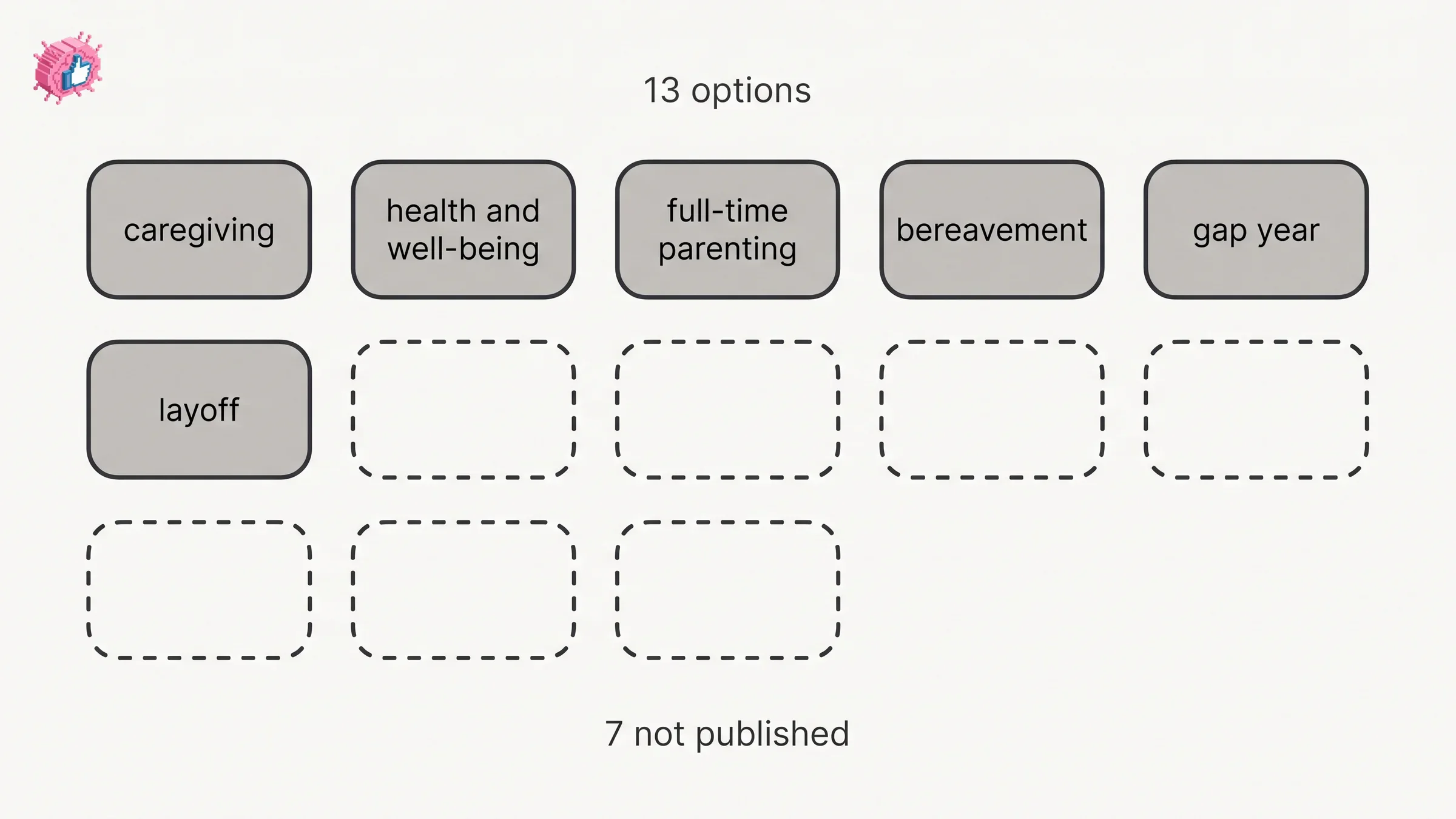
LinkedIn counts thirteen options in total. It has not published the remaining seven on a live Help page, and this guide will not pad the list out to thirteen from third-party screenshots.
The more useful fact is the one the Help page does give you: the type is optional. LinkedIn states that "you can select a specific type of career break or leave the career type blank and add details in the description section." If none of the thirteen fits, or if you would rather not label the reason at all, leaving it blank is a documented choice, not a workaround.
Does adding a career break notify your network
No. LinkedIn states it directly, in both the desktop and the mobile instructions on its career break page: "Your network won't be notified when you add a career break to your profile."
That is a stronger guarantee than most profile edits get. LinkedIn's general page on profile notifications says you can choose to notify your network about "job changes, education changes, and work anniversaries", and adds that "even if you've enabled sharing, some types of profile edits won't generate notifications to your network." The career break page removes the ambiguity for this one entry by stating the outcome outright.
Two caveats the documentation does make clear:
- Anyone who looks will see it. LinkedIn states that "anyone that views your profile will see your edits as soon as you save them, even if you haven't chosen to notify your network about any changes you make." Unannounced is not invisible.
- LinkedIn's page on the Experience section carries a different note for positions: "if you've enabled the Notify Network option, your network may be informed of the changes." That label applies to Experience edits generally, and the career break page is the more specific statement for career breaks.
If you are about to make several profile changes at once and the career break is only one of them, the toggle you want is Share profile updates. Our guide to updating LinkedIn without notifying your network covers where it lives on each platform, the competing names LinkedIn gives it, and what still reaches people with it switched off.
Who sees your career break
Logged-in LinkedIn members. The career break page states that adding one "is optional and will be visible to logged-in LinkedIn members", and LinkedIn's page on profile visibility backs it up at the profile level: "generally, your profile is fully visible to all LinkedIn members who've signed in to LinkedIn.com or our apps."
| Viewer | Can they see the career break |
|---|---|
| Your 1st-degree connections | Yes |
| Any signed-in LinkedIn member | Yes, per the visibility documentation |
| Someone logged out | Not covered by the career break page |
| Your network, as a notification | No, LinkedIn states your network is not notified |
There is no documented setting that shows a career break to some members and hides it from others. The control you have is binary: the entry is there, or you delete it. That is worth knowing before you add one you are unsure about, because the only documented way back is removal.
Automate your LinkedIn for 30 days
How to edit or delete a career break
LinkedIn publishes the edit and delete routes on the same page as the add steps, for both platforms.
On desktop:
- Click the Me icon at the top of your LinkedIn homepage, then View profile
- Scroll down to the Experience section
- To edit, click the Edit icon next to the career break you would like to edit, then click Save
- To delete, click the Edit icon next to the career break you would like to remove, then click Delete experience and confirm Delete
In the mobile app:
- Tap your profile photo, then View Profile
- Scroll to the Experience section
- To edit, tap the Edit icon, then tap the Edit icon again next to the career break you want to edit
- To delete, tap the Edit icon, then tap the Edit icon again next to the career break you want to delete, then tap Delete experience and confirm Delete
- Make changes where applicable and tap Save
Note the wording on deletion: it is Delete experience, not "delete career break". That is the clearest confirmation in the documentation that LinkedIn treats a career break as an Experience entry rather than as a separate object.
What to write in the description
LinkedIn gives you a description field and no guidance on filling it, so this part is judgment rather than documentation, and it is flagged as such.
The entry is doing one job: closing a gap that a reader would otherwise close themselves, usually less generously. A date range with a blank description invites the question. A date range with two sentences answers it and moves on.
What tends to work in that field:
- Name the break in plain language and keep the tone level, the same way you would in a conversation rather than an explanation
- Say what you did that was structured, if anything was: a course, a qualification, contract work, caring responsibilities that ran on a schedule
- Point forward rather than back, since the entry is read by people deciding what you are now, not auditing what you were
- Keep it short, because a long description reads as a case being argued
LinkedIn's own framing at launch was that context helps. Its March 2022 announcement cited its global survey finding that "51% of hirers say they are more likely to contact a candidate that provides context about their career break." That is LinkedIn's own number from its own research at launch, which is to say it is a real figure with an obvious interest behind it. Treat it as a direction rather than a measurement.
If the break is in the past and your profile has moved on from it, the description is a sentence, not a chapter. A LinkedIn About section that actually works is where the narrative belongs, and how to write a LinkedIn summary covers doing that without it reading as a defence.
Career break and Open to Work are different controls
They are easy to confuse, and they do different things.
A career break is a profile entry describing a period of time. Open to Work is a signal about your current availability, with its own visibility setting: all LinkedIn members, recruiters only, or visible only to you. One is history, the other is status. Adding a career break does not set Open to Work, and setting Open to Work does not create a career break entry.
You can run either without the other. Someone back in work who wants their 2023 gap explained needs the career break and not the signal. Someone actively looking who has no gap to explain needs the signal and not the entry. Our guide to Open to Work, recruiters only versus everyone, covers which audience setting actually hides the photo frame and which does not.
What the documentation does not cover
Four questions come up and LinkedIn's career break page does not answer them. Saying so is more useful than guessing.
The full list of thirteen types. LinkedIn's announcement counts thirteen and names two. Its Talent blog names four more. No live Help page publishes the complete list.
Whether a career break affects search or recommendations. The page is silent on whether the entry influences how you appear in search results or in recruiter tooling.
How career breaks interact with position grouping. LinkedIn documents how positions at the same organization group together in the Experience section. It makes no claim about where a career break lands in that ordering.
Whether the entry is visible to logged-out visitors. The page commits only to logged-in members. Public profile visibility is governed by separate settings that the career break page does not reference.
What this means for you
- It is an Experience entry, under Core. Add it through Add profile section, and delete it with Delete experience, which is what the button says.
- Your network is not notified. LinkedIn states it outright on both the desktop and the mobile instructions, which is more than most profile edits get.
- Unannounced is not invisible. Anyone viewing your profile sees the entry as soon as you save it.
- The type is optional. LinkedIn documents leaving the career type blank and putting the detail in the description instead.
- LinkedIn names six of its thirteen types in its own publications. Caregiving, health and well-being, full-time parenting, bereavement, gap year, and layoff. The rest are not published on a live Help page.
- Add one entry per break. LinkedIn tells you to repeat the steps rather than stretch a single entry across two periods.
A career break entry closes a question. It does not, by itself, make a profile worth landing on, which is the job of everything around it. The profile optimization checklist covers the surfaces that carry weight, how to optimize your LinkedIn profile takes the honest view of which ones actually move anything, and the LinkedIn personal branding guide covers the positioning side. For tooling, ViralBrain has a free tier with 3 heroes and 3 posts a month, and pricing covers what a paid plan adds.
Sources: Add Career Breaks to Your Profile, Add sections to your profile, Manage your profile Experience section, Share profile updates, What people can see on your profile, Position grouping in your profile's experience section, LinkedIn Help (accessed October 2026); A new way to represent career breaks on LinkedIn, LinkedIn Newsroom, March 2022; LinkedIn members can now spotlight career breaks on their profiles, LinkedIn Talent Blog
FAQ
How do I add a career break on LinkedIn?
On desktop, click the Me icon and View profile, click Add profile section, click the Core dropdown, click Add career break, fill in the fields, and click Save. In the app, tap your profile photo and View Profile, tap Add section, tap Add career break under Core, fill in the fields, and tap Save.
Does LinkedIn notify my network when I add a career break?
No. LinkedIn states on its career break Help page, in both the desktop and the mobile instructions, that your network will not be notified when you add a career break to your profile.
What career break options does LinkedIn offer?
LinkedIn announced thirteen options at launch and has named six of them in its own publications: caregiving, health and well-being, full-time parenting, bereavement, gap year, and layoff. The complete list is not published on a live Help page. The type field is optional, so you can leave it blank and use the description instead.
Is there a health and well-being career break option?
Yes. LinkedIn named it specifically in its launch announcement, alongside caregiving, as one of the thirteen options.
Who can see my career break on LinkedIn?
Logged-in LinkedIn members. LinkedIn's career break page states the entry is optional and visible to logged-in members, and its profile visibility page states that profiles are generally fully visible to signed-in members.
Where does a career break appear on my profile?
In the Experience section. LinkedIn also notes that if you have no positions and no career breaks listed, the Experience section does not appear on your profile at all.
Do I have to say why I took a career break?
No. LinkedIn documents that you can select a specific type or leave the career type blank and add details in the description section instead.
How do I delete a career break from LinkedIn?
On desktop, go to View profile, scroll to the Experience section, click the Edit icon next to the career break, click Delete experience, and confirm Delete. In the app, tap through to the Experience section, tap the Edit icon twice to reach the entry, tap Delete experience, and confirm.
Can I add more than one career break?
Yes. LinkedIn's instructions say to repeat the add steps to add more career breaks, so two separate breaks are two separate entries rather than one stretched range.
Can I add a career break from my phone's browser?
Not by any documented route. LinkedIn publishes desktop and mobile app steps for career breaks only. Its general editing page lists experience among the mobile-browser-editable sections but does not name career break, and no add flow is documented there.
Is a career break the same as Open to Work?
No. A career break is a profile entry describing a past or current period away from regular employment. Open to Work is an availability signal with its own visibility setting: all LinkedIn members, recruiters only, or visible only to you. Neither one turns on the other.
Automate your LinkedIn for 30 days
ViralBrain plans, writes, and schedules your LinkedIn content, using official LinkedIn APIs so your account stays safe.
- Official LinkedIn APIs, no risk of ban
- You approve every post before it goes live
- Cancel anytime
Keep reading
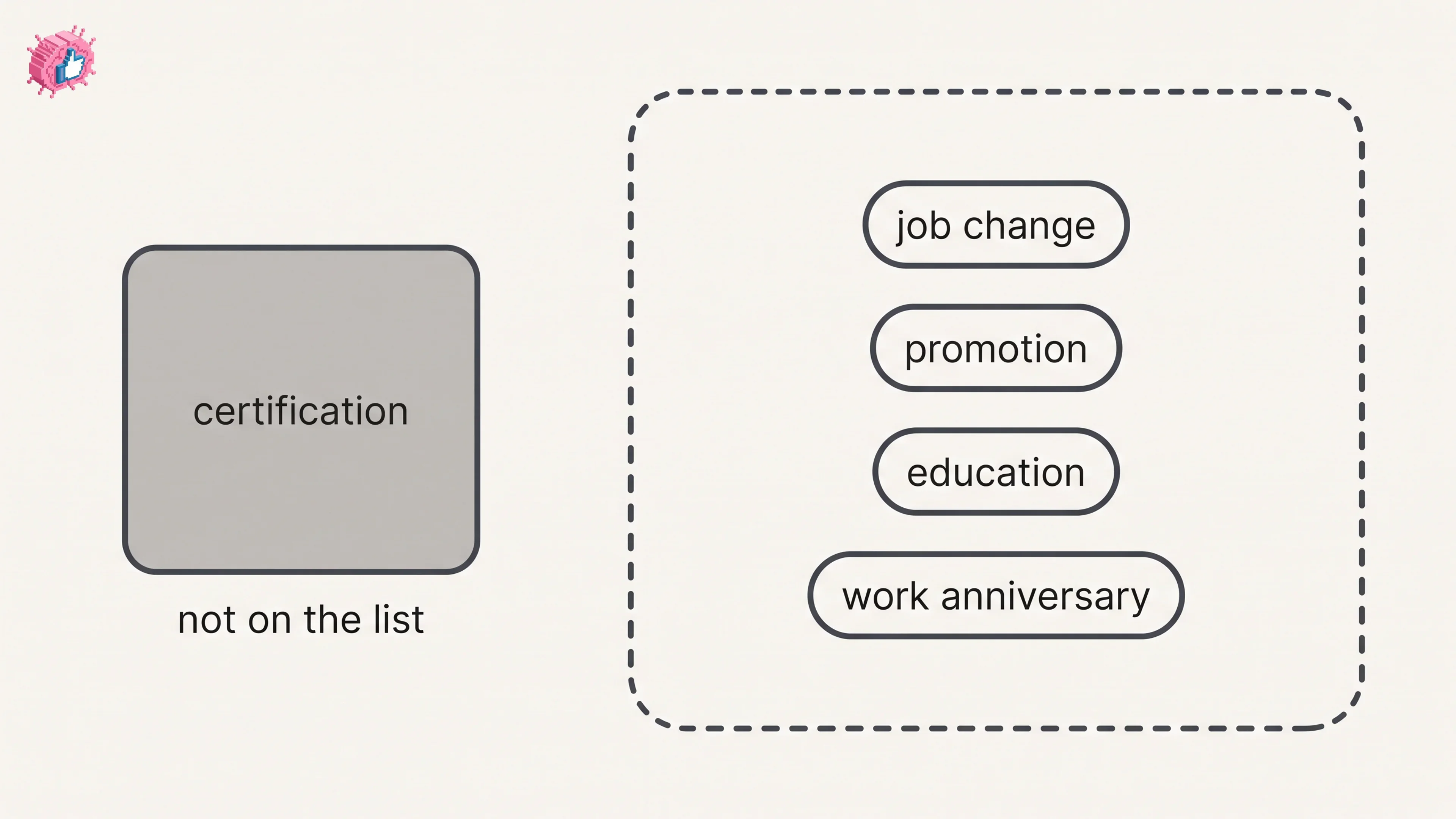
How to Add a Certification to LinkedIn Without Posting
Add a certification on LinkedIn desktop or the app, put credentials after your name, and see what LinkedIn documents about notifying your network.
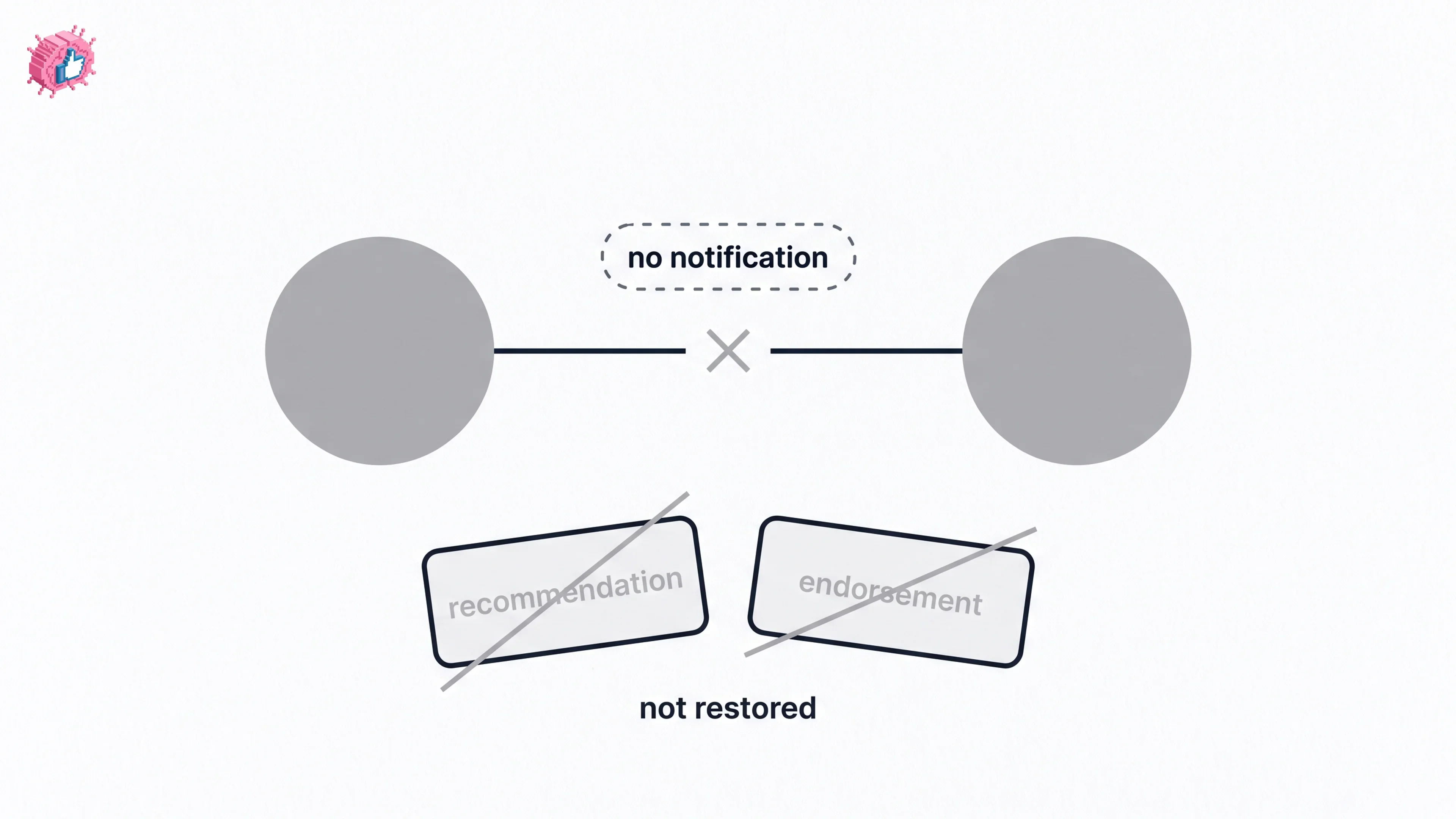
How to Remove a Connection on LinkedIn: What It Erases
Remove a LinkedIn connection on desktop or the app. They are not notified, but recommendations and endorsements go for good. Steps from LinkedIn Help.
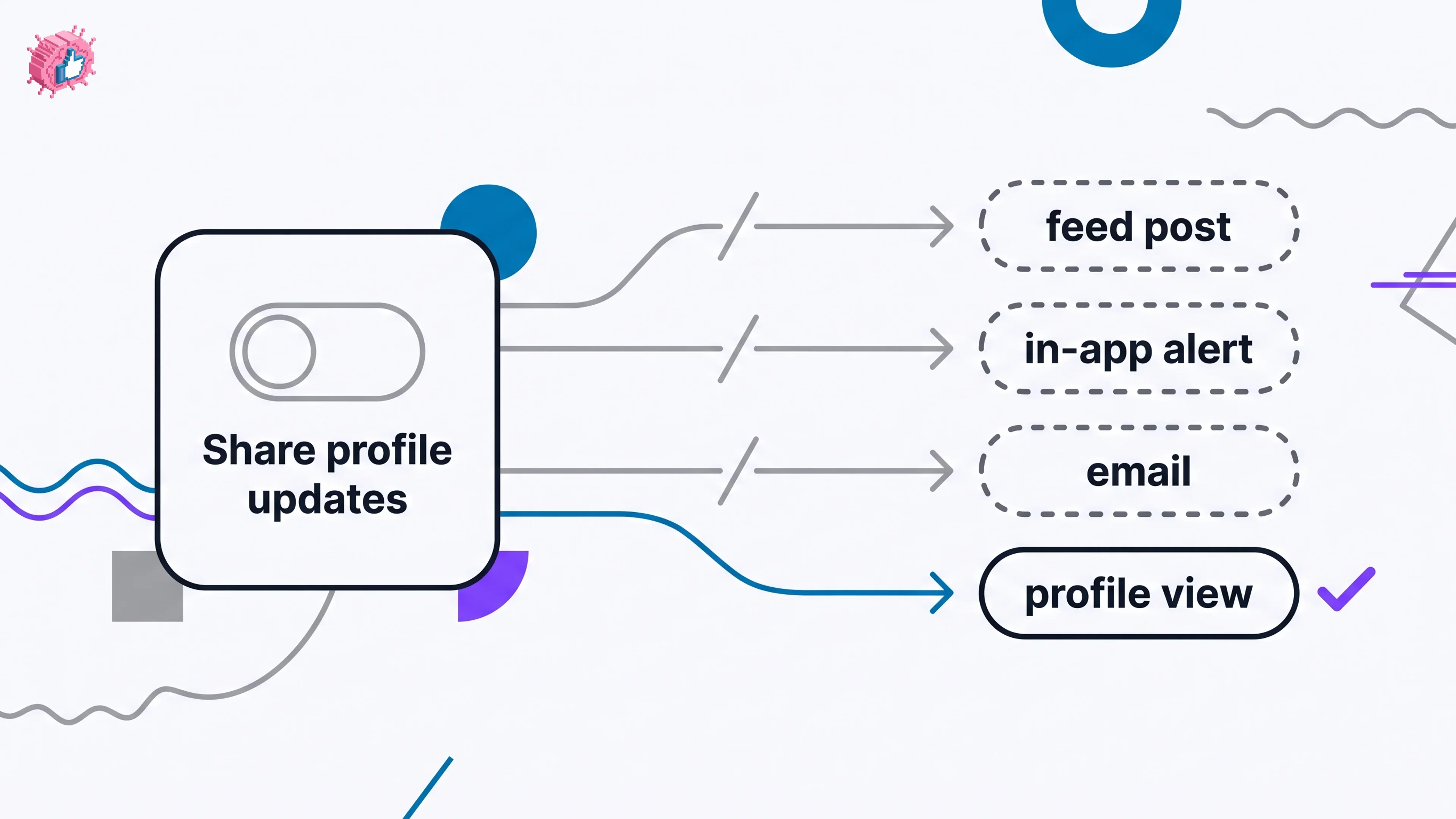
How to Update LinkedIn Without Notifying Your Network
Turn off Share profile updates to edit LinkedIn silently on desktop, app, or mobile browser, and see what still reaches your network. From LinkedIn Help.