

How to Add a Certification to LinkedIn Without Posting
Add a certification on LinkedIn desktop or the app, put credentials after your name, and see what LinkedIn documents about notifying your network.
A certification goes into a dedicated part of your LinkedIn profile called Licenses & certifications. You reach it through the Add profile section button in your introduction section, and LinkedIn files it under the Recommended group rather than the Core group that holds your positions and education.
The notification question is where this gets interesting. LinkedIn's documentation on profile update notifications names job changes but never names certifications. If your worry is that adding a certificate will blast an announcement to everyone you know, the honest answer is further down, and it is not a flat "yes".
This guide covers adding a certification on desktop and in the app, what LinkedIn documents about whether your network gets told, how to put credentials after your name instead, how to post a certificate as an update, and how to edit or remove one later. Every step comes from a LinkedIn Help page, and where LinkedIn has stopped publishing a page, this guide says so instead of filling the gap.
Automate your LinkedIn for 30 days
Where certifications live on your LinkedIn profile
LinkedIn groups the sections you can add to your profile into three buckets, and Licenses & certifications is in the middle one.
| Group | What it holds |
|---|---|
| Core | About, Education, Position, Services, Career break, Skills |
| Recommended | Featured, Licenses & certifications, Projects, Courses, Recommendations |
| Additional | Volunteer experience, Publications, Patents, Honors & awards, Test scores, Languages, Organizations, Causes |
Two things follow from that table. The section does not exist on your profile until you add something to it, and a certification is not an Experience entry, so it is not one of the job changes LinkedIn names in its notification documentation. If you want the full map of which LinkedIn surface does what, our index of LinkedIn features works through the rest of them from the documentation.
How to add a certification on LinkedIn
LinkedIn publishes one set of steps for adding any profile section, with separate desktop and mobile instructions. The route is the same whether you are adding a certification or a project. You pick Licenses & certifications at the subsection step.
On desktop:
- Click the Me icon at the top of your LinkedIn homepage
- Click View Profile
- Click Add profile section in your introduction section
- Click on the section you would like to add and select the subsection, if applicable
- Enter the required information in the pop-up window that appears
- Click Save
In the mobile app:
- Tap your profile picture
- Tap your profile photo again to access your profile
- Tap Add section in your introduction section
- Tap on the section you would like to add and select the subsection, if applicable
- Enter the required information in the page
- Tap Save
A note on platforms, because LinkedIn does not split these steps by operating system. LinkedIn's Help page publishes a single Mobile tab, not an iOS tab and an Android tab. Where this guide says "in the mobile app", that is LinkedIn's one mobile instruction set, and it applies to both.
On mobile browser: LinkedIn documents a mobile browser flow for editing profile sections, but not for adding one. Its page on editing says plainly that "not all sections are editable on mobile browser" and lists what is: "the photo, name, headline, location, summary, experience, education, skills, accomplishments, and contact sections." Licenses and certifications are not named in that list. If you are on a phone without the app, open the app or wait for a computer rather than trusting a half-documented route.
Does adding a certification notify your network
LinkedIn does not list certifications among the profile changes it sends notifications for.
The relevant Help page opens with the scope: "You can choose to notify your network about job changes, education changes, and work anniversaries." Later on the same page it repeats the list with one addition: "You can adjust notification settings for job changes, promotions, education changes, and work anniversaries." Licenses and certifications appear in neither sentence. The same page also states that "even if you've enabled sharing, some types of profile edits won't generate notifications to your network."
So the documented position is narrower than the fear. LinkedIn names four change types it notifies on, and a certification is not one of them.
| Question | What LinkedIn documents |
|---|---|
| Is a certification named as a notifiable change | No, the documented types are job changes, promotions, education changes, and work anniversaries |
| Do all profile edits notify when sharing is on | No, LinkedIn states some edits generate no notification |
| Can people see the edit anyway | Yes, anyone viewing your profile sees edits as soon as you save them |
| How long does a notified update stay up | Automated profile update posts are available for up to 90 days |
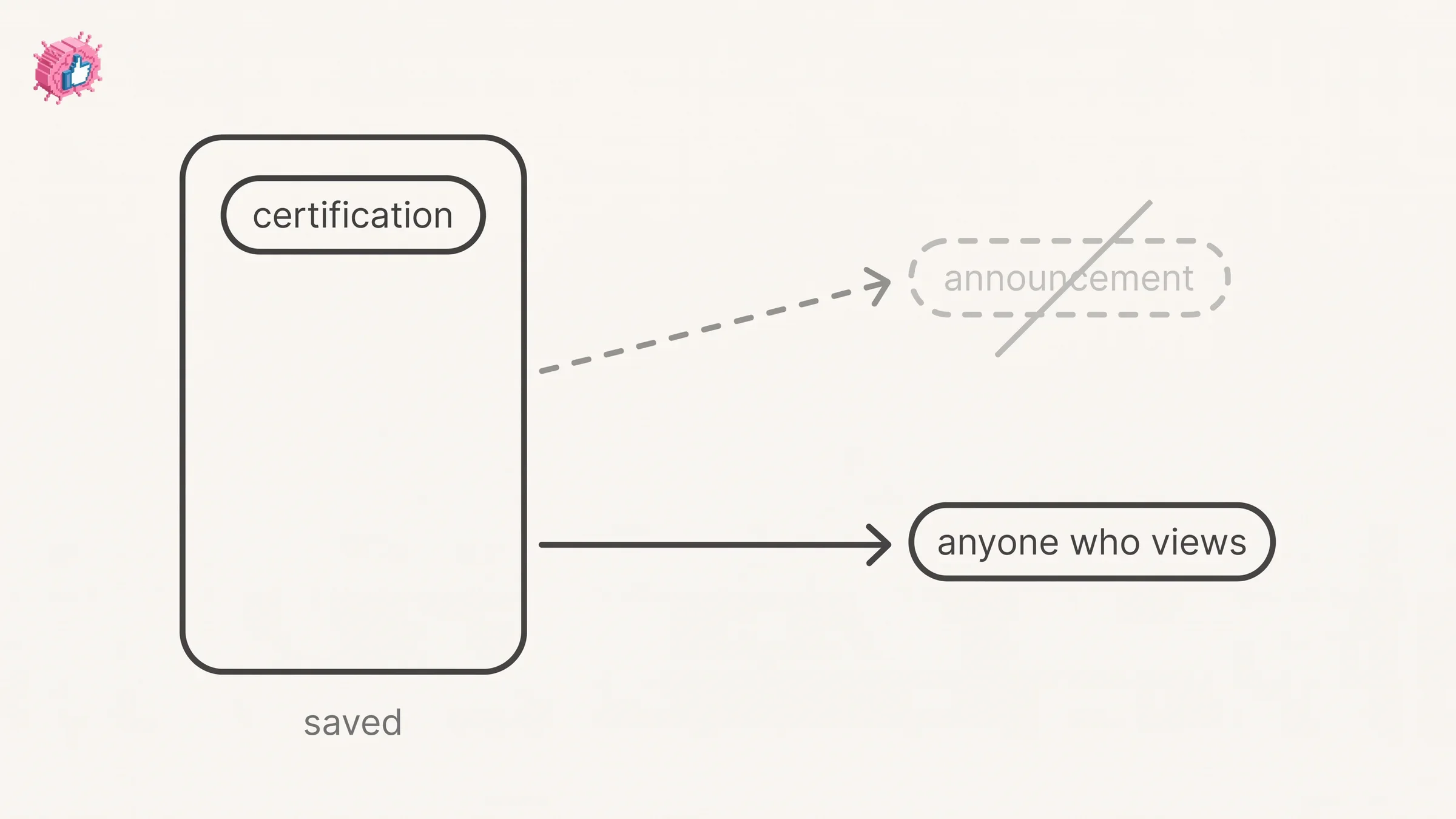
That third row is the one to hold onto. LinkedIn is explicit: "anyone that views your profile will see your edits as soon as you save them, even if you haven't chosen to notify your network about any changes you make." Quiet is not the same as hidden. The certificate is on your profile the second you hit save, whatever your notification setting says.
How to add a certificate without posting it
If you want belt and braces rather than relying on certifications falling outside the notified list, switch the sharing setting off before you edit. LinkedIn calls the control Share profile updates, and it sits in your visibility settings.
On desktop:
- Click the Me icon at the top of your LinkedIn homepage
- Select Settings & Privacy from the dropdown
- Click the Visibility tab on the left
- Under Visibility of your LinkedIn activity, click Share profile updates
- Switch the toggle to Off to stop sharing your profile edits
In the mobile app:
- Tap your profile photo, then tap Settings & Privacy
- Tap Visibility
- Under Visibility of your LinkedIn activity, tap Share profile updates
- Switch the toggle to Off to stop sharing your profile edits
On mobile browser:
- Tap the Me icon then tap Settings near the upper right
- Tap Visibility
- Under Visibility of your LinkedIn activity, tap Share profile updates
- Switch the toggle to Off to stop sharing your profile edits
Changes save automatically on all three. There is also an in-editor control: LinkedIn says "you can also adjust your notification preferences while you're making changes to your profile from a computer by using the toggle in the Share with network section." That page ties it to editing from a computer, but LinkedIn's Experience section page mentions a Notify Network option under its mobile steps too, and neither page shows where the option sits on the form, so the account-wide setting is the dependable one.
The setting carries a different name in several places across LinkedIn's own pages, which is why people toggle one thing and get surprised by another. Our guide to updating LinkedIn without notifying your network maps the competing labels and covers what still reaches people with sharing switched off.
How to add a certification to your name
There is no suffix field. LinkedIn says so directly: "Currently, LinkedIn profiles don't have a suffix field. For now, you can show your credentials by editing your profile and adding it to the Last Name field (for example, Last Name = Smith Ph.D.)."
So the credentials you see after people's names on LinkedIn are typed into the last name box. LinkedIn's own page offers two alternatives in the same breath, adding a certification or adding an education entry, which tells you how it would rather you did it.
Worth weighing before you do it. Your name field is what appears in search results, in invitations, and in every comment you leave, so a "PMP" after your surname is working for you in all of those places while a certification entry is not. The cost is that your name is no longer your name, and anyone searching for you by it is searching a string you have edited.
If your profile needs the credential to do more lifting than a name suffix can, the fix is usually upstream. A LinkedIn About section that actually works carries the qualification in context, and the profile optimization checklist covers the rest of the surfaces a certification should touch.
Automate your LinkedIn for 30 days
How to add a certificate to a post
Posting the certificate is a separate action from adding it to your profile, and neither one triggers the other.
LinkedIn documents the share box at the top of the homepage: "Click Start a post or draft with AI from the share box on top of the LinkedIn Feed on desktop or tap the Post icon on mobile." From there, "use Photo to share an image or multiple images", which is the route for a certificate image or screenshot. Clicking the More icon reveals further options, and LinkedIn names Add a document among them, which is the route for a certificate PDF.
LinkedIn also names Celebrate an occasion in that same More menu. Its dedicated Help page for that feature is no longer live, so this guide does not describe what sits inside it.
If you are posting the certificate, post it as content rather than as an announcement. A certificate image with no caption is a notification people scroll past. The same certificate with two sentences on what it changed about how you work is a post people respond to, and responses are what carry it past your own connections.
LinkedIn Learning certificates work differently
If the certificate came from LinkedIn Learning, you do not go through Add profile section at all. The flow starts in your Learning History, and it has its own sharing controls that are genuinely granular.
On desktop:
- Log in to LinkedIn Learning
- Click your profile picture in the upper right corner of your LinkedIn Learning homepage and select My Library, or select My Library on the left side of the screen
- Click Learning History under My Library
- Click More (...) to the right of the course title you want to add
- Select Add to profile from the dropdown
- From the confirmation pop-up window, check the Share with network box if you want to send an update about your course completion
- Click Add to Profile
In the LinkedIn Learning app:
- Log in to the LinkedIn Learning app
- Tap the My Courses icon at the bottom left corner of the screen
- Scroll down to the Learning History section
- Tap See all to see all the courses in your learning history
- Locate the course you wish to add to your profile, and tap Add to profile
- From the confirmation pop-up window, tap Add to profile
That Share with network box on desktop is the clean answer to "add it without posting it": leave it unchecked and the certificate lands on your profile with no update. Check it, and LinkedIn gives you an audience control too. Its page describes selecting Connections from the Share with dropdown to limit the update to your 1st-degree connections, or Individuals to name specific people.
Four more constraints sit on that page:
- You cannot add a course to your profile before completing it, and completion means every video has a green checkmark
- Courses add their associated skills too, and you can click a skill to unselect it before confirming
- If your profile already lists over 100 skills, LinkedIn will not add more
- LinkedIn provides no certificates for collections or individual videos, only for courses and learning paths
Certificates for completed courses can also be printed to PDF, which is what you want if you are attaching one to a post or an application rather than to your profile.
How to edit or remove a certification
Editing is the generic profile-section flow, and LinkedIn publishes it for three platforms.
On desktop:
- Click the Me icon at the top of your LinkedIn homepage, then click View Profile
- Click the Edit icon to the right of the section you would like to make changes to
- Make changes in the fields provided
- Click Save
In the mobile app:
- Tap your profile photo
- Tap your profile photo again to access your profile
- Tap the Edit icon to the right of the section you wish to edit
- Tap the Edit icon next to the individual detail you want to edit
- Make changes in the fields provided
- Tap Save
On mobile browser:
- Tap your profile photo
- Tap the Edit icon to the right of the section you wish to edit
- Make changes in the fields provided
- Tap Save in the upper-right corner
The mobile browser caveat from earlier applies to this flow as well. LinkedIn's list of what is editable there does not name licenses and certifications.
What the documentation does not cover
LinkedIn used to publish a dedicated Help article called "Manage Licenses & certifications". It is gone. The URL that search results still point to returns a 404, checked from two separate clients in October 2026, while every other Help page cited in this guide returned normally from the same clients in the same session. The article is also absent from the current index of profile Help articles, which still lists its siblings for education and for skills.
That leaves two questions this guide will not answer, because answering them would mean guessing.
Which fields the Licenses & certifications form actually contains. No live LinkedIn Help page documents the field list, so this guide does not reproduce one. LinkedIn's page on the Add to Profile button confirms only that certification information "doesn't autofill" and that members "must enter the relevant information directly."
Whether certifications can be reordered. LinkedIn documents reordering for current positions and for education. It publishes nothing live on ordering within Licenses & certifications.
If a guide gives you the exact field list with confidence, ask where it read that. The page it would have read is not there anymore.
What this means for you
- Certifications are not in LinkedIn's notified list. The documented change types are job changes, promotions, education changes, and work anniversaries. A certification is not named among them.
- Switch Share profile updates off if you want certainty. It is the account-wide control, documented on desktop, app, and mobile browser, and it saves automatically.
- Nothing is hidden either way. LinkedIn states that anyone viewing your profile sees your edits the moment you save them.
- Credentials after your name go in the Last Name field. LinkedIn confirms there is no suffix field and gives Smith Ph.D. as its own example.
- LinkedIn Learning certificates have their own flow and better controls. The Share with network checkbox, plus Connections or Individuals as an audience, is the cleanest silent add on the platform.
- Posting the certificate is a separate decision. Photo for an image, Add a document for a PDF, and a caption that says what changed rather than what you completed.
A certification is credibility sitting still. It earns its keep when the rest of your profile and your posting point at it, which is what the LinkedIn personal branding guide is for, and adding your resume covers the other document people try to attach to a profile. If you want the social proof side rather than the credential side, endorsements and recommendations are the two surfaces other people fill in for you. For tooling, ViralBrain has a free tier with 3 heroes and 3 posts a month, and pricing covers what a paid plan adds.
Sources: Add sections to your profile, Edit your profile, Share profile updates, Add Learning certificates of completion and skills to your LinkedIn profile, Add a suffix or certifications to your profile name, Create LinkedIn Add to Profile button for certification or degree providers FAQs, Get started with posting on LinkedIn, Reorder your current positions in the Experience section of your profile, Update the order of education on your profile, LinkedIn Help (accessed October 2026)
FAQ
How do I add a certification to my LinkedIn profile?
On desktop, click the Me icon, click View Profile, click Add profile section in your introduction section, select Licenses & certifications under the Recommended group, fill in the pop-up window, and click Save. In the app, tap your profile picture, tap your profile photo again, tap Add section, pick the same subsection, and tap Save.
Does LinkedIn tell my network when I add a certificate?
LinkedIn does not name certifications among the changes it notifies on. Its page lists job changes, promotions, education changes, and work anniversaries, and states that some profile edits generate no notification even when sharing is enabled. To be certain, switch Share profile updates off before you edit.
How do I add a certificate to LinkedIn without posting it?
Turn Share profile updates off first, in Settings & Privacy under Visibility, then add the certification. For a LinkedIn Learning certificate, leave the Share with network box unchecked in the confirmation pop-up when you click Add to profile.
Can people still see the certification if I turn notifications off?
Yes. LinkedIn states that anyone who views your profile will see your edits as soon as you save them, whether or not you chose to notify your network. The setting controls the announcement, not the visibility.
How do I put my certification after my name on LinkedIn?
Add it to the Last Name field. LinkedIn confirms profiles have no suffix field and gives "Last Name = Smith Ph.D." as its example. It also points to adding a certification entry or an education entry as alternatives.
How do I add a certificate to a LinkedIn post?
Use the share box. On desktop click Start a post, or tap the Post icon on mobile, then use Photo for a certificate image, or click the More icon and choose Add a document for a PDF.
How do I add a LinkedIn Learning certificate to my profile?
Open My Library, click Learning History, click More (...) next to the completed course, and select Add to profile. Confirm with Add to Profile in the pop-up. The course has to be fully complete, with every video showing a green checkmark.
Can I choose who sees my LinkedIn Learning course update?
Yes, if you check Share with network. LinkedIn documents selecting Connections from the Share with dropdown for your 1st-degree connections only, or Individuals to name specific people.
How do I edit or delete a certification on LinkedIn?
On desktop, open View Profile, click the Edit icon to the right of the section, make your changes, and click Save. In the app, tap through to your profile, tap the Edit icon on the section, then the Edit icon on the individual entry, and tap Save.
Can I add a certification from my phone's browser?
Not reliably. LinkedIn documents a mobile browser flow for editing sections and states that not all sections are editable there. Its list of editable sections does not name licenses and certifications. Use the app or a computer.
How many certifications should I list?
LinkedIn publishes no limit on certifications. It does cap skills at 100, which matters because LinkedIn Learning courses add their associated skills alongside the certificate, and it will not add more once you are over that line.
Automate your LinkedIn for 30 days
ViralBrain plans, writes, and schedules your LinkedIn content, using official LinkedIn APIs so your account stays safe.
- Official LinkedIn APIs, no risk of ban
- You approve every post before it goes live
- Cancel anytime
Keep reading
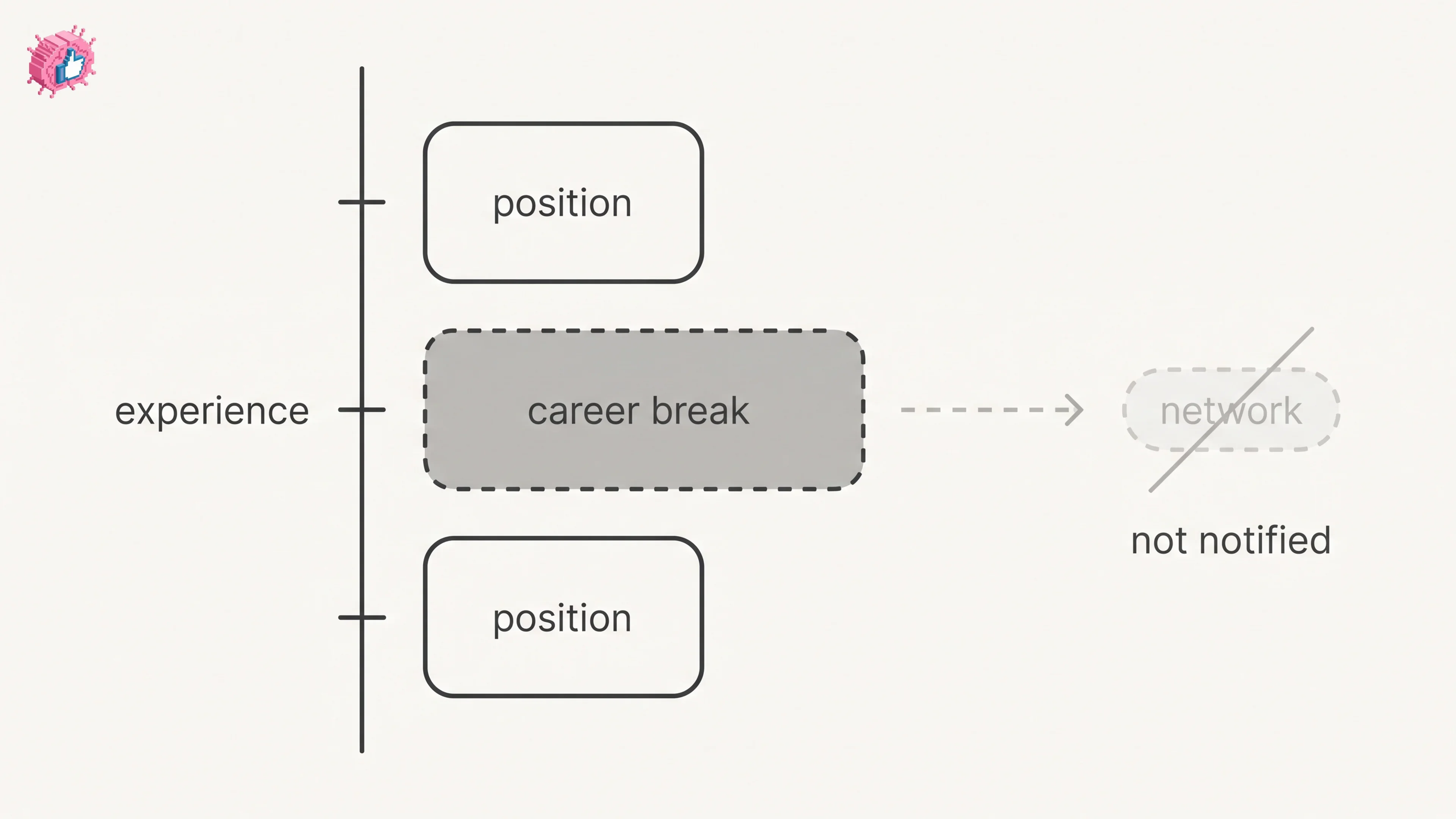
LinkedIn Career Break: How to Add One and Who Sees It
Add a career break on LinkedIn desktop or the app. Your network is not notified, the type is optional, and signed-in members see it. From LinkedIn Help.
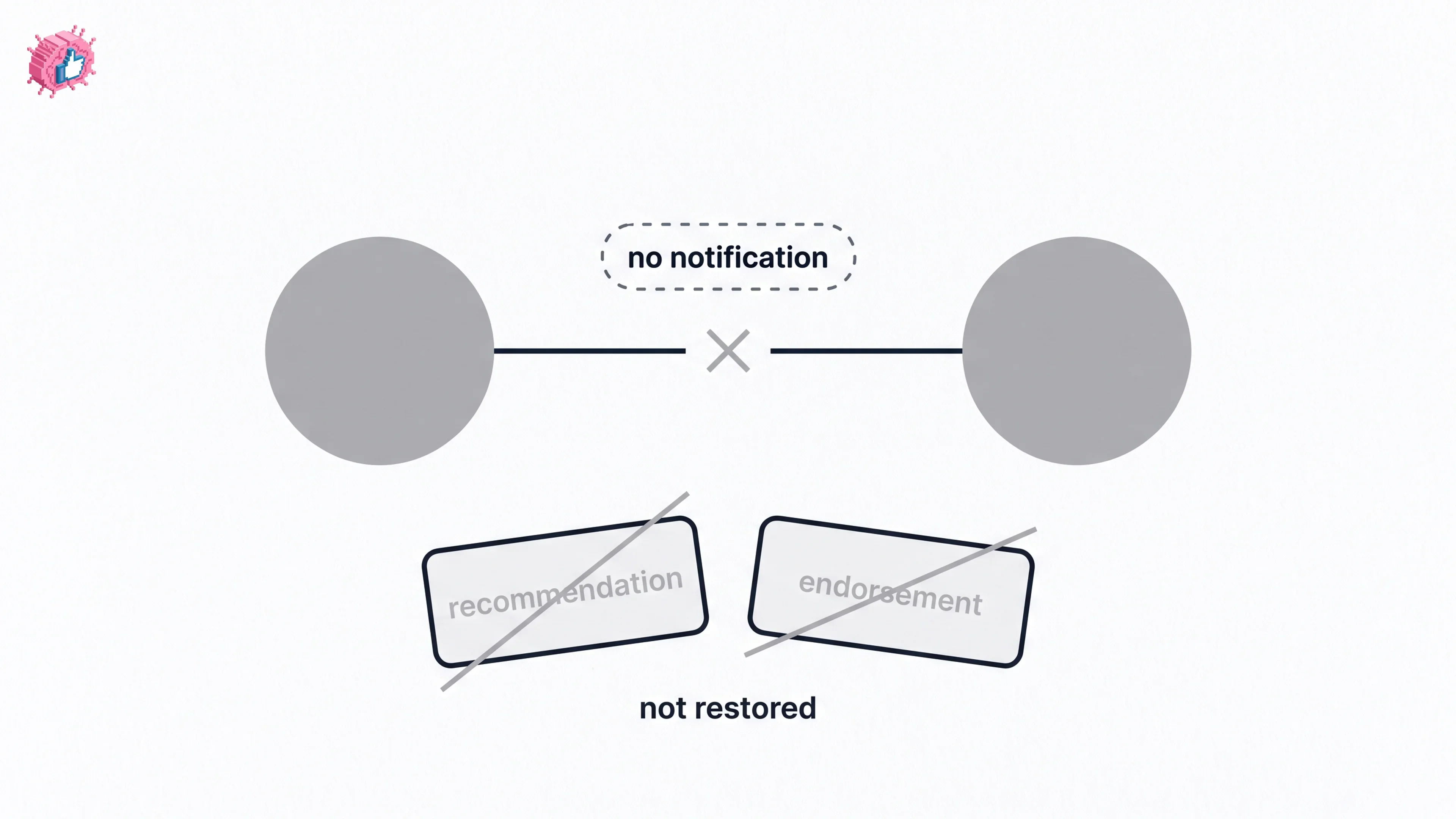
How to Remove a Connection on LinkedIn: What It Erases
Remove a LinkedIn connection on desktop or the app. They are not notified, but recommendations and endorsements go for good. Steps from LinkedIn Help.
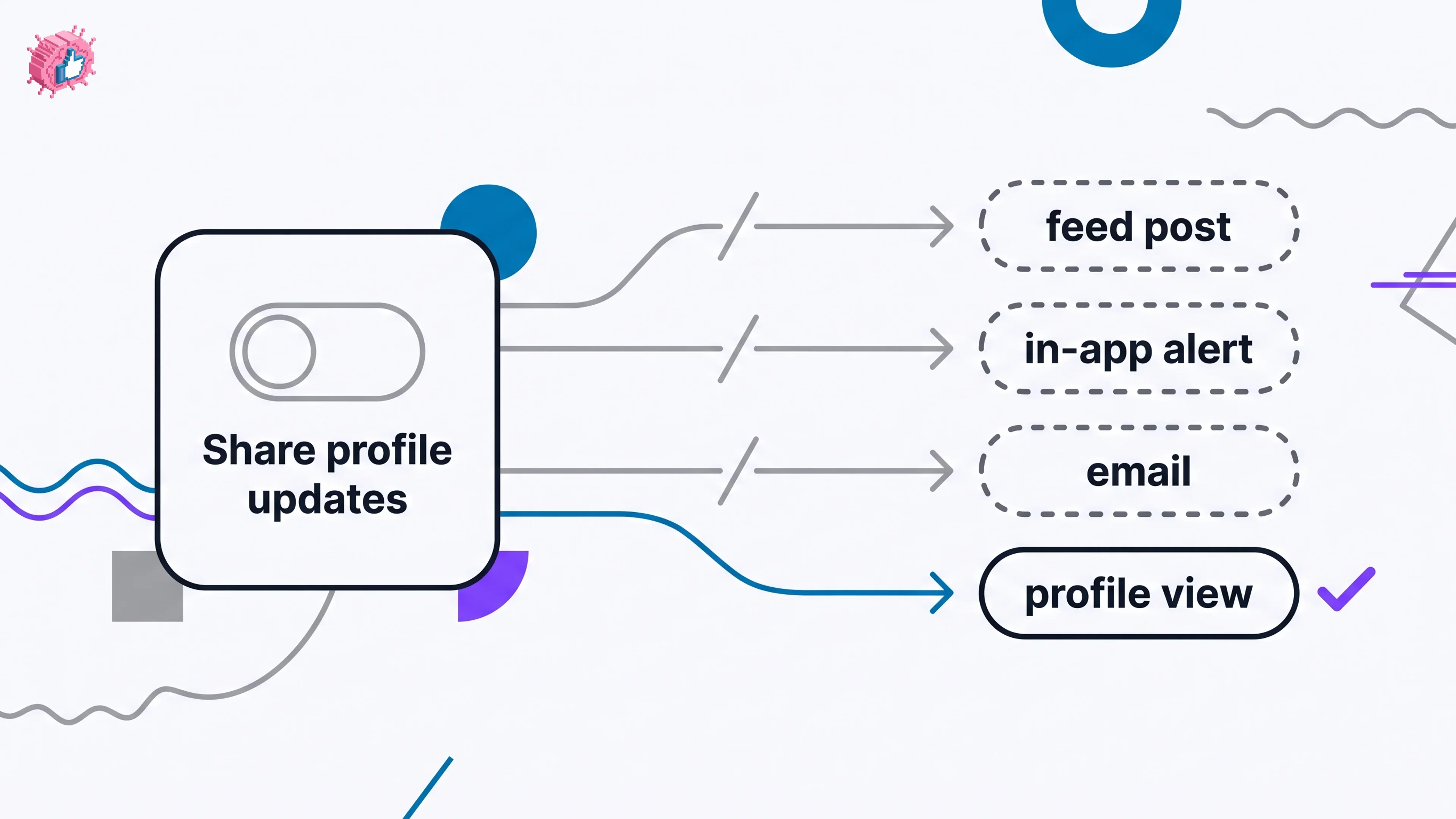
How to Update LinkedIn Without Notifying Your Network
Turn off Share profile updates to edit LinkedIn silently on desktop, app, or mobile browser, and see what still reaches your network. From LinkedIn Help.