

LinkedIn Live: Requirements and How It Works
LinkedIn Live needs 150 followers, a 30-day-old account and a third-party streaming tool. The access rules, the setup, and the notification trap.
Two things about LinkedIn Live surprise almost everyone who tries it for the first time. There is no button on LinkedIn that starts a broadcast, and going live does not notify your followers.
Both are fixable once you know about them. Both waste an afternoon if you find out while a camera is already pointed at you.
This guide covers who qualifies, how access is granted, the streaming software you have to supply yourself, the setup order that avoids an empty room, and what you lose control of the moment you go live.
Automate your LinkedIn for 30 days
What is LinkedIn Live?
LinkedIn Live is live video broadcasting to a profile, a Page, or an Event. Which surface you use is a real decision, and the trade-offs are the same ones covered in personal brand versus company page. LinkedIn's overview describes it as available to eligible members and Pages across all three surfaces.
The recording persists afterward. LinkedIn states that "after a stream is complete, it will remain on the feed of your LinkedIn profile or Page as a video that was Previously recorded live." Every stream is recorded and publicly accessible, so a broadcast keeps working as a post long after the live audience has gone.
If you want to upload a recorded video instead of broadcasting one, that is a different job with different rules, and our guide to posting video on LinkedIn covers the specs and the upload flow. This page is only about live.
Who can go live on LinkedIn?
Four conditions, from LinkedIn's access criteria.
| Requirement | Detail |
|---|---|
| Audience | "Members and Pages with more than 150 followers and/or connections are eligible to be evaluated" |
| Account age | "The account or page must have been created at least 30 days ago" |
| Standing | Good standing under LinkedIn's Professional Community Policies |
| Location | "LinkedIn Live is not available at this time for members and Pages based in mainland China" |
The follower bar is lower than most people assume. 150 followers or connections is a threshold a normal professional account passes without trying, so if you have been on LinkedIn for a year and have never thought about growing your followers, you are probably already over it.
Read the wording on that first row carefully. Passing 150 makes you "eligible to be evaluated," which is not the same as approved. The bar opens a review rather than granting access.
There is no application, which is the confusing part
This is the detail that sends people hunting through settings for a form that does not exist.
LinkedIn states plainly: "There are no applications to request LinkedIn Live access." Eligibility is assessed automatically, and you find out by attempting to use the feature. There are two ways to discover where you stand:
- Create a LinkedIn event. If you are eligible, LinkedIn Live appears as a format option in the dropdown. If it does not appear, you do not have access yet.
- Connect a preferred third-party broadcast tool. The tool tells you your access status immediately.
So the answer to "how do I apply for LinkedIn Live" is that you do not. You try to schedule a live event, and the presence or absence of that dropdown option is your answer. Nobody emails you either way.
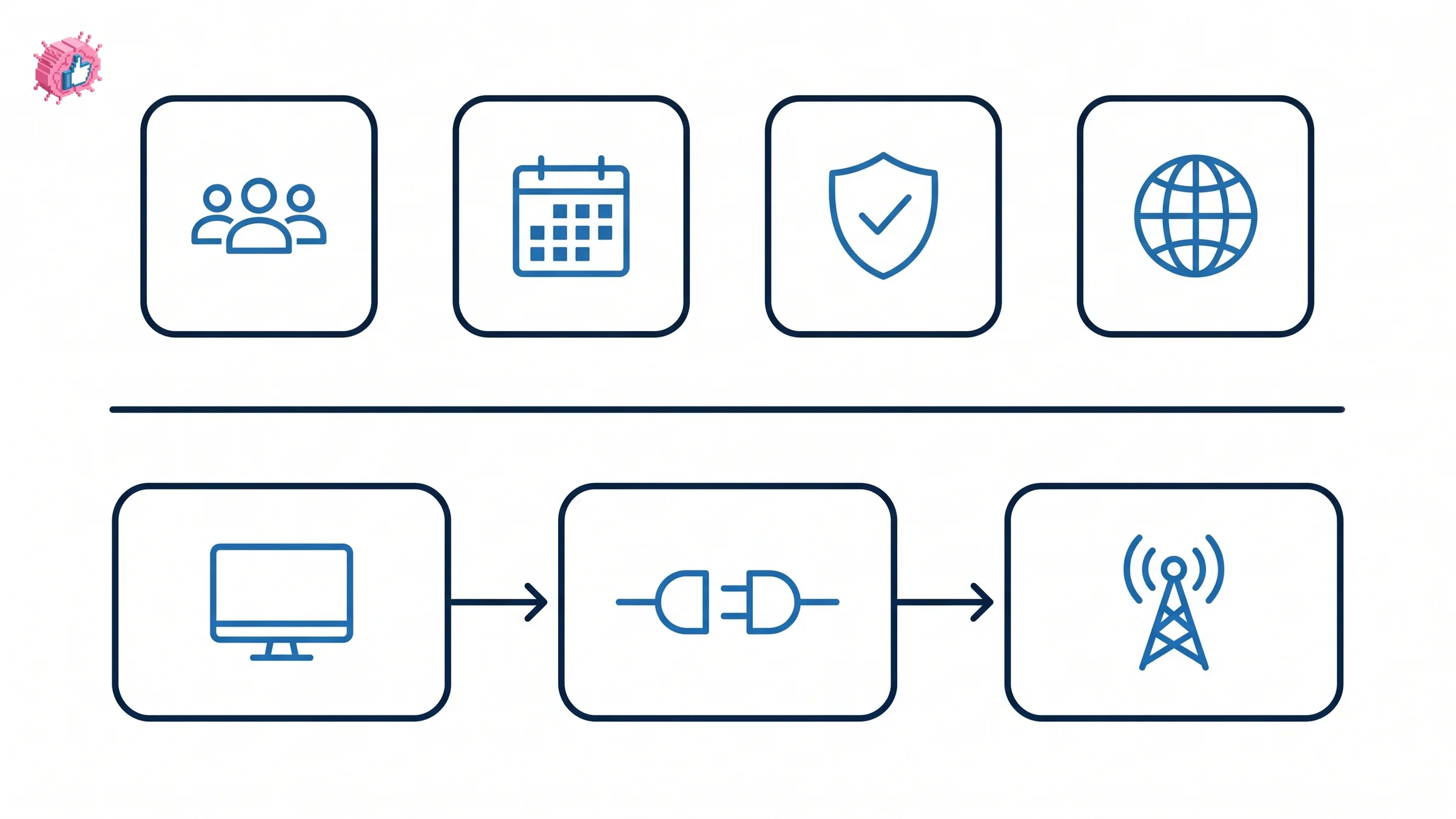
You cannot stream from LinkedIn itself
LinkedIn is explicit about this: "You can't stream directly from LinkedIn; you'll need a streaming tool to broadcast LinkedIn Lives."
There is no in-app camera button for live video the way there is for a photo or a text post. The broadcast originates in third-party software that pushes the stream to LinkedIn. LinkedIn names these as preferred partners:
- Restream
- Socialive
- StreamYard
- Switcher Studio
- Further supported partners through Bitmovin
Budget for this. You need to pick a tool, create an account with it, connect it to your LinkedIn profile or Page, and learn its interface before you are broadcasting to anyone. That is the real setup cost of LinkedIn Live, and it is why an unplanned "let me just go live" moment is not available to you.
How to go live, in the order that works
The sequence matters more than the individual steps, for a reason covered in the next section.
- Check your eligibility by starting to create a LinkedIn event and looking for the LinkedIn Live format option
- Choose a streaming tool from the preferred partners and create an account
- Connect the tool to the LinkedIn profile or Page you want to broadcast from
- Create the event in LinkedIn with a date, time, and description
- Promote the event so people register, which is the step that determines your audience size
- Go live from the streaming tool at the scheduled time
- Moderate while broadcasting, with a second person if possible
Step 5 is the one people skip. It is also the one that decides whether anybody watches.
Automate your LinkedIn for 30 days
The notification trap
Here is the thing that catches experienced marketers, and it is the reason step 5 exists.
LinkedIn's broadcasting FAQ states that notifications go to "attendees of the event, not to followers of your page or profile."
Going live does not alert your audience. Your 4,000 followers do not get a notification saying you have started broadcasting. The only people LinkedIn pings are those who already registered for the event.
That inverts how most people plan a live session. The work happens before the broadcast, in getting registrations, because the broadcast itself generates no push to your existing audience. Treat a LinkedIn Live like an event you are filling seats for, and give it the same runway you would give a webinar: announce it early, post about it more than once, and rely on your ordinary organic reach to drive sign-ups. When you post about the event matters more than when you go live.
The upside is that the recording stays on the feed afterward and behaves like any other video post, so a stream with a small live audience can still earn its keep over the following week through the algorithm.
What you cannot control once you are live
Three limits worth knowing before you commit.
Comments cannot be turned off. Moderators can "delete, report or block any comments or viewers," and that is the full extent of the control. There is no setting that disables the comment stream. LinkedIn's own guidance is that at least one person should be dedicated to moderation, which means a solo broadcast puts you in the position of presenting and policing at the same time. For anything with a sensitive topic or a large audience, staff that role.
The maximum stream time is four hours. That is a ceiling rather than a target. LinkedIn suggests a minimum of around 10 minutes so the audience has time to arrive, which fits the notification behavior above: people trickle in after the start rather than waiting for it.
Pre-recorded content is discouraged. LinkedIn's position is that "to maintain trust with your followers, we discourage streaming pre-recorded content. All live streams should be happening in real time." Read that as a norm rather than a technical block, and treat the risk as reputational.
What happens to the video afterward
The stream stays on the feed of your profile or Page, labeled as previously recorded live. Event organizers can also download the recording from the Event Details page, which gives you a file to cut into clips or repurpose.
That download is worth planning for. A 40-minute live session is raw material for a month of shorter posts, and the content calendar you already run is the place to schedule those. Track how the recording performs against your ordinary posts with analytics tools before deciding whether to run another. The live broadcast is the expensive part; the clips are close to free.
Who should use LinkedIn Live, and who should not
Worth doing if:
- You already have an audience that shows up for things. The notification behavior rewards people who can fill an event, so an engaged following converts directly into viewers.
- Your topic benefits from being unscripted. Q and A sessions, panels, and product demos gain something from being live that a recorded video does not.
- You want the recording as much as the broadcast. If the follow-up clips justify the effort on their own, the live audience becomes upside rather than the whole return.
Skip it if:
- You are below 150 followers or your account is under 30 days old. You are not eligible, and building an audience is the prerequisite rather than a nice-to-have.
- You cannot staff moderation. Comments stay on, and presenting while watching a comment stream is a genuinely difficult thing to do alone.
- You have nobody to invite yet. A broadcast with no registrations reaches almost nobody live. Recorded video posted normally will outperform it, and the posting video guide is the better starting point.
- You want reach rather than depth. Live video is a format for people who already know you. If the goal is new audience, ordinary posting and a clear personal brand do more per hour spent.
The honest summary
LinkedIn Live has a low eligibility bar and a high preparation cost. The 150-follower threshold lets almost anyone in, then the format asks for streaming software, an event built in advance, a promotion campaign to fill it, and a moderator on the day.
For someone with an engaged audience and a reason to be unscripted, that trade works. For everyone else, the same hours spent on consistent posting will reach more people. Check your engagement rate on ordinary posts first: if people are not showing up for those, they will not clear their calendar for a broadcast.
FAQ
What are the requirements for LinkedIn Live?
More than 150 followers and/or connections, an account or Page created at least 30 days ago, good standing under LinkedIn's Professional Community Policies, and a location outside mainland China. Meeting these makes you "eligible to be evaluated" rather than automatically approved.
How do I apply for LinkedIn Live access?
You cannot. LinkedIn states "there are no applications to request LinkedIn Live access." Eligibility is assessed automatically. You find out by creating a LinkedIn event and checking whether the LinkedIn Live format appears in the dropdown, or by connecting a preferred third-party broadcast tool, which reports your status immediately.
Can I go live directly from the LinkedIn app?
No. LinkedIn states "you can't stream directly from LinkedIn; you'll need a streaming tool to broadcast LinkedIn Lives." Preferred partners include Restream, Socialive, StreamYard and Switcher Studio, with further supported partners through Bitmovin.
Does going live notify my followers?
No, and this is the most common misunderstanding about the feature. LinkedIn sends notifications to "attendees of the event, not to followers of your page or profile." Only people who registered for the event are alerted, so promoting the event in advance is what determines your live audience.
How long can a LinkedIn Live stream run?
"The maximum stream time is four hours." LinkedIn also suggests a minimum of around 10 minutes, since viewers arrive gradually rather than at the start.
Can I disable comments on a LinkedIn Live?
No. Comments cannot be turned off. Moderators can delete, report or block individual comments and viewers, and LinkedIn recommends assigning at least one person to moderation for the duration of the broadcast.
What happens to a LinkedIn Live video after the stream ends?
It stays on the feed of your profile or Page as a video labeled previously recorded live, and remains publicly accessible. Event organizers can also download the recording from the Event Details page.
Can I stream a pre-recorded video as a LinkedIn Live?
LinkedIn discourages it, stating that "to maintain trust with your followers, we discourage streaming pre-recorded content. All live streams should be happening in real time."
Automate your LinkedIn for 30 days
ViralBrain plans, writes, and schedules your LinkedIn content, using official LinkedIn APIs so your account stays safe.
- Official LinkedIn APIs, no risk of ban
- You approve every post before it goes live
- Cancel anytime
Keep reading
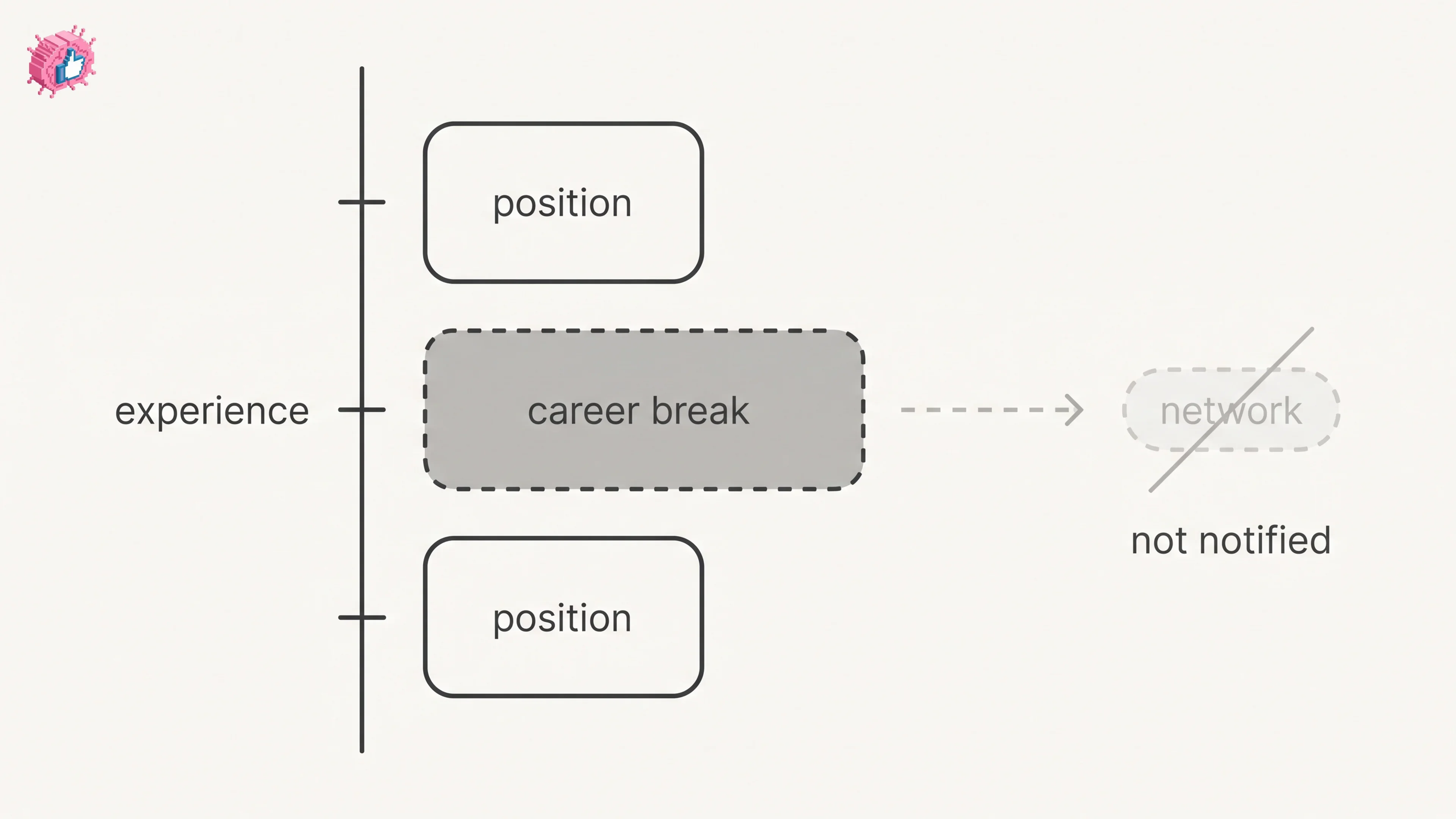
LinkedIn Career Break: How to Add One and Who Sees It
Add a career break on LinkedIn desktop or the app. Your network is not notified, the type is optional, and signed-in members see it. From LinkedIn Help.
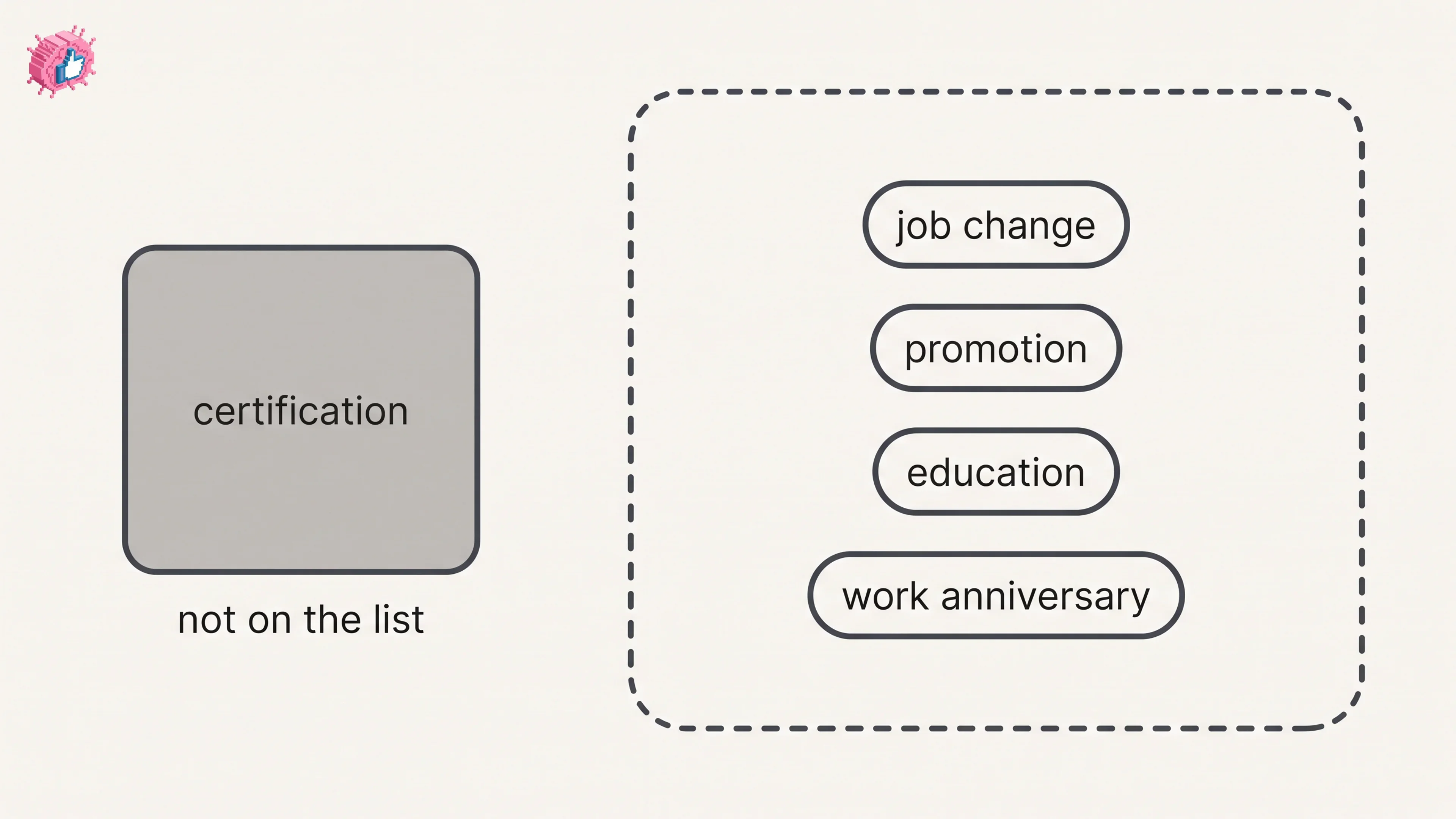
How to Add a Certification to LinkedIn Without Posting
Add a certification on LinkedIn desktop or the app, put credentials after your name, and see what LinkedIn documents about notifying your network.
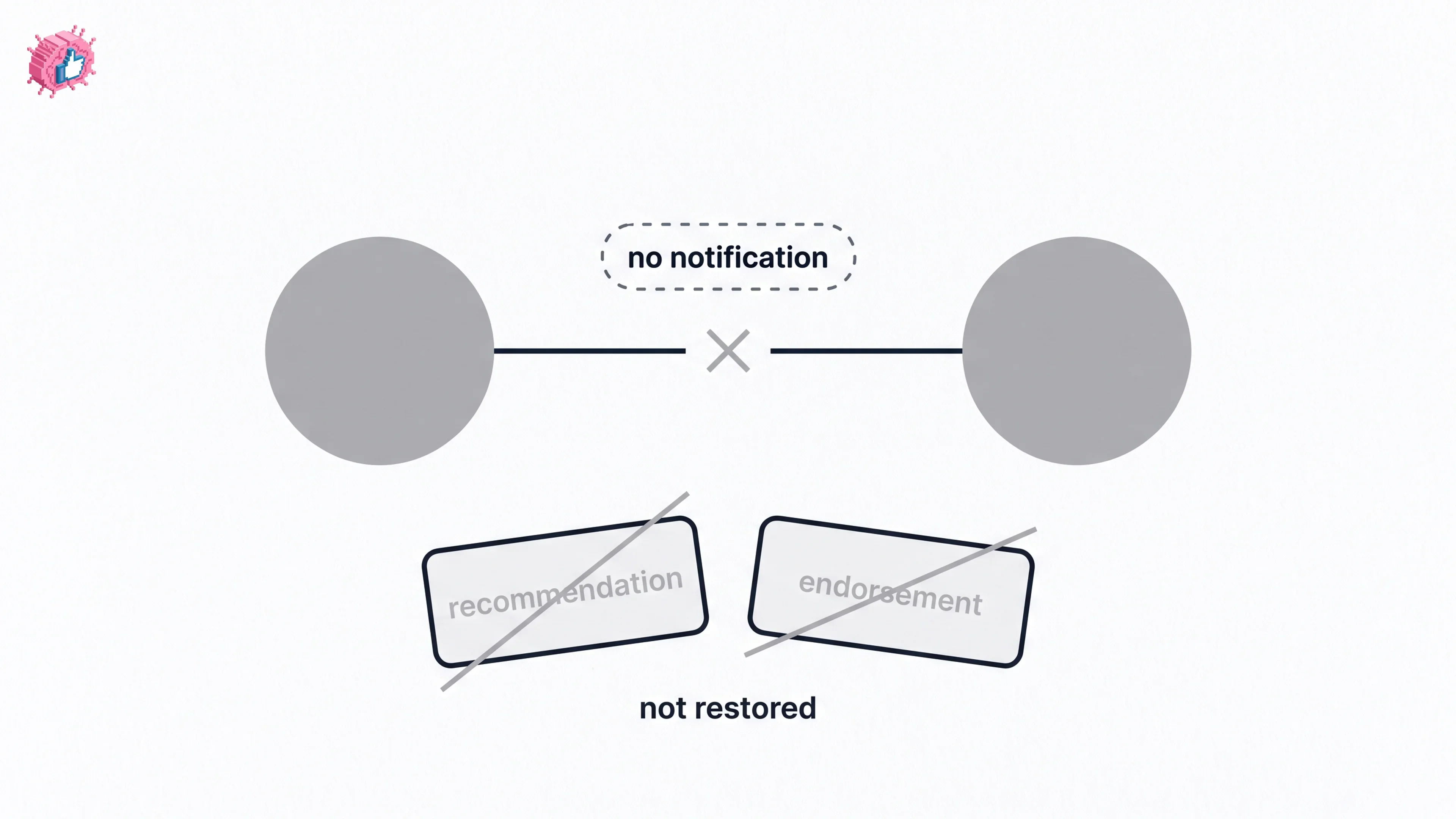
How to Remove a Connection on LinkedIn: What It Erases
Remove a LinkedIn connection on desktop or the app. They are not notified, but recommendations and endorsements go for good. Steps from LinkedIn Help.