

How to Add Languages on LinkedIn: Section and Profile
How to add a language to the LinkedIn Languages section on desktop and in the app, how to edit it, and how the separate profile language feature differs.
Languages means two different things on LinkedIn, and keeping them apart is most of the job. The Languages section is an optional profile section that lists the languages you speak. The profile language feature is something else entirely: it creates a second version of your whole profile, written in another language, and LinkedIn states it "is not available on the LinkedIn mobile app."
You add the Languages section the way you add any optional section, through Add profile section in your introduction section on desktop or Add section in the app. LinkedIn documents creating a second language profile from the right pane of your profile, on desktop.
This guide covers both, keeps them apart, and quotes LinkedIn where the exact wording decides the answer. Where the Help pages read for this guide stop, it says so rather than filling the gap.
Automate your LinkedIn for 30 days
What the Languages section is on LinkedIn
It is a list of the languages you speak, shown as its own section on your profile. LinkedIn's profile overview page gives the description in one sentence: "Languages - Languages you understand or speak."
LinkedIn files it under the Additional group in the Add profile section menu, which is the group of sections LinkedIn neither assumes nor suggests. You opt into it.
| Question | What LinkedIn documents |
|---|---|
| Which menu group | Additional, in Add profile section |
| What it is for | Languages you understand or speak |
| Is there a dedicated Help page | None found in the pages read for this guide |
| Are the proficiency levels published | Not on any page read for this guide |
| How you add it | The shared six step add flow, Desktop and Mobile |
| How you edit it | The Edit icon next to the section |
| Is removing a single language documented | Not on any page read for this guide |
| Is it the same as profile language | No, that is a separate feature LinkedIn documents on desktop |
| Does it notify your network | None documented on the pages read for this guide |
Three of those rows carry the whole article, and each gets its own section below: the proficiency levels, the removal question, and the profile language mix up.
Where languages sits among the other profile sections
LinkedIn sorts every addable section into three groups, and the group is a signal about how prominent LinkedIn treats the section.
| Group | Sections |
|---|---|
| Core | About, Education, Position, Services, Career break, Skills |
| Recommended | Featured, Licenses & certifications, Projects, Courses, Recommendations |
| Additional | Volunteer experience, Publications, Patents, Honors & awards, Test scores, Languages, Organizations, Causes |
Languages sits in the bottom group with Patents and Test scores. Compare that to the projects section, which LinkedIn files one group up under Recommended, and to licenses and certifications, which sits there too.
That placement is worth knowing before you spend time on the entry. A language on your profile is a line, not a portfolio piece, and LinkedIn's menu treats it that way.
How to add a language on LinkedIn
LinkedIn publishes one add flow that covers every optional section, so the same steps add a language, a patent or a test score. You choose which at the subsection step. LinkedIn tabs the steps Desktop and Mobile.
Desktop:
- Click the Me icon at the top of your LinkedIn homepage.
- Click View Profile.
- Click Add profile section in your introduction section.
- Click on the section you'd like to add and select the subsection, if applicable.
- Enter the required information in the pop-up window that appears.
- Click Save.
Mobile:
- Tap your profile picture.
- Tap your profile photo again to access your profile.
- Tap Add section in your introduction section.
- Tap on the section you'd like to add and select the subsection, if applicable.
- Enter the required information in the page.
- Tap Save.
Step 4 is where you open Additional and pick Languages. Step 5 is where the form appears, and that step is the reason the next section exists.
Note the app route to your own profile. LinkedIn's wording is "Tap your profile picture", then "Tap your profile photo again to access your profile." Two taps on the same photo, not a menu item.
What LinkedIn publishes about proficiency levels
Not the level names. None of the Help pages read for this guide lists them.
This is a real gap rather than an omission in this guide, so here is exactly what the documentation gives you. The add flow says "Enter the required information in the pop-up window that appears", and that is as specific as it gets about the language form. The profile overview describes the section as "Languages you understand or speak", which tells you the section is about ability without naming any scale.
So the honest position is this. Your own form is the authority on which proficiency levels LinkedIn offers, and any article giving you an exact list is sourcing it from somewhere other than the Help pages read for this guide. Open the form at step 5 and read the dropdown.
That is not a reason to skip the field. It is a reason to fill it in from the live options in front of you rather than from a list you copied, because what you claim should match what the dropdown actually says.
How to edit or remove a language
Editing uses the general profile editing flow, and LinkedIn tabs this one three ways: Desktop, Mobile and Mobile Browser. It also carries a warning worth reading first: "Currently, not all sections are editable on mobile browser. You can only edit the photo, name, headline, location, summary, experience, education, skills, accomplishments, and contact sections."
Desktop:
- Click the Me icon at the top of your LinkedIn homepage, then click View Profile.
- Click the Edit icon to the right of the section you'd like to make changes to.
- Make changes in the fields provided.
- Click Save.
Mobile:
- Tap your profile photo.
- Tap your profile photo again to access your profile.
- Tap the Edit icon to the right of the section you wish to edit.
- Tap the Edit icon next to individual detail you want to edit.
- Make changes in the fields provided.
- Tap Save.
Mobile Browser:
- Tap your profile photo.
- Tap the Edit icon to the right of the section you wish to edit.
- Make changes in the fields provided.
- Tap Save in the upper-right corner.
The app path has an extra step the other two do not: a second Edit icon next to the individual item, after the one next to the section. That two level structure is how you reach one language rather than the whole section.
Removing a single language is not documented on any page read for this guide. LinkedIn publishes explicit delete steps for some sections, including "click Delete experience, and click Delete" for a position, and it publishes delete steps for education entries. The pages read here do not publish an equivalent for a language. Editing is the documented route, and your own edit form is where a delete control would appear if there is one.
Automate your LinkedIn for 30 days
Showing your profile in another language is a different feature
This is a separate feature, and it is not the Languages section.
LinkedIn describes it plainly: "You can create your profile in a language that is different from your default profile. Having multiple language profiles makes it easier for other members and recruiters to find you. You can also change the language of your primary profile."
One restriction decides everything about how you plan this: "The feature is not available on the LinkedIn mobile app." LinkedIn documents it on desktop for both creating and managing. LinkedIn repeats it on its editing page: "You can create and manage a secondary language profile only from the LinkedIn desktop experience. We currently don't support the ability to manage a secondary language profile from a mobile device."
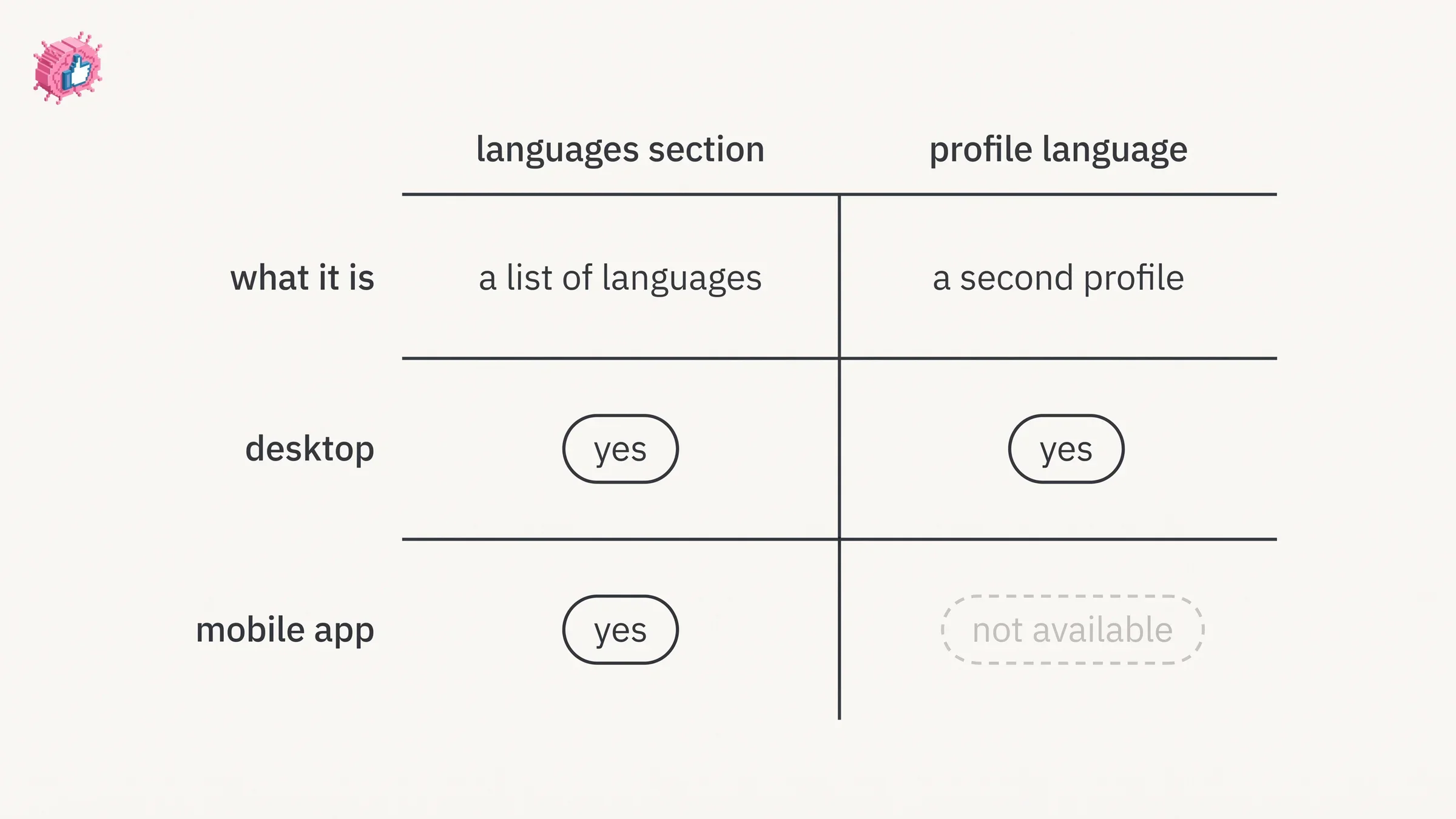
To create your profile in another language, on desktop:
- Click the Me icon at top of your LinkedIn homepage.
- Click View Profile.
- Click the Edit icon next to Profile language on the right pane.
- Click Add language next to existing language on the Profile language settings pop-up window.
- Choose a language from the dropdown list and update your first name and last name if they're different in the new profile's language.
- Translate your existing Headline.
- Click Create Profile.
- Click Done.
LinkedIn adds three things worth knowing before you start.
- Translation is your job. Its tip is direct: "Translations aren't done for you. You'll need to add or translate your own personal content by editing your secondary language profile."
- A missing language in the dropdown may mean your profile is already in it. LinkedIn states that "If the language you want to add isn't listed in the dropdown, your current profile may already be in that language."
- You can promote a secondary profile to primary. To do that, "switch the toggle Yes next to Make primary language on the top of the pop-up window."
To delete a secondary language profile, on desktop:
- Click the Me icon at top of your LinkedIn homepage.
- Click View Profile.
- Click the Language icon next to the listed languages, which appear in the right pane of your profile page.
- Click the X next to the language in which you want to delete your profile.
- Click Remove from the popup window.
Who sees which version is automatic. LinkedIn states: "Viewers will see your profile in the language that matches the one they're using the site in. If they're using the site in a language that you haven't created a secondary profile for, they'll see your profile in the language of your primary profile." Viewers also get a manual override, "from the dropdown menu on the right rail of the page."
The maintenance cost is the thing to weigh. LinkedIn warns on its Experience page that "your secondary language profile won't automatically reflect the changes you make to your English-language profile", and its editing page opens with the same problem stated as a symptom: if you cannot see a recent change, you may be looking at a profile you created in another language. Every edit you make is an edit you make twice.
Languages section, profile language, interface language
Three separate controls, in three separate places.
| What you want | Which feature | Where LinkedIn documents it |
|---|---|---|
| List the languages you speak | Languages section | Add profile section, Additional group, Desktop and Mobile |
| Show your profile in another language to viewers | Profile language | Profile language on the right pane, desktop only |
| Change the language LinkedIn's own menus appear in for you | Preferred language | Settings & Privacy, General preferences, Language |
The third one only changes what you see. LinkedIn is explicit about the split: "All LinkedIn-generated content, such as page titles and menus, will display in the language you select. Member-generated content, such as post or article, group discussions, and recommendations will display in the language in which it was written."
The app behaves differently again. LinkedIn notes that "The LinkedIn mobile app uses the same language that is currently set on your mobile and cannot be changed on the app", and routes you to your device settings instead, with separate Android and iOS steps.
Does adding a language notify your network
No language specific notification is documented on any page read for this guide.
What LinkedIn does document is an account wide control. Share profile updates sits in Settings & Privacy under Visibility, and LinkedIn describes its scope: "You can choose to notify your network about job changes, education changes, and work anniversaries." Languages are not in that list, which is not the same as a promise of silence. LinkedIn also notes that "some types of profile edits won't generate notifications to your network" without naming which.
There is an in editor toggle too. LinkedIn places it "in the Notify network section at the top of the Add experience page", and publishes that line under both its desktop and its mobile steps. That page is about experience rather than languages.
Keep LinkedIn's own hedge while you plan a quiet edit: on the Experience section page the wording is "your network may be informed of the changes." May, not will. If you are rewriting several sections in one sitting, updating LinkedIn without notifying your network covers the toggle, the delays, and the edits the setting does not reach.
One thing the setting does not cover at all, in LinkedIn's words: "Anyone that views your profile will see your edits as soon as you save them, even if you haven't chosen to notify your network about any changes you make."
What this means for you
- Languages lives under the Additional group. Reach it through Add profile section on desktop or Add section in the app, then pick the subsection.
- The proficiency levels are not published on any page read for this guide. Read the dropdown in your own form rather than a list from an article.
- Removing one language is undocumented on the pages read here. Editing is the published route, and the delete control, if there is one, lives in your edit form.
- Profile language is a separate feature and desktop only. LinkedIn states it "is not available on the LinkedIn mobile app", and that you can create and manage it "only from the LinkedIn desktop experience."
- A second language profile is a second maintenance job. Changes to your primary profile do not carry over automatically.
- No language specific notification is documented. The account wide Share profile updates setting is the dependable control for a quiet edit.
A language entry is cheap to add and easy to verify, which is more than most of your profile can say. It pairs with the other signals near the top of a profile, like name pronunciation, verification and a credible set of recommendations. If you are working through the profile in one pass, the profile optimization checklist goes field by field, shortening your LinkedIn URL covers a nearby desktop job on the same right pane, and the full set of individual feature guides lives in LinkedIn features explained.
For writing the rest of the profile, ViralBrain has a free tier with 3 heroes and 3 posts a month, and pricing covers what a paid plan adds.
Sources: Add sections to your profile, Your LinkedIn profile, Edit your profile, Create or delete a profile in another language, Edit your secondary language profile, Select your preferred language for LinkedIn, Manage your profile Experience section, Add, edit, or delete education on your profile, Share profile updates, Update your current position in your introduction section, LinkedIn Help (accessed October 2026)
FAQ
How do I add languages on LinkedIn?
Through the shared add flow. On desktop, click the Me icon, click View Profile, click Add profile section in your introduction section, pick Languages under Additional, enter the required information in the pop-up window, then click Save. In the app, tap your profile picture, tap your profile photo again to access your profile, tap Add section, pick the subsection, enter the information, then tap Save.
Where is the Languages section on a LinkedIn profile?
It is an optional section, which means it is not on your profile until you add it. LinkedIn lists Languages under the Additional group in the Add profile section menu, alongside Volunteer experience, Publications, Patents, Honors & awards, Test scores, Organizations and Causes.
What are the LinkedIn language proficiency levels?
LinkedIn does not publish the level names on any Help page read for this guide. Its add steps say only to "Enter the required information in the pop-up window that appears", and its profile overview describes the section as "Languages you understand or speak". The live options are in the dropdown on your own form.
How do I remove a language from my LinkedIn profile?
Removing a single language is not documented on any page read for this guide. The documented route is the general edit flow: open the Edit icon next to the section, then in the app a second Edit icon next to the individual detail, and make your change there.
Can I add languages to my LinkedIn profile from the app?
Yes. LinkedIn publishes a Mobile tab for adding sections and a Mobile tab for editing them. What is desktop only is the separate profile language feature, which LinkedIn states "is not available on the LinkedIn mobile app."
How do I show my LinkedIn profile in another language?
On desktop, click the Me icon, click View Profile, click the Edit icon next to Profile language on the right pane, click Add language, choose a language and update your first and last name if they differ, translate your existing Headline, click Create Profile, then click Done.
Does LinkedIn translate my profile for me?
No. LinkedIn states: "Translations aren't done for you. You'll need to add or translate your own personal content by editing your secondary language profile."
Which version of my profile do people see?
LinkedIn states that "Viewers will see your profile in the language that matches the one they're using the site in", and that viewers of a profile with more than one language can choose manually "from the dropdown menu on the right rail of the page." If you have no profile in a viewer's site language, they see your primary one.
Does adding a language notify my network?
No language specific notification is documented on the pages read for this guide. The account wide Share profile updates setting covers "job changes, education changes, and work anniversaries", and LinkedIn hedges elsewhere that your network "may be informed of the changes."
Automate your LinkedIn for 30 days
ViralBrain plans, writes, and schedules your LinkedIn content, using official LinkedIn APIs so your account stays safe.
- Official LinkedIn APIs, no risk of ban
- You approve every post before it goes live
- Cancel anytime
Keep reading
How to Add Organizations on LinkedIn: Full Steps
How to add organizations on LinkedIn, where the section sits, desktop and app steps, editing entries, and why a LinkedIn Page is a different thing.
How to Add Education on LinkedIn: Fields and Steps
How to add education on LinkedIn, the eight fields LinkedIn documents, multiple entries, the expected end date, reordering, and the 24 hour notify window.
How to Add Honors and Awards on LinkedIn
How to add the Honors and awards section on LinkedIn on desktop and in the app, the exact steps LinkedIn publishes, and how to edit or delete an entry.