

How to Add Volunteer Experience on LinkedIn, Step by Step
How to add volunteer experience on LinkedIn on desktop and in the app, whether to use the Experience section instead, and what notifies your network.
Volunteer experience is an optional LinkedIn profile section filed under the Additional group, and you add it through Add profile section in your introduction section on desktop, or Add section in the app. LinkedIn describes what it is for in one sentence: "Highlight your passions and how you have given back."
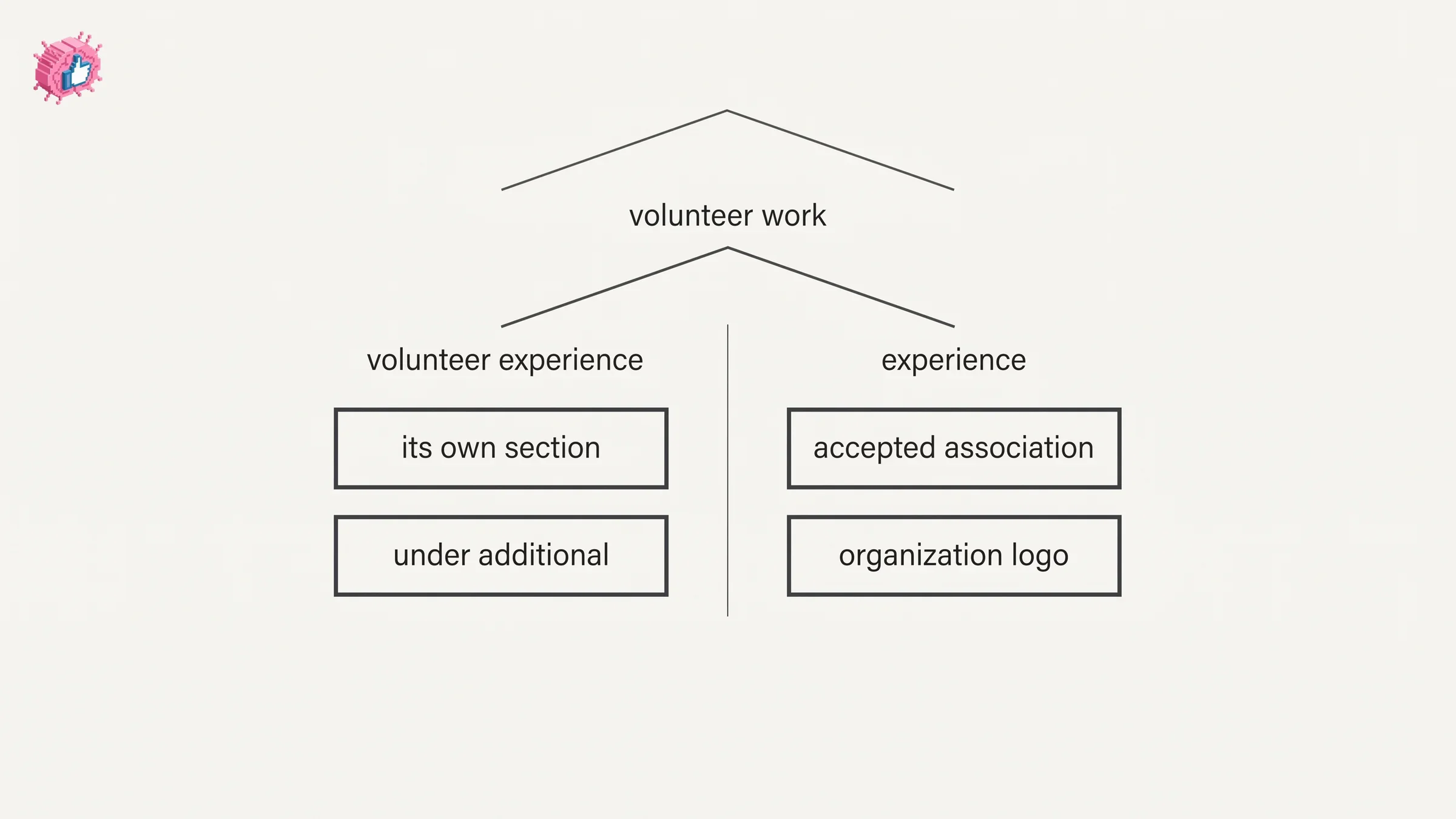
There is a wrinkle worth knowing before you start, because it decides where your volunteer work should actually live. LinkedIn documents volunteer work in two separate places on your profile, and it names volunteer experience in both. One is the standalone section. The other is your Experience section, where LinkedIn lists volunteer experience among the association types it accepts.
Everything below comes from LinkedIn's Help pages, quoted where the exact wording decides the answer. Where LinkedIn does not document something, this guide says so rather than filling it in.
Automate your LinkedIn for 30 days
What the volunteer experience section is on LinkedIn
It is a standalone profile section for unpaid work and the organizations you did it for. LinkedIn's profile overview page gives the whole published description: "Highlight your passions and how you have given back."
LinkedIn files it under Additional, the third and least prominent of its three section groups. That placement is the platform's own signal about how it ranks the section, not a judgment about the work.
| Question | What LinkedIn documents |
|---|---|
| Which menu group | Additional, in Add profile section |
| What it is for | Highlighting your passions and how you have given back |
| Is there a dedicated Help page | None in LinkedIn's profile Help index for the section |
| Are the form fields published | No |
| Can volunteer work go in Experience instead | Yes, LinkedIn names it as an accepted association type |
| Is Causes the same section | No, Causes is listed separately under Additional |
| Can you edit it | Yes, through the Edit icon next to the section |
| Does it have its own notification | Not documented |
Two rows there do real work, and both get their own section below: the Experience overlap, and the Causes question.
Where volunteer experience sits among the other sections
LinkedIn sorts every addable section into three groups.
| Group | Sections |
|---|---|
| Core | About, Education, Position, Services, Career break, Skills |
| Recommended | Featured, Licenses & certifications, Projects, Courses, Recommendations |
| Additional | Volunteer experience, Publications, Patents, Honors & awards, Test scores, Languages, Organizations, Causes |
Volunteer experience leads the Additional group, with Causes and Organizations further down the same list. Compare that to a career break, which LinkedIn files under Core and treats as an Experience entry, or a certification, which sits in the middle group.
The practical consequence is that adding any of them uses one shared flow. You only choose between them at the subsection step.
LinkedIn documents volunteer work in two different places
This is the part that decides your answer, and it is documented rather than inferred.
The standalone section. Volunteer experience appears in LinkedIn's list of addable sections under Additional, as its own entry, reachable through the same Add profile section route as everything else.
The Experience section. LinkedIn's page on managing your Experience section describes what belongs there, and it names volunteer work directly. Associations "must be accurately labeled and must reflect professional experience with the named organization, such as employment, contract work, official internship or volunteer experience, board service, among others."
So a board seat, an official internship or a sustained volunteer role is explicitly allowed as an Experience entry, by LinkedIn's own association guidelines. That is not a loophole. It is the documented scope of the section.
| Where you put it | What LinkedIn documents |
|---|---|
| Volunteer experience section | Its own section under Additional, for passions and giving back |
| Experience section | Accepts volunteer experience as a listed association type |
| Which one LinkedIn recommends | Not stated, no page compares them |
| Do entries appear in both | Not documented, no page read for this guide describes syncing |
Notice the third row. No Help page read for this guide tells you which one to choose. None of them compares the two or advises when to use each, so anyone presenting a rule here is giving you an opinion rather than documentation.
Here is ours, clearly labelled as ours. If the role carried real responsibility over a sustained period, the kind of thing you would discuss in an interview, the Experience section is where readers look and where LinkedIn's association rules already cover you. If it was episodic or purely personal, the volunteer experience section exists precisely so that work has somewhere to go without crowding your employment history.
One documented upside of the Experience route is worth naming. LinkedIn states that when you "select an organization from the type-ahead menu while adding a position, the logo and the company name from that company's LinkedIn Page will display next to the position listed on your profile." A recognized nonprofit's logo on your profile does more for credibility than its name typed as plain text.
How to add volunteer experience on LinkedIn
LinkedIn publishes these under two tabs, labelled Desktop and Mobile. It does not split the mobile steps into separate iOS and Android instructions on this page, so the list below is what the documentation gives for the app on either one. Where a guide tells you Android differs from iPhone here, it is not reading from this page.
Desktop:
- Click the Me icon at the top of your LinkedIn homepage, then click View Profile.
- Click Add profile section in your introduction section.
- Click on the section you'd like to add and select the subsection, if applicable.
- Enter the required information in the pop-up window that appears.
- Click Save.
Mobile:
- Tap your profile picture.
- Tap your profile photo again to access your profile.
- Tap Add section in your introduction section.
- Tap on the section you'd like to add and select the subsection, if applicable.
- Enter the required information in the page.
- Tap Save.
Step 3 on desktop, step 4 in the app, is where you pick Volunteer experience, under the Additional group. LinkedIn's steps stay generic because the same five cover every section in the menu.
To add it as an Experience entry instead, use the Experience route. LinkedIn documents clicking or tapping the Add icon or Add position button, filling in the form, then clicking or tapping Save. The association guidelines quoted above are what make volunteer work valid there.
What fields the volunteer experience form has
LinkedIn does not publish them, on any Help page read for this guide.
That is a real gap rather than an omission here, so here is exactly how far the documentation goes. Step 4 above says "enter the required information in the pop-up window that appears", and that is the most specific LinkedIn gets. LinkedIn's profile Help index lists no dedicated page for the volunteer experience section, and the generic add-sections page lists no field names.
Your own form is the reliable answer, and you reach it the moment you pick the subsection. Any article giving you a field by field walkthrough is not sourcing it from LinkedIn's Help pages.
What LinkedIn does document, for the Experience route, is the type-ahead behavior: picking the organization from the menu pulls in its logo and company name from its LinkedIn Page. If the nonprofit has a LinkedIn Page, select it from the menu rather than typing the name freehand.
Automate your LinkedIn for 30 days
The causes section is separate from volunteer experience
Causes is its own section, not a field inside volunteer experience.
LinkedIn's list of addable sections includes both, side by side under Additional: Volunteer experience appears first, and Causes appears at the end of the same group alongside Organizations. They are two separate entries in the menu, added through two separate passes of the same five step flow.
What LinkedIn does not publish is the list of causes you can pick from. No Help page read for this guide enumerates them, names the field, or describes how selection works. The options appear on your own screen when you add the section.
Causes also appear in a third, separate place. LinkedIn's Open to Volunteering option, set from the Open to button below your profile picture, lets you "specify the causes you're passionate about," and those appear in an Open to volunteer for these causes box in your introduction section. That is a preference for finding volunteering opportunities, documented on its own Help page, and it is neither the Causes section nor a volunteer experience entry.
If you are auditing which parts of your profile are pulling weight and which are decoration, the profile optimization checklist goes section by section, and the Featured section is usually the better place for proof that a volunteer role produced something.
How to edit or remove volunteer experience
Editing uses the general profile editing flow, and LinkedIn tabs that page three ways rather than two. It labels them Desktop, Mobile and Mobile Browser.
Desktop:
- Click the Me icon at the top of your LinkedIn homepage, then click View Profile.
- Click the Edit icon to the right of the section you'd like to make changes to.
- Make changes in the fields provided.
- Click Save.
Mobile:
- Tap your profile photo.
- Tap your profile photo again to access your profile.
- Tap the Edit icon to the right of the section you wish to edit.
- Tap the Edit icon next to the individual detail you want to edit.
- Make changes in the fields provided.
- Tap Save.
Mobile Browser:
- Tap your profile photo.
- Tap the Edit icon to the right of the section you wish to edit.
- Make changes in the fields provided.
- Tap Save in the upper-right corner.
The app path has a step the other two do not: a second Edit icon next to the individual item, which is how you reach one entry rather than the whole section.
On removing an entry, the documentation splits. If your volunteer work is an Experience entry, LinkedIn publishes the delete flow: click or tap the Edit icon next to the position, then Delete experience, then Delete. For the standalone volunteer experience section, no delete flow is published on any page read for this guide, and neither is any way to reorder entries within it. LinkedIn does publish reordering instructions for current positions and for education; none of the pages read here covers this section.
Does adding volunteer experience notify your network
No volunteer specific notification is documented on any page read for this guide.
LinkedIn's account wide control is Share profile updates, in Settings & Privacy under Visibility, and it describes what the setting governs: "You can choose to notify your network about job changes, education changes, and work anniversaries." Volunteer experience is not named in that list, which is not the same as a guarantee of silence.
If you add the role as an Experience entry rather than to the standalone section, the Experience documentation does apply, and LinkedIn hedges it carefully: "If you've enabled the Notify Network option, your network may be informed of the changes." May, not will.
That in editor toggle is documented under both desktop and mobile steps. LinkedIn's page on updating your current position places it "in the Notify network section at the top of the Add experience page", and publishes that line under both its desktop and its mobile tabs. The same control appears as Share with network on another page, which is a labelling difference rather than a second setting.
| What you want | What to do |
|---|---|
| Add quietly to the standalone section | No notification is documented, and Share profile updates off is still the safe default |
| Add quietly as an Experience entry | Turn Share profile updates off first, and check the Notify network toggle in the form |
| Stop a whole profile rewrite going out | Turn the account wide setting off before you open any editor |
| Hide the edit from profile visitors | Not possible, saved edits are visible to anyone who opens your profile |
Silence and invisibility are two different things, and updating LinkedIn without notifying your network covers the toggle, the delivery delays and the edits the setting does not reach.
What this means for you
- Volunteer experience is a standalone section under Additional. Reach it through Add profile section on desktop or Add section in the app, then pick the subsection.
- Volunteer work is also valid in your Experience section. LinkedIn names "official internship or volunteer experience, board service" among accepted associations, so a substantial role has a documented home there.
- No Help page read for this guide says which of the two to use. None compares them, so treat any firm rule you read, including ours above, as judgment rather than documentation.
- The form fields are not published. Five generic steps are all the add documentation gives, so your own form is the authority.
- Causes is a separate section, not a field. Both sit under Additional, and no Help page read for this guide lists the available causes.
- No volunteer specific notification is documented. The account wide Share profile updates setting is the dependable control, and the in editor Notify network toggle is documented under both desktop and mobile steps.
Volunteer work does the most for a profile when a reader can tell what you actually did and for how long, which is an argument for the Experience route and for naming the organization from the type-ahead menu so its logo appears. The full set of individual feature guides lives in LinkedIn features explained. If the role turned into a title change, adding a promotion at the same company covers the grouping rules, and your About section is where the why behind the work belongs.
For drafting the entries and the posts around them, ViralBrain has a free tier with 3 heroes and 3 posts a month, and pricing covers what a paid plan adds.
Sources: Add sections to your profile, Your LinkedIn profile, Manage your profile Experience section, Profile experience association guidelines and conditions, Edit your profile, Update your current position in your introduction section, Share profile updates, Reorder your current positions in the Experience section of your profile, Update the order of education on your profile, Find volunteering opportunities on LinkedIn, LinkedIn Help (accessed October 2026)
FAQ
How do I add volunteer experience on LinkedIn?
On desktop, click the Me icon, click View Profile, click Add profile section in your introduction section, pick Volunteer experience under the Additional group, enter the required information in the pop-up window and click Save. In the app, tap your profile picture, tap your profile photo again to reach your profile, tap Add section, pick the same subsection, and tap Save.
How do I add volunteer experience on the LinkedIn mobile app?
Tap your profile picture, tap your profile photo again to reach your profile, tap Add section in your introduction section, tap the section and subsection, enter the required information, and tap Save. LinkedIn publishes one set of mobile steps on this page rather than separate iOS and Android instructions.
Should volunteer work go in the volunteer section or the experience section?
LinkedIn documents both, and no Help page read for this guide compares them. Its association guidelines name "official internship or volunteer experience, board service" as accepted Experience entries, so a sustained role is valid there. The standalone section exists for work you want on your profile without it sitting in your employment history.
What fields does LinkedIn's volunteer experience section have?
LinkedIn does not publish them. Its instruction is to "enter the required information" without naming any field, and LinkedIn's profile Help index lists no dedicated page for the section. The form on your own screen is the only reliable answer.
Can I add causes I care about to my LinkedIn profile?
Causes is listed as its own section under the Additional group, separate from volunteer experience, and you add it through the same five step flow. LinkedIn does not publish which causes are available to pick. Separately, its Open to Volunteering option lets you specify causes for volunteering opportunities, shown in a box below your profile picture.
How do I remove volunteer experience from LinkedIn?
It depends where you put it. For an Experience entry, LinkedIn documents clicking or tapping the Edit icon next to the position, then Delete experience, then Delete. For the standalone volunteer experience section, no delete flow is published on any page read for this guide, so use the Edit icon and work from the form itself.
Does adding volunteer experience notify my network?
No volunteer specific notification is documented. LinkedIn names job changes, education changes and work anniversaries as what Share profile updates covers. If you add the role as an Experience entry, LinkedIn says that with Notify Network enabled "your network may be informed of the changes."
Will the organization's logo show next to my volunteer role?
LinkedIn documents this for the Experience route. Selecting the organization "from the type-ahead menu while adding a position" means "the logo and the company name from that company's LinkedIn Page will display next to the position listed on your profile." The organization needs a LinkedIn Page for that to work.
Automate your LinkedIn for 30 days
ViralBrain plans, writes, and schedules your LinkedIn content, using official LinkedIn APIs so your account stays safe.
- Official LinkedIn APIs, no risk of ban
- You approve every post before it goes live
- Cancel anytime
Keep reading
How to Add Organizations on LinkedIn: Full Steps
How to add organizations on LinkedIn, where the section sits, desktop and app steps, editing entries, and why a LinkedIn Page is a different thing.
How to Add Honors and Awards on LinkedIn
How to add the Honors and awards section on LinkedIn on desktop and in the app, the exact steps LinkedIn publishes, and how to edit or delete an entry.
How to Add Education on LinkedIn: Fields and Steps
How to add education on LinkedIn, the eight fields LinkedIn documents, multiple entries, the expected end date, reordering, and the 24 hour notify window.