

How to Update LinkedIn Without Notifying Your Network
Turn off Share profile updates to edit LinkedIn silently on desktop, app, or mobile browser, and see what still reaches your network. From LinkedIn Help.
You can rewrite your entire LinkedIn profile without a single notification reaching your network, and the switch that controls it takes about fifteen seconds to find. It lives in Settings & Privacy, under Visibility, and LinkedIn calls it Share profile updates.
What that switch does not do is hide the edits themselves. LinkedIn is blunt about this in its own Help documentation: "Anyone that views your profile will see your edits as soon as you save them, even if you haven't chosen to notify your network about any changes you make." Silent is not the same as invisible, and confusing the two is how people get caught updating a job title the week before they resign.
This guide covers where the setting is on each platform, what still reaches your network when it is off, the second place LinkedIn lets you flip it, inside the profile editor, and how long an update takes to travel once you do allow it. Every step and quote comes from LinkedIn's own Help pages.
Automate your LinkedIn for 30 days
Where the Share profile updates setting lives
Share profile updates is a single on or off toggle in your visibility settings. LinkedIn describes what it governs: "You can choose to notify your network about job changes, education changes, and work anniversaries. Enabling notifications about your profile changes may generate a post in your network's feed, an in-app notification, or an email notification."
Three delivery channels, one switch. Turning it off stops all three for the edits it covers.
The setting is account-wide and persistent. It is not a per-session choice, so flipping it off before a rewrite and forgetting to flip it back on means your next genuine promotion goes out quietly too. That tradeoff is worth making deliberately rather than by accident.
It is one of several LinkedIn controls whose label describes less than half of what it actually does. Our index of LinkedIn features works through the rest of them the same way, from the documentation rather than from guesswork.
How to turn off profile update notifications
LinkedIn documents three paths, and they are not identical. Use the one that matches the device in your hand.
On desktop:
- Click the Me icon at the top of your LinkedIn homepage
- Select Settings & Privacy from the dropdown
- Click the Visibility tab on the left
- Under Visibility of your LinkedIn activity, click Share profile updates
- Switch the toggle to Off to stop sharing your profile edits
In the mobile app:
- Tap your profile photo, then tap Settings & Privacy
- Tap Visibility
- Under Visibility of your LinkedIn activity, tap Share profile updates
- Switch the toggle to Off
In a mobile browser:
- Tap the Me icon, then tap Settings near the upper right
- Tap Visibility
- Under Visibility of your LinkedIn activity, tap Share profile updates
- Switch the toggle to Off
Your changes save automatically on all three. There is no confirm button, which means there is also no confirmation that it worked, so reopen the setting once and look at the toggle before you start editing.
One honest gap: LinkedIn's Help page gives a single set of mobile steps rather than separate iOS and Android instructions. The steps above are what the documentation says for the app on either operating system. Where a guide tells you that Android differs from iPhone on this screen, it is not reading from the Help page.
What still reaches your network when the setting is off
This is the part that matters more than the steps, because the setting covers a narrower slice of your profile than most people assume.
| What happens | Does it reach your network with the setting off? |
|---|---|
| Someone opens your profile | Yes, they see every saved edit immediately |
| Automated post about a job change | No |
| In-app notification about a promotion | No |
| Email about an education change | No |
| Work anniversary notification | No |
| A post you write and publish yourself | Yes, that is a normal post |
| #OpenToWork photo frame on your photo | Yes, it is a profile element, not a notification |
| #Hiring photo frame | Yes, and LinkedIn also notifies your network |
The frames are the trap. LinkedIn states that when you create or share a job from your profile, "we'll add the #Hiring photo frame to your profile, feature your profile on the job post's Meet the team section, and notify your network that you're hiring." That notification is part of the hiring flow, not the profile update flow, so your Share profile updates toggle does not touch it.
The same logic applies to Open to Work. Choosing to share it with all LinkedIn members adds the #OpenToWork photo frame to your photo, which colleagues see whenever they see your name. Our guide to LinkedIn Open to Work covers the recruiters only option, which exists precisely for this problem.
If your worry is about notifications you receive rather than ones you send, that is a different settings page entirely, covered in taking control of LinkedIn notifications.
The toggle inside the profile editor
There is a second place to set this, inside the profile editor itself.
LinkedIn's Help page notes it in a single line: "You can also adjust your notification preferences while you're making changes to your profile from a computer by using the toggle in the Share with network section." LinkedIn's page on the Experience section calls it the Notify Network option, in its tips for adding, editing, and deleting positions.
Two things are worth noting about it.
First, the platform coverage is uneven. The Share profile updates page ties the Share with network toggle to editing "from a computer," but the Experience section page repeats its Notify Network tip under both its desktop and mobile steps. Neither page shows where the option sits on the form, so if you cannot find it while editing on your phone, turn the account-wide setting off first.
Second, LinkedIn's Experience section page words the outcome carefully: "If you've enabled the Notify Network option, your network may be informed of the changes." May, not will. That hedge is consistent across the documentation and it is the honest reading of how this feature behaves.
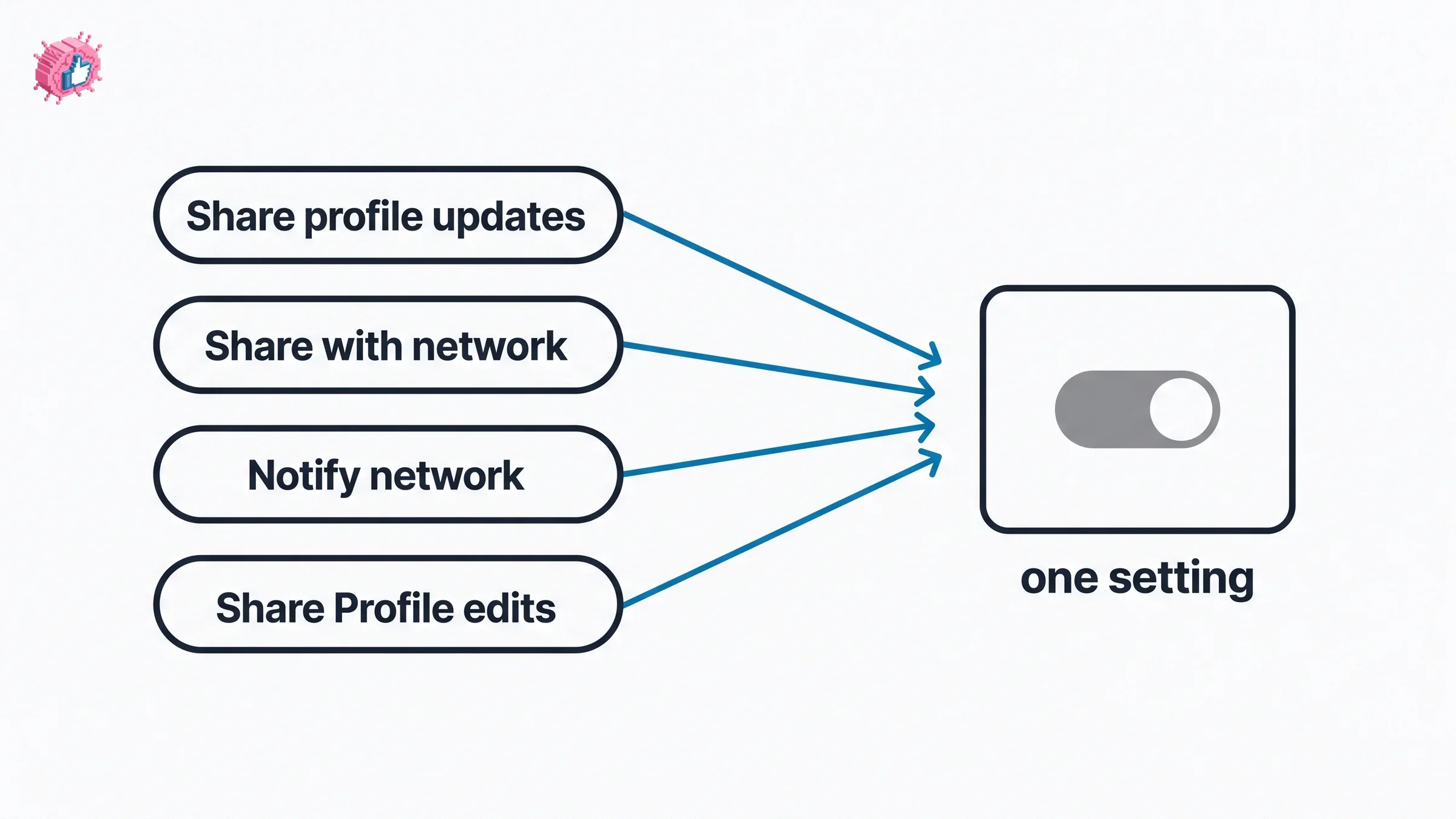
LinkedIn calls this one control four different names
This is not a quirk worth mentioning in passing, it is the reason searches for this setting so often fail. The same control carries a different label depending on which LinkedIn Help page you landed on.
| Where you read it | What it is called there |
|---|---|
| The visibility settings page itself | Share profile updates |
| While editing your profile on desktop | Share with network |
| The page on managing your Experience section | Notify network |
| The older page on activity visibility | Share Profile edits |
All four refer to the same behavior. If you are searching inside LinkedIn's own settings and the phrase from a tutorial does not appear, try the others before concluding the feature moved.
Automate your LinkedIn for 30 days
How long a profile update takes to travel
Turning the setting on does not broadcast instantly, which surprises people who edit, check their feed, and assume it failed.
LinkedIn gives specific windows:
- Job updates may take up to two hours to be shared with your network
- Education updates can take up to 24 hours
- Work anniversary notifications are sent within that month
Two related details sit in the same section of the documentation. If you have two or more current work experiences that started in the same month, only one work anniversary notification goes out, for the anniversary with the shortest window. And editing or deleting an update after you add it "may affect the notification generation," which is LinkedIn's way of saying that a fast correction can suppress the announcement you wanted.
Those delays cut both ways. A two hour window is also two hours in which an accidental broadcast has not gone out yet, so if you saved a job change with the toggle in the wrong position, switching it off immediately is worth trying.
Automated update posts expire after 90 days
The posts LinkedIn generates on your behalf are not permanent, and they do not behave like your own posts.
LinkedIn documents two things about them. They are "available for up to 90 days. After 90 days, the post and any associated comments and reactions are deleted." And they "don't appear in the Posts tab of your Recent Activity page," though you may still reach them through notifications when someone reacts or comments.
So the congratulations thread on your promotion announcement has a shelf life, and it is not something you can pin or point back to later. Anything you want to keep needs to be a post you wrote yourself. If writing the announcement is the part you keep postponing, a LinkedIn post generator gets a first draft on the page faster than a blank composer will.
What the documentation does not cover
Being straight about the limits of the source matters more here than filling the gaps with guesses.
LinkedIn's pages name job changes, promotions, education changes, and work anniversaries as the edits this setting governs. They also state that "even if you've enabled sharing, some types of profile edits won't generate notifications to your network," without listing which ones.
That leaves several common edits undocumented on these pages: your headline, your About section, your skills, and your profile photo. The Help pages do not say these generate notifications, and they do not say they never do. What the documentation does say applies to all of them, which is that anyone who views your profile sees the change as soon as you save it.
The practical reading is that the account-wide toggle is the strongest control LinkedIn documents, and profile visibility is a separate question from profile notifications.
A safer order for a full profile rewrite
If the real goal is reworking your profile without an audience watching it happen, sequence matters as much as settings.
- Turn Share profile updates off first, before you open the editor
- Reopen the setting and confirm the toggle actually moved
- Make every edit in one sitting rather than across several days
- Leave any photo frame decision for last, since frames are visible on sight and are not covered by the setting
- Turn the setting back on afterward, so a real milestone later is not silently suppressed
Doing the writing in one pass is the step people skip. A profile edited across two weeks gives repeat profile visitors a slow reveal, which is the thing the notification setting was supposed to prevent. Drafting your headline and your About section before you touch the live profile keeps that window short. The same applies to adding your resume to your profile, which changes a visible section.
What this means for you
- The setting is Share profile updates, under Settings & Privacy then Visibility. One toggle, covering feed posts, in-app notifications, and emails together.
- Off stops the announcement, not the exposure. LinkedIn says profile viewers see your edits the moment you save them, regardless of this setting.
- Photo frames are not notifications. The #OpenToWork and #Hiring frames are visible profile elements, and the #Hiring flow notifies your network on its own.
- The toggle inside the profile editor is loosely documented. LinkedIn names it but never shows where it sits, so rely on the account-wide setting.
- Job updates take up to two hours and education updates up to 24. A quiet feed right after saving is not proof the setting worked.
- Turn it back on when the rewrite is finished. Leaving it off means a promotion you do want announced goes out to nobody.
If the profile is the start of a wider reset rather than a one time cleanup, the LinkedIn personal branding guide is the longer read, and follow vs connect explains who actually receives what you publish afterward. For tooling, ViralBrain has a free tier with 3 heroes and 3 posts a month, and pricing covers what a paid plan adds.
Sources: Share profile updates, Visibility of your updates, posts, and activity, Manage your profile Experience section, Create and share a job post via #Hiring, LinkedIn Help (accessed October 2026)
FAQ
How do I update my LinkedIn profile without notifying my network?
Turn off Share profile updates before you edit. On desktop it is under the Me icon, then Settings & Privacy, then the Visibility tab, then Share profile updates under Visibility of your LinkedIn activity. Switch the toggle off and it saves automatically.
Can I update my LinkedIn profile without notifying others at all?
You can stop the notifications, not the visibility. LinkedIn states that "anyone that views your profile will see your edits as soon as you save them, even if you haven't chosen to notify your network about any changes you make." Nobody gets alerted, but anyone who opens your profile sees the current version.
Will my contacts know if I change my job title on LinkedIn?
Not through a notification, if Share profile updates is off. LinkedIn names job changes as one of the edits that setting controls. They would still see the new title if they visited your profile or came across it in search.
How do I add a new job to LinkedIn without telling everyone?
Turn the account-wide setting off first. LinkedIn also mentions a toggle inside the profile editor, called Share with network on one Help page and Notify Network on the Experience section page, but neither page shows where it sits on the form, so the account-wide setting is the reliable control.
Why did LinkedIn notify my network even though the setting was off?
Check whether the change was something the setting actually covers. Photo frames are the common cause: the #Hiring frame flow notifies your network as part of creating or sharing a job, and the #OpenToWork frame is visible on your photo rather than being a notification at all.
How long does LinkedIn take to share a profile update?
Job updates may take up to two hours to reach your network and education updates up to 24 hours. Work anniversary notifications are sent within that month. An empty feed in the first few minutes does not tell you whether the setting worked.
Does turning off profile update notifications hide my profile?
No. It is a notification control, not a privacy control. The edits stay fully visible to anyone who opens your profile, and the setting has no effect on who can find or view it.
Do LinkedIn profile update posts stay on my profile?
No. LinkedIn says automated profile update posts are available for up to 90 days, after which the post and any comments and reactions on it are deleted. They also do not appear in the Posts tab of your Recent Activity page.
Can I turn notifications off for some profile changes but not others?
LinkedIn states you can adjust notification settings for job changes, promotions, education changes, and work anniversaries, and that some types of profile edits will not generate notifications even when sharing is enabled. It does not publish the full list of which edits are excluded.
Automate your LinkedIn for 30 days
ViralBrain plans, writes, and schedules your LinkedIn content, using official LinkedIn APIs so your account stays safe.
- Official LinkedIn APIs, no risk of ban
- You approve every post before it goes live
- Cancel anytime
Keep reading
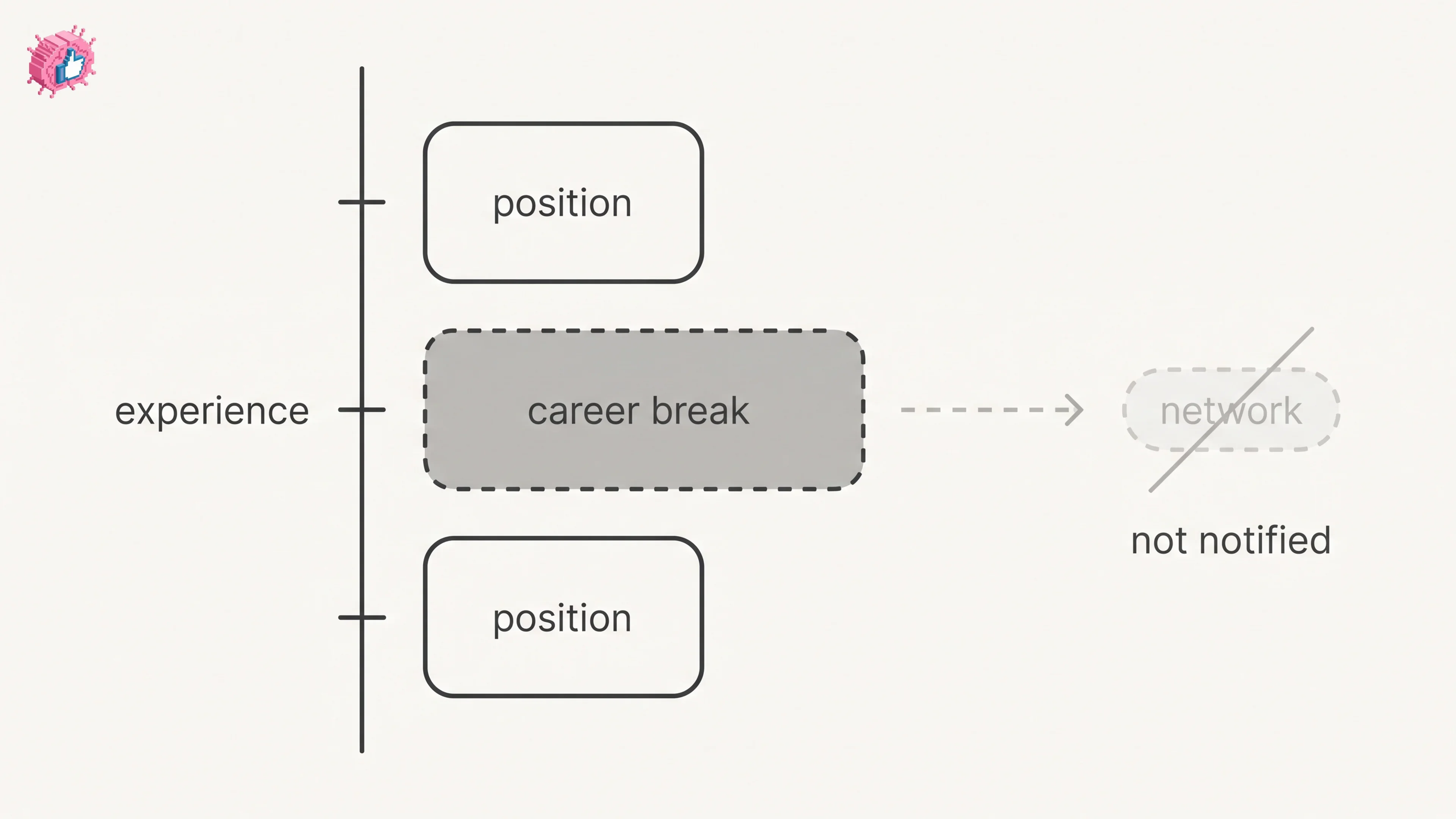
LinkedIn Career Break: How to Add One and Who Sees It
Add a career break on LinkedIn desktop or the app. Your network is not notified, the type is optional, and signed-in members see it. From LinkedIn Help.
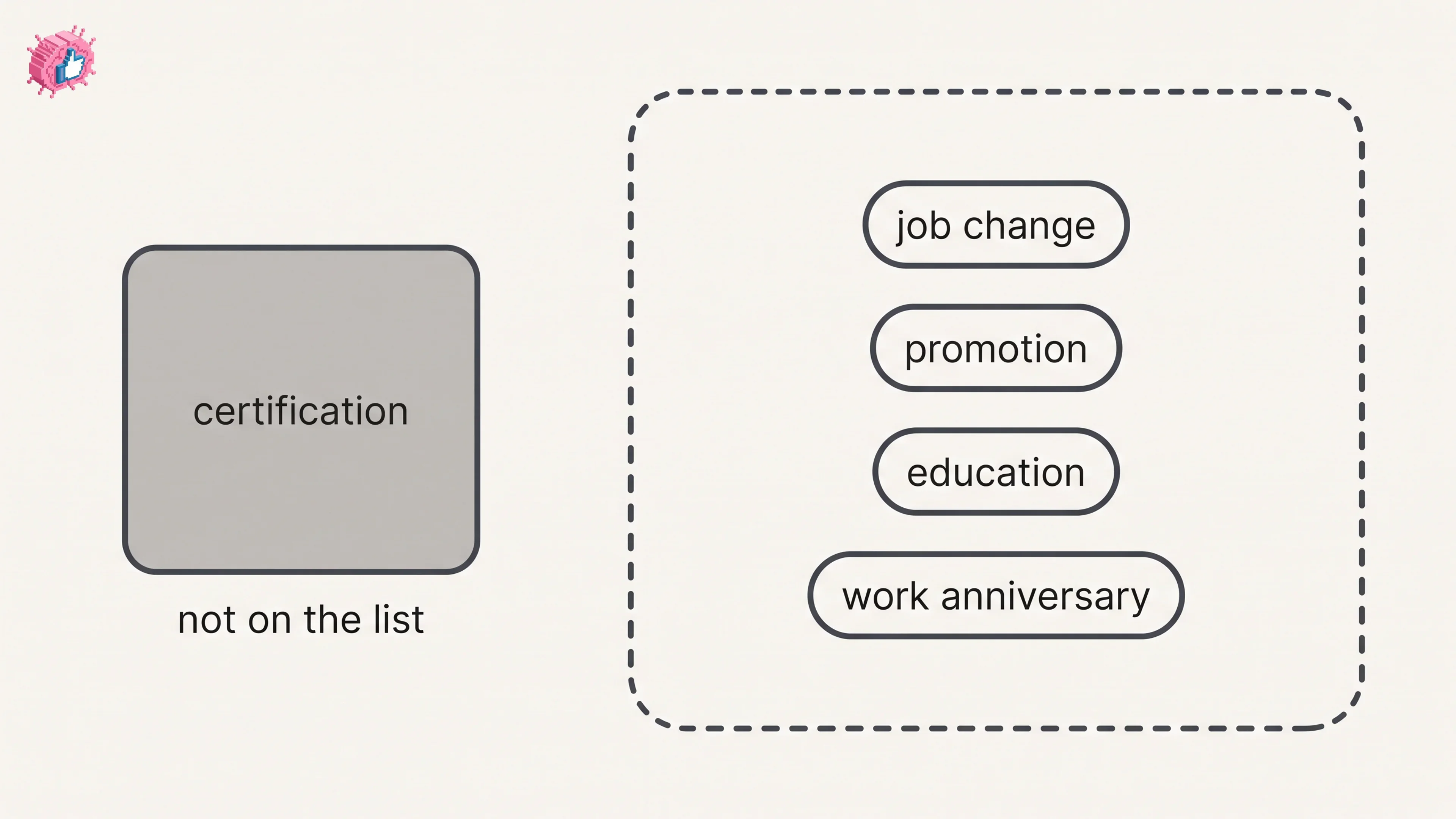
How to Add a Certification to LinkedIn Without Posting
Add a certification on LinkedIn desktop or the app, put credentials after your name, and see what LinkedIn documents about notifying your network.
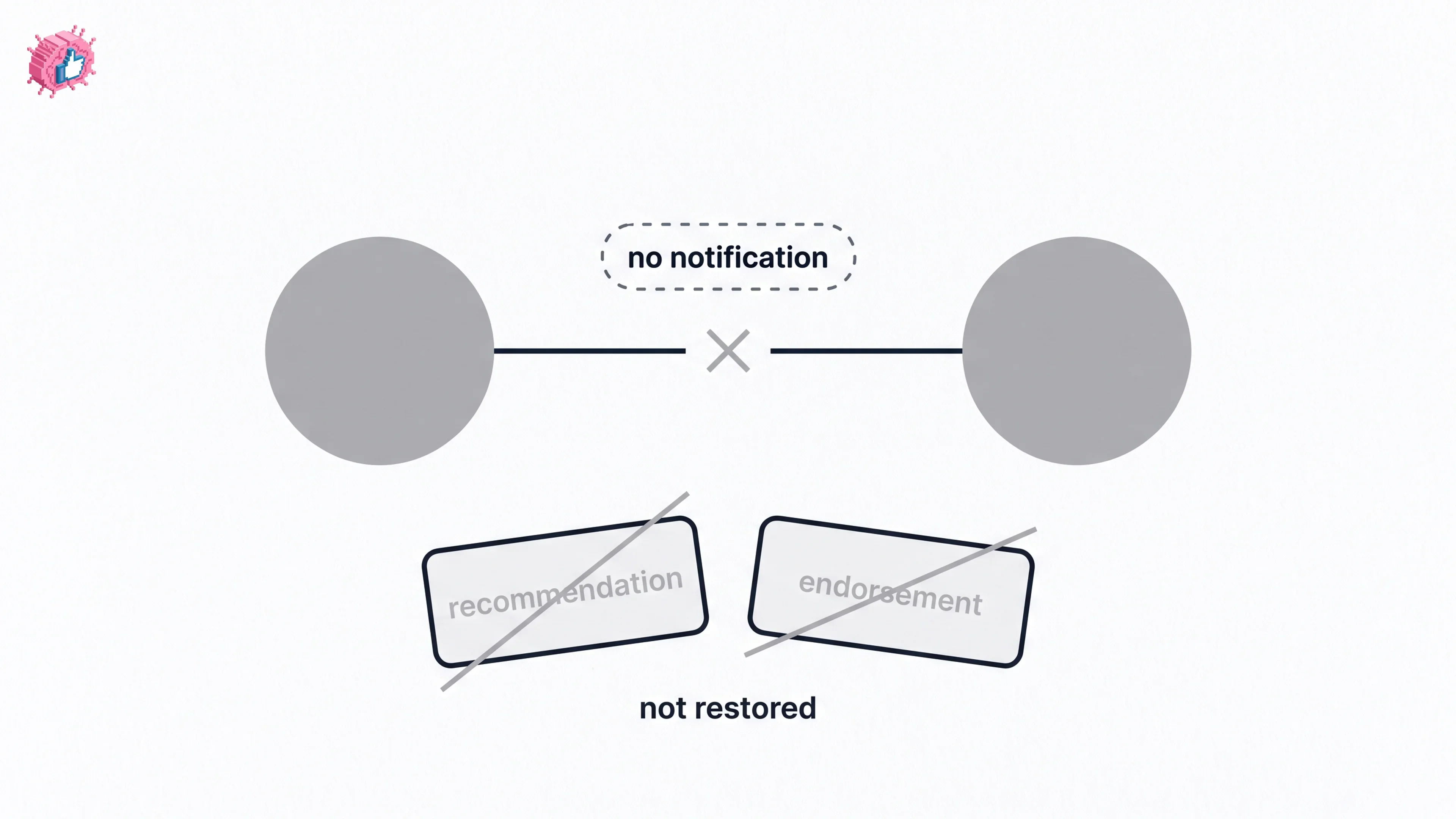
How to Remove a Connection on LinkedIn: What It Erases
Remove a LinkedIn connection on desktop or the app. They are not notified, but recommendations and endorsements go for good. Steps from LinkedIn Help.