

How to Block Someone on LinkedIn: What It Does
Blocking removes their endorsements and recommendations, and recommendations never come back. The steps, what they can still see, and the 48 hour wait.
Blocking on LinkedIn does more than hide a profile. It severs the connection, strips their endorsements and recommendations from your profile, unsubscribes them from your newsletter, and at least one of those is permanent even if you change your mind.
The block itself is four clicks. The consequences are worth reading first, because at least one of them cannot be undone by unblocking.
This guide covers how to block and unblock on every platform, the full list of what blocking changes, what a blocked member can still see, the 48 hour wait before you can re-block someone, and why the Block option sometimes is not there at all.
Automate your LinkedIn for 30 days
How to block someone on LinkedIn
LinkedIn's block or unblock page, updated four weeks ago, gives a different path per platform.
On desktop:
- Go to the profile of the person you want to block
- Click the More… button below their profile picture and select Report/Block
- Select Block [member name] from the Report or block pop-up
- Click Block to proceed, or Back to review your options
On iOS: tap the More icon in the top right, tap Report or Block, tap Block [member's name], then confirm with Block.
On Android: tap the More icon in the top right of the profile, tap Report/Block from the dropdown menu, tap Block [member's name], then tap Block in the confirmation pop-up.
On a mobile browser: go to the profile, tap the More icon and select Report or block, tap Block [member name] under What do you want to do?, then tap Submit.
Two facts LinkedIn states plainly about the act itself. The blocked member "won't receive any notification of this action", and there is "no limit to how many members you can block".
What blocking actually does
LinkedIn's block overview page lists the consequences. They go well beyond profile access.
| What changes | Effect |
|---|---|
| Profiles | Neither of you can access the other's |
| Messaging | Neither of you can message the other |
| Shared content | Neither of you can see the other's |
| Connection | If you were connected, you are no longer connected |
| Who's Viewed Your Profile | You stop appearing to each other |
| Events | You are not notified about their upcoming LinkedIn Events |
| Newsletters | A blocked subscriber stops receiving yours |
| Endorsements and recommendations | LinkedIn removes theirs from your profile |
| Suggestions | You stop being suggested to each other in People You May Know and People also Viewed |
| Audio events | You cannot join one if you blocked the host or a designated speaker |
| Unblocking | Only you can unblock them |
The endorsement and recommendation removal is the one to think about before you click. Those are contributions to your profile that a blocked person made, and blocking takes them down. If you have a recommendation you value from someone you are about to block, read the next section first.
For what those two features are and how they work normally, see LinkedIn endorsements and LinkedIn recommendations. The effect on Who's Viewed Your Profile connects to a quirk covered in does LinkedIn show who viewed your profile.
The part that unblocking will not undo
This deserves its own section because it is the one permanent consequence the block pages themselves spell out.
LinkedIn states: "Recommendations from members you block will no longer appear in your profile. At this time, recommendations from a member you blocked cannot be reinstated if you unblock them."
So a recommendation is destroyed, not hidden. Unblocking restores your ability to see each other. It does not bring the recommendation back, and LinkedIn's page does not say whether the same person could write you a new one.
Note the precision of LinkedIn's wording. The block pages say recommendations cannot be reinstated and say nothing about endorsements. But blocking also ends your connection, and LinkedIn's page on removing endorsements states that when a connection is broken, "any endorsements between the two of you are automatically removed and not reinstated if you re-establish the connection". Read together, expect endorsements not to come back either unless they are given again.
What a blocked member can still see
Blocking is not invisibility. LinkedIn is direct about the limits.
A blocked member "may still see information you make public", and the page names four things specifically:
- Your public profile
- Content you posted in public (open) group discussions
- Your own public shares
- Your comments on Top Voices posts
LinkedIn points to your public profile settings as the lever if that matters to you.
There are also three ways their content can still reach you:
- Mutual connections resharing it. Content created by the person you blocked can arrive in your feed through someone else, and LinkedIn notes you can choose to hide those updates.
- Mobile cache. You may see cached profile data on a mobile device. LinkedIn's fix is to sign in and then sign out of the mobile apps to refresh the cache.
- Third-party apps. Applications using LinkedIn's APIs may hold cached data on a blocked member. LinkedIn directs you to the app developer to get it removed.
Three further notes from the same page. If someone viewed your profile before you blocked them, "they'll still appear in your profile viewer count, but their details won't be reflected in the viewer details". You "can't block private mode viewers" of your profile. And contact records saved locally to your device have to be removed by hand.
Unblocking, and the 48 hour wait
Unblocking is done from settings rather than from their profile, which makes sense given you can no longer reach their profile.
On desktop:
- Click the Me icon at the top of your homepage
- Select Settings & Privacy
- In the Visibility section, select Blocking under Visibility of your profile & network
- Find the person in your blocked list and click Unblock
On iOS and Android the route runs through your profile picture, then Settings & Privacy, then Visibility, then Blocking under Visibility of your profile & network. In a mobile browser it differs: tap the Profile icon, then the Settings & Privacy icon at the upper right, and in the Visibility section select Visibility of your LinkedIn activity. If the desktop label is what you are hunting for in a mobile browser, that difference is why you cannot find it.
Then the constraint people hit: "You'll have to wait 48 hours before re-blocking the same member after unblocking."
That is a deliberate cooling-off period, and it means unblocking to check something is not a free action. For two days afterwards you have no way to re-apply the block.
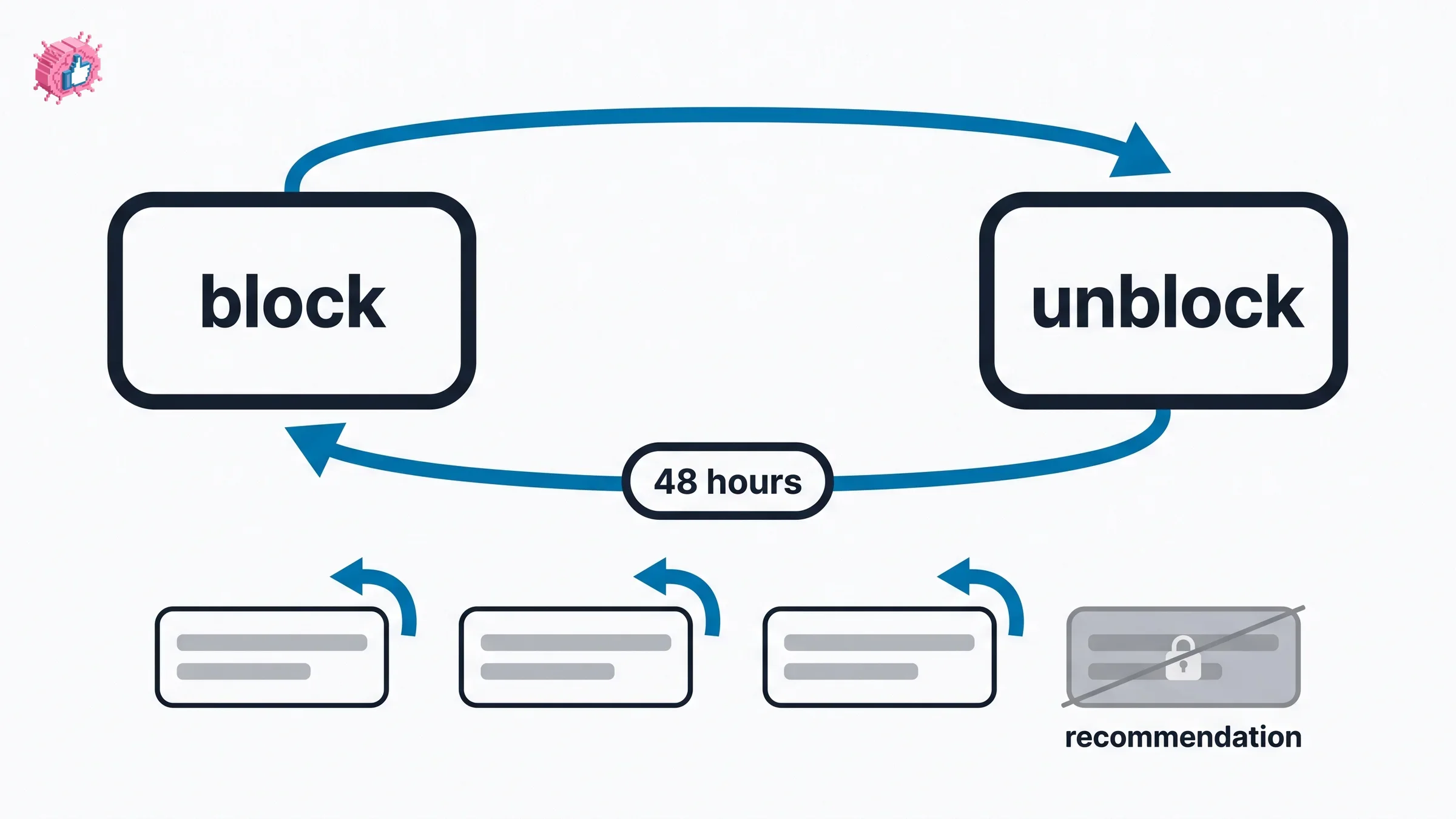
One more limit worth knowing if you block heavily: "If you have blocked more than 2000 members, you may not be able to unblock someone you have previously blocked." LinkedIn's remedy there is contacting support.
Automate your LinkedIn for 30 days
When the Block option is not there
If you open a profile and there is no way to block them, there is a documented reason. LinkedIn splits the causes into two groups on its unable to block page.
Events. You cannot block someone while you share an event with them.
- They organize an event you attended or plan to attend. Leave those events.
- They are a Page admin of a Page-organized event you attended or plan to attend. Leave those events.
- You organize an event they attended or plan to attend. Remove them as an attendee.
- You are a Page admin of a Page-organized event they are attending. Remove them as an attendee.
Groups. Group hierarchy blocks blocking in both directions.
- They are an admin or owner of a group you are in. Leave the group first.
- You own or administer a group they are in. Remove them from the group first.
The overview page adds the underlying rule: "Group members can't block admins (group owners/group managers) as admins need access and control over a group to moderate group posts, memberships, and other activities", and "blocking isn't supported between a group member and a group manager". Group members can ask an owner or manager to block someone on their behalf.
There is a separate reason you might not find the person at all rather than not find the button. LinkedIn lists four: they hibernated their profile, they were removed from the site for abusive behavior, they blocked you, or they closed their account.
Two exceptions to the no-notification rule
The default is that blocking is silent. Two documented situations break that.
Shared Recruiter accounts. If you block someone you currently or previously shared a LinkedIn Recruiter account with, LinkedIn "reserves the right to notify this member of your block", and the overview page adds that it may need to inform the member or the Recruiter admin to manage that account.
Page admins. If you are a Page admin and you block a member who is or becomes an admin of the same Page, "you can see limited information about each other's profiles in the Page admin view". The block does not fully apply inside admin tooling. If you manage a Page with others, LinkedIn Page admin roles covers who holds what access.
There is also a wording difference between the two pages worth noting. The page updated four weeks ago says flatly that the blocked member "won't receive any notification of this action" and puts the Recruiter case in a note. The overview page, last updated two years ago, hedges in its opening line with "in most cases". Same substance, and the fresher page is the more precise of the two.
When not to block
Blocking is the heaviest instrument LinkedIn gives you, and it is irreversible in more than one respect. For lighter problems there are lighter tools.
If the issue is that someone posts too much rather than that they are a problem, unfollowing hides all their updates while keeping the connection, and it is fully reversible. That comparison, including what LinkedIn does and does not document about muting, is in LinkedIn mute vs unfollow.
If the issue is what people say on your posts rather than the person themselves, comment settings are the narrower fix, covered in LinkedIn comment controls.
The overview page also lists six lighter measures LinkedIn suggests: hiding the public version of your profile from search engines and signed-out visitors, hiding your profile photo, changing your profile display name, adjusting who can send you invitations, turning Open Profile on or off, and removing a first-degree connection. Removing a connection is the quieter middle option, though not a free one: LinkedIn states that when a connection is broken, endorsements between you are "automatically removed and not reinstated if you re-establish the connection".
Blocking is the right call for harassment, and LinkedIn frames it that way itself, describing members who "want to take action on their own" when abusive behavior persists. For everything short of that, one of the lighter controls usually costs you less.
The honest summary
Blocking is four clicks and it is thorough: profiles, messaging, shared content, your connection, newsletter delivery, mutual suggestions and their endorsements and recommendations all go at once. They are not notified, unless you share a Recruiter account.
The part to decide before clicking is recommendations. LinkedIn says plainly they cannot be reinstated by unblocking, and its endorsements page says endorsements lost when a connection breaks are not reinstated either.
It is not a cloak. Your public profile, public shares, open group posts and Top Voices comments remain visible to them, and their content can still reach you through mutual connections or a stale cache. And if you unblock, you are locked out of re-blocking for 48 hours.
If you are reaching for blocking because of volume rather than conduct, unfollowing is the cheaper and fully reversible move. If you are building an audience that attracts the wrong attention in the first place, the LinkedIn personal branding guide and the LinkedIn post generator are about the other end of that problem, and pricing covers what a paid plan adds.
FAQ
How do you block someone on LinkedIn?
Go to their profile, click the More… button below their profile picture, select Report/Block, choose Block [member name] from the pop-up, then click Block. On mobile the route runs through the More icon, then Report or block, then confirming the block.
Does LinkedIn notify someone when you block them?
No in normal cases. LinkedIn states the blocked member "won't receive any notification of this action". The documented exception is a shared LinkedIn Recruiter account, where LinkedIn "reserves the right to notify this member of your block".
What happens when you block someone on LinkedIn?
You lose access to each other's profiles, messages and shared content, any connection between you is removed, you stop appearing in each other's Who's Viewed Your Profile, a blocked newsletter subscriber stops receiving it, you stop being suggested to each other, and LinkedIn removes that member's endorsements and recommendations from your profile.
Can a blocked person still see my LinkedIn profile?
They can still see anything you make public. LinkedIn names your public profile, content in public (open) group discussions, your own public shares, and your comments on Top Voices posts. Your public profile settings control how much of that is visible.
How do I unblock someone on LinkedIn?
Click the Me icon, select Settings & Privacy, then under Visibility select Blocking from Visibility of your profile & network, find the person and click Unblock. In a mobile browser the subsection is named Visibility of your LinkedIn activity instead.
How long before I can block someone again after unblocking?
48 hours. LinkedIn states you "have to wait 48 hours before re-blocking the same member after unblocking", so unblocking to check something leaves you unable to re-apply the block for two days.
Do I get my recommendations back if I unblock someone?
No. LinkedIn states that "at this time, recommendations from a member you blocked cannot be reinstated if you unblock them". LinkedIn does not say whether that person can write you a new one. Endorsements are removed too, and LinkedIn states that endorsements removed when a connection is broken are "not reinstated if you re-establish the connection".
Why can I not block someone on LinkedIn?
Usually a shared event or group. You cannot block the organizer of an event you are attending without leaving it, or a group admin without leaving the group, and the reverse applies if you run the event or group. If you cannot find the person at all, they may have hibernated their profile, closed their account, been removed for abusive behavior, or blocked you.
Is there a limit to how many people I can block on LinkedIn?
LinkedIn states there is "no limit to how many members you can block". There is a related limit on the way out: past 2,000 blocked members, you may be unable to unblock someone, and LinkedIn directs you to support.
Automate your LinkedIn for 30 days
ViralBrain plans, writes, and schedules your LinkedIn content, using official LinkedIn APIs so your account stays safe.
- Official LinkedIn APIs, no risk of ban
- You approve every post before it goes live
- Cancel anytime
Keep reading
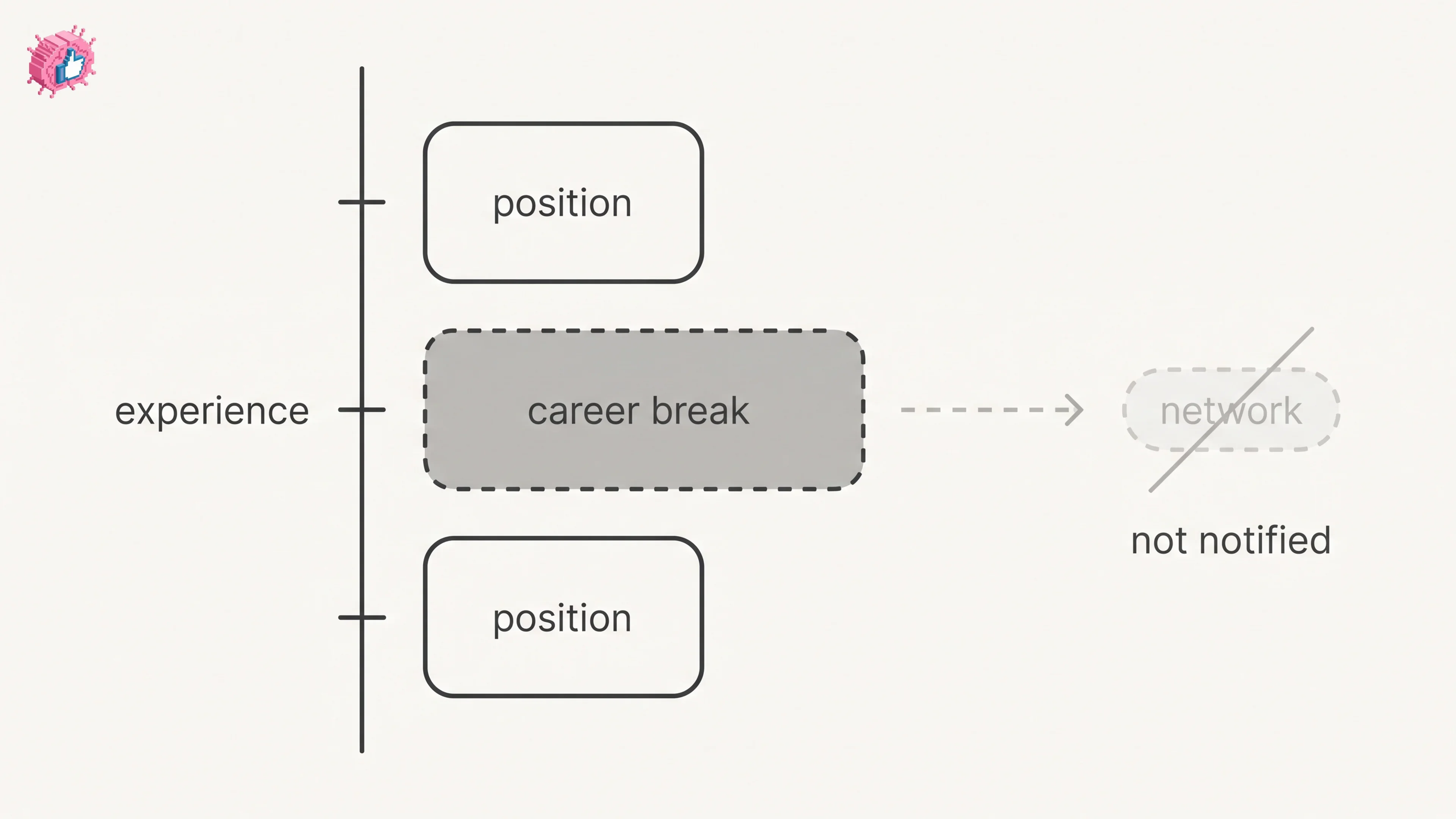
LinkedIn Career Break: How to Add One and Who Sees It
Add a career break on LinkedIn desktop or the app. Your network is not notified, the type is optional, and signed-in members see it. From LinkedIn Help.
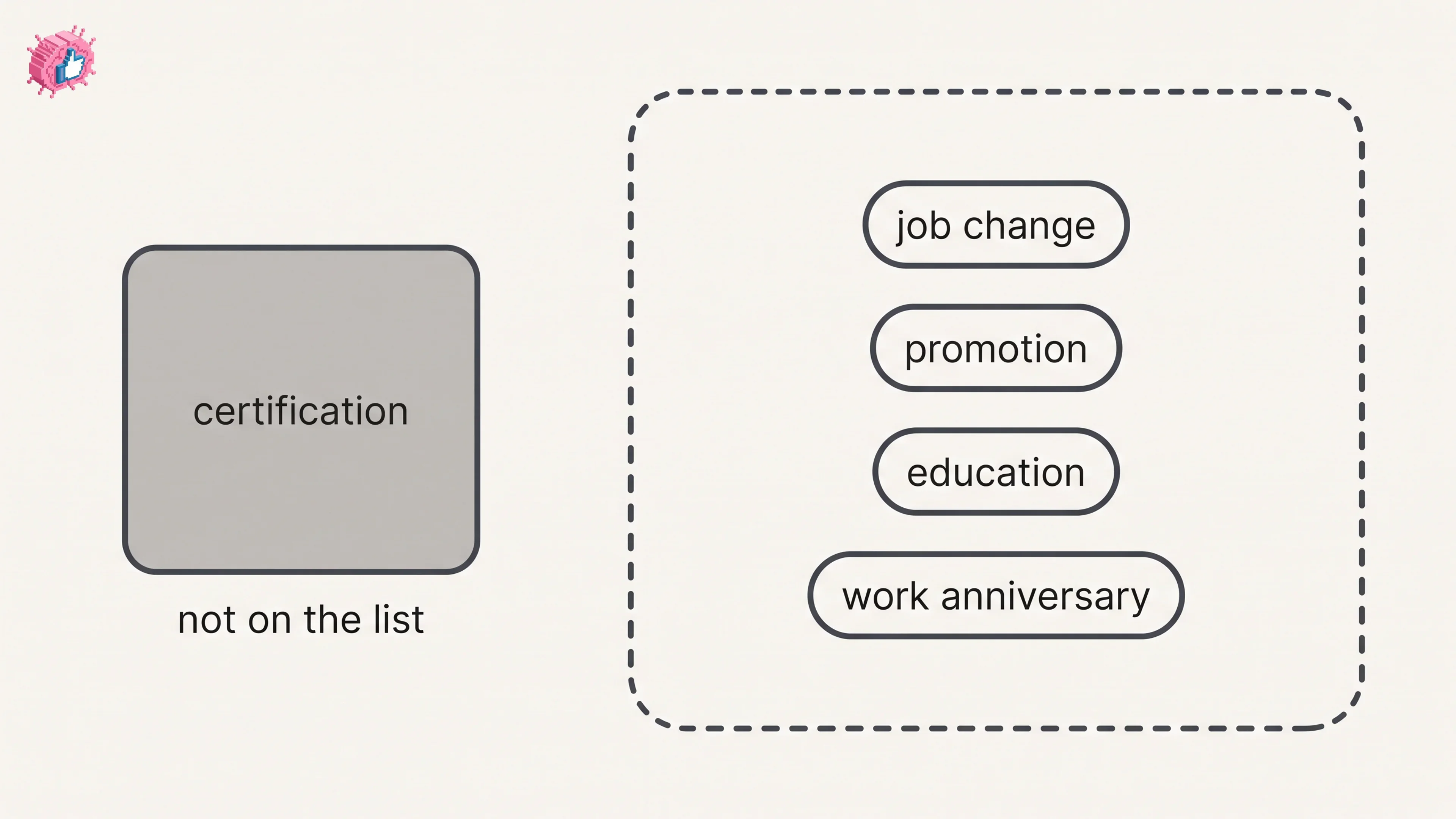
How to Add a Certification to LinkedIn Without Posting
Add a certification on LinkedIn desktop or the app, put credentials after your name, and see what LinkedIn documents about notifying your network.
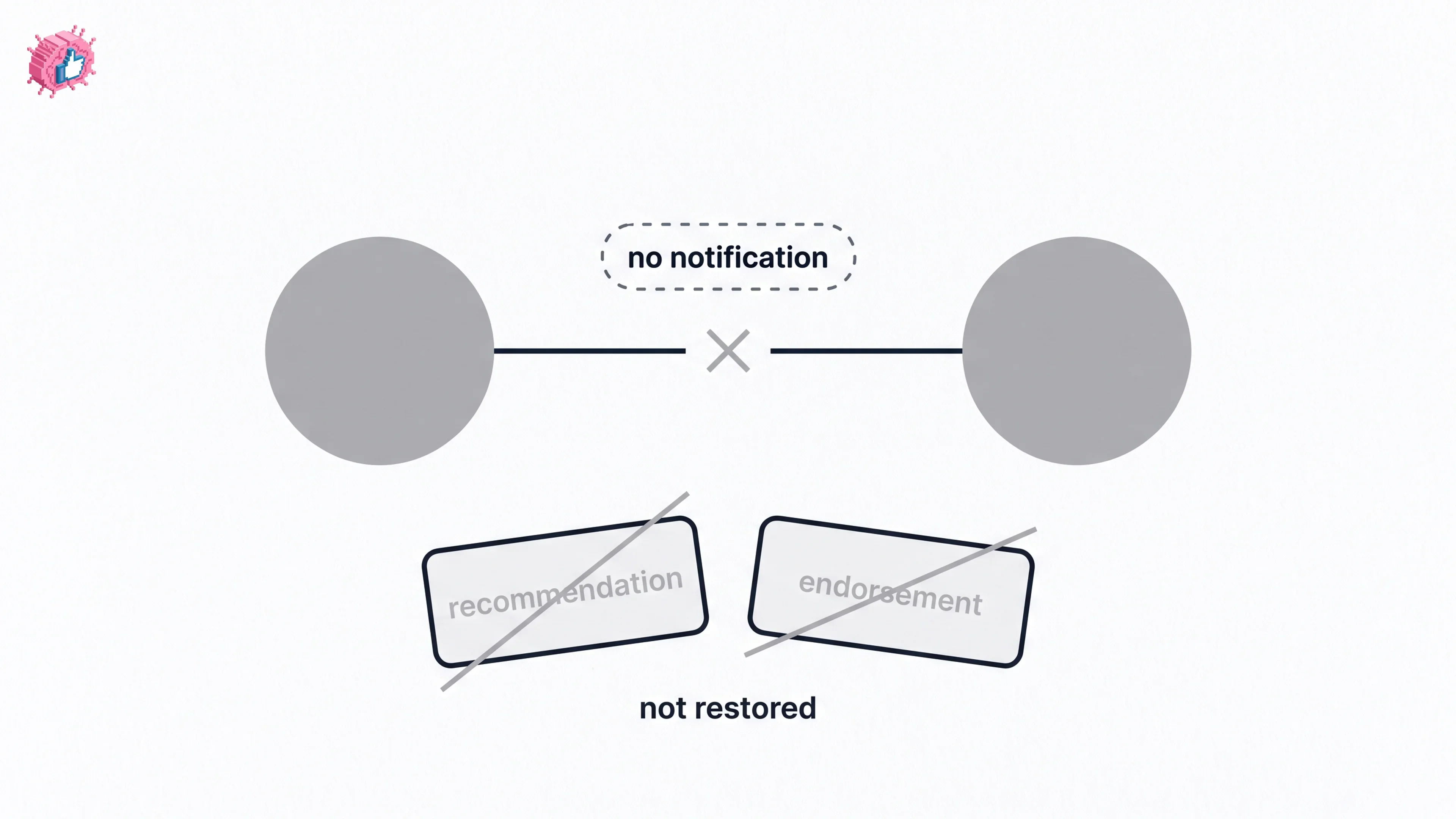
How to Remove a Connection on LinkedIn: What It Erases
Remove a LinkedIn connection on desktop or the app. They are not notified, but recommendations and endorsements go for good. Steps from LinkedIn Help.