

How to Add Publications on LinkedIn to Your Profile
How to add the Publications section to your LinkedIn profile, what LinkedIn documents about the form, and how publications differ from LinkedIn articles.
The Publications section is an optional LinkedIn profile section for work published somewhere other than LinkedIn. LinkedIn's own description is one sentence: "Publications - Publications that have featured your work." You add it through Add profile section in your introduction section on desktop, or Add section in the app, then pick Publications under the Additional group.
It is not the same thing as a LinkedIn article. An article is written and hosted on LinkedIn itself, and LinkedIn states that articles "are displayed in the Activity section of your profile." A publication entry is a pointer to a paper, a book or a piece that exists elsewhere.
The pages read for this guide say very little about the section beyond the shared add flow. This guide gives every step they document, quoted where the wording decides the answer, and says plainly where the documentation stops rather than guessing.
Automate your LinkedIn for 30 days
What the Publications section is on LinkedIn
It is a place to list things you wrote or co-wrote that were published elsewhere. The profile overview page gives the whole definition in one line: "Publications that have featured your work."
LinkedIn files it under the Additional group in the Add profile section menu. That is the opt-in group, the one LinkedIn neither assumes nor recommends, which tells you something about how the section is positioned.
| Question | What LinkedIn documents |
|---|---|
| Which menu group | Additional, in Add profile section |
| What it is for | Publications that have featured your work |
| Is there a dedicated Help page | None found in the pages read for this guide |
| Are the form fields published | Not on any page read for this guide |
| Is a co-author or contributor field published | Not on any page read for this guide |
| How you add it | The shared add flow, Desktop and Mobile |
| How you edit it | The Edit icon next to the section |
| Is removing a single publication documented | Not on any page read for this guide |
| Is it the same as a LinkedIn article | No, articles are a separate publishing tool |
The field list, the co-author question and the articles distinction each get their own section below.
Where publications sits among the other profile sections
LinkedIn sorts every addable section into three groups, and the group tells you how prominent LinkedIn treats the section.
| Group | Sections |
|---|---|
| Core | About, Education, Position, Services, Career break, Skills |
| Recommended | Featured, Licenses & certifications, Projects, Courses, Recommendations |
| Additional | Volunteer experience, Publications, Patents, Honors & awards, Test scores, Languages, Organizations, Causes |
Publications sits in the bottom group next to Patents, which makes sense: both are records of formal output. The projects section sits one group up under Recommended, and so do licenses and certifications.
Worth knowing before you start: adding any optional section uses one shared flow. The route is identical whether you are adding a publication, a patent or a test score, and you only choose between them at the subsection step.
How to add a publication on LinkedIn
LinkedIn tabs these steps Desktop and Mobile.
Desktop:
- Click the Me icon at the top of your LinkedIn homepage.
- Click View Profile.
- Click Add profile section in your introduction section.
- Click on the section you'd like to add and select the subsection, if applicable.
- Enter the required information in the pop-up window that appears.
- Click Save.
Mobile:
- Tap your profile picture.
- Tap your profile photo again to access your profile.
- Tap Add section in your introduction section.
- Tap on the section you'd like to add and select the subsection, if applicable.
- Enter the required information in the page.
- Tap Save.
Step 4 is where you open Additional and pick Publications. Step 5 is where the form appears, and that step is the reason for the next section.
The app route to your own profile is two taps on the same photo. LinkedIn's wording is "Tap your profile picture", then "Tap your profile photo again to access your profile." LinkedIn's steps show no separate menu item in that flow.
What LinkedIn does not publish about the publications form
The fields. None of the Help pages read for this guide names a single field on the publication form.
This is a real gap rather than an omission in this guide, so here is what the documentation actually gives you and why it matters.
The form fields are not published. The add steps say only "Enter the required information in the pop-up window that appears." That sentence is generic by design, because the same six steps cover every section in the menu. No page read for this guide walks through a title field, a publisher field, a date field or a description field for publications.
Co-authors are not documented. Whether you can add co-authors is not covered on any page read for this guide. Compare the projects section, where LinkedIn's profile overview at least says projects are shown "along with team members", a phrase that signals the concept exists. The publications line has no equivalent phrase. It says only "Publications that have featured your work."
Removing a single publication is not documented. LinkedIn publishes explicit delete steps for some sections. For a position it states "click Delete experience, and click Delete", and it publishes a delete route for education entries too. The pages read here publish no equivalent for a publication. Editing is the documented route.
So the reliable source on all three is your own form. Any article giving you a field by field walkthrough of the publications form is sourcing it from somewhere other than the Help pages read for this guide. Open the form at step 5 and read what it asks for, because that is the version LinkedIn is actually running.
That the section is lightly documented is itself useful information. It means a publication entry is low risk to add and low cost to maintain, and it means you should trust the live form over any walkthrough you find.
Publications versus LinkedIn articles
Different features, different homes, different reasons to use them.
A publication is a record of something published elsewhere, listed in a profile section. A LinkedIn article is long form content you write inside LinkedIn's own publishing tool. LinkedIn describes articles directly: "All members and admins (super admins or content admins of a LinkedIn Page) have the ability to publish articles about their expertise and insights. Articles are displayed in the Activity section of your profile."
One restriction decides where you can write one. LinkedIn states of the article tool: "This feature isn't available on the LinkedIn mobile app." The Publications section, by contrast, has documented steps for both Desktop and Mobile.
| Publications section | LinkedIn articles | |
|---|---|---|
| What it is | A profile section listing published work | A publishing tool for long form content |
| Where the content lives | Somewhere other than LinkedIn | On LinkedIn |
| Where it appears on your profile | Its own section, under Additional | The Activity section |
| Documented on mobile | Yes, Desktop and Mobile tabs | No, "isn't available on the LinkedIn mobile app" |
| How you start | Add profile section, then Publications | Write article in the share box on your homepage |
| Are the fields documented | Not on any page read for this guide | Yes, including title, cover image and the Manage settings menu |
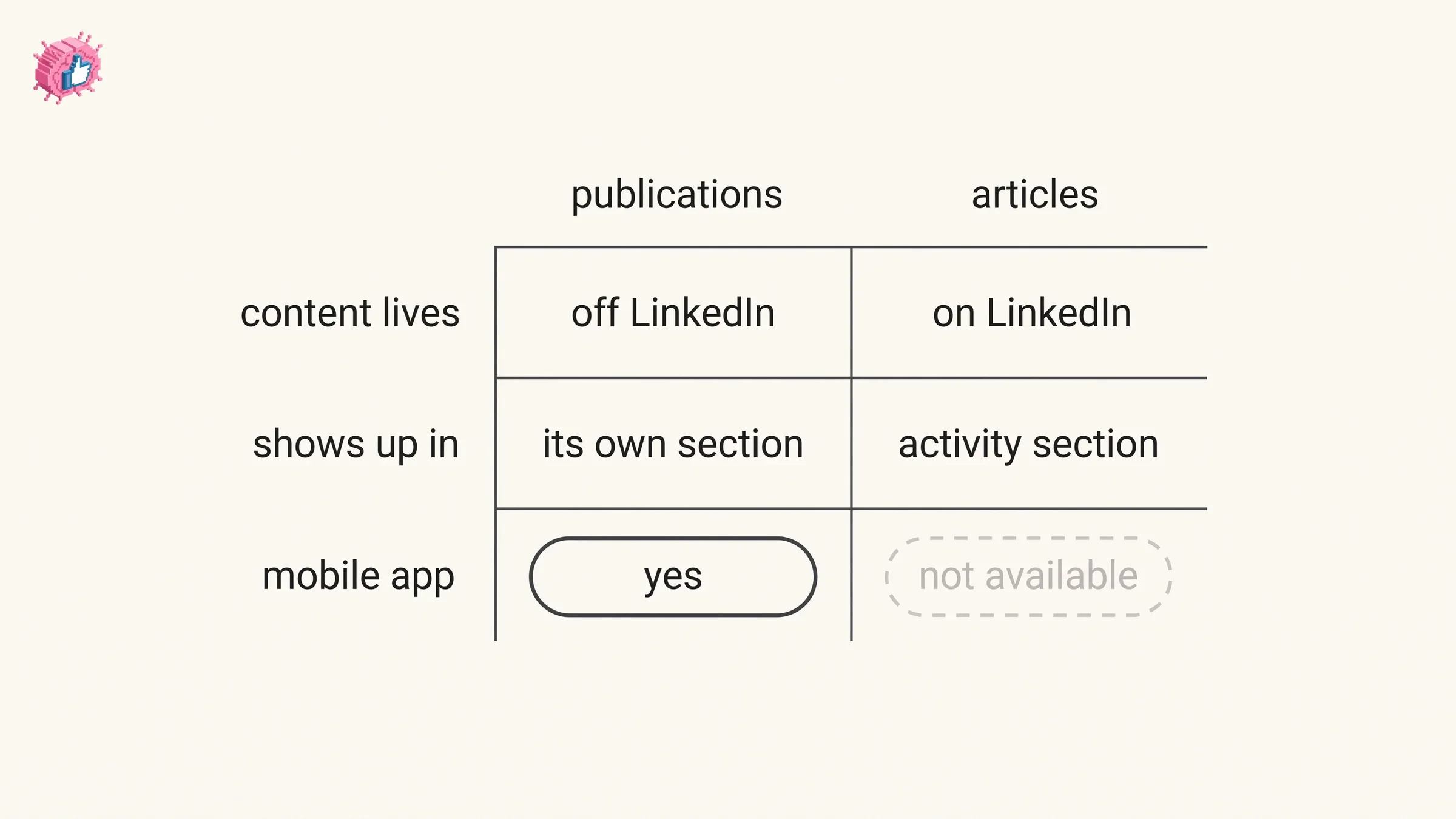
The two are not in competition. A paper in a journal belongs in Publications. A piece you wrote for your own audience belongs in an article, where LinkedIn documents an SEO title, an SEO description and a custom article URL under its Manage dropdown. If you want the second one, how to post articles on LinkedIn covers the publishing tool end to end.
A reasonable pattern for a piece that exists in both worlds: publish it where it belongs, then list it in Publications so it sits on your profile as a credential rather than only in your activity feed.
Automate your LinkedIn for 30 days
How to edit a publication on your profile
Editing uses the general profile editing flow, and LinkedIn tabs this one three ways: Desktop, Mobile and Mobile Browser. Read its limitation first: "Currently, not all sections are editable on mobile browser. You can only edit the photo, name, headline, location, summary, experience, education, skills, accomplishments, and contact sections."
Desktop:
- Click the Me icon at the top of your LinkedIn homepage, then click View Profile.
- Click the Edit icon to the right of the section you'd like to make changes to.
- Make changes in the fields provided.
- Click Save.
Mobile:
- Tap your profile photo.
- Tap your profile photo again to access your profile.
- Tap the Edit icon to the right of the section you wish to edit.
- Tap the Edit icon next to individual detail you want to edit.
- Make changes in the fields provided.
- Tap Save.
Mobile Browser:
- Tap your profile photo.
- Tap the Edit icon to the right of the section you wish to edit.
- Make changes in the fields provided.
- Tap Save in the upper-right corner.
The app path has an extra step the other two do not: a second Edit icon next to the individual item, after the one next to the section. That two level structure is how you reach one publication rather than the whole section.
How to hide publications from your public profile
LinkedIn documents a toggle based control over what logged out visitors see. What it does not publish is which sections appear in that toggle list.
Start with the definition. LinkedIn states: "Your public profile is a simplified version of your LinkedIn profile. Not all sections of your profile can be displayed publicly." Some sections are already absent from the public version without you touching anything.
On desktop:
- Click the Me icon at the top of your LinkedIn homepage.
- Click View Profile.
- Click the Edit icon next to Public profile & URL on the right pane.
- To hide specific profile information, toggle the related setting to Off to hide that information from your public profile.
In the app:
- Tap your profile photo.
- Tap Settings.
- Tap Visibility.
- Tap Edit your public profile under Visibility of your profile & network.
- Toggle the related settings to Off.
LinkedIn confirms "Changes are saved automatically", so there is no confirm button and no confirmation that it worked. Reopen the page once and look at the toggle.
Neither public profile page read for this guide names Publications as a toggleable section, and neither names any other section either. The list is on your settings page, not in the documentation. Open it and look rather than trusting an article that names the toggles.
Expect a lag on the search engine side. LinkedIn notes that after a public profile change "it may take several weeks or even months for search tools like Google, Yahoo, or Bing to detect and reflect those changes", and that "LinkedIn does not control how or when these search tools refresh their results."
Does adding a publication notify your network
No publication specific notification is documented on any page read for this guide.
LinkedIn documents an account wide control instead. Share profile updates sits in Settings & Privacy under Visibility, and LinkedIn states its scope: "You can choose to notify your network about job changes, education changes, and work anniversaries." Publications are not on that list, which is not the same as a guarantee of silence, and LinkedIn adds that "some types of profile edits won't generate notifications to your network" without naming which ones.
There is also an in editor toggle. LinkedIn places it "in the Notify network section at the top of the Add experience page", and publishes that line under both its desktop and its mobile steps. That page covers experience rather than publications.
Hold on to LinkedIn's hedge while you plan a quiet edit. On the Experience section page the wording is "your network may be informed of the changes." May, not will. If you are adding several entries in one sitting, updating LinkedIn without notifying your network covers the toggle, the delays and the edits the setting does not reach.
One thing no notification setting covers, in LinkedIn's own words: "Anyone that views your profile will see your edits as soon as you save them, even if you haven't chosen to notify your network about any changes you make."
What belongs in Publications, written by us rather than by LinkedIn
These are our illustrations, not LinkedIn templates and not quotes from any Help page. No page read for this guide gives publication examples. The patterns below follow from what the section is for, which is work of yours that someone else published.
- A peer reviewed paper. The venue is the credential here, and the entry is the fastest way for a reader to confirm it exists.
- A book or a chapter. Useful on a profile where the headline claims authority that nothing else on the page evidences.
- A trade or industry piece. An article in a publication your buyers read does more on a profile than the same words on your own blog.
- A whitepaper or research report under a company's name. Worth listing where your position title does not make the authorship obvious.
- A conference paper or a talk with published proceedings. The published record is what distinguishes this from a line in your Experience section.
The thread is the same one that runs through the projects section: evidence. Most of a profile is assertion, and this is one of the few sections built to hold something a reader can go and check.
What this means for you
- Publications lives under the Additional group. Reach it through Add profile section on desktop or Add section in the app, then pick the subsection.
- The form fields are not published on any page read for this guide. Six generic steps are all the add documentation gives, so your own form is the authority on what it asks for.
- Co-authors are undocumented. The one sentence the profile overview gives, "Publications that have featured your work", says nothing about additional authors.
- It is not the same as a LinkedIn article. Articles are written on LinkedIn, appear in your Activity section, and the tool "isn't available on the LinkedIn mobile app."
- Editing is the documented route, and removing one entry is not covered on the pages read here. The delete control, if there is one, is in your edit form.
- Hiding works by toggle on the public profile page, but the section list is not published. Open the page and look.
- No publication specific notification is documented. The account wide Share profile updates setting is the dependable control for a quiet edit.
A publication entry is one of the cheapest credibility signals on a profile, because it points at something outside LinkedIn that a reader can verify. It pairs with the other proof oriented signals on a profile, like verification, recommendations and name pronunciation at the top of your introduction. If you are working through the whole profile, the profile optimization checklist goes field by field, and the full set of individual feature guides lives in LinkedIn features explained.
For writing the posts that send people to that profile, ViralBrain has a free tier with 3 heroes and 3 posts a month, and pricing covers what a paid plan adds.
Sources: Add sections to your profile, Your LinkedIn profile, Edit your profile, Write and publish articles on LinkedIn, Control your public LinkedIn profile, LinkedIn public profile visibility, Manage your profile Experience section, Add, edit, or delete education on your profile, Share profile updates, Update your current position in your introduction section, LinkedIn Help (accessed October 2026)
FAQ
How do I add publications on LinkedIn?
Through the shared add flow. On desktop, click the Me icon, click View Profile, click Add profile section in your introduction section, pick Publications under Additional, enter the required information in the pop-up window, then click Save. In the app, tap your profile picture, tap your profile photo again to access your profile, tap Add section, pick the subsection, enter the information, then tap Save.
Where is the Publications section on a LinkedIn profile?
It is optional, which means it is not on your profile until you add an entry. LinkedIn lists Publications under the Additional group in the Add profile section menu, alongside Volunteer experience, Patents, Honors & awards, Test scores, Languages, Organizations and Causes.
What fields does the LinkedIn publications form have?
No Help page read for this guide names them. The add steps say only to "Enter the required information in the pop-up window that appears", because the same steps cover every section in the menu. The form in front of you at that step is the reliable answer.
Can I add co-authors to a LinkedIn publication?
Not documented on any page read for this guide. The only description of the section on the pages read for this guide is "Publications that have featured your work", which says nothing about additional authors. For comparison, LinkedIn does say projects are shown "along with team members", and there is no equivalent phrase for publications.
Is a LinkedIn article the same as a publication?
No. An article is written inside LinkedIn's own publishing tool, and LinkedIn states that articles "are displayed in the Activity section of your profile." A publication entry is a profile section listing work published somewhere else. LinkedIn also notes the article tool "isn't available on the LinkedIn mobile app", while the add and edit flows for profile sections have documented mobile steps.
Can I add a paper or a book to my LinkedIn profile?
Yes, through the Publications section, which LinkedIn describes as "Publications that have featured your work". What the form asks for is not published on any page read for this guide, so read the fields when you reach step 5 of the add flow.
How do I edit or delete a publication on LinkedIn?
Editing uses the general edit flow: the Edit icon to the right of the section, and in the app a second Edit icon next to the individual detail. Deleting a single publication is not documented on any page read for this guide, unlike positions, where LinkedIn publishes "click Delete experience, and click Delete".
Can I hide my publications from people who are not logged in?
LinkedIn documents toggles on the Public profile & URL page that hide specific profile information, and states "Changes are saved automatically". Neither public profile page read for this guide names which sections appear in that toggle list, so open the page and check.
Does adding a publication notify my network?
No publication specific notification is documented on the pages read for this guide. The account wide Share profile updates setting covers "job changes, education changes, and work anniversaries", and LinkedIn hedges elsewhere that your network "may be informed of the changes."
Automate your LinkedIn for 30 days
ViralBrain plans, writes, and schedules your LinkedIn content, using official LinkedIn APIs so your account stays safe.
- Official LinkedIn APIs, no risk of ban
- You approve every post before it goes live
- Cancel anytime
Keep reading
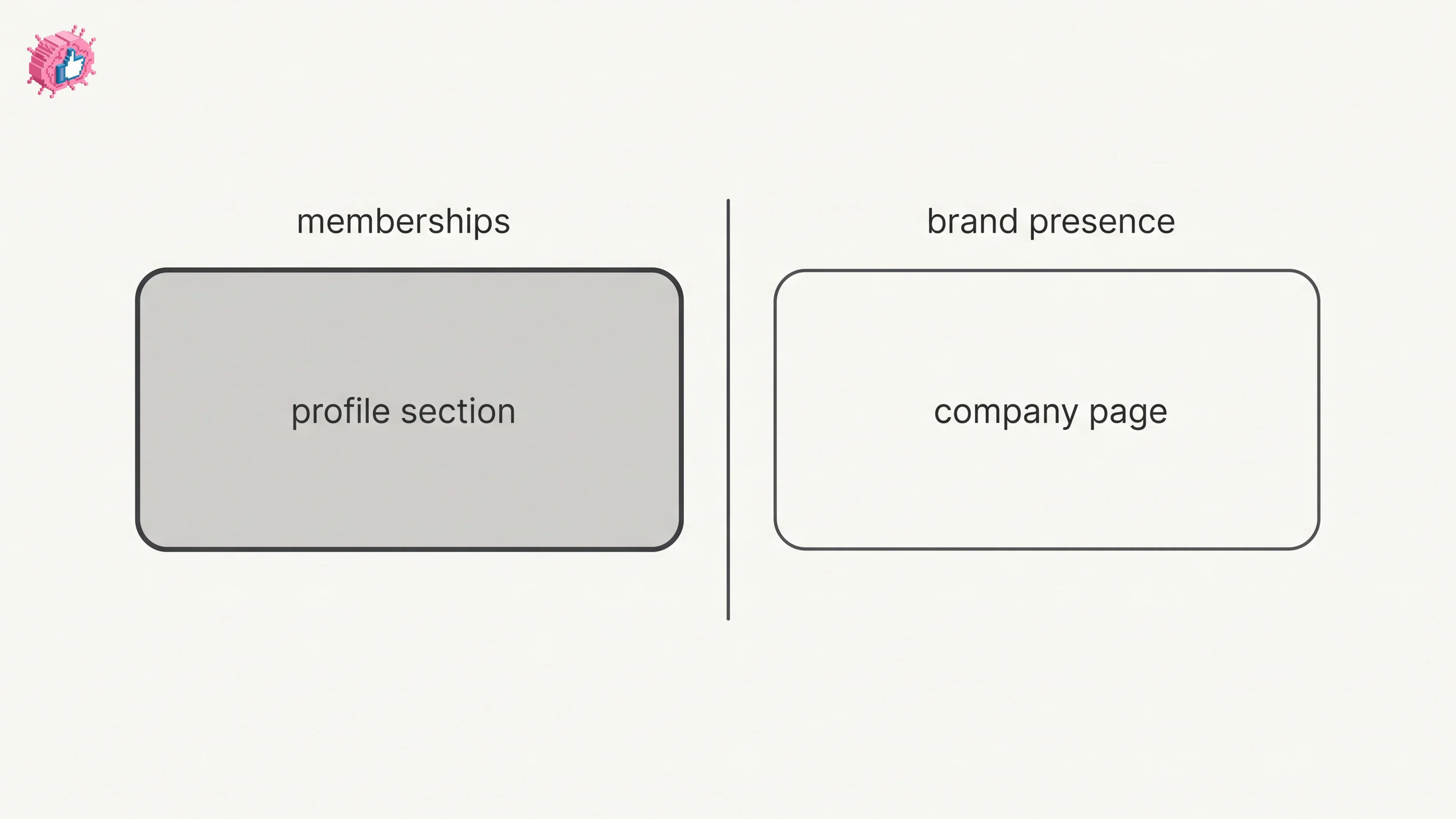
How to Add Organizations on LinkedIn: Full Steps
How to add organizations on LinkedIn, where the section sits, desktop and app steps, editing entries, and why a LinkedIn Page is a different thing.
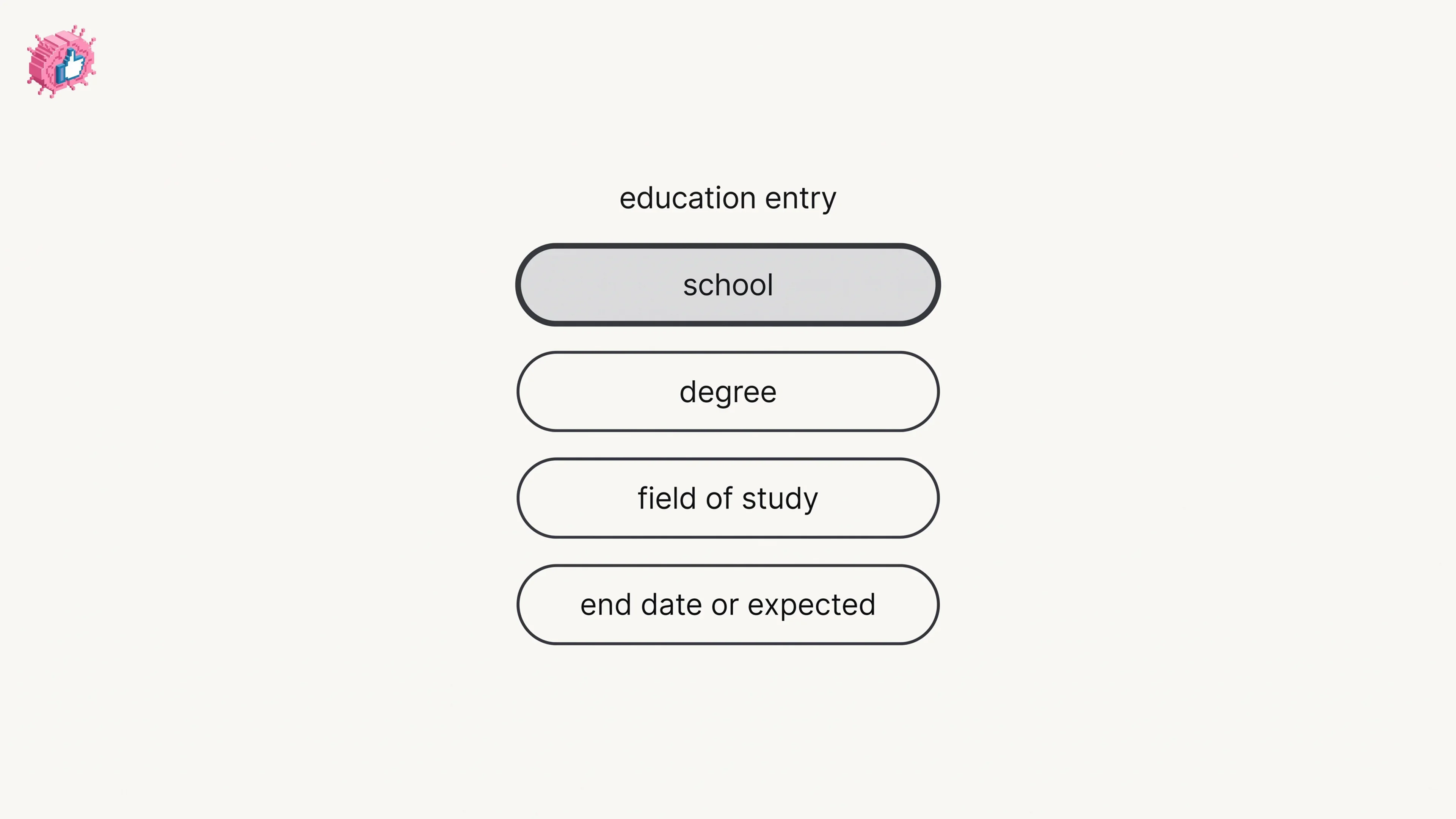
How to Add Education on LinkedIn: Fields and Steps
How to add education on LinkedIn, the eight fields LinkedIn documents, multiple entries, the expected end date, reordering, and the 24 hour notify window.
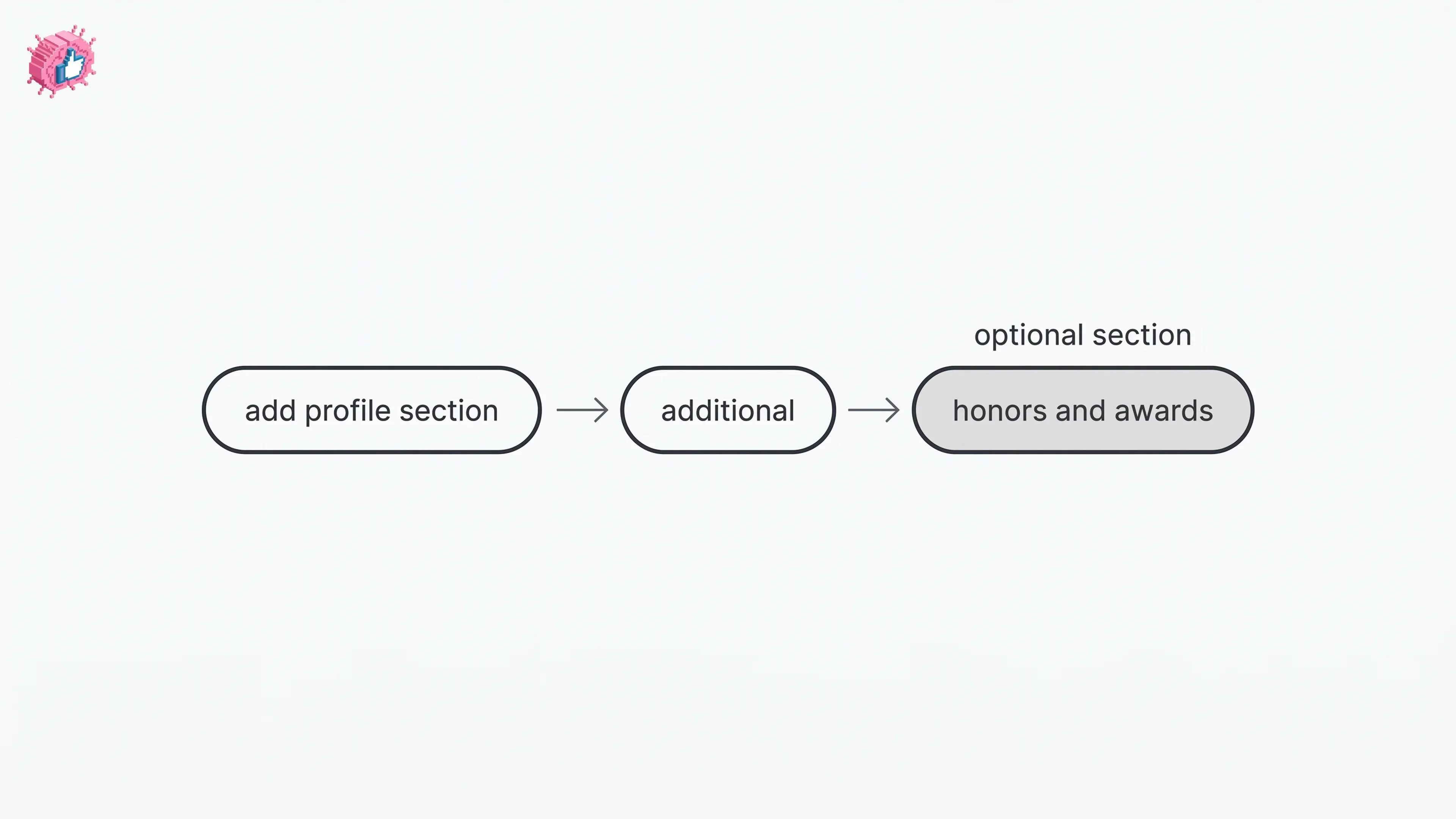
How to Add Honors and Awards on LinkedIn
How to add the Honors and awards section on LinkedIn on desktop and in the app, the exact steps LinkedIn publishes, and how to edit or delete an entry.