

How to Repost on LinkedIn (and Delete One)
Repost and Repost with your thoughts are two different features. The desktop and mobile steps, the documented way to delete a repost, and the limits.
There are two repost buttons on LinkedIn hiding inside one dropdown, and they behave differently enough that picking the wrong one changes who sees your post.
Plain Repost shares the original as is and never asks you a single question. Repost with your thoughts opens a composer, and in LinkedIn's documented steps, only that path offers an audience setting. If you have ever reposted something and wondered why you were not asked who could see it, that is why.
The other thing worth knowing up front: you can delete a repost. LinkedIn documents the steps three separate times on its own repost page.
This guide covers both options, the desktop and mobile steps, how to remove a repost, reposting something that was already reposted, and the separate process for LinkedIn Pages.
Automate your LinkedIn for 30 days
Repost or Repost with your thoughts
Both live under the same Repost button beneath a post. LinkedIn's repost page describes the dropdown as offering two choices.
| Repost | Repost with your thoughts | |
|---|---|---|
| Adds your commentary | No | Yes |
| Prompts you before sharing | No | Yes, a composer opens |
| Audience setting offered | Not in the documented steps | Yes, under "Who can see your post?" |
| Can @ mention | No | People, companies, or schools |
That audience row is the part people miss. In LinkedIn's own instructions, the "Who can see your post?" control appears only inside the Repost with your thoughts flow, reached by clicking the dropdown next to your name and then Done. The direct repost path goes straight to a confirmation message with no settings step in between.
The confirmation itself is easy to miss. LinkedIn says a repost successful message appears on the lower left of the homepage, with a View post link next to it.
If you want the commentary to land well rather than just travel, the strategy side is covered separately in what to post on LinkedIn and in how to write a LinkedIn post.
How to repost on desktop
- Click Repost under the post you want to share
- Choose Repost to share it directly, or Repost with your thoughts to add commentary
- If you chose commentary, type it in the pop-up, using @ to mention people, companies, or schools
- Click the dropdown next to your name
- In the Post settings window, choose who can see it under Who can see your post? and click Done
- Click Post on the lower-right corner
How to repost on mobile
The mobile flow is the same shape with different gestures, and one extra detail LinkedIn spells out only here.
- Tap Repost below the post
- Tap Repost with your thoughts, or tap Repost to share directly
- For commentary, type it on the post page, using @ to mention people, companies, or schools
- Tap the Anyone dropdown next to your name and choose the audience under Who can see your post?
- Tap Post on the upper-right corner
On mobile, LinkedIn describes the direct repost as creating "a new post with the original post attached". The audience dropdown is also labeled differently: on mobile it is named for its current value, Anyone, rather than sitting behind a generic settings link.
How to delete a repost
Deleting a repost is documented, and the steps are identical wherever you made it.
On desktop:
- Click the More icon on the upper-right corner of the repost
- Select Delete post from the dropdown
- Click Delete in the Delete post? pop-up window
On mobile:
- Tap the More icon on the upper-right corner of the repost
- Select Delete post from the dropdown
- Tap Delete in the Delete post pop-up
Two honest caveats. LinkedIn's wording throughout is delete, not undo: there is no documented one-click reversal, and nothing on the page says what happens to reactions or comments your repost collected before you removed it. And the note is attached to the repost paths specifically, which is why it reads the same three times rather than appearing once as a general rule.
Reposting something that was already reposted
LinkedIn states directly that "you can now repost something that has already been reposted", and the nesting behaves in a specific way.
After you post, your commentary sits at the top level. The level shown below yours is the previous repost's commentary. LinkedIn says you can click that lower level "to see any connected previous reposts with commentary and navigate back to the original post".
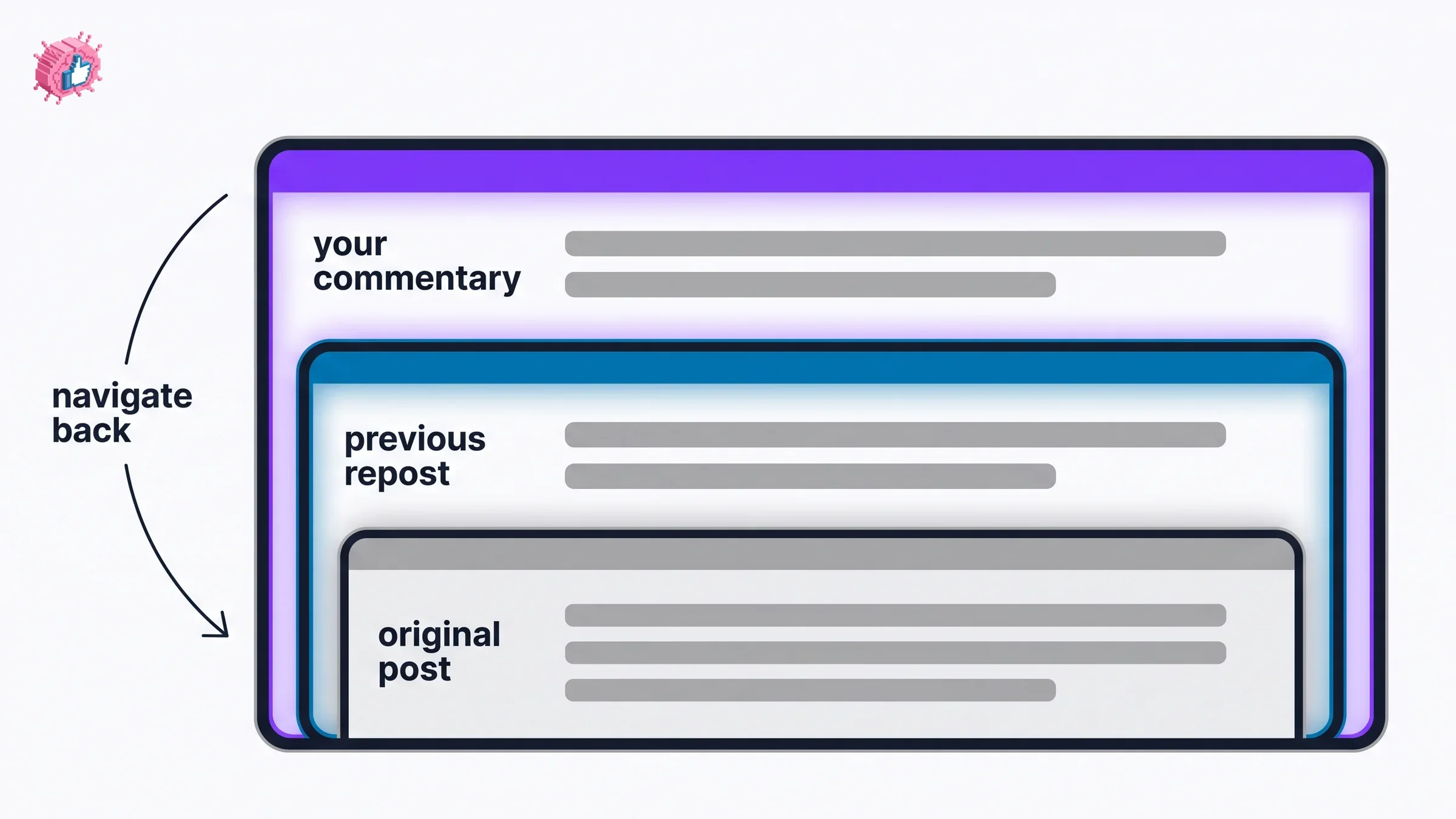
So a chain stays navigable rather than flattening into a single share. For anyone tracking where reach actually came from, that trail is the only native view of it. The reach mechanics themselves are covered in the LinkedIn algorithm guide.
Automate your LinkedIn for 30 days
Reposting as a LinkedIn Page
Pages use a different entry point, and the settings you get are richer than the member version.
LinkedIn's Page repost page says a super admin can repost as the Page or as a member from the super admin view, and that the post "will appear in the feed of your Page followers with the organization's logo".
On desktop:
- Go to your Page super admin view
- Click View as member
- Locate the post and click the Repost icon
- Choose Repost or Repost with your thoughts
- Click the dropdown next to your name to adjust post settings
- Click Post
On mobile: tap the More menu in the upper-right corner, tap View as a member, tap Posts, locate the post and tap Repost.
The View as member step is the one that trips admins up, because the Repost icon is not in the admin view where you are already standing.
Page repost settings include four controls LinkedIn lists by name:
- Posting as, to choose your own name or the Page
- Who can see your post?
- Comment control, toggled on or off
- Label post as brand partnership, toggled on
That comment toggle is a lighter version of the full set of options on ordinary posts, which are covered in LinkedIn comment controls.
One first-party wrinkle worth flagging. The Page repost page, last updated a year ago, describes this as a super admin capability. A separate page on reacting, commenting and sharing as an organization or member, last updated three years ago, says a super or content admin can react, comment or share as the organization or as themselves, and routes the member-level repost through View as member and the Home tab. The two pages describe overlapping actions with different admin scopes and are two years apart in age. If you hold a content admin role and the Repost icon is missing, that gap is the likeliest explanation.
What you cannot repost
LinkedIn lists the hard limits in a notes block at the bottom of its repost page, and they are more restrictive than most people assume.
- Posts from LinkedIn Groups cannot be reposted. No exceptions given.
- If the original post was shared for connections only, other members cannot repost it. The original author's audience setting travels with the post.
- LinkedIn may limit your ability to repost posts from members you are not connected with. The stated reason is keeping LinkedIn "safe and professional", and no threshold is published.
- Reposting a URL, photo or video pulls in the original poster's commentary along with the content.
Reposts also carry a constraint outside the feed. Reposted content cannot be sponsored, which catches advertising teams out and is covered in LinkedIn thought leader ads.
There is one quieter note as well: your own posts "may be reposted with your connections via email depending on their email settings", so distribution is not strictly limited to the feed.
Who reposted your post
Click the [number] reposts counter on the lower-right of a post and LinkedIn opens a list of the people who reposted it. Clicking [number] comments shows comments added to those reposts.
The caveat matters for anyone measuring reach: LinkedIn states this list "will not display posts that are shared privately". Anything sent through Send as a direct message is invisible in that count, so the public repost number is a floor rather than a total.
Sending privately is its own path: click Send on the lower-right of the post, pick recipients, optionally write a message, and click Send.
If you want a read on whether a post is worth amplifying before you repost it, the viral score checker and the LinkedIn post preview are free to use without an account.
The honest summary
Reposting is two features wearing one button. The direct repost is a one-click amplification with no audience control in the documented flow. The commentary repost is a real post that happens to carry someone else's content, with the settings that implies.
Deleting a repost works the same way as deleting anything else you posted, and the instruction to do it sits right there on LinkedIn's own page. The limits are where the surprises live: no Group posts, no reposting connections-only content, and an unpublished throttle on reposting strangers.
For the strategy of when a repost is worth making at all, Michael Browne's approach to reposting for reach covers the judgment call this guide deliberately does not. If you are drafting the commentary itself, the LinkedIn post generator and pricing are the next stops.
FAQ
How do you repost on LinkedIn?
Click Repost under the post, then choose Repost to share it directly or Repost with your thoughts to add commentary. On mobile, tap Repost below the post and pick the same two options. Only the commentary path prompts you for an audience setting.
What is the difference between Repost and Repost with your thoughts?
Repost shares the original as is with no prompt. Repost with your thoughts opens a composer where you add commentary, @ mention people, companies or schools, and set who can see your post. Your commentary appears at the top level of the resulting post.
Can you delete a repost on LinkedIn?
Yes. Click or tap the More icon on the upper-right corner of the repost, select Delete post, then confirm with Delete in the pop-up. LinkedIn documents this for desktop and mobile. Its wording is delete rather than undo, and it does not say what happens to engagement the repost already received.
Can you repost a repost on LinkedIn?
Yes. LinkedIn states you can repost something that has already been reposted. Your commentary becomes the top level, the previous repost's commentary sits below it, and clicking that lower level lets you follow the chain back to the original post.
Why can I not repost someone's post?
Three documented reasons. The post may be from a LinkedIn Group, which cannot be reposted. The original may have been shared for connections only, which blocks other members from reposting it. Or LinkedIn may be limiting your ability to repost posts from members you are not connected with.
How do I repost as a LinkedIn Page?
Go to your Page super admin view, click View as member, find the post, click the Repost icon, and choose Repost or Repost with your thoughts. The settings dropdown next to your name adds Posting as, Comment control and Label post as brand partnership on top of the usual audience control.
Who can see that I reposted something?
Click the [number] reposts counter on a post to see the list of people who reposted it. LinkedIn notes that this list does not display posts shared privately, so anything sent as a direct message through Send will not appear there.
Does reposting hurt reach on LinkedIn?
LinkedIn's help pages do not publish any reach penalty for reposting, so treat claims either way as unverified. What LinkedIn does state is that it may limit your ability to repost posts from members you are not connected with, and that reposted content cannot be sponsored.
Automate your LinkedIn for 30 days
ViralBrain plans, writes, and schedules your LinkedIn content, using official LinkedIn APIs so your account stays safe.
- Official LinkedIn APIs, no risk of ban
- You approve every post before it goes live
- Cancel anytime
Keep reading
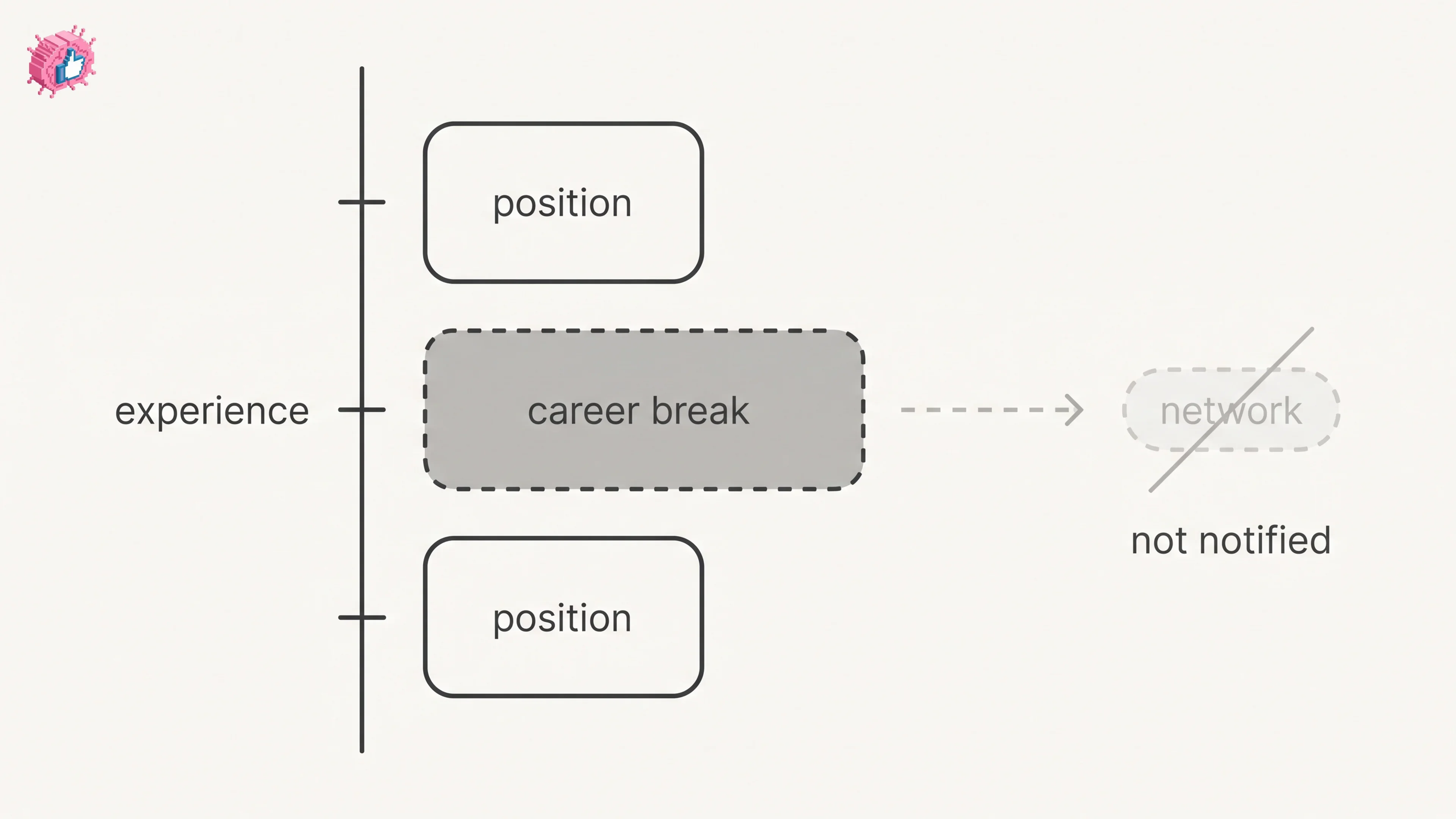
LinkedIn Career Break: How to Add One and Who Sees It
Add a career break on LinkedIn desktop or the app. Your network is not notified, the type is optional, and signed-in members see it. From LinkedIn Help.
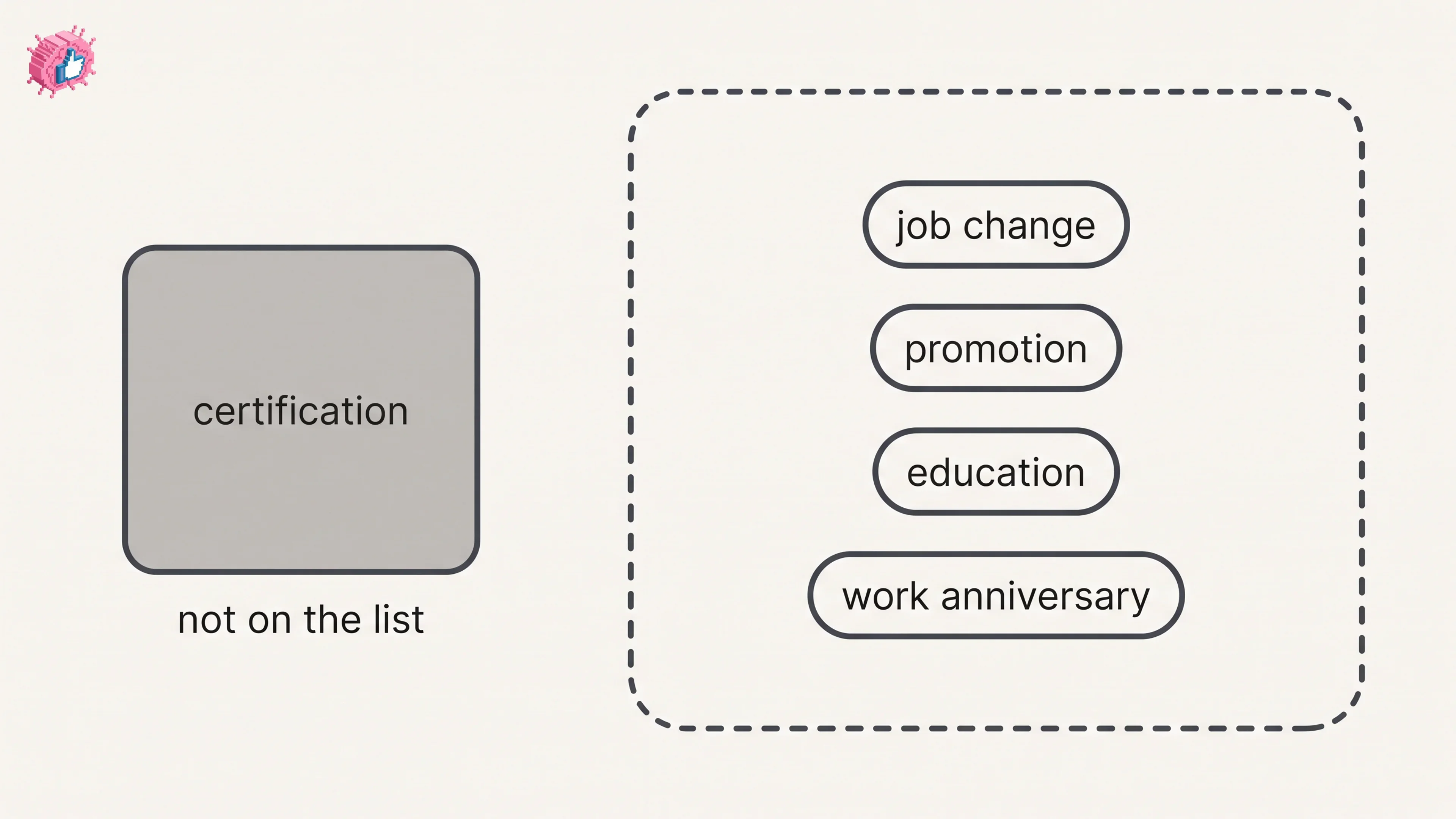
How to Add a Certification to LinkedIn Without Posting
Add a certification on LinkedIn desktop or the app, put credentials after your name, and see what LinkedIn documents about notifying your network.
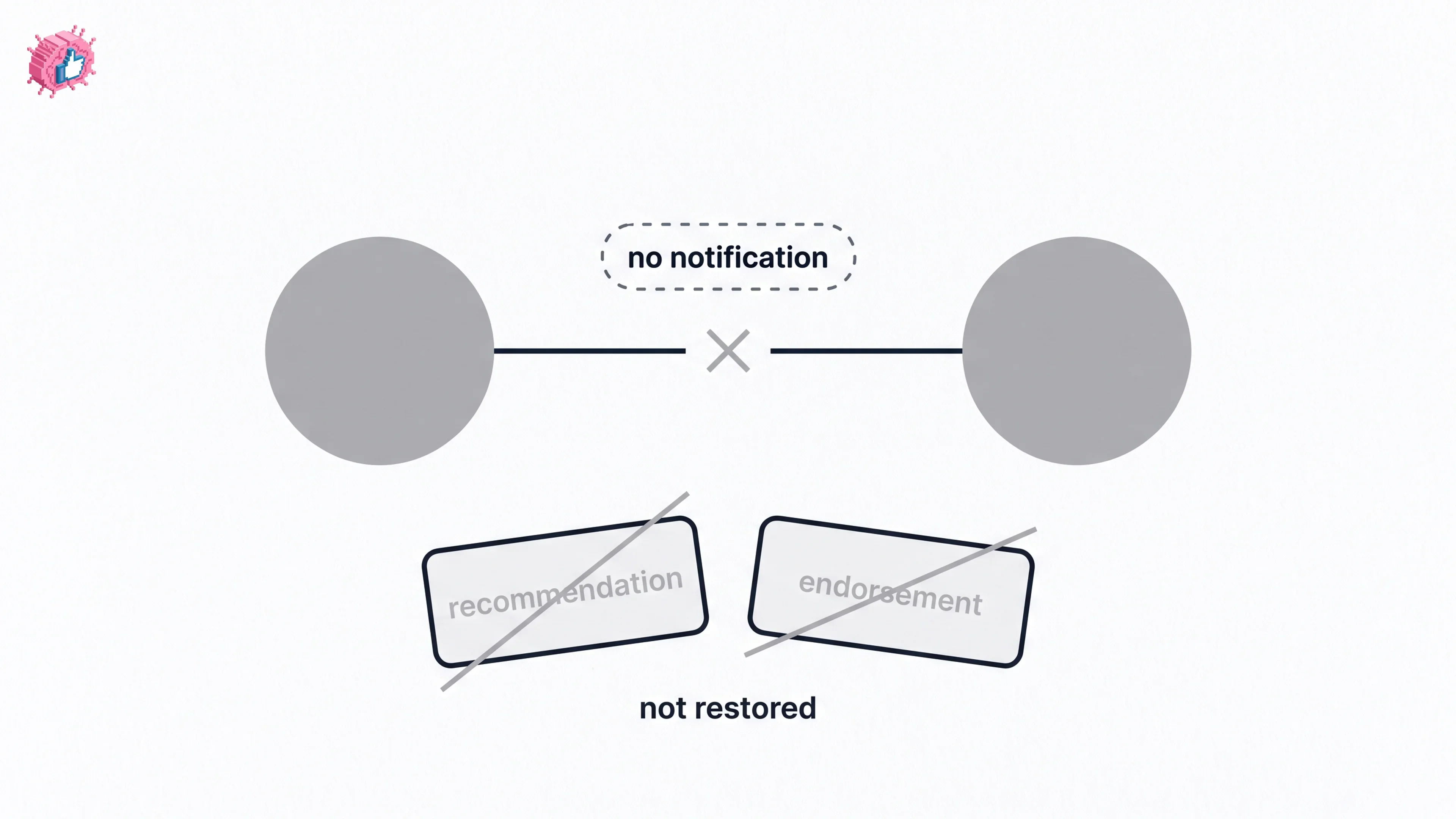
How to Remove a Connection on LinkedIn: What It Erases
Remove a LinkedIn connection on desktop or the app. They are not notified, but recommendations and endorsements go for good. Steps from LinkedIn Help.