

How to Add Skills on LinkedIn: Steps and Limits
How to add skills on LinkedIn on desktop and in the app, the 100 skill cap and its exemption, plus reordering, editing and removing a skill.
You add skills on LinkedIn through Add profile section in your introduction section (Add section in the app), under the Core group, and the Skills section holds up to 100 of them. The cap comes with a documented exemption: LinkedIn states that skills associated with roles in your Experience section are not included in it.
The section does not appear on your profile until you put something in it. LinkedIn is direct about that: "If you don't have any skills listed on your profile, the Skills section won't appear."
The steps and quotes below come from the LinkedIn Help pages listed before the FAQ. Where those pages are silent, this guide says so rather than filling the space.
Automate your LinkedIn for 30 days
What the Skills section is on LinkedIn
It is the part of your profile that lists what you can do, as a structured field rather than prose. LinkedIn opens its page with the plain version: "You can add and remove skills from the Skills section on your profile. Maintaining a relevant list of skills on your profile will help others understand your strengths and match you with the right opportunities."
| Question | What these Help pages document |
|---|---|
| Where it lives | The Skills section on your profile |
| Which group it belongs to | Core, in Add profile section |
| Maximum in the Skills section | 100 |
| Skills attached to an Experience role | "aren't included in this limit" |
| Does the section show before you add one | No, it "won't appear" |
| How skills are grouped | Industry Knowledge, Tools & Technologies, Interpersonal Skills |
| When the grouping applies | "more than three skills listed" |
| Can you reorder them | Yes, on desktop and in the app |
| Can you move one to another category | No |
| Skill Assessments | "no longer available" |
Four rows there get their own sections below: the add flow, the cap and its exemption, the reordering rules, and the assessments notice.
How to add skills on LinkedIn
Through Add profile section, then Core, then Add skills. LinkedIn publishes the steps under two tab headings, Desktop and Mobile, and the wording differs between them.
Desktop:
- Click the Me icon at the top of your LinkedIn homepage, then View Profile.
- Click Add profile section button in your introduction section.
- Click Core and select Add skills from the dropdown.
- In the Add skill pop-up window, you can:
- Type the name of a skill and select it from the dropdown list that appears or select a skill from Suggested based on your profile. Once selected, it is automatically added to your list of skills.
- Select the checkboxes that show where you put this skill to use.
- Select the checkbox to follow this skill's collaborative articles page.
- Click Save.
Mobile:
- Tap your profile picture, then tap View profile.
- Tap Add section in your introduction section.
- Tap Core and select Add skills.
- From the Skill page, you can:
- Type the name of a skill and select it from the dropdown list that appears or select a skill from Suggested based on your profile. Once selected, it is automatically added to your list of skills.
- Select the checkboxes that show where you put this skill to use.
- Select the checkbox to follow this skill's collaborative articles page.
- Tap Save.
LinkedIn adds the same line to both tabs: "Repeat the above steps to add more skills to your profile." No bulk-add flow is documented on this page, so each skill is its own pass through the form.
Three details are worth pulling out of those lists:
- The button has a different name per platform. It is Add profile section on desktop and Add section in the app.
- Step 4 is where a skill gets attached to something. The checkboxes "show where you put this skill to use", which is the one control on this page that ties a skill to another part of your profile.
- The collaborative articles checkbox is separate. Following that skill's collaborative articles page is its own checkbox in the same step, on both tabs.
One wording difference is worth knowing before you follow the app steps. The skills page words its app route as "Tap your profile picture, then tap View profile." LinkedIn's general page on adding profile sections, and its page on skill display order, word the same route as "Tap your profile picture." followed by "Tap your profile photo again to access your profile." The steps above quote the skills page as LinkedIn publishes it.
How to put a skill against a job or a degree
This guide documents three routes, each in a different form.
From the skill form. The Add skill pop-up on desktop, and the Skill page in the app, both carry the same instruction: "Select the checkboxes that show where you put this skill to use."
From the Experience section. LinkedIn's page on managing that section states it plainly: "You can also add different skills to each experience, which will appear under the Skills section as well."
From an Education entry. LinkedIn's education page lists an optional step inside the add flow, worded identically on its Desktop and Mobile tabs: "(Optional) Add skills or media to support your educational qualification."
The Experience route is the one the 100 skill limit note names, covered next. For the education form itself, how to add education on LinkedIn walks through the fields step by step.
The 100 skill limit and its documented exemption
The Skills section caps at 100. LinkedIn's skills page says "You can add up to 100 skills to your profile," and its skill endorsements page says "You can add a maximum of 100 skills to your profile."
The exemption is the part worth planning around. LinkedIn publishes it as a note: "The 100-skill limit applies only to the Skills section. Skills associated with roles in your Experience section aren't included in this limit."
So a skill attached to a specific job sits outside the cap. If you are close to 100 and still want a skill visible against one role, that route stays open.
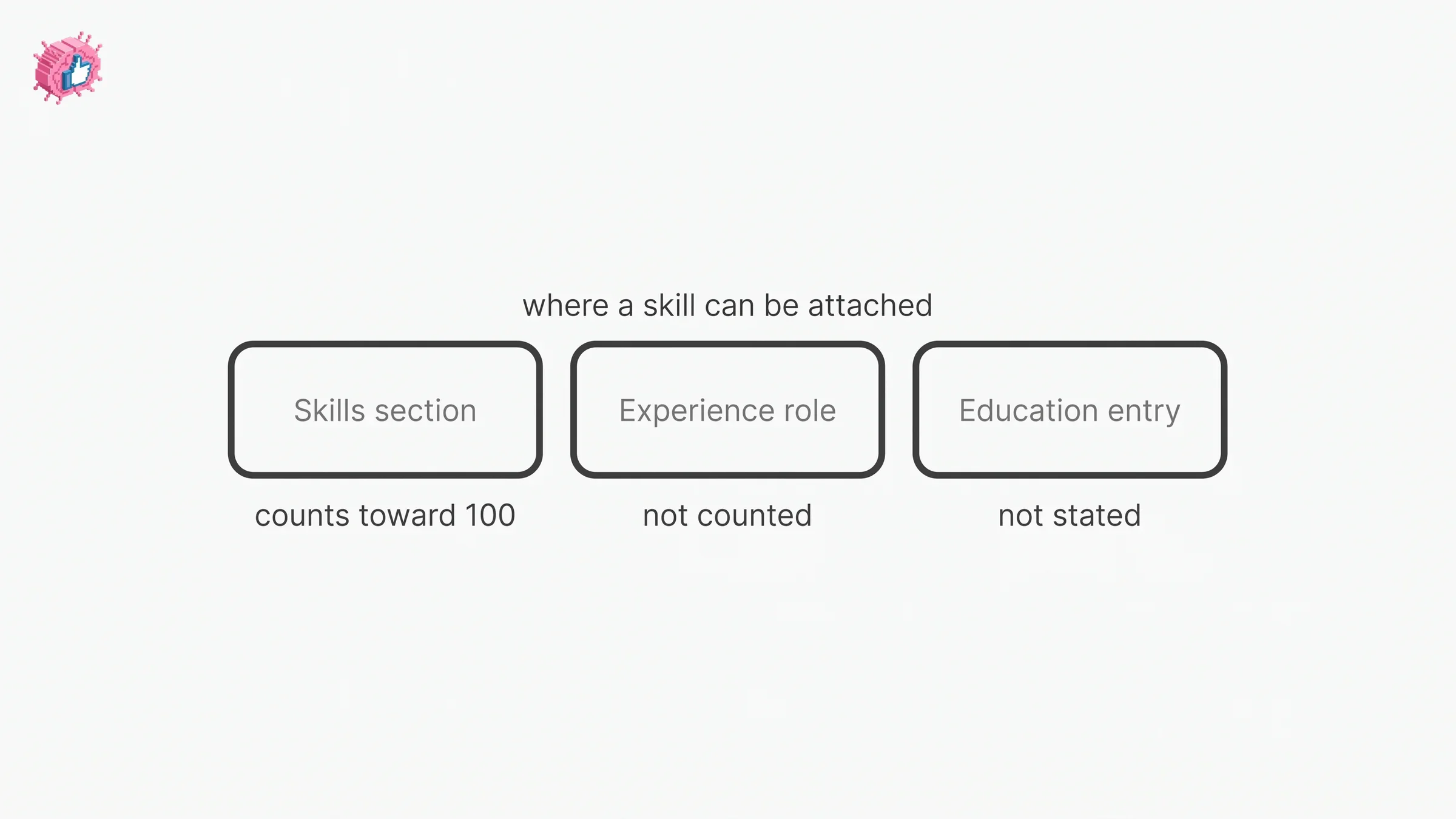
One gap, stated as a gap. The exemption note names the Experience section and stops there. The pages read for this guide do not state whether a skill added from an Education entry counts against the 100, so this guide does not answer that either way.
The cap shows up in one more documented place. LinkedIn's page on adding Learning certificates states that if your profile already lists over 100 skills, it will not add more, which matters because those courses bring their associated skills with them. How to add a certification to LinkedIn covers that flow and its Share with network box.
For what the cap means once other people start validating those skills, LinkedIn endorsements covers who can endorse you, how to hide one, and how to switch the feature off.
How to reorder your skills
LinkedIn documents reordering on its page about the display order of skills. That page opens with the line "You can only reorder the Education and Skills sections on your profile," while a separate LinkedIn page documents reordering your current positions in the Experience section, so LinkedIn's own pages disagree on that line.
Desktop:
- Click the Me icon at top of your LinkedIn homepage.
- Click View Profile.
- Scroll down to the Skills section and click the Edit icon.
- Click the More icon on the upper right of the Skills page.
- Click Reorder from the dropdown.
- In the pop-up window, click and drag the Sort icon to the right of the corresponding skill you'd like to reorder.
Mobile:
- Tap your profile picture.
- Tap your profile photo again to access your profile.
- Scroll down to the Skills section.
- Tap the Edit icon.
- Tap the More icon.
- Tap Reorder from the dropdown.
- Tap and hold the Reorder icon next to the skill and drag it to the desired position.
Three constraints sit on the same page, and together they decide what the drag can actually do:
- "You must have more than three skills listed in your Skills section for your skills to be categorized."
- Your skills are categorized by areas of expertise: Industry Knowledge, Tools & Technologies, Interpersonal Skills.
- "You can't take a skill from one category and place it in a different category."
Read together, once your skills are categorized, reordering does not move a skill out of its category. The page does not describe how a skill's category is chosen.
The pages read for this guide document reordering. They do not document a separate control for pinning a fixed set of top skills, so if that specific control is what you are after, check it on your own profile rather than against these pages.
How to edit or remove a skill
Removing is documented on the same skills page, under the same two tabs.
Desktop:
- Click the Me icon at the top of your LinkedIn homepage, then View Profile.
- Scroll to the Skills section and click the Edit icon.
- In the Skills page, click the Edit icon to the right of the skill that you want to delete.
- Click Delete skill on the lower left, and then confirm Delete.
Mobile:
- Tap your profile picture, then tap View profile.
- Scroll to the Skills section and tap the Edit icon.
- In the Skills page, click the Edit icon to the right of the skill that you want to delete.
- Tap Delete skill at the bottom of the page and confirm Delete.
Note that the Mobile tab's third step says "click" rather than "tap", which is how LinkedIn publishes it. The delete control is placed differently per platform in LinkedIn's own wording too: "on the lower left" on desktop, "at the bottom of the page" in the app.
One edit is not an edit at all, and it is destructive. LinkedIn states: "Skills cannot be modified to a different language. To update a skill's language, you must remove the existing skill and add it again in the desired language. This will permanently delete all the associated endorsements."
So changing a skill's language costs you that skill's endorsements. LinkedIn publishes the warning under Important to know on its skill endorsements page, and it is worth reading twice before touching a profile maintained in two languages.
Automate your LinkedIn for 30 days
Where you can manage skills: desktop, the app, and a mobile browser
The skills page itself publishes two tabs. LinkedIn's general page on editing your profile publishes three, and it names skills in what a mobile browser can handle: "Currently, not all sections are editable on mobile browser. You can only edit the photo, name, headline, location, summary, experience, education, skills, accomplishments, and contact sections."
| Action | Desktop | Mobile app | Mobile browser |
|---|---|---|---|
| Add a skill | Yes, via Add profile section | Yes, via Add section | Not covered by the skills page tabs |
| Remove a skill | Yes, Delete skill on the lower left | Yes, Delete skill at the bottom | Not covered by the skills page tabs |
| Reorder skills | Yes, More then Reorder | Yes, More then Reorder | Not covered by the display order tabs |
| Edit profile sections in general | Yes | Yes | Yes, and skills is in LinkedIn's named list |
| Reach your profile | Me icon, then View Profile | Worded differently across the pages read, see above | One tap on your profile photo |
The split to hold onto: skills is named in the mobile browser editing list, while the skills-specific pages publish only Desktop and Mobile tabs. If a control is missing in a phone browser, the app is the path documented end to end.
Skill assessments are no longer available
LinkedIn retired them, and it says so on its own page: "LinkedIn Skill Assessments are no longer available."
The same page gives the reason and the cleanup: "We've heard from hirers that examples of how a candidate applied their skills is increasingly valuable to assess fit. So we've made it possible for members to tag a skill to any credentials obtained and connect their skills to specific jobs, projects or education directly on their Profile." It adds: "All badges from completed Skill Assessments will also be removed from member profiles in 2024. All data associated with assessments and badges will also be removed at the same time."
LinkedIn's page titled LinkedIn Skill Assessments is still live and still describes how the assessments worked, with the retirement notice sitting at the top of it under Important to know. If you land on that page and read past the notice, the typical assessment of 15 multiple choice questions and the top 30% skill badge it describes belong to the retired feature rather than to a current one.
The replacement LinkedIn names in that passage is tagging a skill to a credential and connecting it to a job, a project or an education entry. The Experience and Education routes above are two of those. Adding a certification covers the Licenses & certifications section, and adding courses covers coursework.
The Premium key skills suggestion lives in a Help article
LinkedIn's page Add key skill suggestions to your profile describes a Premium feature that suggests key skills by "analyzing your desired job title and your existing experience," and the page is candid about where it is: "This feature is currently available only via this Help Center article for LinkedIn Premium subscribers. It is not yet accessible directly within the LinkedIn product interface."
The page says subscribers will be notified once it becomes available in-product. Until then, a Premium subscriber reaches it from the Help page rather than from the profile editor.
Does adding a skill notify your network
The Share profile updates setting does not name skills among what it governs.
LinkedIn describes that setting's scope as job changes, education changes and work anniversaries, and elsewhere on the same page as job changes, promotions, education changes and work anniversaries. Skills appear in neither sentence. LinkedIn also states that even with sharing enabled, some types of profile edits generate no notification, without listing which ones. So the pages read for this guide do not say adding a skill generates a notification, and they do not say it never does.
What is documented either way is visibility: anyone who views your profile sees your edits as soon as you save them, whatever your notification setting says. How to update LinkedIn without notifying your network maps the four different names LinkedIn gives that one control, and what still reaches people when it is off.
Do skills affect LinkedIn search
LinkedIn's skills page uses matching language rather than ranking language. Its sentence is that a relevant list "will help others understand your strengths and match you with the right opportunities."
That is a real claim, and it is narrower than a ranking claim. The page does not say skills move you up search results. Two other pages behind this guide come closer. The skill endorsements page says that when a connection endorses your skills, it "increases the likelihood that you'll be discovered for opportunities related to the skills you possess," and the Premium key skills page lists "Improve visibility in recruiter searches" among what its suggestions are personalized to help with. Neither page describes how search results are ranked. LinkedIn SEO works through which parts of that story the documentation supports and which parts it does not, and the profile optimization checklist covers where skills sit against the rest of your profile.
The practical reading: 100 is a ceiling, not a target, and the word the skills page uses for the list is relevant.
What this means for you
- The route is Add profile section, then Core, then Add skills. Called Add section in the app, and repeated once per skill.
- The Skills section caps at 100. Skills attached to an Experience role are not counted against it, which is the documented way past the ceiling.
- A skill can be attached in more than one place. The skill pop-up checkboxes, the Experience entry, and the optional step in the Education form are the three this guide documents.
- Reordering keeps a skill in its category. You need more than three skills for categories to apply, and LinkedIn states a skill can't be moved from one category to another.
- Changing a skill's language destroys its endorsements. LinkedIn says this permanently deletes all the associated endorsements, because the only route is remove and re-add.
- Skill Assessments are no longer available. LinkedIn's notice says the badges and their data were to be removed from member profiles in 2024.
Skills are a structured field that your 1st-degree connections can endorse. Once the list is right, endorsements and recommendations are two surfaces other people fill in on your behalf. More individual feature guides are indexed in LinkedIn features explained.
Sources: Add and remove skills on your profile, Display Order of Skills, Skill endorsements, Edit your profile, Manage your profile Experience section, Add, edit, or delete education on your profile, Skill Assessments - no longer available, LinkedIn Skill Assessments, Add key skill suggestions to your profile, Add sections to your profile, Share profile updates, Add Learning Certificates of Completion and Skills to your LinkedIn profile, Reorder your current positions in the Experience section of your profile, LinkedIn Help (accessed October 2026)
FAQ
How do I add skills on LinkedIn?
On desktop, click the Me icon then View Profile, click Add profile section in your introduction section, click Core and select Add skills, type or pick the skill in the Add skill pop-up, then click Save. In the app, tap your profile picture then View profile, tap Add section, tap Core, select Add skills, and tap Save.
How many skills can you add on LinkedIn?
Up to 100 in the Skills section. LinkedIn adds an exemption: "The 100-skill limit applies only to the Skills section. Skills associated with roles in your Experience section aren't included in this limit."
How do I add skills on the LinkedIn mobile app?
Tap your profile picture, then tap View profile, tap Add section in your introduction section, tap Core and select Add skills, enter the skill on the Skill page, then tap Save. LinkedIn's pages on adding profile sections and on skill display order word that first app step as two taps on your own photo instead.
Why is there no Skills section on my LinkedIn profile?
The reason LinkedIn documents is that it has nothing in it yet: "if you don't have any skills listed on your profile, the Skills section won't appear." Adding your first skill through Add profile section (Add section in the app) adds the section.
Can I link a skill to a specific job on LinkedIn?
Yes. The Add skill form asks you to "select the checkboxes that show where you put this skill to use", and LinkedIn's Experience page states that "you can also add different skills to each experience, which will appear under the Skills section as well." The education form offers an optional step to "add skills or media to support your educational qualification."
How do I reorder my LinkedIn skills?
Open the Skills section, click or tap the Edit icon, open the More icon, choose Reorder, then drag the Sort icon on desktop or tap and hold the Reorder icon in the app. You need more than three skills for categories to apply, and LinkedIn states you "can't take a skill from one category and place it in a different category."
How do I delete a skill on LinkedIn?
Scroll to the Skills section, click or tap the Edit icon, open the Edit icon to the right of the skill, then choose Delete skill and confirm Delete. LinkedIn places that control "on the lower left" on desktop and "at the bottom of the page" in the app.
Does changing a skill's language delete my endorsements?
Yes. LinkedIn states that skills "cannot be modified to a different language", that you must remove and re-add the skill, and that this "will permanently delete all the associated endorsements."
Are LinkedIn skill assessments still available?
No. LinkedIn states that "LinkedIn Skill Assessments are no longer available," and its notice says badges from completed assessments "will also be removed from member profiles in 2024," along with the data associated with them.
Does adding a skill notify my connections?
LinkedIn's Share profile updates page names job changes, promotions, education changes and work anniversaries as what that setting governs, and does not name skills, so whether adding one notifies your network is undocumented on the pages read for this guide. The page also states that anyone viewing your profile sees your edits as soon as you save them.
Automate your LinkedIn for 30 days
ViralBrain plans, writes, and schedules your LinkedIn content, using official LinkedIn APIs so your account stays safe.
- Official LinkedIn APIs, no risk of ban
- You approve every post before it goes live
- Cancel anytime
Keep reading
How to Edit a Post on LinkedIn: What You Can Change
Editing a LinkedIn post takes five steps, and on a post you shared only the text can change. LinkedIn's rules on media, previews, Pages and polls.
How to Delete a Post on LinkedIn (Feed, Page, Group)
The four documented steps to delete a LinkedIn post on desktop and mobile, plus Page, group, scheduled and comment deletes, and what happens to engagement
LinkedIn Read Receipts: How to Turn Them Off
LinkedIn read receipts explained: the setting is called Delivery and typing indicators, how to turn it off on desktop and mobile, and what you lose.