

LinkedIn Page Admin Roles: All Six Explained
LinkedIn has six Page admin roles in two groups. What each one can do, the seven super admin exclusives, and the prerequisite that blocks most additions.
Most people adding a colleague to a LinkedIn Page hit the same wall: the person does not appear in the search box. The usual explanation is a bug. It is not.
LinkedIn requires anyone you add as an admin to already follow the Page, on top of being within three degrees of you. A new hire who has never visited the Page cannot be made an admin until they follow it, and nothing in the interface explains that.
This guide covers all six admin roles and what each can actually do, the permissions reserved for super admins alone, the exact steps to add someone, and the gaps LinkedIn's documentation leaves open.
Automate your LinkedIn for 30 days
The six roles, in two groups
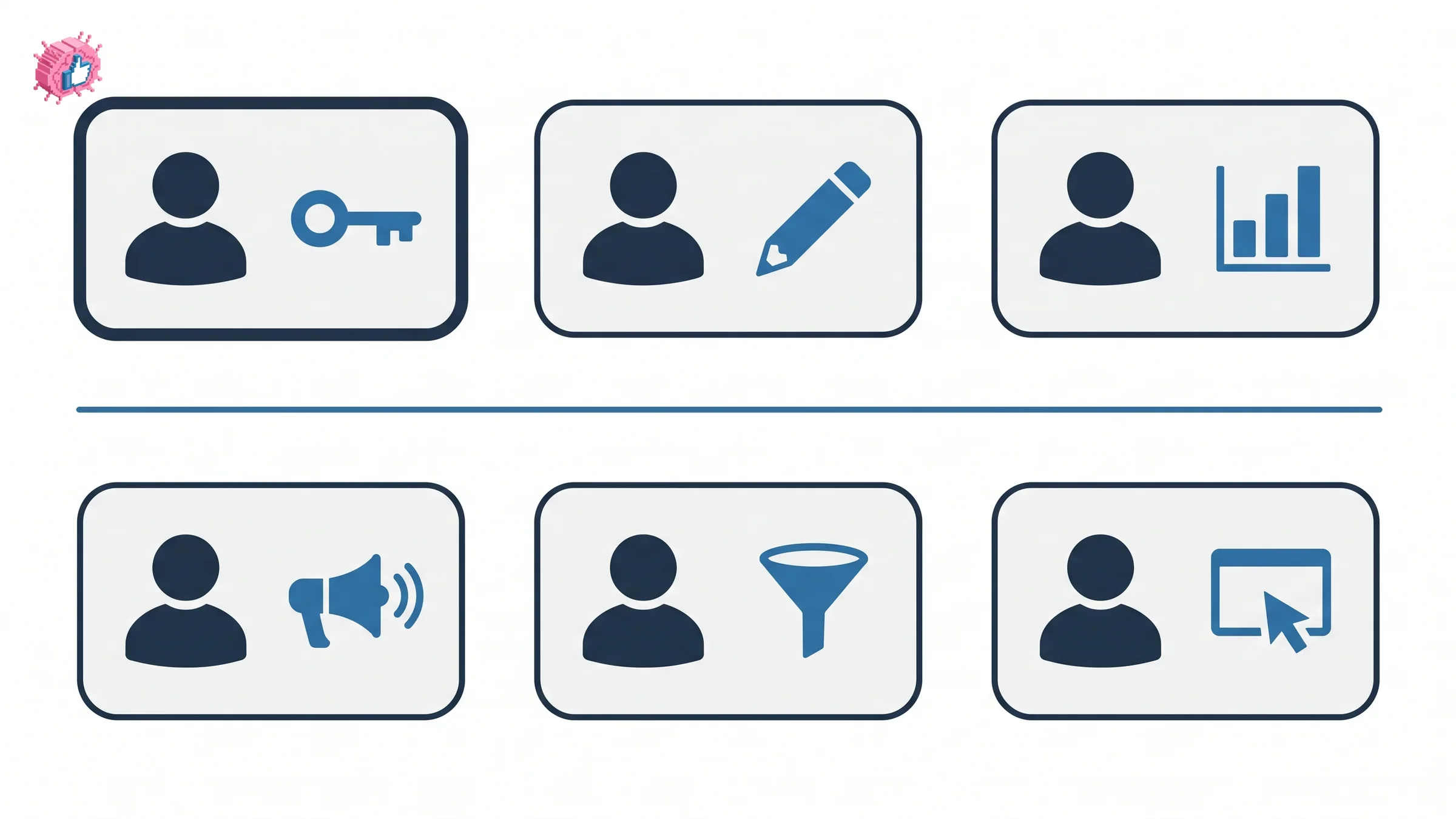
LinkedIn splits admin roles into two sets that do not overlap. Page admin roles govern the Page itself; paid media admin roles govern advertising.
Page admin roles
| Role | What LinkedIn says it does |
|---|---|
| Super admin | "Gives access to every Page admin permission available, including adding and removing any type of admin, editing Page information, creating job postings, and deactivating the Page." |
| Content admin | "Gives permission to create and manage Page content, including posts (as well as boosting posts), and events." |
| Analyst | "Gives permission to monitor the Page's performance through analytics to help drive goals. Analysts have limited access to the Page in third-party tools." |
Paid media admin roles
| Role | What LinkedIn says it does |
|---|---|
| Sponsored Content poster | "Gives permission to create Sponsored Content ads on behalf of an organization or to sponsor organic posts in Campaign Manager." |
| Lead Gen Forms manager | "Gives permission to download leads received from Lead Gen Forms created in Campaign Manager." |
| Landing Pages manager | "Gives permission to create and edit Landing Pages that are associated with your Page." |
The split matters when you are working with an agency. Paid media roles let someone run advertising without giving them the ability to post, edit the Page, or see admin settings, which is usually what you want from an outside team.
That distinction also explains a requirement people meet elsewhere: running thought leader ads needs Sponsored Content poster permissions on the Page, which is a paid media role rather than a content one.
What only a super admin can do
LinkedIn's permissions documentation reserves a specific set of actions for super admins:
- "Manage page and paid media admins"
- "Edit all available fields of the page"
- "Manage credibility"
- "Create Showcase Pages"
- "Deactivate the page"
- "Purchase Premium Company Page"
- "Toggle messaging for pages"
Read that list as the real definition of the role. Everything on it is either irreversible, expensive, or both, which is a reasonable argument for keeping the number of super admins small and deliberate.
Two of those show up in features covered elsewhere. Creating a Showcase Page is super admin only, and so is requesting Page verification, which is why getting a Page verified stalls in organizations where the super admin has left.
What content admins and analysts cannot do
Content admins cannot manage admins. The permissions table assigns "manage page and paid media admins" to super admins alone, so a content admin cannot add a colleague, remove anyone, or change a role. They can create and manage content, including boosting posts and running events, which covers most day-to-day work. Publishing a collaborative post or managing a Page event sits inside that remit.
Analysts are read-only. LinkedIn restricts them to "view and export analytics" and "provide LinkedIn product feedback." That is the whole role. An analyst cannot post, cannot edit the Page, and has "limited access to the Page in third-party tools," which is worth knowing before you hand that role to someone whose reporting runs through an external dashboard. The native export is covered in LinkedIn analytics tools, and competitor analytics also requires Page admin access of some kind.
How to add an admin
You must be a super admin. The steps:
- Go to your Page super admin view
- Click Settings in the left menu and select Manage admins
- Click the Page admins or Paid media admins tab
- Click the Add admin button
- Enter the name of the member, associated employee, or advertiser in the Search for a member field
- Select the admin's name from the list
- Select the required admin role
- Click Save
Automate your LinkedIn for 30 days
The prerequisite nobody mentions
Step 5 is where it breaks, and the reason is a requirement with two parts that must both be true.
The person must be a 1st-degree, 2nd-degree, or 3rd-degree connection, and they must follow the Page you are adding them to.
The degree condition is rarely the problem inside one company. The follow condition catches almost everyone. Someone who joined last week, has not opened the company Page, and is not following it will not appear in that search box no matter how many times you retype their name.
The fix takes a minute: ask them to open the Page and click Follow, then search again. Worth building into onboarding if you rotate who runs the Page, alongside the ordinary work of growing the Page following.
What the documentation does not answer
Three gaps, named rather than guessed at, because this is the area where confident wrong advice does real damage.
Whether a Page must keep at least one super admin. Not stated on the roles page or the permissions page. Given that only super admins can manage admins, a Page with none would have no way to appoint one, so treat removing your last super admin as a risk rather than a supported operation.
Whether you can remove yourself. Not addressed.
The removal steps themselves. The add-admin page references a related task called "Remove your Page admin's role" but does not include the instructions inline.
If you are reorganizing admin access, the safe order is to add the new super admin first and confirm they can see the admin view, then remove the old one. That sequence is safe under every reading of the documentation, which is more than can be said for the reverse.
A setup that holds up
- Keep super admins few and current. Everything irreversible lives in that role, including purchases and deactivation.
- Give day-to-day publishers content admin. It covers posting, boosting and events without handing over the ability to restructure the Page.
- Give agencies paid media roles only. Sponsored Content poster, Lead Gen Forms manager and Landing Pages manager between them cover advertising without touching the Page.
- Give reporting people analyst. It is genuinely read-only, so there is no reason to over-grant.
- Add before you remove, and have the incoming person follow the Page first.
The roles are a governance question rather than a growth one. What the Page actually achieves depends on what you publish and whether anyone amplifies it, which is the case made in employee advocacy and in deciding what the Page is for in the first place.
The honest summary
Six roles, two groups, one of them reserved for advertising. Super admin is the only role that can manage other admins, create Showcase Pages, deactivate the Page or make purchases, so it is the role to ration.
The thing that will actually cost you an afternoon is simpler than any of that: the person you are adding has to follow the Page first, and LinkedIn does not tell you so at the point where it matters.
FAQ
What are the LinkedIn Page admin roles?
Six, in two groups. Page admin roles are super admin, content admin and analyst. Paid media admin roles are Sponsored Content poster, Lead Gen Forms manager and Landing Pages manager.
What can a super admin do that others cannot?
LinkedIn reserves seven actions: manage page and paid media admins, edit all available fields of the page, manage credibility, create Showcase Pages, deactivate the page, purchase Premium Company Page, and toggle messaging for pages.
Can a content admin add another admin?
No. Managing page and paid media admins is a super admin permission. Content admins can create and manage content, including posts, boosting posts and events, but cannot change who has access.
What can an analyst do on a LinkedIn Page?
View and export analytics, and provide LinkedIn product feedback. LinkedIn also notes that "analysts have limited access to the Page in third-party tools," which matters if your reporting runs through an external dashboard.
Why can I not find someone when adding a Page admin?
Because they almost certainly do not follow the Page yet. LinkedIn requires the person to be a 1st, 2nd or 3rd-degree connection and to follow the Page you are adding them to. Ask them to follow it, then search again.
How do I add an admin to my LinkedIn Page?
From your Page super admin view, click Settings, then Manage admins, choose the Page admins or Paid media admins tab, click Add admin, search for the member, select their name, choose the role, and click Save. You must be a super admin to do this.
Does a LinkedIn Page need at least one super admin?
LinkedIn's roles and permissions pages do not state a requirement. Since only super admins can manage admins, a Page without one would have no supported way to appoint another, so removing your last super admin should be treated as risky rather than routine.
How do I remove a LinkedIn Page admin?
LinkedIn references a separate task for removing an admin's role but does not include the steps on the add-admin page. Whatever route you use, add the replacement first and confirm their access before removing anyone.
Automate your LinkedIn for 30 days
ViralBrain plans, writes, and schedules your LinkedIn content, using official LinkedIn APIs so your account stays safe.
- Official LinkedIn APIs, no risk of ban
- You approve every post before it goes live
- Cancel anytime
Keep reading
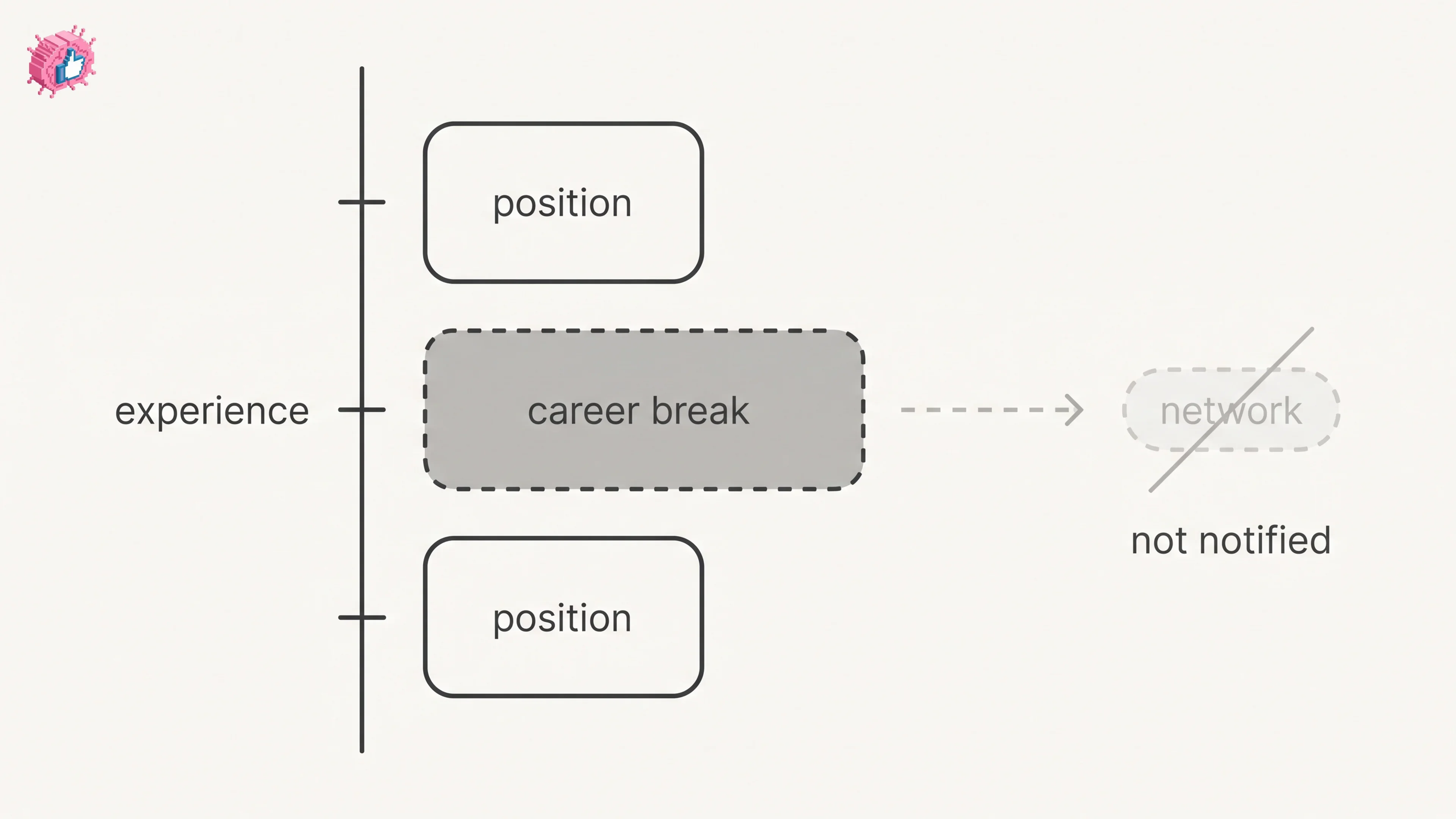
LinkedIn Career Break: How to Add One and Who Sees It
Add a career break on LinkedIn desktop or the app. Your network is not notified, the type is optional, and signed-in members see it. From LinkedIn Help.
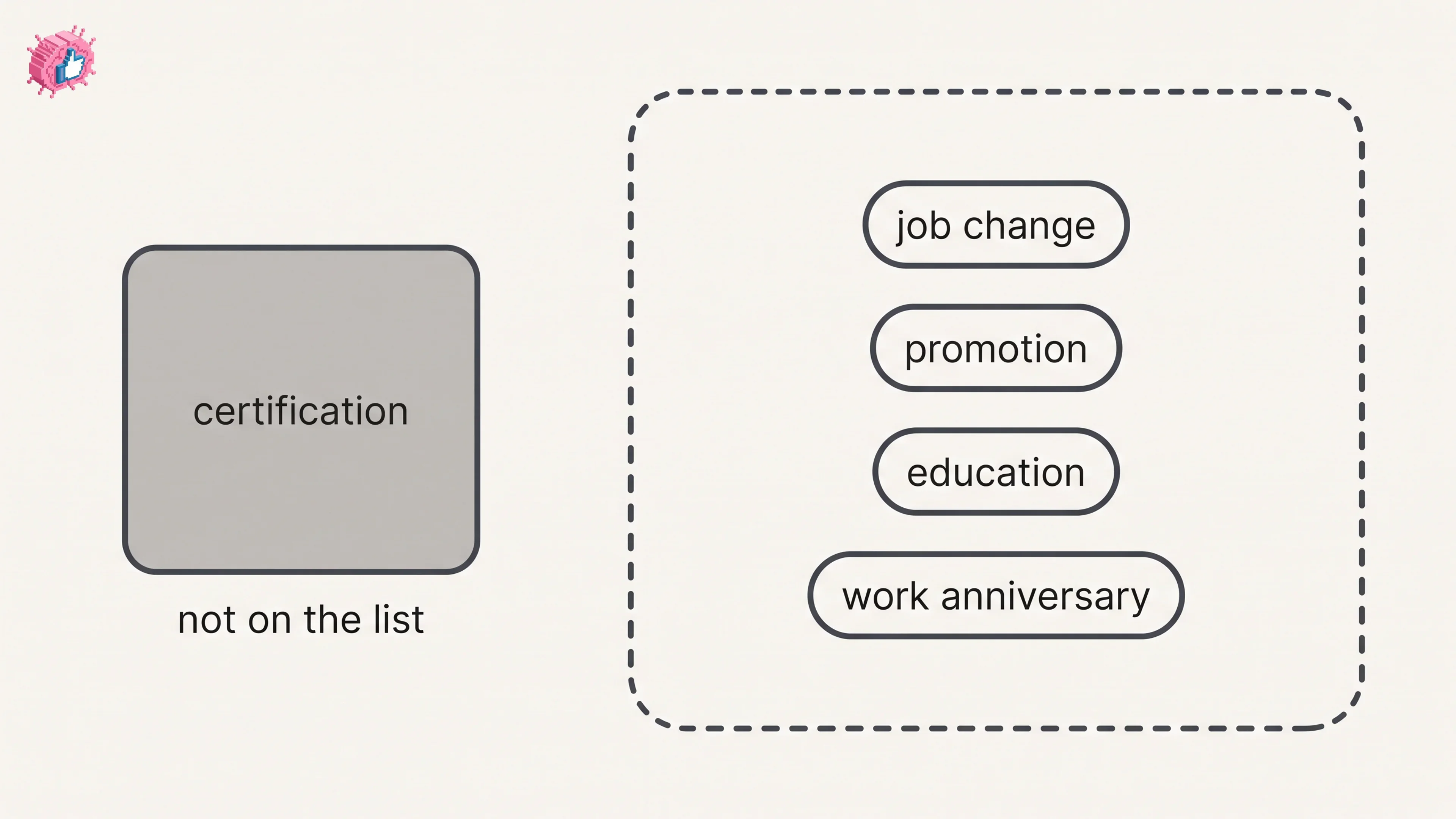
How to Add a Certification to LinkedIn Without Posting
Add a certification on LinkedIn desktop or the app, put credentials after your name, and see what LinkedIn documents about notifying your network.
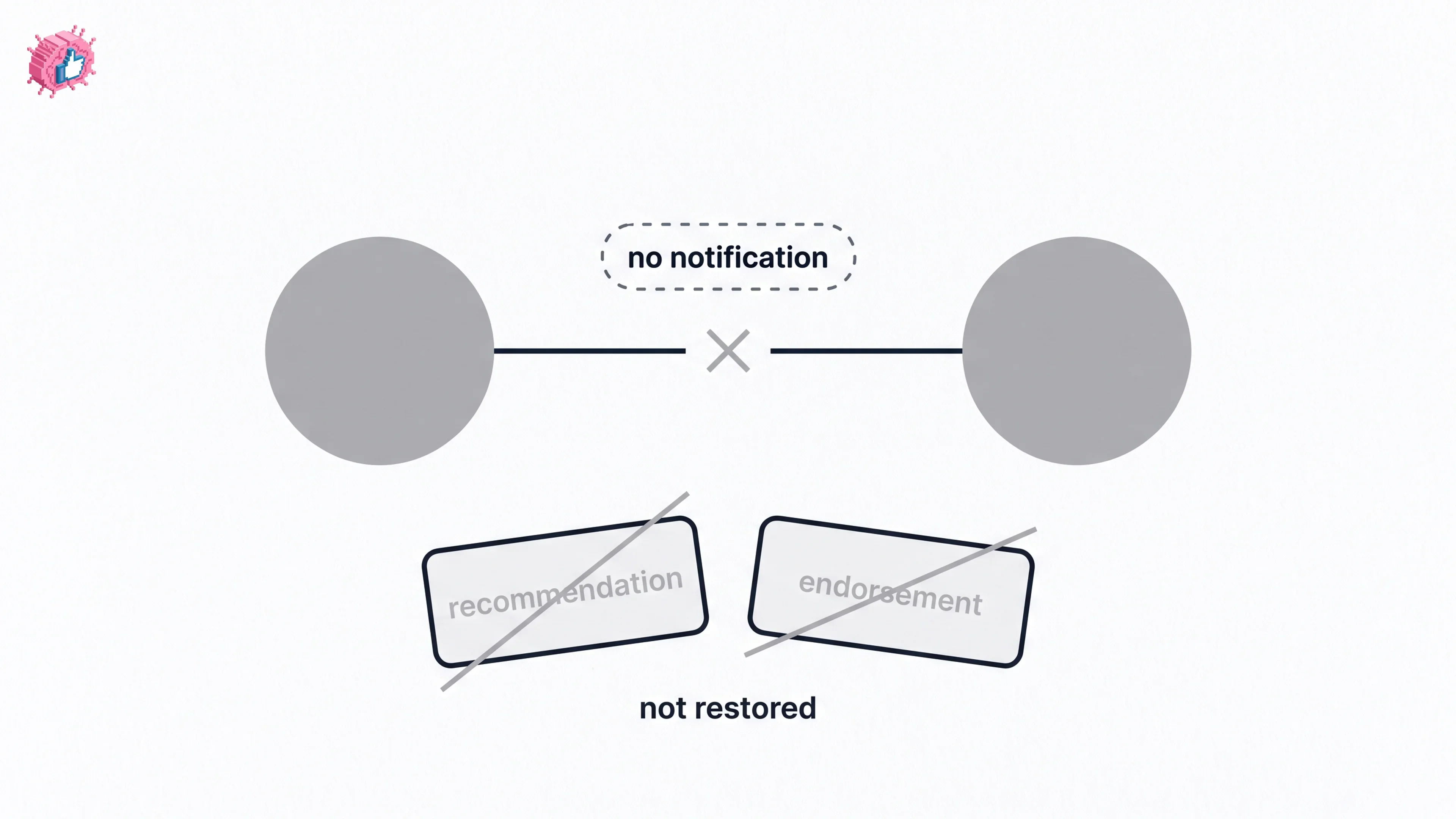
How to Remove a Connection on LinkedIn: What It Erases
Remove a LinkedIn connection on desktop or the app. They are not notified, but recommendations and endorsements go for good. Steps from LinkedIn Help.