

How to Add a Promotion on LinkedIn (Same Company)
How to add a promotion on LinkedIn so both roles group under one company, whether to edit or add a position, desktop and app steps, and who gets notified.
Add a promotion on LinkedIn by adding a new position under the same company, not by editing your existing entry. LinkedIn then stacks the two roles under one company heading with your total tenure, which is what makes a promotion read as a promotion rather than as a job title that quietly changed.
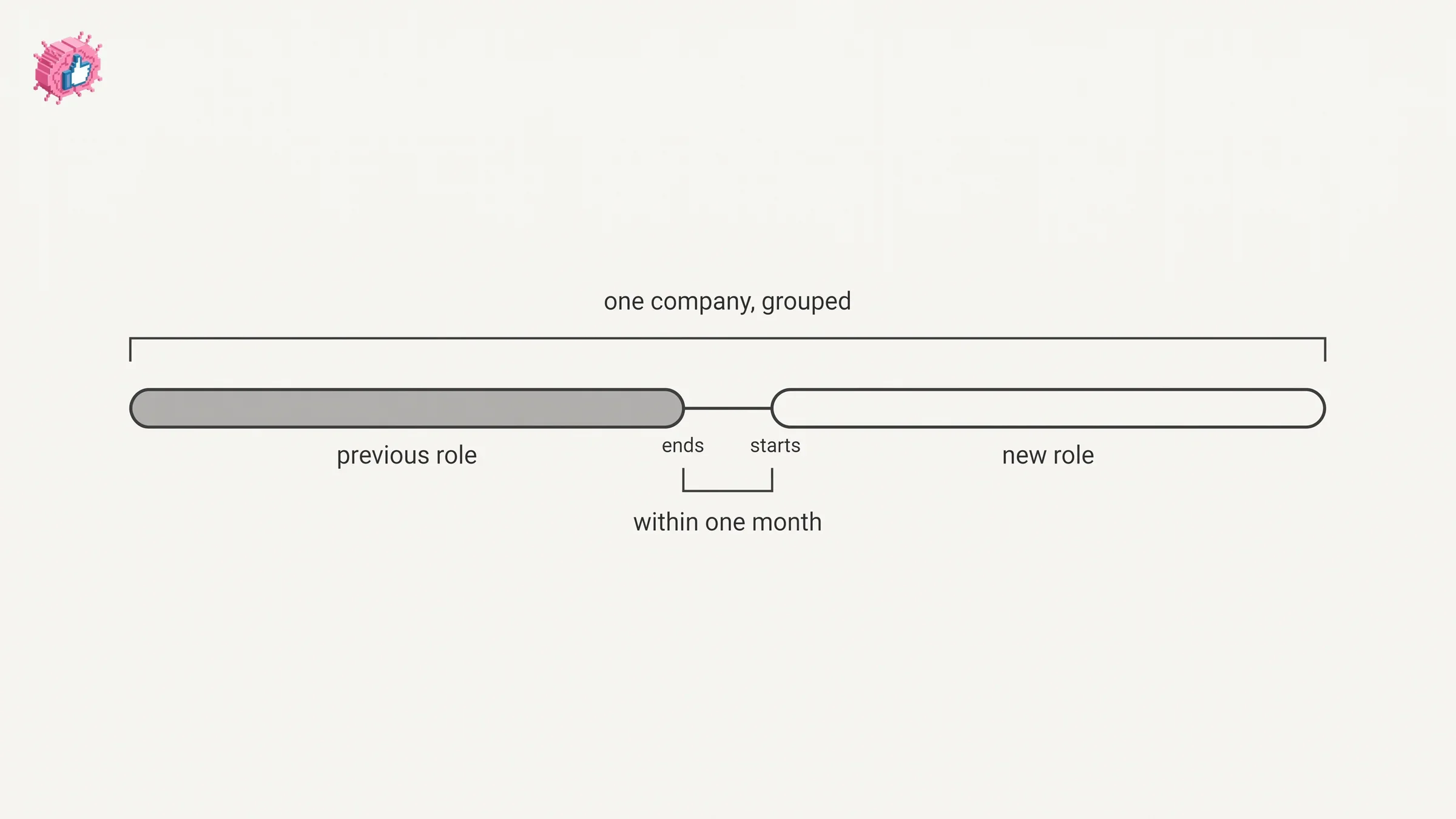
The grouping is automatic, but it is conditional. LinkedIn states: "Positions are grouped when the start date of a new position is within one month of the previous position's end date at the same company." Miss that window, or spell the company differently, and you get two unconnected entries instead of a career progression.
This guide covers the add steps on desktop and in the app, what to do with the old role, how the grouping rule actually behaves, and what LinkedIn documents about notifying your network. Every claim comes from LinkedIn's own Help pages.
Automate your LinkedIn for 30 days
Add a new position rather than editing the old one
Editing the existing entry overwrites your old title. Adding a new one keeps both, and only the second option can produce a grouped company block.
LinkedIn does not publish a sentence telling you which to do. What it publishes is the grouping rule, and the rule decides it for you: grouping needs two positions at the same company to group. One edited entry is still one entry, so there is nothing to stack.
LinkedIn describes the payoff on its grouping page: "Positions in your Experience section are automatically grouped if they're held at the same company. Grouping highlights your career progression within the company and makes it easier for your connections and recruiters to understand your experience."
| Your approach | What your profile shows afterwards |
|---|---|
| Edit the existing position and change the title | One entry, new title, old title gone |
| Add a new position at the same company | Both roles under one company heading, if the dates qualify |
| Add a new position with a different company spelling | Two separate company blocks |
| Add a new position starting more than a month after the old one ended | Two separate entries, not grouped |
That last row is LinkedIn's own note, stated as a limit: "Positions won't group if the start date of the new position is more than one month after the previous position's end date."
How LinkedIn groups two roles at the same company
Two conditions, both documented: the same company, and a start date within one month of the previous position's end date.
When those are met, LinkedIn publishes exactly what you get:
- The roles "appear under a single company section, showing the company name and logo."
- "Each position within the company is listed in chronological order."
- "The total tenure at that company is shown under the company name."
- "Each position within the group shows its start and end dates and tenure."
So the company block carries your full time there, and each role underneath carries its own span. That is the visual difference between someone who has been somewhere four years and someone who looks like they changed jobs.
LinkedIn adds one tip for making the progression legible: "To show your career progression within a company, make sure to specify the employment type for each position."
If the grouping comes out wrong, LinkedIn names the usual cause rather than leaving you to guess: "If a position is grouped incorrectly, check and update the company name to separate them." The company field is the key the grouping runs on, so a typo, an old trading name or picking the wrong entry from the dropdown is what splits a block that should be whole.
How to add a promotion on LinkedIn
LinkedIn documents two routes into the same form. Its Experience section page goes through Add profile section, and its page on your current position goes through the introduction editor. Either one opens the Add experience form.
Desktop, through the Experience section:
- Click the Me icon at the top of your LinkedIn homepage, then View Profile.
- Click Add profile section button in your introduction section.
- Click Core dropdown, then Add position.
- In the Add experience pop-up window, enter your information into the fields provided.
- Click Save.
Desktop, through the introduction editor:
- Click the Me icon at top of your LinkedIn homepage.
- Click View Profile.
- Click the Edit icon in your introduction section.
- In the Edit intro pop-up window, click Add new position under the Primary position section.
- Enter your information in the Add experience pop-up window.
- Click Save.
Mobile:
- Tap your profile photo.
- Tap your profile photo again to access your profile.
- Tap Add section.
- Under Core, tap Add position.
- In the Add experience pop-up window, enter your information into the field provided.
- Tap Save.
LinkedIn tabs these as Desktop and Mobile on both pages, with no separate iOS and Android steps and no mobile browser path, so this guide does not split them either.
One detail worth catching on the desktop form. LinkedIn notes: "If you select Update my headline, you can display your current experience in your introduction section. You can also edit the information displayed in the Headline field." A promotion is usually a headline change too, and that checkbox is where it happens without a second trip.
There is also a secondary language profile trap. LinkedIn warns: "If you've created a profile in another language, your secondary language profile won't automatically reflect the changes you make to your English-language profile." A promotion added once can leave the old title live on your other profile indefinitely.
What to do with your old job title
Give it an end date. The grouping rule is written against "the previous position's end date", so a previous role left open as current is not a previous role as far as the rule is concerned.
Editing an existing position is documented on the same page as adding one.
Desktop: click the Me icon, then View Profile, scroll down to the Experience section, click Show all experiences, then click the Edit icon next to the position you want to edit and click Save when you are finished.
Mobile: tap your profile photo, scroll to the Experience section, tap the Edit icon, then tap the Edit icon again next to the position you want to edit, make your changes and tap Save.
LinkedIn's mobile route genuinely has two Edit taps in sequence, which is not a typo in this guide, it is how LinkedIn publishes it.
If you keep both roles open as current, LinkedIn documents what changes. You can reorder them: "You can only reorder positions that don't have an end date (your current roles)," and the Sort icon "appears only if you have two or more current positions." Past experience "is automatically organized chronologically and cannot be reordered," so once you close the old role, the order is no longer yours to set.
| Situation | What LinkedIn documents |
|---|---|
| Old role closed with an end date | Grouping applies if the new start date is within one month |
| Old role left as current | Both are current roles, and a Sort icon appears so you can order them |
| Two or more past roles | Ordered chronologically, and not reorderable |
| Company name spelled differently | Separate blocks, fixed by correcting the company name |
Does adding a promotion notify your network
It can, and LinkedIn names promotions explicitly as one of the change types involved.
The controlling setting is Share profile updates, in Settings & Privacy under Visibility. LinkedIn describes its scope: "You can choose to notify your network about job changes, education changes, and work anniversaries. Enabling notifications about your profile changes may generate a post in your network's feed, an in-app notification, or an email notification."
Later on the same page it names the category directly: "You can adjust notification settings for job changes, promotions, education changes, and work anniversaries." Promotions are in LinkedIn's list, which is more than can be said for several other profile edits.
The hedging is LinkedIn's own and worth keeping. Its Experience section page says: "If you've enabled the Notify Network option, your network may be informed of the changes." May, not will.
Three timing facts sit alongside it:
- Job updates "may take up to two hours to be shared with your network."
- Automated profile update posts "are available for up to 90 days," after which the post and its comments and reactions are deleted.
- If you have "two or more current work experiences starting in the same month," only one work anniversary notification is sent, "for the work anniversary with the shortest anniversary window."
And the limit that matters most, in LinkedIn's words: "Anyone that views your profile will see your edits as soon as you save them, even if you haven't chosen to notify your network about any changes you make." Quiet is not the same as hidden. Our full guide to updating LinkedIn without notifying your network covers the setting on every platform, the competing names LinkedIn gives it, and what still reaches people with it off.
Automate your LinkedIn for 30 days
Where the notify toggle sits while you add the position
Inside the Add experience form, at the top, under a heading LinkedIn calls Notify network.
That placement comes from LinkedIn's page on updating your current position. It states that you can adjust your notification preferences "by switching the toggle in the Notify network section at the top of the Add experience page," and it publishes that line under both its desktop and its mobile steps.
Two other pages name the same control differently. The Share profile updates page calls it the Share with network section and ties it to editing "from a computer." The Experience section page calls it the Notify Network option and repeats its tip under both desktop and mobile. Three pages, three labels, one control.
The practical reading has not changed: if you want certainty, switch the account-wide Share profile updates setting off before you open the form, then switch it back on afterwards so a real milestone later is not silently suppressed. The in-form toggle is the convenience, not the guarantee.
Which role appears in your introduction section
The one you pick, if you have more than one current position. Otherwise the most recent.
LinkedIn documents the default: "By default, the introduction section on your profile displays your current position and company as shown in the Experience section of your profile. If you have more than one current position, the one with the most recent start date will be listed first."
And the override: "If you have more than one current position, you can choose to display either one of the positions from the dropdown under Primary position while editing your introduction section."
One more rule from the same page: "If your professional headline and current position are the same, only your current company will be displayed on this line." Writing a headline that duplicates your new title costs you a line of profile real estate, which is the kind of thing the profile optimization checklist catches.
What LinkedIn does not document about promotions
Three things, named as gaps rather than filled in from elsewhere.
Whether a promotion generates a post, a notification or both. LinkedIn says enabling sharing "may generate a post in your network's feed, an in-app notification, or an email notification," without saying which one a promotion produces. It also states that "even if you've enabled sharing, some types of profile edits won't generate notifications to your network," without listing the exclusions.
Whether there is a promotion-specific flow. The pages read for this guide document adding a position and grouping positions. None of them publishes a separate promotion object, badge or announcement template. On the documentation, a promotion is a position added under a company you already have.
What happens to a grouped block when a role is deleted. LinkedIn documents deleting a position and documents grouping, but no page read here says how a group behaves when one of its members is removed.
Anything claiming specifics on these three is sourcing them from somewhere other than LinkedIn's Help pages on positions, grouping and profile updates.
Before you add it, get the rest of the entry right
The promotion is the easy part. The entry around it is what a recruiter reads.
- Set the employment type on both roles. LinkedIn ties this directly to showing progression within a company.
- Close the old role to the right month. The one-month window is the whole grouping rule, and nothing else on the profile will warn you that you missed it.
- Check your secondary language profile. It does not follow the change.
- Decide the headline before you save. The Update my headline option on the form is the cheapest moment to do it.
Once the title is live, the parts of your profile that corroborate it matter more than the title itself. Recommendations from people who watched you do the work carry the promotion better than the entry does, verification settles who you are, and adding a certification has its own notification quirk worth knowing if you are stacking edits in one sitting.
If the new role follows time away rather than another role at the same company, career break is the Experience entry built for that, and it behaves differently from a position. If the promotion is part of a wider profile pass, name pronunciation is a nearby introduction section edit, Open to Work governs what recruiters see, and LinkedIn features explained indexes the rest of the individual guides.
FAQ
How do I add a promotion on LinkedIn?
Add a new position at the same company rather than editing the old entry. On desktop, click the Me icon, then View Profile, click Add profile section, click the Core dropdown, then Add position, fill in the Add experience form and click Save. Give your previous role an end date so the two group together.
Should I edit my old role or add a new position for a promotion?
Add a new one. LinkedIn's grouping only applies to positions "held at the same company," which needs two entries to work on. Editing the existing role replaces the old title instead of stacking the new one above it.
How do I add a promotion within the same company on LinkedIn?
Add the new position with the same company and a start date within one month of the old role's end date. LinkedIn states: "Positions are grouped when the start date of a new position is within one month of the previous position's end date at the same company."
How do I add a promotion on the LinkedIn app?
Tap your profile photo, tap your profile photo again to reach your profile, tap Add section, tap Add position under Core, fill in the Add experience form and tap Save. LinkedIn publishes one set of mobile steps rather than separate iOS and Android instructions.
Why did my two roles not group under one company?
Check the dates and the company name. LinkedIn says positions "won't group if the start date of the new position is more than one month after the previous position's end date," and that if a position "is grouped incorrectly, check and update the company name to separate them."
Does LinkedIn notify my network when I add a promotion?
It can. LinkedIn names promotions among the change types you can adjust notification settings for, and says enabling sharing "may generate a post in your network's feed, an in-app notification, or an email notification." Its Experience section page keeps the hedge: your network "may be informed of the changes."
How do I add a promotion without notifying anyone?
Switch Share profile updates off in Settings & Privacy under Visibility before you open the form. LinkedIn also documents a Notify network toggle at the top of the Add experience page, under both its desktop and mobile steps. Either way, anyone who views your profile still sees the new title as soon as you save.
How long does a LinkedIn promotion update take to reach my network?
Up to two hours for job updates, per LinkedIn. It also states that automated profile update posts are available for up to 90 days, after which the post and any comments and reactions on it are deleted.
Which role shows under my name after a promotion?
The one with the most recent start date, unless you choose otherwise. LinkedIn lets you "display either one of the positions from the dropdown under Primary position while editing your introduction section" when you have more than one current position.
Can I reorder my current positions after adding the promotion?
Only while both are current. LinkedIn states you "can only reorder positions that don't have an end date," that the Sort icon "appears only if you have two or more current positions," and that past experience "is automatically organized chronologically and cannot be reordered."
Automate your LinkedIn for 30 days
ViralBrain plans, writes, and schedules your LinkedIn content, using official LinkedIn APIs so your account stays safe.
- Official LinkedIn APIs, no risk of ban
- You approve every post before it goes live
- Cancel anytime
Keep reading
How to Add Organizations on LinkedIn: Full Steps
How to add organizations on LinkedIn, where the section sits, desktop and app steps, editing entries, and why a LinkedIn Page is a different thing.
How to Add Education on LinkedIn: Fields and Steps
How to add education on LinkedIn, the eight fields LinkedIn documents, multiple entries, the expected end date, reordering, and the 24 hour notify window.
How to Add Honors and Awards on LinkedIn
How to add the Honors and awards section on LinkedIn on desktop and in the app, the exact steps LinkedIn publishes, and how to edit or delete an entry.