

LinkedIn Events: How to Create and Manage One
Three LinkedIn Event fields lock permanently once you post, and registration forms are Pages only. The setup steps, invitation limits, and how to cancel.
Most of a LinkedIn Event is editable after you publish it. Three fields are not, and LinkedIn does not warn you loudly before you commit them.
There is a second trap earlier in the flow: the registration form, which is the reason most people create an event at all, is available to Pages only. Create the event from your personal profile and you cannot collect a single registration.
This guide covers who can create an event, the fields that lock permanently, how invitations are capped, and the difference between cancelling and deleting, which is larger than it sounds.
Automate your LinkedIn for 30 days
What is a LinkedIn Event?
A LinkedIn Event is a dedicated page for something happening at a set time, with its own attendee list and its own feed post. LinkedIn's documentation describes it as a way to "create an event, add details regarding the theme and itinerary, and invite members to join."
Events come in four flavors, and the choice matters more than it looks:
- Online
- In person
- LinkedIn Live, to "stream your video event on LinkedIn using a third-party tool"
- External event link, for something hosted elsewhere
If you pick LinkedIn Live, the broadcast half has its own requirements, its own access rules, and its own software dependency. Those are covered in full in our guide to LinkedIn Live, and this page does not repeat them. Everything below is about the event container rather than the stream inside it.
Who can create one, and the catch
"As a LinkedIn member or Page admin, you can create an event." Both routes exist, so a personal profile can host one.
The catch arrives at the registration checkbox. LinkedIn's own wording is that the registration form option is "available for Pages only." A member-organized event can gather attendees, but it cannot run a registration form, and it cannot collect the attendee details that form exists to capture.
That single line decides which account you should create from. If the point of the event is a list of people who signed up, it has to be a Page event. Deciding between the two surfaces more generally is the same question covered in personal brand versus company page, and this is one of the few places where the platform settles it for you.
Enabling registration also requires something most people do not have ready: "you'll have to provide your privacy policy link explaining how attendee information will be used." Have that URL before you start.
How to create a LinkedIn Event
On desktop:
- Click the Home icon
- Click Events in the left pane
- Click Create an Event
- Complete the form fields
- Click Next
- Write the promotional post in the Share box
- Select your audience from the dropdown
- Click Post
Step 6 is worth slowing down on. The event is published together with a feed post, so the post is not an afterthought you can improve later. It is the first and often the only thing your network sees about the event, and it deserves the same attention as any other post you would write. When you publish it affects who sees it.
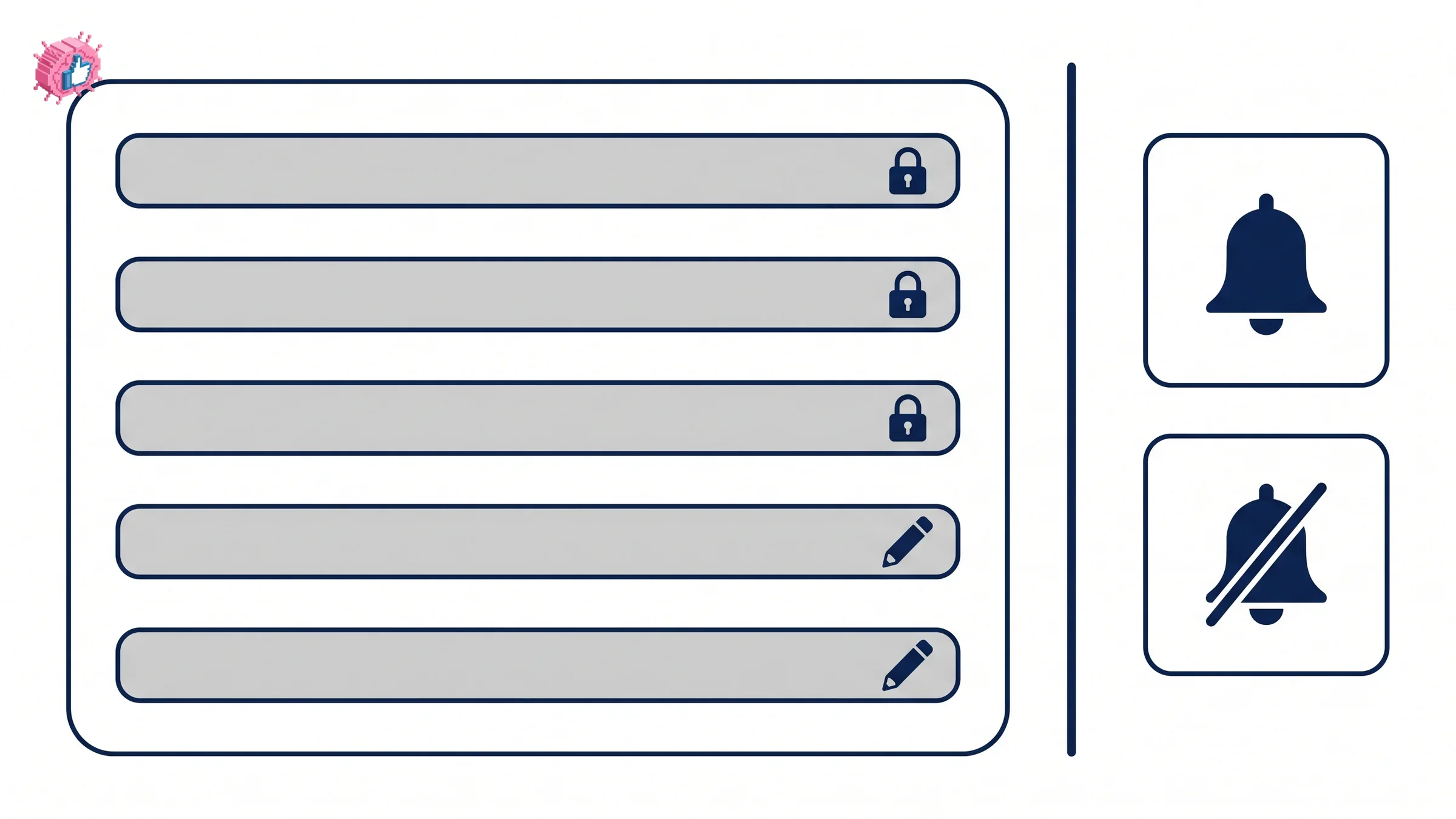
The three fields you cannot change afterward
This is the part to read twice, because LinkedIn states it plainly and almost nobody notices until it is too late.
"Once the event is posted, you can't change the Organizer, Event type (Online or In person), or Event format (LinkedIn Live or External event link)."
So three decisions are permanent at the moment you click Post:
| Locked field | What it means |
|---|---|
| Organizer | You cannot move an event from your profile to your Page, or between Pages |
| Event type | Online cannot become in person, or the reverse |
| Event format | LinkedIn Live cannot become an external link, or the reverse |
The organizer lock is the expensive one. If you create an event from your personal profile, realize you need registrations, and discover that registration is Pages only, there is no migration. You cancel, delete, and start again, losing any attendees who already signed up.
Name, description, date, time and timezone remain editable. The structural choices do not.
Invitation limits
Invitations are capped, and the cap is smaller than most campaigns assume.
"Organizers, Page admins, and attendees can send up to 1000 invitations per week." Two details make that number tighter than it first reads:
- The limit is shared across events. LinkedIn states that "if you organize multiple events, this limit applies across events and does not increase." Running three events in a week means 1,000 invitations between them, not 1,000 each.
- It is per admin. Each Page admin has their own 1,000, so a Page with four admins has more total reach than a solo organizer, provided each admin actually sends.
The useful part is that attendees can invite too, under the same allowance. Someone who signs up can pull in their own network, which makes early registrations worth more than the headcount suggests. Ask your first attendees to invite people rather than treating the invite list as something only you can work.
Beyond invitations, the ordinary rules apply. Your event post competes for attention like any other post, so the algorithm and your existing follower base still determine most of the reach.
Automate your LinkedIn for 30 days
Cancelling and deleting are different, and both are permanent
LinkedIn is unusually direct here: "Both canceling and deleting are permanent actions that can't be reversed." You also cannot skip a step, because "you must cancel the event before deleting it."
The difference between the two is what happens to the people who signed up:
| Cancel | Delete | |
|---|---|---|
| Attendees notified | Yes, they are told it was cancelled | No, they are told nothing |
| Event page | Remains, members cannot join | Removed |
| Feed post | Remains | Deleted and removed from recent activity |
| Reversible | No | No |
That notification asymmetry is the practical point. Cancelling is the courteous action, because attendees find out. Deleting without cancelling first is not possible, so the sequence protects them by design.
Timing rules differ by format. An online or in-person event can be cancelled "before it begins, or during an ongoing event." A LinkedIn Live event can be cancelled "before it begins, but not during an ongoing event." No event can be deleted while it is ongoing.
Deletion also takes the feed post with it, which matters if that post accumulated comments worth keeping. Screenshot anything you want before you delete.
Managing attendees
Organizers can remove an attendee or withdraw an invitation at any point. For a Page event, any super or content admin can manage the event and remove attendees, so the permission does not sit with one person.
Worth planning for in advance: attendee data from a registration form is a list you are responsible for, which is why the privacy policy link is mandatory rather than optional. Decide before the event what happens to that list afterward.
Who should run a LinkedIn Event
Worth doing if:
- You have something with a fixed time that people would clear a calendar slot for. A panel, a workshop, or a launch has a reason to exist as an event.
- You are organizing from a Page and want the registration list. This is the strongest case, since the list is the asset and only Pages can collect it.
- You have admins who will each spend their invitations. The per-admin cap rewards teams, and employee advocacy extends the same logic past the admin list.
- You will reuse the recording or the follow-up. An event that produces a month of content calendar material earns more than its attendance.
Skip it if:
- You only want a post to perform well. An event is a heavier object than a post, and a well-timed post with a strong opening will usually reach more people for less work. Paying to amplify a good post through thought leader ads is also cheaper than filling an event.
- You cannot commit to promoting it. The invitation cap means an event does not fill itself, and an event page with four attendees is publicly visible.
- You are organizing from a profile but need registrations. Create it from a Page or do not create it, because the organizer field cannot be changed later.
- Your audience does not show up for things yet. Check your engagement rate on ordinary posts first. Events ask more of people than a like does.
The honest summary
LinkedIn Events are straightforward to create and unforgiving in three specific places. Organizer, event type and event format are permanent. Registration belongs to Pages. Cancelling and deleting cannot be undone.
Get those four decisions right at the start and the rest of the feature is flexible. Get the organizer wrong and you are rebuilding the event from scratch, which is a much larger cost than the two minutes it takes to create one would suggest.
FAQ
Can I change the organizer of a LinkedIn Event after creating it?
No. LinkedIn states that "once the event is posted, you can't change the Organizer, Event type (Online or In person), or Event format (LinkedIn Live or External event link)." Moving an event from a profile to a Page means cancelling, deleting and creating it again.
Can a personal profile collect event registrations?
No. The registration form option is "available for Pages only." A member-organized event can have attendees, but it cannot run a registration form or collect the details that form captures.
How many people can I invite to a LinkedIn Event?
"Organizers, Page admins, and attendees can send up to 1000 invitations per week." The limit is shared across all events you organize and does not increase, though each Page admin has their own allowance and attendees can invite people too.
What is the difference between cancelling and deleting a LinkedIn Event?
Cancelling notifies attendees that the event is off and leaves the event page in place. Deleting removes the event and the associated feed post from your recent activity, and attendees are not notified. Both are permanent, and you must cancel before you can delete.
Can I delete a LinkedIn Event while it is running?
No. Events cannot be deleted while ongoing. An online or in-person event can be cancelled during the event, while a LinkedIn Live event can only be cancelled before it begins.
Do I need a privacy policy to run a LinkedIn Event?
Only if you enable registration. LinkedIn requires that "you'll have to provide your privacy policy link explaining how attendee information will be used" when you turn the registration form on.
Who can manage a LinkedIn Event created by a Page?
Any super or content admin of the Page. They can manage the event, remove attendees, withdraw invitations, and cancel or delete it.
What event formats does LinkedIn offer?
Online, in person, LinkedIn Live for streaming a video event through a third-party tool, and an external event link for something hosted off LinkedIn. The format is fixed once the event is posted.
Automate your LinkedIn for 30 days
ViralBrain plans, writes, and schedules your LinkedIn content, using official LinkedIn APIs so your account stays safe.
- Official LinkedIn APIs, no risk of ban
- You approve every post before it goes live
- Cancel anytime
Keep reading
LinkedIn Career Break: How to Add One and Who Sees It
Add a career break on LinkedIn desktop or the app. Your network is not notified, the type is optional, and signed-in members see it. From LinkedIn Help.
How to Add a Certification to LinkedIn Without Posting
Add a certification on LinkedIn desktop or the app, put credentials after your name, and see what LinkedIn documents about notifying your network.
How to Remove a Connection on LinkedIn: What It Erases
Remove a LinkedIn connection on desktop or the app. They are not notified, but recommendations and endorsements go for good. Steps from LinkedIn Help.