

LinkedIn collaborative posts: who can use them and how
LinkedIn announced collaborative posts globally in July 2026, but help still limits creation to early access. How to add collaborators, and the limits.
LinkedIn announced collaborative posts globally on 23 July 2026. Its own help documentation still says the feature is limited to an early access programme. Both statements are live right now, which is why so many people are searching whether the feature exists at all.
A collaborative post lets you publish one post jointly with up to five other members or Pages. When someone accepts, the post appears on their profile too, with them listed as a collaborator.
This guide covers what LinkedIn has actually documented: how to create one on desktop and mobile, how the Company Page route differs, who can see the engagement data, and the limits that are easy to hit. Everything below is sourced from LinkedIn's own pressroom and help pages, with the gaps left visible rather than filled in with guesswork.
Automate your LinkedIn for 30 days
Does LinkedIn have collaborative posts?
Yes, but you may not be able to create one yet. LinkedIn's pressroom announced on 23 July 2026 that it was "introducing Collaborative Posts globally, a new post format that allows you to post jointly with up to five other members or via Company Pages."
Its help pages say something narrower. Every collaborative post article carries the same notice: "This feature is rolling out gradually and may not be available to you yet. Only members in the early access program can create collaborative posts."
So the honest answer is that the feature is announced and real, and access is still gated. If you cannot find the option, that is the documented behaviour rather than a fault with your account.
One sign it is still moving: when these pages were checked on 9 September 2026, the Company Page article read "Last updated: 6 days ago" and the main creation article read "Last updated: 3 weeks ago".
What is a collaborative post on LinkedIn?
A collaborative post is a single post credited to more than one author. You invite connections or Pages while writing it, and anyone who accepts is listed on the post and carries it on their own profile or Page.
LinkedIn describes the point as reach: when collaborators accept, the post "appears on their profile or LinkedIn Page and includes them as collaborators, helping it reach a broader audience."
Collaboration works across most formats, not only plain text. LinkedIn lists text posts, image and multi-image posts, video posts, third-party link posts, storyline posts, document posts, celebration posts, polls, and events.
How do you create a collaborative post on LinkedIn?
Start a post as normal, add collaborators before publishing, then post. The steps differ slightly between desktop and mobile.
| Step | Desktop | Mobile |
|---|---|---|
| 1 | Click Start a post on your homepage | Tap Post in the navigation bar |
| 2 | Type the content of your post | Type the content of your post |
| 3 | Click Add collaborators | Tap the dropdown next to your profile picture, then Add collaborators |
| 4 | Search for connections and select their names | Search for connections and select their names |
| 5 | Click Save | Tap Save |
| 6 | Click Post | Tap Post |
Note the word LinkedIn uses in step 4: connections. The invite picker searches your connections, so you cannot add someone you are not connected to.
How do you create a collaborative post as a Company Page?
The Page route reverses the order: you add collaborators first, then write the post. You also need the right admin role.
From your Page super admin or content admin view, click Create in the left pane, then Publish a collaborative post in the pop-up. Search for connections or a Page, select them, and click Save. Type your post, then click Post.
This matters if you run both a personal profile and a brand presence, because the two flows are not interchangeable. If you are still deciding how to split effort between them, our guide on personal brand versus company page covers the trade-off. And if the point of putting the Page on the post is reach through your own staff, the five-collaborator cap is the ceiling on this format, and employee advocacy tools are built for sharing across a larger team.
A detail worth catching before you plan a campaign: Page admins must accept invitations on behalf of a Page. Nobody accepts on their behalf automatically.
What happens after you invite someone?
Invited collaborators get a notification asking them to accept or decline, and nothing appears on their profile until they act.
If they accept, the post appears on their profile with them listed as a collaborator. If they decline, the post stays on your profile only. The post still publishes either way, so a declined invitation does not block you.
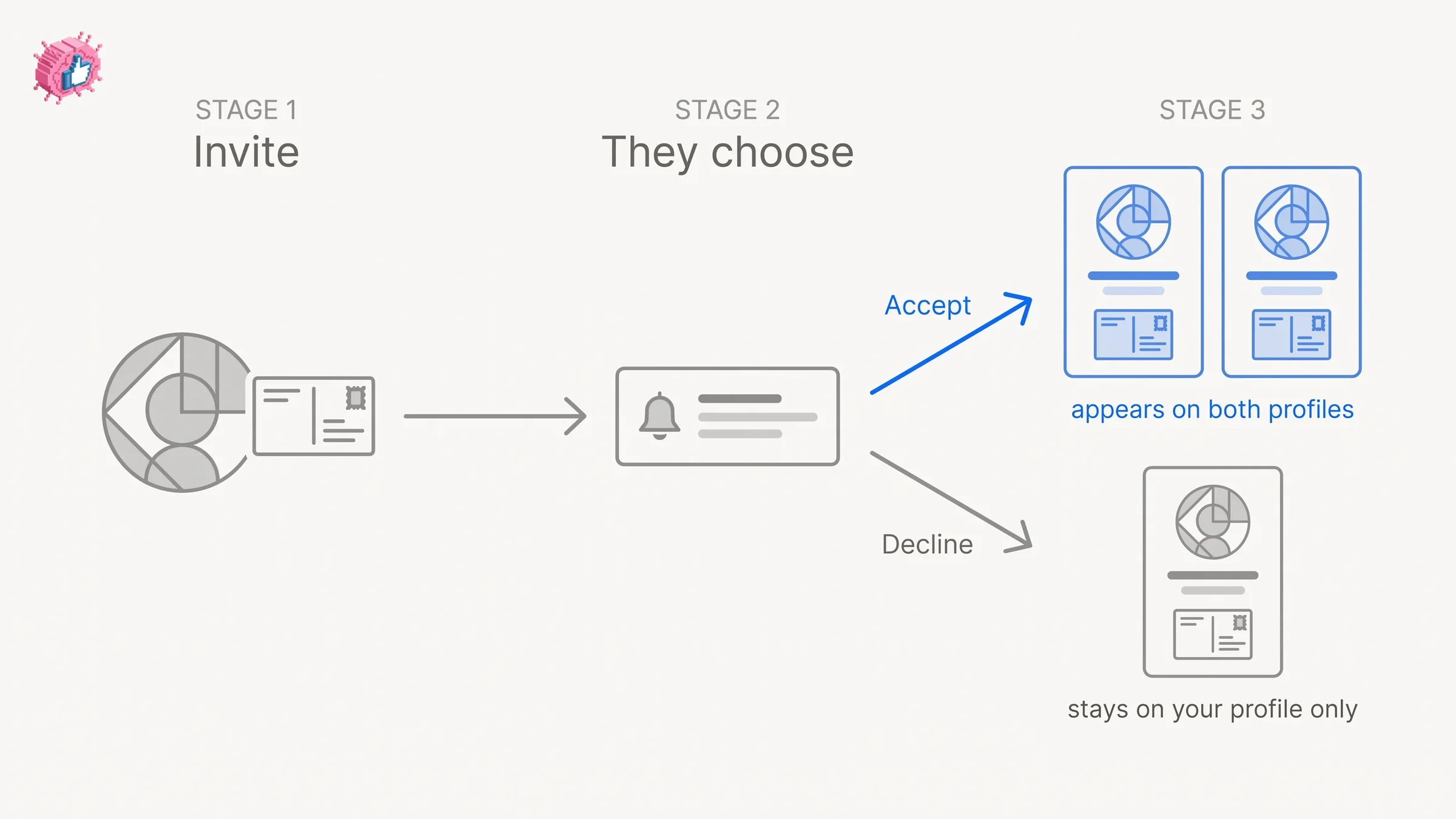
Three settings on the other person's account can stop the invitation reaching them:
- They must allow mentions and collaboration in their privacy settings
- They must have notifications enabled for posting and commenting to receive the invite notification
- LinkedIn also notes that the ability to collaborate with a member depends on their collaboration settings
That is the most common reason an invite appears to vanish. The request depends on the recipient's configuration, not only on yours.
Automate your LinkedIn for 30 days
How do you add or remove collaborators after publishing?
Only the person who created the post can manage collaborators, and it can be done after the post is live.
Find the post, click the More icon in the upper-right corner, then Edit post, then Edit [number] with others. From there you can search for connections or a Page to add, or click Remove next to an existing collaborator. Click Save.
LinkedIn adds three clarifications:
- You can remove collaborators who are pending or who have already accepted
- Removing a collaborator removes them from the post
- Adding a collaborator sends them an invitation to accept or decline
Editing is restricted the same way. LinkedIn states that only the creator can edit the post or manage collaborators, so co-authorship is shared credit rather than shared control.
How do you remove yourself from a collaborative post?
Open the post, click the More icon, then Remove myself from collaborative post, then confirm with Remove. If you have not accepted yet, decline the invitation instead.
Removing yourself costs you the data. LinkedIn spells out three consequences: you are no longer shown on the post, the post is no longer associated with your profile or Page, and you lose access to engagement metrics.
Collaborators can remove themselves at any time, which is worth knowing if you are relying on a partner's audience for a launch.
Who can see the engagement data?
Members who accept can see engagement metrics. Pages added as collaborators cannot, and that asymmetry is easy to miss.
LinkedIn states that connections who accept "can view engagement metrics such as reactions, comments, and shares." For Pages it says the opposite: "Page admins can only see performance in Page analytics and engagement metrics aren't available for Pages added as collaborators."
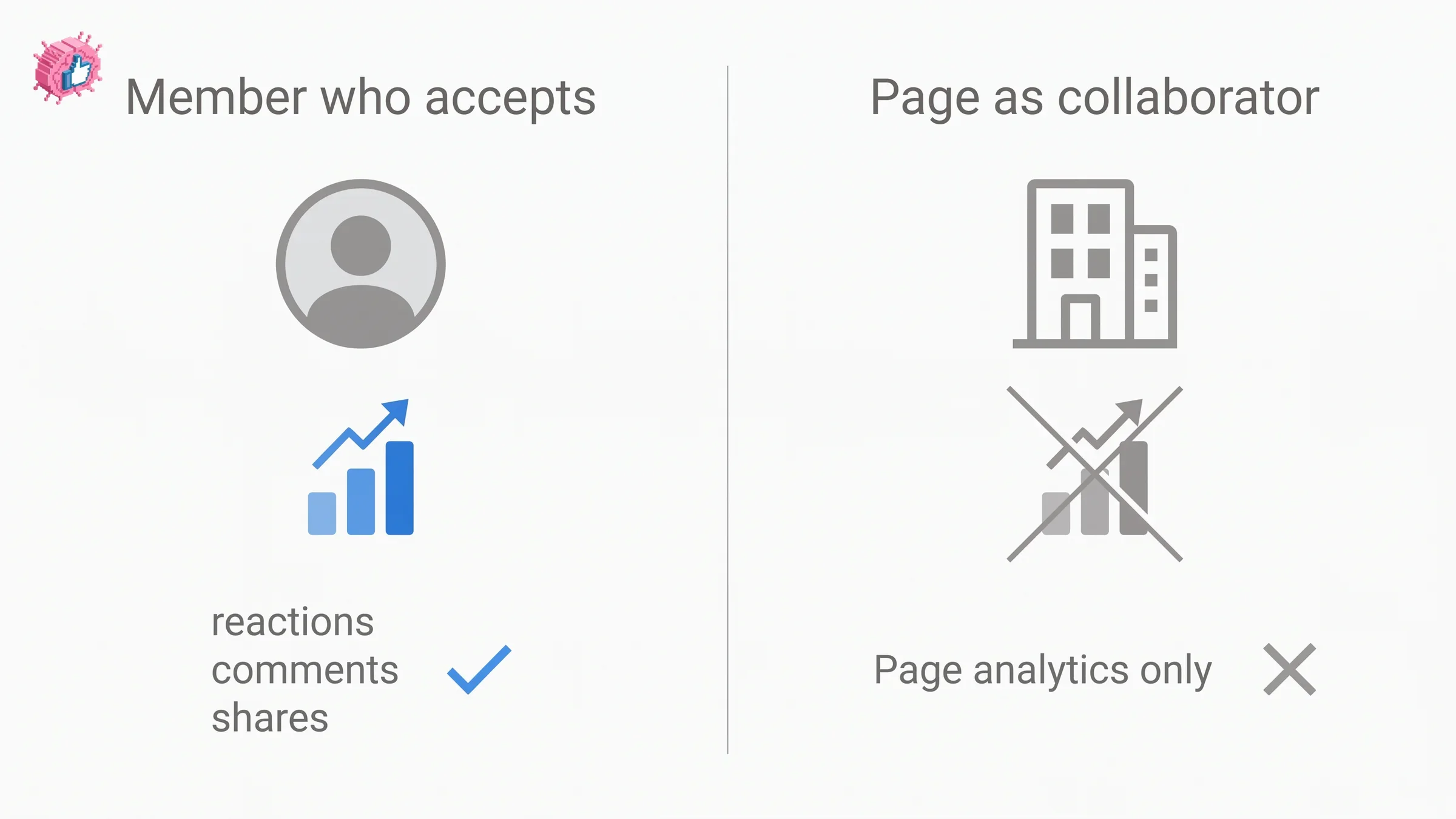
| Collaborator type | Engagement metrics on the post |
|---|---|
| Member who accepts | Yes, including reactions, comments and shares |
| Page added as a collaborator | No, Page admins see Page analytics only |
| Anyone who removes themselves | No, access is lost on removal |
If you are measuring a partnership by post performance, decide which side owns reporting before you publish. The member account holds the richer view. For what those numbers mean once you have them, see the difference between impressions and reach, and if you need reporting beyond the native view, we compare the options in LinkedIn analytics tools.
What are the limits and requirements?
Five collaborators per post is the hard cap, the post must be public, and only the creator can edit it. The full set is below.
| Rule | Detail |
|---|---|
| Collaborators per post | Up to five |
| Post visibility | Must be public |
| Who you can invite | Connections or Pages |
| Supported formats | Text, image and multi-image, video, third-party link, storyline, document, celebration, polls, events |
| Who can edit or manage | The creator only |
| Who can leave | Any collaborator, at any time |
| Content policy responsibility | The person who created the post |
The public requirement is the one that catches people. A collaborative post cannot be restricted to connections only, so this format does not suit anything you would rather keep inside your network.
When is a collaborative post worth using?
LinkedIn suggests four situations: announcing a joint launch, highlighting a partnership, sharing project results, and celebrating a milestone. All four share a trait, which is that two audiences have a genuine reason to care about the same post.
That is also the honest limit of the format. Adding collaborators who have no real connection to the content borrows their audience without earning it, and the mechanic that makes this work is the collaborator's own decision to accept. It is a distribution feature built on a genuine credit, not a growth trick, and it is worth separating from the artificial approaches we examined in our look at LinkedIn engagement pods.
If the feature has not reached your account yet, tagging a partner in a normal post remains the closest substitute. It puts the post in front of their network without listing them as an author or placing it on their profile.
FAQ
Can you do a collaborative post on LinkedIn?
Yes, if your account has access. LinkedIn announced collaborative posts globally on 23 July 2026, and its help pages state that only members in the early access programme can create them while the rollout continues. Members with access can invite connections or Pages.
How many collaborators can you add to a LinkedIn post?
Up to five collaborators per post. This limit applies whether you are posting as a member or as a Company Page, and LinkedIn states it identically across all of its collaborative post help articles.
Do collaborative posts have to be public?
Yes. LinkedIn lists it as a requirement before you start: collaborative posts must be public. You cannot limit one to connections only.
Can a LinkedIn Page be a collaborator?
Yes, a Page can be invited, but the experience is reduced. A Page admin must accept the invitation on the Page's behalf, and engagement metrics are not available for Pages added as collaborators. Page admins see performance only in Page analytics.
Who can edit a collaborative post after it is published?
Only the person who created the post. Collaborators cannot edit the content or change who else is listed, though they can remove themselves at any time. The creator is also the person responsible for following LinkedIn's content policies.
Why can I not see the add collaborators option?
The feature is still rolling out. LinkedIn's help pages carry a standing notice that collaborative posts may not be available to you yet and that only members in the early access programme can create them, so a missing option usually reflects the rollout rather than an account problem.
What happens if a collaborator declines?
The post publishes to your profile only. A declined invitation does not stop the post going live and does not remove any content, it simply means that person is not listed as a collaborator and the post does not appear on their profile.
Does removing yourself from a collaborative post delete it?
No. Removing yourself takes the post off your profile and removes you from the listing, but the post stays live on the creator's profile. You also lose access to the post's engagement metrics when you leave.
Sources: Introducing Collaborative Posts, Now Available to Members and Company Pages on LinkedIn, Create a collaborative post, Create a collaborative post as a LinkedIn Page, Manage collaborators on a collaborative post on LinkedIn, Remove yourself from a collaborative post on LinkedIn, Collaborate on a LinkedIn post. LinkedIn help pages checked 9 September 2026.
Automate your LinkedIn for 30 days
ViralBrain plans, writes, and schedules your LinkedIn content, using official LinkedIn APIs so your account stays safe.
- Official LinkedIn APIs, no risk of ban
- You approve every post before it goes live
- Cancel anytime
Keep reading
How to Change Your Profile Picture on LinkedIn
How to add, change and remove your LinkedIn profile photo on desktop, in the app and in a mobile browser, plus who can see it and the file specs.
How to Hide Active Status on LinkedIn
How to hide your LinkedIn active status: the Manage active status setting, its three documented options on desktop and in the app, and what you give up.
How to Log Out of LinkedIn on Desktop and in the App
How to log out of LinkedIn on desktop, on iOS and on Android, how to sign out of other sessions or all devices, and what Keep me logged in changes.