

How to Find and Share Your LinkedIn URL (2026)
How to get your LinkedIn URL in 2026: find, copy, share, and customize your profile link on desktop and the mobile app, plus the best places to put it.
Someone asks for your LinkedIn, and you fumble. You copy the address bar mid-scroll, paste a bloated link full of tracking junk, or worse, send linkedin.com/in/john-smith-8b47a2915. Your profile URL is the single most-shared link in your professional life, and most people never clean it up.
Here is the fast answer. To get your LinkedIn URL, open your profile, and on desktop click Edit public profile & URL in the top-right, then copy the link shown under Edit your custom URL. On the mobile app, tap your photo, open your profile, tap the share icon, and choose Copy link to profile. That link is your LinkedIn URL, and you can customize it once so it reads linkedin.com/in/yourname.
This guide covers every step for both desktop and the app: finding your profile URL, copying it, sharing it (link, QR code, and button), and changing it into a clean custom URL. It ends with exactly where to put your LinkedIn URL so it earns you connections instead of confusion.
Automate your LinkedIn for 30 days
What a LinkedIn URL actually is
Your LinkedIn URL is the permanent web address of your public profile. It follows one format:
- Standard structure:
https://www.linkedin.com/in/your-vanity-name - The
/in/slug is your public profile identifier, sometimes called a vanity URL or custom URL - Default version: when you join, LinkedIn assigns a messy slug with random numbers and letters
- Custom version: you can change that slug once to something clean, like your name
The part after /in/ is the only piece you control, and cleaning it up is a five-minute job covered later in this guide. First, find and copy the URL you have now.
How to find and copy your LinkedIn URL on desktop
The desktop web version gives you the most direct route to both the link and the edit screen. Here is how to get your LinkedIn URL in three steps.
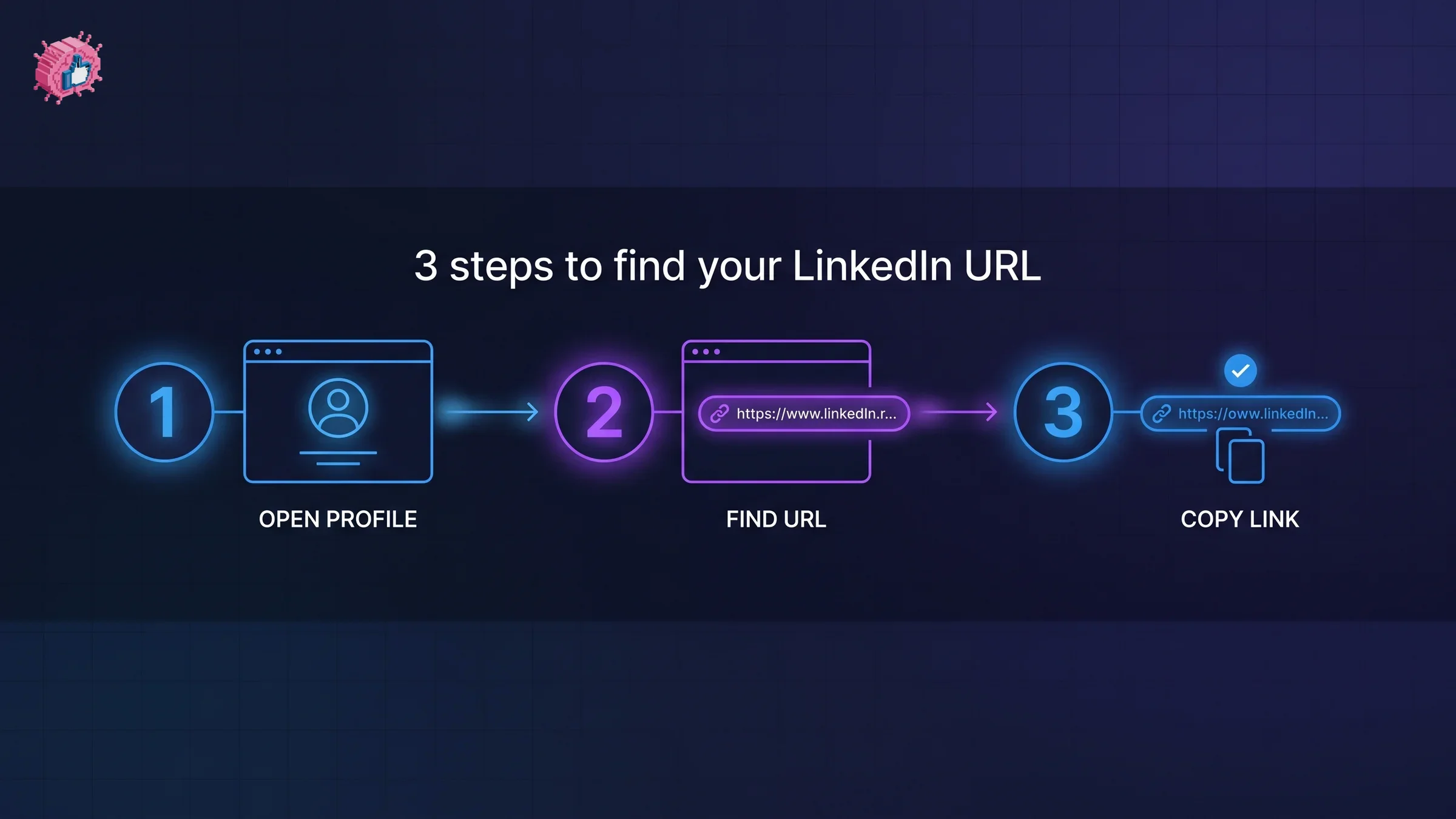
- Open your profile. Sign in at linkedin.com, click your photo in the top navigation bar (labeled Me), and select View Profile.
- Open the public URL panel. On your profile page, look at the top-right corner and click Edit public profile & URL. A right-hand panel opens showing your public profile settings.
- Copy your URL. Under Edit your custom URL, your full link appears (for example
www.linkedin.com/in/yourname). Hover over it and click the copy icon, or right-click the link and choose Copy link address.
That copied link is your LinkedIn profile URL, ready to paste anywhere. If you only need to grab it fast without the settings panel, you can also copy it straight from your browser's address bar while viewing your own profile, though that version sometimes carries extra tracking parameters after a ?. Delete everything from the ? onward for a clean link.
The clean-link shortcut
If you want a formatted, share-ready version without hunting through settings, paste your profile into ViralBrain's free LinkedIn profile URL tool. It strips tracking parameters and returns a tidy link you can drop into a resume or bio. No account needed for the free tools.
How to find your LinkedIn URL on the mobile app
The LinkedIn app (iOS and Android) hides the URL behind the share menu rather than an edit screen. The steps are nearly identical on both platforms.
- Open your profile. Tap your profile photo in the top-left of the home feed, then tap View Profile.
- Open the share menu. On your profile, tap the three-dot menu (or the share icon) near your name and headline.
- Copy the link. Select Copy link to profile (sometimes shown as Share via then Copy). LinkedIn confirms with a "Copied" message, and your URL is now on your clipboard.
From here you can paste the link into a message, email, or notes app. The app also lets you generate a QR code from the same share menu, covered in the sharing section below.
Where to find the LinkedIn URL on the app vs desktop
The app and desktop expose the URL through different menus, which trips people up. This table shows exactly where to look on each.
| Task | Desktop (web) | Mobile app |
|---|---|---|
| Find the URL | Edit public profile & URL panel | Three-dot / share menu on profile |
| Copy the URL | Copy icon under "Edit your custom URL" | Copy link to profile |
| Customize the URL | Edit your custom URL (pencil icon) | Not available (use desktop or mobile browser) |
| Generate a QR code | Search bar QR icon | Share menu > QR code |
The one thing the app cannot do is change your custom URL. For that you need the desktop site or a mobile browser in desktop mode.
How to customize (change) your LinkedIn public profile URL
A default LinkedIn URL like linkedin.com/in/jane-doe-4471b83a2 looks unfinished on a resume. Customizing it to linkedin.com/in/janedoe takes under two minutes and only needs to be done once.
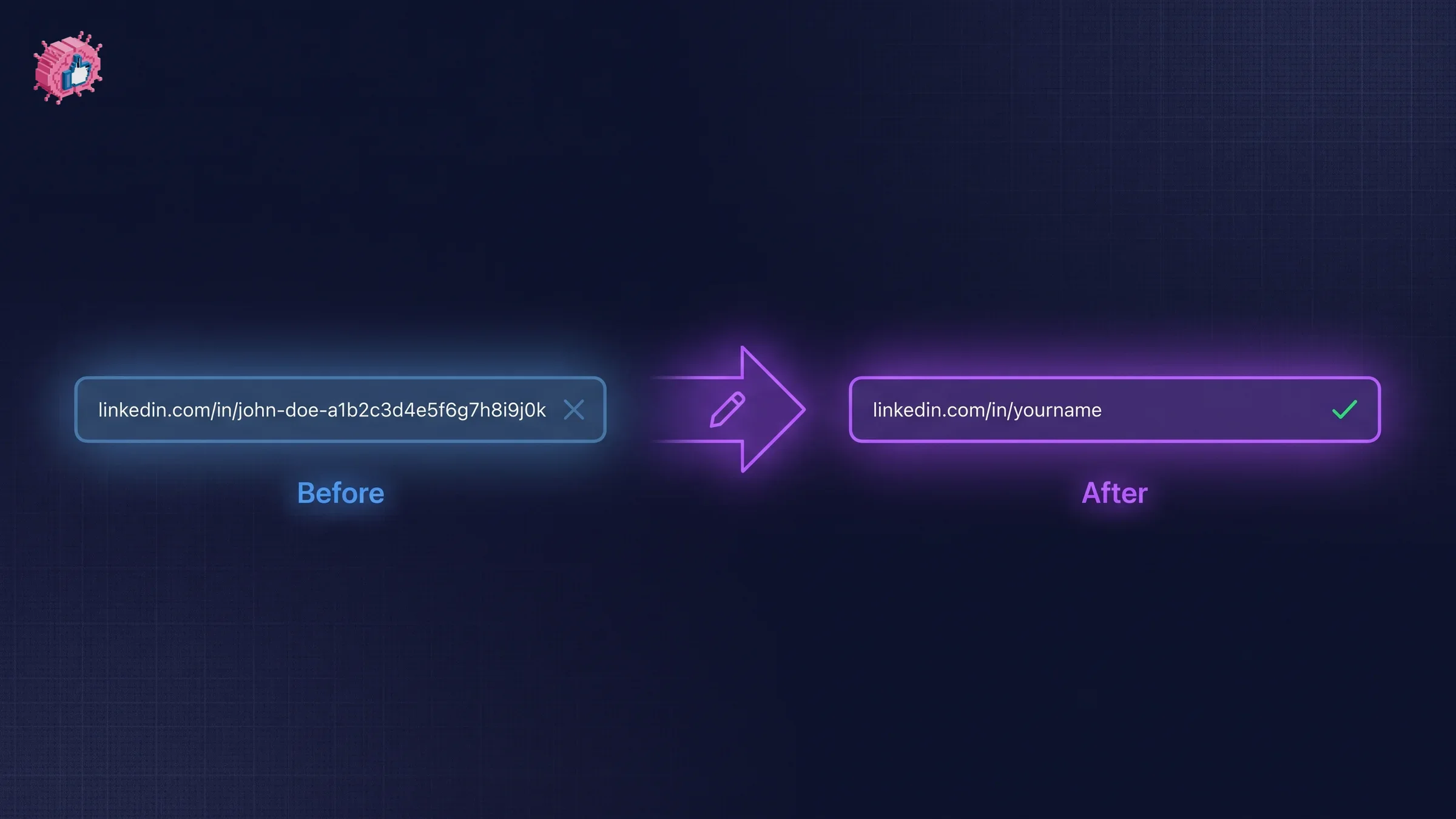
- Go to the public profile settings. On desktop, open your profile and click Edit public profile & URL in the top-right.
- Click the edit pencil. Under Edit your custom URL on the right, click the pencil icon next to your current URL.
- Type your new slug. Enter the text you want after
linkedin.com/in/. You can use 3 to 100 letters and numbers, but no spaces, symbols, or special characters. - Save. Click Save and your new custom URL is live immediately.
A few rules worth knowing before you commit:
- You can change it, but sparingly. LinkedIn limits you to a handful of changes within a short window, so pick something durable.
- First-come, first-served. If your exact name is taken, add a middle initial, your profession, or a number (for example
janedoemarketing). - Old links break. After you change the slug, the previous URL stops working, so update it wherever you have shared it.
- Keep it professional. Your name or name-plus-role reads best. This is the link that lands on resumes and business cards.
A clean custom URL is one line item in a stronger profile. If you are polishing the whole thing, run it through the free LinkedIn profile checker or follow the full guide to optimizing your LinkedIn profile for headline, About, and banner fixes too.
Automate your LinkedIn for 30 days
How to share your LinkedIn profile
Once you have a clean URL, you have three ways to share it, each suited to a different moment.
- Paste the link. The simplest method. Drop your
linkedin.com/in/yournameURL into an email, DM, Slack message, or document. - Use the share button. From the app's share menu or the desktop More button on your profile, LinkedIn offers Send in a message or Share via to route the profile directly to a connection.
- Generate a QR code. LinkedIn builds a scannable QR code for your profile, ideal for in-person networking. On the app, open the search bar and tap the QR icon, or use the share menu. Someone scans it and lands on your profile instantly.
For events, printed materials, or a slide, a QR code beats a typed link because nobody has to transcribe it. You can spin up a branded one with ViralBrain's free LinkedIn QR code generator and add it to a name badge or presentation.
When to use each sharing method
| Situation | Best method | Why |
|---|---|---|
| Resume or email signature | Plain custom URL | Clickable and readable, works everywhere |
| In-person networking | QR code | Instant scan, no typing errors |
| Sending to one person on LinkedIn | Share button / message | Keeps them in-app, one tap to connect |
| Bio link on other platforms | Plain custom URL | Short, clean, memorable |
Where to put your LinkedIn URL
A profile URL only works when people can find it. These are the highest-value places to add yours:
- Your resume header. Directly under your name and email, use the plain custom URL. Recruiters click it to see recommendations and your full history.
- Your email signature. A one-line
linkedin.com/in/yournameturns every email into a soft networking touchpoint. - Other social bios. Instagram, X, TikTok, and personal site bios all accept a link. Your LinkedIn is the professional anchor.
- Business cards and slides. A QR code plus the text URL covers both digital and print.
- Conference and webinar profiles. Speaker bios and event apps almost always have a link field.
The goal is simple: make it effortless for anyone who meets you to reach your profile, so the connection actually happens instead of getting lost.
Key takeaways
- Grab the link the fast way. On desktop use Edit public profile & URL, on the app use the share menu > Copy link to profile. Both give you the same URL.
- Customize it once. Change your slug to
linkedin.com/in/yournameon desktop so it looks clean on every resume and card. Old links break, so update them after. - Share by context. Plain URL for resumes and signatures, QR code for in-person, share button for one-to-one on LinkedIn.
- Put it where people look. Resume header, email signature, and social bios earn the most profile visits from a single link.
- Fix the profile behind the link. A great URL points to a great profile. Tighten your headline with the LinkedIn headline generator and your About section with the LinkedIn summary generator.
Your LinkedIn URL is the front door to your professional reputation. Clean it up once, put it everywhere, and then make what it points to worth the click. When you are ready to turn profile visits into a real audience, the viral post generator and the LinkedIn personal branding guide from ViralBrain help you post content that keeps people coming back.
Sources: LinkedIn Help: Customize your public profile URL, LinkedIn Help: Find your public profile URL, LinkedIn public profile documentation (2026)
FAQ
How do I get my LinkedIn URL?
Open your profile, then on desktop click Edit public profile & URL in the top-right and copy the link under "Edit your custom URL." On the mobile app, tap the share menu on your profile and choose Copy link to profile. Both return the same address.
How do I find my LinkedIn profile URL on the app?
Tap your profile photo in the top-left of the home feed, open View Profile, tap the three-dot or share icon, and select Copy link to profile. LinkedIn copies the URL to your clipboard so you can paste it anywhere.
How do I copy my LinkedIn URL without extra tracking text?
Copy the URL from the "Edit your custom URL" settings panel rather than the browser address bar, which keeps it clean. If you copied from the address bar, delete everything from the ? onward, or run it through a free LinkedIn profile URL tool to strip the tracking parameters automatically.
How do I change my LinkedIn URL to a custom one?
On desktop, go to Edit public profile & URL, click the pencil icon under "Edit your custom URL," type your new slug (3 to 100 letters and numbers, no spaces or symbols), and click Save. Your custom URL goes live instantly, and the old one stops working.
Can I customize my LinkedIn URL on the mobile app?
No. The app lets you find, copy, and share your URL but not change the custom slug. Use the desktop site, or open linkedin.com in a mobile browser and request the desktop version to reach the edit screen.
Why does my LinkedIn URL have random numbers in it?
LinkedIn auto-generates a default slug with a string of numbers and letters when you create your account to keep every URL unique. You can replace it with a clean custom URL like your name at any time from the desktop public profile settings.
How do I share my LinkedIn profile with a QR code?
Open the LinkedIn app, tap the QR icon in the search bar (or use the share menu on your profile), and show or save the code. Anyone who scans it lands directly on your profile. For printed materials, a LinkedIn QR code generator creates a version you can drop into slides or badges.
Where should I put my LinkedIn URL?
Add your custom URL to your resume header, email signature, and other social bios, and use a QR code for business cards and in-person events. The easier your profile is to reach, the more connection requests and profile views it earns.
Automate your LinkedIn for 30 days
ViralBrain plans, writes, and schedules your LinkedIn content, using official LinkedIn APIs so your account stays safe.
- Official LinkedIn APIs, no risk of ban
- You approve every post before it goes live
- Cancel anytime
Keep reading
Does LinkedIn Show Who Viewed Your Profile? (2026 Guide)
Does LinkedIn show who viewed your profile? Yes, with limits. See what free vs Premium reveals, how to browse anonymously, and how to hide your views.
How to Change Your Profile Picture on LinkedIn
How to add, change and remove your LinkedIn profile photo on desktop, in the app and in a mobile browser, plus who can see it and the file specs.
How to Hide Active Status on LinkedIn
How to hide your LinkedIn active status: the Manage active status setting, its three documented options on desktop and in the app, and what you give up.