

Does LinkedIn Show Who Viewed Your Profile? (2026 Guide)
Does LinkedIn show who viewed your profile? Yes, with limits. See what free vs Premium reveals, how to browse anonymously, and how to hide your views.
Yes, LinkedIn does show who viewed your profile, but how much you see depends on two things: your subscription tier and the privacy setting the viewer chose. On a free account you get a limited, often anonymized list. With LinkedIn Premium you unlock the full 90-day viewer history. Anyone browsing in private mode stays hidden from both.
That single question hides a lot of nuance, and most people get the details wrong. There is a difference between profile viewers and the "viewers of this post" analytics. There is a way to browse other profiles anonymously, and a matching setting that controls whether your own visits are visible to others.
This guide answers the exact question first, then walks through what free versus Premium shows you, how to see your viewers step by step, how to go anonymous, how to turn your own profile-view visibility off, and what the data is actually good for. Profile views are a weak signal on their own. The real growth lever is turning that curiosity into followers and engagement, which is where your content strategy does the heavy lifting.
Automate your LinkedIn for 30 days
The short answer: does LinkedIn tell you who viewed your profile?
LinkedIn tells you who viewed your profile, but only for viewers who did not hide themselves, and the depth of the list depends on your plan. Here is the quick version:
- Free accounts see a short, recent slice of viewers. Some appear by name, others show up as vague descriptors like "Someone at Google" or "LinkedIn Member."
- Premium accounts see the complete list of named viewers from the last 90 days, plus trends like how many views you got week over week and where viewers work.
- Private-mode viewers are never shown to you, on any plan. They trade their own visibility for anonymity.
So the honest answer to "can people see who viewed their profile" is: yes, unless the viewer opted out. And whether you show up on someone else's list depends entirely on your own privacy setting, which we cover below.
Free vs Premium: what LinkedIn actually shows you
The gap between free and paid is the single biggest source of confusion. On free, LinkedIn deliberately blurs part of the list to nudge you toward Premium. The table below breaks down exactly what each tier reveals.
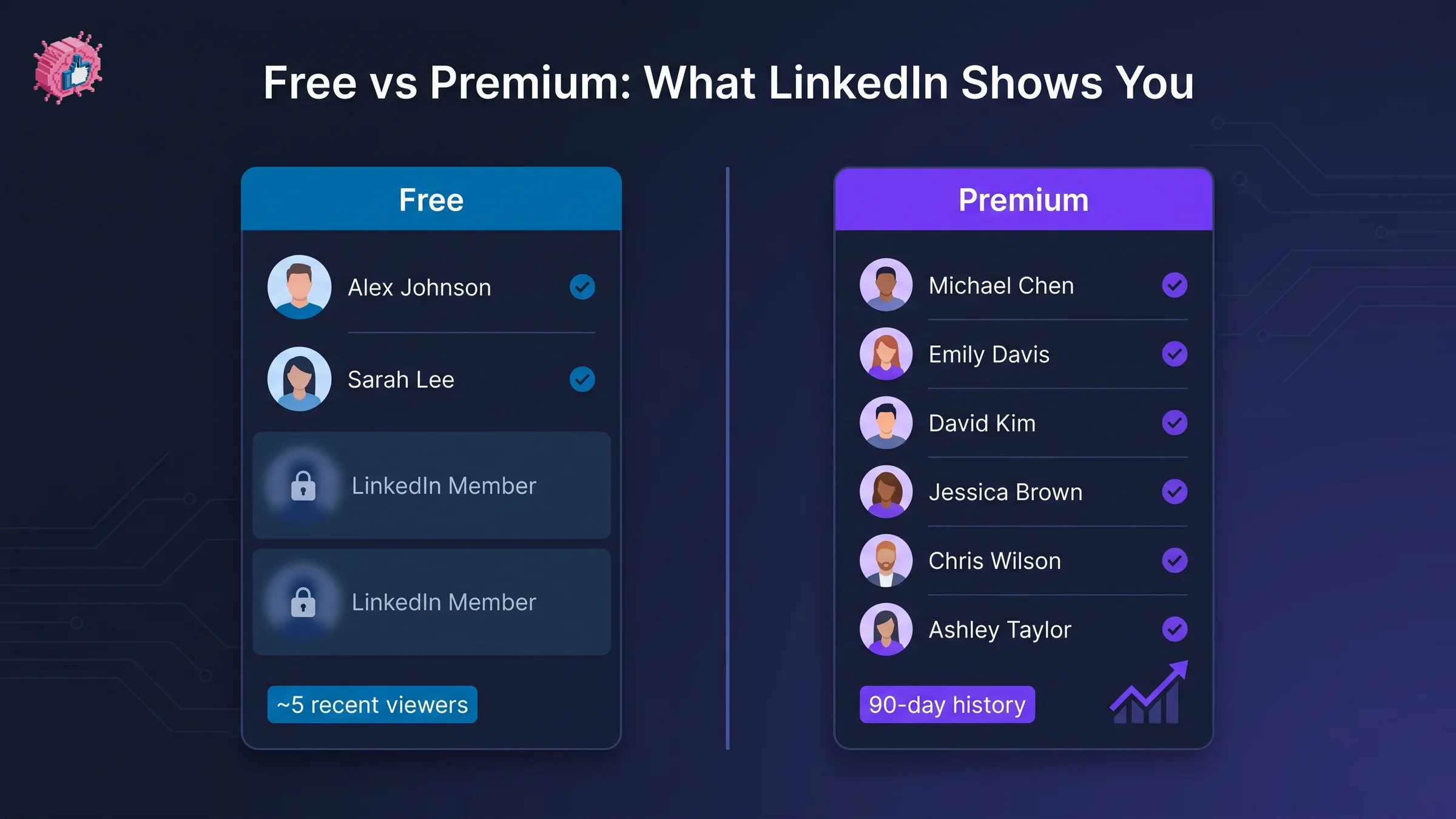
| What you get | Free account | LinkedIn Premium |
|---|---|---|
| Number of recent viewers | Limited count | Full count |
| Named viewers | Only the most recent few | All named viewers |
| Viewer history window | ~5 recent viewers | Full 90-day history |
| Anonymized entries | Shown as "LinkedIn Member" | Revealed if not in private mode |
| Weekly view trends | No | Yes |
| Viewer job titles and companies | Partial | Yes, aggregated |
| Keyword search that led to you | No | Yes |
The key limitation on free is the window, not just the count. Free accounts effectively see a rolling snapshot of the last handful of viewers. Once a newer view pushes an older one out, that older viewer is gone unless you upgrade. Premium keeps the full 90 days queryable, which is what makes it useful for sales and recruiting.
One caveat worth knowing: your own privacy setting affects what you can see. If you browse in private mode yourself, LinkedIn restricts your access to the "who viewed your profile" feature in return. You cannot stay invisible and still see everyone who visited you.
Profile viewers vs "viewers of this post"
These two features get mixed up constantly, so it is worth separating them clearly.
- "Who viewed your profile" counts people who visited your actual profile page. This is the list this guide is about.
- "Viewers of this post" (post impressions) counts people who saw one of your posts in the feed. This lives in your post analytics, not your profile.
Post analytics show you aggregate reach: total impressions, top companies, top job titles, and top locations of the people who saw the post. It does not name individual viewers the way the profile-viewer list can. If you want to understand which content is pulling people toward your profile in the first place, post-level analytics matter far more than the raw viewer count. Compare your numbers against the LinkedIn engagement benchmarks for your follower range to see whether your reach is actually healthy or just noisy.
How to see who viewed your LinkedIn profile
Finding your viewer list takes a few taps. The path is nearly identical on desktop and mobile.
On desktop:
- Click Me in the top navigation, then open your profile.
- Find the "Who viewed your profile" card in your dashboard section, usually just below your profile header.
- Click it to open the full viewer feed.
- Filter or scroll the list. On Premium, use the 90-day view and the trend graph.
On the mobile app:
- Tap your profile photo in the top-left, then tap View Profile.
- Scroll to the analytics dashboard and tap "Profile viewers."
- Review the list. Anonymized entries and private-mode viewers appear here too, just without names.
If a viewer shows as "LinkedIn Member" or a vague descriptor, that is either the free-tier blur or a private-mode viewer. Upgrading resolves the free-tier blur but never the private-mode ones.
Automate your LinkedIn for 30 days
How to view a LinkedIn profile anonymously (private mode)
If you want to check out a profile without leaving a trace, LinkedIn has a built-in private mode (also called anonymous browsing). Here is how to switch it on.
- Go to Settings & Privacy from the Me menu.
- Open Visibility, then Profile viewing options.
- Choose Private mode or Private characteristics (which shows your industry and title but not your name).
Once private mode is on, the profiles you visit will not see your name. The trade-off is real and immediate: while you are in private mode, LinkedIn hides your own "who viewed your profile" list from you. You give up your data to protect your anonymity. Switch back to public mode whenever you want your viewer list back.
How to turn off profile views on LinkedIn (your own visibility)
"How to turn off profile views on LinkedIn" almost always means one of two different things. Be clear which one you want.
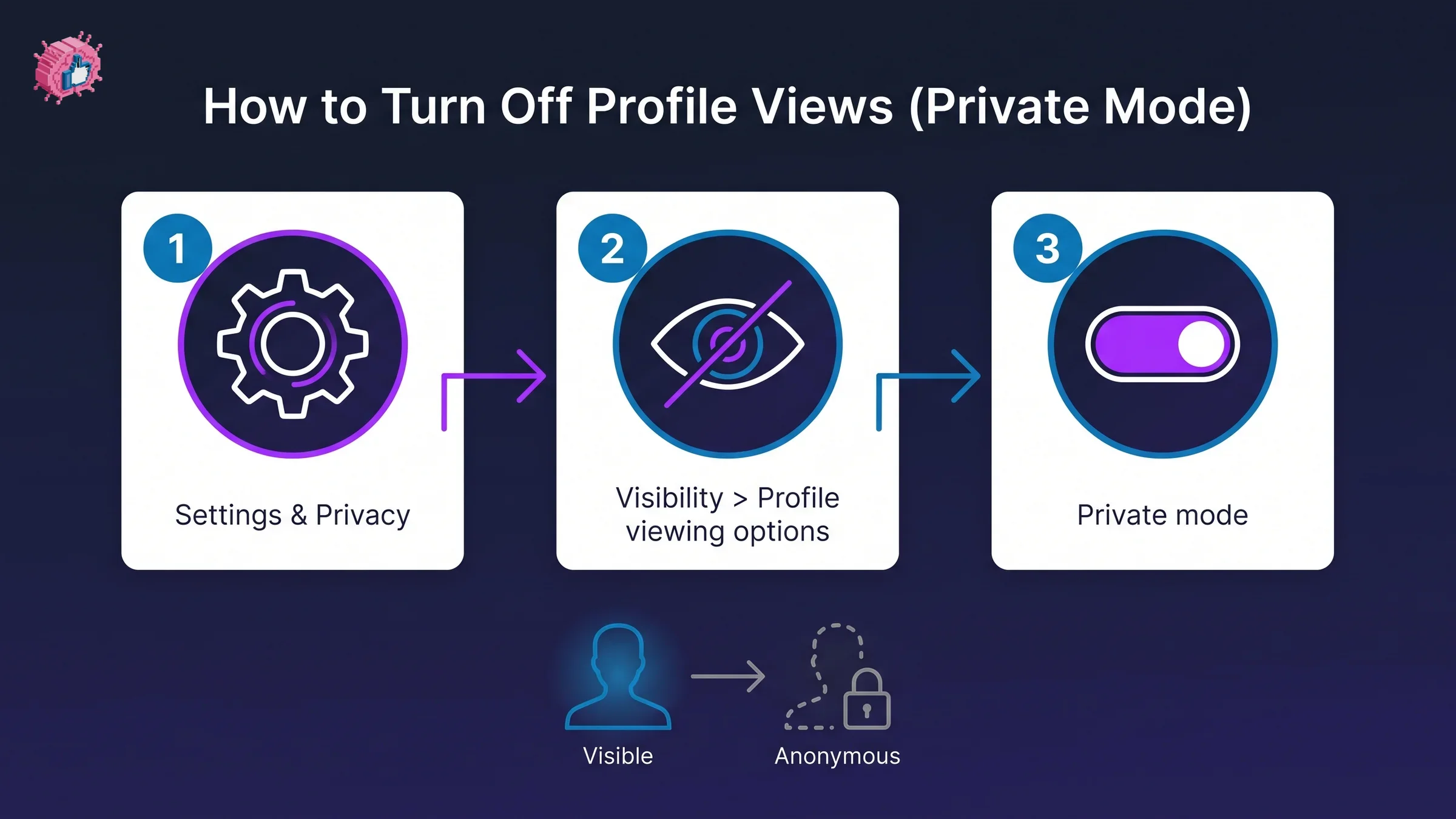
1. Hide yourself when you view others (private mode). This is the same setting as anonymous browsing above. Set Profile viewing options to Private mode and your visits stop showing your name to the profiles you visit.
2. Stop showing your own viewer count or opt out of the feature entirely. In Settings & Privacy > Visibility, you can adjust how much of the "who viewed your profile" experience you participate in. Opting out of sharing generally means you also lose access to seeing your own viewers, the same reciprocal trade-off LinkedIn applies everywhere.
There is no way to appear on someone's viewer list while browsing and simultaneously block them from ever seeing you back. LinkedIn's model is deliberately reciprocal: visibility for visibility, or anonymity for anonymity.
What data you actually get from profile views
Once you can see your viewers, the honest question is what the data is worth. Profile views are a curiosity signal, not a growth metric. A spike tells you attention went up; it does not tell you why, and it does not convert to anything on its own.
Here is how to read it usefully:
- Direction over volume. A rising trend after you posted consistently for two weeks means your content is pulling people to your profile. The absolute number matters less than the slope.
- Who, not how many. On Premium, the job titles and companies of your viewers tell you whether you are reaching your target audience or the wrong crowd.
- The conversion gap. Views that do not turn into follows or connection requests usually point to a weak profile. If people arrive and leave, your headline and banner are doing the filtering.
This is the part people skip. A profile view is the top of a tiny funnel: someone saw your content, got curious, and clicked through. Whether they follow you next depends on what they land on. Tighten the LinkedIn headline generator output and run your page through a LinkedIn profile checker so that curiosity converts instead of bouncing. To find your own shareable profile link for tracking and outreach, use the LinkedIn profile URL finder.
What this means for you
- Do not treat profile views as a scoreboard. They measure curiosity, not growth. Watch the trend line, not the daily number.
- Upgrade only if you need the 90-day list. Recruiters and sellers get real value from named viewers over time. For most creators, free is enough. Compare tiers on ViralBrain pricing before deciding what you actually need.
- Fix the landing experience first. If views are high but follows are flat, your profile is the leak. Run it through a profile checker and rewrite your headline before chasing more traffic.
- Feed the top of the funnel with content. Views come from posts. Predict how a draft will perform with the viral score checker and draft consistently with the LinkedIn post generator.
- Turn attention into a brand. Sustained profile views only compound if you have a clear positioning. Work through the LinkedIn personal branding guide to make every visit count.
Profile views are the start of the story, not the end of it. The creators who grow are the ones who turn that flicker of attention into followers, and that comes from content. See how to go viral on LinkedIn for the reach playbook, or explore ViralBrain to analyze what pulls people to your profile in the first place. A 7-day trial for €1 is available.
Sources: LinkedIn Help: Who's Viewed Your Profile, LinkedIn Help: Profile viewing options, LinkedIn Premium features, profile analytics documentation (2026)
FAQ
Does LinkedIn show who viewed your profile?
Yes. LinkedIn shows a list of people who visited your profile, but named viewers depend on your plan and their privacy setting. Free accounts see a limited, partly anonymized list; Premium shows the full 90-day named history. Anyone in private mode stays hidden on every plan.
Does LinkedIn tell you who viewed your profile for free?
Partly. A free account shows your most recent handful of viewers, but some appear anonymized as "LinkedIn Member" or a vague descriptor. To see the complete named list from the last 90 days, you need Premium.
Can people see who viewed their profile without paying?
Yes, to a limited degree. Every user can see a short, recent slice of their viewers for free. The paid tier removes the free-tier blur and extends the window to 90 days, but it never reveals viewers who chose private mode.
How do I view a LinkedIn profile anonymously?
Go to Settings & Privacy, then Visibility, then Profile viewing options, and select Private mode. Your name will no longer appear on the profiles you visit. The trade-off is that LinkedIn hides your own "who viewed your profile" list while you browse privately.
How do I turn off profile views on LinkedIn?
Open Settings & Privacy, then Visibility, then Profile viewing options, and switch to Private mode to stop showing your name when you view others. To reduce your own visibility in the feature entirely, adjust the same visibility settings, but note you will also lose access to seeing your own viewers.
Why do some profile viewers show as anonymous?
Two reasons. Either you are on a free account and LinkedIn is blurring older entries to promote Premium, or the viewer turned on private mode. Upgrading fixes the first case but never the second.
Do profile views help you grow on LinkedIn?
Only indirectly. Views are a curiosity signal that shows attention is rising, usually after consistent posting. Growth happens when that attention converts to follows, which depends on a strong profile and steady content rather than the view count itself. Benchmark your engagement to see whether your reach is actually working.
How long does LinkedIn keep profile view history?
Premium accounts can see viewers from the last 90 days. Free accounts effectively see only a rolling snapshot of the most recent viewers, and older entries drop off permanently once newer views replace them.
Automate your LinkedIn for 30 days
ViralBrain plans, writes, and schedules your LinkedIn content, using official LinkedIn APIs so your account stays safe.
- Official LinkedIn APIs, no risk of ban
- You approve every post before it goes live
- Cancel anytime
Keep reading
How to Find and Share Your LinkedIn URL (2026)
How to get your LinkedIn URL in 2026: find, copy, share, and customize your profile link on desktop and the mobile app, plus the best places to put it.
How to Change Your Profile Picture on LinkedIn
How to add, change and remove your LinkedIn profile photo on desktop, in the app and in a mobile browser, plus who can see it and the file specs.
How to Hide Active Status on LinkedIn
How to hide your LinkedIn active status: the Manage active status setting, its three documented options on desktop and in the app, and what you give up.