

How to Add Your Resume to LinkedIn (Step by Step, 2026)
How to add your resume to your LinkedIn profile in 2026. Featured section, resume post, and Easy Apply methods compared step by step, with pros, cons, and privacy tips.
Your resume already exists as a polished PDF. The question is how to get it in front of the right people on LinkedIn without broadcasting a job hunt to your current boss. That tension is exactly why "how to add resume to LinkedIn profile" is one of the most searched LinkedIn questions of the year.
Here is the part most guides skip: LinkedIn has no single "upload resume to profile" button anymore. There are three distinct methods, and they behave very differently. One makes your resume public on your profile, one shares it as a feed post, and one keeps it private for job applications only. Pick the wrong one and you either broadcast your search to your employer or hide your resume where no recruiter will ever find it.
This guide walks through all three methods step by step, shows the exact file limits, compares the pros and cons, and gives you the privacy checks to run before you upload anything. By the end you will know precisely which method fits your situation in 2026.
Automate your LinkedIn for 30 days
The 3 ways to add your resume to LinkedIn
Before the step-by-step, get the map. Each method answers a different goal, and the goal decides everything.
- Featured section: uploads your resume to your profile as a public, downloadable file. Anyone who visits your profile can open it. Best for active, open job seekers.
- As a post: shares your resume as a document post in the feed. It reaches your network directly but disappears down the feed within days. Best for a public "I am looking" announcement.
- Easy Apply upload: attaches your resume privately when you apply to a specific job. Only the recruiter for that role sees it. Best for a quiet, targeted search.
Here is the quick comparison before we go deep on each.
| Method | Who can see it | Visibility duration | Best for |
|---|---|---|---|
| Featured section | Anyone visiting your profile | Permanent until removed | Open, active job seekers |
| Resume post | Your network in the feed | Days, then buried | A public "open to work" announcement |
| Easy Apply upload | Only the recruiter you applied to | Per application | Quiet, targeted job search |
Notice the privacy gradient. The Featured section is the loudest option and Easy Apply is the quietest. That single distinction resolves most of the confusion around how to add a resume to a LinkedIn profile, so keep it in mind as you read the steps.
Method 1: Add your resume to the Featured section
The Featured section sits near the top of your profile, right under your intro. A resume there acts like an always-on download link that every profile visitor sees. This is the closest thing to the old "resume on profile" feature.
Step by step:
- Go to your profile and click the Me icon, then View Profile.
- Click Add profile section (the button under your headline and photo).
- Open the Recommended category and select Add featured.
- In the Featured panel, click the plus icon, then choose Add media.
- Select your resume file from your device and confirm the upload.
- Add a clear title (for example, "Senior Marketing Manager Resume, 2026") and a short description naming your specialty and the role you want.
- Click Save, then preview your profile as a visitor to confirm the resume renders correctly.
Once saved, your resume appears as a clickable thumbnail in the Featured section. Visitors can open and download it in one tap.

Two things to remember. First, this method is fully public, so your current employer can see a freshly dated resume without warning. Second, a resume in Featured cannot be used for job applications. It is a display file, not an application file. If you also want to apply to roles, you still need Method 3.
Because the Featured section is prime profile real estate, do not stop at a raw resume. A tight LinkedIn headline and a clean, custom LinkedIn profile URL make the whole profile read as intentional rather than a rushed job-hunt scramble.
Method 2: Share your resume as a post
Posting your resume turns it into a document post that lands directly in your network's feed. This is the move when you want to announce a search loudly and let your connections reshare it.
Step by step:
- From the LinkedIn home feed, click Start a post.
- Click the document icon (labeled "Add a document") in the post composer.
- Choose your resume file and give the document a title.
- Write a short caption above it. A direct opener works best: what you do, the role you want, and how people can help.
- Click Post.
Your resume now appears as a swipeable document card in the feed. Connections can view every page inline and download the file.
The caption is where this method wins or loses. A resume with no context gets scrolled past. Lead with a real hook, name the exact roles you are targeting, and end with a clear ask. If writing that opener from scratch is the hard part, a LinkedIn hook generator gives you first-line options in seconds, and you can preview the whole post exactly as the feed will render it with the LinkedIn post preview tool before you publish.
The trade-off: a post is temporary. It gets strong reach for a day or two, then slides down the feed and is effectively gone. That is the opposite of the Featured section, which stays put. Many active seekers do both: post once for the announcement, and keep the resume in Featured for the long tail of profile visitors.
If you plan to run a longer, consistent job-search campaign rather than a single post, ViralBrain's content generation and its LinkedIn post scheduler let you draft and queue a run of posts (a hiring announcement, a skills highlight, a portfolio piece) so you stay visible across weeks without living inside the app.
Method 3: Upload your resume via Easy Apply (the private method)
If you want to keep your search quiet, this is the method. When you apply to a job through Easy Apply, LinkedIn lets you attach a resume that only the hiring company sees. It never appears on your public profile.
Step by step:
- Search for a job and open a listing that shows the Easy Apply button.
- Click Easy Apply and complete the required fields.
- Under the Resume section, select Upload resume.
- Choose your file and submit the application.
LinkedIn stores your four most recently uploaded resumes on the Job Application Settings page, so you can reuse them across future applications without re-uploading each time. You can also delete stored resumes there whenever you want.
This is the safest option for anyone still employed. Nothing changes on your public profile, no one in your network gets a notification, and only the recruiter for the role you applied to receives the file. The limitation is obvious: it is per-application, so it does nothing for passive discovery. Recruiters browsing profiles will not find a resume you only ever uploaded through Easy Apply.
Automate your LinkedIn for 30 days
Resume file format and size requirements
LinkedIn enforces different limits depending on the method. Getting this wrong is the most common reason an upload fails.
| Requirement | Featured section | Easy Apply |
|---|---|---|
| Accepted formats | PDF, DOC, DOCX | PDF, Microsoft Word (DOC, DOCX) |
| Max file size | Up to 5 MB | Under 2 MB |
| Recommended format | ||
| File visibility | Public on profile | Private to recruiter |
A few practical rules:
- Always use PDF when you can. It preserves your formatting across every device, where a Word file can shift fonts and spacing on the recruiter's screen.
- Keep Easy Apply files under 2 MB. If your PDF is heavier, compress it or flatten images before uploading.
- Name the file professionally. "Jane-Doe-Resume-2026.pdf" reads better than "resume-final-v3-REAL.pdf" if the recruiter downloads it.
Pros and cons of each method
There is no single best method. There is the best method for your situation. This table makes the trade-offs explicit.
| Method | Pros | Cons |
|---|---|---|
| Featured section | Permanent, seen by every profile visitor, one-time setup | Fully public, visible to your employer, cannot be used to apply |
| Resume post | Strong short-term reach, network can reshare, invites conversation | Temporary, public, buries within days |
| Easy Apply | Private, targeted, reusable across applications | Invisible to passive recruiters, per-application only |
The decision usually comes down to one question: are you an open job seeker or a quiet one?
- Open and actively looking: use the Featured section, and add a resume post for the initial announcement.
- Employed and searching discreetly: use Easy Apply only, and keep your resume off your public profile entirely.
- Passively open to offers: skip the resume on your profile, optimize the profile itself, and let recruiters come to you.
Before you upload: privacy and profile checks
A resume upload is not just a file transfer. It is a signal. Run these checks first.
- Strip sensitive personal data. Remove your home address, personal phone number, and date of birth from any resume you make public. Your profile already carries your professional contact path.
- Mind your current employer. A dated resume in your Featured section is the single most common way people accidentally tip off their boss that they are leaving. If you are still employed, lean on Easy Apply instead.
- Check "Open to Work" settings separately. The green "Open to Work" banner is public, while the "recruiters only" version is private. They are independent of where you put your resume, so set them deliberately.
- Make the profile carry the resume. A recruiter reads your profile before they open your resume. If your headline, About section, and experience are weak, a strong resume cannot save the first impression.
That last point matters more than the upload itself. Your resume supports your profile, it does not replace it. Tighten the About section with a LinkedIn summary and work through the full guide to optimizing your LinkedIn profile so the profile a recruiter lands on is worth the click into your resume.
What this means for you
- Match the method to your visibility. Featured section for open seekers, Easy Apply for quiet ones, a post for a one-time announcement. Do not default to the loudest option out of habit.
- Upload a PDF, not a Word file. It holds formatting everywhere and stays under the size limits. Keep Easy Apply files under 2 MB.
- Scrub personal data before going public. Remove home address, personal number, and birth date from any resume in Featured or a post.
- Fix the profile first. Sharpen your headline and About section, and clean up your profile URL so the profile earns the resume click.
- Stay visible over time. A single post fades fast, so if you are running a real search, use ViralBrain's content generation and post scheduler to keep showing up in the feed for weeks.
If you want the profile and the posts around your resume to actually land, ViralBrain generates and scores LinkedIn content built on patterns from top-performing posts, and a 7-day trial for €1 is available on the pricing page. You can also test the free LinkedIn post generator without an account.
Sources: LinkedIn Help: Upload your resume to LinkedIn, Resume Genius: How to Add Your Resume to LinkedIn, Novoresume: How to Add Your Resume on LinkedIn, LinkedIn resume upload documentation (2026)
FAQ
How do I add my resume to my LinkedIn profile?
Go to your profile, click Add profile section, open Recommended, and choose Add featured. Click the plus icon, select Add media, and upload your resume as a PDF. It then appears as a downloadable file in your Featured section for anyone visiting your profile.
Can I upload my resume to LinkedIn without my employer seeing it?
Yes. Use the Easy Apply method instead of the Featured section. Resumes attached through Easy Apply are private to the specific company you apply to and never appear on your public profile, so your current employer and network are not notified.
What file format should my LinkedIn resume be?
PDF is strongly recommended because it preserves your formatting on every device. LinkedIn also accepts Microsoft Word (DOC and DOCX). Featured section files can be up to 5 MB, while Easy Apply files must be under 2 MB.
Can recruiters see the resume in my Featured section?
Yes. Anything in your Featured section is public. Any recruiter, connection, or visitor who opens your profile can view and download the resume there. If you want recruiters to see it only when you apply, use Easy Apply instead.
Does adding a resume to LinkedIn replace my profile?
No. Your resume supports your profile, it does not replace it. Recruiters read your headline, About section, and experience first, then open your resume for detail. Optimize your profile with the guide to optimizing your LinkedIn profile before relying on the resume alone.
How many resumes can I store on LinkedIn?
LinkedIn saves your four most recently uploaded resumes on the Job Application Settings page. You can reuse them across future Easy Apply applications and delete any of them whenever you want.
Should I post my resume or keep it in Featured?
Do both if you are openly job searching. A post gives a strong burst of reach for a day or two, and the Featured section keeps the resume permanently available to profile visitors after the post fades. If you are searching quietly, skip both and use Easy Apply.
How do I make my resume post get more reach?
Lead with a strong first line, name the exact roles you want, and end with a clear ask. Preview the post with the LinkedIn post preview tool and draft the opener with a hook generator so the resume does not get scrolled past.
Automate your LinkedIn for 30 days
ViralBrain plans, writes, and schedules your LinkedIn content, using official LinkedIn APIs so your account stays safe.
- Official LinkedIn APIs, no risk of ban
- You approve every post before it goes live
- Cancel anytime
Keep reading
How to Change Your Email Address on LinkedIn
How to change your email on LinkedIn: add the new address, confirm it, make it primary and remove the old one, on desktop and in the app.
How to Add a Website to LinkedIn (Profile and Page)
How to add a website to your LinkedIn profile on desktop and in the app, the three link limit, the Website type dropdown, and the Page route.
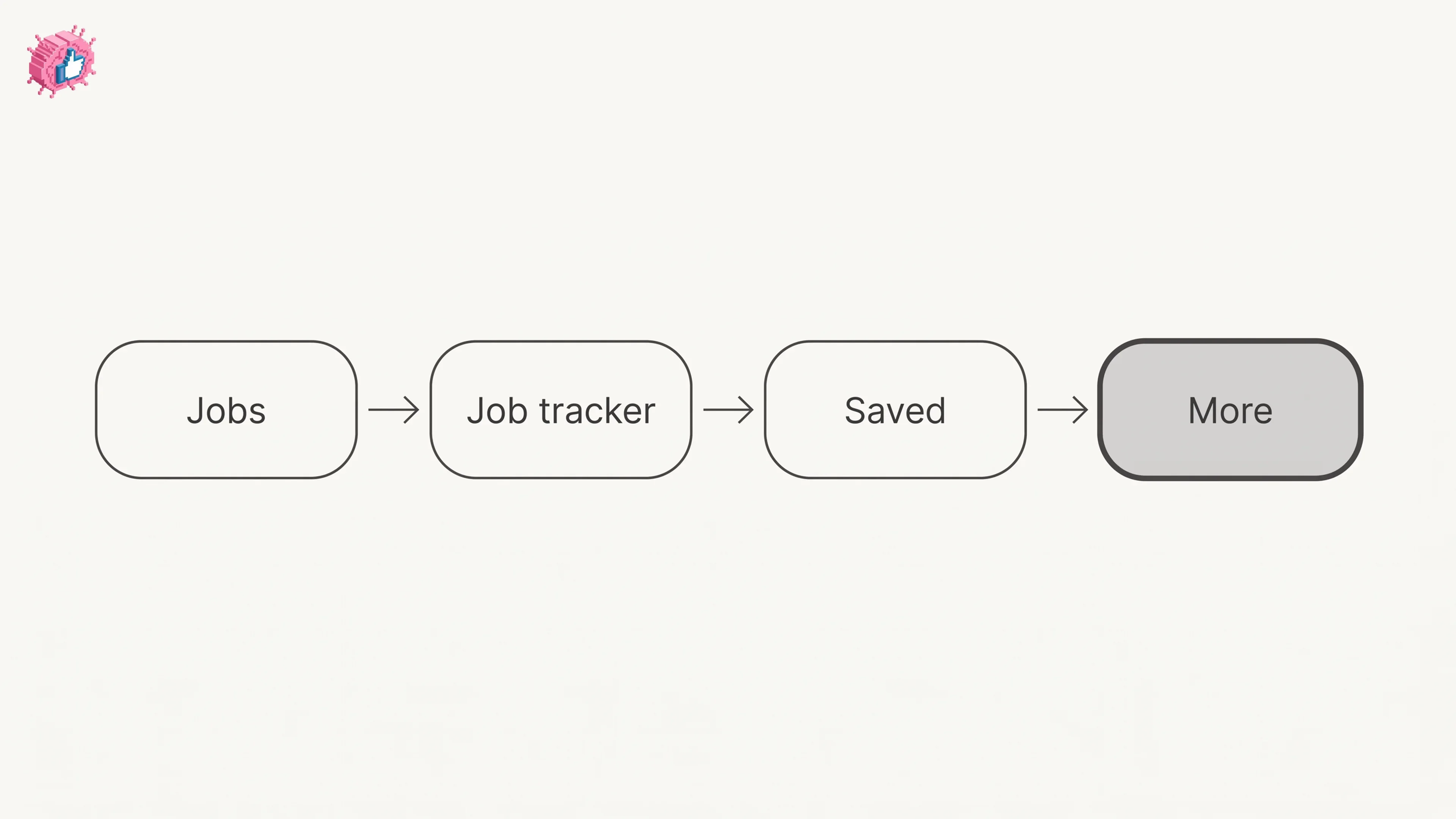
LinkedIn Saved Jobs: Where They Live
Save a job from the job details page and find it under Jobs, Job tracker, Saved. The 2000 cap, why archiving does not free space, and no bulk unsave.