

LinkedIn Post Proofreader: How to Use It
LinkedIn replaced its AI post writer with a proofreader that fixes errors without changing your voice. How it works, who gets it, alternatives.
LinkedIn spent two years pushing an AI button that rewrote your post for you. In September 2026 it removed that button and shipped the opposite: a tool that catches your mistakes and leaves your sentences alone.
Post Proofreader checks spelling, grammar, and clarity in the composer before you publish. It does not rewrite you. That distinction is the entire point of the feature, and it explains why LinkedIn killed the tool it replaced. Here is what it does, how to reach it, and what to use instead if you are not eligible, because most people reading this will not be.
Automate your LinkedIn for 30 days
What is LinkedIn's Post Proofreader?
Post Proofreader is a built-in checking tool in the LinkedIn post composer. LinkedIn's documentation describes it as helping "eligible Premium members improve post drafts before publishing."
It offers three actions, and you pick one rather than getting all of them at once:
- Review fixes spelling, grammar, and punctuation
- Shorten makes the draft more concise
- Clarify improves readability
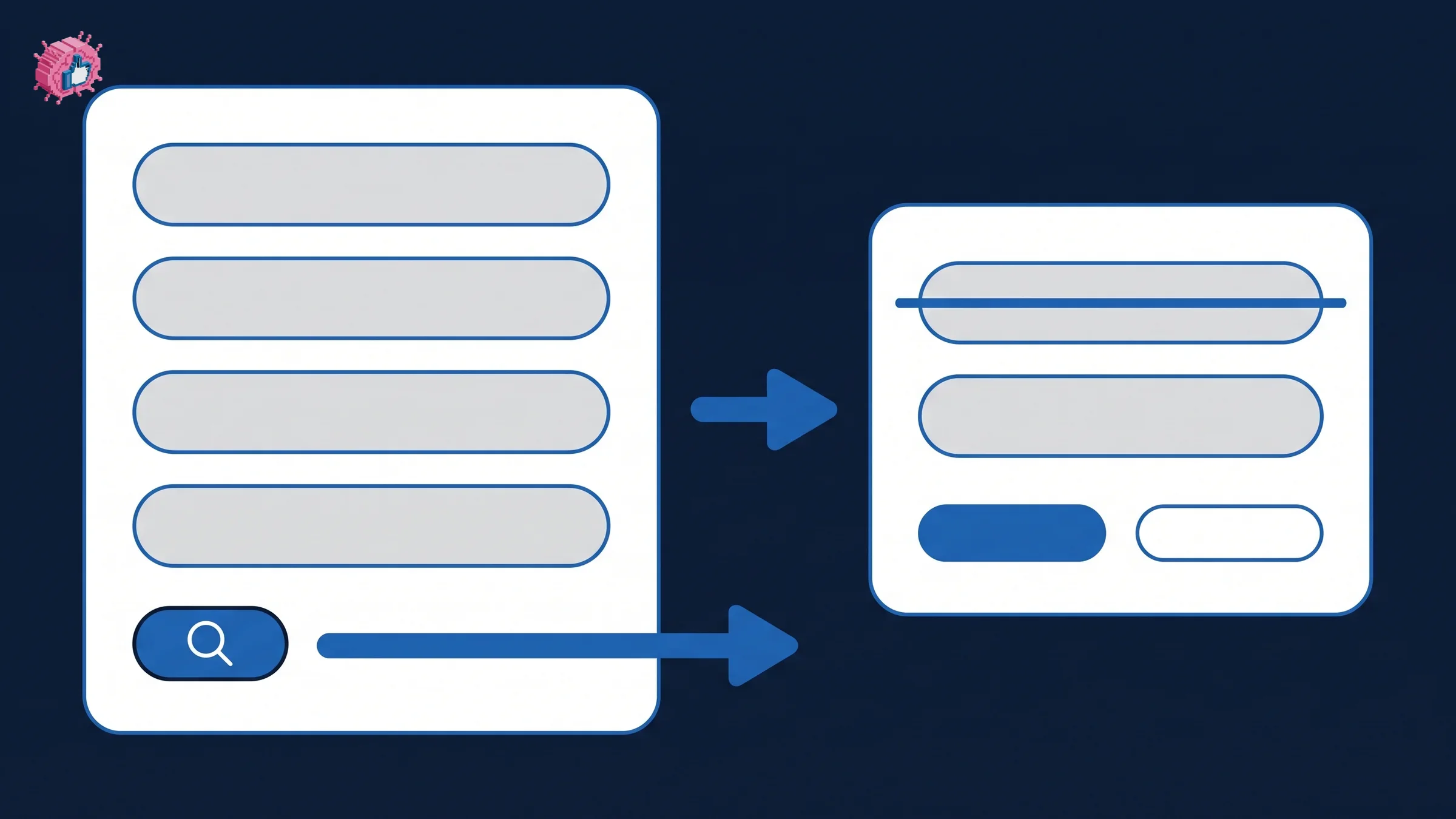
Suggested changes appear with strikethrough formatting on anything it wants to remove, so you see exactly what would change before it changes. You then accept, dismiss, stop, or regenerate the suggestion. The decision stays yours at every step, which is the design difference that matters.
It replaced the "enhance your post" tool, which used AI to rewrite your update in-stream. As Social Media Today put it, the new feature "proofreads your words, but does not change your voice."
How to use Post Proofreader
The steps are identical on desktop and mobile.
- Write your post in the composer as normal
- Click or tap proofread at the bottom left of the sharebox
- Choose Review, Shorten, or Clarify
- Read the suggested changes in the pop-up
- Select Accept to apply them, or Close to keep your original
There is also a Regenerate option to "view a different version, if applicable," which is worth trying once before you dismiss a suggestion you dislike.
Two behaviors catch people out. You cannot edit your draft manually while you are reviewing suggestions, so finish or close the review first. And unresolved suggestions are not saved if you close without applying them, so there is no half-finished state to return to.
Who can actually use it
This is where most searches for a LinkedIn proofreader end in disappointment, so it is worth stating plainly.
Post Proofreader is a Premium feature. LinkedIn restricts it to "eligible Premium members," which means a paid LinkedIn subscription, and eligibility within Premium is not guaranteed.
It is English only. LinkedIn states the feature "currently supports English-language drafts only." If you post in German, Spanish, French, or Portuguese, the button will not help you, regardless of your subscription.
Put those two limits together and the majority of LinkedIn's membership cannot use this tool today. That is not a criticism of the feature, but it does mean the practical answer for most people is somewhere else.
Why LinkedIn swapped a writer for a proofreader
The switch reads as a product decision, and it is really a response to how members reacted to AI-written posts.
In July 2026 LinkedIn added a way for members to report low-quality AI content and began retiring its own rewrite button in the same period. Two months later the replacement arrived, and it is built on the opposite premise: the member writes, the machine checks.
This is the clearest signal LinkedIn has sent about what it wants in the feed. AI that produces your post is now a liability on the platform that used to offer it. AI that preserves your voice while removing your typos is sanctioned. Anyone using writing tools on LinkedIn should read that as direction rather than as a single feature change, and the full picture is in why LinkedIn is full of AI slop.
Automate your LinkedIn for 30 days
What to use if you do not have Premium
Three options cover almost everyone, and two of them are free. Vendor terms checked September 24, 2026.
| Tool | Free tier | Works in the LinkedIn composer | Languages |
|---|---|---|---|
| LinkedIn Post Proofreader | No, Premium only | Yes, built in | English only |
| LanguageTool | Yes | Yes, via browser add-on | More than 30 |
| Grammarly | Yes | Yes, via browser extension | English |
| Browser spellcheck | Yes, built in | Yes | Follows your system |
LanguageTool is the closest free substitute, and it is the only one of these that solves the language problem. It checks spelling, grammar, punctuation, and style across more than 30 languages and dialects, including six English varieties. The free version covers spelling, simple punctuation, and some style, with the rest behind Premium. Its browser add-on works anywhere on the web, which includes the LinkedIn composer.
Grammarly offers a free plan covering spelling, grammar, and tone detection, with sentence rewriting and other features on Pro at $12 per month. Its browser extension covers Chrome, Safari, Firefox, and Edge.
Your browser's own spellchecker catches the errors that actually embarrass people, which are typos rather than subtle grammar. It is already installed and costs nothing.
Where proofreading fits in a LinkedIn workflow
Checking a post matters more on LinkedIn than on most platforms, for one specific reason that has nothing to do with grammar.
A poll cannot be edited once it is created. LinkedIn's documentation is unambiguous: "No, a poll can't be edited once it's created. A poll can be deleted after it is created." A typo in a poll question means deleting the post and losing every vote and comment it collected. Poll questions are capped at 140 characters and options at 30, so there is no room to be casual about it either.
Regular posts are editable after publishing, which lowers the stakes but does not remove them. An edit does not un-send the notification, and anyone who already read the post read the typo.
A workable order of operations:
- Draft away from the composer. Writing directly in the sharebox is how half-finished thoughts get published.
- Check the length before the grammar. A post that gets truncated at the "see more" fold has a structural problem no proofreader will flag. The LinkedIn post character limit guide covers where the cut falls, and the free character limit tool measures a draft against it.
- Read the opening line on its own. It is the only part most people will see, and proofreading will not tell you the hook is weak. Hook examples is a faster fix than any grammar pass.
- Run the proofread. Post Proofreader if you have Premium, LanguageTool or Grammarly otherwise.
- Preview the formatting. Line breaks and spacing render differently from what the composer shows. The free post preview tool shows the published shape, and readability score flags sentences that are doing too much work.
- Publish at a time people are reading. When you post affects the result more than any of the above.
Polls are the exception to step 4. For those, proofread twice, because there is no edit.
Proofreading is not the same problem as writing
It is worth being clear about what a proofreader solves, because the search term hides two different needs.
If your posts have typos, any of the tools above fixes that in seconds. If your posts are clean and nobody engages with them, none of them will help. Correct spelling has never been the reason a LinkedIn post underperforms.
ViralBrain does not do spellcheck, and pointing you at LanguageTool rather than at ourselves is the honest answer to that half of the question. What it does is the other half: it analyzes the creators you admire and your own previous posts, then generates drafts in your voice rather than a generic model voice. That fits the direction LinkedIn has now taken with its own tooling, where the member's voice is the thing to preserve.
There is a free tier with 3 hero profiles and 3 posts a month, and paid plans start at EUR 39 a month with a 7-day trial that starts at EUR 1. The formatting, preview, and readability tools need no account at all, and they cover the pre-publish checks that a proofreader misses. Beyond the mechanics, consistency is what moves the number, and building a personal brand is the longer version of that argument.
FAQ
Is LinkedIn Post Proofreader free?
No. LinkedIn restricts it to "eligible Premium members," so it requires a paid LinkedIn subscription. Free alternatives that work in the LinkedIn composer include LanguageTool and Grammarly, both of which offer free tiers through a browser extension.
Where is the proofread button on LinkedIn?
At the bottom left of the sharebox once you have started writing a post. The position is the same on desktop and mobile. If you do not see it, you are either not on Premium, not eligible within Premium, or not writing in English.
Does Post Proofreader rewrite my post?
No, and that is the point of the feature. It shows suggested changes with strikethrough on anything it would remove, and you choose whether to accept, dismiss, stop, or regenerate each one. It replaced the older "enhance your post" tool, which did rewrite your update using AI.
What happened to the enhance post button on LinkedIn?
LinkedIn retired it in 2026 and replaced it with Post Proofreader. The older tool used AI to rewrite your post in-stream; the replacement checks your writing without changing your voice. The change followed member pushback against AI-generated content in the feed.
What languages does LinkedIn Post Proofreader support?
English only. LinkedIn states the feature "currently supports English-language drafts only." For other languages, LanguageTool covers more than 30 languages and dialects and works in the LinkedIn composer through its browser add-on.
What do Review, Shorten, and Clarify do?
Review fixes spelling, grammar, and punctuation. Shorten makes the draft more concise. Clarify improves readability. You select one at a time rather than applying all three together.
Can I edit a LinkedIn post after publishing it?
Regular posts can be edited after publishing. Polls cannot: LinkedIn states that "a poll can't be edited once it's created," though it can be deleted. That makes proofreading a poll before you publish the one case where there is no recovery.
Why can I not type while Post Proofreader is open?
Manual editing is disabled while you are reviewing suggested changes. Accept or close the suggestion first, then continue editing. Unresolved suggestions are not saved if you close the review without applying them.
Automate your LinkedIn for 30 days
ViralBrain plans, writes, and schedules your LinkedIn content, using official LinkedIn APIs so your account stays safe.
- Official LinkedIn APIs, no risk of ban
- You approve every post before it goes live
- Cancel anytime
Keep reading
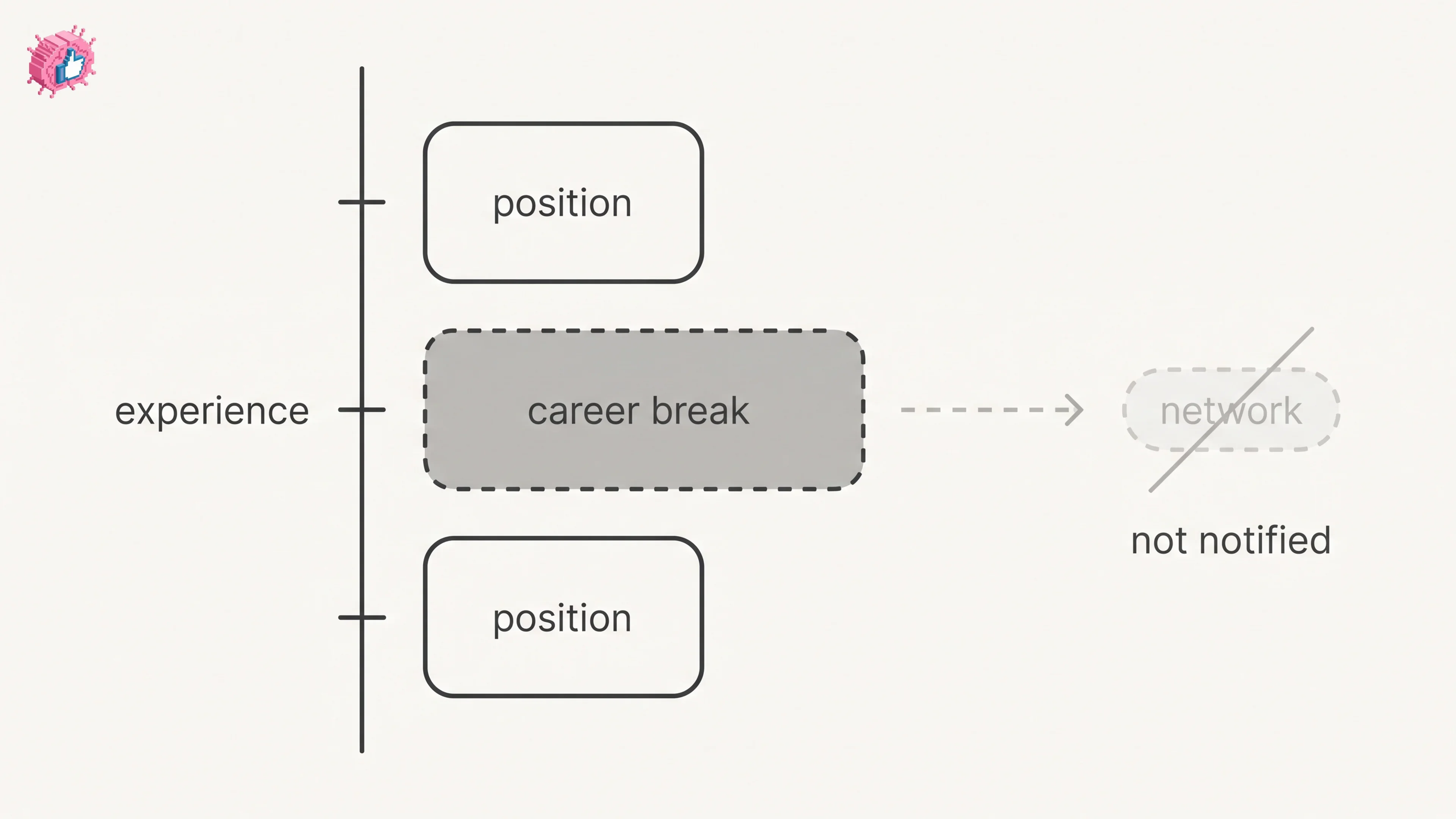
LinkedIn Career Break: How to Add One and Who Sees It
Add a career break on LinkedIn desktop or the app. Your network is not notified, the type is optional, and signed-in members see it. From LinkedIn Help.
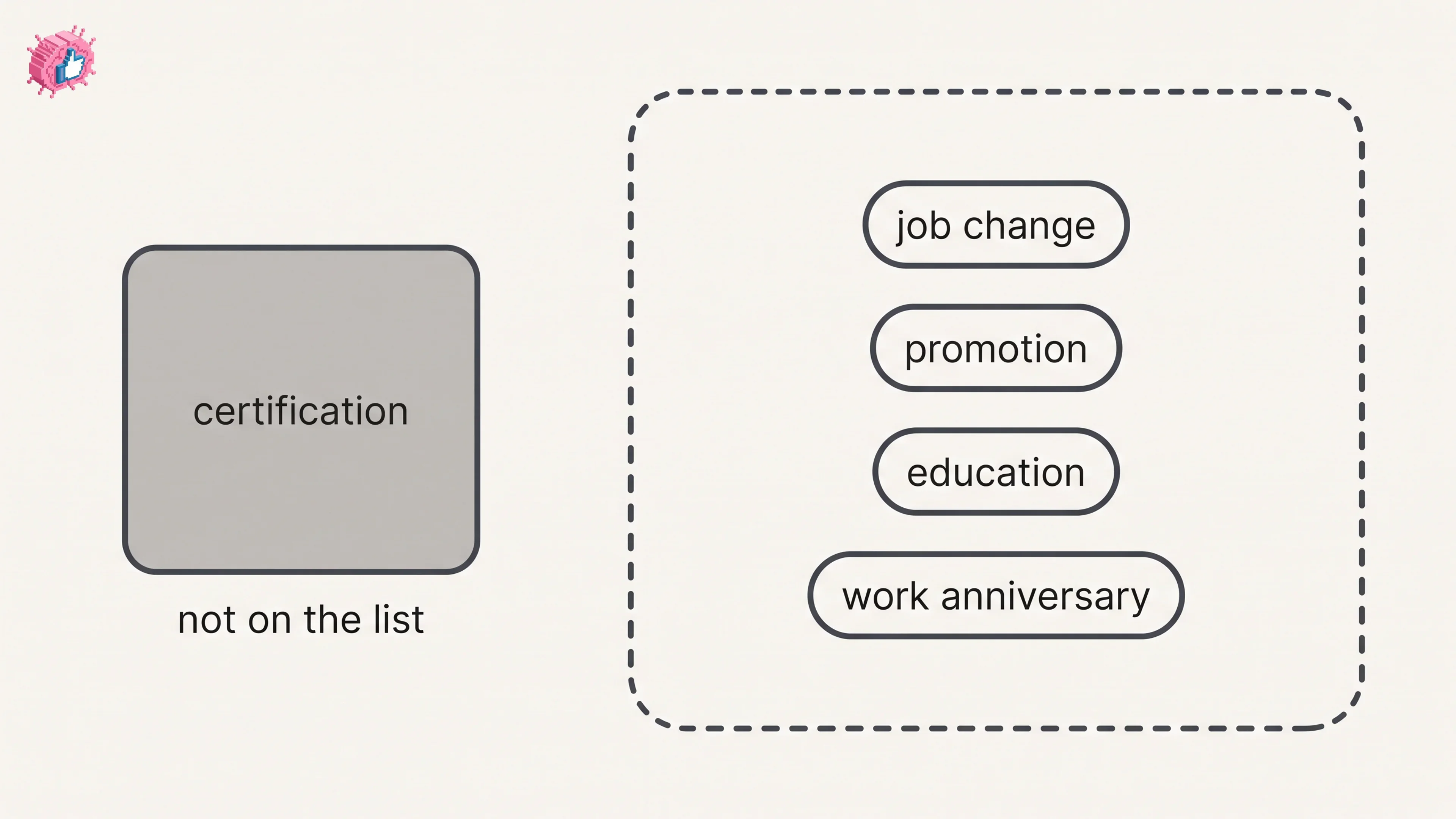
How to Add a Certification to LinkedIn Without Posting
Add a certification on LinkedIn desktop or the app, put credentials after your name, and see what LinkedIn documents about notifying your network.
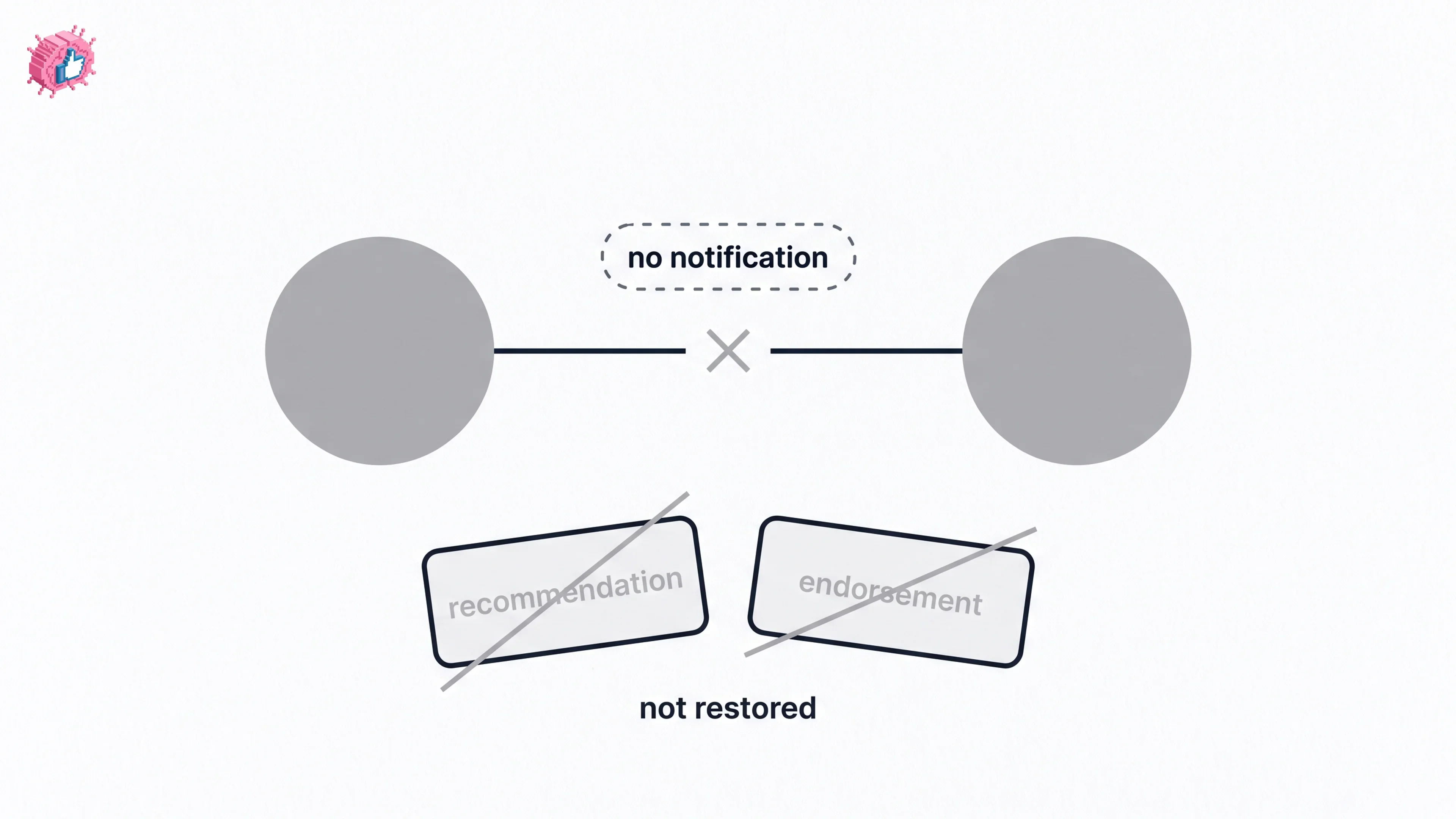
How to Remove a Connection on LinkedIn: What It Erases
Remove a LinkedIn connection on desktop or the app. They are not notified, but recommendations and endorsements go for good. Steps from LinkedIn Help.