

How to Schedule LinkedIn Posts (Free + With Tools, 2026)
Learn how to schedule LinkedIn posts for free using the native scheduler, its limits, and when a LinkedIn post scheduler tool saves hours. Step-by-step 2026 guide.
You can schedule LinkedIn posts natively, for free, without any third-party tool. LinkedIn added a built-in scheduler in 2023, and most creators still don't know it exists. If you're posting live every morning, you're doing the hardest version of consistency for no reason.
But native scheduling has real limits. There's no bulk queue, no documented analytics tie-in, no way to auto-pick the best posting time, and the mobile flow is clunky. Those gaps are exactly why LinkedIn post scheduler tools exist.
This guide shows you how to schedule LinkedIn posts three ways: the free native scheduler (desktop and mobile, step by step), where it breaks down, and when a dedicated scheduling tool actually saves you hours. By the end you'll know precisely which method fits your posting volume, and how to stop deciding what to post every single morning.
Automate your LinkedIn for 30 days
Can you schedule posts on LinkedIn? (yes, natively and free)
Yes. LinkedIn has a native post scheduler built directly into the composer on both desktop and mobile. It's free, works on personal profiles and company pages, and lets you schedule a post up to roughly three months in advance.
The catch is scope. Native scheduling handles one post at a time. There's no bulk upload and no recommended-time engine. LinkedIn does document analytics for posts: its post analytics page says "As a LinkedIn member, you can access post analytics for individual posts including text posts, images, videos, events, polls, and articles," and its combined post analytics page says "All LinkedIn members have access to combined post analytics." Its Schedule posts page documents no analytics inside the scheduling queue. It's a "set this one post for later" feature, not a content operations system.
For a creator posting two or three times a week, native scheduling is often enough. For anyone running a real cadence (5+ posts a week, multiple accounts, or a team), the manual overhead adds up fast. We'll cover exactly when to make that jump below.
How to schedule LinkedIn posts natively (desktop, step by step)
Here's the free method on desktop. It takes about 30 seconds once you know where the clock icon is.
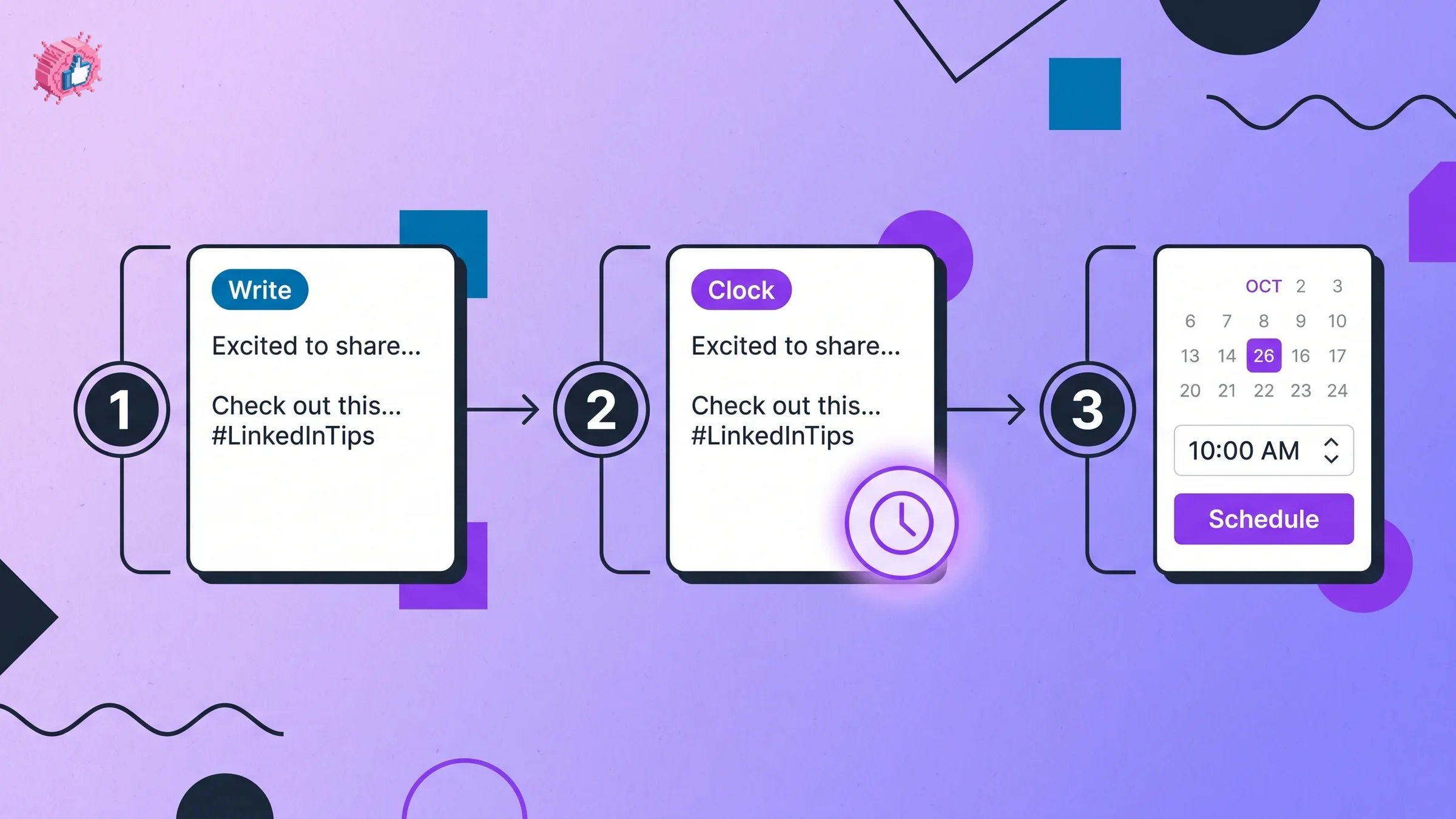
- Start a post. Click Start a post at the top of your LinkedIn feed to open the composer.
- Write your post. Draft your content, add media, tags, and hashtags exactly as you would for a live post. Format it first, before you move to the scheduling step.
- Click the clock icon. In the bottom-right of the composer, next to the Post button, click the small clock (Schedule) icon.
- Pick date and time. Choose your date and a time slot. LinkedIn documents the dropdown this way: "You can enter a specific time instead of selecting one of the 30-minute increments from the dropdown." It also states that "Scheduled times are converted to UTC based on your device's time zone settings."
- Confirm. Click Next, then Schedule. The button changes from "Post" to "Schedule."
- Manage it later. To edit or delete, click Start a post, then the clock icon, then View all scheduled posts. From there, the More icon on a queued post offers Modify schedule or Edit post, and the Delete icon removes it.
That's the entire free native flow. LinkedIn's Schedule posts page documents editing from the queue. Its Desktop tab says: "To edit or reschedule a scheduled post, view your scheduled posts, click the More icon in the upper right, and then click Modify schedule or Edit post." Its Mobile tab gives the same note with taps. The same page also carries a note saying "Once a post is scheduled, you can reschedule the publish time or delete the post", which names rescheduling and deleting but not editing, so the page words the capability two ways. Proofreading before you schedule is still the safer habit. Once a post has published, taking it down is a different flow from deleting it out of the queue: how to delete a post on LinkedIn covers it.
Before you queue anything, it helps to preview how the post will actually look in-feed, including the "see more" cutoff line. The free LinkedIn post preview tool renders your draft as a live mockup so you catch formatting breaks before they publish.
How to schedule LinkedIn posts on mobile
The mobile app supports scheduling too, though the icon placement differs slightly.
- Tap Post to open the composer in the LinkedIn app.
- Write and format your post.
- Tap the clock icon near the top-right (next to the Post button).
- Select your date and time, then tap Next.
- Tap Schedule to confirm.
To review mobile-scheduled posts, tap Post in the navigation bar, tap the clock icon, then tap View all. LinkedIn publishes the same queue notes under its Mobile tab as under Desktop, including deleting a scheduled post and tapping Modify schedule or Edit post from the More icon.
The limits of native LinkedIn scheduling
Native scheduling is genuinely useful, but it was built as a convenience feature, not a growth system. Here's where it stops.
| Capability | Native LinkedIn scheduler | Why it matters |
|---|---|---|
| Bulk queue / content calendar | No, one post at a time | You can't batch a week or month in one sitting |
| Recommended posting time | No, you pick manually | You guess instead of posting at peak reach windows |
| Analytics integration | Not documented in the queue | LinkedIn documents post analytics, but none inside the scheduling queue |
| Multiple accounts / team | No | Agencies and teams manage each profile separately |
| Content generation | No | You still write every post from a blank composer |
| First-comment scheduling | No | Can't pre-load the link-in-first-comment tactic |
The single biggest gap is the missing content calendar. Scheduling solves when to post, not what to post, and a queue is only as good as the LinkedIn post ideas going into it. Native scheduling makes each individual post easier, but it does nothing for the harder problem: deciding what to post across a whole month and keeping a steady rhythm. That's the problem that actually drives LinkedIn growth.
Consistency is the biggest variable in reach. Creators who post 3+ times per week see roughly 4x the impressions of creators who post once a week, and the algorithm rewards a steady cadence with progressively wider distribution. We break the mechanics down in the LinkedIn algorithm guide. Native scheduling helps you ship one post. It doesn't help you build the 30-post system behind it.
Automate your LinkedIn for 30 days
When to use a LinkedIn post scheduler tool
Use the free native scheduler if you post occasionally, run a single account, and don't need batching or analytics tied to your scheduler. It covers the basics with zero cost.
Move to a dedicated LinkedIn post scheduler when any of these are true:
- You post 5 or more times a week and batch-drafting into a queue would save real time
- You want posts to auto-publish at your audience's best-performing time windows
- You manage multiple profiles or a team and need one dashboard
- You want scheduling tied to analytics so you can see what actually worked
- You're still writing every post from scratch and want generation plus scheduling in one place
The jump from "scheduling one post" to "operating a content calendar" is where tools earn their keep. Batch-drafting plus auto-scheduling typically saves 5 to 7 hours per week once you account for ideation, drafting, formatting, and the daily "what should I post" tax.
If you want to compare the main options side by side (native LinkedIn, Buffer, Hootsuite, Taplio, ViralBrain, and more), the best LinkedIn scheduling tools roundup breaks down features and pricing, and the LinkedIn scheduling tools collection groups them by use case so you can shortlist fast. If you are weighing a voice-matched writer against a plain scheduler, the ViralBrain vs Buffer and ViralBrain vs Hootsuite comparisons cover that choice directly.
How to schedule LinkedIn posts with ViralBrain (generation + calendar)
Most scheduling tools stop at the queue: you still write every post yourself, then slot it into a calendar. ViralBrain closes the loop by handling both the writing and the scheduling.
Step 1: Generate the post. Instead of staring at a blank composer, the LinkedIn post generator drafts posts in your voice using engagement patterns from ViralBrain's analysis of 30,360 LinkedIn posts from 968 active hero creators. Inside the app, the post creator turns a topic, article, or rough idea into a formatted, ready-to-schedule draft.
Step 2: Drop it into the calendar. ViralBrain's content calendar auto-builds a weekly grid, schedules your posts, and publishes each one at the optimal window for your audience, so you're not manually picking times or copy-pasting into LinkedIn every morning. The in-app calendar view shows your entire queue at a glance and lets you rebalance the week in seconds.
Step 3: Time it right. If you'd rather set times manually, the free best time to post on LinkedIn tool gives you a time-zone-aware posting window. In our dataset, weekday mornings between 8 and 11 AM in your audience's primary time zone are the safe band, with Wednesday around 9 AM the highest-density slot.
The difference from native scheduling is the whole workflow: you batch-generate 30 posts, the calendar schedules and auto-publishes them, and you approve instead of improvise. For the full month-planning method, follow the LinkedIn content calendar guide, which walks through pillars, hooks, and a free weekly template.
Native vs tools: which scheduling method fits you
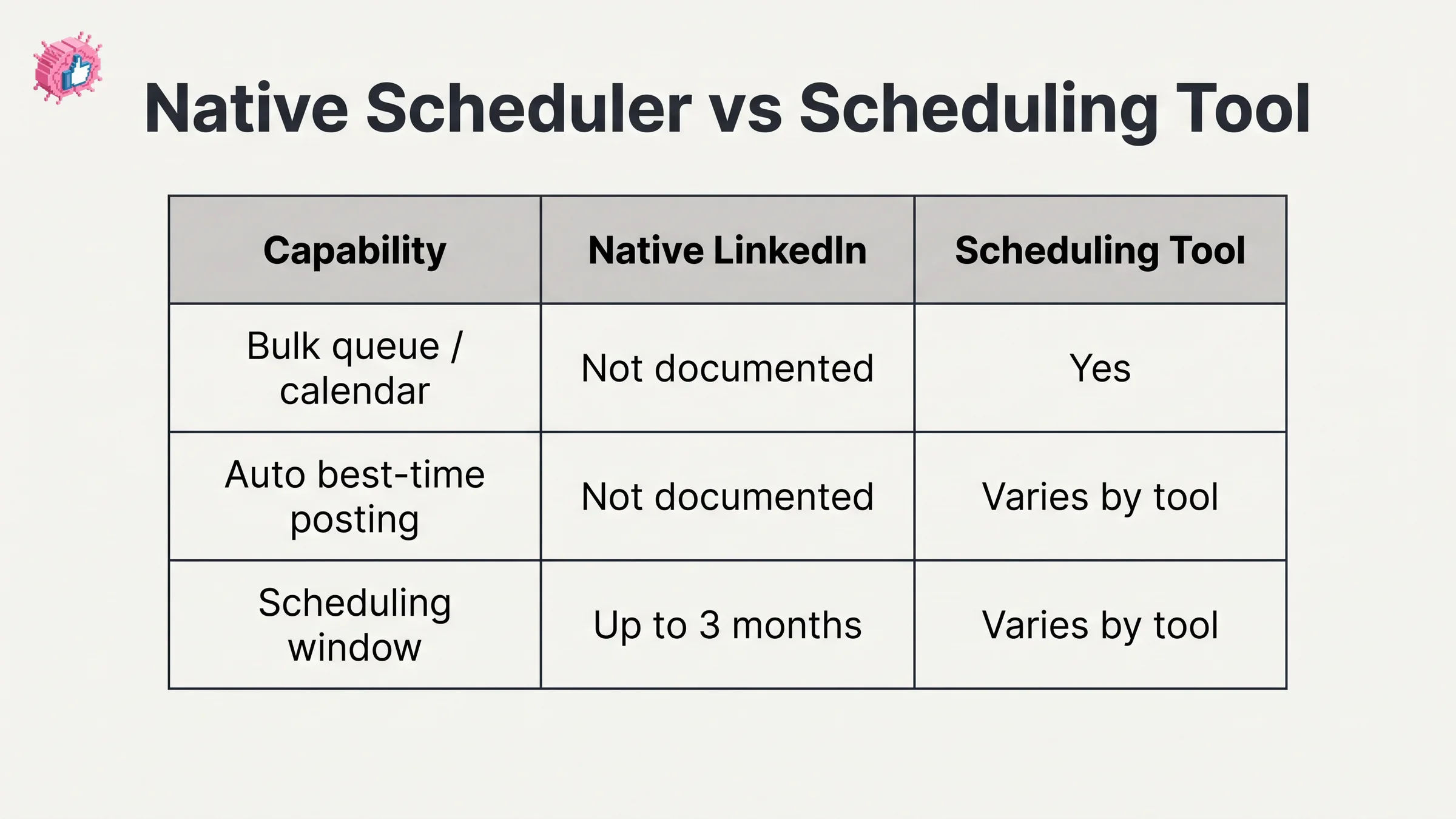
| Factor | Native LinkedIn | Buffer / Hootsuite | ViralBrain |
|---|---|---|---|
| Cost | Free | Paid tiers | €1 trial, then paid |
| Bulk queue / calendar | No | Yes | Yes |
| Auto best-time posting | No | Partial | Yes |
| Content generation | No | No | Yes |
| Analytics tie-in | Not documented | Yes | Yes |
| Best for | Light, occasional posting | Cross-platform teams | LinkedIn-first creators who want write + schedule in one |
The honest read: if you post twice a week and love writing live, native scheduling is all you need. If you're trying to build a consistent presence and the daily posting decision is what's stopping you, a tool that generates and schedules together removes the actual bottleneck. Compare plans on the ViralBrain pricing page.
What this means for you
- Try the free native scheduler this week. Draft three posts, queue them with the clock icon, and feel what batching does to your mornings. It costs nothing and takes 90 seconds per post.
- Proofread before you schedule. LinkedIn documents an Edit post option in the scheduled queue, but catching a break before it publishes is less work, so run the draft through the LinkedIn post preview first to catch the "see more" cutoff and any formatting breaks.
- Pick a fixed posting window. Don't schedule randomly. Use the best time to post on LinkedIn tool and lock a consistent slot so the algorithm learns your rhythm.
- Upgrade to a calendar once you hit 5 posts a week. That's the volume where manual native scheduling stops scaling. A content calendar that auto-schedules is the fix.
- Solve the writing bottleneck, not just the timing one. Scheduling an empty queue does nothing. Pair scheduling with generation so you're approving drafts, not producing them from scratch every day.
If you want the whole thing in one place, ViralBrain generates posts in your voice and auto-schedules 30 days at the optimal times for your audience. A 7-day trial for €1 is available.
Sources: LinkedIn algorithm guide, LinkedIn content strategy guide, LinkedIn Help: Schedule posts, Post analytics for your content, Combined post analytics (checked October 9, 2026), ViralBrain analysis of 30,360 LinkedIn posts from 968 active hero creators (May 2026 snapshot)
FAQ
Can you schedule posts on LinkedIn for free?
Yes. LinkedIn's native scheduler is built into the composer on desktop and mobile at no cost. Click the clock icon next to the Post button, choose a date and time, and confirm. It works on both personal profiles and company pages, and lets you schedule up to roughly three months ahead.
How do I schedule a LinkedIn post on desktop?
Start a post, write and format it, click the clock (Schedule) icon in the bottom-right of the composer, pick your date and time, then click Schedule. To manage queued posts, reopen the composer, click the clock icon, and select View all scheduled posts.
Can I edit a scheduled LinkedIn post?
Yes, per LinkedIn's Schedule posts page. Its Desktop tab says: "To edit or reschedule a scheduled post, view your scheduled posts, click the More icon in the upper right, and then click Modify schedule or Edit post." Its Mobile tab gives the same note with taps. A separate note on the same page mentions only rescheduling and deleting. Previewing the formatting before you schedule still saves the round trip.
How far in advance can I schedule LinkedIn posts?
LinkedIn's native scheduler lets you queue posts up to about three months in advance. Most third-party LinkedIn scheduling tools allow longer horizons and bulk scheduling of entire months at once.
What is the best LinkedIn post scheduler?
It depends on volume. For occasional posting, the free native scheduler is enough. For consistent publishing, a tool with a content calendar, auto best-time posting, and built-in generation removes more friction. See the best LinkedIn scheduling tools comparison for a side-by-side breakdown.
Does scheduling posts hurt LinkedIn reach?
No. There is no evidence that natively scheduled posts get less reach than live posts. The algorithm treats a scheduled post the same as a manual one once it publishes. What actually drives reach is consistency and posting at high-engagement windows, which is exactly what scheduling makes easier.
Can I schedule the first comment on a LinkedIn post?
Not with the native scheduler. LinkedIn's built-in tool only schedules the main post, not a follow-up comment. If the link-in-first-comment tactic matters to your workflow, you'll need a dedicated scheduling tool that supports it.
How much does a LinkedIn scheduling tool cost?
Native LinkedIn scheduling is free. Third-party schedulers range from free tiers to paid plans, depending on features like multi-account management, analytics, and content generation. ViralBrain includes scheduling plus content generation, with a 7-day trial for €1 available on the pricing page.
Automate your LinkedIn for 30 days
ViralBrain plans, writes, and schedules your LinkedIn content, using official LinkedIn APIs so your account stays safe.
- Official LinkedIn APIs, no risk of ban
- You approve every post before it goes live
- Cancel anytime
Keep reading
LinkedIn Two Step Verification: How to Turn It On and Off
LinkedIn documents it as two-factor authentication. How to turn it on and off on desktop and in the app, the two methods, and what to do if locked out.
How to Log Out of LinkedIn on Desktop and in the App
How to log out of LinkedIn on desktop, on iOS and on Android, how to sign out of other sessions or all devices, and what Keep me logged in changes.
How to Change Your LinkedIn Password
How to change your LinkedIn password on desktop, iOS, Android and a mobile browser, how to reset a forgotten one, and what the sign out control does.